A while ago I wrote an article that detailed:
Where to put data in Office 365
and in typical fashion, technology has now moved on. This means that I need to revisit the concept of where you should be putting inside Office 365.
We of course now need to remember that we have new locations like Microsoft Teams and Staffhub, as well as improved locations like Office 365 Groups to house our business data. So let my try and broadly explain the the data locations that are currently available to you in Office 365.

Let’s start by considering the two major types of data we have to deal with in today’s businesses. As the above slide shows, we can typically categorise data it shared and personal. Personal data is typically created and owned by a single user in the business. Personal data is also only shared between a handful of people at most. By contrast, shared data is data that is not owned by any single individual and typically needs to be seen across a wide wide audience.
You also typically tend to find that shared data is a much greater percentage of the overall amount of data as illustrated by the size of the bars above. From here on in, we’ll consider shared data locations being green and private data locations being blue. We will also consider shared data locations to be on the left while personal data locations will be on the right.
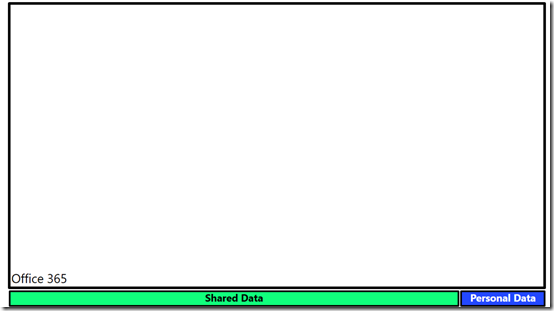
Office 365 provides us a location into which we can store all business data, whether shared or personal. It is the box into which everything will live, both shared and personal.
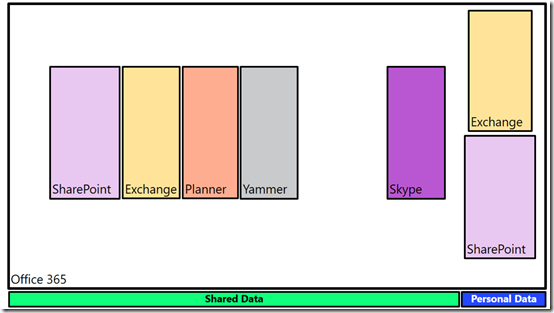
We store business data inside a number of serviceswithin Office 365. These include Exchange for emails, SharePoint for files, Planner for tasks, Yammer for social conversations and Skype for meetings.
You’ll notice that the majority of these services are designed for the storage of shared data, however both Exchange and SharePoint have the ability to store both shared and personal data. Thus, they appear twice in the above slide as locations in which we can store data.
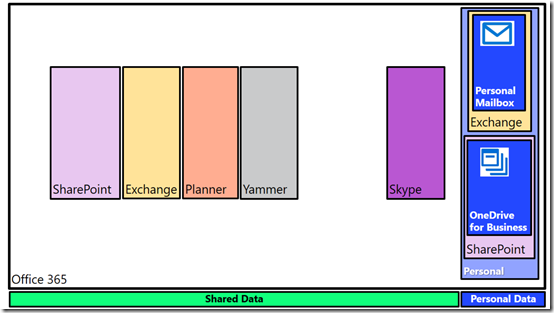
Into the personal data location for Exchange we place a users individual mailbox. This is designed for them to receive emails from outside the organisation and also typically from individuals inside the business. A personal mailbox is not a good location for generic email addresses like accounts@ or info@. It is designed for personal correspondence to and from an individual.
Likewise, SharePoint provides the OneDrive for Business location designed for a user’s personal files. These files are owned by the user and typically shared with a very small number of people. OneDrive for Business is NOT designed as a file server replacement, it is designed as repository for an individual users to store files they typically have on their desktop, on their local hard disk, or on an external USB drive or a home directory on a network.
Thus, Office 365, thanks to both Exchange and SharePoint, provide each and every licensed user a distinct location in which to save their own own personal information. Because that information is still within the Office 365 environment it remain secure and compliant as well as being easy to manage for the business owners.
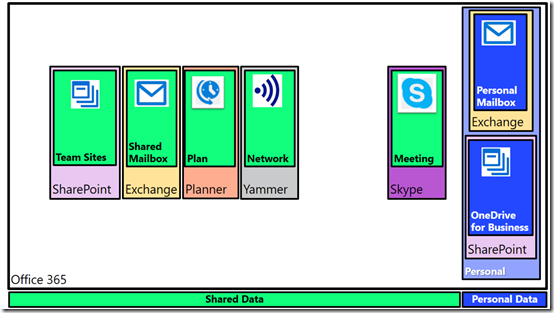
Now Exchange and SharePoint also provide locations to save shared data into. Exchange provides this via shared mailboxes. Best practice is for shared mailboxes to be things like info@, sales@, etc that may need to be shared between a number of people and will also persist beyond any individual currently performing that task.
Likewise, SharePoint provides Team Sites as a location to save information into that all people in the business can access. You can of course provide custom security around all shared Office 365 services as needed.
However now in this space of shared data in Office 365, you get additional locations to store your information. Services like Planner allow the organisation of tasks and schedules across a team. Yammer allows the business to get out of email and work in an enterprise social network. Not only does that reduce email overload for users but because information is shared publically, it makes it more searchable and shareable. Finally, Skype for Business allows people in the business to meet virtually. They can chat, conduct meetings, share desktops, whiteboards, files and more.
Each one of these shared locations can be used stand alone if desired. Thus, you can have a Team Site to fill a single need. Likewise, you can use Skype as a way of chatting to people. As I have written about before:
The modern way of collaboration
To get a job done these days, people need more than stand alone tools. They need all the power of the individual services that Office 365 provides but they need them rolled together in a single place that is easy to work with.
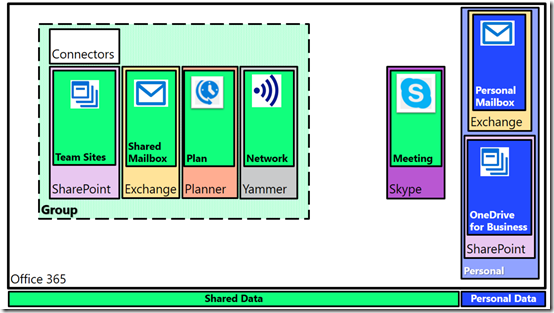
Enter Office 365 Groups. If you combine a SharePoint Team Site, an Exchange shared mailbox, a Planner plan and a Yammer network you get an Office 365 Group. However, an Office 365 Group also provides you with an additional service, called ‘Connectors’, that allows you to bring information from services outside your business (i.e. Facebook, Twitter and more) directly into the Office 365 Group.
You can create as many Office 365 Groups as you need and when you do each one will get its own dedicated SharePoint Team Site, Exchange shared mailbox, Planner plan and Yammer network. You can also still have each service stand alone, like a stand alone Team Site, but each Office 365 Group you create automatically provisions all the individual services inside it and links them together.
Why might you still need a stand alone service like a Team Site? Maybe you just want a single location to put all your brochures for people to sent to customers. That function might not need email or plans or chat, so you simply provision a stand alone Team Site to perform that function. However, when the people who create those brochures need to actually collaborate, then an Office 365 Group makes sense and you can mix and match as needed.
Again, it is totally up to you how and when you use these services. You may choose to only use stand alone services and no Groups. Likewise, you may choose to only use Groups. The choice if yours. That’s the flexibility Office 365 provides
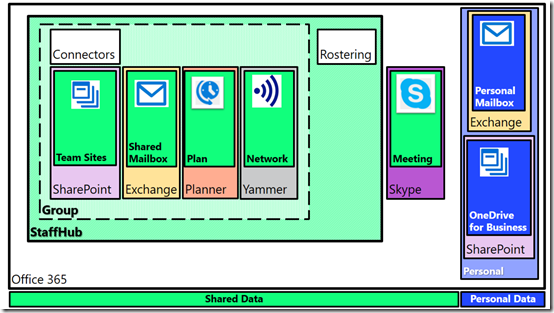
If we now take an Office 365 group and add a Rostering service we get Staffhub. So when you create a new Staffhub for your business to manage rostering and employee times you also get a dedicated SharePoint Team Site, Exchange mailbox, Planner plan, and Yammer network. Do you have to use them all? Of course not, but they are provisioned automatically for you when you create a Staffhub because chances are that you will find use for the services.
Imagine you need to create a roster for your business. You will also probably need to share documents with your staff about their duties. That’s where the SharePoint Team Site fits in. There also probably be the need for staff to chat about their work. That’s where Yammer comes in. Hopefully, you get the idea here is that when you create a Staffhub or Office 365 Group Microsoft automatically gives you a range of stand alone services integrated together because the chances are you’ll find a need for them. It’s bundling at its best!
Again, you don’t need to use them all immediately, but they are there from the start, ready for your to use, whenever you need.
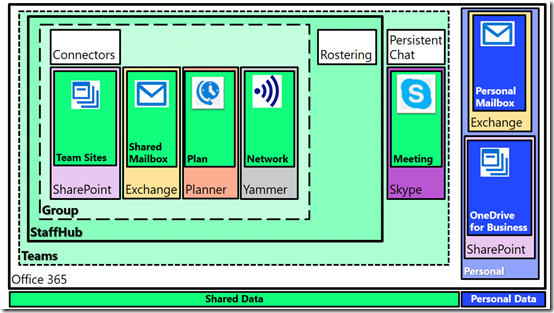
Finally, if we ingrate Skype for Business and add persistent chat to our Staffhub resources (that were a superset of Office 365 Group resources) we get a Microsoft Team.
As with Staffhub, when you create a new Microsoft Team you get everything Staffhub provided plus additional integrated services. If all you want to use is persistent chat then you can use that but again, chances are you are going to need more options down the track so they are automatically provisioned for you.
Everything in Office 365 is built on core services like Exchange for email, SharePoint for files and Skype for Business for communications. You can use each of these services stand alone or you can combine them together in an Office 365 Group, a Staffhub or Microsoft Team.
Of course, there is more planning involved than what I have laid out here when it comes to collaboration but I hope that I’ve made things a bit clearer and shown you all the options Office 365 provides you for storing your information. The trend today is certainly to provisioning something like a Microsoft Team first to give you everything you want immediately, even if you don’t use it all. However, the choice is yours. Go with a single service or go with them all. Do what makes the most sense for your business today and don’t too much about what will happen down the track as you can easily scale up into all the options that Office 365 provides, because typically, you’ll find that what you want is already provisioned thanks to Office 365 Groups, Staffhub and Microsoft Teams.



 CIAOPS