A very common request I see out there is people wanting to ensure that a person who receives an email does so securely and can’t forward it to others. That is a little tough given the way the standard email protocol was designed and implemented.
To provide an enhanced level of security with its Office 365 service Microsoft has recently announced that it will be shortly introducing email message encryption. if you want to see how it will work then check out this blog post.
http://blogs.office.com/b/office365tech/archive/2013/11/21/introducing-office-365-message-encryption-send-encrypted-emails-to-anyone.aspx
The great thing about this is that you’ll be able to send encrypted mail to anyone! That is certainly going to fill a major need these days as well as make a real point of differentiation for Office 365.
We’ll have to wait until early next year until it becomes available and the good news is that E3 and E4 plans will automatically receive it. It will also be available as an option with other plans but in the long run I see it becoming part of the standard Office 365 offering for all plans.
Tag: Security
Bad guys just keep winning
The number of incidents I am seeing of people being infected with the Cryptolocker continues to escalate. Now before I launch into this rant here is information about the nasty:
http://blog.malwarebytes.org/intelligence/2013/10/cryptolocker-ransomware-what-you-need-to-know/
so you have been warned.
But how the hell can this be happening? How the hell can these sorts of things still get through and cause mayhem and destruction? Having lived through Nimda, Code Red, Melissa, Conficker and more, why is this all happening over and over again? Simple, technology is making it easier for the bad guys not harder. Am I the only one who acknowledges this fact?
I have written many, many times about how vulnerable society has become by creating such a dependence on technology. For example:
here – https://blog.ciaops.com/2013/03/a-gift-for-hackers.html
here – https://blog.ciaops.com/2008/07/why-bad-guys-will-always-win.html
here – https://blog.ciaops.com/2008/08/the-bad-guys-win-again.html
and here – https://blog.ciaops.com/2009/08/bad-guys-win-again-part-iv.html
but to name just a few.
And yet, the world seems to be again brought to its knees by a clever piece of code that is able to slip past all the ‘so-called’ filters, scanners, protection mechanisms and what not that are supposedly put in place. How is that? How can people still be clicking links and attachments they know nothing about? And why is everyone paying so much for what seems like so little protection? Is all this supposed ‘security’ actually making things worse by providing people with a false sense of security?
Simple, the weakest link is the wet-ware behind the keyboard (i.e the human being). People simple don’t have any concept of the security risk they face on ANY device that is connected to the Internet or that receives email. And you know what? That is just about every single technology device we have today. EVERY SINGLE ONE. What is being to educate people about IT security. Not much from what I can see. That is the REAL problem here.
The modern world continues to place its unmitigated faith in the march of technology, obvious to the underlying risks and fragility it is creating. It also lives with this naive assumption that whatever is done on the Internet is also anonymous. They likewise jump up and down when they find out that the NSA is monitoring email traffic. Like DUH, emails have ALWAYS been sent in the clear so ANYONE could read them, DUH. It demonstrates how removed from technology the average person is. They happily use technology but have no IDEA how it works. That is always a dangerous recipe.
It makes NO difference where your information is. In your Office or in the cloud, if you are connected to the Internet you are vulnerable, full stop. The problem is others are also on the Internet so if you get infected then there’s a chance you’ll infect them. We are now more than ever all connected together and what happens in one place can have a huge impact thousands of miles away INSTANTANEOULSY.
To me most of this anti virus software and filtering is a complete and utter waste of time. Don’t get me wrong, I have a certain set of tools and programs I use but my main weapon to remain secure is to concentrate on scaring the crap out of everyone I know (especially my family), constantly reinforcing what maladies will befall them if they click on something they shouldn’t. Does that make them paranoid? You bet it does, but you know what? I am pretty sure none of them are going to get infected with this latest virus because they are more scared of me than this virus. Sometimes that’s what you gotta do keep people secure.
So what’s the point of this post? Firstly, it is to express my utter disbelieve in the existing security ‘industry’ that charges users billions of dollars every year and yet somehow fails to protect them. Is the problem the software or those charged with maintaining them? Hmmm… I could go on but secondly, it is to say that these problems are only going to continue because we are not dealing with the root cause – the idiots who click on unknown attachments and files sent to them. Here’s my golden IT security rules for idiots that MUST be followed under pain of death:
1. Backup, backup, backup. That’s not being repetitive it means back your stuff up at least 3 times.
2. If it seems too good to be true then it is. That means, that if there is any doubt then there should be no doubt.
3. If you don’t know, then ask.
I long for the day when society takes IT security seriously and develops solutions to EDUCATE people on how they vulnerable they really are every time they access the Internet. Am I being paranoid, I sure am, because you know why? Only the paranoid survive when it comes to security. I’m paranoid and I’m proud of it. That is why the machines I look after don’t get infected. Sure, there is never 100% surety when it comes to dealing with human beings but you know what? Paranoia goes a lot further in my books than most of this other ‘so called’ protection I see out there today.
Sharing of infected files
In my last post I noted how Office 365 prevents you from uploading infected files. I got to wondering what happens when the other file sharing services try and share an infected file.
If I try and attach an infected file directly from my local machine to an email in Google Apps it is detected as shown above, which is good, and prevents that file being attached.
But since I can also attach from Google Drive as well, I can attach the infected file (since I can upload into Google Drive as my last post highlighted). This is not good.
Now you’ll see that with Google Apps the attachment is really shared via a link rather than attaching the actual file from what I see. Any email system worth its salt will detect and quarantine an attachment that contains a virus, so let’s just eliminate from our considerations. But, if instead I send a link to an infected document what happens? I know the email will reach the users (because it isn’t infected).
So here’s what the user sees. If I click the link to the file I see:
Now if I try and download I get:
That’s good, but remember here I am dealing with a .com file that includes a virus.
So let’s assume I am a little more cunning in my attempts to infect a user I place the infected file inside a ZIP archive. What happens?
As you see, Dropbox allows me to send a public link to the encrypted file where anyone can download it. This means that your only defence typically here is now the local anti virus software which we know all users always keep up to date right? (if you believe that then you live in world of unicorns, leprechauns and perpetual rainbows). Not good!
Now if I share the same ZIP file using Google Drive and attempt to download it from the File menu.
It is blocked like before which is good, BUT look at this:
If I download it from the drop down option at the end of the file
It downloads! Not good, especially give this the default that users see when they view the link provided. I also find it strange that one way you get one result (i.e. blocked file) while the other way you don’t. Strange.
So what’s the moral here? Best bet is don’t let the file get up to file sharing platform in first place, which is why I reckon Office 365 is a much better bet when you start digging into what can happen as I have done briefly here.
All file sharing systems are not created equal.
SkyDrive Pro includes anti virus protection
I’m seeing a lot of people out there getting hit with all sorts of viruses coming through file sharing programs because you know what? They simply don’t provide any protection but they are really easy to use.
For example when I upload the eicar antivirus test file to Dropbox look what happens:
Dropbox allows the file to be uploaded and stored. Now, if a user opens this file they run the risk of being infected.
So what happens if you attempt the same thing with Google Apps? Guess what? It also let’s the virus be uploaded and stored.
This highlights how great most file sharing applications are a virus delivery mechanisms now doesn’t it?
However, when we come to Office 365 SkyDrive Pro and SharePoint we receive the above notification telling us that our file is infected and won’t be uploaded! Now that’s protection.
Viruses and malware are so much a part of todays landscape, problem is, so are easy file sharing utilities. Most of these file sharing utilities don’t even do the most basic security checks to ensure the files uploaded are clean. Office 365 is different. It is is protected by Forefront Protection for email, SharePoint and SkyDrive Pro. To my mind that makes it some much better than the alternatives, because it automatically protects users.
If you want to understand the difference between file sharing options and Office 365 then look no further than inbuilt virus and malware protection. When I pay for a file sharing and collaboration solution I want the one with built in security. That is Office 365 and SkyDrive Pro.
Restore, restore, restore
I recently wrote a blog post highlighting the fact that too few ordinary businesses and users perform adequate backups. However, backing up your information is really only half of what you should be doing. To give yourself 100% certainty of your backups you actually need to restore them.
I can’t tell you the amount of times that I have come across people who religiously backup but when they need to actually restore data they can’t for some reason. The most likely reason is because the media is corrupted however I have even seen a case where a company was religiously backing up to write protected tapes. Since all they ever did was change the tape daily and never check the log they effectively had no backups when they needed them. The sad thing is that they thought they were doing the right thing! (certainly not the “write” thing).
So restoring backed up data is just as important because you don’t want to find you have issues when you are relying on your backups to get you out of a disaster. In theory you should of course perform a complete disaster recovery so you know you can do it when the chips are down. At the very least, you should be running smaller test restores regularly to reduce the chances of issues developing.
Now that is all well and good but what happens if you are using the cloud as a backup? What happens when you are using a large provider to maintain your backups? What happens if you are paying someone else to perform your backups? I would still again say restore, restore, restore. You need to be 100% confident that YOU and you alone can recover your data if needed. That means that if you are not 100% comfortable with a third party doing it for you then you need to take additional steps to ensure you can.
This may mean that you need to do your own data backup if your information is stored in the cloud. Remember, the rule of thumb is 3-2-1.
– 3 copies of the data including the original
– 2 different media types for backed up information
– 1 backup off site
Now if you are using a hosted service, I wouldn’t be waiting until you need to recover information, I’d be testing the whole restore process beforehand. In most cases this means logging a ticket with the service provider to complete the recovery. In most cases, this means that the restore process is now out of your control. You simply have to wait until it is completed. How long will that take? You’ll never know until you asked to have something restore now will you? Again, do it as test before you actually need to restore something and document the process so you know.
You also need to be aware of what can actually be restored. In the case of something like SharePoint Online the only current option is a complete site collection restoration over the top of the existing information as detailed here:
http://blogs.technet.com/b/akieft/archive/2012/01/09/restore-options-in-sharepoint-online.aspx
That means that if all you want restored is a single file then you can’t achieve that without overwriting the complete site collection.
SharePoint Online was plenty of other recovery options such as the recycle bin which alleviates this issue BUT what it highlights is that there are limits on what hosting providers can restore. My question for you is, if you are using a cloud provider do you KNOW what the restoration process is? If you don’t then you should.
To be truly secure with cloud providers you are probably going to have to set up some sort of manual or third party back up of your data and that can be difficult, especially given the volume of data most people are pushing up to the cloud. Most connections won’t allow your to suck everything down to a local hard disk over night, so what do you do?
This is where a hybrid approach makes sense. If you use a desktop application like Outlook for you emails then a local copy of your inbox is stored on your workstation. This at least allows you to work ‘off line’ and get to the data locally. If you only accessed your emails via a web browser then you may not be able to get access to it in the event of a disaster.
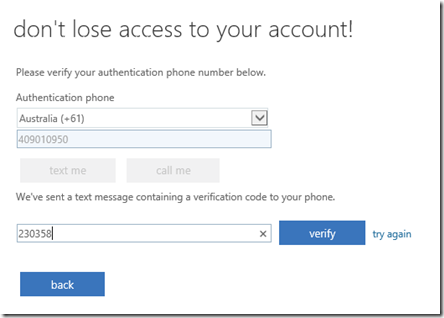
Office programs like SkyDrive Pro, SkyDrive, OneNote, etc allow you to retain local copies of your data on multiple devices automatically. These features are more designed for convenience that pure backup, however the certainly provide this functionality as an important side benefit. If you accessed everything only via your browser then you may not have that luxury in the event of a disaster. My questions are, do you know what can be restored if needed from the cloud? Then, how can it be restored? Then, how long will it take?
No matter whether you use hosted providers or on premise equipment you need to be able to restore your data when required. You need to understand how long this will typically take and what you can and can’t restore. You and ONLY you are responsible for the security of your data. Therefore you NEED to take responsibility for it NOW and ensure you can restore it if needed.
You have been warned. Because remember, it isn’t a matter of IF you need to recover data, it is WHEN you need to recover data, because NO ONE is immune from disaster.
Backup, backup, backup
This is a community service announcement to EVERYONE out there who isn’t backing up their technology. Why I am going over something as basic as backup? Again? Because I have again been called into assist recover someone’s machine that wouldn’t boot (even though I haven’t worked with hardware for years). Of course, no backups where available and “everything” on the machine was vital!
In most cases it would probably be easier to walk away from these types of jobs but sometimes relationships overwrite logic. Of course the machine in question came with no further information to assist in the troubleshooting process. Which version of Windows did it run? (Vista Home Premium as it turned out), where is the data that needs to recovered? (on the desktop as it turned out) and so on.
What most non IT people fail to realize is that recovering from these situations is not straight forward and can take a lot of time. In this case, I took a backup image of the machine before commencing work. I then had to troubleshoot non booting issues. Then I had to locate and create suitable Windows boot DVDs to allow recovery. Finally I had to repair the problem so the system could boot. I also had to locate the gigabytes and gigabytes of ‘important’ information and copy it onto an external USB disk, just in case the laptop had further problems during its return transit.
All in all I probably spent about 8+ hours in total recovering the laptop and backing up the information. The user was very pleased about get their information back and they have been sternly warned that this is the one and only time they get a free pass on this. Their question to me is ‘how do I backup?’ and you know what I don’t know how best to answer that.
I appreciate that there are myriad of ways to backup but if I am being asked about ‘how to backup’ is there any real chance that a user is going to be able to install and configure something successfully? Probably not. So the best bet is either probably just to copy the desired files to a USB disk (which I suggested here) or install some sort of cloud based backup service. But again here the choice becomes complex for users. Which one? How much does it cost? How can I get my data back? See what I mean?
So yes backup is critical for any digital system but you know what? If you don’t know how to backup yourself then you need to find someone to help. This is not unlike taking your car to a mechanic, unfortunately I don’t think technology has gotten any simpler for most people even when it comes to something as essential as backup.
Troy Hunt on security–again!
Troy Hunt has featured on a recent Four Corners episode – In Google We Trust.
http://www.abc.net.au/4corners/stories/2013/09/09/3842009.htm
For those that may not know Troy has also done a podcast with me as well as been part of the CIAOPS Virtual Technology Group where he did a presentation on web security that is available on my YouTube channel here:
https://www.youtube.com/watch?v=bxu5qYCtv1s
This Four Corners episode is a good watch and reveals how widespread tracking is now becoming. From traffic lights and garbage bins to shopping centres, if you carry you mobile phone with you MUST assume you are being tracked constantly.
Whether tracking is a good or a bad thing is up to you. It can certainly provide you with more targeting offerings but the big question is what happens to that data and what would happen if it is abused?
Clearly the biggest consideration is that people need to far more aware of the how they are being tracked and be far more proactive in asking questions about how their data is being used.
Again, a great program and I commend it to everyone.
Eagle Tech Genius Podcast
Thanks to Peter Moriarty from IT Genius, I was a recent participant on the Eagle Tech Genius podcast last Thursday the 15th of August 2013. You can find a recording of the episode at:
http://eaglewavesradio.com.au/2013/08/eagle-tech-genius-15-august-2013/
In the episode I spoke about the challenges of IT security as well a key differentiator between Google Apps and Office 365 (which I’ll do a separate upcoming blog post on).
I feature in the first part of the show but I encourage you to listen to the whole episode for some other great information for businesses.
Once again, many thanks to Peter for inviting me on and I hope to be able to come back and share more information with listeners.