Example of Office 365 ATP Safe Links in action

image

The above is a very typical example of a phishing email. You’ll notice when you mouse over the link in the email it wants to re-directed you to a non-descript and malicious (non-Office 365) link.
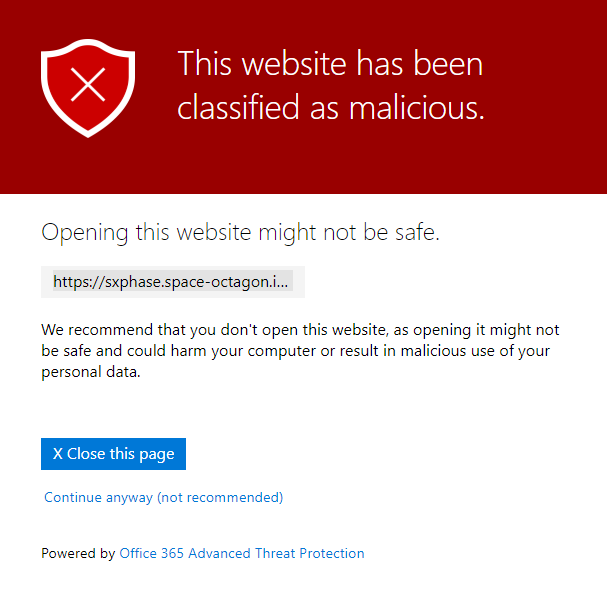
image

Now, because I’ve configured Office 365 ATP (Advanced Threat Protection) Safe Links in my tenant, when I do click that link in the email I am taken to the above page that warns me that this is bad.
image

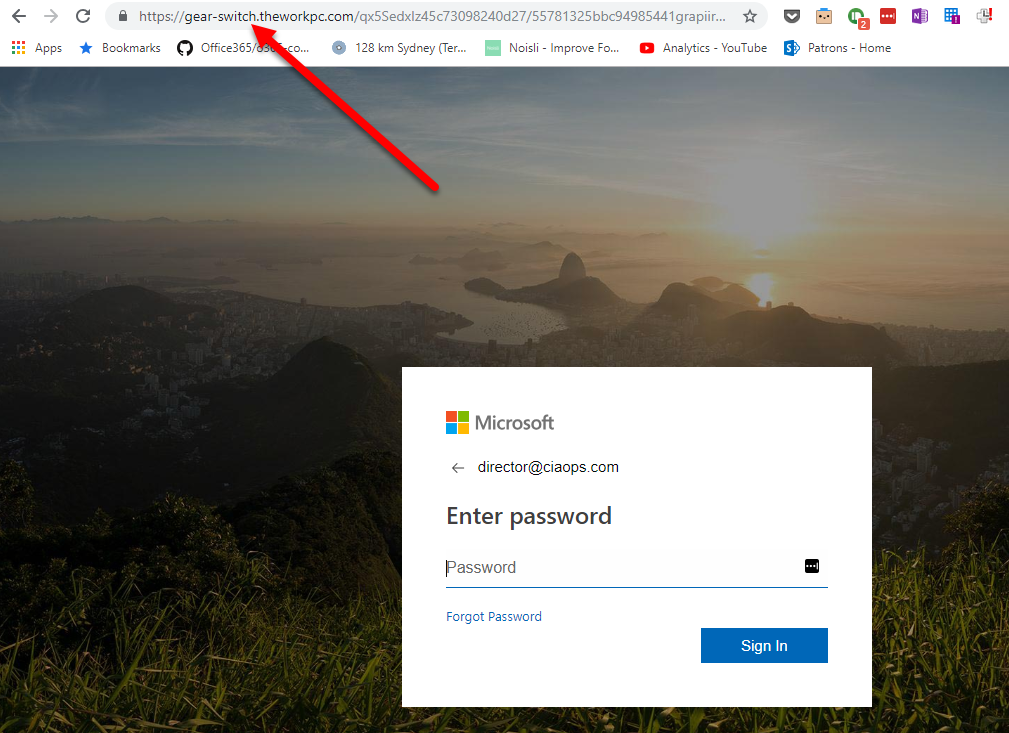
Because I have configured my own Office 365 ATP Safe Links to allow click past this warning just for myself, if I continue on to the ultimate destination page, I see something that looks like a very convincing default Office 365 login page, with my email address already filled in. The idea is, I type my password, thinking this is legitimate and then bingo, I’m phished.

You will also notice that the ultimate URL is also different from the one in the initial email. An attempt to hide the attack using redirection.
image

So let’s see how effective Office 365 ATP Safe Links is at detecting these kinds of attacks compared to other vendors.

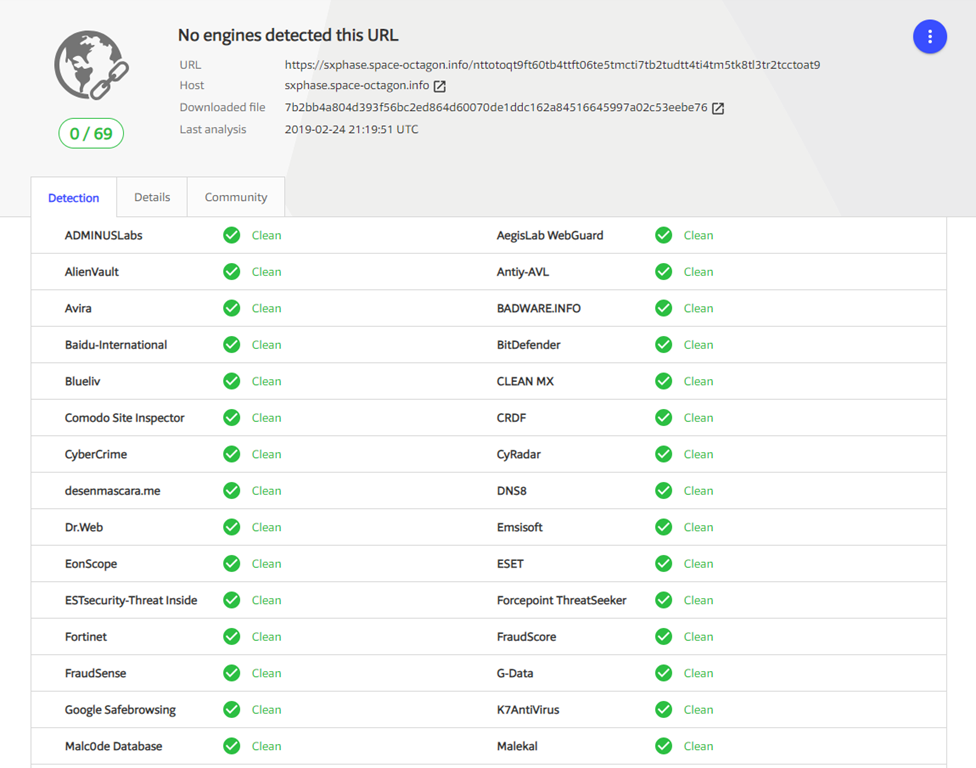
If I plug the initial URL, that was contained in the email, into Virustotal.com I see the above report. None, yes that is zero, of the third party AV providers have detected this initial link to be a malicious link as yet. Not even Google Safebrowsing! Of course, Office 365 ATP did detect it as malicious if you are keeping score.
image

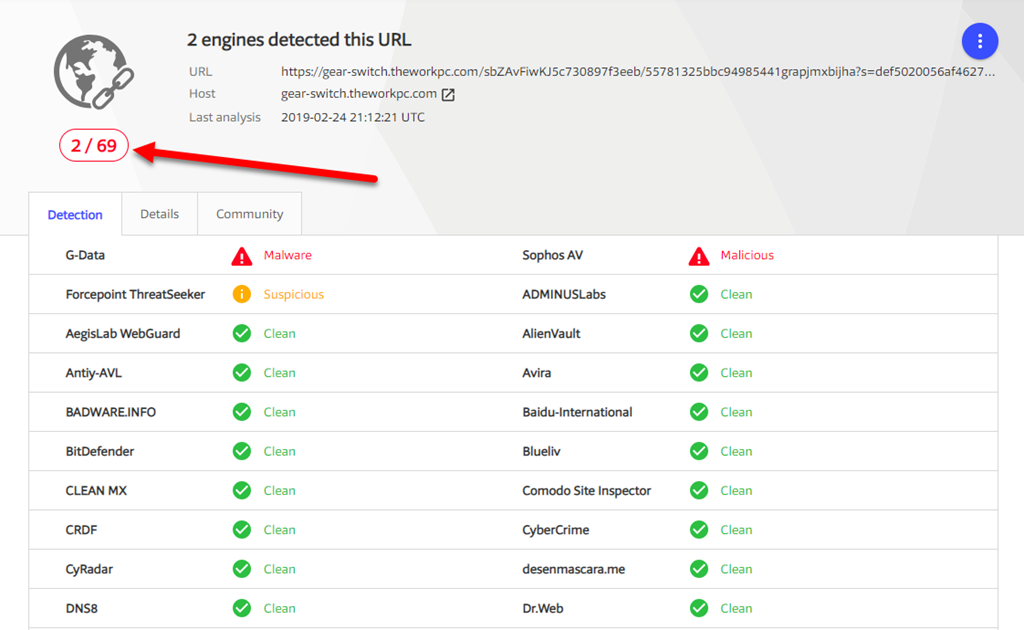
If I now plug in the ultimate destination URL of the attack I do see some confirmation from other vendors that the site is malicious. However, only 2 of 69 vendors (i.e. only about 3%) also rate that link as malicious.

So Office 365 ATP Safe Links was able to identify this link as malicious and potentially block user access (with appropriate configuration). Few other vendors have yet even detected it to be an issue at this stage. That makes Office 365 ATP quite pro-active.

We all know that there are no absolutes in security and no system is ever perfect. However, given the size of the signals coming into Office 365 in regards to threats, their ability to provide early warning is as good or if not better that anything else out there on the market today in my opinion. This is why I recommend Office 365 ATP as a ‘must have’ for all Office 365 tenants. If you have Microsoft 365 Business today, you already have Office 365 ATP. So make sure it is correctly configured and you should feel much more comfortable about the reduced risk you face from phishing.

Need to Know podcast–Episode 202

The Microsoft Ignite tour has been to town so Brenton and I share our thoughts on attending the event. We wrap up what we believed to be the best sessions and overall take aways from the premier Microsoft IT Professional conference in Australia for 2019. We also cover off a few of the important updates from the Microsoft Cloud to make sure that you don’t miss anything in the meantime. I also share my thoughts on using the Kaizala app during the conference with the CIAOPS Patron community which is great lead in for our interview this episode – Parveen Maloo who is the Senior Product Marketing Manager for Kaizala. Sit back and enjoy something about a product you probably never knew Microsoft had.

Take a listen and let us know what you think – feedback@needtoknow.cloud

You can listen directly to this episode at:

https://ciaops.podbean.com/e/episode-202-kaizala/

Subscribe via iTunes at:

https://itunes.apple.com/au/podcast/ciaops-need-to-know-podcasts/id406891445?mt=2

The podcast is also available on Stitcher at:

http://www.stitcher.com/podcast/ciaops/need-to-know-podcast?refid=stpr

Don’t forget to give the show a rating as well as send us any feedback or suggestions you may have for the show.

Resources

@contactbrenton

@directorcia

@praveen_maloo

CIAOPS Patron Program

BRK3610 – Layers of Office 365 communication

Sessions from Ignite The Tour – Sydney

Step 4: Set conditional access policies: top 10 actions to secure your environment

Microsoft authenticator app now sends security notifications

Windows Update for Business and the retirement of SAC-T 

Microsoft begs you to stop using Internet Explorer 

Microsoft Kaizala

Microsoft Kaizala – Tech Community

Microsoft Kaizala – Feedback

Adding Acrobat Reader as an Allowed app

When you set up an Intune App Protection Policy for Windows 10 you are effectively enabling Windows Information Protection (WIP). This is designed to protect your business information being shared with non-business approved applications. This means there are a range of standard business ‘approved’ applications that are enabled by default. These are typically ‘enlightened’ apps that can differentiate between corporate and personal data. This allows them to abide by the policies set in the Intune App Protection policy you create. Applications that are not ‘enlightened’ are typically blocked from working with corporate data.

In a previous article:

Intune App Protection Policy blocking browser

I detailed how this could affect third party, non-Microsoft browsers, like Chrome, accessing the Internet. That article, also showed you how to easily overcome that issue with some minor configuration changes.

In this article I’ll look another way that ‘non-enlightened’ apps get blocked and how you can easily enable them.

image

So, let’s say that you have created an Intune Windows 10 App Protection policy like that shown above. When you do you configure a number of Protected apps as you can see. Typically, these a Microsoft products like Office, Internet Explorer, Edge and so on.

image

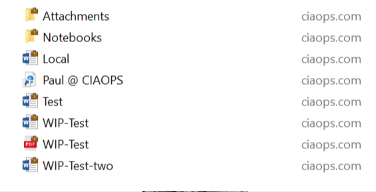
With that default protection policy successfully applied to a Windows 10 machine you can then see the data identified as personal or business on that machine now. The above shows you some files in OneDrive for Business, which is considered a business location. You can tell they are business files by the little brief case in the upper right of the file icon. Thus, all these files are considered to be business and are protected by WIP.

image

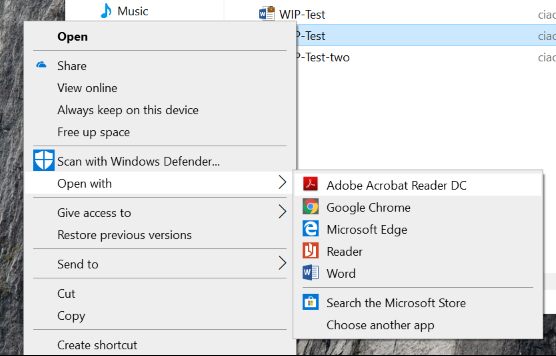
Let’s say that I now want to open the business PDF file with Adobe Acrobat Reader.

image

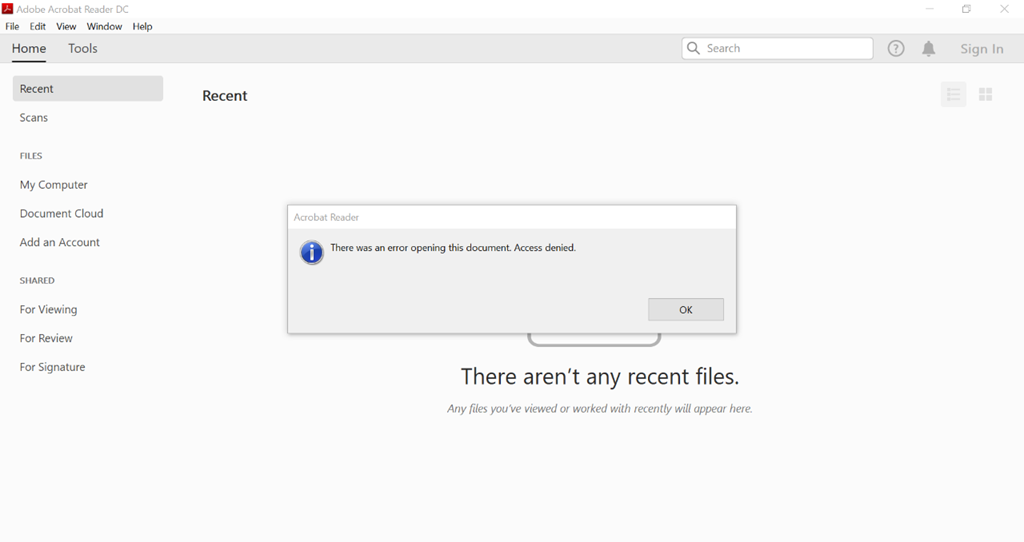
The result is, you are unable to do this because Acrobat Reader is not an ‘enlightened’ app. Thus, it is considered a personal app and is therefore denied access to business information.

image

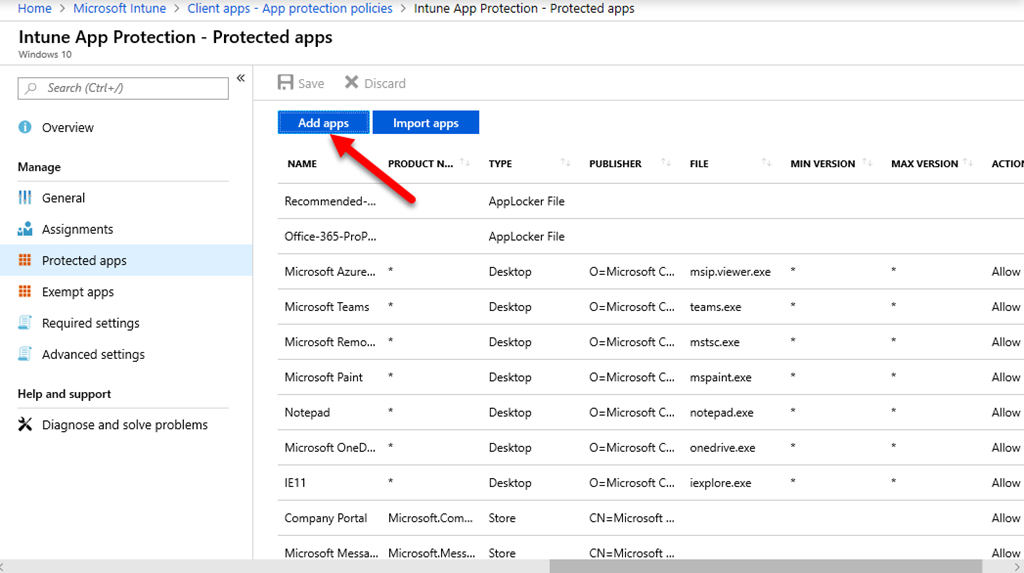
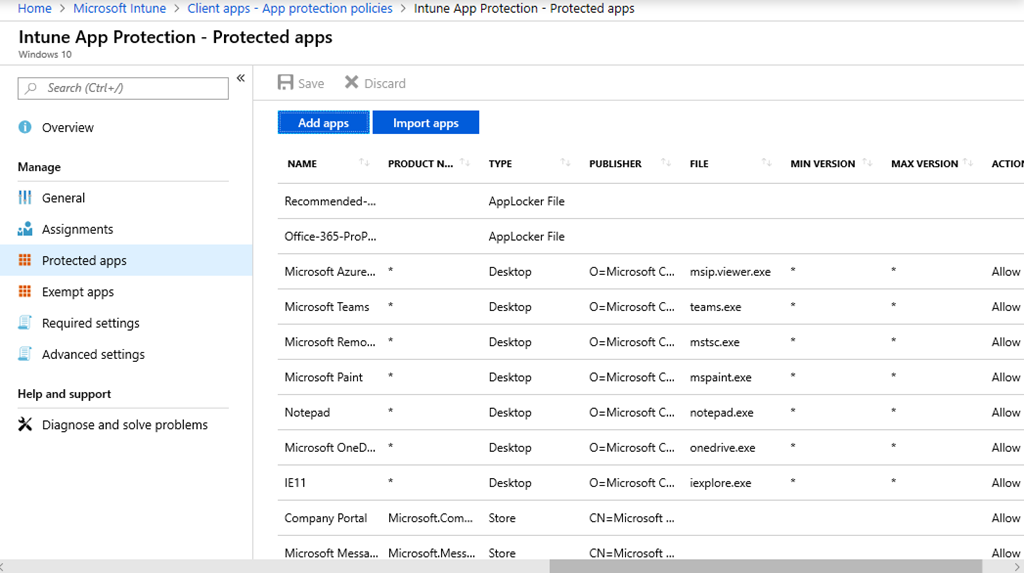
To rectify this situation we need to return to the Protected apps section of the Intune App Protection policy and select the Add apps button as shown.

image

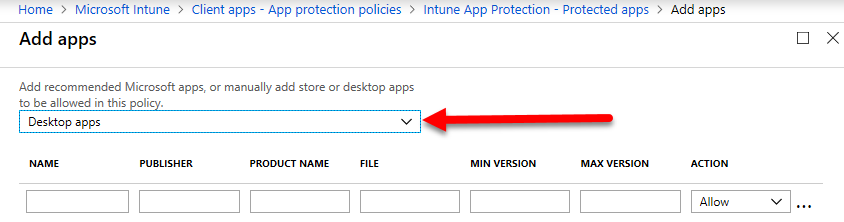
You then need to select the option Desktop apps from the pull down at the top of the screen. When you do so, you will probably see no apps listed below.

image

You should now enter the following information into the fields:

Name = Acrobat Reader DC
Publisher = *
Product Name = Acrobat Reader
File = acrord32.exe
Min version = *
Max version = *
Action = Allow

The most important item here is the filename for the program is entered correctly, (without any path) into the File field. In this case, the executable for Acrobat Reader is acrord32.exe.

Select Ok, once you are entered all the file details correctly here. Basically we are creating an exception for this app with WIP.

image

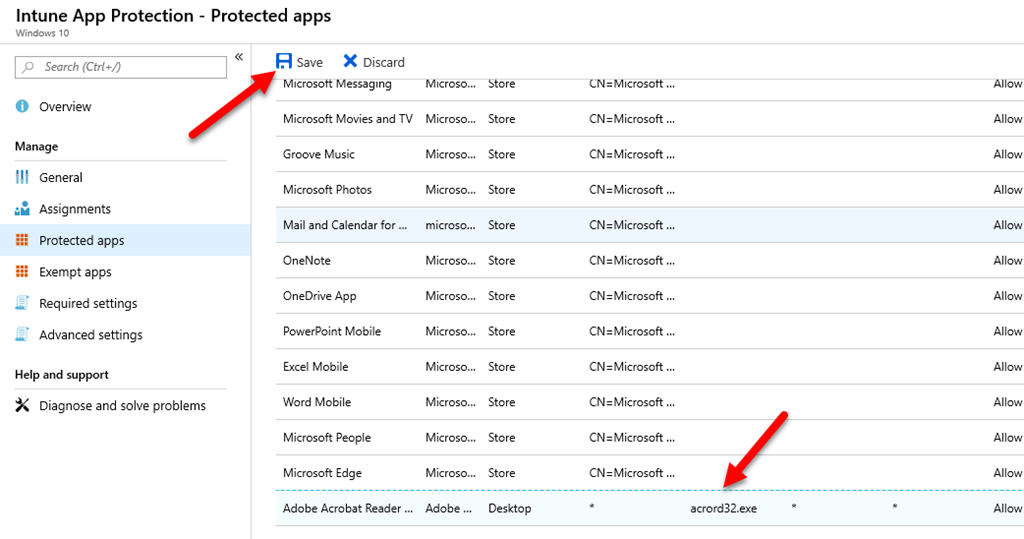
You should now see the program you just added in the list as shown above. Make sure you also Save your changes so they get applied to the policy.

Now with the policy updated, and the exemption for your app created, (in this case Acrobat Reader), you just need to wait a short time until the policy is applied to your machines.

image

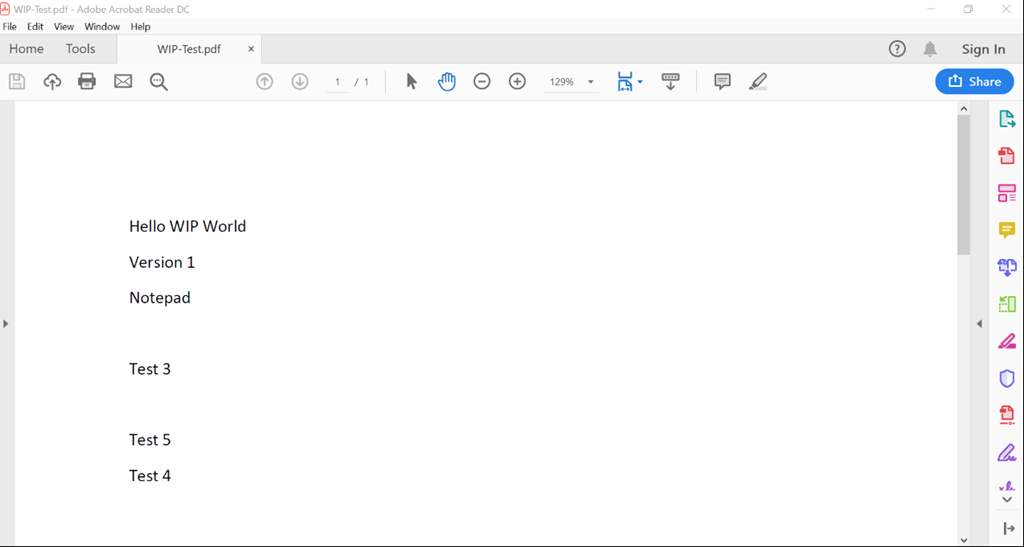
With a few minutes, you should be able to repeat the process of opening that same business file and find that you can now view the file as shown above is the program that you couldn’t before.

You can now basically repeat the same process for any other custom applications you have that are ‘non-enlightened’ and you wish to have open business information saved in Microsoft 365 protected with WIP.

Intune App Protection Policy blocking browser

image

Within Intune I went and created a Windows 10 App Protection Policy.

image

I defined my Protected apps as you see above.

image

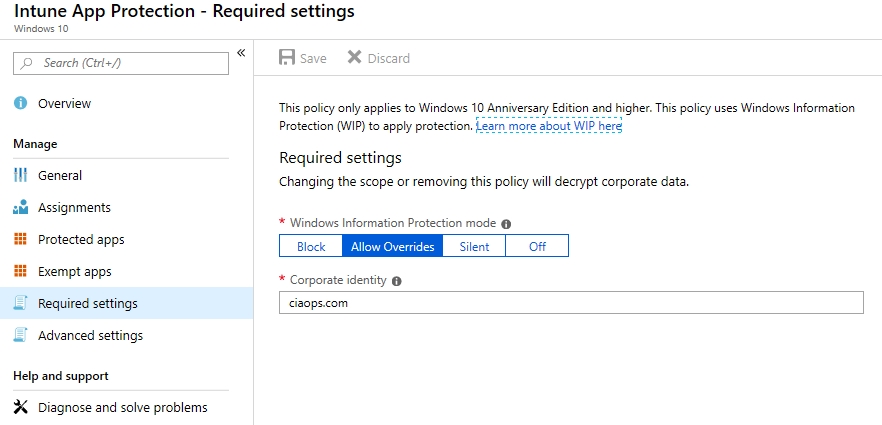
So the Required settings are as shown and utilise Windows Information protection (WIP). The idea is WIP is:

“Windows Information Protection (WIP), previously known as enterprise data protection (EDP), helps to protect against this potential data leakage without otherwise interfering with the employee experience. WIP also helps to protect enterprise apps and data against accidental data leak on enterprise-owned devices and personal devices that employees bring to work without requiring changes to your environment or other apps.”

according to Protect your enterprise data using Windows Information Protection (WIP).

After creating the policy I applied it to a test machine.

image

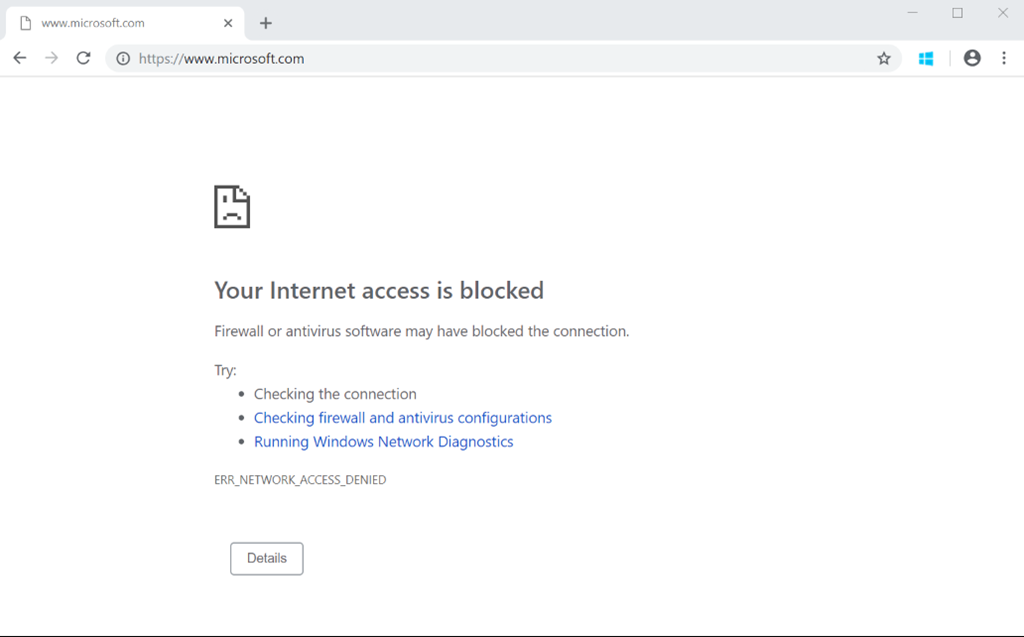
Most things worked as expected EXCEPT that I couldn’t use non-Microsoft browsers like Chrome! I kept getting a block message as shown above. if I removed the Application Protection policy then I could browse fine on non-Microsoft apps again. Clearly something to do with the policy was blocking Chrome browsing!

The root cause is the concept of enlightened apps in WIP.

“Windows Information Protection (WIP) classifies apps into two categories: enlightened and unenlightened. Enlighted apps can differentiate between corporate and personal data, correctly determining which to protect based on internal policies.”

from Unenlightended and enlightended app behavior while using Windows Information Protection (WIP).

As it turns out, third party browsers like Chrome are considered unenlightened apps. If you read a little bit further down that article you find the following table:

image

This explains why Chrome (unenlightened app) is being blocked because it is trying to connect via an IP address effectively. Ok, so now we know why, how do we fix the problem?

image

Turns out the fix is in the last column as highlighted above. We need to use the /*AppCompat*/ string!

image

To do this navigate to Advanced settings from the menu on the left. Then select the entry you should have there called Cloud resources as shown above.

image

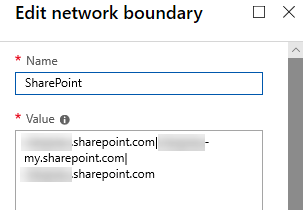
Here you should see your Microsoft 365 SharePoint and OneDrive sites as shown above.

image

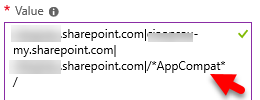
Add the string

|/*AppCompat*/

to the end of the line. Ensure the little green tick appears on the right hand side. Select OK to close that blade and the Save to update the Advanced settings page.

image

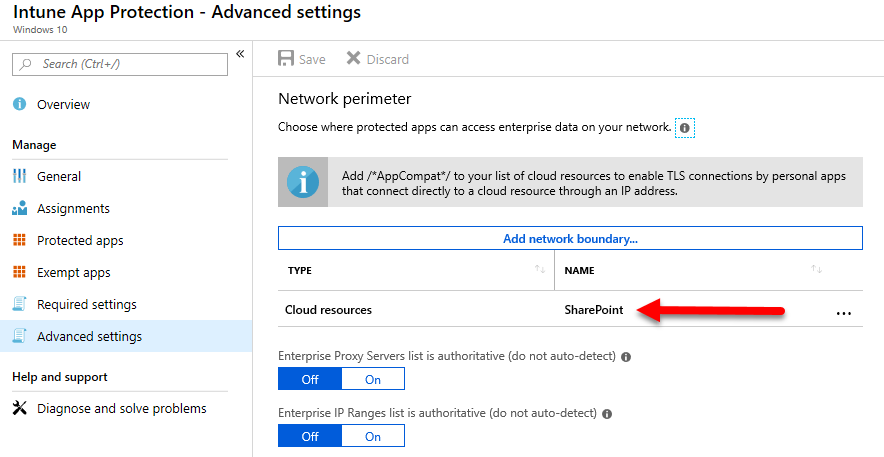
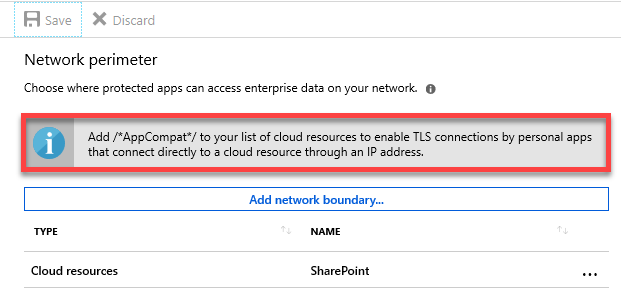
If you now look closely on the Advanced settings page you will see the above information box alerting you to the need for the /*AppCompat*/ string if you want TLS by personal apps that connect directly to cloud resources via an IP. You can consider a third party browser unenlightened and therefore a personal app. Thus, it is telling us to do what we just did to allow third party browsers to connect to the Internet on machines where the policy is applied. Always read the configuration page eh?

Once you have saved the updated App Protection Policy and it has been applied to the devices, you should no longer be blocked when using third party browsers like Chrome and Firefox.

Scheduling compliance reports

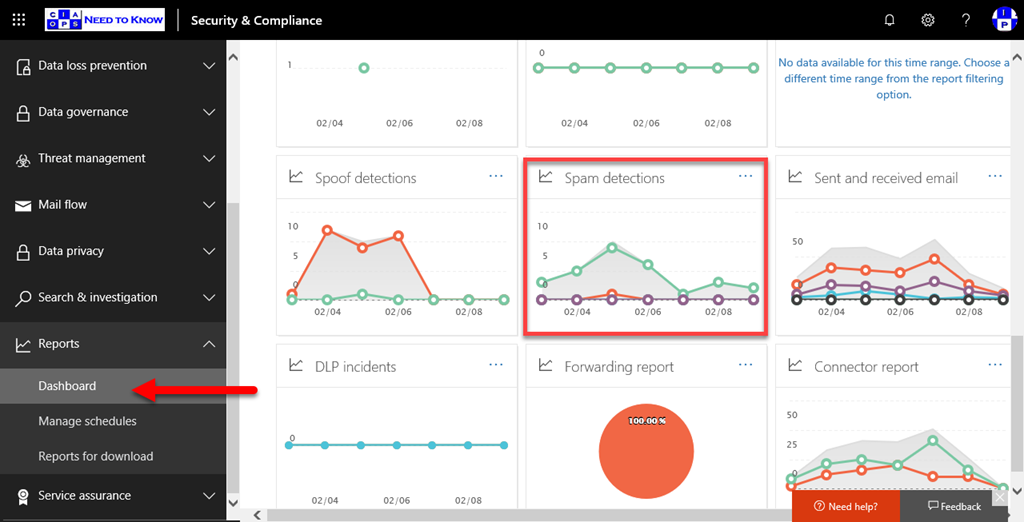
image

If you go into the Microsoft 365 Security portal and locate the Reports option from the menu on the left and expand it, you should find the Dashboard option. This option, when selected, will show a range of reports like that shown above. You can get more details by simply selecting the body of the tile you wish to view. Here, I’ll select the Spam detections tile to get further information.

image

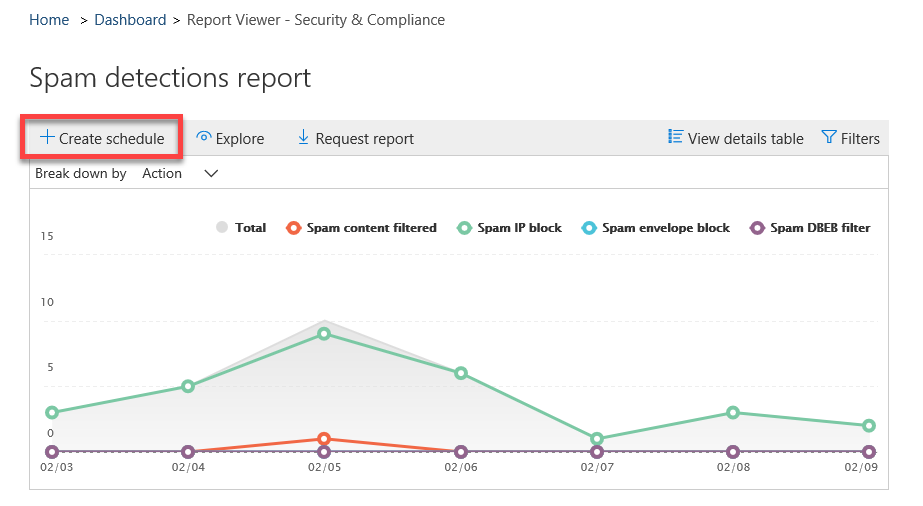
You’ll now see a more focused report but you’ll also notice that many graphs have the Create schedule in the top right hand corner as shown. Selecting this allows you to schedule a report to be delivered via email.

image

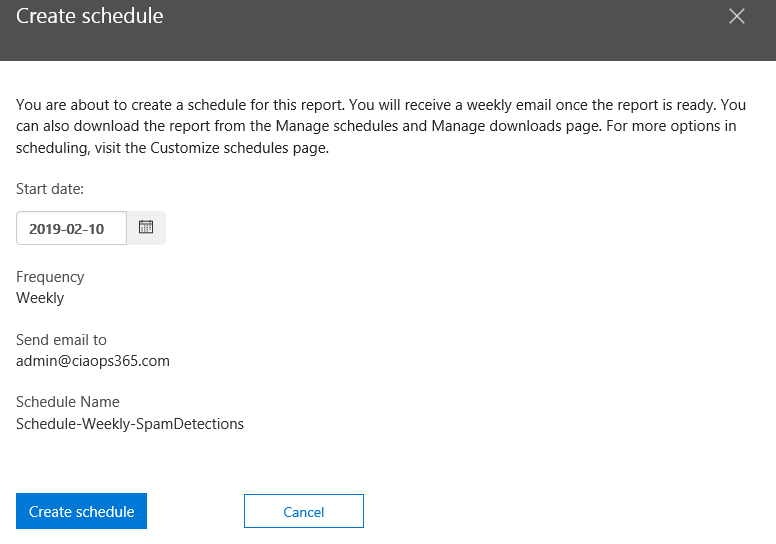
By selecting Create schedule you should see a tile appear from the right with the above options that you can configure.

image

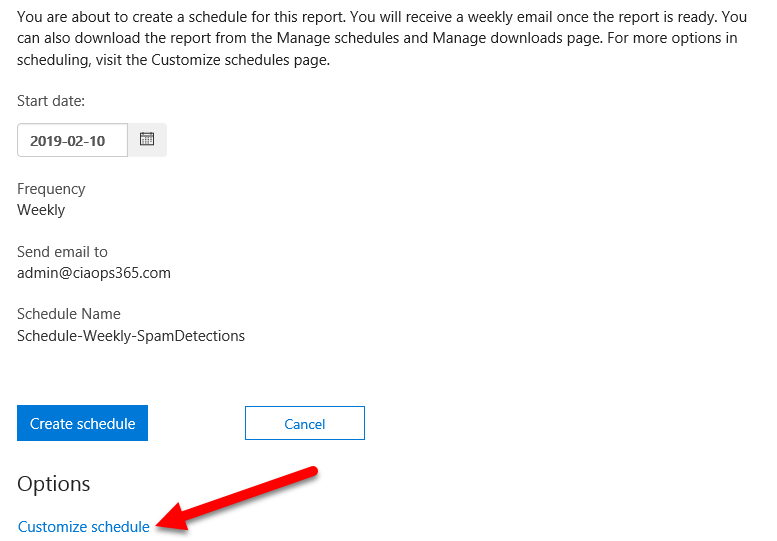
If you scroll down to the bottom of the window you will see that there is a Customize schedule option as shown above.

image

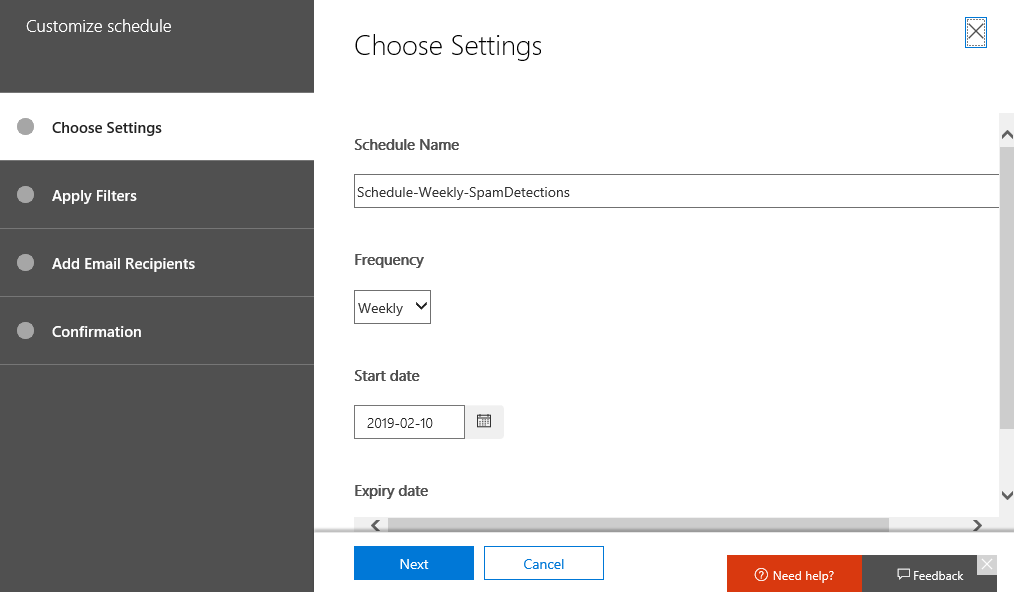
Selecting this will give you much greater options as shown above.

image

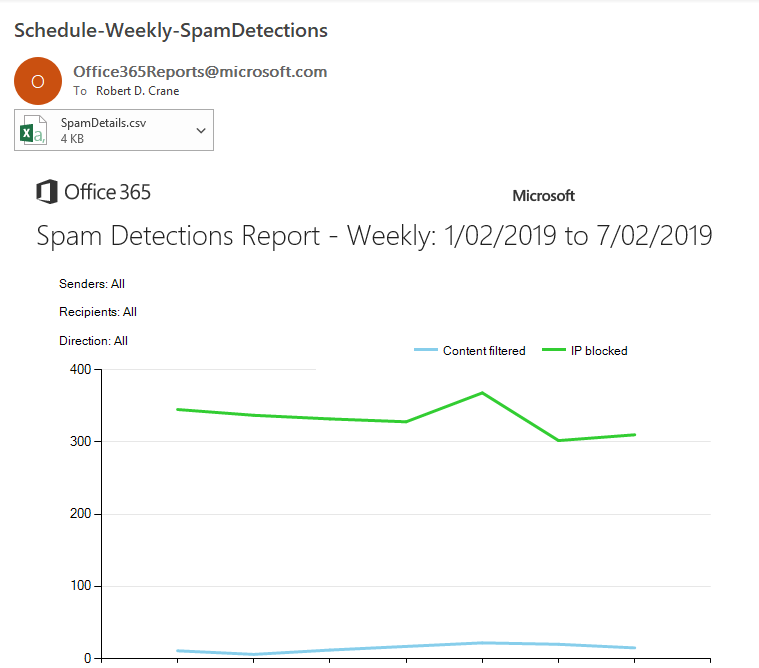
Once you have saved your schedule, you will then receive a regular email like that show above with the report you configured. You’ll note that there is also a CSV file attached that you can use for further analysis.

image

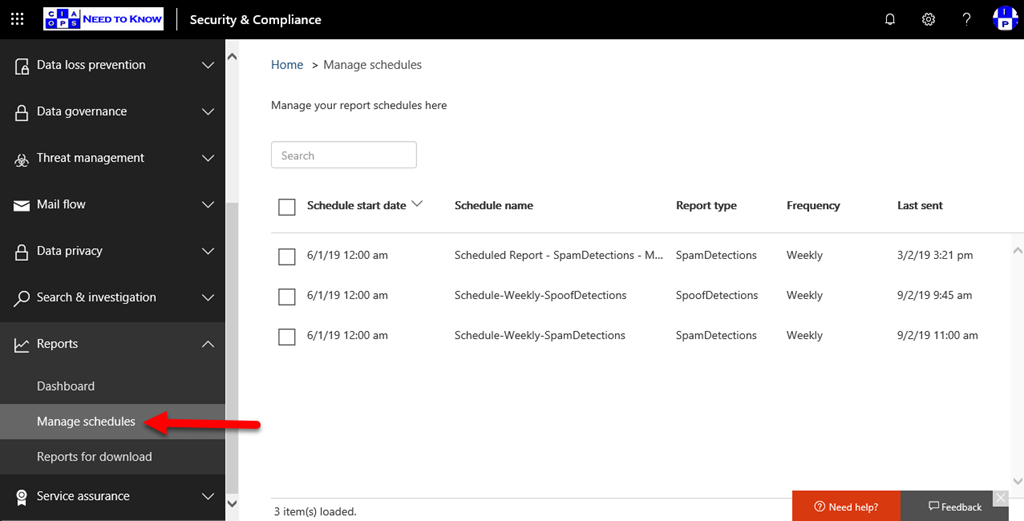
You can adjust the schedules you have configured via the Manage schedules option as shown above.

As yet, I haven’t found an easy way to configure these using PowerShell. There is way using the Microsoft Graph but that requires some setup so I’m trying to find a way just to use a pure script. If I work that out, I’ll post an article on how to do it. Till then, you’ll just have to manually go in a select and configure the reports you wish to receive regularly.

Looks like Office 365 ATP is splitting in two

Seen some chatter here in Australia about there now being two Office 365 ATP SKUs (it appeared on a pricing sheet). Everything I could find suggested that this was not the case, however a US contact pointed out to me the following web site:

https://products.office.com/en-us/exchange/advance-threat-protection

That clearly shows 2 x Office 365 ATP SKUs.

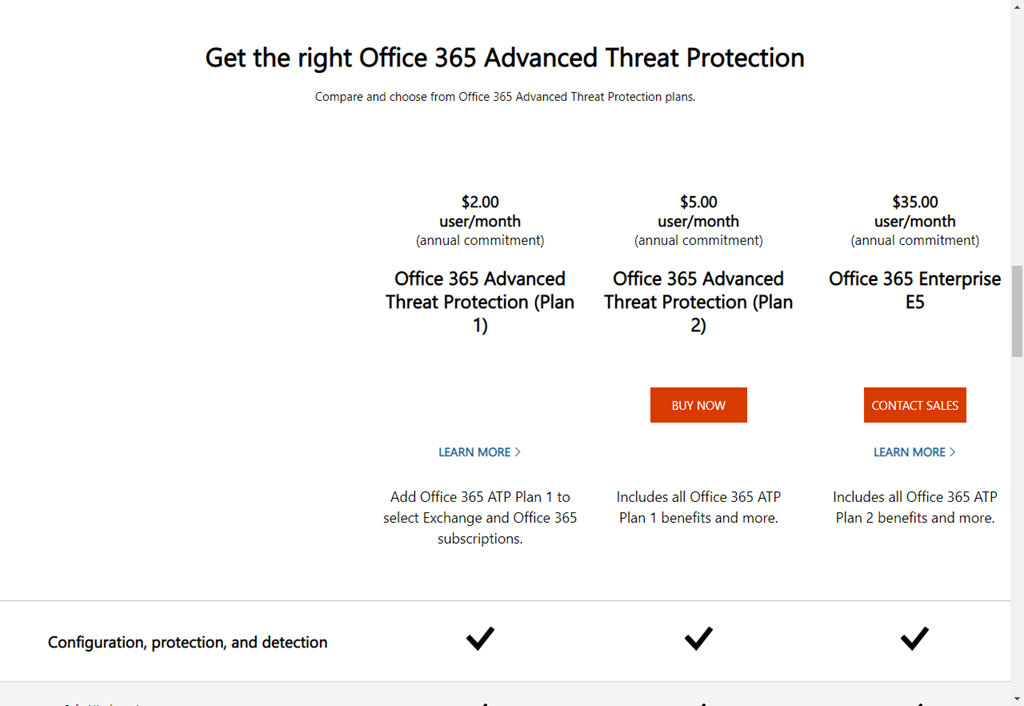
image

There is not as yet an equivalent AU page.

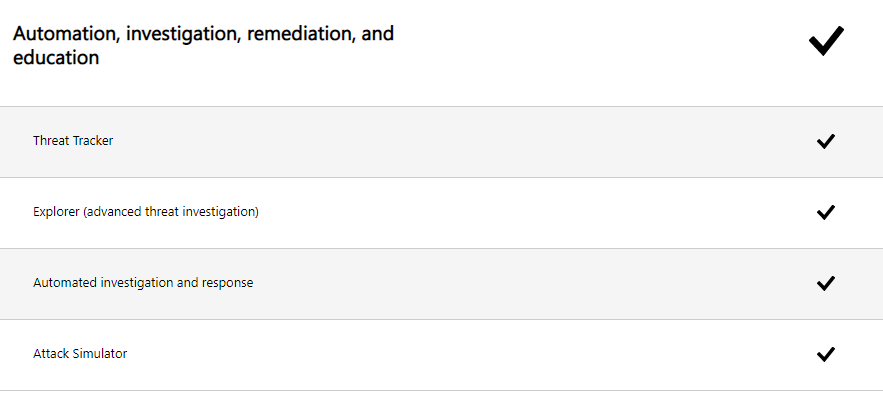
The main things that Plan 2 adds according to that page are:

image

Even the services descriptions for Office 365 ATP here:

https://docs.microsoft.com/en-us/office365/servicedescriptions/office-365-advanced-threat-protection-service-description?fbclid=IwAR2FQUfHsjY3Ka03RSpcGGD9bLP8RFRI5VFc7aMUAcr936QPEYLY_-ZETLE

don’t talk about there being two plans. Thus, I (and others) are somewhat confused as to which version will be included in suites like Microsoft 365 Business. My guess is that most plans that have Office 365 ATP will get Plan 1, with Plan 2 going for higher end enterprise plans. However, that is all here say for now.

So, it looks like are going to get a new ‘advanced’ Office 365 ATP plan soon (Plan 2) but we are unsure in which suites it will be available. More as it becomes available.

Updated script to now check for Sweep

pexels-photo-1433350

The bad actors out there are clever and they’ll use any means at their disposal. Normally, when a user is successfully phished the first thing bad actors do is manipulate the email handling rules of the mailbox to hide their activity.

Unfortunately, there are quite a lot of different ways to forward email in Office 365 including via the mailbox and via Outlook client rules. It was brought to my attention that there is in fact another way that forwarding can be done, using the Sweep function. You can read more about this ability at:

Organize your inbox with Archive, Sweep and other tools in Outlook.com

Sweep rules only run once a day but do provide a potential way for bad actors to hide their activity, however as it turned out Sweep was in fact being exploited by bad actors inside a compromised mailbox.

I have therefore updated my publicly available PowerShell script at:

https://github.com/directorcia/Office365/blob/master/o365-exo-fwd-chk.ps1

That will now also check and report on any Sweep rules in finds in mailboxes as well as any other forwards configured in the tenant.

Let me know if you find any other methods that this doesn’t cover and I’ll look at incorporating those as well.

Need to Know podcast–Episode 201

We’ve recovered from our 200th episode and are getting back into the swing of our regular programming with some updates, information and opinions from the Microsoft Cloud. We cover some recent important updates, especially in the area of security, as well as some news around Microsoft 365 and Azure. We also dip our toes quickly into the area of certifications but we’ll need more time to do justice to the topic. So stay tuned for that episode coming real soon. For now, sit back and enjoy as we get back to what we like doing – keeping you up to date with everything that’s happening in the Microsoft Cloud.

Take a listen and let us know what you think – feedback@needtoknow.cloud

You can listen directly to this episode at:

https://ciaops.podbean.com/e/episode-201-back-to-normal/

Subscribe via iTunes at:

https://itunes.apple.com/au/podcast/ciaops-need-to-know-podcasts/id406891445?mt=2

The podcast is also available on Stitcher at:

http://www.stitcher.com/podcast/ciaops/need-to-know-podcast?refid=stpr

Don’t forget to give the show a rating as well as send us any feedback or suggestions you may have for the show.

Resources

@contactbrenton

@directorcia

CIAOPS Patron Program

Microsoft Cloud outage information

Duplicating a Microsoft Planner plan using PowerShell

GitHub and free access to private repositories

Office 365 will automatically block Flash and Silverlight

Azure AD makes sharing and collaboration seamless for any user account

Microsoft’s Cyber defense Operations Center shares best practices

Step 3 – Protect your identities. Top 10 actions to secure your environment

Get ready for the new Microsoft 365 Security Center and Microsoft 365 Compliance Center

Microsoft 365 NIST 800-53 action plan