Tracking failed logins using Cloud App Security

Previously, I have said that Office365/Microsoft Cloud App Security is

A great security add on for Microsoft 365

I’ve also detailed the differences in the plans here:

Cloud App Discovery/Security

What many people want to know more information about is failed logins to their tenant, so Cloud App Security to the rescue!

image

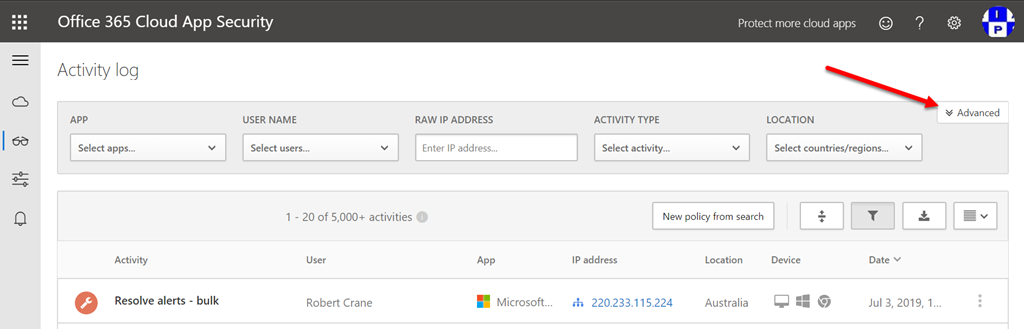
Start by navigating to the Cloud App Security Activity log as shown above. Then select the Advanced option in the top right as shown.

image

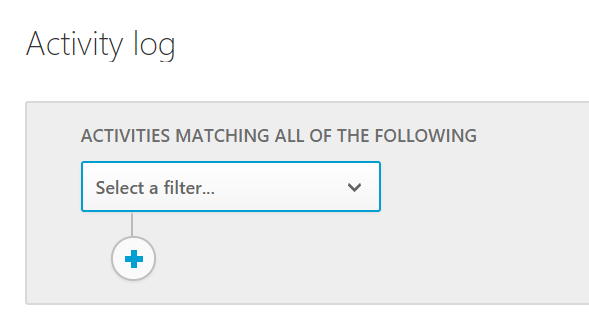
Doing so should reveal the ability to define filters as show above.

I’d also recommend that you go and define a “safe” range of IP addresses like I have detailed here:

Define an IP range in Cloud App Security

In my case I have defined some known safe IP’s as “Corporate”.

image

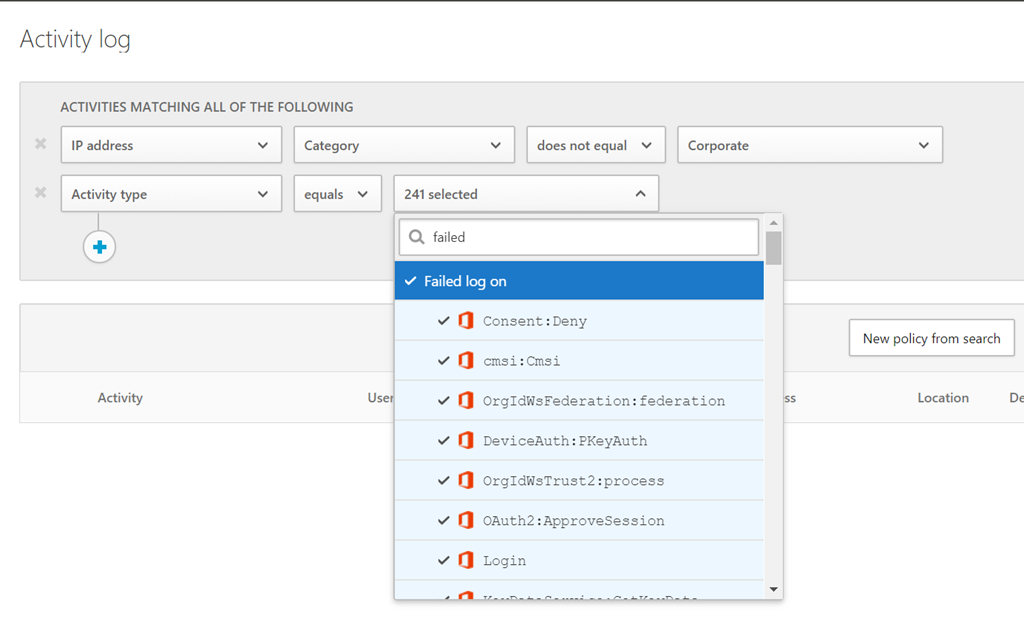
So the first line of my query basically excludes any of these known IP addresses in the results. That is, I’m looking for failed logins outside my corporate environment. This will generally exclude average users failing to login to their accounts inside my environment, which happens a lot. The idea with this is simply to reduce the noise of lots of alerts, but if you want to know about all failed logins to your tenant, just exclude this condition.

image

The second part of the filter is to show activities that equal ‘Failed log on’ as shown. You can customise this further if you want to make it more granular, but for now let’s track any failed login to the tenant.

image

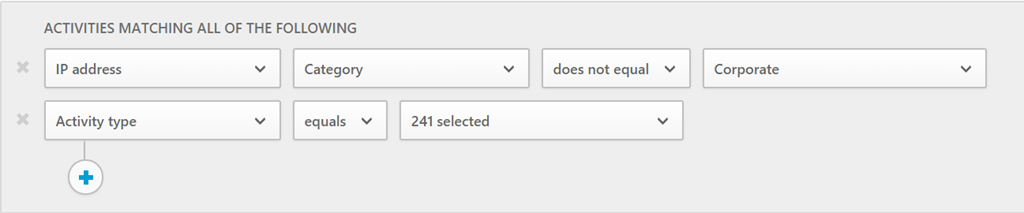
So the final query should look like the above.

image

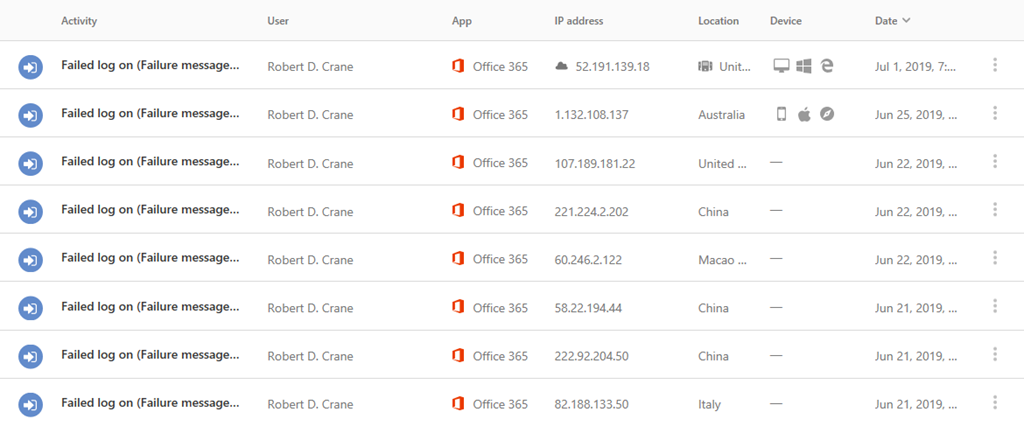
You should be not surprised to see the number of results you get as shown above. In my case, there are failed logins from the US, China, Russia, Italy, etc.

Now of course, I can drill into each item for more details but what I really want is a way for me to be alerted about these when they happen. Cloud App Security to the rescue again.

image

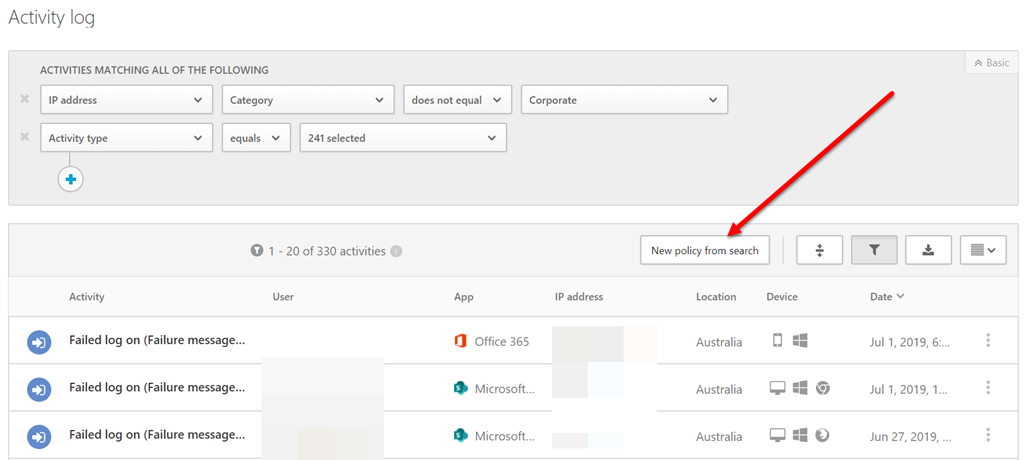
At the top of the results you should find a button as shown that says New policy from search, which you should select.

image

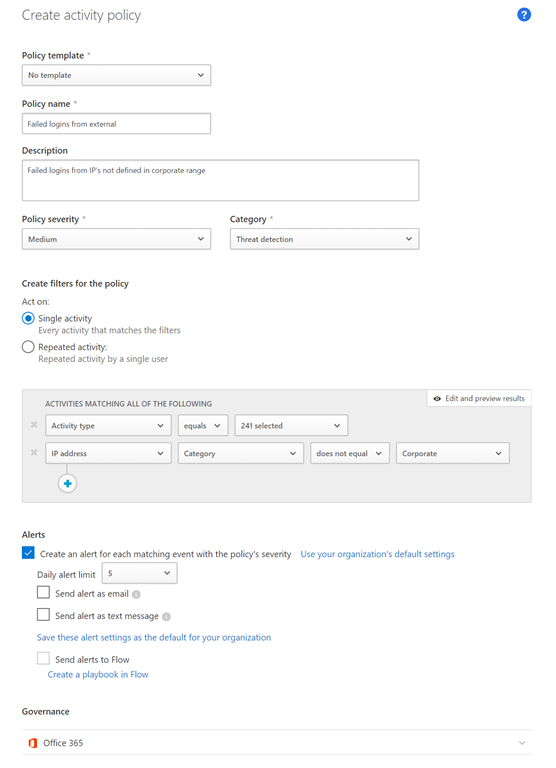
You should now see a page like shown above where you can define your policy. You’ll need to give it a name and description. You may want to increase the severity or change the category to suit. You can also select between single or repeated activity.

image

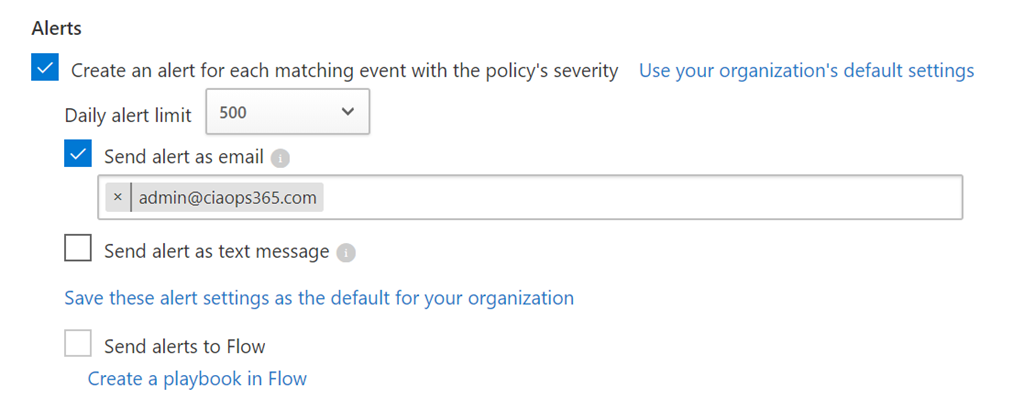
Now if you want an email alert then you’ll need to select the option Send alert as email and put in your email address as shown above. You may also want to change the Daily alert limit to suit your needs.

When you have completed the configuration, scroll to the bottom of the page and select the Create button.

image

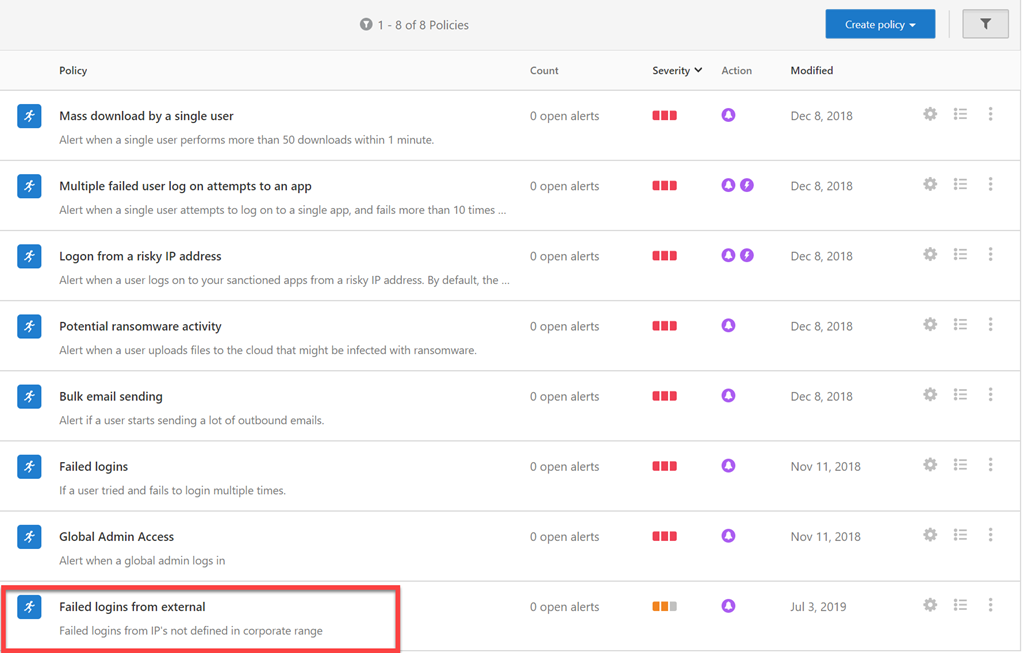
You should now see that policy in the list in your tenant as shown above.

Cloud App Security is a really powerful tool that I believe is a must have for every Microsoft 365 tenant, because not only can you create your own custom queries but you can also convert those into alerts as I have shown.

Key skills for an IT Professional

accuracy-action-active-433077

If you are an IT professional working in with Microsoft 365 then I would suggest the following are the top five skills that you need to have to be successful going forward. My pick, in order is:

1. PowerShell

2. Azure AD

3. Security

4. Intune

5. SharePoint

and here’s why:

PowerShell

PowerShell gives you the ability to script commands for both cloud and on premises Microsoft services. There are many things you can also only do using PowerShell, however more importantly, you can begin to automate what you do. This reduces the time it takes to complete processes as well as giving more consistent results. It also means that you can potentially offload these tasks to others who only need to know how to run the scripts you have created not understand what they entail.

I also find that understanding the PowerShell side of a process gives you a a much deeper understanding of that process and what is possible. I also think that having to do a bit of coding is a benefit to everyone. It helps you to think more logically, plan and structure what you want to achieve. You however don’t need to become a developer, it is easy to CTL-C and CTRL-V good scripts from various places and integrate them into your processes while making a few changes along the way. You can go as deep as you wish and create really amazing scripts that really make life in IT so much easier, while allowing you to do your job faster.

Remember, software will eat the world.

Azure AD

Identity is key to our modern world. You don’t get access to “stuff” until you prove who you are. Importantly, Azure AD is not the same a traditional on premises Active Directory. It is a subset, where the additional options can be added as needed. However, you need a good understanding of where a user’s primary identity is and how it is managed and secured in the cloud. Without this fundamental knowledge you are really going to struggle to understand things like modern device management and security.

All Microsoft services are underpinned by identity and Microsoft cloud services are underpinned by Azure AD. Thus, to administer, configure, troubleshoot these you need a good understanding of Azure AD.

Security

With so much of our assets now being digital, protecting them is paramount. We need to do this in a way that doesn’t inhibit productivity and that is a real challenge. Poor security to me indicates a fundamental lack of knowledge about the products in question. It also demonstrates a lack of discipline and consistency which are the hallmarks of your adversaries out there trying to gain access to systems you protect.

Security will never be an absolute and that makes it hard for many “IT types” to deal with who like to have a tangible end goal. There is not a finite end point with security, there is simply an ongoing challenge to stay one step ahead of the bad actors. Some see that as a burden while the true security professional sees it as a challenge. The protection of our future lies with good security and the challenges that brings. It therefore, will be a skill that will be in continuing high demand.

Intune

As mentioned, Azure AD doesn’t contain the same resources that on premises Active Directory did. The best example of this is probably Group Policy, which is something that Azure AD does not incorporate. To a large extent, that is now handled by Intune and this why it is such an important skill going forward for IT Professionals to become skilled with. It can also be implemented using things like PowerShell, which again goes to the point of how important this list of skills is across all Microsoft services today.

A key factor with Intune is its ability to configure mobile devices. This is something traditionally IT Professionals have not been able to do. However, with the growing numbers of mobile devices in use and their criticality to businesses of every size, it is now more important than ever to be able to easily configure and secure them directly from the Internet.

SharePoint

Most IT Professionals have some skill or familiarity with Exchange and emails which easily translates to services like Exchange Online. However, when it comes to files and folders in the cloud the service of choice is going to be SharePoint, for which there are a decided lack of skills even though SharePoint has been with us for many years now. As I have spoken about many, many time here, SharePoint is more than just simple storage, it is a collaboration system and needs to be approached in that manner to get the most from it. Not doing so results in lots of pain for both administrators and end users.


So there you have it. If I had to pick five skills in order that characterise a modern IT Professional, these would be they. You don’t need to be an elite ninja in each but likewise you can’t remain ignorant of them. if you work with Microsoft cloud technologies you should be familiar and comfortable with them all. If not, then you need to start investing some time and learning them because they will serve you well now and into the future.

Cloud App Discovery/Security

Microsoft has a range of security options available, delivered in a variety of ways from the cloud. I’m going to focus on three items that tend to get lumped together and with which I see much confusion. These services are:

1. Azure AD Cloud App Discovery

2. Office 365 Cloud App Security

3. Microsoft Cloud App Security

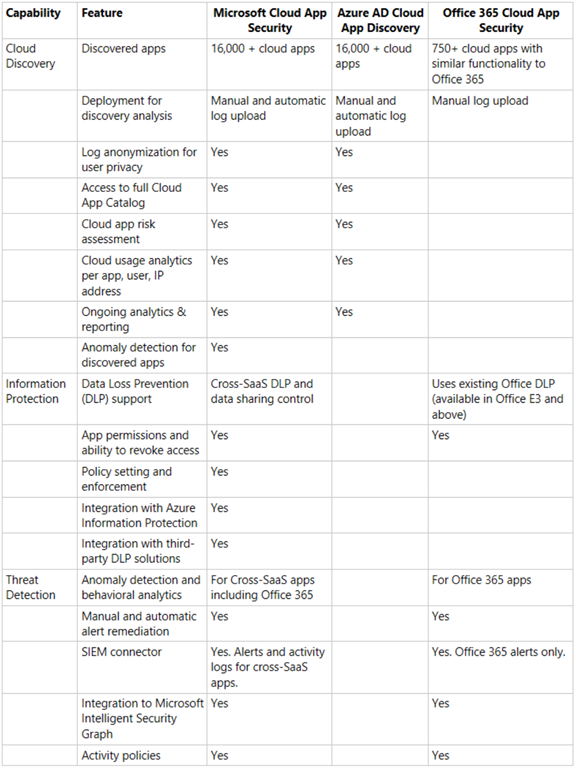
Here’s a summary of the differences between the products:

image

1. Azure AD Cloud App Discovery

This is the most basic of the three services and is only available when you purchase and license Azure AD P1, there is no stand alone version of just Azure AD Cloud App Discovery. This is a description of the product:

Azure Active Directory Premium P1 includes Azure Active Directory Cloud App Discovery at no additional cost. This feature is based on the Microsoft Cloud App Security Cloud Discovery capabilities that provide deeper visibility into cloud app usage in your organizations. Upgrade to Microsoft Cloud App Security to receive the full suite of Cloud App Security Broker (CASB) capabilities offered by Microsoft Cloud App Security.

Thus you receive Azure AD Cloud App Discovery when you purchase the following:

– Azure AD Premium P1 (stand alone)

– Azure AD premium p2 (stand alone)

– Microsoft 365 E3 (which includes Azure AD P1)

– Enterprise and Mobility Suite (EMS) E3 (which includes Azure AD P1)

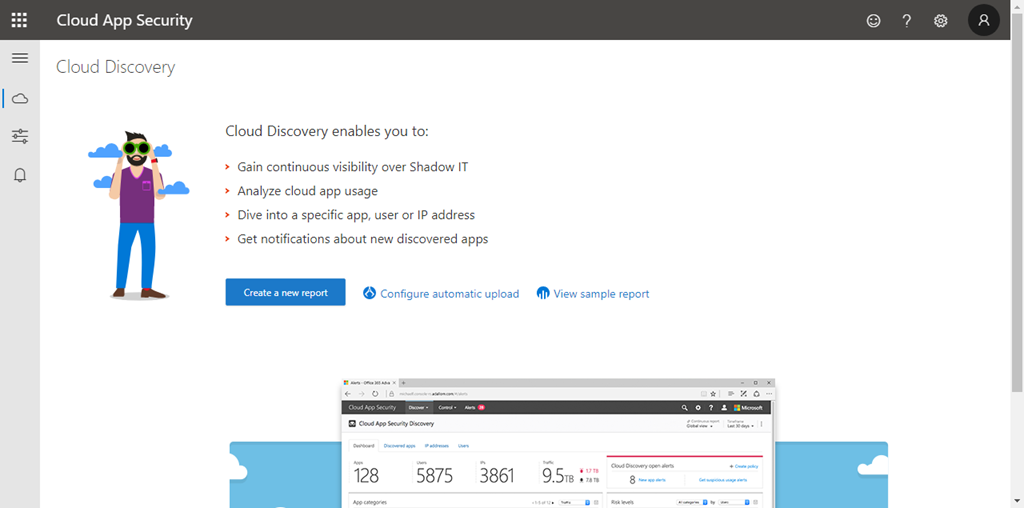
When you visit the portal you will see:

image

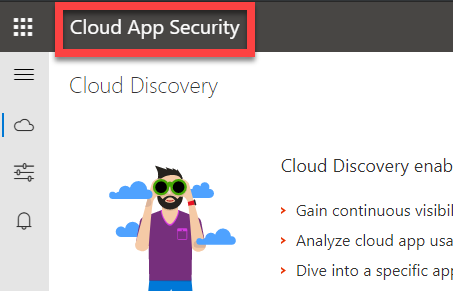
Firstly, note that the banner reads Cloud App Security like so:

image

2. Office 365 Cloud App Security

This is available as a stand alone purchase for existing Office 365 / Microsoft 365 tenants.

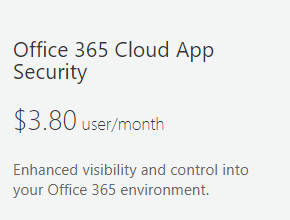
clip_image001

You can also get Office 365 Cloud App Security as part of:

– Office 365 E5

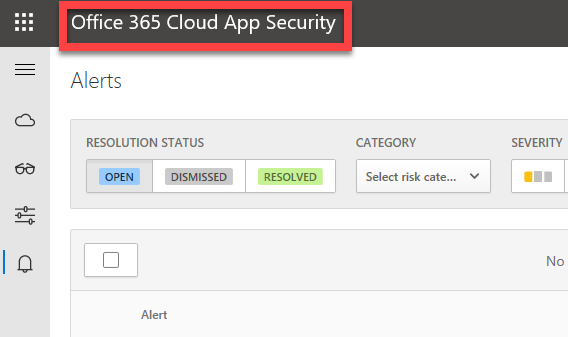
You’ll see Office 365 Cloud App Security in the top left of the portal like so:

image

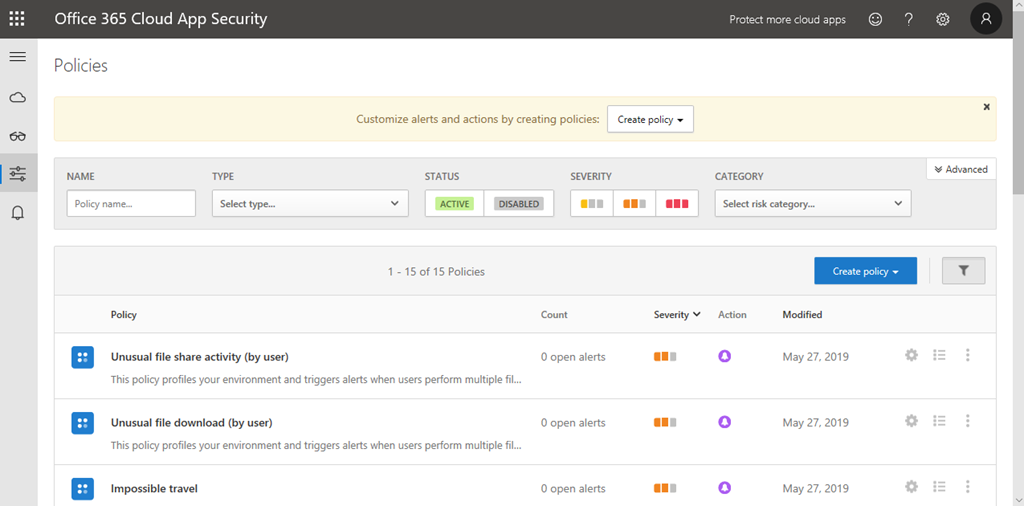
The biggest advantage I believe of Office 365 Cloud App Security over Azure AD Cloud App Discovery is the Activity policies like so:

image

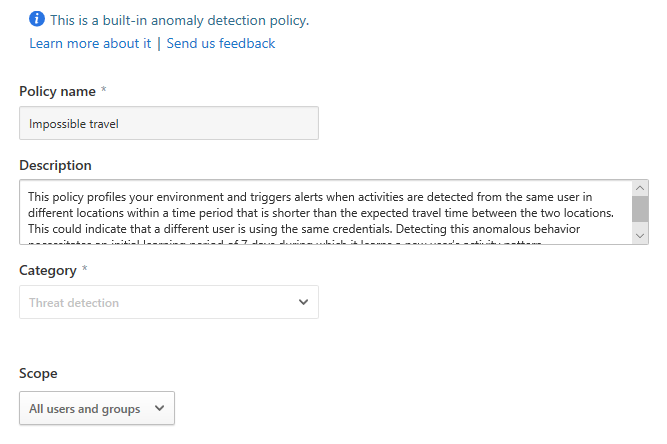
These activities includes built in anomaly detection for things like Impossible travel like so:

image

You also get a number of default activity policies like Logon from a risky IP address:

image

as well as the ability to create your own unique activity policies and alerting.

3. Microsoft Cloud App Security

This again, is available as a stand alone add-on to any Office 365 / Microsoft 365 tenant, being a tad more expensive that office 365 Cloud App Security:

clip_image001[4]

It is also available when you purchase:

– Microsoft 365 E5

– Microsoft 365 E5 Security

– Enterprise and Mobility Suite (EMS) E5

As you can see from the table at the top of this article, Microsoft Cloud App Security includes everything (plus more) that is in Azure AD Cloud App Discover and Office 365 Cloud App Security. Thus, think of Microsoft Cloud App Security as Azure AD Cloud App Discovery + Office 365 Cloud App Security.

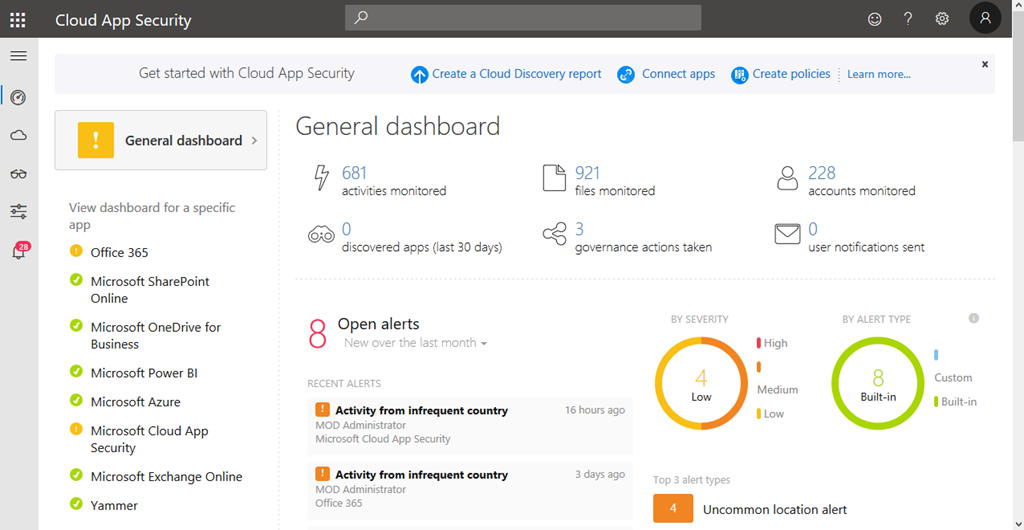
This is what you see when login to Dashboard:

image

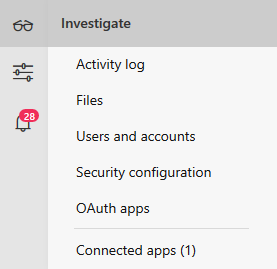
You’ll see it look very different even though the top left says “Cloud App Security” again. You get far more options that with either of the other two including more options under Investigate like so:

image

Summary

Not everything is quite as simple as I have outlined here. Deeper detail about the licensing can be found here:

https://query.prod.cms.rt.microsoft.com/cms/api/am/binary/RE2NXYO

or on:

Microsoft Cloud App Security

In my opinion Azure AD P1 is a must have for all tenants to get features like conditional access and trusted IP’s. That will give you Azure AD Cloud App Discovery. However, I’d also recommend also adding Office 365 Cloud App Security as a minimum to get access to the Activity alerts. if you want even more power then add Microsoft Cloud App Security instead.

The final question I get is whether you require a license for all users in your tenant? For that I will leave you with the official word from Microsoft on that topic which is:

“Each user must be licensed for Microsoft Cloud App Security to use or benefit from it. For customers who license a subset of users, services enforced at the tenant level are not licensed for the other users. They are not entitled to use or benefit from the service, regardless of whether the service is technically accessible.”

Need to Know podcast–Episode 206

A short sharp episode focusing on the latest news and updates from Microsoft Build. Brenton and I cover off all the Microsoft Cloud news, good and bad as there is unfortunately some bad news to report in recent experiences with Azure. However, there is also lots of good news about updates to your favourite services. Tune in and give us your feedback.

This episode was recorded using Microsoft Teams

Take a listen and let us know what you think – feedback@needtoknow.cloud

You can listen directly to this episode at:

https://ciaops.podbean.com/e/episode-206-ghost-in-the-machine/

Subscribe via iTunes at:

https://itunes.apple.com/au/podcast/ciaops-need-to-know-podcasts/id406891445?mt=2

The podcast is also available on Stitcher at:

http://www.stitcher.com/podcast/ciaops/need-to-know-podcast?refid=stpr

Don’t forget to give the show a rating as well as send us any feedback or suggestions you may have for the show.

Resources

@contactbrenton

@directoria

CIAOPS Patron program

Azure cheat sheet

Azure global outage

What’s new in Microsoft 365 user management

New people centered experiences in Microsoft 365

Microsoft Edge – All the news from Build

Minimize distractions and stay focused with AI powered updates in Microsoft 365

Script to disable direct Shared Mailbox logins

A while back I spoke about

The Insecurity of Shared Mailboxes

and how that even though they have an Azure AD Account they should have their logins disabled and access rights ONLY provided via the mailbox.

To make things easier for people I have now created a script that will allow you to view and potentially disable the direct logins for all your shared mailboxes to make them more secure.

image

The scripts requires that you are already connected to both Exchange Online and Azure AD.

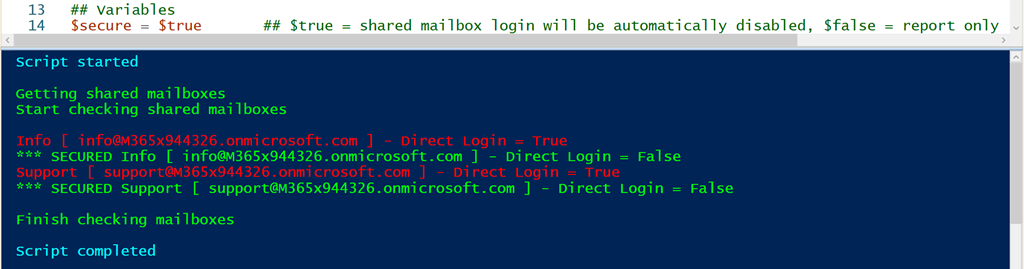
At the top of the script, you’ll find a variable called $secure. If that is set to $false then no changes will be made to your environment, you’ll just get a report like shown above. Shared mailboxes that have direct login enabled will be displayed in red.

image

Now, if you change the variable $secure to $true then any shared mailbox that is currently enabled for direct connection will have that ability disabled. The output will display two lines for each mailbox that has direct access enabled. The first line indicates that direct logins are enabled and then the second line will show that has now been secured. In this scenario, all that is happening is that the shared mailbox identity is simply being blocked as I outlined in my earlier article.

image

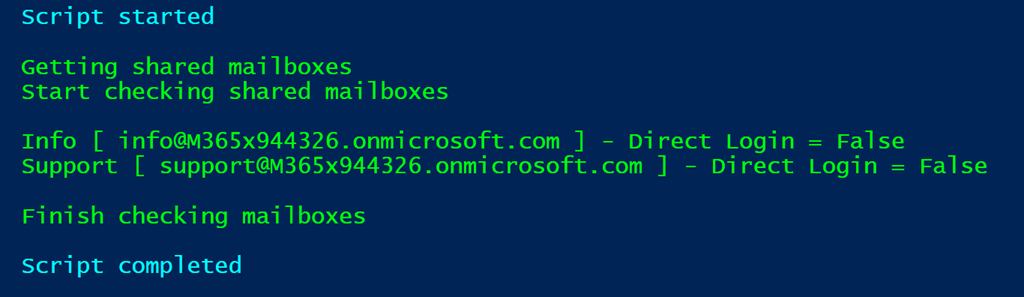
 The last possibility is that the shared mailboxes direct logins have already been disabled, and in this case the results of the script should simply show that result in green.

In summary then, you can run this script with the variable $secure set to $false to just display the direct login condition of your shared mailboxes. You can run this script with $secure set to $true and then not only will the direct login condition of the shared mailboxes be reported but they will all then be blocked for direct login.

You will find this script in my GitHub Office 365 repository at:

https://github.com/directorcia/Office365/blob/master/o365-exo-sharedblock.ps1

The insecurity of shared mailboxes

Shared mailboxes are a really handy component of Microsoft 365 in that they allow multiple users to access a single mailbox. This works really well for generic accounts like info@, accounts@, etc. However, there are some security issues with these that I don’t think many people are aware of.

The first point to note is that shared mailboxes in Microsoft 365 actually have a login and password. Thus, they can be accessed directly using these details. Don’t believe me? Well check out the following documentation:

https://docs.microsoft.com/en-us/office365/admin/email/create-a-shared-mailbox?view=o365-worldwide#block-sign-in-for-the-shared-mailbox-account

which says:

“Every shared mailbox has a corresponding user account. Notice how you weren’t asked to provide a password when you created the shared mailbox? The account has a password, but it’s system-generated (unknown). You aren’t supposed to use the account to log in to the shared mailbox”

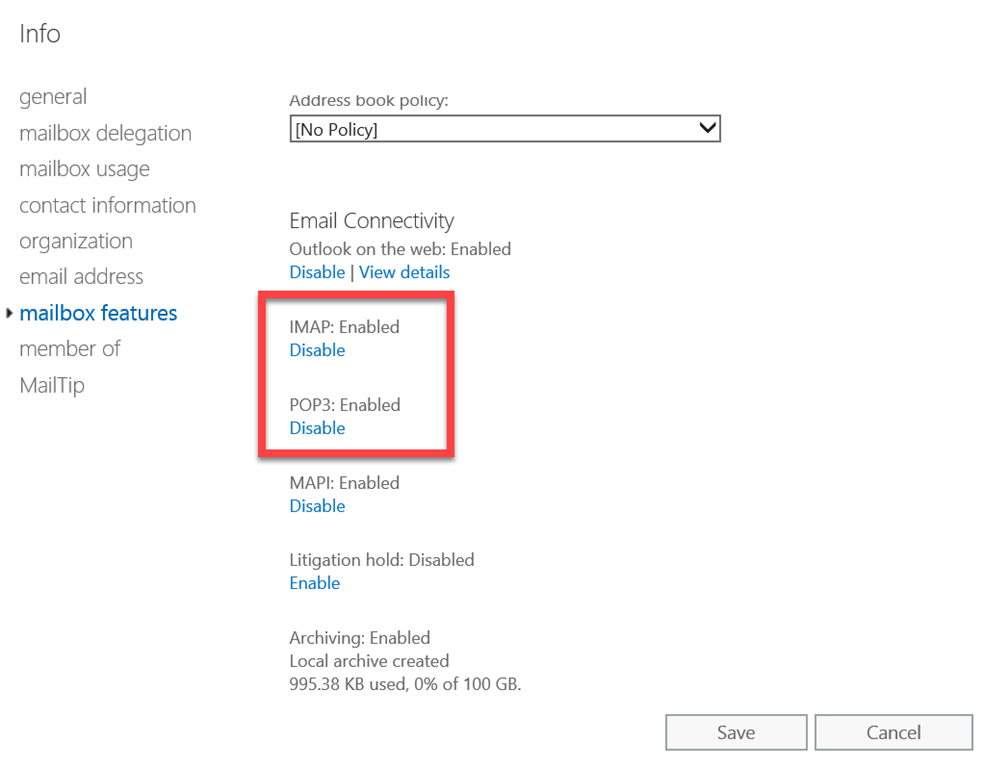
So, by default, when you create a shared mailbox you are actually creating an account with a system password in your environment. No so bad you think right? Well, the problem is that, by default, IMAP and POP3 are enabled on all mailboxes, including shared ones.

image

Some actually use this IMAP ability to be able to open shared mailboxes on mobile devices, however doing this comes with a huge risk in my books.

Why? Well, if IMAP is enabled, that means basic authentication is enabled and that is bad as I have said previously:

Disable basic auth to improve Office 365 security

You may feel an unknown system or complex password on a shared mailbox is good enough but to remote bad actors running automated cracking programs against accounts on your tenant, it is only a matter of time until they generate a matching password for that shared mailbox. Once they have that, boom, they’re into that mailbox. From that foothold, they can then launch all types of attacks, but the most likely being phishing your users. It’s all down hill from there!

If you use shared mailboxes on mobile devices, this means you have to know the password for the shared mailbox prior to configuration on the mobile device. Because the shared mailbox has an account, it can have it’s password changed. That means, if you want to use shared mailboxes on mobile devices, you reset the password for the shared mailbox so you know it. You then give that to users so they can configure access on their phones. Anyone else see a problem here? You are providing multiple people access to a single resource with a shared password. What is a shared password? It ain’t a secret for sure now is it? So, what happens when a user leaves the business? I’ll bet most businesses don’t go and reset the password on all the shared mailboxes that user had access to. This means you now have someone outside your business who has a login (shared mailbox email address) and password to a resource in your tenant.

Here’s a scenario where that came back to bite the business. A disgruntled user was terminated and their individual login account was disabled. After the user has fired, they connected back into a shared mailbox directly using IMAP and started sending all sorts of nasty emails to all staff from this mailbox. Now if they had been smart, they would have done this from an anonymous IP address, not one assigned to them from their ISP so we could track them down. However, the damage was done. Why? All because access to the shared mailbox was permitted by insecure protocols and shared passwords.

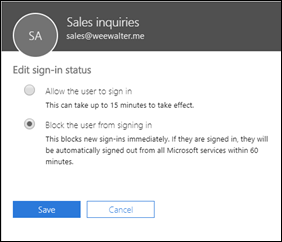
Edit sign-in status flyout in the M365 admin center

As with most things security, it is pretty easy to protect yourself from this BUT it requires changing the defaults. The easiest way is to:

Block sign-in for the shared mailbox account

along with disabling IMAP, POP and basic auth. Yes, I fully appreciate that may have productivity ramifications, so you need to balance up the risk. However, given how easily this can be exploited, and the damage it could to the business, I’d rather be in the safe and secure camp than the ‘it’ll never happen to us’ blind faith camp personally. Anything that allows anonymous external users the ability to access accounts externally and allows them to keep guessing passwords as you can with IMAP spray attacks is very, very bad in my books. If you read this article:

https://www.proofpoint.com/us/threat-insight/post/threat-actors-leverage-credential-dumps-phishing-and-legacy-email-protocols

make sure you note the very last paragraph which says:

Update, March 21, 2019: This post has been updated to reflect specific cases in which IMAP-based password-spraying attacks were successful, particularly as threat actors targeted shared service accounts, (e.g., hr@company[.]com or helpdesk@company[.]com) or exploited weaknesses in MFA implementations and third-party email client logins.” 

So please, secure your shared mailboxes NOW! If you really, really need shared mailbox access on mobile devices I would suggest you use Office 365 groups instead until Microsoft enables shared mailboxes natively on mobile devices (which is on the roadmap).

How I protect my parents using Microsoft 365

boy-car-child-1266014

I’m sure there are many of us out there that continue to provide free unpaid support for our family members. Well, many it isn’t so much free, as a ‘barter’ arrangement in that every time I’m on site I get fed. That type of compensation may of course vary in your particular situation but many IT Pros are expected to support our own family as they use technology. That can be extremely challenging if you don’t do it right. Thanks to the tools available in the Microsoft Cloud, you can quite easily!

One of the benefit of doing security right for your family is that it is going to drastically reduce the amount of support calls you receive. So here’s some of the stuff I do:

1. Everyone has Microsoft 365 Business

This one license ensures that they have commercial grade email and the latest version of Office on their desktops. It ensures that they have both Safe Links and Safe Attachments for their mailboxes to protect against inbound malware and viruses.

2. Everyone runs the latest version of Windows 10 Professional on their desktop

Windows Home has lots of limitations and does not allow connection to Azure AD. Thus, all machines are Windows 10 Professional and all machines update automatically.

3. All machines are joined to Azure AD

I don’t want to have a traditional on premises domain controller to manage these Window 10 machine. By joining all the Windows 10 Professional workstations directly to Azure AD I get the management, security and control that I want all from the cloud.

4. All machines have Intune compliance and configuration policies applied

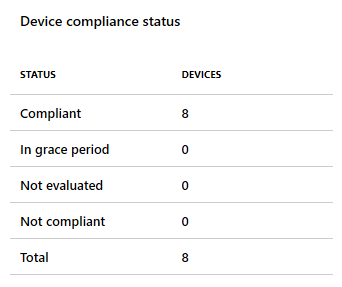
image

Thanks to Intune, which is part of Microsoft 365 Business, at a glance I can ensure all the machines, including my own, are compliant and configured appropriately.

5. All machines only use Windows Defender as their AV

Windows Defender is the best solution for AV in my experience. I can manage many settings thanks to Intune, although I would like some more I would admit, but I have never had an viruses or malware issues wince ditching third party AV providers a number of years ago. I am considering potentially upgrading to Windows Defender ATP but it is probably not worth the investment given the other steps I am already taking.

6. All machines are covered by Azure AD Premium P1

Azure AD Premium P1 is an add on to Microsoft 365 Business but has a number of very, very handy security features that I use to keep everyone safe.

7. Conditional access is limiting access to devices via IP address

One of the features that Azure AD Premium P1 provides is the ability to set conditional access policies. I have restricted access to my parents logins to be ONLY available on two unique IP addresses, theirs and mine. This means that if they were phished and gave up their logins a remote user would be prevented from logging in thanks to these conditional access policies as they are not connecting from these allowed IP addresses.

In my own personal cases, I also use conditional access policies but I have them set a little broader, typically limited to allowing access just from Australia. If I travel, I need to temporarily adjust the policy to accommodate where I’ll be and then set it back to just Australia when I return.

8. All POP and IMAP access has been disabled to all mailboxes

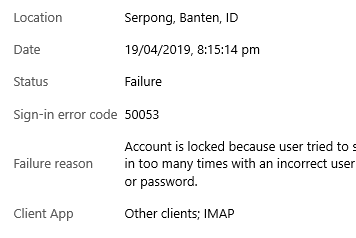
image

The most common way that random bad actors on the Internet are trying to gain access to accounts is using IMAP and POP3 as you can see from a recent log above. Conversely, all Microsoft 365 mailboxes have both POP3 and IMAP enabled for all mailboxes by default unfortunately. No user needs to access mail via old protocols and thus it is disabled across the tenant.

9. Basic authentication has been disabled on the tenant

Because I have modern devices and software connecting to my information, as I have said before:

Disable basic auth to improve Office 365 security

‘nuff said.

10. All accounts have Multi Factor enabled

All accounts have the requirement for MFA on them. Now, my parents don’t have smart phones or devices other than their PC’s, so how do they access their accounts using MFA? Well, they actually don’t! See item 11 as to how I achieve this.

11. Trusted IPs have been enabled

Once again, thanks to magic of Azure AD Premium P1, I am able to implement Trusted IPs. This means that when a login request comes from a configured Trusted IP the user will not be prompted for MFA even if the account requires it. Thus, thanks to the locations I have already set up with Conditional Access I can also use these same IP addresses to configure Trusted IPs for my parents logins. This means, that their accounts ARE protected by MFA but since they are always logging in from a single IP address that is now trusted, they WON’T be asked for MFA. This, makes it easy on them and hard on the bad guys.

12. I have Office 365 Cloud App Discovery

Again, thanks to the wonders of Azure AD P1 I have Cloud App Discovery which enables me a far more granular logging of events in my tenant. I can see exactly what my parents are actually doing.

I’ve talked about the benefits of Cloud App Security before:

A great security add on for Microsoft 365

and recommend you have it.

13. All machines use password-less Windows Hello logins

All the machines are using Windows Hello, either biometric or a PIN to access the machines. No complex passwords to remember, just a simple PIN number or just sitting in front of the machine now gives my parents access to their desktops. It couldn’t be easier and yet secure.

There are a lot more actions I take on my production tenant to ensure it is secure but the above items are the ones that most affect and protect my parents and their information. As you can see, via the implementation of Microsoft Cloud technologies I have made it both super secure and super easy for them. In most cases they don’t even realise what I’ve done, and that’s the way it should be.

Now, if I can do this for my parents, why are you not doing the same for your business users? Eh?