Office 365 Audit Retention Policy

I have spoken previously about the importance of ensuring that your unified audit logs are enabled in your Microsoft 365 tenant:

Enable activity auditing in Office 365

These logs are retained for 90 days by default for all plans. However, if you have Office 365 E5, Microsoft 365 E5 or Microsoft 365 E5 Compliance add-on license you can enable an audit retention policy for up to 1 year.

If you navigate to:

https://protection.office.com/unifiedauditlog

in your tenant you will see:
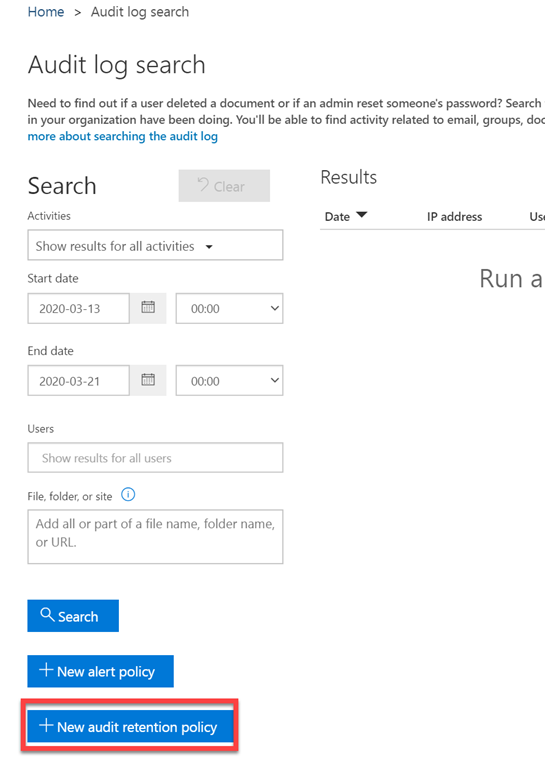
image

the button New audit retention policy at the bottom of the page as shown above.
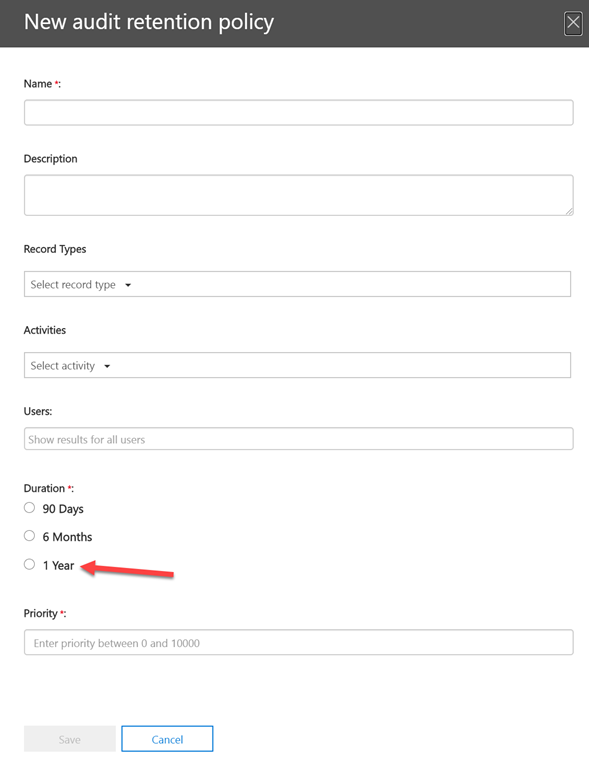
image

Select that button will display the above dialog. Towards the bottom of this you will see that you can set up a retention policy of up to 1 year.

Of course you can enter the policy via the web interface but I prefer PowerShell. The command that you need to use is:

New-UnifiedAuditLogRetentionPolicy

you then use the recordtypes parameter to specify the audit logs of a specific record type that are retained by the policy. Currently, there are heaps of these:

  1. AeD
  2. AirInvestigation
  3. ApplicationAudit
  4. AzureActiveDirectory
  5. AzureActiveDirectoryAccountLogon
  6. AzureActiveDirectoryStsLogon
  7. CRM
  8. Campaign
  9. ComplianceDLPExchange
  10. ComplianceDLPSharePoint
  11. ComplianceDLPSharePointClassification
  12. ComplianceSupervisionExchange
  13. CustomerKeyServiceEncryption
  14. DLPEndpoint
  15. DataCenterSecurityCmdlet
  16. DataGovernance
  17. DataInsightsRestApiAudit
  18. Discovery
  19. ExchangeAdmin
  20. ExchangeAggregatedOperation
  21. ExchangeItem
  22. ExchangeItemAggregated
  23. ExchangeItemGroup
  24. HRSignal
  25. HygieneEvent
  26. InformationBarrierPolicyApplication
  27. InformationWorkerProtection
  28. Kaizala
  29. LabelExplorer
  30. MIPLabel
  31. MailSubmission
  32. MicrosoftFlow
  33. MicrosoftForms
  34. MicrosoftStream
  35. MicrosoftTeams
  36. MicrosoftTeamsAdmin
  37. MicrosoftTeamsAnalytics
  38. MicrosoftTeamsDevice
  39. MicrosoftTeamsShifts
  40. MipAutoLabelExchangeItem
  41. MipAutoLabelSharePointItem
  42. MipAutoLabelSharePointPolicyLocation
  43. OfficeNative
  44. OneDrive
  45. PowerAppsApp
  46. PowerAppsPlan
  47. PowerBIAudit
  48. Project
  49. Quarantine
  50. SecurityComplianceAlerts
  51. SecurityComplianceCenterEOPCmdlet
  52. SecurityComplianceInsights
  53. SharePoint
  54. SharePointCommentOperation
  55. SharePointContentTypeOperation
  56. SharePointFieldOperation
  57. SharePointFileOperation
  58. SharePointListItemOperation
  59. SharePointListOperation
  60. SharePointSharingOperation
  61. SkypeForBusinessCmdlets
  62. SkypeForBusinessPSTNUsage
  63. SkypeForBusinessUsersBlocked
  64. Sway
  65. SyntheticProbe
  66. TeamsHealthcare
  67. ThreatFinder
  68. ThreatIntelligence
  69. ThreatIntelligenceAtpContent
  70. ThreatIntelligenceUrl
  71. WorkplaceAnalytics
  72. Yammer

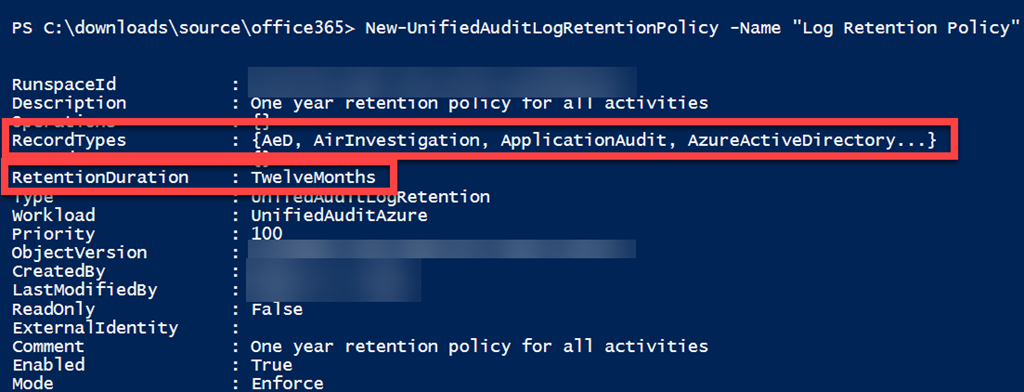
In my case I ran:

New-UnifiedAuditLogRetentionPolicy -Name “Log Retention Policy” -Description “One year retention policy for all activities” -RecordTypes AeD,AirInvestigation,ApplicationAudit,AzureActiveDirectory,AzureActiveDirectoryAccountLogon,AzureActiveDirectoryStsLogon,CRM,Campaign,ComplianceDLPExchange,ComplianceDLPSharePoint,ComplianceDLPSharePointClassification,ComplianceSupervisionExchange,CustomerKeyServiceEncryption,DLPEndpoint,DataCenterSecurityCmdlet,DataGovernance,DataInsightsRestApiAudit,Discovery,ExchangeAdmin,ExchangeAggregatedOperation,ExchangeItem,ExchangeItemAggregated,ExchangeItemGroup,HRSignal,HygieneEvent,InformationBarrierPolicyApplication,InformationWorkerProtection,Kaizala,LabelExplorer,MIPLabel,MailSubmission,MicrosoftFlow,MicrosoftForms,MicrosoftStream,MicrosoftTeams,MicrosoftTeamsAdmin,MicrosoftTeamsAnalytics,MicrosoftTeamsDevice,MicrosoftTeamsShifts,MipAutoLabelExchangeItem,MipAutoLabelSharePointItem,MipAutoLabelSharePointPolicyLocation,OfficeNative,OneDrive,PowerAppsApp,PowerAppsPlan,PowerBIAudit,Project,Quarantine,SecurityComplianceAlerts,SecurityComplianceCenterEOPCmdlet,SecurityComplianceInsights,SharePoint,SharePointCommentOperation,SharePointContentTypeOperation,SharePointFieldOperation,SharePointFileOperation,SharePointListItemOperation,SharePointListOperation,SharePointSharingOperation,SkypeForBusinessCmdlets,SkypeForBusinessPSTNUsage,SkypeForBusinessUsersBlocked,Sway,SyntheticProbe,TeamsHealthcare,ThreatFinder,ThreatIntelligence,ThreatIntelligenceAtpContent,ThreatIntelligenceUrl,WorkplaceAnalytics,Yammer -RetentionDuration TwelveMonths -Priority 100

to set them all for my E5 environment, and thus retain all this logging information for at least 12 months!
image

You can read more about all this in the Microsoft documentation here:

Manage audit log retention policies

Remember however, for this to work:

“To retain an audit log for longer than 90 days, the user who generated the audit log must be assigned an Office 365 or Microsoft 365 E5 license or have a Microsoft 365 E5 Compliance add-on license.”

***** 9 April 2020 Update

It appears Microsoft has now changed the parameters you can specify to:

ExchangeAdmin, ExchangeItem, ExchangeItemGroup, SharePoint, SyntheticProbe, SharePointFileOperation,
OneDrive, AzureActiveDirectory, AzureActiveDirectoryAccountLogon, DataCenterSecurityCmdlet,
ComplianceDLPSharePoint, Sway, ComplianceDLPExchange, SharePointSharingOperation,
AzureActiveDirectoryStsLogon, SkypeForBusinessPSTNUsage, SkypeForBusinessUsersBlocked,      SecurityComplianceCenterEOPCmdlet, ExchangeAggregatedOperation, PowerBIAudit, CRM, Yammer,      SkypeForBusinessCmdlets, Discovery, MicrosoftTeams, ThreatIntelligence, MailSubmission, MicrosoftFlow,  AeD, MicrosoftStream, ComplianceDLPSharePointClassification, ThreatFinder, Project,  SharePointListOperation, SharePointCommentOperation, DataGovernance, Kaizala, SecurityComplianceAlerts, ThreatIntelligenceUrl, SecurityComplianceInsights, MIPLabel, WorkplaceAnalytics, PowerAppsApp,  PowerAppsPlan, ThreatIntelligenceAtpContent, LabelContentExplorer, TeamsHealthcare, ExchangeItemAggregated, HygieneEvent, DataInsightsRestApiAudit, InformationBarrierPolicyApplication,   SharePointListItemOperation, SharePointContentTypeOperation, SharePointFieldOperation,  MicrosoftTeamsAdmin, HRSignal, MicrosoftTeamsDevice, MicrosoftTeamsAnalytics, InformationWorkerProtection,  Campaign, DLPEndpoint, AirInvestigation, Quarantine, MicrosoftForms, ApplicationAudit,  ComplianceSupervisionExchange, CustomerKeyServiceEncryption, OfficeNative, MipAutoLabelSharePointItem,     MipAutoLabelSharePointPolicyLocation, MicrosoftTeamsShifts, MipAutoLabelExchangeItem, CortanaBriefing,
Search, WDATPAlerts, MDATPAudit

Blocked files types in OWA

Outlook Web Access maintain a list of allowed and blocked file types. These are contained in a policy for each user. To determine what this policy is with PowerShell, the first thing you’ll need to do is connect to Exchange Online. I have made that easy for you by creating a script to connect using the new Exchange Online V2 PowerShell module. you will find that script here:

https://github.com/directorcia/Office365/blob/master/o365-connect-exov2.ps1

Once you have connected, run the following commands:

$casmailbox=Get-CASMailbox <user email address>
$owapolicyname = $casmailbox.OwaMailboxPolicy
$owapolicyname

This should display something like:

image

which gives us the policy name.

Next run the command:

$policy = Get-OwaMailboxPolicy $owapolicyname

to get the settings/values of that policy.

To view the allowed file list run the commands:

$allowedFileTypes = $policy.AllowedFileTypes

$allowedFileTypes

which should show something like:

image

To view the blocked file list run the commands:

$blockedfiletypes = $policy.BlockedFileTypes
$blockedfiletypes

image

The next question is, can you adjust these lists? Yes you can. You basically do that by adjusting the list of extensions variable (here $blockedfiletypes) via something like:

$blockedFileTypes.Remove(“.XXX”)

and reapplying that to the policy like:

Set-OwaMailboxPolicy $policy -BlockedFileTypes $blockedFileTypes

and if you want to extend the list just use add instead of remove in the above command prior to applying it to the policy.

Microsoft is making additions to the BlockedFileTypes list from April 2020:

What file extensions will be added to the BlockedFileTypes list with this change?
The following extensions are used by the Python scripting language:


“.py”, “.pyc”, “.pyo”, “.pyw”, “.pyz”, “.pyzw”


The following extensions are used by the PowerShell scripting language:


“.ps1”, “.ps1xml”, “.ps2”, “.ps2xml”, “.psc1”, “.psc2”, “.psd1”, “.psdm1”, “.cdxml”, “.pssc”


The following extension is used by Windows ClickOnce


“.appref-ms”


The following extension is used by Microsoft Data Access Components (MDAC)


“.udl”


The following extension is used by the Windows sandbox


“.wsb”


The following extensions are used for digital certificates:


“.cer”, “.crt”, “.der”


The following extensions are used by the Java programming language:


“.jar”, “.jnlp”


The following extensions are used by various applications. While the associated vulnerabilities have been patched (for years, in most cases), they are being blocked for the benefit of organizations that might still have older versions of the application software in use:


“.appcontent-ms”, “.settingcontent-ms”, “.cnt”, “.hpj”, “.website”, “.webpnp”, “.mcf”, “.printerexport”, “.pl”, “.theme”, “.vbp”, “.xbap”, “.xll”, “.xnk”, “.msu”, “.diagcab”, “.grp”

The list in my test tenant right now is:

Blocked File Types:

.settingcontent-ms
.printerexport
.appcontent-ms
.appref-ms
.vsmacros
.website
.msh2xml
.msh1xml
.diagcab
.webpnp
.ps2xml
.ps1xml
.mshxml
.gadget
.theme
.psdm1
.mhtml
.cdxml
.xbap
.vhdx
.pyzw
.pssc
.psd1
.psc2
.psc1
.msh2
.msh1
.jnlp
.aspx
.xnk
.xml
.xll
.wsh
.wsf
.wsc
.wsb
.vsw
.vst
.vss
.vhd
.vbs
.vbp
.vbe
.url
.udl
.tmp
.shs
.shb
.sct
.scr
.scf
.reg
.pyz
.pyw
.pyo
.pyc
.pst
.ps2
.ps1
.prg
.prf
.plg
.pif
.pcd
.ops
.msu
.mst
.msp
.msi
.msh
.msc
.mht
.mdz
.mdw
.mdt
.mde
.mdb
.mda
.mcf
.maw
.mav
.mau
.mat
.mas
.mar
.maq
.mam
.mag
.maf
.mad
.lnk
.ksh
.jse
.jar
.its
.isp
.ins
.inf
.htc
.hta
.hpj
.hlp
.grp
.fxp
.exe
.der
.csh
.crt
.cpl
.com
.cnt
.cmd
.chm
.cer
.bat
.bas
.asx
.asp
.app
.adp
.ade
.ws
.vb
.py
.pl
.js


and Allowed File Types is:

.rpmsg
.xlsx
.xlsm
.xlsb
.tiff
.pptx
.pptm
.ppsx
.ppsm
.docx
.docm
.zip
.xls
.wmv
.wma
.wav
.vsd
.txt
.tif
.rtf
.pub
.ppt
.png
.pdf
.one
.mp3
.jpg
.gif
.doc
.bmp
.avi


Your mileage may vary.

What supports modern authentication in Microsoft 365

I get a lot of questions of what does and doesn’t support pure modern authentication in Microsoft 365. Pure modern authentication DOESN’T include App Passwords!

In short, you are best off with the latest version of the Microsoft software. However, here’s the list:

Office 2016

Modern authentication is already enabled for Office 2016 clients, you do not need to set registry keys for Office 2016.

Office 2013

To enable modern authentication for any devices running Windows (for example on laptops and tablets), that have Microsoft Office 2013 installed, you need to set the following registry keys. The keys have to be set on each device that you want to enable for modern authentication:

Registry key        Type        Value

HKCU\SOFTWARE\Microsoft\Office\15.0\Common\Identity\EnableADAL        REG_DWORD        1

HKCU\SOFTWARE\Microsoft\Office\15.0\Common\Identity\Version        REG_DWORD        1

iOS

In order to use the native iOS mail client, you will need to be running iOS version 11.0 or later to ensure the mail client has been updated to block legacy authentication.

Mac

One of the three most recent versions of macOS. When a new major version of macOS is released, the macOS and the previous two versions.

macOS Mail on macOS < 10.14 does not support Modern Authentication

Android

Android (Google) Mail does not support Modern Authentication

Outlook on mobile

Outlook for Mobile supports modern authentication by default

Office for iPad® and iPhone® (including Outlook for iOS on iPad® and iPhone®) requires iOS 12.0 or later. Office for iPad Pro™ requires iOS 11.0 or later Office is supported on the two most recent versions of iOS.

Office for Android can be installed on tablets and phones running any of the supported versions of Android and have an ARM-based or Intel x86 processor. Starting on July 1, 2019, support will be limited to only the last four major versions of Android.

Office for Android™ can be installed on tablets and phones that meet the following criteria: running Android KitKat 4.4 or later version and have an ARM-based or Intel x86 processor.

Compare how different mobile devices work with Office 365 – https://support.office.com/en-us/article/Compare-how-different-mobile-devices-work-with-Office-365-BDD06229-776A-4824-947C-82425D72597B

Need to Know podcast–Episode 232

No interview this episode only news with Brenton and myself. Been a little while since we have chatted so a few things to cover off in the Microsoft Cloud and in general.

This episode was recorded using Microsoft Teams and produced with Camtasia 2019

take a listen and let us know what you think – feedback@needtoknow.cloud

You can listen directly to this episode at:

https://ciaops.podbean.com/e/episode-232-updates/

Subscribe via iTunes at:

https://itunes.apple.com/au/podcast/ciaops-need-to-know-podcasts/id406891445?mt=2

The podcast is also available on Stitcher at:

http://www.stitcher.com/podcast/ciaops/need-to-know-podcast?refid=stpr

Don’t forget to give the show a rating as well as send us any feedback or suggestions you may have for the show.

Resources

@contactbrenton

@directorcia

Brenton’s Adoption Podcast

What’s new with Microsoft 365 February 2020

Forms Activity Reports

Staying on top of Office 365 updates

Update to Microsoft Authenticator

Microsoft’s New Cloud printing service

Detect workplace harassment

Our commitment to customer during COVID-19

Techwerks 11–Melbourne 8th May 2020

bw-car-vehicle

We will be back in Melbourne for  Techwerks 11 on Friday the 8th of May 2020. The course is limited to 20 people and you can sign up and reserve your place now! You reserve a place by completing this form:

http://bit.ly/ciaopsroi

or  sending me an email (director@ciaops.com) expressing your interest.

The content of these all day face to face workshops is driven by the attendees. That means we cover exactly what people want to see and focus on doing hands on, real world scenarios. Attendees can vote on topics they’d like to see covered prior to the day and we continue to target exactly what the small group of attendees wants to see. Thus, this is an excellent way to get really deep into the technology and have all the questions you’ve been dying to know answered. Typically, the event produces a number of best practice take aways for each attendee. So far, the greatest votes are for deeper dives into the Microsoft Cloud including Microsoft 365, Azure, Intune, Defender ATP, security such as Azure Sentinel and PowerShell configuration and scripts, with a focus on enabling the technology in SMB businesses.

Recent testimonial – “I just wanted to say a big thank you to Robert for the Brisbane Techworks day. It is such a good format with each attendee asking what matters them and the whole interactive nature of the day. So much better than death by PowerPoint.” – Mike H.

The cost to attend is:

Gold Enterprise Patron = Free

Gold Patron = $33 inc GST

Silver Patron = $99 inc GST

Bronze Patron = $176 inc GST

Non Patron = $399 inc GST

I hope to see you there.

Trusted IPs

One of the ways that you can ease the burden of having to use MFA with every login to services like Microsoft 365 is to implement Trusted IPs for a limited set of networks. This feature is available with Azure MFA which is part of Azure AD Premium P1 and all SKUs of Microsoft 365 including Microsoft 365 Business.

You can read more about Trusted IP’s here:

https://docs.microsoft.com/en-gb/azure/active-directory/authentication/howto-mfa-mfasettings#trusted-ips

To configure Trusted IPs in your environment visit:

https://account.activedirectory.windowsazure.com/usermanagement/mfasettings.aspx

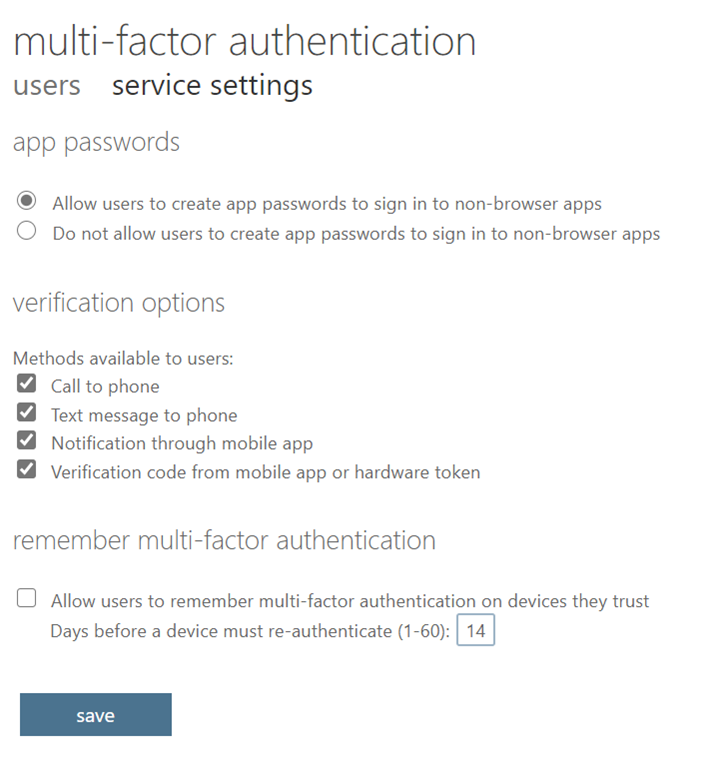
If you don’t have the appropriate license you will only see:

image

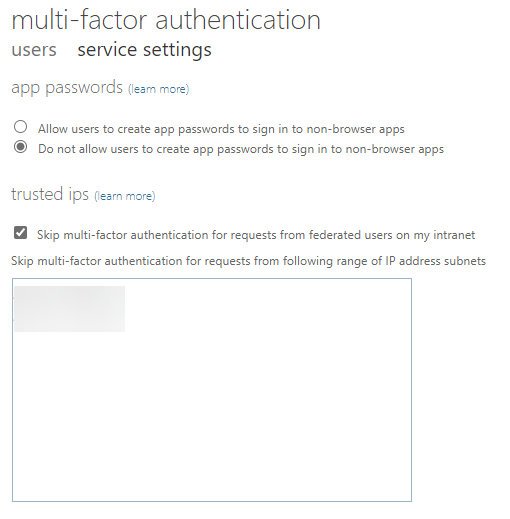
If you have the appropriate license you will see more options like so:

image

Thus, into the lower box you put the IP address range(s), behind which you do not wish to have MFA enabled. Anywhere else, it will remain enabled and required. Also don’t forget to check the option to Skip above this box.

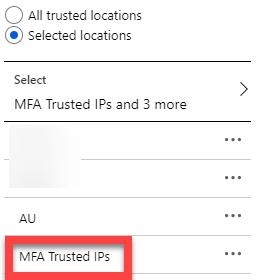
image

If you also look inside your Conditional Access configuration, you will now find that you also have a new Location called MFA Trusted IPs as shown above. You can thus use that as part of your Conditional Access policies if you wish which you can read more about here:

https://docs.microsoft.com/en-us/azure/active-directory/conditional-access/location-condition#trusted-ips

In summary then, Trusted IPs allow you to remove the need to use MFA when configured and are part of Azure AD Premium P1 or Microsoft 365 licenses. They are great way to remove the need for MFA for network ranges that you trust. Typically these are the IP ranges inside a businesses local network, that the business completely manages and controls.

Secure logging with Microsoft 365 presentation

Here’s the slides from my longer presentation today at Ignite Copenhagen

Securely logging to Microsoft 365

Getting access to your information in Microsoft 365 starts with logging in but is it secure as it could be? Understanding security options at the point of entry like MFA, Legacy Authentication and Conditional Access on all devices is critical to keeping information protected as it is not only you that is trying to log into your account these days! Learn what security technologies you can add at login and the best practices approaches to configuring and monitoring these. Security starts  at the doorway to Microsoft 365 and simple configurations can greatly reduce your risks of unauthorised access. Come and learn what can be done.

https://www.slideshare.net/directorcia/securely-logging-to-microsoft-365

Office 365 Backup presentation

Here’s the slides from my short theatre presentation at Ignite Copenhagen

THR30149 – Do you need to backup Office 365?

Is there are need to backup Microsoft 365 data given the feature set in place? What exactly is provided out of the box by Microsoft and what might require the consideration of additional solutions? What are the best practices with what can be enabled in Microsoft 365 to provide maximum data protection before considering alternatives? Determining this will help you create a better and more effective policy to ensure the availability of your information in all situations. Come and learn how to better protect your data and what additional steps you can take to improve its security and reliability.

https://www.slideshare.net/directorcia/do-you-need-to-backup-office-365