About two years ago I created a free PowerShell script to report on tenant logins by checking the Unified Audit Log. You’ll find that original article here:
I’ve now updated the script and added some functionality as well. But before you go off and run the script, make sure you have completed the pre-requisites:
1. You’ll need to ensure that you have enabled your Unified Audit Logs in the tenant. You can see how to do that here:
2. Prior to running the script you will have needed to install the Exchange Online PowerShell module. To set up your PowerShell environment I suggest you check out:
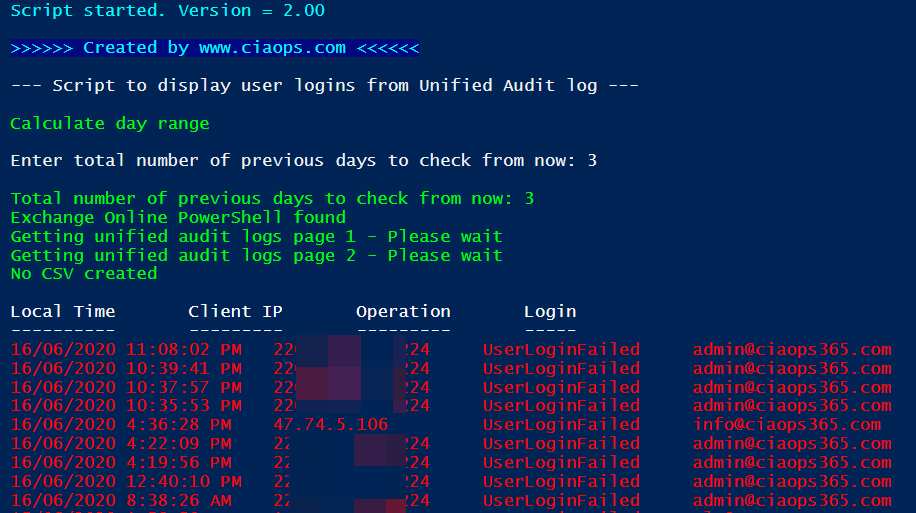
That should output the list of user logins from the Unified Audit Log for the past day as shown. It will show you both successful and failed login attempts, the time they occurred, the IP that the login came from the user attempting the login as shown above.
If you instead run the o365-login-audit.ps1 script with the –fail parameter as shown above,
The output will only display failed login attempt details as shown above.
If you run the o365-login-audit.ps1 script with the –days parameter as shown above,
You will be prompted to enter the number of previous days you wish to check as shown above beyond the default one day. Remember, the more days you specify, the more logs need to be retrieved, and the longer the process will take.
The results will be displayed as before. You will notice the message line in the output to the total number of days being checked.
If you instead run the o365-login-audit.ps1 script with the –csv parameter as shown above,
You will notice the same output but you will also see a line, as shown above, that confirms the total results have also been sent to a CSV file.
if you look the parent directory, from where the script ran, you will find the CSV file (o365-login-audit.csv) mentioned previously as well as the script log file (o365-login-audit.txt).
The script log file (o365-login-audit.txt), as shown above, contains the output from what was displayed on the screen when you ran the script. This file is always overwritten when the script runs.
The CSV file contains all the log file entries for the period specified. This allows you to open the file in Excel and filter, sort and format as needed. A new CSV is created every time the script is run with the –csv option.
Thus, the o365-login-audit.ps1 script has 3 optional parameters, that can be used in any combination:
-fail = display only failed logins
-days = prompt for total number of days to check from current
-csv = output all logs for period to a CSV file in the parent directory. A new CSV file is created for each script execution
The script will also produce a log file (o365-login-audit.txt) in the parent directory, that is overwritten on the each run of the script.
You will find this script and all my publicly available scripts at:
Don’t forget to check back there regularly for updates. Also, if you have any feedback or suggestion on this script or what you’d like to see me create, please let me know. I also maintain a large array of additional scripts via a paid subscription. More details of that can be found at www.ciaopspatron.com.
In this episode Brenton reports back on his encounters with the AZ-900 certification exam. Spoiler alert – he passed! Congrats. I also speak with Nicki Borell all about information protection and labelling in Microsoft 365. of course Brenton and I bring you up to date with everything in the Microsoft Cloud. We hope you enjoy the listen.
This episode was recorded using Microsoft Teams and produced with Camtasia 2020
FAQ podcasts are shorter and more focused on a particular topic. In this episode I’ll talk about the importance of checking your inbound Exchange Online policies to improve security.
This episode was recorded using Microsoft Teams and produced with Camtasia 2019
labelling your data in Microsoft 365 provides multiple benefits for protection as well as retention. This month I’ll take a look at these option and show you how to set it all up and make best use of it. I’ll have the the latest Microsoft Cloud updates plus open Q and A as well.
You can register for the regular monthly webinar here:
CIAOPS Need to Know Webinar – June 2020 Friday 26th of June 2020 10.30am – 11.30am Sydney Time
All sessions are recorded and posted to the CIAOPS Academy.
The CIAOPS Need to Know Webinars are free to attend but if you want to receive the recording of the session you need to sign up as a CIAOPS patron which you can do here:
Also feel free at any stage to email me directly via director@ciaops.com with your webinar topic suggestions.
I’d also appreciate you sharing information about this webinar with anyone you feel may benefit from the session and I look forward to seeing you there.
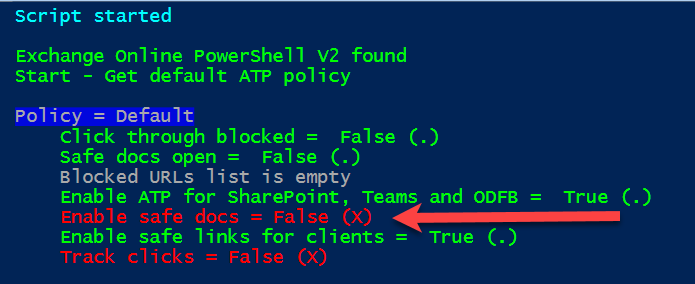
I was updating my security scripts for Office 365 ATP and when I ran it I noticed an option not set, which I highlight in red in my scripts to draw attention to it.
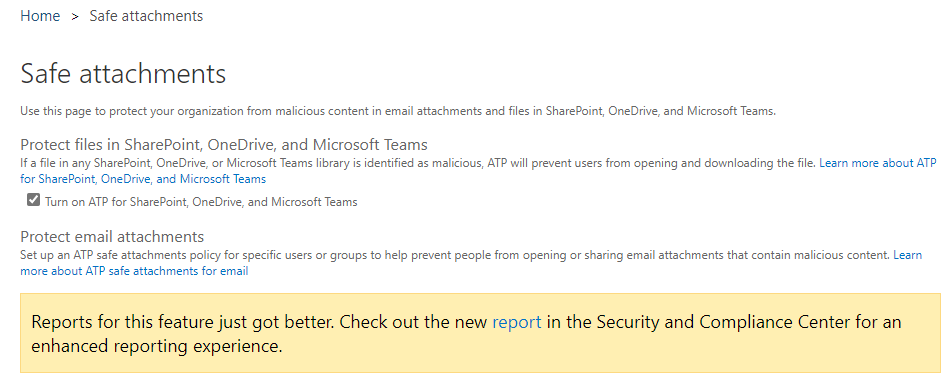
I then went and took a look at the Safe Attachments options in my web console, as shown above. I didn’t see any differences there.
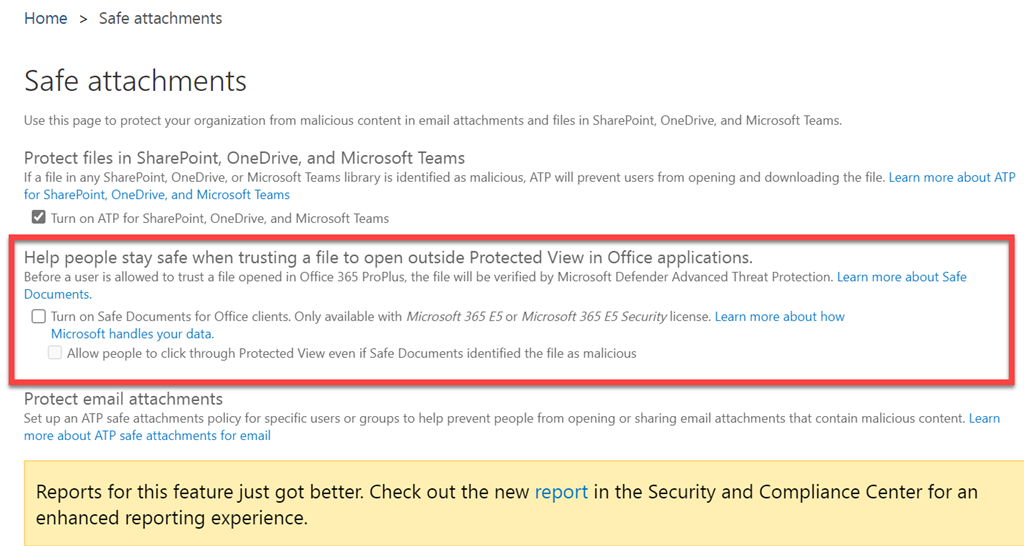
However, when I visited another tenant, as shown above, I do indeed see a new section as shown. You’ll note however that:
Only available with Microsoft 365 E5 or Microsoft 365 E5 Security license
Thus, if you have the required license there is now a Safe Documents feature that you can enable in the organisation. Once enabled it will:
“will upload user files to Microsoft Defender Advanced Threat Protection (MDATP) for scanning and verification”
FAQ podcasts are shorter and more focused on a particular topic. In this episode I’ll talk about the differences between OneDrive for Business and SharePoint.
This episode was recorded using Microsoft Teams and produced with Camtasia 2019
Robert Crane 0:00
Welcome to the Need to Know podcast. My name is Robert Crane and this is a shorter FAQ episode. These episodes are brought to you by the CIA ops patron community which you can sign up for@www.co ops patron.com. Now I’ve done a number of these FA Q’s, while I thought that one of the topics we really haven’t covered in any depth or started to cover is around security. So I thought that there are going to be lots of FAQs and lots of stories we can talk about with security when it comes to Microsoft Cloud. So I thought I’d kick that off with maybe starting with a discussion to help you get a starting point and all this now, the idea with security is that it’s going to be about defense in depth. Now that means there are going to be multiple systems or multiple configurations to put in place to effectively improve the security and reduce the risk. Now we can never eliminate the risk, right there’s always going to be some sort of risk but
Our job as IT professionals is going to be to minimize this to the best of our capabilities. And that’s going to mean implementing a number of systems to provide that Microsoft gives us lots and lots of options, which I hope to be able to run through over the course of upcoming FAQs. But the way I like to think about it is we need a systematic approach. Now good security is going to be about having a system doing things in a systematic way, and making sure that doesn’t leave any holes, we miss something. And we can repeat that over and over again. Now, the system I would suggest you adopt is one of working from the outside, it’s what’s the furthest point on the defense of our tenant that we can look to secure first and then once we’ve done that successfully, we can then move our way further and further inside the tenant. Now in the Microsoft space, probably the point that is furthest
From the tenant is actually something Microsoft generally won’t handle. That will be your DNS records. Now, there are three major DNS records when you look at security that are very, very important. Now, the first one of these is called the SPF record. Now most people will have to set that up when they’ve configured their tenant. That means that it will already be in place before they even got the tenant up and running. Now, the idea with SPF is for it to basically be a record or a match between the IP address or the actual physical server that is sending mail and the domain that it claims to come from. So basically, the SPF record is going to provide that match to let other people know that the email being sent by your custom domain is authorized to come from the server. Now, what we find is that many customers need the ability to send from multi service
Some might send a bulk email or maybe on prem and also in the cloud. So again, there are the option to you to have multiple servers configured an SPF now, the simply you could have this the better. So if you’ve only got office 365 as the way to send emails, then that’s gonna make it very simple. But if you do have some of the other configurations, then you’re gonna have to make sure that you add those in appropriately. And the idea is, is you’re going to make sure that the syntax is correct. Now, it is very easy to make a simple mistake formatting mistake when it comes to formatting these records. So my advice is even if you have an SPF record in and up and running already, make sure that you go in and double check it now. There are lots of tools out on the internet that will do this for you. mx toolbox.com is a great place that I use, just go in there and you can run a DNS query across all your records, but then focusing on
The ones we’ll be talking about here and SPF the first one. So most people will have SPF in, make sure that it is correct. It is correctly formatted has the right configuration before you go too much further. Now, after you’ve got your SPF, and you’ve verified that go and have a look at Deacon, right, so the idea with DKM is that DKM is a dentist’s record, that will basically provide the key to unlock a cryptographic key that is put into or sent with every email. So the idea is, is that when an email is sent out from the domain, it will include a short cryptographic header. And then when the receiving party gets that they can go back to the DNS record, get the decryption key from the DNS record which has been set up and that will then be used to decrypt the header from the email that was received and I can then verify that that is expected.
And indeed that email did come from that originator. So again, DKM requires typically two DNS records very simple. You only have to put them in do them once. And again, you can use something like MX toolbox to go in and check to see whether you had decom in place. There’s also plenty of places to read up on how Deacon needs to be configured. There is some articles around office 365. Now, office 365 does use a form of dynamic DKM. But it’s always better to go in and have a static version. So once you’ve got your Deacon records in, you can go into the Exchange Online configuration, you’ll find a decom option under protection, and then you can basically ensure sure that it’s working, verify that DKM is correctly configured. And then basically make sure that it’s turned on going forward. So the second thing I get you to check is that make sure that you have a DKM record and
Make sure that he’s set up correctly. And if you are using a Microsoft 365 tenant, you can go into Exchange Online config under decom. And you can make sure that that is set to on. So again, that’s going to provide you additional layer of protection when it comes to your emails. Now the third DNS record is something called demark. Now demark basically does an evaluation on the success of both the SPF and Deacon record. Now it is basically something that you can configure to initially just report you can also configure the situation’s of files demark
A can then quarantine the email and you can then get quite aggressive if you want to insert it to actually reject if it fails demark. So, in summary, the demark is that evaluation of the success of DKM and SPF together and then what action will be taken based on the success or failure of that evaluation.
Now demark, again, is something I would suggest that perhaps you start off with just reporting and there are tools out there that can send you the demark reports to let you know what’s failing and what’s happening. Generally, I would suggest that you move from reporting to at least quarantine so that again, that means that if there is a failure of demark, then we basically look at quarantine in the email rather than accepting it into the system. Now demark, again, is a single DNS record that you put inside your environment, to basically let people know that when they receive an email, they want to evaluate demark and come back to your DNS records and then they can look at what the settings are and then help them make a evaluation based on those settings.
Now, the reality is, is those three DNS records are typically outbound, so they’re typically more important for the
mouths that are being sent to another organization. So to be a good internet citizen, make sure that you do have those records set up correctly and configured appropriately. Now, you can also use that technology to assess inbound emails as well. So basically what we can say is okay, do records that are coming into our environment. If they do not, basically have success with SPF, we can then treat them or mark them as more likely to be spent, which they are. And then we can also do the same with D. Kim and demark. So there are a number of settings inside Exchange Online, particularly that you can go in and modify or set up policies that take different actions depending on the success or failure of what these records replicated for inbound emails. Now, the idea here is is that there is an area that you can go in and sit down
He’s up, we can do this via the web interface. We can also do this with PowerShell. And for example, when emails come in to Exchange Online, they are evaluated, using it what’s called an SEO level. So the spam confidence level. And things like a failure of SPF will generally add to the fact that it’s probably more likely to be spam or not. And then you can set a threshold to determine Okay, well, when it gets over, when the threshold gets over, say seven, which is the default option, then we will treat it as being spam and then you can determine what action you want to take once that evaluation has been made, but the important thing is, is to think about this starting as far out from the tenant as possible. Make sure that your DNS records are correct, especially for the SPF D Kim and demark. You can use tools like MX toolbox calm to evaluate your records.
You can also use that tool to evaluate other records, other tenants other domains as well, because the DNS records are effectively public so you can go out and again, have a look and see how many people have set up SPF have set up things like DKM, and demark. Now a couple of other tools I’d recommend that will help you in this assessment is what’s called the exchange message. analyzer header analyzer. So what it allows you to do, it’s a free tool that you can download from Microsoft is typically an add on for Outlook. So you go and do a search for exchange message analyzer, you can then add that into Outlook. And then when an email is received, you can use that to drill in and report on the message header. So typically, the stuff you don’t see in normal outlook will tell you whether there has been SPF you know, success on the email that you’re looking at. Whether
decom is assessing whether demark is a success. But also lets you know, for example, which servers, the email has come through lots and lots of really good detail in there. And I would certainly recommend that add on as a standard. Now remember, we can load that individually onto a single Outlook client, if you want also works in our the Outlook Web Access as well. And if you’re an administrator, you can add that to the admin area of your Microsoft 365. And then push it out to all your clients. And it’s a recommended option because most clients probably won’t. Customers won’t use it themselves. But if you ever need to troubleshoot Why did this email end up being spam? Or why did this email end up in junk? This message header analyzer is going to allow you to be able to debug and it has a number of links in there that will take you directly to the relevant
articles from Microsoft to let you know how the settings are and where you can make changes. So I would strongly recommend that if you are curious or you’re really wanting to tweak your settings or you want to analyze why emails are ending up in places like junk mail folders, then use this message head analyzer ad in. And you can go and evaluate and see much more detail what the actual message headers how the internet’s rather this, what the actual
process that has taken place, moving this email between servers. So hopefully that’s given you a bit of a start coming to think about security. Good security, like I said, is done in layers. The outermost layer, I believe, is to look at the DNS records. So make sure you have your SPF, your decom and your demark configured and correctly set up. You can evaluate that with a number of tools. Once you’ve got those set up correctly. There are a number of options inside Microsoft 365 to make sure
They that is turned on Microsoft 365 is taking advantage of the signals that are coming from those DNS records. And to do a bit of evaluation and look at those headers in more detail for inbound emails, you can use the free message header analyzer plugin from Microsoft in your outlook that will give you the ability to drill into that if you want to get some more details. So I think very much for taking the time listening to this episode, hopefully we’ll be able to, again, do a number of the dive sessions into specific areas in security down the track. If you do have any suggestions, we do want to hear a topic in more detail, please don’t hesitate to contact me you can do that via director at CIAops dot com. And I’ll take this opportunity once again to thank you very much for listening to this episode.
I have now managed to find a solution for this. In short, the issue, as it turns out, has to do with disk encryption. I found some information about the general issue here:
Windows Defender Application Guard accesses files from a VHD mounted on the host that needs to be written during setup. If an encryption driver prevents a VHD from being mounted or from being written to, WDAG will not work and result in an error message (“0x80070013 ERROR_WRITE_PROTECT”).
Chatting with good people at Microsoft, it seems that in my particular case was solved by this update:
and was due to a BitLocker issue (being drive encryption).
So, the good news is that my issue is resolved and I can run Windows Defender Application Guard without any errors.
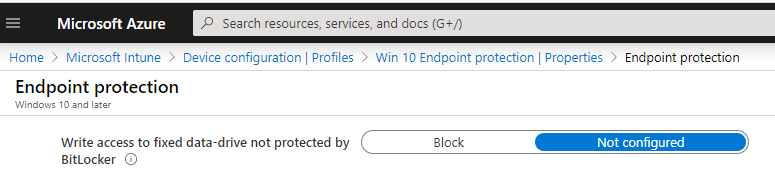
If you can’t install the KB for some reason and you need a quick work around, the issue was linked the BitLocker “Deny write access to fixed drives not protected by Bitlocker” policy and you should clear any group policy and set the following in Intune to Not configured as well as a work around.
So in the end it was an issue with drive encryption that was rectified with an update. Yeah!
Thanks to the people at Microsoft for the assist on this one. Now onto the next challenge.
















 CIAOPS