Need to Know podcast–Episode 286

Another round of updates from the Microsoft Cloud. Also trying a video version of the podcast on YouTube (link below). Also trying an ‘editorial’ section which this month is on Secure Score. Let me know what you think.

Take a listen and let us know what you think – director@ciaops.com

You can listen directly to this episode at:

https://ciaops.podbean.com/e/episode-286-updates/

Subscribe via iTunes at:

https://itunes.apple.com/au/podcast/ciaops-need-to-know-podcasts/id406891445?mt=2

The podcast is also available on Stitcher at:

http://www.stitcher.com/podcast/ciaops/need-to-know-podcast?refid=stpr

Don’t forget to give the show a rating as well as send me any feedback or suggestions you may have for the show.

This episode was recorded using Microsoft Teams and produced with Camtasia 2022.

Brought to you by www.ciaopspatron.com

Resources

@directorcia

YouTube version on podcast

Join my shared channel

CIAOPS Monthly webinar

Microsoft Ignite

iOS Lockdown mode

Visual Studio Code on the web

Gone phishing tournament

Storyline is in public preview

Microsoft SMB study

Edge enhanced security

image

A new security option in Microsoft Edge.You’ll find it in Settings | Privacy, search and services as shown above. Three levels are available once you enable it (it is disabled by default).

What is does according to the documentation is:

Enhanced security in Microsoft Edge helps safeguard against memory-related vulnerabilities by disabling just-in-time (JIT) JavaScript compilation and enabling additional operating system protections for the browser.

and more information is found here:

Enhance your security on the web with Microsoft Edge

There is also the option to white list certain URLs if required.

So, if you want a bit more security when using Edge, turn it on! I have.


What to check with spoofed email in Microsoft 365

If you find that a spoofed email is reaching users inboxes in Microsoft 365 (say something like managing.director@gmail.com pretending to be managing.director@yourdomain.com) then here are some initial suggestions and things to check.

Firstly, ensure you have SPF, DKIM DMARC configured for your domain. They all help reduce spoofed emails getting to the inbox. 

Set up SPF to help prevent spoofing

Support for validation of DKIM signed messages

Use DMARC to validate email

Next, run the analyzer that is built into the Microsoft 365 Security Center to see where your policies may deviate from best practices.

Configuration analyzer for protection policies in EOP and Microsoft Defender for Office 365

and you’ll find those best practice settings here:

Recommended settings for EOP and Microsoft Defender for Office 365 security

I’d be checking against the strict rather than the standard settings if it was me.

image

In the settings for your spam policy in Exchange Online there are a few additional settings you can enable as shown above. Even though the Microsoft best practices doesn’t recommend it, I still have most of these set and at a minimum recommend that the SPF hard fail option be enabled.

image

In your Anti-phishing policies ensure the option for Show first contact safety tip is enabled as shown above. Microsoft Best Practice policies don’t set this. In general make sure all the above settings are all enabled as shown.

Another good indicator to configure is

Set-ExternalInOutlook -Enabled $true

using PowerShell, that will let you know about

Native external sender callouts on email in Outlook

Another custom adjustment you can consider is changing the Spam Confidence Level (SCL)

Spam Confidence level (SCL) in EOP

A further option you may wish to tweak beyond Microsoft’s recommended best practices is the phishing thresholds in anti-phishing policies:

Advanced phishing thresholds in anti-phishing policies in Microsoft Defender for Office 365 

When you get emails that are confirmed as trying to trick users, make sure you report them to Microsoft

How do I report a suspicious email or file to Microsoft?

Use the Submissions portal to submit suspected spam, phish, URLs, legitimate email getting blocked, and email attachments to Microsoft

Probably the best way to do that is to use the free add-in that works with Outlook.

Enable the Report Message or the Report Phishing add-ins

doing so helps build the intelligence for Exchange Online as well as helping others who may see similar insecure emails.

The final option available to you is always to reach out to Microsoft for assistance.

Get help or support for Microsoft 365 for business

I would also suggest you check any white listing options you may have in Exchange Online as these are easily forgotten over time. Best practice is not to white list any domain or specific email address but always check when you see repeated emails get through filtering. I can’t tell you how many times I find this as the cause of any issue. Keep in mind, there are few places that you can white list emails:

Create safe sender lists in EOP

You can of course also block the insecure sender:

Create blocked sender lists in EOP

Remember that if you tighten your email security the result will probably be an increase in false positives, at least initially, as Exchange Online learns to evaluate the changes and user behaviours based on the updated settings. Email security is not an exact science. The bad operators are working just as hard to bypass all these settings so it is always going to be a game of cat and mouse. However, hopefully, using the Microsoft recommended best practices and some additional tweaks as suggested above, you can prevent the vast majority of insecure emails out of your users email boxes.

Go get Defender EASM

As the MS documentation says:

Microsoft Defender External Attack Surface Management (Defender EASM) continuously discovers and maps your digital attack surface to provide an external view of your online infrastructure.

Basically you plug in your resources like:

  • Domains

  • Hostnames

  • Web Pages

  • IP Blocks

  • IP Addresses

  • ASNs

  • SSL Certificates

  • WHOIS Contacts

Defender EASM will then use these as a ‘seed’ to search through public information and report back.

Screenshot of Overview Dashboard

You’ll then discover not only if you have any vulnerabilities in things like routers, web sites, etc but you’ll also probably find a whole swag of information that you didn’t know was out there.

In short, Defender EASM, acts as kind of a scheduled ‘penetration test’ for your environment, which I think is super handy

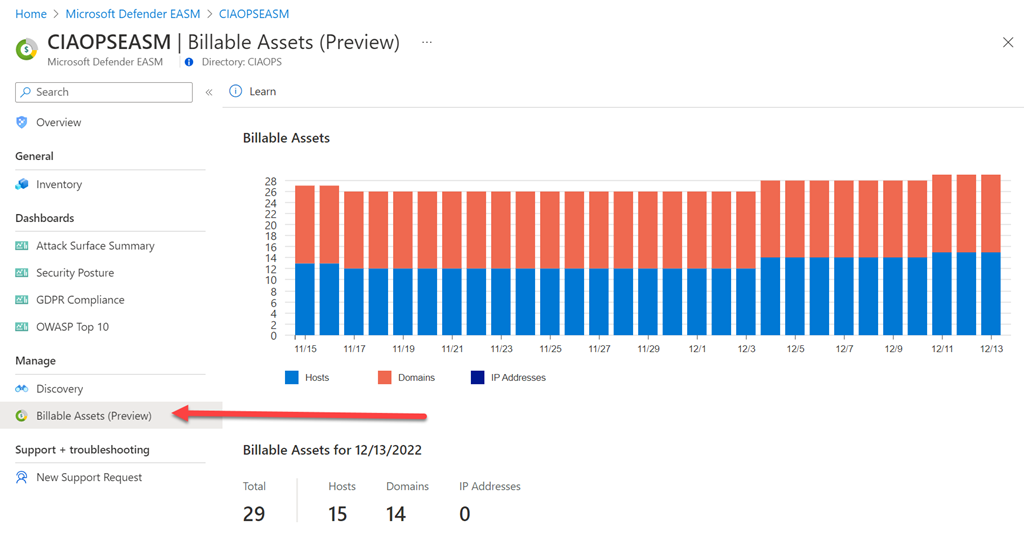
image

As you can see above, it ain’t very expensive either! To me that makes it a no-brainer. In my environment I have 40 odd discovered assets making the cost 64 cents a day and just over $19 per month! Peanuts for what it provides. Best of all, you also get a a free 30 day trial to see what it is all about.

Like Microsoft Sentinel back in the day, it is still early days for this service and I expect it to improve rapidly so now is the time to jump on board and start using it to get a feel for what it is all about. I certain have, and I encourage you to do the same.

Microsoft has documentation here:

Defender EASM Overview

if you want to read more.

Enabling security defaults will enforce MFA on external users

A really good questions that I came across was whether enabling security defaults on a tenant will enforce MFA for external guest users.

Here is the documentation for security defaults:

Security defaults in Azure AD

and when enabled one of the things it will do is:

Require all users to register for Azure AD Multi Factor

which says:

All users in your tenant must register for multi-factor authentication (MFA) in the form of the Azure AD Multi-Factor Authentication. Users have 14 days to register for Azure AD Multi-Factor Authentication by using the Microsoft Authenticator app. After the 14 days have passed, the user can’t sign in until registration is completed. A user’s 14-day period begins after their first successful interactive sign-in after enabling security defaults.

The question is does “all users” include external guest users who have been invite into a tenant for collaboration on Microsoft Teams say? This is important because Microsoft is starting to enforce security defaults on all tenants.

Interestingly, none of the documentation seems to call out specifically whether “all users” does in fact include external guest users. After some digging I came across this post:

All users should be changed to all “member” users · Issue #78194 · MicrosoftDocs/azure-docs (github.com)

which has a response from someone at Microsoft and it says:

“Follow up from the product group… Security defaults should apply to guest users as well.”

So it looks as though it does indeed appear that security defaults applies to external guest users but I wanted to be sure.

image

I took a generic Gmail account I use and invited that user into a demo tenant that didn’t have security defaults enabled.

image

That user went through the expected process of connecting to the tenant.

image

using the email code verification process.

image

until they could access the tenant.

image

I also verified that they appeared in the Azure AD for that tenant.

image

So everything as expected so far.

image

Next, I invited that same user to a Microsoft Team inside that tenant.

image

and they could access that Team using the normal email code authentication process. I tried this a few times to ensure they could access the Team without needing anything but the usual email code. So far, so good still.

image

I then went in an enabled security defaults for the tenant.

image

After a few minutes wait to let the policies kick in I tried to login as the external guest user again to Microsoft Teams directly, and after providing a login and getting an email code I was prompted to enable MFA for the user as seen above.

image

Selecting Next will take you through the standard MFA registration process as you see above.

It is therefore the case that if you enable security defaults for a tenant, all users, INCLUDING any external guest users, will be REQUIRED to enable MFA to access resources inside that tenant.

Why this is important is because Microsoft will be enabling security defaults on ALL tenants as detailed here:

Raising the Baseline Security of all organizations in the World

which says:

“Based on usage patterns, we’ll start with organizations that are a good fit for security defaults. Specifically, we will start with customers who aren’t using Conditional Access, haven’t used security defaults before, and aren’t actively using legacy authentication clients.

Global admins of eligible tenants will be notified through email and the Microsoft 365 Message Center. Then, starting in late June [2022], they’ll receive [a] following prompt during sign-in”

Being it is now June 2022, this process has commenced. You can disable security defaults if you wish, even after they have been enabled, if desired per the details in the above link.

Given that I couldn’t find a specific answer about global external users being impact by security defaults, hopefully this now provides a reference for other looking for the same information.

Defender for Endpoint device execution restrictions

This is a video run through of the recent articles I wrote:

Microsoft Defender for Endpoint device isolation

Microsoft Defender for Endpoint restrict app execution

This video will show you how to both isolate a device and restrict app execution on a device. Both of these are great ways to respond to a suspected device security threat and limit security breeches while still allowing remote troubleshooting.

Microsoft Defender for Endpoint Restrict app execution

In a recent blog I looked at how Microsoft Defender for Endpoint can allow an administrator to restrict a device from communicating with everything except the Defender for Endpoint admin console. You’ll find that post here:

Microsoft Defender for Endpoint device isolation

Isolating a device is a pretty drastic measure, however Defender for Endpoint does have another device restriction option that is probably less intrusive known as Restrict app execution.

What Restrict app execution does is that it present applications that are not signed by Microsoft from running.

image

To Restrict app execution on a device firstly navigate to:

https://security.microsoft.com

and select the Device inventory from the options on the left. This will display a list of all the devices that Defender for Endpoint knows about. Select the device you wish to isolate from the list. In the top right hand side should appear an option Restrict app execution as shown above.

image

Once you select this option you’ll need to provide a reason for this restriction and press the Confirm button. This action will be logged in the admin console for later reference.

image

You will see the action item display as shown above. You can also cancel if required here.

On the device, in a matter of moments, a message will now appear:

Screenshot 2022-07-12 141355

and if a non Microsoft application is run you’ll see:

image

putty.exe

image

Brave browser

This process is using Windows Defender Application Control (WDAC) that I have spoken about before:

Windows Defender Application Control (WDAC) basics

which you can apply yourself via a policy, but in this case, it is being applied on the fly, which is impressive!

To remove this device restriction, all you need to do is select

image

the Remove app restriction which can be again found in the top right of the device page.

image

You’ll again be prompted to enter a reason for removing the restriction and then you’ll need to select the Confirm button.

image

The Action center confirmation will then appear as shown above and in a very short period of time the restriction will be removed from the device.

image

These confirmation can be found in the Action center option on the left hand side menu under the Actions & submissions item as shown above.

This is handy option in Defender for Endpoint for isolating a possible security issue on a device while minimising the impact to the user. Of course, smart attackers will use Microsoft tools located on the device, such as PowerShell to compromise machines to avoid this restriction. However, typically, they will also need to run a non-Microsoft application somewhere along the line which this technique will block.

For more information about Microsoft Defender Restrict app execution see the Microsoft documentation here:

Take response on a device

and remember that Restrict app execution is another feature that can be used with Defender for Endpoint when responding to security threats on devices.

Microsoft Defender for Endpoint device isolation

Let’s say that you have device that you believe has a security threat serious enough that it should be ‘unplugged’ from the network. Doing so physically makes it hard to troubleshoot any incident unless you are in front of that machine. However, Defender for Endpoint allows you to isolate the machine from the network while still remaining connected to the Defender for Endpoint console.

image

To initiate the device isolation navigate to:

https://security.microsoft.com

and select the Device inventory option from the menu on the left hand side. That should show you a list of all devices that Defender for Endpoint knows about. Select the device you wish to isolate from the list that appears.

In the top right side of the device page you will find the option to Isolate a device. If you can’t see that option check the ellipse (three dots). Select the ellipse to display the menu shown above. In that menu should be an option Isolate device, which you should select.

image

You’ll now see a dialog appear as shown above asking you to confirm that you wish to isolate the selected device. You also have the option here to allow Outlook, Teams and Skype for Business while device is isolated if desired. You’ll also need to enter a reason for isolating the device. When all that is done, select the Confirm button.

image

You should now see the action confirmed in the security console as shown above. You also have the ability to cancel this if needed here.

clip_image002

Almost immediately, the device being isolated will warn the current use that isolation is taking place and the network is disabled as shown above. At that point the user will no longer be able to navigate beyond their current machine (i.e. no browsing Internet or local LAN, no printing and no emails). More importantly, any other covert sessions will also be blocked preventing a security threat from spreading.

image

As an administrator you will however be able to launch a Live response session in the Defender console, as shown above, to triage the device and run PowerShell scripts if needed.

image

If you now look in the menu in the top right of this device when you have completed your work, you will see an option Release from isolation as shown above, for that device.

image

You will once again need to provide a reason why this device is being released from insolation and then select the Confirm button to complete the process.

image

The Action center will appear again as the isolation is removed. You again, have the option to cancel this if you wish.

image

The history of the actions taken to isolate and release the device can be found in the Action center menu option under the Actions & submissions heading on the left in the Microsoft Security center.

Defender for Endpoint allow you to quickly and easily isolate a suspected device from all network connections but allow it to remain connected to the Defender console for remote troubleshooting. If you want to read more about this process then consult the Microsoft documentation here:

Isolate devices from the network