Need to Know podcast–Episode 304

Join me for the latest news and updates from the Microsoft Cloud and then a look at Application Control and how you consider implementing it.

This episode was recorded using Microsoft Teams and produced with Camtasia 2023.

You can listen directly to this episode at:

https://ciaops.podbean.com/e/episode-304-application-control/

Subscribe via iTunes at:

https://itunes.apple.com/au/podcast/ciaops-need-to-know-podcasts/id406891445?mt=2

The podcast is also available on Stitcher at:

http://www.stitcher.com/podcast/ciaops/need-to-know-podcast?refid=stpr

Don’t forget to give the show a rating as well as send me any feedback or suggestions you may have for the show

Brought to you by www.ciaopspatron.com

Resources

@directorcia

@directorcia@twit.social

Join my shared channel

CIAOPS merch store

Become a CIAOPS Patron

CIAOPS Blog

New CIAOPS Power Automate course

Device actions during an incident

CIAOPS June Need to Know webinar

New Microsoft 365 apps security baseline profile and updates to the Microsoft Edge baseline

Update to Microsoft Intune PowerShell example script repository on GitHub

Detecting and mitigating a multi-stage AiTM phishing and BEC campaign

SharePoint roadmap pitstop: May 2023

Increasing Transparency into Azure Active Directory’s Resilience Model

Microsoft 365 Lighthouse provides deployment insights across all tenants on a single pane of glass

ITDR with Microsoft: Identity threat-level detections and automatic attack response

XDR meets IAM: Comprehensive identity threat detection and response with Microsoft

Conditional Access authentication strength is now Generally Available!

AppLocker vs WDAC

Windows AppLocker basics

Basics of deploying Windows AppLocker using Intune

Windows Defender Application Control (WDAC) Basics

Basics of deploying Windows Defender Application Control (WDAC) using Intune

WDAC basics

Microsoft recommended block rules

Microsoft recommended drive block rules

Device actions during an incident

Much of the protection with Microsoft Defender for Endpoint is taken care of for you automatically, but let’s say you want to conduct an investigation/remediation process manually. How would you achieve this?
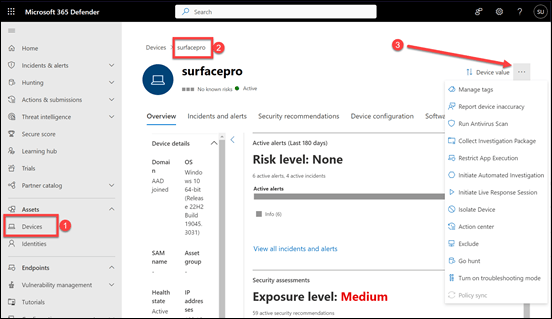
image

Step 1

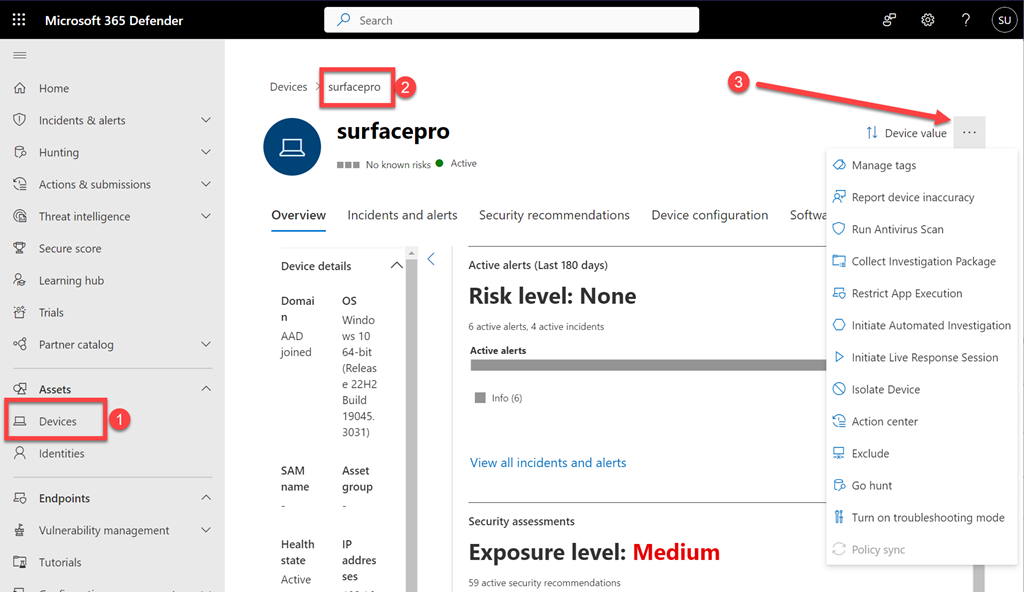
Login to the Microsoft 365 Security admin portal with the appropriate permissions. Select Devices from the Assets menu on the left.

You should see a list of the devices that Defender for Endpoint knows about. Select the machine in question to display it’s detailed information as shown above.

In the top right of this dialog on the right you will see an ellipse (three dots). Select these three dots to reveal an actions menu.

Step 2

Now you need to decide how aggressive you want to be during this investigation as that will have a direct impact on the end users experience on the device.

Level 1
image

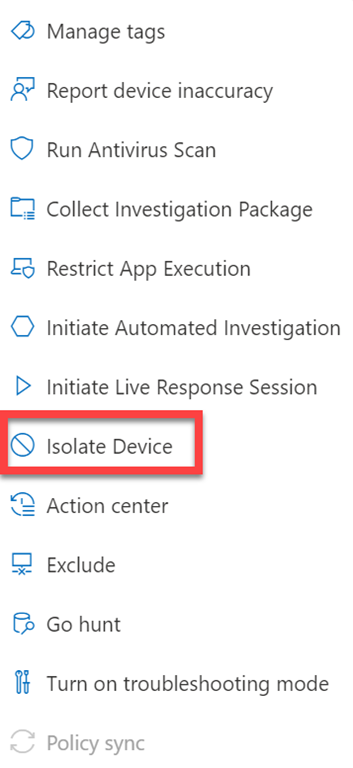
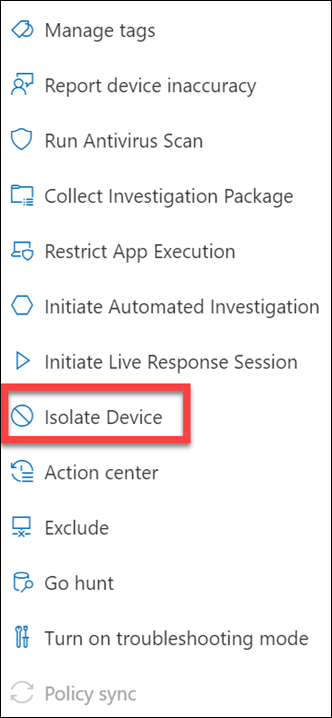
The most aggressive option, that will have the greatest impact on the user is select the Isolate Device from the menu as shown above.

image

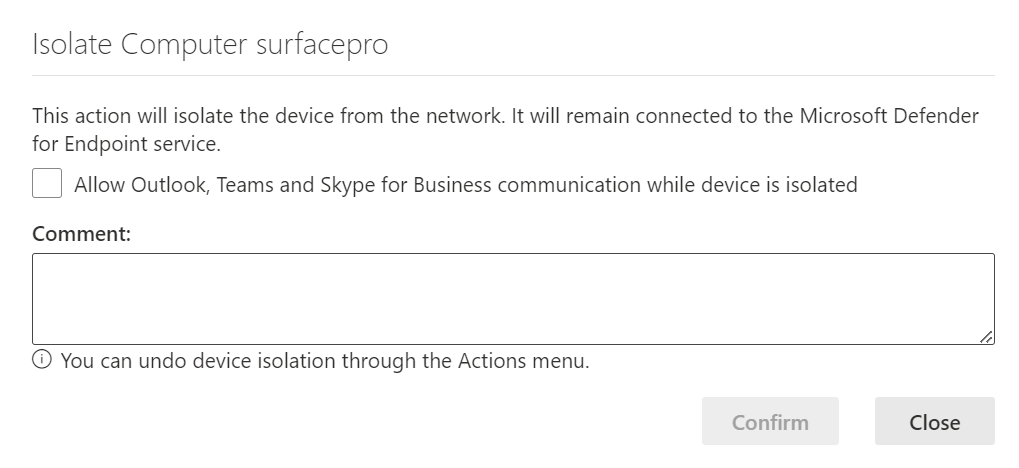
On the dialog that appears, enter a comment and select the Confirm button. Don’t select the option to Allow Outlook, Teams and Skype for Business while device is isolated.

This device isolation feature disconnects the compromised device from the network while retaining connectivity to the Defender for Endpoint service, which continues to monitor the device. This allow you to initiate a live response session. It also prevents an attacker from accessing the device remotely.

More information – Microsoft Defender for Endpoint device isolation

More information – Defender for Endpoint device execution restrictions

Level 2

This is less impactful to the end user and similar to the previous step.
image

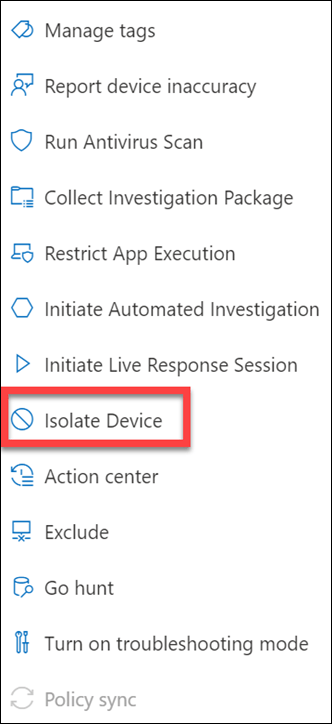
Select the Isolate Device from the menu as shown above.
image

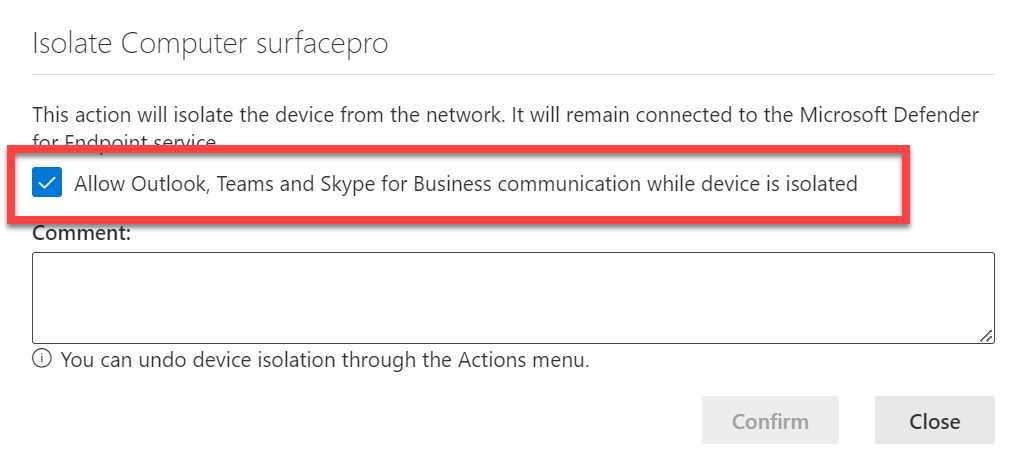
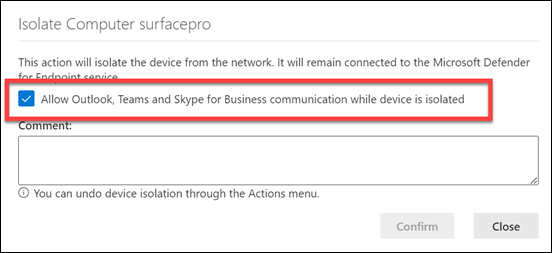
Here, select the option to Allow Outlook, Teams and Skype for Business while device is isolated.

Enter a comment and select the Confirm button.

This device isolation feature disconnects the compromised device from the network while retaining connectivity to the Defender for Endpoint service, which continues to monitor the device. This allow you to initiate a live response session, while preventing an attacker gaining remote access. It will also allow the end user to continue using Outlook, Teams and Skype for Business while you conduct the investigation. However, it does not permit connection to anywhere else, including the Internet.

More information – Microsoft Defender for Endpoint device isolation

More information – Defender for Endpoint device execution restrictions

Level 3
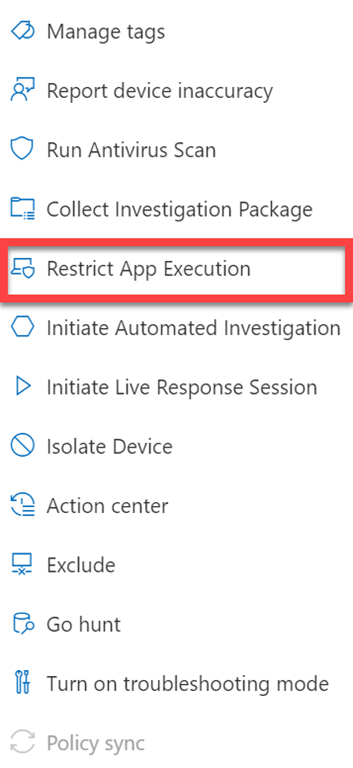
image

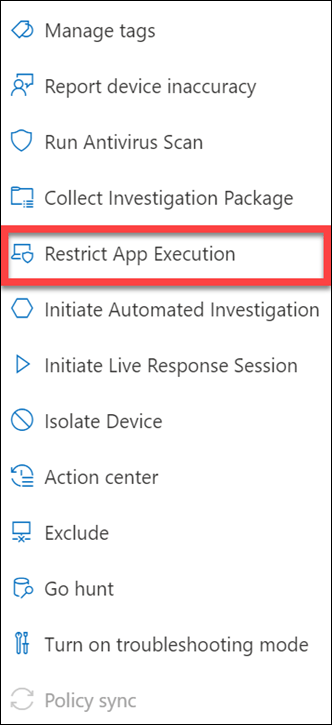
From the menu select Restrict App Execution as shown above.

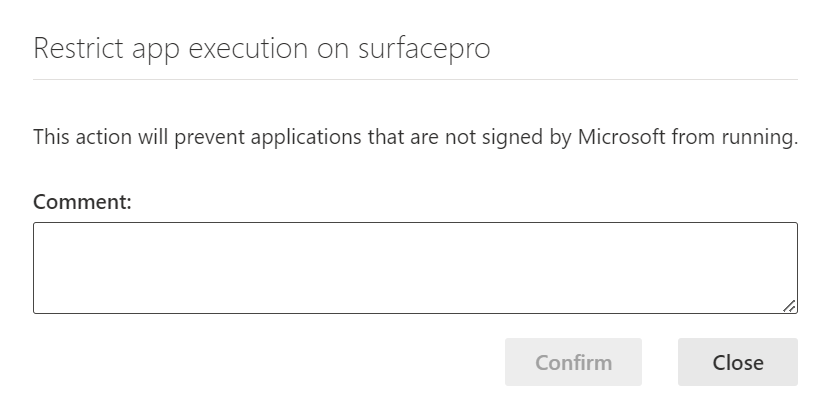
This applies a code integrity policy remotely that only allows files to run if they are signed by a Microsoft issued certificate. This method of restriction can help prevent an attacker from controlling compromised devices and performing further malicious activities. Thus, Office applications (Word, Excel, Outlook, etc), Edge browser, etc can now run without restriction. However, non Microsoft signed applications can’t.

Typically, a malicious program on the device can now not execute however the user can still continue to work inside certified Microsoft applications.
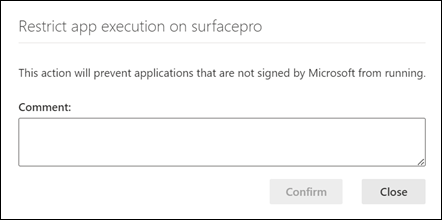
image

Enter a comment and select the Confirm button to complete the restriction process.

More information – Microsoft defender for Endpoint Restrict app execution

More information – Defender for Endpoint device execution restrictions

Step 3
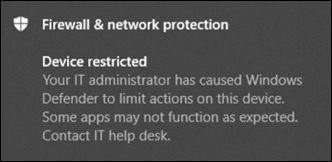
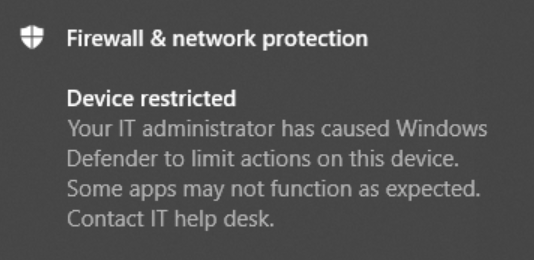
image

The device will display a notification like that shown above.

Step 4

You can now take whatever actions you need to complete the investigation ready for return to service

Step 5

Remove any restrictions. To do, all you need to do to achieve this is return to the ellipse menu and select option to remove the restriction.

Here that would be Remove app restriction as shown above.
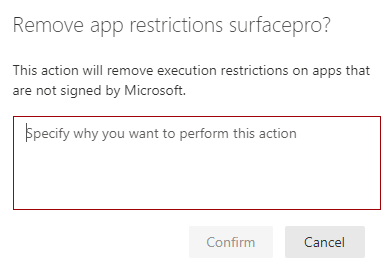
You’ll again simply need to add comment and select the Confirm button to remove the restriction.

So, that’s how you can intervene manually with security incidents if you need to at different impact levels for end users.


Need to Know podcast–Episode 303

Join me for all the news an updates from Microsoft Build as well as a look at the Microsoft Package Manager, Winget.

This episode was recorded using Microsoft Teams and produced with Camtasia 2023.

You can listen directly to this episode at:

https://ciaops.podbean.com/e/episode-303-winget/

Subscribe via iTunes at:

https://itunes.apple.com/au/podcast/ciaops-need-to-know-podcasts/id406891445?mt=2

The podcast is also available on Stitcher at:

http://www.stitcher.com/podcast/ciaops/need-to-know-podcast?refid=stpr

Don’t forget to give the show a rating as well as send me any feedback or suggestions you may have for the show

Brought to you by www.ciaopspatron.com

Resources

@directorcia

@directorcia@twit.social

Join my shared channel

CIAOPS merch store

Become a CIAOPS Patron

CIAOPS Blog

YouTube edition of this podcast

Microsoft Build

Microsoft Build Book of News

Expanding IT value in Windows 11 Enterprise and Intune

Windows 365 boot

Announcing new Windows 11 innovation, with features for secure, efficient IT management and intuitive user experience

Microsoft Mesh: Transforming how people come together in the modern workplace

Bringing the power of AI to Windows 11 – unlocking a new era of productivity for customers and developers with Windows Copilot and Dev Home

Hardening Windows Clients with Microsoft Intune and Defender for Endpoint

Cyber Signals: Shifting tactics fuel surge in business email compromise

Automatically disrupt adversary-in-the-middle (AiTM) attacks with XDR

Use the winget tool to install and manage applications

Winstall.app

Wingetui

Introduction to Exchange Online Protection

This video is the technical session from my May 2023 Need to Know webinar that focuses on helping people understand Microsoft 365. The aim is to help viewers get an overview of how Exchange Online Protection secures their environment and where they can go to made additional adjustments if required.

The session was recorded using Microsoft Teams.

You can find the slide deck for this session here – https://www.slideshare.net/directorcia/may-2023-ciaops-need-to-know-webinar

CIAOPS Need to Know Microsoft 365 Webinar – May

laptop-eyes-technology-computer

Join me for the free monthly CIAOPS Need to Know webinar. Along with all the Microsoft Cloud news we’ll be taking a look at Exchange Online protection.

Shortly after registering you should receive an automated email from Microsoft Teams confirming your registration, including all the event details as well as a calendar invite.

You can register for the regular monthly webinar here:

May Webinar Registrations

(If you are having issues with the above link copy and paste – https://bit.ly/n2k2305

The details are:

CIAOPS Need to Know Webinar – May 2023
Friday 26th of May 2023
11.00am – 12.00am Sydney Time

All sessions are recorded and posted to the CIAOPS Academy.

The CIAOPS Need to Know Webinars are free to attend but if you want to receive the recording of the session you need to sign up as a CIAOPS patron which you can do here:

http://www.ciaopspatron.com

or purchase them individually at:

http://www.ciaopsacademy.com/

Also feel free at any stage to email me directly via director@ciaops.com with your webinar topic suggestions.

I’d also appreciate you sharing information about this webinar with anyone you feel may benefit from the session and I look forward to seeing you there.

Need to Know podcast–Episode 301

News and updates from the Microsoft Cloud and then a deep dive into Compliance policies in Intune. Have a listen and let me know what you think.

You can listen directly to this episode at:

https://ciaops.podbean.com/e/episode-301-compliance-policies/

Subscribe via iTunes at:

https://itunes.apple.com/au/podcast/ciaops-need-to-know-podcasts/id406891445?mt=2

The podcast is also available on Stitcher at:

http://www.stitcher.com/podcast/ciaops/need-to-know-podcast?refid=stpr

Don’t forget to give the show a rating as well as send me any feedback or suggestions you may have for the show

This episode was recorded using Microsoft Teams and produced with Camtasia 2023.

Brought to you by www.ciaopspatron.com

Resources

@directorcia

@directorcia@twit.social

Join my shared channel

CIAOPS merch store

Become a CIAOPS Patron

CIAOPS Blog

YouTube edition of this podcast

Windows 365 Frontline available in public preview

OneNote: Your Digital Notebook, Reimagined with Copilot

Quick Wins to Strengthen Your Azure AD Security

Automating and Streamlining Vulnerability Management for Your Clients

Phone Link for iOS is now rolling out to all Windows 11 customers

Introducing cloud.microsoft: a unified domain for Microsoft 365 apps and service

Centrally manage multiple Microsoft Sentinel workspaces with workspace manager

Announcing Windows LAPS management through Microsoft Intune

Practice Assessments for Microsoft Certifications

Profanity filtering control for live captions in Teams meetings

Getting Endpoint Privilege Management rule policies working

In a recent article:

Getting Endpoint Privilege Management working

I detailed how to get the basics of Endpoint Privilege Management working using settings policies.

The next step in the process is to get the rules policies working in conjunction with this. The scenario will be that we want to only allow a single application to be run with elevated privileges on a device. Here, that application will be Adobe Acrobat installer.

As before, we’ll need to go back into https://intune.microsoft.com under the Endpoint Security menu option as shown above.

image

We’ll firstly need to edit the original Settings policy from the previous article and change the Default elevation response to Deny all requests as shown above. This will block any request to elevate by default.

image

Next, we’ll need to create a new policy with the Profile set to Elevation rules policy as shown above.

image

As always, we need to give this new policy a name.

image

On the following screen select Edit instance on the right as shown above.

image

On the blade that appears from the right, you’ll need to give the Rule a name and then a description if you wish.

For the Elevate type I have selected User confirmed rather than automatic as well as requiring Validation to be a Business justification as shown.

Next is the actual file name for the Acrobat Reader installer which is acrordr2300120064_en_US.exe in the File name field.

Screenshot 2023-04-04 180747

To get the file hash I used the PowerShell command get-filehash as shown above.

Screenshot 2023-04-04 180929

The remaining details were obtained from the properties of the file, as shown above.

I then saved this Rule and completed the creation of the policy using the standard process, ensuring I applied it to teh appropriate group in my environment.

Once again, you need to wait until the policies have been pushed out to all devices.

Screenshot 2023-04-04 180525

With the policies deployed, if I now right mouse click on the Acrobat Reader installation file and select Run with elevated privileges I see,

Screenshot 2023-04-04 181930

that the configured app is identified in the dialog and I need to provide a business justification for the installation as was configured in the rules policy.

Screenshot 2023-04-04 182041

Screenshot 2023-04-04 182221

Once that has been completed the application installs as normal.

Screenshot 2023-04-04 182359

The Adobe Reader application runs on the device once the installation is completed as shown above.

Screenshot 2023-04-04 182512

If I try and install another application by using the run with elevated privileges option (here, on the file officesetup.exe), it is blocked as shown above because the default setting policy is deny all. To allow this, another rule for that specific file would need to be created in the policy.

This means that you can now create a default Privilege Management settings policy to deny all requests to elevate and then have specific rules to only allow pre-defined applications to be run as administrator on the device. Remember, all this can be done without needing to have a local administrator on the device.