They ask “is it safe?” What they mean is “can it leak our stuff?” Fair worry. But it’s the wrong place to start.
The real question a client should be asking is “can you show me what Copilot has been doing?” Because if the answer is no, safe or not doesn’t matter. You’re flying blind.
Here’s the thing nobody tells you in the licensing pitch. Every Copilot interaction is already being recorded. You don’t have to buy anything. You don’t have to flip a switch. It’s been sitting in the unified audit log the whole time, waiting for someone to go look.
Most MSPs never do.
What is Copilot audit logging, really?
It’s the receipt for every conversation your users have with Copilot.
When someone asks Copilot in Word to summarise a document, or asks Copilot in Teams what they missed, that interaction writes a record into Microsoft Purview. Who did it. When. Which Copilot app. And — this is the part that matters — which files and resources Copilot reached into to answer.
This happens automatically as part of Audit (Standard), which is on by default for business tenants. If auditing is running, Copilot logging is running. Microsoft spells it out in the audit logs for Copilot and AI applications docs: no extra steps, no separate config.
That’s not a feature you enable. That’s a feature you’ve been ignoring.
Step-by-Step: finding Copilot activity in Purview
Open the Audit solution
Go to the Microsoft Purview portal at purview.microsoft.com, sign in, and pick Audit from the Solutions list on the left. If you’ve got the Audit Logs or View-Only Audit Logs role, you’ll land on the search page. If you don’t, that’s your first job — sort the permissions, per the search the audit log guidance.
Set your date range and activity
Pick a start and end date. Then in the activities filter, search for the Copilot record type.
RecordType: CopilotInteraction
Activity: Interacted with Copilot
Notice what’s missing? No prompt text in that filter. The audit row tells you that a conversation happened and what files it touched — it doesn’t hand you the back-and-forth wording. That content lives elsewhere, retained for eDiscovery and Communication Compliance, not in the row you’re reading. Knowing that distinction is what separates someone who’s read the docs from someone who’s guessing.
Run the search and read the resources
Start the job. It keeps running even if you close the browser, and finished searches stick around for 30 days. Open a result and look at the AccessedResources field. That’s the gold. It shows the actual files Copilot pulled in to ground its answer.
This is where oversharing shows up. If Copilot is referencing a payroll spreadsheet for someone in the warehouse, you didn’t find a Copilot problem. You found a permissions problem Copilot just made visible.
Export when you need a paper trail
Push the results to CSV. Now you’ve got evidence, not anecdotes.
Why this actually changes the client conversation
Walk into a renewal with “Copilot is secure, trust me” and you sound like every other reseller.
Walk in with “here’s a report of every file Copilot accessed last quarter, and here are the three oversharing issues we caught and fixed” — that’s a different meeting. That’s you doing governance, not selling a licence.
“Wait, so I can actually prove Copilot isn’t quietly reading files it shouldn’t?”
Yes. And that single sentence is worth more to a nervous business owner than any feature slide.
One caveat worth knowing. Retention isn’t infinite and it isn’t equal. On most Business Premium tenants you’re looking at 180 days. On E5, key workloads stretch to a year, and you can build longer audit log retention policies if compliance demands it. If a client needs to answer “what happened nine months ago,” check the retention before you promise the answer exists.
This is the stuff cyber insurance forms ask about. It’s what SMB1001 and Essential Eight assessors want to see. Not “do you have Copilot.” But “can you account for what it did.”
Copilot doesn’t forget. Make sure you can read what it remembers.
If you’ve rolled Copilot out to a client and you can’t pull this report, you haven’t finished the rollout. You’ve just started the part nobody bothered to do.
Most SMB data protection projects fail for one reason: teams optimize the label taxonomy before fixing access control. That creates a “labeled mess” instead of a governed environment. In practical terms, a “Confidential” label cannot compensate for a SharePoint site still shared with broad legacy permissions.
A safer and faster implementation sequence is: Permissions cleanup -> Sensitivity labels -> DLP tuning -> Copilot enablement. This order aligns with real-world Copilot risk patterns, where oversharing is usually the primary exposure pathway.
The Category Error to Avoid
The common debate in SMB projects is “How many labels should we deploy?” (for example, 4 vs 8 vs 12). That is the wrong first question. The first technical question is: “Are current permissions precise enough for labels to have security meaning?”
If broad groups, stale sharing links, and inherited permissions still expose sensitive locations, adding more labels mostly increases administrative overhead and user confusion. Copilot does not create this condition, but it can reveal it quickly by making discoverable content easier to surface through natural language prompts.
Reference Architecture for SMB Tenants
Use a minimal, repeatable baseline that can be implemented and operated by small IT teams.
1. Permissions Layer (Foundational)
Identify and remove broad default access patterns (for example, “Everyone except external users” where inappropriate).
Review high-risk SharePoint and Teams locations first: HR, Finance, Leadership, M&A, Legal, payroll artifacts.
Remove stale members from privileged Microsoft 365 groups and Teams.
Expire or revoke old anonymous or org-wide links where business value no longer exists.
Document approved sharing patterns by site type (departmental, project, external collaboration).
2. Label Layer (Classification)
Start with a compact taxonomy, then expand only with evidence.
Public – content approved for unrestricted internal and external use.
Internal – default business content for internal sharing.
Highly Confidential (optional) – strongest controls, often encryption-backed.
Keep label names plain and user-comprehensible. If users cannot predict where a label applies, adoption and accuracy collapse.
3. DLP Layer (Policy Enforcement)
Deploy DLP in audit mode first (recommended: 60 days).
Prioritize high-confidence detections first (payment card data, national identifiers, banking information).
Monitor policy hits weekly and triage false positives with business owners.
Move to staged enforcement with user notifications before hard blocking where possible.
4. Copilot Layer (Consumption)
Enable Copilot only after oversharing findings are remediated to an agreed threshold. Treat Copilot enablement as a controlled release with explicit go/no-go criteria, not a licensing event.
Why Copilot Changes the Risk Visibility Model
Traditional oversharing could remain hidden for years because users had to know exactly where to look. Copilot lowers search friction by translating intent into broad retrieval across accessible content. This can expose latent permission mistakes quickly.
Oversharing is best treated as an access-control debt problem, not a labeling deficiency.
In practical operations, Copilot acts like a continuous discovery mechanism for permissions debt. If the tenant is clean, Copilot is productive. If not, Copilot surfaces the debt immediately.
60-Day Implementation Runbook
Phase 0 (Week 0): Scope and Governance
Define data protection owner, security owner, and business escalation path.
Agree target controls and business exceptions process.
Set Copilot readiness criteria before technical work begins.
Phase 1 (Weeks 1-2): Permissions Remediation
Run oversharing assessment on SharePoint and Teams-connected sites.
Rank findings by impact: executive, financial, personal data, contractual data.
Remediate critical sites first and verify effective permissions after each change.
Capture exception approvals where broad sharing must remain.
Phase 2 (Weeks 2-3): Label Deployment
Publish 3-4 labels to a pilot user group.
Validate user understanding with short examples and FAQ guidance.
Adjust label descriptions and policy tooltips based on pilot confusion points.
Phase 3 (Weeks 3-8): DLP Audit Mode
Enable DLP in monitor-only mode.
Collect incidents and tune detection thresholds/rules weekly.
Present day-30 report to stakeholders with false-positive and true-positive analysis.
Issue day-45 enforcement impact notice to users and managers.
Phase 4 (Week 9+): Staged Enforcement and Copilot Rollout
Turn on enforcement for highest-confidence policies first.
Enable Copilot for low-risk pilot cohort.
Review user prompts/incidents for unintended access outcomes.
Expand rollout only when no critical oversharing regressions are detected.
Operational Metrics That Matter
Track leading indicators, not just policy counts.
Permissions hygiene: number of high-risk overshared sites before vs after remediation.
Classification adoption: percentage of newly created docs with valid user-applied labels.
DLP quality: true-positive to false-positive ratio per policy.
Readiness confidence: unresolved critical findings at Copilot go-live.
User impact: helpdesk tickets per 100 users post-enforcement.
Common Failure Modes and Corrective Actions
Failure Mode 1: Label Proliferation
Symptom: taxonomy grows to 8-40 labels with low usage consistency. Correction: reduce to behaviorally distinct labels users can apply accurately.
Failure Mode 2: Permanent Audit Mode
Symptom: policies remain non-enforcing for months or years. Correction: define enforcement date at project kickoff and publish milestone reports.
Failure Mode 3: Copilot Before Cleanup
Symptom: sensitive content appears in valid-but-unexpected prompt responses. Correction: block rollout until critical permissions findings are remediated and re-tested.
Practical MSP Packaging
The most successful SMB engagements package this work as Copilot Readiness and Data Access Hardening, not as a one-time “label deployment” project.
Deliverable 1: Oversharing assessment and remediation log
Deliverable 2: Compact label taxonomy and end-user guidance
Deliverable 3: DLP audit report at day 30 and day 60
Deliverable 4: Copilot go-live risk sign-off
Deliverable 5: Quarterly policy and permissions review cadence
Key Data Points to Use with Clients
Purview Suite for Business Premium add-on was announced at $10/user/month (September 2025).
Combined Defender + Purview Suites for Business Premium add-on was listed at $15/user/month.
Working SMB implementations commonly succeed with 3-4 labels, not large taxonomies.
A 60-day DLP audit window is a common practical baseline before enforcement.
Published incidents show that Copilot oversharing exposure typically traces back to legacy permissions.
Conclusion
For SMB tenants, the winning strategy is not maximum policy complexity. It is disciplined sequencing and operational follow-through. Start with permissions. Add a minimal label model. Run DLP in time-boxed audit mode. Enforce in stages. Then enable Copilot.
If you remember one line, use this: Clean access first, classify second, enforce third, accelerate last.
Most Microsoft 365 tenants I walk into are flying blind on data.
The sensitivity labels exist. A couple of DLP policies exist. Someone once turned on Insider Risk Management because a consultant said so. And then nothing. Nobody knows what’s working, what’s exposed, or which sensitive files are sitting wide open in a SharePoint site shared with half the planet.
That’s not a security posture. That’s a guess.
The tool that finally ends the guessing is Microsoft Purview Data Security Posture Management. If you’ve got E5 or the Purview Suite and you’re not showing this to your clients, you’re leaving value on the table.
What is DSPM, really?
DSPM is the dashboard that tells you, in plain English, where your sensitive data is sitting unprotected and which users are handling it carelessly. It pulls signals from the tools you already pay for — DLP, Information Protection, Insider Risk Management, Adaptive Protection — and stitches them into one view.
The clever bit is the correlation. Before DSPM, you’d open five different blades, cross-reference three different reports, and still miss half of it. Now the findings and recommendations land on one page, with a one-click path to spin up the matching policy.
That’s not a report. That’s a to-do list with context.
Step-by-Step: turning DSPM on
Portal only. Stay in the GUI — easier for you, easier to hand off to the next admin.
Open the Purview portal
Sign in to the Microsoft Purview portal as a member of the Data Security Management role group, an Insider Risk Admin, or a Compliance Administrator. Global Admin works too, but please don’t use it if you can help it.
Open the DSPM solution
From the home page, go to Solutions → Data Security Posture Management → Overview.
Turn on analytics
On the Overview page, click Turn on analytics. That one switch also enables DLP analytics and Insider Risk analytics behind the scenes if they aren’t already on. One click, three switches. The full checklist is in the Get started with DSPM article.
Wait
Yes, really. The automated scan across your tenant can take up to three days on anything larger than a handful of users. Walk away. Brew a coffee. Come back on Thursday.
Review the recommendations
Back on the DSPM dashboard, open Recommendations. Each one tells you what was found, why it matters, and offers a one-click path to create the DLP or Insider Risk policy that fixes it. You don’t start from a blank policy screen anymore — you start from your tenant’s real gaps.
Track trends over time
Use the Analytics and Reports tabs in client reviews. A trend line of risky activity going down beats any invoice justification I’ve ever tried to write.
Why this actually changes behaviour
“Are we protected?”
That’s the question every SMB owner asks. Most of us have been answering with vibes. Good vibes, educated vibes, but vibes.
DSPM changes the answer. You can point at a number. You can point at a recommendation you actioned last month and the unprotected file count that dropped because of it. You can show, not tell.
For MSPs, that’s a QBR slide that sells itself. For internal IT, it’s the evidence you need when the CFO asks what the Microsoft Purview licence is actually doing for the business.
And if Copilot is already in the tenant — which, let’s be honest, it increasingly is — then DSPM for AI is your next stop. Same lens, pointed at what people are pasting into Copilot prompts and what’s flowing back out.
Copilot doesn’t slow down. Neither does your data sprawl. Use something that keeps up.
DSPM isn’t there to create more work. It’s there to stop the guessing.
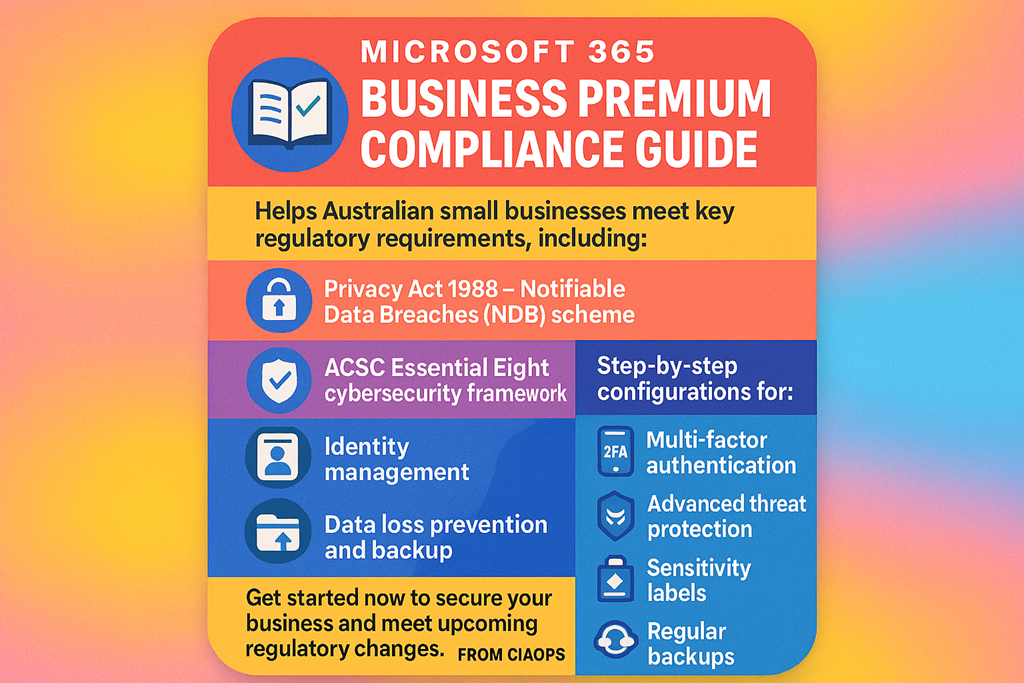
Unlock Effortless Compliance for Australian Small Businesses with Microsoft 365 Business Premium!
Are you a small business owner navigating the complex world of Australian data privacy, security, and regulatory compliance? The “Microsoft 365 Business Premium Compliance Guide for Australian Small Businesses” is your essential resource for mastering the Privacy Act 1988, the Notifiable Data Breaches (NDB) scheme, and the ACSC Essential Eight cybersecurity framework—all with practical, step-by-step instructions.
What’s Inside:
Clear, actionable guidance on configuring Microsoft 365 Business Premium for compliance with Australian laws and standards.
Comprehensive coverage of key regulations, including the Privacy Act, NDB scheme, and Essential Eight, mapped directly to Microsoft 365 features.
Step-by-step setup instructions for multi-factor authentication, device management, data loss prevention, sensitivity labels, retention policies, secure collaboration, and more.
Quick start checklists and implementation roadmaps to accelerate your compliance journey.
Expert tips on overcoming licensing limitations and preparing for upcoming regulatory changes.
Perfect for:
Australian small businesses and health service providers
IT consultants and managed service providers
Business leaders seeking peace of mind on compliance and data protection
Why Choose This Guide?
Written specifically for the Australian regulatory landscape
Focused on practical, real-world solutions using Microsoft 365 Business Premium
Helps you achieve ACSC Essential Eight Maturity Level 2 and full compliance with the 13 Australian Privacy Principles
Stay ahead of regulatory changes and protect your business with confidence.
Get your copy of “Using M365BP for Compliance” today and turn Microsoft 365 Business Premium into your compliance powerhouse!
Just completed a simple 2 page comparison table of the features of M365 Business and the new add ons, Defender and Purview suites. It shows what M365 Business Premium provides already and then what each suite add across all the features in a single 2 page PDF download for free.
To get a copy of the PDF emailed to you just complete this form:
Microsoft Purview Message Encryption is a cloud-based email encryption and rights management solution that helps protect sensitive emails in Microsoft 365. This report explains what Purview Message Encryption is, how it works, and provides step-by-step guidance to set it up and use it effectively in a small or medium-sized business (SMB) with Microsoft 365 Business Premium. We also cover policy configuration (mail flow rules and sensitivity labels), licensing considerations (assuming the organisation already has Business Premium), and best practices. All pricing is provided in Australian dollars (AUD) for clarity.
What is Microsoft Purview Message Encryption?
Microsoft Purview Message Encryption (formerly known as Office 365 Message Encryption, OME) is an online email protection service built on Azure Rights Management (Azure RMS)[1]. It combines strong encryption with fine-grained access controls (rights management) to secure email communication. With Purview Message Encryption enabled, users can send encrypted emails to recipients inside and outside the organisation. The encryption is enforced such that only recipients who authenticate with the allowed credentials (e.g. their Microsoft 365 or Gmail account, as specified by the policy) can decrypt and read the message; anyone else who intercepts it sees indecipherable content[2].
Purview Message Encryption enhances the default security of email in Microsoft 365. By default, Microsoft 365 already encrypts data in transit between its data centers and uses TLS encryption for emails in transport. However, Purview Message Encryption goes further by encrypting the message content itself and applying persistent protection. This means the protection stays with the email even after it leaves Microsoft’s servers, and it can enforce restrictions like “Do Not Forward”. For example, you can send an email that cannot be forwarded or printed by the recipient, or an email that only specific people (inside or outside your company) are permitted to open[3]. The encryption persists regardless of where the email goes – it remains encrypted at rest in mailboxes and in transit over the internet[3].
How it works: Purview Message Encryption uses Azure RMS (part of Microsoft Purview Information Protection) to encrypt the email and any attachments, and to apply rights policies. When an authorised recipient attempts to open an encrypted email, Outlook (or the viewer portal) checks their identity against the email’s permissions. If permitted, the service silently decrypts the content for viewing; if not, access is denied[3]. Internally, Office apps like Outlook, Outlook on the web, or mobile Outlook provide a seamless reading experience – users see the content normally if they have access rights. External recipients (for example, a client using Gmail) receive an email notification (often branded with your company’s details) stating that they’ve received an encrypted message. They are prompted to authenticate (using a one-time passcode or by signing in with a Google/Microsoft account) on the encrypted message portal, after which they can read and respond securely through that portal[1]. This approach means you can safely send confidential data to any email address.
Comparison to traditional encryption: Unlike S/MIME encryption (which requires exchanging certificates) or manual password-protected attachments, Purview Message Encryption is centrally managed and user-friendly. The sender doesn’t need the recipient’s public key or a shared secret; instead, the encryption and key management are handled by Azure RMS. The recipient just needs to verify their identity. Purview Message Encryption was introduced as an evolution of the legacy OME and Information Rights Management (IRM) features in Exchange. In fact, Office 365 Message Encryption (OME) was retired in July 2023 and automatically replaced by Purview Message Encryption, which provides a more streamlined experience[4]. Key improvements in the new Purview solution include an “Encrypt-Only” option (allowing encryption without restricting recipient actions, for easier collaboration), the ability for users to manually encrypt emails directly in Outlook (not only via admin rules)[4], and a unified experience for both internal and external recipients (no more downloading of HTML attachments; external users use a web portal)[4].
Example use cases: An SMB might use Purview Message Encryption to protect emails that include personally identifiable information (PII) like customer contact details or tax file numbers, financial data like bank account or credit card numbers, or any confidential business information. For instance: an accounting firm can ensure that all emails containing tax file numbers or financial statements are encrypted; a healthcare clinic can automatically encrypt emails with patient data to comply with privacy laws; or staff could manually choose a “Confidential – Recipients Only” label when sending internal strategy documents to prevent those emails from being forwarded outside the company.
Licensing and Requirements
One of the advantages for SMBs with Microsoft 365 Business Premium is that Purview Message Encryption is already included in your subscription[4]. Business Premium includes Azure Information Protection (AIP) Plan 1[5][5], which provides the rights management and labeling capabilities underpinning Purview Message Encryption. This means you do not need to purchase any additional licenses to use the standard email encryption features.
To clarify how Purview Message Encryption is licensed, the table below compares Business Premium with other Microsoft 365 plans in context:
Plan or License
Email Encryption Availability
Additional Requirements?
Price (AUD)*
Microsoft 365 Business Premium
Included – Purview Message Encryption via AIP Plan 1[4]
No extra license needed. Azure RMS is automatically available.
Included – Rights Management (AIP P1) is part of E3[1].
No extra license needed for standard encryption features.
~$32.80 user/month (ex. GST) for Office 365 E3[7].
Office 365 E5 / Microsoft 365 E5
Included – AIP Plan 2 is included, which adds Advanced Message Encryption.
No extra license needed; advanced features available (e.g. decrypting/revoking email).
~$56.40 user/month (ex. GST) for Office 365 E5[7].
*Prices are per-user, per-month in Australian dollars. Business plans are listed at annual commitment rates excluding GST[5]; enterprise plan prices are approximate. GST in Australia is 10%, so e.g. Business Premium is about $36.19 including GST.
As shown above, Microsoft 365 Business Premium already covers the necessary licensing. If an organisation had Business Standard or Business Basic, they would need to add Azure Information Protection Plan 1 licenses (approximately A$3 per user per month) to get the encryption capability[4][6]. Enterprise E3 plans include it by default, and E5 plans include even more capabilities (more on Advanced Message Encryption below). Each user who sends or reads encrypted emails should be licensed appropriately[4].
Technical requirements: The core requirement to use Purview Message Encryption is that the Azure Rights Management service is activated for your tenant[8]. In most cases, for eligible plans like Business Premium, this service is activated automatically by Microsoft, so no manual step is needed[8]. It’s essentially “on” if you have the right license. However, if your organisation previously used on-premises Active Directory Rights Management Services (AD RMS) or had deliberately turned off Azure RMS, you may need to activate it or migrate to Azure RMS first[4][8]. (This is uncommon for SMBs; it typically applies to larger organisations that had older on-prem infrastructure. In an SMB cloud-only environment, you can assume Azure RMS is enabled by default.)
To double-check, an admin can run a simple PowerShell command in Exchange Online:
Get-IRMConfiguration – this should show AzureRMSLicensingEnabled : True if Azure RMS (and thus Purview encryption) is enabled for your tenant[8].
If it’s False, you can enable it by running Set-IRMConfiguration -AzureRMSLicensingEnabled $True[8]. You might also run Test-IRMConfiguration -Sender <user> -Recipient <user> (using any two user emails in your org) to verify that encryption and decryption tests pass and that it finds the default RMS templates (like “Contoso – Confidential” or “Do Not Forward”)[8]. A successful test confirms that your tenant is correctly configured for Purview Message Encryption.
Advanced Message Encryption (AME): It’s worth noting that Microsoft offers an Advanced Message Encryption feature set for organisations with higher compliance needs. AME is included with the top-tier E5 licenses (or as an add-on via the Microsoft 365 E5 Compliance suite for others)[9]. It builds upon the standard encryption features by allowing more control over encrypted emails. For example, admins can define multiple custom branding templates for different purposes, set expiration dates on encrypted emails, or revoke access to an already-sent encrypted email via the admin portal[9][9]. These advanced controls are particularly useful if you need to automatically expire sensitive emails after a period or track and revoke messages for compliance. However, Advanced Message Encryption is not included in Business Premium, and for most SMB scenarios, the standard encryption (already provided) is sufficient. We will focus on the out-of-the-box capabilities available with Business Premium.
Step-by-Step Setup Guide for Purview Message Encryption
Setting up Purview Message Encryption in a Business Premium tenant involves a few one-time configuration steps by an administrator. Below is an overview timeline of the key steps, followed by detailed guidance:
Let’s dive into each of these steps in detail:
Step 1: Activate (or Verify) Azure Rights Management Service
Why: Purview Message Encryption relies on Azure Rights Management (the encryption engine of Azure Information Protection) to do the encryption and decryption. If Azure RMS isn’t active, encryption will not work.
What to do: In a Business Premium tenant, Azure RMS is typically already activated[8]. To double-check, you can go to the Microsoft Purview compliance portal, navigate to Information Protection > Overview. If you see a banner or option to “Activate” Azure Information Protection, go ahead and activate it. (If everything is already active, there may be no such prompt.)
For a programmatic verification, use PowerShell: Connect to Exchange Online (with an admin account) and run:
Additionally, if your organisation had been using an on-premises AD RMS server in the past and you haven’t yet switched, you must migrate to Azure RMS first[4]. (This likely doesn’t apply to a cloud-based SMB setup.)
Optional – Bring Your Own Key: By default, Microsoft manages the cryptographic keys used for encryption. Some organisations (usually larger or highly regulated ones) prefer to manage their own root key for encryption (a process called BYOK – Bring Your Own Key). This is complex and typically not necessary for an SMB. Microsoft recommends most customers let the service manage keys[8]. If BYOK is desired for compliance reasons, it should be done before broad deployment of encryption. (BYOK setup involves Azure Key Vault and is beyond the scope of this guide, but it’s supported[8].)
Step 2: Verify Configuration with Test Commands
After activation, it’s good practice to verify that encryption is fully functional in your tenant:
Run Test-IRMConfiguration -Sender <user@yourorg.com> -Recipient <user@yourorg.com> in Exchange Online PowerShell (substitute any valid sender and recipient in your organisation)[8]. This test attempts to acquire RMS templates, then encrypt and decrypt a sample message internally. You should see output with PASS results for acquiring templates, encryption, decryption, and IRM being enabled[8]. Typically, it will list available templates such as “ – Confidential”, “Do Not Forward”, etc., and conclude with “Overall Result: PASS”.
If the test fails with an error like “Failed to acquire RMS templates”, it may indicate Azure RMS wasn’t enabled or there’s a configuration issue. The Microsoft documentation provides additional PowerShell steps to troubleshoot this (for example, connecting to the AIPService module to set the licensing location)[8]. In most cases, with Business Premium, this step will pass on the first try if your licenses are assigned properly.
This verification ensures that your tenant is ready to start encrypting emails.
Step 3: Create Mail Flow Rules to Encrypt Emails (Automatic Encryption)
Mail flow rules (also known as transport rules) allow administrators to automatically apply encryption to emails that meet certain conditions. This is the primary way to enforce encryption consistently without relying solely on users. You can create rules, for example, to:
Encrypt all outbound emails sent to recipients outside your organisation (external email).
Encrypt messages that contain certain sensitive keywords or data (like “Confidential”, or credit card numbers, etc.).
Encrypt emails sent to specific recipients or domains (for instance, always encrypt emails sent to a particular partner organisation or a specific client’s email address).
Prevent recipients from forwarding certain emails by using a “Do Not Forward” template.
How to set up a new rule: Use the Exchange Admin Center (EAC) for a GUI approach or PowerShell for scripting. In the new EAC (https://admin.exchange.microsoft.com) go to Mail flow > Rules and click + Add a rule. Give the rule a name (e.g. “Encrypt outgoing financial data”). Then:
Conditions: Under “Apply this rule if…”, choose the condition that triggers encryption. Common conditions are:
“The recipient is located – Outside the organization” (to target external emails)[10].
“The subject or body includes – ” or “The message contains sensitive information – ” (to target specific content).
“The recipient domain is – \” (to target specific partner domains).
You can combine multiple conditions with Add condition for specificity (e.g. external + contains “Project X”)[10][1].
Actions: Under “Do the following…”, select Modify the message security > Apply Office 365 Message Encryption and rights protection[10]. Once you select this, another drop-down appears to choose an RMS template. Here you will see options like Encrypt, Do Not Forward, and any custom templates/labels you have.
Choose Encrypt if you just want to encrypt (allowing recipients to forward or reply normally, but the message stays encrypted).
Choose Do Not Forward if you want to encrypt and restrict recipients from forwarding or copying the content.
(If you had published sensitivity labels that include encryption, their names might also appear here as available templates.)
After selecting the template, click Save.
You can add additional actions if needed (for example, adding a footer to notify the recipient that the message was encrypted). But typically just applying encryption is enough.
Exceptions (optional): You may add exceptions if there are cases you don’t want to encrypt even if conditions match. For example, you might exclude a specific internal sender or a trusted external domain from the rule.
Mode: Set the rule to Active (or test in audit mode first if you prefer). Save the rule.
Once enabled, any new email that meets the conditions will be automatically encrypted as it’s sent out. For instance, if you created a rule to encrypt all external mail, whenever a user sends an email to an @gmail.com or any non-company address, Exchange will apply encryption before delivering the message. These rules are enforced on the server side, so they work regardless of whether the user is on Outlook desktop, mobile, or another client.
Important: Mail flow rules cannot encrypt messages incoming from outside senders to you – they only act on messages your users send. If, for example, an external partner sends you an unencrypted email with sensitive info, the Exchange Online transport rule can’t retroactively encrypt that inbound message[10]. It will be delivered as is. (Transport rules in Exchange Online don’t support encryption as an action on incoming mail from outside, by design.) To protect inbound communications, you’d have to rely on the sender encrypting it on their side or use other methods (like asking them to use a secure portal).
You can create multiple mail flow rules for different scenarios as needed. Microsoft’s rules are quite flexible – you can combine conditions (AND/OR logic) and have multiple separate rules to handle various needs[1]. When you have more than one encryption rule, be mindful of their order and if any might overlap; rules can be ordered and if two rules apply encryption, the result is the same (the email is encrypted once). Also, consider adding a rule to strip encryption in certain cases if needed (for example, some organisations add a rule to decrypt emails sent to an internal archiving mailbox or certain internal tools, so that those systems can index or scan the content). Microsoft provides guidance on creating a rule to remove encryption as well[10], but for most SMB scenarios this may not be necessary.
After setting up your encryption mail flow rules, you effectively have automatic encryption policies in place. This is great for compliance: it doesn’t rely on employees remembering to do anything. For example, you could enforce that all emails leaving your company with an attachment get encrypted, or any email mentioning “Payroll” that goes externally is encrypted.
Tip – using Data Loss Prevention (DLP): In Business Premium, you also have Microsoft Purview Data Loss Prevention available. A DLP policy can detect sensitive info (like credit card or TFN numbers) and one of the possible actions is to encrypt the message. This is essentially another way to create content-based encryption rules, with a richer interface for detecting sensitive info types. For instance, a DLP policy could automatically encrypt any email that contains a tax file number or health record. This achieves a similar outcome as mail flow rules. In fact, one recommended approach (for scenarios like HIPAA in healthcare) is to use DLP as a “smart filter” that scans emails and then triggers encryption when a sensitive data pattern is found[11]. The advantage of using Purview DLP policies for this is that you get benefits like detailed incident logging and user notifications. According to a case study, this delivers “zero user effort” (encryption happens even if staff forget), central control (one admin policy covers all mailboxes), and audit-ready logs of every encryption action[11]. In summary, DLP and mail flow rules both can automatically apply encryption – you can choose whichever method fits your admin comfort. (Mail flow rules are simpler to set up for straightforward conditions; DLP is powerful for detecting specific data types.)
Step 4: Set Up Sensitivity Labels for Encryption (Manual User-Driven Encryption)
While mail flow rules handle automatic encryption, you also likely want to empower users to manually encrypt emails when they choose. Business Premium allows you to create sensitivity labels in the Purview Compliance portal, which users can apply to emails or documents. These labels can be configured to include encryption.
For example, you might create a label called “Confidential – All Employees” that, when applied to an email, automatically encrypts it and only allows people within your organisation to open or read it. Or a label “Highly Confidential – No external sharing” that not only encrypts the email but also uses the “Do Not Forward” policy so recipients (even internal ones) cannot forward or copy the content.
How to create a sensitivity label with encryption:
In the Microsoft Purview compliance portal (https://compliance.microsoft.com), go to Information Protection > Labels and click + Create a label.
Give the label a name (e.g. “Confidential – Company Only”) and description for users.
For the label scope, make sure Emails (and files, if desired) is selected, so that this label can apply to email content[3].
In the configuration, you’ll have options for adding encryption. Enable the setting to “Encrypt content” (in older interface this might be a checkbox like “Protect content” or “Control access to content”[3]).
You will be asked to choose how to assign permissions:
Assign permissions now: You as the admin specify exactly who can do what with content under this label. For instance, you can state “Only users inside my organisation can view this email; they cannot forward or print it” (which is effectively an internal-only, do-not-forward policy). You could also allow some group full rights and others read-only. This is static; end users applying the label don’t get to change the permissions.
Let users assign permissions when they apply the label: This option is useful if you want to give users some flexibility. With this, when a user applies the label in Outlook, they will be prompted to enter who should be able to access the content (they could type in specific email addresses or choose from a directory) and what permissions to give. This is akin to users creating an ad-hoc encryption rule on the fly, within the bounds you allow[3].
For simplicity in an SMB, the first option (assign now) is commonly used. For example, define that the label encrypts the email and allows “All internal users” to read it (so any external recipients would not be able to decrypt it). Or define a label that allows only certain departments.
If assigning permissions now, configure the specifics:
Choose the users or groups who will be granted access when this label is applied (e.g. All members of for all internal).
Choose their permissions: e.g. Viewer (read-only), or Editor (read and modify), etc. For email scenarios, typically read-only is used if you want to prevent forwarding, whereas if you just want to allow normal usage, giving view + edit might be fine (edit in context of email means ability to reply/forward I believe).
If relevant, you can tick an option “Do not allow forwarding” which automatically restricts forwarding and copying from the email (this is essentially the Do Not Forward template enforced via the label).
You can also set content expiration here (e.g., email content expires after 30 days) if using Azure Information Protection P2, but with P1 (Business Premium) this might not be available in sensitivity labels interface. Typically expiration is an advanced feature.
You might see an option for offline access or the number of days a user can access the content without re-authenticating – these are fine-tuning options.
Finish the label creation. Then, publish the label by creating a Label Policy (in Information Protection > Label Policies, include the new label and target it to the desired users or whole organisation). This causes the label to appear in end-user apps.
Once published (it may take a little time or a restart of Office apps to show up), users will see the sensitivity label in their Outlook (on the ribbon or under the Sensitivity button). They can apply it to an email just like they would mark it Confidential. Behind the scenes, as soon as they send an email with that label, the Exchange service will encrypt the message according to the rules you configured.
End-user experience (manual): If no sensitivity labels are defined, users in Business Premium will still typically have an “Encrypt” button in Outlook on the web or under Outlook’s Options > Permissions menu, giving them at least the default Encrypt-Only and Do Not Forward choices[1]. However, using custom labels allows you to present more user-friendly or scenario-specific options (with your own descriptions) and to integrate encryption with your classification scheme (e.g. a single label might also add a footer/tag like “Confidential” in addition to encryption).
For example, after the above setup, a user writing an email in Outlook can click the Sensitivity drop-down and choose “Confidential – Company Only”. Immediately, Outlook will show a small lock icon or a note indicating that encryption and forwarding restrictions are applied. When that user sends the email, it will be encrypted and only other people within the company tenant will be able to open it. If they accidentally sent it to an external address, that external recipient would get a message stating the email is protected and they are not authorised to view it (since our hypothetical label didn’t grant external access).
Important considerations with labels:
Exchange IRM Configuration: To get the full benefits of using sensitivity labels to encrypt emails, you should ensure IRM is enabled in Exchange (which we did in Step 1)[3]. Otherwise, certain clients might not be able to open encrypted mails and search indexing might not work. We covered this, but it’s worth noting that enabling IRM (AzureRMS in Exchange Online) is what allows even mobile Outlook and web to open these labeled emails seamlessly.
Multiple encryption methods: If a user applies a sensitivity label that encrypts an email, you do not need a mail flow rule to also encrypt it (and vice versa). They won’t conflict – the mail flow rule will typically detect the mail is already encrypted and skip, or it will apply encryption to an already encrypted mail which is fine (it remains encrypted). However, generally design your strategy to use either automatic rules for certain scenarios and labels for user-driven ones. They solve different problems (one doesn’t rely on the user at all, the other gives user flexibility).
User training: It’s a good idea to show your staff how to use the new sensitivity labels in Outlook. For instance, explain that when they have a particularly sensitive email to send, they should apply the Confidential label before sending. The first time, some may be confused by the experience for external recipients (e.g. “The client said they had to click a link to view my email”). Include that in training so they and the recipient know it’s normal due to encryption.
Step 5: Test the Encryption Setup
Before rolling out broadly, test the configuration:
Internal test: Have two users (or use your test account) within the company send encrypted emails to each other. They should be able to open them normally in Outlook (perhaps a small banner might indicate the message is encrypted). This ensures internal access isn’t inadvertently blocked by a policy.
External test: Send an email from inside to an outside email (e.g., a personal Gmail or Outlook.com account) that should trigger encryption – for example, an email containing a sensitive keyword if you made that rule, or just any email if you encrypted all external mail. Confirm that:
The external recipient gets a mail notification that’s branded (by default it will show your organisation name) saying “You’ve received an encrypted message”[11].
The external recipient can follow the link or the instructions to authenticate and read the message in the browser. They might use a one-time passcode or sign in with a Google/Microsoft account. Test both if possible.
Check that the content of the message is correct when they do see it (formatting, attachments if any).
Reply as the external user through the portal and ensure the internal user can read the reply (the reply will also be encrypted).
Policy tuning: If the external email did not arrive encrypted when it should have, double-check the conditions of your mail flow rule or DLP policy (maybe the test didn’t meet the condition exactly)[11]. Also verify the sender has the appropriate license (Business Premium assigned, etc.), since each sender needs a license for encryption to apply[11].
Everything working? Great. Now you can confidently roll this out knowing that protected emails actually reach their destination securely.
Step 6: User Awareness and Best Practices for Effective Use
Finally, effective use of Purview Message Encryption in an SMB isn’t just about configuration – it’s about incorporating it into your organisation’s workflows and culture. Here are some best practices and tips to get the most value:
Educate your team: Introduce the feature to your users. Let them know that some emails will now be encrypted and what that means. For example, explain that if they see a lock icon or a banner that says “This message is encrypted” in an email, it’s expected. Likewise, if they send an encrypted email to a client, that client may contact them about the extra step to open it – your user should be able to reassure them it’s for security. Microsoft provides user-friendly guides on how to https://support.microsoft.com/office/cb882d70-47c1-4da6-b7da-4bb6ee4893b4 and how to open one, which you can circulate. In Outlook on the web, the user just clicks Encrypt under the compose options; in desktop Outlook, they can select an Options > Permissions setting or use the Sensitivity button if labels are deployed.
Start with clear policies: When deciding what to encrypt, start with the most sensitive or regulated information. Don’t over-encrypt everything, or users might get frustrated with extra steps for trivial email. Common starting points are: encrypt all external emails (if your business frequently sends confidential data externally), or encrypt based on keywords (like “Confidential”, project names) or sensitivity types (like any email with a 9-digit number might be a TFN – treat accordingly). Make sure these rules are well-communicated. For instance, if you choose to automatically encrypt all external mail, users should know every email to a customer will have that behaviour (so they’re not caught off guard by a client’s questions).
Use branding for familiarity: You have the option to customise the branding of the encrypted message mail and portal – for example, adding your company logo and a friendly message. This is done via the Set-OMEConfiguration cmdlet (for the standard single template) or in the Purview portal for advanced branding. Consider doing this so that when an external recipient gets an encrypted mail, they see your company’s name or logo on the portal. It helps them trust that it’s legitimate and from you. (Branding is an included feature for one template; multiple templates require AME/E5.)
Integrate with DLP for compliance (if needed): As discussed, if you have compliance requirements (like HIPAA for health info, or need to protect credit card data under PCI DSS), leverage DLP policies. DLP can not only encrypt but also notify the sender (policy tip) that “This email was automatically encrypted because it contains XYZ”. This educates users over time on what triggers protection, and it provides an audit trail. In Business Premium, DLP for email is available[2][2] and can be a powerful ally in preventing data leaks.
Test periodically: Make encryption testing part of your routine, especially after any Exchange or compliance configuration changes. Ensure new employees have the appropriate license and can use encryption if needed.
Monitor and adjust: Check the reports in the Purview Compliance portal. There are audit logs and reports that can show label usage and DLP policy matches. For example, you can see how often your encryption rule triggers, or if any emails were blocked or had encryption removed. This can help fine-tune conditions (to reduce false positives, etc.). In an SMB, volume may be low, but it’s good to keep an eye that it’s working as intended.
Know the limits: Be aware of a few limitations: The maximum message size for an encrypted email (including attachments) is 25 MB[4]. This is lower than the regular Exchange Online limit for non-encrypted mail. Very large files might need to be shared via SharePoint/OneDrive instead of email if they can’t be sent due to this limit. Also, if you send to many recipients via BCC, note that in some cases those BCC addresses might be dropped before encryption (an edge case with certain routing scenarios)[4] – generally not an issue unless you do mass BCC mailings.
Advanced controls (if ever needed): If one day your SMB grows or has needs to revoke or expire emails, consider advanced message encryption capabilities. For instance, if an employee accidentally sent an encrypted email to the wrong external person, you as an admin could revoke access to that message (if you had Advanced Message Encryption via an E5 Compliance add-on)[9]. This isn’t available in Business Premium by default, but it’s something to be aware of as a potential upgrade if such scenarios are critical.
By following these steps and best practices, even a small organisation can leverage enterprise-grade email encryption with Microsoft 365 Business Premium. You’ll be keeping sensitive communications secure and meeting compliance obligations, all using tools that integrate natively with the email clients your users already use every day.
Conclusion: Microsoft Purview Message Encryption provides SMBs a robust yet user-friendly way to secure email communications. With Business Premium, you have all the needed components (Azure Information Protection P1, Exchange Online, etc.) to deploy it without additional cost. By carefully configuring the service – enabling it, creating sensible mail flow rules, and utilizing sensitivity labels – you can ensure that confidential information in emails is accessible only to authorised recipients, helping protect your business and your customers. Best of all, it achieves this in a manner that is largely seamless to end users and external partners once set up. In summary, Purview Message Encryption, when set up and used effectively, can significantly enhance your organisation’s data protection posture for email with minimal disruption and excellent integration into your existing Microsoft 365 environment.
Small and medium-sized businesses (SMBs) today face increasingly sophisticated cyber threats and complex data regulations[1][2]. Microsoft 365 Business Premium already provides a secure productivity foundation for SMBs – including Office apps, Teams, device management, and baseline security like Defender for Business[2]. However, until recently, achieving enterprise-grade compliance and data protection meant costly upgrades to enterprise licenses. To bridge this gap, Microsoft introduced the Microsoft Purview Suite as an add-on to Business Premium, bringing advanced compliance, risk, and data governance capabilities “without the enterprise price tag.”[2] This report details the features included in the Purview Suite for Business Premium, how an SMB can effectively use them, and why they provide real value to a typical SMB.
Business Premium Baseline vs. Purview Suite Add-on
Microsoft 365 Business Premium (base subscription) includes some core compliance capabilities, but with limitations. Out-of-the-box, Business Premium provides Microsoft Purview Information Protection (sensitivity labels and classification) and Office 365 Data Loss Prevention (DLP) policies for Exchange, SharePoint, and OneDrive[3]. It also offers basic eDiscovery for content search and simple legal hold, and basic audit logs (90-day retention) in the compliance portal[3]. These features are useful for controlling information in Microsoft 365 apps – for example, an SMB admin can apply a sensitivity label to mark a document as “Confidential” or set a DLP rule to prevent emails with credit card numbers from leaving the organisation[3]. However, advanced compliance features are not included in the base plan – endpoint DLP (monitoring files on devices), auto-labeling of content, advanced auditing, and insider risk tools all require higher-tier licensing[3].
By contrast, the Purview Suite for Business Premium is a comprehensive compliance add-on (approximately $10 per user/month) that unlocks Microsoft’s E5-level compliance and data governance features for Business Premium subscribers[4][5]. In essence, this add-on brings the full Microsoft Purview capabilities – comparable to what large enterprises get with Microsoft 365 E5 Compliance – into the SMB realm. Key additions include: advanced Information Protection & Governance, Insider Risk Management, Communication Compliance, eDiscovery (Premium), Audit (Premium), and more[4]. The table below highlights the difference between Business Premium’s built-in compliance features and those enabled by the Purview Suite:
Table 1. Key Compliance Features: Business Premium vs. Purview Suite
Compliance Feature
Business Premium (Base)
+ Purview Suite Add-on
Data Loss Prevention (DLP)
✔️ DLP for Exchange email, SharePoint, OneDrive[3]. No Teams chat or device-based DLP.
✔️ DLP across M365 (incl. Teams chats) and on endpoints (Windows devices)[1][4] – preventing sensitive data leaks via any channel.
✔️ Auto-classification of sensitive content using AI and templates; enforce encryption with Microsoft Purview Message Encryption; bring your own key via Customer Key for email/data encryption[2][2].
Insider Risk Management
❌ Not included.
✔️ Insider Risk Management dashboards and policies to detect suspicious activities (e.g. mass file downloads) by users and alert admins[2]. Privacy controls built-in to protect user identities during investigation.
Communication Compliance
❌ Not included.
✔️ Communication Compliance to monitor and flag internal communications (Teams, email) for harassment, sensitive info sharing, or policy violations[2] – useful for HR and compliance oversight.
Records & Data Lifecycle
✔️ Basic retention policies for email and files (manual setup)[2].
✔️ Advanced Records Management capabilities: classify files as official records, apply retention or deletion with event-based triggers and disposition reviews[2]. Ensures data is kept or disposed according to policy.
✔️ eDiscovery (Premium) – full case management, legal hold, Teams conversation threading, relevance analytics, and export tools for legal investigations[2]. Simplifies responding to lawsuits or internal investigations.
Audit Logging
✔️ Standard audit logs (90 days of log retention) for user/activity tracking.
✔️ Audit (Premium) – extended audit logs retained for 1 year with more detailed events (e.g. document read/access events)[2]. Critical for forensic investigations and compliance audits.
Compliance Manager
✔️ Access to Compliance Manager (basic level) with some assessments.
✔️ Full Microsoft Purview Compliance Manager suite with detailed regulation templates and improvement actions tracking[4]. Helps manage GDPR, HIPAA, ISO 27001 and other compliance requirements in one portal.
Notes: Business Premium includes Azure Information Protection Plan 1 (for manual labels) but not Plan 2 features like auto-labeling[5]. The Purview Suite effectively activates the Microsoft 365 E5 Compliance suite (Information Protection & Governance, Insider Risk, eDiscovery & Audit) on top of Business Premium[5][5]. These add-ons are available only to customers with Business Premium and are limited to 300 users (matching the SMB seat cap)[5][5].
Key Purview Suite Features and Effective SMB Use Cases
With the Purview Suite enabled, an SMB gains a broad set of tools to protect data, manage risks, and demonstrate compliance. Below, we explain each major feature area in detail and illustrate how it can be used in an SMB environment:
1. Information Protection & Data Loss Prevention (DLP)
What it is:Information Protection in Microsoft Purview allows organisations to classify and label data based on sensitivity. Labels (such as “Public”, “Confidential”, or “Highly Sensitive”) can be applied manually by users or automatically by the system, and can enforce encryption or access restrictions. Data Loss Prevention policies monitor and prevent the sharing of sensitive information across email, cloud storage, Teams chats, and even on endpoints.
How it helps: This is fundamental for compliance with data protection regulations (like GDPR or HIPAA) and for safeguarding intellectual property. For example, using Purview’s auto-labeling, an SMB can configure rules to automatically detect personal identifiers (like NI numbers or credit card data) in documents and emails and tag them as sensitive[2]. Once labeled, the data carries protections wherever it goes – “a ‘security tag’ stays attached to a document whether it’s stored in OneDrive, shared in Teams, or emailed outside the company”[2]. Policies tied to these labels can block oversharing of sensitive files, ensuring that, say, a file tagged “Confidential – Finance” can only be accessed by the finance team and not emailed externally[2][2].
Purview DLP extends these protections. It runs in the background to stop sensitive information from being shared with unauthorised people[2]. In practice, an SMB can enable templates (Microsoft provides many built-in sensitive info types, e.g. UK National Insurance number, credit card, health record, etc.) so that if an employee tries to email out a client’s personal data or copy it to a USB drive, the DLP policy will warn or block the action. This greatly reduces the likelihood of accidental data breaches. Even Microsoft Teams chats are covered – if someone tries to post confidential customer info in a Teams channel, the message can be prevented from sending (with a notice to the user) under a DLP rule.
Additional benefits: The Purview Suite also adds Microsoft Purview Message Encryption and Customer Key features. Message Encryption allows an SMB to send encrypted emails to any recipient (even outside the organisation) such that only the intended recipient can read it[2]. This is useful when sharing sensitive info with external partners or clients. Customer Key gives the business control over the encryption keys used for Microsoft 365 data, an extra layer of control often needed for strict regulatory compliance[2] (e.g. some finance or legal firms might require holding their own keys for data stored in cloud services). For an SMB dealing with confidential client data, these capabilities provide peace of mind that their emails and files are secure both inside and outside Microsoft’s cloud.
SMB use case example:A small medical clinic (50 staff) must comply with HIPAA privacy rules. Using Purview Information Protection, they label all files containing patient health information as “PHI – Highly Sensitive”. The labels auto-apply encryption, so even if a file is stolen or forwarded, it remains encrypted. DLP policies detect any attempt to email or Teams-chat those files outside the clinic’s domain and block it, preventing accidental leaks. The clinic’s admin also uses Customer Key to manage their own encryption keys for added control over patient data security. This way, even a modest-sized business can enforce data handling rules on par with large hospitals, avoiding compliance violations and costly data breaches.
2. Insider Risk Management & Communication Compliance
What it is:Insider Risk Management (IRM) in Purview uses behavioural analytics to identify risky activities by users within the organisation. It aggregates signals from across Microsoft 365 (file downloads, email forwarding, DLP alerts, etc.) to detect patterns that might indicate a potential insider threat – for example, an unhappy employee exfiltrating data before resignation. Communication Compliance is a related feature that specifically scans internal communications (Teams, Outlook email, Yammer) for policy violations such as harassment, sensitive data sharing, or other misconduct.
How it helps: Together, these tools enable an SMB to spot internal problems early and take action before they escalate. For instance, Microsoft Purview IRM can automatically flag when “an employee [is] downloading large volumes of files before leaving the company”[2] or if someone suddenly starts accessing files they never normally use. The system can generate an alert or case for a designated reviewer (e.g. the IT admin or an HR manager) to investigate. This is extremely valuable for SMBs who often have small IT/security teams – rather than manually combing logs, the tool surfaces suspicious behavior for them. Privacy controls ensure that these investigations don’t unnecessarily expose employees’ personal data; for example, usernames can be pseudonymised until a certain risk threshold is met[2], maintaining trust while enabling oversight.
With Communication Compliance, even without a dedicated compliance officer, an SMB can automatically monitor workplace communications for issues. Suppose a company has a policy against sharing customer credit card numbers in chat – a compliance policy can detect if anyone types a 16-digit number in Teams and flag it. Or, for HR purposes, it can detect profanity or harassment signals in messages, helping the business ensure a respectful workplace. These capabilities help SMBs meet obligations to prevent hostile work environments and protect confidential information in communications. If an issue arises (say, an allegation of harassment or a leak of confidential info via chat), the company already has a system in place to capture and review relevant communications, which is crucial evidence for internal investigations or legal proceedings.
SMB use case example:The owner of a 100-person design agency is concerned about employees taking client designs with them if they leave to a competitor. With Insider Risk Management, the owner sets up a policy to watch for massive file downloads or multiple deletions. Shortly after an engineer gives two weeks’ notice, Purview generates an alert: the employee downloaded an unusually high number of files and saved them to a personal cloud drive. The alert prompts the owner to intervene early, preventing potential IP theft[2]. In another scenario, Communication Compliance flags a series of messages in which a manager used inappropriate language toward a staff member. The HR team is alerted and can address the issue before it worsens, demonstrating the company’s proactive stance against harassment. These examples show how even without a large security staff, SMBs can effectively mitigate insider risks and uphold policies using Purview’s analytics.
3. Records & Data Lifecycle Management (Data Governance)
What it is:Records Management and Data Lifecycle features in Purview help organisations intelligently retain or delete information in accordance with laws and internal policies. This includes retention labels/policies (to keep data for a set period or indefinitely) and disposition rules (to review and approve deletion of important records). In essence, it is about governing the life cycle of data – from creation to disposal – to meet regulatory and business requirements.
How it helps: Many SMBs struggle with data governance – deciding what data to keep, for how long, and ensuring old or irrelevant data is properly disposed of. Purview’s capabilities give SMBs a framework to automate these decisions. For example, an SMB in a legal or financial field might be required to retain certain documents for 7 years. With Purview, they can apply a retention label (say “Finance – 7yr Retention”) to relevant folders or SharePoint sites. All content with that label will be retained for the specified period, overriding user deletions. Conversely, they might have a policy to delete emails that are older than 3 years to reduce liability. A policy can be set to auto-delete or archive such items, ensuring the company isn’t inadvertently hoarding data longer than allowed.
Purview’s Records Management goes further by letting you declare specific documents as “records” – meaning they are locked from editing or deletion. This is useful for preserving final contract documents or official meeting minutes that must remain unaltered for compliance. Disposition review workflows can be enabled so that when the retention period expires, a manager is notified to approve the deletion or extension of the record. All these actions are logged, providing an audit trail that the SMB can show regulators or auditors to prove compliance with data retention laws[2].
This level of automation and oversight is of real value to SMBs. It reduces the manual burden on staff to clean up files or ensure everyone is following policy. It also lowers risk – data that should be deleted isn’t accidentally kept forever (which could be a liability in a breach), and data that must be retained won’t be prematurely lost. For regulated SMBs (e.g., an accounting firm adhering to IRS or HMRC rules, or a government contractor following data retention regulations), these tools help avoid hefty fines by systematically enforcing the rules. Even for less regulated businesses, having good data hygiene saves storage costs and streamlines operations.
SMB use case example:A small investment advisory firm needs to comply with financial regulations that client records be kept for at least 6 years. They use Purview’s data lifecycle management to auto-tag all client correspondence and reports with a 6-year retention label[2]. This ensures even if an employee tries to delete an old email or document, it stays preserved until the retention period lapses. The system then flags it for disposition, and a compliance officer reviews and approves its deletion. At the same time, they have a policy to purge emails that are not client-related after 2 years, which Purview executes automatically. In their annual compliance audit, the firm can show auditors reports from Compliance Manager and Records Management demonstrating that all required data is retained and old data properly disposed of – giving a level of assurance (and proof) that would be hard to achieve manually in a small organisation.
4. eDiscovery (Premium) and Audit (Premium)
What it is:Microsoft Purview eDiscovery (Premium) is an advanced tool for legal discovery and internal investigations. It allows you to create cases, search across mailboxes, Teams, SharePoint, etc., apply legal hold to preserve data, and then review, tag, and export content responsive to a case. Microsoft Purview Audit (Premium) extends the standard audit logging by capturing more detailed user activity events and retaining audit logs for up to a year.
How it helps: These features ensure an SMB is “investigation-ready”[2]. In the event of a legal dispute, regulatory inquiry, or a serious internal incident, the company can respond quickly and thoroughly. With eDiscovery Premium, an SMB’s IT admin or legal delegate can centrally search all relevant data (emails, documents, chat history) related to a matter, without needing to involve expensive external consultants. They can place a legal hold on a former employee’s mailbox and OneDrive as soon as litigation is anticipated, stopping any deletion of content[2]. They can then review the collected data using built-in filters and analytics (for example, find all emails in a certain date range that contain a specific client name) and export the results for their lawyers. This is the same eDiscovery capability that large enterprises use; with the Purview add-on, a 50-person company gets it right inside their Microsoft 365 portal.
For internal investigations, eDiscovery is just as useful. Suppose there’s an internal fraud suspicion or an HR investigation – the tool allows a small HR or IT team to gather all necessary communications and files quietly and preserve evidence, rather than relying on ad-hoc forwarding of emails. Audit (Premium), on the other hand, is like a detailed activity log that can be critical in forensic analysis. Standard Microsoft 365 auditing might tell you that “User A deleted file X” but only retains such an event for 90 days. With Audit Premium enabled, audit records are kept for 365 days and include many more events (like when someone reads a file or replies to a message)[2]. For an SMB, this means if they discover a problem or receive an legal notice months after an incident, they can still retrieve the log data to understand what happened. It also means having evidence to demonstrate compliance or to trace the chain of events in a security incident.
SMB use case example:A 25-person architecture firm receives a client allegation that a staff member deleted important project files. With Audit (Premium), the firm’s IT admin can pull up a log showing exactly which files were deleted, when, and by whom, even if the event happened 8 months ago[2]. The audit reveals the files were actually deleted by a different user by mistake, helping resolve the dispute. In another scenario, a small retail company faces a wrongful dismissal lawsuit and must present employee communications as evidence. With eDiscovery Premium, the company quickly initiates a case, puts the ex-employee’s emails and Teams chats on hold, and searches across their data for any mentions related to the case. They export the relevant messages and documents to provide to their legal counsel[2]. Without Purview, an SMB might have to hire external eDiscovery services or might risk not finding all the needed information in time. By using the Purview suite, they not only save cost and effort, but also ensure no critical data slips through the cracks during an investigation[2].
5. Compliance Manager and Additional Tools
What it is:Microsoft Purview Compliance Manager is a dashboard and toolset that maps Microsoft 365’s controls to various regulatory requirements. It provides assessments for standards like GDPR, ISO 27001, PCI-DSS, etc., letting organisations track their compliance status and receive guidance on improving. Each action in Compliance Manager is a recommended control (for example, “Enable DLP for GDPR Article 32”) that can be checked off once implemented, contributing to an overall compliance score.
How it helps: For SMBs without dedicated compliance specialists, Compliance Manager serves as a virtual checklist and consultant. It translates complex regulations into a set of actionable tasks. An SMB can select relevant regulatory templates (e.g. GDPR if they handle EU personal data, or perhaps UK Cyber Essentials, or CCPA for California customers) and the tool will list out what they should do in Microsoft 365 to meet those requirements[4]. Many actions are technical (like configuring labels, DLP, MFA, etc.), which align well with the Purview and security features at their disposal. The Compliance Manager will also show what controls Microsoft covers (for cloud infrastructure) and what the customer needs to cover. Over time, the SMB can improve their compliance score in the dashboard, which quantifies their progress. This is very useful evidence for audits or even to show clients that the company takes compliance seriously.
Consider an SMB consulting firm aiming for ISO 27001 certification. Compliance Manager can provide the framework of controls needed and track that the firm has, say, set up an incident response plan, enabled required security features, done staff training, etc. It essentially centralises compliance project management. Additionally, since Compliance Manager is part of Purview, it integrates with the other features – as the SMB implements a DLP policy or creates a retention label, those can automatically satisfy certain compliance controls in the assessments.
Other supporting tools included in Purview Suite (and worth noting) are Microsoft Purview Data Map and Content Explorer which give insights into where sensitive data lives in your organisation, and Sensitivity Label analytics (through Purview reports) that show how labels and DLP are being used. While more auxiliary, these help an SMB discover their data landscape – for example, finding files containing personal data that they weren’t aware of, so that appropriate labels/policies can be applied.
Overall, Compliance Manager and related insights tools ensure that an SMB not only has the capabilities to protect and govern data, but also the visibility and guidance to use those capabilities effectively in pursuit of compliance.
Practical Use Cases for SMBs and Purview Solutions
SMBs in various industries can benefit from Purview Suite features in concrete ways. The table below summarizes some practical scenarios and how the Purview tools address them, providing value beyond what the base Business Premium offers:
Table 2. Common SMB Challenges vs. Purview Suite Solutions
SMB Challenge or Scenario
Purview Feature(s) Utilized
Benefit to the Business
Protecting personal data under regulations (e.g. GDPR, HIPAA) – The company handles customers’ personal information and must prevent leaks or improper access.
Sensitivity Labels and Encryption; DLP Policies (including auto-detection of PII)[2][2]; Customer Key for encryption control[2].
Ensures data privacy and compliance: Automatically classifies and protects personal data so it’s only accessible by authorised people. Prevents accidental sharing of sensitive info (e.g. blocking emails with credit card numbers)[2]. Helps avoid regulatory fines by enforcing GDPR/HIPAA rules through technology rather than relying on employee diligence.
Insider data theft or unauthorised access – A staff member might intentionally or unintentionally take sensitive files (intellectual property, client lists) out of the company.
Insider Risk Management analytics and alerts[2]; Audit (Premium) logs of file activities[2]; Endpoint DLP blocking files copied to USB or personal cloud[1].
Mitigates internal risks: Detects risky behavior early (e.g. bulk file downloads before an employee resigns) and notifies management[2]. Blocks common exfiltration routes (like copying files to flash drives). Detailed audit trails help investigate and prove if data was accessed or exported, acting as a deterrent and forensic tool.
Inappropriate or non-compliant communications – Need to ensure employees follow conduct policies and no confidential data is shared in chat.
Communication Compliance policies scanning Teams and Exchange chats[2]; DLP for Teams chat content.
Enforces compliant communication: Flags harassment, sensitive data sharing, or other violations in messages so management can intervene early[2]. Supports a respectful workplace culture and protects the company by addressing issues (like insider trading discussions or client data sent over chat) proactively.
Legal inquiry or investigation response – The business receives a legal hold notice or needs to gather records for a lawsuit/internal audit.
eDiscovery (Premium) case management, legal hold, content search[2]; Audit (Premium) for historical user actions[2].
Streamlined investigations: Allows the SMB to quickly find all relevant emails, documents, and chats across M365 and preserve them in-place[2]. Saves time and cost compared to outsourcing eDiscovery. Comprehensive log data (1 year) means critical evidence from months ago is available[2], increasing the chance of a successful response to legal or compliance inquiries.
Data retention and lifecycle requirements – The business must keep certain records for X years and clean out data that’s no longer needed.
Retention & Records Management policies with automatic deletion or retention[2]; Disposition review workflow.
Automated data governance: Ensures the company consistently complies with retention laws (e.g. deleting customer data after 7 years) without manual effort. Reduces storage bloat and risk by purging old data on schedule. Provides proof of compliant data handling if audited, via reports and audit trails[2].
As shown above, the Purview Suite’s features align closely with real-world challenges SMBs face in protecting data and meeting compliance obligations. In each scenario, having these tools in place can mean the difference between a minor issue and a major incident (or penalty). They bring a level of control and insight that smaller organisations typically lack, thereby significantly reducing risk.
Licensing and Cost Considerations
For SMBs evaluating the Purview Suite, cost and licensing are important factors. The Purview Suite for Business Premium is an add-on license that requires each user to also have a Business Premium subscription. Microsoft prices this compliance suite at roughly $10 USD per user/month (in addition to the $22 for Business Premium)[4][6]. There is also a combined Defender + Purview Suite bundle for $15 user/month that includes both the security and compliance add-ons, which is a further discount if an organisation needs both sets of capabilities[4][4]. All these add-ons are capped at 300 users, the same limit as Business Premium itself[5]. (Notably, Microsoft requires a minimum of 25 seats for these add-ons[2], so very small clients might need to purchase for 25 users even if, say, only 10 users are on Business Premium.)
Compared to other Microsoft 365 licensing options, the Purview Suite add-on is cost-effective for what it delivers. To get equivalent compliance features without this add-on, an SMB would typically have to upgrade to Microsoft 365 E5 or buy a bundle like “E5 Compliance” for each user. Microsoft 365 E5 (which includes the full Purview feature set along with advanced security and other tools) is priced at about $57 per user/month – nearly double the cost of Business Premium + Purview Suite (~$32). In other words, Business Premium + Purview (~$32) gives you the compliance power of E5 Compliance, at ~40% lower cost than a full E5 license[2]. Moreover, it avoids the need to transition to an Enterprise agreement; you can stay on the Business Premium (SMB) platform. Table 3 provides a quick comparison:
Table 3. Pricing and Plan Comparison
Plan / License
Key Compliance Features
Cost (USD)
Microsoft 365 Business Premium (Base)
Basic compliance included (manual labels, Exchange/SharePoint DLP, basic eDiscovery, 90-day audit)[3]. Suitable starting point for security & productivity.
+ Purview Suite Add-on (Business Premium with advanced compliance)
All Microsoft Purview features (Information Protection & auto-labeling, DLP across all channels, Insider Risk, Communication Compliance, Records Mgmt, eDiscovery & Audit Premium)[4][4]. Requires Business Premium as a prerequisite.
Includes advanced compliance (equivalent to Purview Suite) and advanced security, analytics, etc. No 300-seat limit (enterprise scale).
~$57 user/month
Pricing note: The above costs are indicative list prices as of 2025. Volume discounts or regional pricing may vary. The Purview Suite and Defender Suite add-ons were introduced in September 2025[5], so they are relatively new offers – positioned to give Business Premium customers a cheaper route to E5 capabilities.[4] Microsoft cites savings of ~47% compared to buying equivalent compliance features standalone, and up to ~68% savings when opting for the combined Defender+Purview bundle[1][2].
In summary, from a licensing standpoint, the Purview Suite add-on is highly compelling for SMBs who need these capabilities. It avoids the jump to expensive enterprise plans, and one can choose the compliance add-on, the security add-on, or both, depending on the business’s priorities (data protection vs. threat protection, or both)[4]. It’s also flexible – if an organisation outgrows the 300-user limit, they can transition to enterprise plans over time (Microsoft allows some grace for exceeding 300 users mid-term, but recommends moving to E3/E5 as you scale beyond SMB limits)[5][5]. For most typical SMBs under 300 employees, however, Business Premium plus Purview Suite will cover their needs at a fraction of the enterprise cost.
Why Purview Suite is Valuable to a Typical SMB
Traditional thinking might be that advanced compliance and risk management tools are only for big enterprises with dedicated compliance departments. Microsoft Purview Suite for Business Premium challenges that notion by tailoring enterprise-grade capabilities to SMB needs and constraints[2]. Here are key reasons a typical SMB should consider this add-on and the tangible value it provides:
Stronger Data Protection & Regulatory Compliance: Every business, large or small, is responsible for protecting sensitive data. Regulations like GDPR do not exempt small companies – in fact, SMBs can face devastating fines or reputational damage from a data breach. Purview Suite gives an SMB the ability to know exactly where their sensitive data is and control how it’s used. Features like auto-labeling and DLP act as an automated safety net against human error, which is a leading cause of data leaks. By ensuring that personal data isn’t mishandled, and by retaining the proper records, an SMB can confidently demonstrate compliance to regulators and customers[2][2]. This level of data governance can be a competitive advantage, as clients increasingly want assurance that their data is safe.
Internal Risk Reduction and Proactive Oversight: Small businesses often operate on trust, but risky insider behavior or simple staff mistakes can and do happen. Without tools like insider risk detection or communication monitoring, a lot can go unnoticed until it’s too late. The Purview Suite essentially gives an SMB an early warning system for internal risks – something that was previously out of reach without a security operations team. Stopping an insider-caused breach or catching a compliance issue early can save a company from financial loss and legal troubles. Even the presence of these controls can act as a deterrent (employees knowing that unusual downloads are flagged, for example, may be dissuaded from taking data). Ultimately, it helps foster a culture of accountability and security within the organisation.
Efficiency in Legal and Compliance Workflow: When an SMB without eDiscovery tools faces a lawsuit or audit, they often have to scramble – manually searching Outlook mailboxes, asking employees to forward emails, etc., which is inefficient and unreliable. With Purview eDiscovery, SMBs can respond to legal requests with the same rigor as a large enterprise, but without hiring extra personnel or consultants[2]. Everything needed (search, hold, export) is in one place, reducing turnaround time and ensuring nothing important is overlooked[2]. The Audit log improvements likewise mean an SMB can investigate incidents in-depth on their own. This self-service ability in compliance matters can translate to significant cost savings (avoiding external legal discovery costs) and better outcomes (since the company can find exonerating or relevant evidence quickly).
Integrated Solution (Less Complexity): SMB IT teams wear many hats. Introducing multiple point solutions for DLP, for archiving, for monitoring, etc., could increase complexity and management overhead. The Purview Suite, however, is integrated into the Microsoft 365 platform that the business already uses. The compliance center is unified – one login to manage labels, DLP, risk, eDiscovery, etc. – and the tools work together (for example, a single label can both encrypt a file and apply a retention period). This integration is invaluable for lean teams. It means no separate servers or third-party services to maintain, and it leverages the cloud intelligence Microsoft provides (like continually updated sensitive info detection, AI for classification). In short, Purview allows a small organisation to achieve a robust compliance posture without adding a lot of operational burden[4].
Enterprise-Level Assurance for Clients and Partners: Having Purview Suite features in place can be a selling point or requirement in some industries. For instance, a small law firm could win more corporate clients if it can demonstrate that it uses the same caliber of data protection tools as those clients do. In some cases, cyber insurance providers, customers, or partners may ask what data security measures an SMB has – being able to cite DLP, encryption, insider risk controls, etc., can positively impact those evaluations. Essentially, it lets an SMB say: “We operate with the same compliance standards as a Fortune 500, using Microsoft’s top-tier solutions”[2]. That builds trust and could open doors to opportunities that might otherwise be risky for a small company.
Future-Proofing (AI and Beyond): Looking ahead, SMBs adopting new technology like AI-driven cloud services also need to guard against new risks (for example, employees feeding confidential data into AI chatbots). Microsoft Purview is evolving to address these scenarios too – for example, integration with Defender for Cloud Apps can reveal if users are uploading sensitive data to unapproved AI apps[2]. By establishing a strong data governance foundation with Purview now, SMBs set themselves up to safely leverage tools like Microsoft 365 Copilot (the AI assistant that uses your organisation’s data). Well-defined labels and DLP policies mean Copilot will only access information that is allowed and won’t expose confidential data in its responses[1][1]. In short, Purview helps ensure that as the business grows and adopts new tools, its data remains well-managed and protected.
Bottom Line: For a typical SMB, the Microsoft Purview Suite add-on brings tangible, real-world benefits that go well beyond tick-box compliance. It helps protect the business’s crown jewels (its data), reduces the likelihood of costly incidents (breaches, lawsuits, fines), and does so in a way that is manageable for small IT teams and affordable for small-business budgets[2][2]. In an environment where SMBs are expected to meet many of the same data protection standards as large enterprises, Purview provides an equaliser – enabling “the same level of compliance and data protection as large enterprises but simplified for smaller teams and tighter budgets.”[2] By considering this add-on to their Microsoft 365 Business Premium subscription, SMBs can significantly elevate their compliance and risk management stance, turning what could be a vulnerability into a strength for the organisation.