CIAOPS GitHub Repositories

GitHub-Mark

I have now created 2 GitHub repos for Office 365 and Azure content. You can find these at:

https://github.com/directorcia/Office365

and

https://github.com/directorcia/Azure

At the moment they mostly contain basic connection PowerShell scripts but I am looking to grow the content over time and include other information that people can use. For example, in the Azure repo you’ll find my Azure bucket spreadsheet which is a basic way of pricing and bundling Azure services.

Much of the content is under development but using GitHub allows me to easily work on the content across different machines and have a development environment to work with (i.e. versions, branches, etc).

Using GitHub I also see as a way for me to gain experience with the technology given the recent Microsoft purchase of GitHub as well as the general move to a DevOps world.

So, take a look at what is there, hopefully you’ll find some handy PowerShell scripts and don’t forget to check back regularly for new and updated content. As always you can send me feedback directly or in GitHub for each project.

Using Office 365 PowerShell with MFA enabled

Enabling multi factor authentication (MFA) in Office 365 is best practice, especially for global administrators. However, doing so can raise some challenges when it comes to working with PowerShell command line and the ISE.

The above video tutorial takes you through the process of accessing your Office 365 tenant when you have MFA enabled. The commands that you need to also do this via the PowerShell ISE are here:

Import-Module $((Get-ChildItem -Path $($env:LOCALAPPDATA+”\Apps\2.0\”) -Filter Microsoft.Exchange.Management.ExoPowershellModule.dll -Recurse ).FullName|?{$_ -notmatch “_none_”}|select -First 1)

$EXOSession = New-ExoPSSession

Import-PSSession $EXOSession

Now you can still have MFA enabled on your accounts while using PowerShell. Yes, there is more work to enable this but if it is harder then generally you know it is more secure!

Azure Active Directory version 2 PowerShell module

For a long time we have been using the msonline module in PowerShell to access Azure AD which provides Office 365 identity and security. This has now been superseded by the new:

Azure AD V2 PowerShell module

Also thanks to advances in PowerShell this module is even easier to install.

image

Just open the PowerShell application on your workstation (it is always recommended that you do this as an administrator). Then just type:

install-module –name azuread

and press enter.

image

You may be prompted about a Nuget provider as shown above. Select Yes to continue.

image

You should now see this being installed as shown above.

image

You may also be prompted about installing from an untrusted repository. Select Yes to all to continue.

image

You should now see the Azure AD module being downloaded.

 image

When complete you’ll be returned to the command prompt.

image

You’ll still need to login to your tenant using the standard get-credential command. However now you use the following:

connect-azuread

command to access Azure AD.

image

Once that is complete you can issue some of the new module command such as:

get-azureaddomain

as shown above to work with your cloud AD.

This new Azure AD module will the option to use going forward to work with your identities PowerShell for Office 365 because the older version 1 msonline will be depreciated at some stage.

January webinar resources

https://docs.com/d/embed/D25191743-6640-8940-4220-000669904411%7eMd4186d87-61d5-259a-4d26-00a8bd86cfff

Welcome to 2017. The first webinar of the New Year is now done and dusted. You can see the slide above or download directly from:

January 2017 Need to Know Webinar

If you are not a CIAOPS patron you want to view or download a full copy of the video from the session you can do so here:

http://www.ciaopsacademy.com/p/january-2017-need-to-know-webinar/

you can also now get access to all webinars via:

http://ciaops-academy.teachable.com/courses/need-to-know-webinars

for a nominal fee.

Thanks to everyone who attended and I hope to see you again next month.

Need to Know podcast–Episode 113

A special episode with a true technology superstar. Jeffrey Snover, Microsoft Technical Fellow/Lead Architect for Enterprise Group, Azure Stack and PowerShell Architect joins us to talk about Microsoft Operations Management Suite (OMS) and of course, all about his baby, PowerShell. Jeff shares some really great insights into the birth of PowerShell and why scripting is so valuable is today’s modern IT environment. Of course you’ll also get a cloud news update from Marc and I as well as a special report about upcoming changes to the Microsoft reseller initiatives around Office 365. It’s a bumper episode packed with content. So listen along, give us some feedback and listen to wisdom the father of PowerShell.

You can listen to this episode directly at:

http://ciaops.podbean.com/e/episode-113-jeffrey-snover/

or subscribe via iTunes at:

https://itunes.apple.com/au/podcast/ciaops-need-to-know-podcasts/id406891445?mt=2

The podcast is also available on Stitcher at:

http://www.stitcher.com/podcast/ciaops/need-to-know-podcast?refid=stpr

Don’t forget to give the show a rating as well as send me any feedback or suggestions you may have for the show.

Resources

@marckean

@directorcia

Modern SharePoint Lists

SharePoint Online Site Collection limit increased to 25TB

Change to partner remuneration coming 1st October 2016

Marc’s blog with all the Azure news

@jsnover – Jeffrey Snover: Microsoft Technical Fellow/ Lead Architect for Enterprise Cloud Group/ Azure Stack Architect/ PowerShell Architect

Here is the must watch video on Jeff’s history at Microsoft https://www.youtube.com/watch?v=3Uvq38XOark

Use the PowerShell 5 Convert-String Cmdlet

Learning PowerShell

Getting Started with PowerShell 3.0 – Microsoft Virtual Academy Course

Microsoft Operations Management Suite Overview

Show feedback – feedback@needtoknow.cloud

Connecting to Azure Resource Manager via PowerShell

There is no doubt PowerShell is the premier way to configure and manage things like Azure. However, there has always been a challenge actually connecting to the environment to get the ball rolling.

The first thing that you need to do to connect to Azure Resource Manager via the command line is ensure that you have PowerShell 5 installed and configured for Azure Resource Manager. This previous article of mine:

Life is far easier with PowerShell 5

which will show you how to not only configure your PowerShell environment on a Windows 2012 R2 server but also install the modules required to access Azure Resource Manager.

image

Once you have launched the PowerShell environment enter the following commands to load the ‘classic’ Azure Service Manager and the newer Azure Resource Manager modules into the session:

import-module azure

import-module azurerm

image

You’ll now need to login to your Azure account and in this case you’ll login to the Azure Resource Manager account using the command:

login-azurermaccount

Typically a dialog will now appear asking you to enter your Azure account login and password.

image

When this has been successfully completed you should details of the account echoed back to you as shown above.

image

If you also want to access the ‘classic’ Azure Service Manager account issue the command:

add-azureaccount

You may need to login again with your Azure account details.

Once complete you’ll again be echoed back the details of that account as shown above.
image

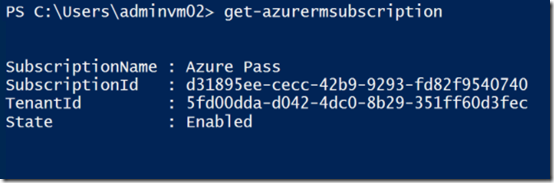
We will continue to work with the newer Azure Resource Manager here. So if you now issue the command:

get-azurermsubscription

You will see the details of the Resource Manager subscription as shown above. The important thing here is typically the subscription name (here ‘Azure Pass’). You’ll typically need to refer to the subscription by name when using PowerShell commands for Azure.

image

The recommendation way to do this easily is to issue the command:

$subscription=get-azurermsubscription

This will store the results of the get-azuresubscription command in a variable called $subscription.

To extract the actual name of the subscription and store it in a variable issue the command:

$subscriptionnname = $subscription.subscriptionname

In this case, the command will store the string ‘Azure Pass’ into a variable called $subscriptionname that can be used later throughout the script.

image

You can then issue the command:

select-azurermsubscription –subscriptionname $subscriptionname

To select the Azure Resource Manager subscription to work with (remembering that it is possible to have multiple different subscriptions inside a single Azure tenant).

You should see the Azure Resource Manager account details echoed back to you as shown above.

image

If you also want to target the older Azure Service Manager subscription then you should issues similar commands:

$subscriptionold = get-azuresubscription

$subscriptionnameold = $subscriptionold.subscriptionname

select-azuresubscription –subscriptionname $subscriptionnameold

as shown above.

Now you can work with you Azure tenant and PowerShell commands for both Azure Resource Manager and the older Azure Service Manager if required.

As you can appreciate with scripting and PowerShell there is lot more we can do to improve the connection experience and I’ll look to detail that in the future but this should at least get you started.

Life is far easier with PowerShell 5

PowerShell is a scripting language that allows you to control and automate a whole lot of technology. It is really the premier administration tool for managing Office 365 and Azure. Unfortunately, because of its ‘programming’ nature many IT Professionals have avoided it.

One of the issues with PowerShell has been configuring the environment to allow access to everything you need. Typically, you needed to download and install separate modules to allow commands to be execute for Office 365 service and Azure. PowerShell 5 has overcome that problem by allowing you to download and install these modules directly from the PowerShell command line.

Thus, you need to firstly have PowerShell 5.0 on your machine. PowerShell 5 is included with the latest versions of Windows 10 but unfortunately it isn’t currently installed by default on Windows Server 2012 R2. This means if you want to use PowerShell version 5 on a server you’ll typically need to firstly download and install it.

image

For a Windows Server 2012 R2 you’ll need to download and install the Windows Management Framework 5,0 which you can find here:

https://www.microsoft.com/en-us/download/details.aspx?id=50395

image

When executed it will scan the machine to determine what updates need to be installed.

image

You’ll then be promoted to install any updates.

image

After these updates have been installed you may need to be reboot the machine.

image

To download and install the Azure module for PowerShell simply open a new PowerShell command prompt now and type:

install-module azure

You maybe be prompted to install the NuGet provider. Enter Y here to accept this.

image

You may also be prompted that you are installing from an untrusted repository. Again, select Y here to continue.

image

You should now see the module package being downloaded and installed as shown above.

When complete you’ll be returned to the command prompt.

image

To install the Azure Resource Manager module now type:

install-module azurerm

You should again see this module being downloaded and installed as shown above.

You’ll again be returned to the command prompt when complete.

image

Now if you issue the command:

get-module –listavailable

You will see all the see all the PowerShell modules that are available to you. In the above example you can see both the Azure and AzureRM modules are listed as available.

image

If you now issue the command:

$psversiontable.psversion

You will see the version of PowerShell installed (here version 5 as expected).

That’s a lot easier than it ever used to be with PowerShell and another reason why you should be using the latest version!