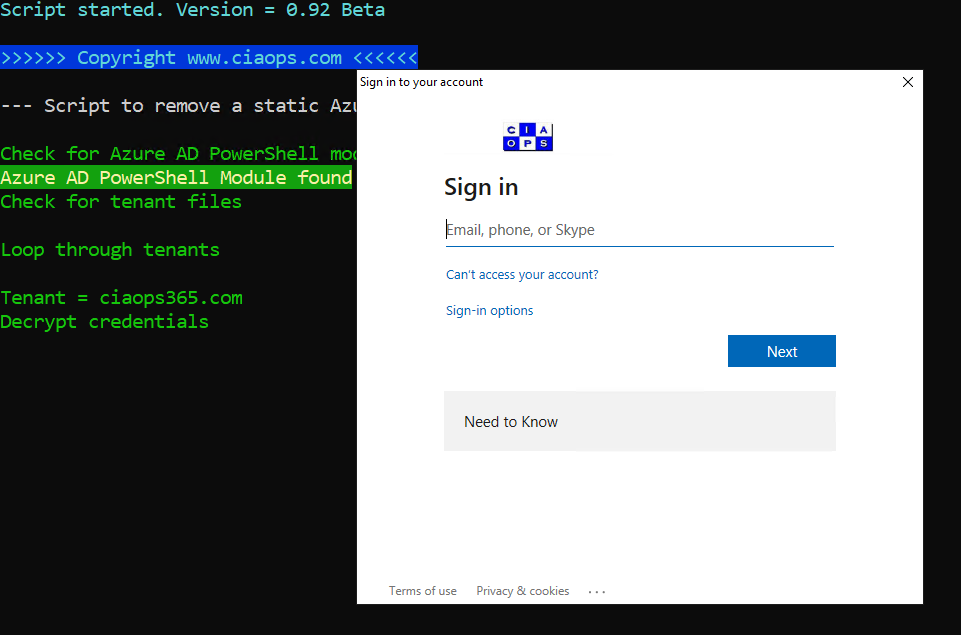
Using the Microsoft Graph with multiple tenants

In a recent article:

Making PowerShell automation easier with the Microsoft Graph

I showed how to use the Microsoft Graph to embed an Azure AD application in a single tenant and then use that to make Graph queries against. What happens when you want to that across multiple tenants?

To achieve this you’ll need to basically do three things:

1. Embed a ‘static’ Azure AD application in all the tenants you wish to access.

2. Give those ‘static’ Azure AD applications, in all those tenants, the appropriate permissions to access the tenant values.

3. Run a Graph request against these Azure AD applications in each tenant and extract the results you want.

This article is going to look at Step 1 of this process.

So, the task at hand is to create a ‘static’ Azure AD application in all the tenants we want to access. I have detailed how to achieve this manually before here:

Using interactive PowerShell to access the Microsoft Graph

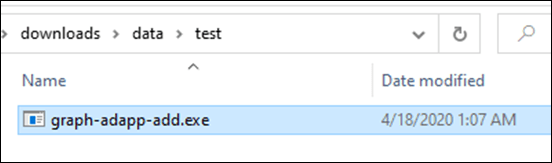
That may prove time consuming if you wish to do this across many tenants, so I have automated it via a freely available program here:

https://github.com/directorcia/Office365/blob/master/graph-adapp-add.exe
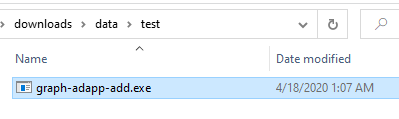
image

You can download the file into any directory on your machine. Best best is to use a Windows 10 machine that already has the AzureAD PowerShell module installed. This program will also generate a number of configuration files in the current directory for each domain you connect to.

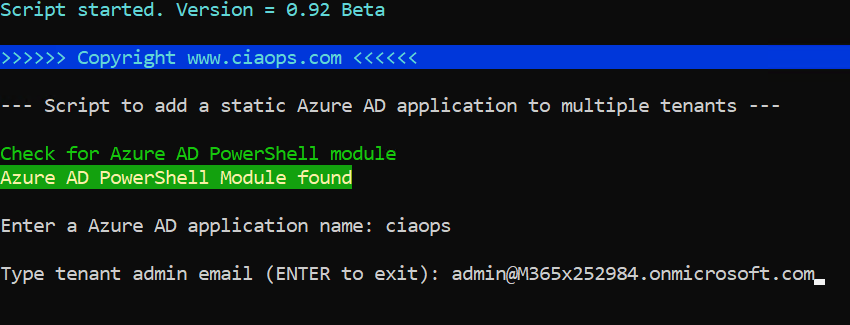
image

Running the program will launch the PowerShell script as shown. You’ll then be prompted for the name of your Azure AD application. This is the display name that will appear inside your Azure AD. This name will be the same across all tenants you connect to. Here I’ve chosen to call my Azure AD application ciaops.

image

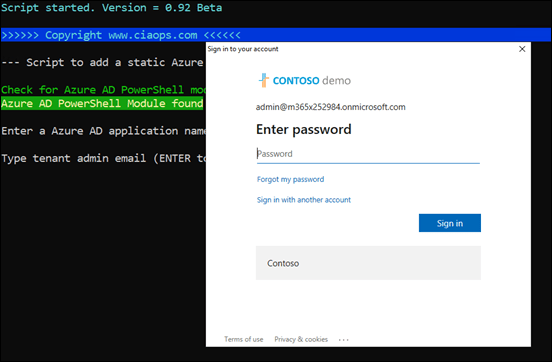
You’ll then be prompted for the email address of a tenant administrator with the rights to create an Azure AD application.
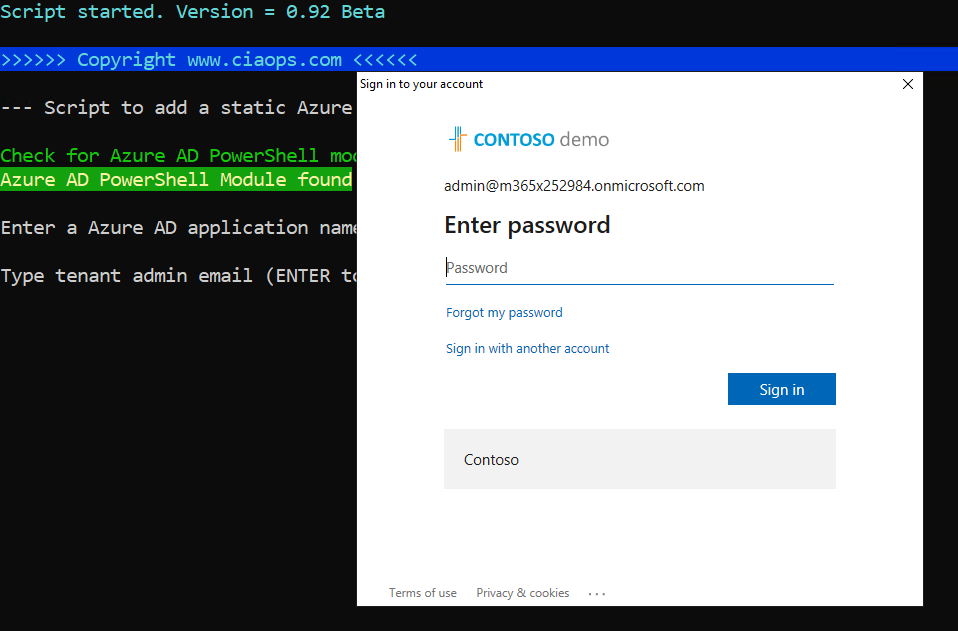
image

You’ll then be take through the normal sign in process for that tenant with that user as shown above. This will include any MFA if required.

image

The tenant will be check to see if an existing Azure AD application of the same name already exists and if it does you’ll see a warning like shown above. The program will then skip adding an Azure AD Application to this tenant and move on to the next tenant.

image

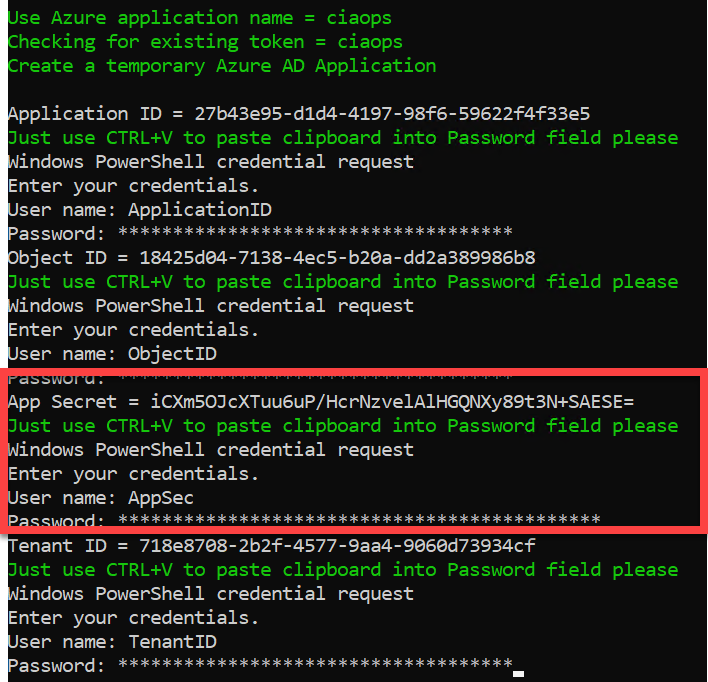
Assuming no Azure AD application of the same name exists in that tenant you’ll see that a new Azure AD application of that name is created. When a token is created in a tenant there are fours pieces of information that will need to be saved:

1. Application ID

2. Object ID

3. Application secret

4. Tenant ID

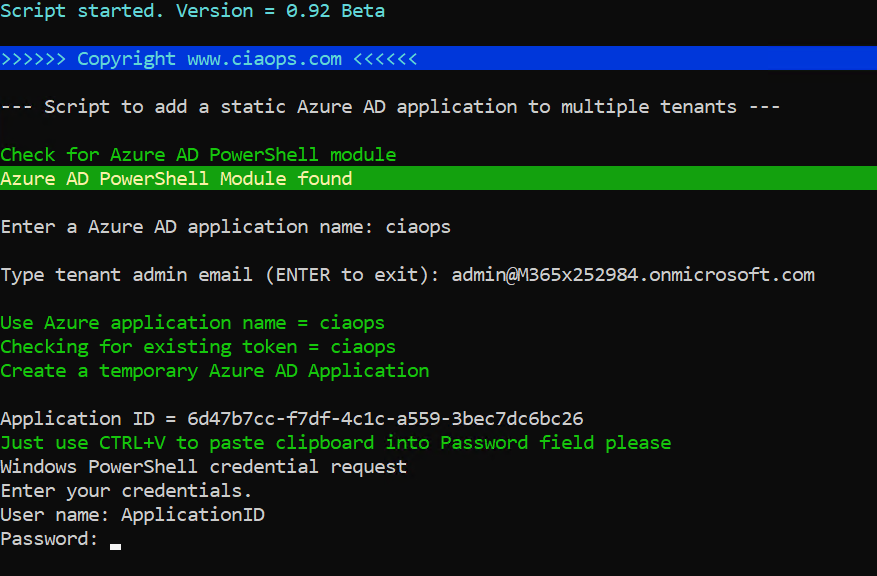
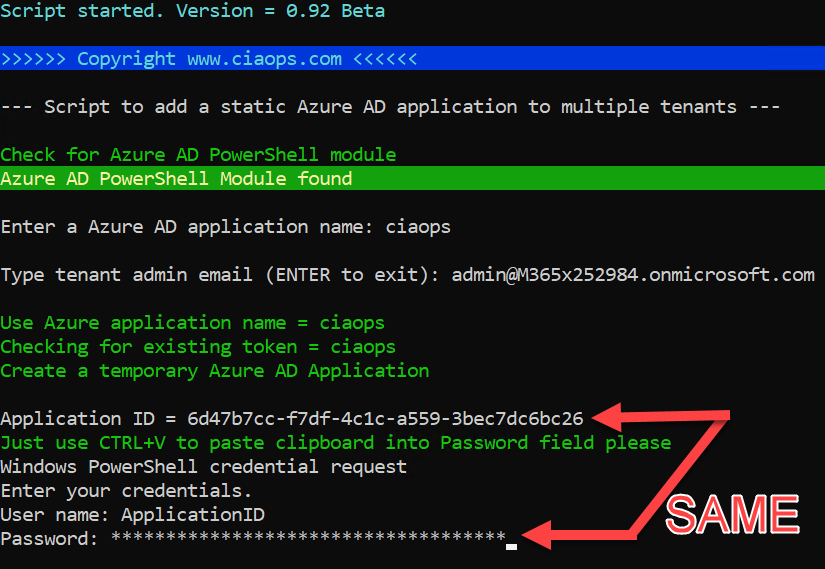
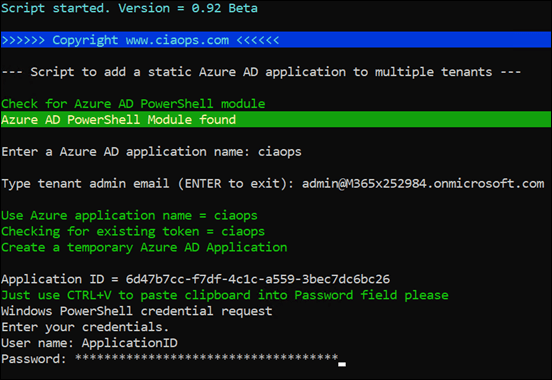
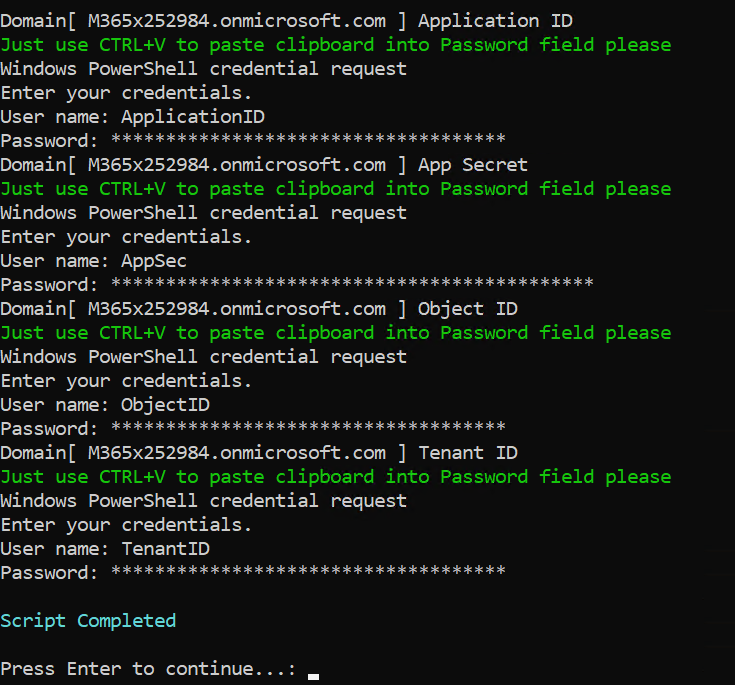
Each of these will be written to a secure configuration XML file I’ll explain in detail below. For now, just appreciate that these values need to be written securely to files so they can be used later. To achieve that, the program uses the get-credential PowerShell command to capture these securely to be written.
image

To complete this process all you need to do is use the Paste command (i.e. CTRL+V) when prompted at the password field as shown.

image

So here, simply hit CTRL+V and then ENTER. The actual value you are pasting is a few lines up in the display as you can see above if you need it.

image

You’ll need to complete that process four times for each variable as shown above.

You are then prompted for the next domain you wish to add an Azure AD application to. You repeat the same entry process for each new domain you wish to use.
image

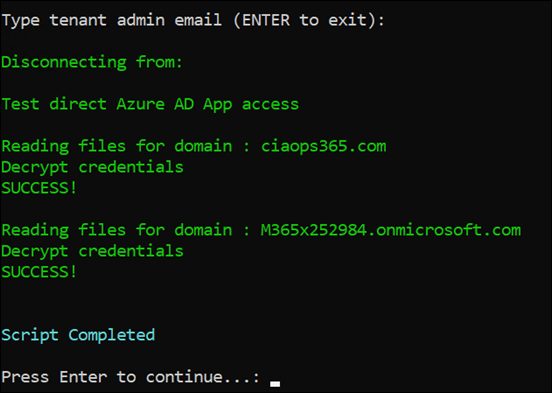
When you have no more domains to configure, simply press Enter at the admin domain prompt. At that point, the program will disconnect from any Azure AD and use the captured credentials to check whether it can access all these tenants. To do this, it reads from the saved configuration files and makes a basic read request to the Microsoft Graph using the Azure AD application details for each tenant to verify success. It merely tests that it can get the Graph API for that tenant.

At this point you now have an Azure AD application of the same name, inside each tenant you configured, with no permissions to anything with the Graph.

image

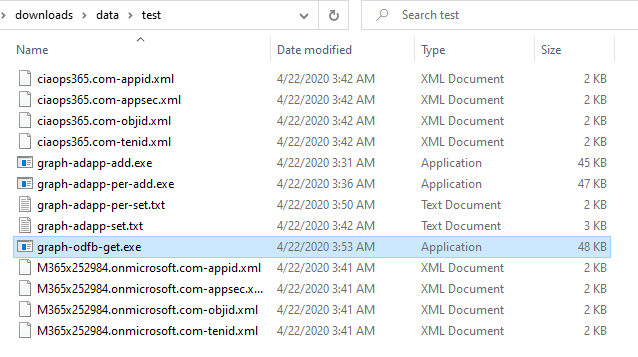
If you now return to the directory where you ran the program from you’ll see a number of additional files as shown above.

The graph-adapp-set.txt is a log of the whole process so you can see what has happened.

You’ll also see four XML files per tenant. These contain the important variables for the tenant mentioned previously. They are in format of:

<domain>-tenid.xml – holds encrypted Tenant ID

<domain>-appsec.xml – holds the encrypted application secret of the Azure AD application for the tenant

<domain>.objid.xml – holds the encrypted Object ID of the Azure AD application for the tenant

<domain>.appid.xml – holds the encrypted Application ID of the Azure AD application for the tenant

Storing these details on a workstation is not the most secure option I agree, but it’s a starting point for what I’ll show you down track (read Azure Key Vault). However, because some people want the flexibility and simplicity of local files that’s where this starts.

image

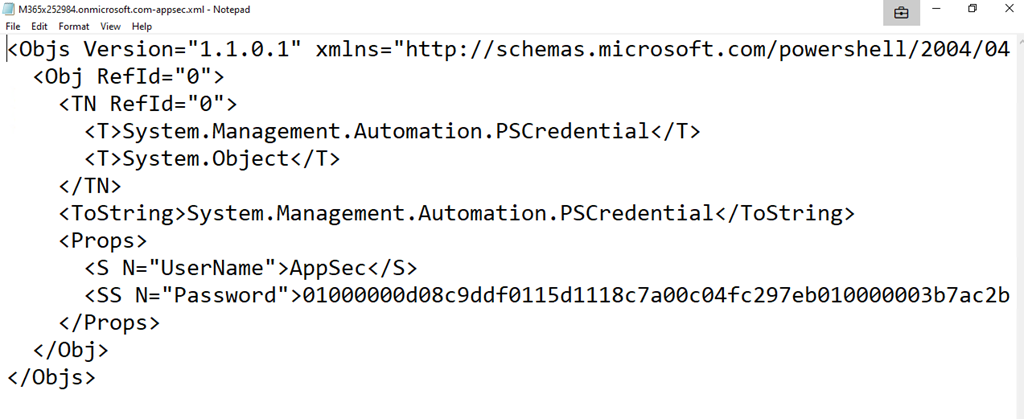
If you examine one of these XML configuration files more closely, as shown above, you’ll see that the variable name (here AppSec) is stored in the Username field and the Password field has a long string of characters. You’ll notice that these characters actually don’t in anyway match the actual Appsec value that was captured earlier. That value was:

SNAGHTML10314b8e

This means that the actual tenant variables save in the files are encrypted, so they can’t be easily recovered.

image

To get the unencrypted values back you’ll need to use the PowerShell import-clixml as shown above.

image

Well, you maybe thinking that it is easy enough to copy these configuration files to another PC and decrypt them there. Not so fast my sneaky friend, because the way these details are encrypted is that they are locked to just THAT machine and just THAT logged in user! As you can see from the above, if you try and decrypt these files with another user on that same PC or on another machine, you can’t.

All of this comes about because of the use of the export-climxl command to save the variables, which says:

The Export-Clixml cmdlet encrypts credential objects by using the Windows Data Protection API. The encryption ensures that only your user account on only that computer can decrypt the contents of the credential object. The exported CLIXML file can’t be used on a different computer or by a different user.

That’s why you needed to do that CTL+V paste command for each variable previously so that the variable could be saved as a credential object and take advantage of this encryption process.

This has now achieved STEP 1 in the process I spoke about initially to allow secure access to multiple tenant using the Microsoft Graph.

image

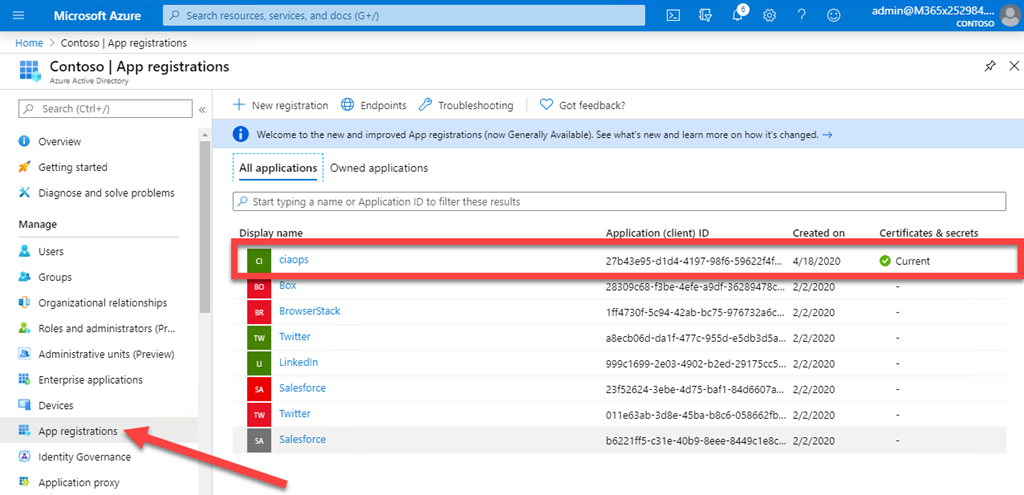
So what does the program actually do to each tenant behind the scenes? It is easy to see. Simply visit the Azure AD Directory location in the Azure portal for that tenant. If you then select the App registration from the menu on the left, and ensure you are viewing All Applications, you should see the application with the name you entered displayed on the right as shown above. Here, ciaops.

image

If you select the application name to get more details you’ll many of the variables saved to XML files as shown above.

image

If you then select API permissions on the left you will see that, as yet, no permissions have been given to this Azure AD Application (although they will be in an upcoming article).

However, we are not quite done yet as I have also created a program that will remove all of these Azure AD applications created quickly and easily. To do that download the program:

 https://github.com/directorcia/Office365/blob/master/graph-adapp-del.exe

image

You need to place it into the directory where all the tenant configuration file are located as shown. Double click the program to run.

image

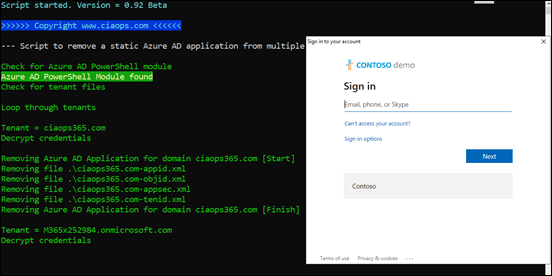
To remove that Azure AD application you’ll need to log back into every tenant interactively as shown above. You’ll see the same of the tenant that it wants credentials for in the program flow.
image

Once you have provided access to the tenant, the Azure AD application will be deleted along with the configuration files. You’ll then be take to the next tenant and asked to repeat the process.

image

Once there are no more configuration files found the program will end.

Remember, this program will delete every matching tenant it finds configuration files for in the current directory. If you only want to delete a subset of the total tenants you have configured, move the other configuration files out of the current directory until this process is complete.

In summary then, the programs that I have created and made available for free will create a ‘static’ Azure AD application in all the tenants you select. The idea in upcoming articles will be to show you how this ‘static’ embedded Azure AD application can now be used to report and potentially change the configuration of multiple tenants quickly and easily. I also provided a program to also remove all these Azure AD applications from tenants.

Next step will be to give the Azure AD applications appropriate permissions and then get some information from the tenants WITHOUT the need of manually logging into each.

Making PowerShell automation easier with the Microsoft Graph

About 2 years ago I released a free PowerShell script that allowed you to check for email forwards on mailboxes in a Microsoft 365 environment. I wrote about that script here:

https://blog.ciaops.com/2018/07/05/powershell-script-to-check-outlook-mail-rules/

This is still the most comprehensive method in my books for checking for all the various type of forwards on a mailbox and I recommend you continue to use the script which you’ll find freely available at:

 https://github.com/directorcia/Office365/blob/master/o365-exo-fwd-chk.ps1

As good as that script is, there are still challenges for many people actually using it I have found. This mainly revolves around getting an appropriate PowerShell environment running, installing the Exchange Online PowerShell modules, connecting to Exchange Online with PowerShell and so on. I have detailed how to do all that over the period here but I still find that many struggle to make use of the PowerShell script.

So a new approach is in order. In short, I have a new version of this script that is a single EXE file you can download and use here:

https://github.com/directorcia/Office365/blob/master/graph-mbx-rules.exe

It is important to note that this script does not make any changes to users or their mailboxes, it just reads and reports their mailbox rules using the Microsoft Graph. As yet, it can’t check more exotic things like direct mailbox forwarding or sweep rules, but you gotta start somewhere!

Let me show you how it works.

image

You’ll need a PC that is running a current version of PowerShell. A Windows 10 PC will work fine. You should also have the AzureAD PowerShell module loaded prior in your environment. To do that, all you need to do is run an elevated PowerShell console and type install-azuread. However, hopefully most people already have this loaded.

Download my new file from:

https://github.com/directorcia/Office365/blob/master/graph-mbx-rules.exe

and copy it anywhere on your machine as shown above. Double click to run the file.

image

You should now see a window like shown above.

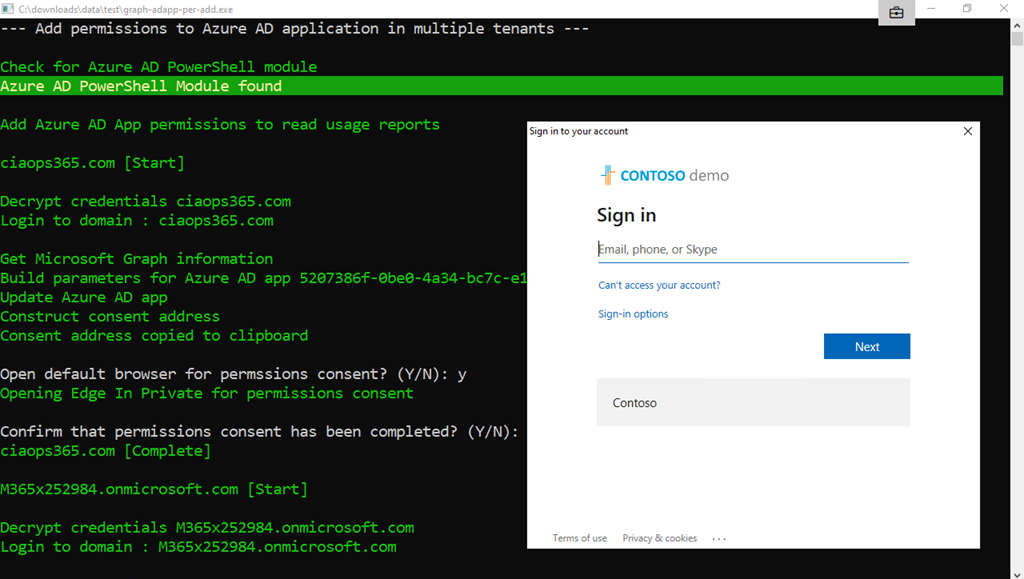
The program will first check for the Azure AD PowerShell module. It will then prompt you to log into your tenant of choice.

image

You’ll go through your normal login process to a tenant as shown.

image

Including using MFA if required.

image

Once logged into the tenant, a new Azure AD application will be created in the tenant with a unique name as shown above. The name in this case is CIAOPS-20200415232309. With the app created in the tenant, appropriate permission are added to that app to allow it to do things like read the list of users, their mailboxes, etc.

After this app has been created and permissions applied to it to allow it to do its work, those changes need to be consented or approved by someone (typically the same user that initially logged into the tenant). Unfortunately, from what I can see, consent can only be managed via the browser. With that in mind, the required URL is copied to the clipboard and you are prompted whether you wish to open the default browser to complete this process. Copying the consent URL to the clipboard allows you to manually paste it to your browser session of choice. This is handy if you are working in multiple tenants currently.

image

You’ll now be prompted to login to the tenant again, but this time in a browser.

image

You should then see a list of requested permissions as shown above that you’ll need to accept for this process to complete.

image

If you look at the top of the dialog to see what is requesting permission you should see the name of the Azure AD application as noted previously. Here again that is CIAOPS-20200415232309.

image

Also note that there is only one write permissions requested, the majority are only read. Where do these permission come from? To use the Microsoft Graph, for example, to list the email folders for a user you use the command here:

https://docs.microsoft.com/en-us/graph/api/user-list-mailfolders?view=graph-rest-1.0&tabs=http

in which you’ll see to do this you need the permissions:

Mail.ReadBasic.All, Mail.Read, Mail.ReadWrite

I have tried to keep the rights requires as basic as possible but I am using what the Graph provides.

You’ll see that it needs a number of permissions to accomplish this. Basically, I have automated the process I detailed how to do manually before here:

https://blog.ciaops.com/2019/04/17/using-interactive-powershell-to-access-the-microsoft-graph/

image

After you Accept the permissions, you should be return to the home page of your tenant as shown. If for reason the consent page doesn’t appear or something else strange happens, just paste in the URL and try again. Sometimes web request don’t always work.

image

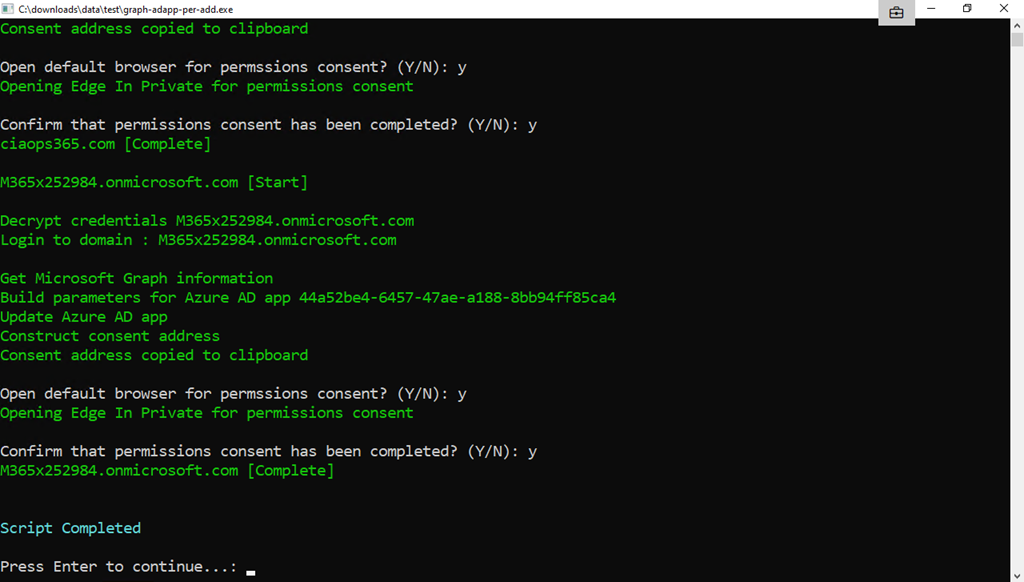
If you now return to the program you’ll see that it is prompting you to confirm that you have completed the consent stage.  Type Y and press ENTER to continue.

image

Because the web consent step can take a short while to complete I now wait 10 seconds, just in case, for this to complete.

image

The program will continue, getting all the information it needs and then starting to report on user mailboxes as shown above.

image

Once all mailboxes have been checked the Azure AD application created to facilitate this process (here CIAOPS-20200415232309) is deleted from your tenant to leave zero touch.
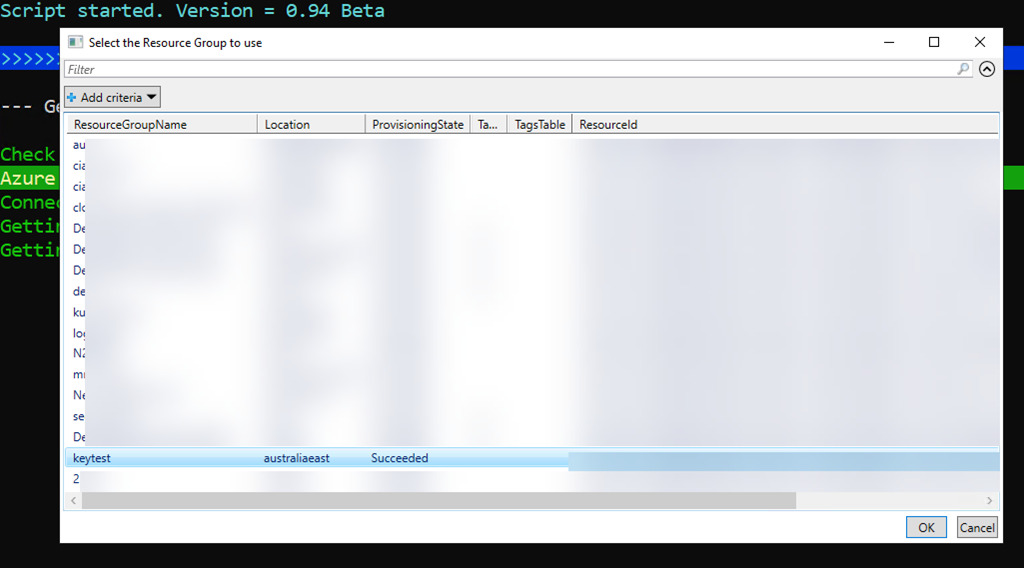
If you then press any key, the program will complete.

image

If you now look in the source directory you will see two new text files as shown above.

image

The first file, graph-mdx-rules.txt is basically a debugging log file that records what happens during the initialisation phase of the program.

image

The file mbx-rules.txt is basically a copy of the results.

Note, both of these file get overwritten each time the program runs.

Hopefully, this new program makes it much easier to get the information your need. However, because much is automated and simplified, some may be concerned as to what is actually happening behind the scenes. Well, thanks to the wonders of Azure AD you can easily see.

SNAGHTML56963ab

To review the whole process, open you Azure portal and navigate to Azure Active Directory and then Audit logs as you see above.

image

In there you should find an entry that corresponds to the Azure AD application being added as shown above. Note the name corresponds to the one details previously, here CIAOPS-20200415232309.

image

You should then see entries where permissions have been added to Azure AD application as shown above.

image

A bit further along, you’ll see where consent was granted to the Azure AD application as shown above.

image

Lastly, you’ll also see where that Azure AD application is completely deleted from the environment leaving no fingerprint.

This is a new approach to automation that I believe will work well. There is still a lot of work that needs to be done and there are still some limitations but hopefully, this can be the first of many scripts I create and make available in this simplified way. Thus, I’d love you to try the program and tell me what you think. what works, what doesn’t? What would you like to see and how can it be improved? No matter what it is, I’d love to hear your thoughts, which you can send me directly via email director@ciaops.com.

Look out for more updates and new scripts at my GitHub repository – https://github.com/directorcia/Office365

Viewing and removing OneDrive for Business Sharing with PowerShell

One of the great abilities of OneDrive for Business and SharePoint Online is the ability to quickly and easily share a link to a file with people outside your organisation.

image

I’m not going to show you how to do this in this article but if you need to see how this is done have a look at:

Share OneDrive files and folders

In the above example you’ll see that the file Employee Engagement Plan.docx has been been shared by the owner with an external user (Lewis Collins).

image

Somewhere else, you can see that this user (Lewis Collins) has the document open to work on.

One of the benefits of sharing using OneDrive for Business is that the sharing rights can easily be revoked by the original user if desired.

image

The easiest way to achieve this would be simply to hit the cross next to the external users name in the web interface as shown above.

image

The original user would then be prompted the Remove the external user, which they would do to remove access.

That all works fine when you have a small number of shared files and a small number of users working with a file. It becomes a lot more problematic when you start scaling to many users as you can see here:

image

What happens when you need to find just one user to remove sharing from amongst a list of hundreds of users?

PowerShell to the rescue!

1. Connect to SharePoint Online via PowerShell. You can use my script at:

https://github.com/directorcia/Office365/blob/master/o365-connect-mfa-spo.ps1

to do this. You’ll need to know the tenant name prior i.e. the part before the .onmicrosoft.com (e.g. mydomain.onmicrosoft.com)

image

2. Run the PowerShell command:

Get-spouser -site https://<mydomain>-my.sharepoint.com/personal/<user>_<mydomain>_onmicrosoft_com -limit all

to display of all the users who have access to the specific OneDrive for Business site.

image

In this list you should find your external user in the format of:

<user@externaldomain.com>#ext#<mydomain>.onmicrosoft.com

This may vary slight but you should also be able to identify the user by their Display name if needed.

3. Run the PowerShell command:

remove-spouser –site https://<mydomain>-my.sharepoint.com/personal/<user>_<mydomain>_onmicrosoft_com&nbsp; -loginname <user@externaldomain.com>#ext#<mydomain>.onmicrosoft.com

image

4. Run a sharing report

image

In the source OneDrive for Business, select the COG in the upper right corner and then the option OneDrive Settings.

image

Now select More Settings on the left and Run sharing report from the options that appear on the right as shown above.

image

Nominate a folder for this report to be sent to.

image

You’ll receive an email when the report is ready. It will be in Excel format as you can see above.

Open the file and do a search for the external email address of the removed users.

image

The removed users should not appear in the report as expected.

image

If you now look at the sharing option for file(s) in that OneDrive for Business you should find that the removed user no longer appears, as shown above.

If the external user, who has just been removed, actually has the file open at the moment that access is removed they will see:

image

and be prompted to Reconnect. If they then attempt to reconnect they will see:

image

and will be denied access going forward.

Note – This removes that users access to ALL files shared in the OneDrive for Business location, not just for a single file.

image

I also have another freely available script at:

https://github.com/directorcia/Office365/blob/master/o365-spo-extusr.ps1

that will display a list of all externally shared across your tenant as shown above.

If you do have a situation where you have large numbers of shared files or shared users in OneDrive for Business and you wish to make bulk removal easier, I’d encourage you to look at PowerShell as an option. However, remember, this option will remove ALL sharing for that user(s) across the WHOLE OneDrive for Business.

Setting Archive Tier on Azure storage

In my article

Moving to the Cloud – Part 2

I spoke about using Azure Archive storage as a good location for long term data retention. The way that you configure this is basically to set up a storage account as usual and initially configure it as ‘Cool’ storage (since you can’t do Archive storage directly). You then upload files there (typically using Azure Storage Explorer). The final piece of the puzzle is to change the access tier from ‘Cool’ to ‘Archive’ by right mouse clicking on the item.

image

You can do the same using Azure Storage Explorer.

The challenge becomes when you want to do more than a single file at a time.

image

You’ll see that you now don’t get the option to set a tier any more once you have two items or more selected. The same happens with Azure Storage Explorer as well.

Thanks to Marc Kean who pointed me in the right direction, the solution lies in changing this programmatically. Marc has a script on his site and I found another on GitHub as well but decided to write my own anyway which you’ll find here:

https://github.com/directorcia/Azure/blob/master/az-blob-tierset.ps1

with mine you’ll need to set the following variable first at the top of the script:

$storageaccountname = “<your storage account name here>”

$storageresourcegroup = “<your storage account resource group name here>”

$storagetier = “<your desired storage tier level here>” # Hot, Cool or Archive

You’ll also need to connect to you Azure account beforehand which you can do with script of mine:

https://github.com/directorcia/Azure/blob/master/az-connect.ps1

My script will, get the storage account via:

$storageaccount = Get-AzStorageAccount -name $storageaccountname -ResourceGroupName $storageresourcegroup

Get the access for that account via

$key = (get-azstorageaccountkey -ResourceGroupName $storageaccount.ResourceGroupName -Name $storageaccount.StorageAccountName).value[0]

Get the context via:

$context = New-AzstorageContext -StorageAccountName $storageaccount.StorageAccountName -StorageAccountKey $key

get the actual container via:

$storagecontainers = get-azstoragecontainer -Context $context

It will then build an array of all the objects in that container. It will then cycle through all these items changing their tier level via:

$blob.icloudblob.SetStandardBlobTier($StorageTier)

This therefore effectively changes all the items in the container to the tier level you select. This is why I like to set up containers for specific tiers rather than intermingling.

Just remember to run this script AFTER you upload your files to swap them to the cheaper Archive tier. You could also use this script to swap them back at a later stage if you need.

Remove known bad emails from tenant

Microsoft has a technology in Exchange Online known as ZAP. It will basically move known malicious emails, even after they may have initially been delivered to a mailbox. You can read more about the the technology here:

Zero-hour auto purge protection against spam and malware

ZAP however, is a ‘reactive’ security technology requiring knowledge of malicious content prior to taking action. There will therefore be cases when malicious content can get delivered to a mailbox, especially if the attack is relative new in the wild, simply because it has not yet been identified.  Hopefully, users have been trained so they can report any suspicious material that they do find, as I have detailed here:

Improved security is a shared responsibility

You can also enable an alert that notifies when someone reports an email. When that happens, you may want to check through all the other mailboxes to see whether that malicious email occurs elsewhere. If the payload is indeed malicious, you may wish to take the pro-active step of deleting that bad email from all users inboxes.

You can achieve this using two steps:

1. Create a content search to locate the suspect item in your tenant

2. Use PowerShell to delete the discovered items

Step one is to login to the Microsoft 365 tenant as an administrator and visit the Security and Compliance Center like so:

image

Select Content Search from under the Search option on the left.

Before you create a new search, you’ll need to find something unique about the item you are searching for.

image

In the case above, with this dodgy email, I’ll do a search based on the senders email but I could as easily do one on the mis-spelled subject ‘Alart’. All you need is something unique.

image

If I look in my inbox I can see this email listed as shown.

image

I create a new Content Search and use the unique criteria in the keywords as shown above.

image

Below this I can limit where the search is conducted. In this case, I will specify messages, as that is what I am looking for. You can get quite granular here if you need to. Just select Modify and specify the location you wish to search. Remember, the more places you search the longer it will take to return results.
image

Once you have crafted your search, select Save & run in the lower left. After a short while, you should see the results. In this case, I have only found the one result, which is the item in my inbox. Make sure you check the items that are returned as it is these items that will be deleted! You may need to adjust your search to get exactly the results you wish.

Next, you’ll need to fire up PowerShell and connect to the Microsoft Security and Compliance Center for you tenant. I have a script that you can use here if you have MFA:

https://github.com/directorcia/Office365/blob/master/o365-connect-mfa-sac.ps1

and if you don’t (shame on you):

https://github.com/directorcia/Office365/blob/master/o365-connect-sac.ps1

Once you have successfully connected you need to run the following line of PowerShell:

New-ComplianceSearchAction -SearchName “<Content search query name>” -Purge -PurgeType SoftDelete

for a ‘soft delete’ of the item (i.e. recoverable). Or

New-ComplianceSearchAction -SearchName “<Content search query name>” -Purge -PurgeType HardDelete

for a ‘hard delete’ (i.e. non-recoverable). You’ll also need to change <Content search query name> to match the name you gave the Content Search when you created it.

image

You should now see a prompt, as shown above, asking you to confirm your actions. Generally, you’ll select Yes to All here.

image

This will kick off the process of deleting the content you have found. Note, this process is not immediate. It may take a little while to work through all the locations.

image

When the process is complete, as shown above, that item no longer appears in mailboxes.

That’s how you run your own ZAP!

Need to Know podcast–Episode 219

We are just past Halloween and it’s time for something that seems to scare most people who administer Microsoft 365. PowerShell. However, to hold your hand while we dive deep we one of the best in business – Elliot Munro from GCITS – to guide you. Also, Brenton and I bring you all the latest news from the fire hose of Microsoft Ignite 2019, so much so that we’ll have more next time. Holey moley, there lots in the episode, so lean back, listen in an enjoy.

This episode was recorded using Microsoft Teams and produced with Camtasia 2019

Take a listen and let us know what you think – feedback@needtoknow.cloud

You can listen directly to this episode at:

https://ciaops.podbean.com/e/episode-219-elliot-munro/

Subscribe via iTunes at:

https://itunes.apple.com/au/podcast/ciaops-need-to-know-podcasts/id406891445?mt=2

The podcast is also available on Stitcher at:

http://www.stitcher.com/podcast/ciaops/need-to-know-podcast?refid=stpr

Don’t forget to give the show a rating as well as send us any feedback or suggestions you may have for the show.

Resources

Elliot Munro

@contactbrenton

@directorcia

Introducing the new Edge and Bing

Microsoft 365 Productivity score

New Office Mobile App

Microsoft Fluid Framework

Introducing Microsoft 365 Business voice to UK and Canada

What’s new in Microsoft Teams from Ignite

Microsoft Endpoint Manager vision

The future of Yammer

Empower your people with Project Cortex

Check off your To-Do tasks in Teams

Security and Compliance announcements from Ignite