Why I can NOW delete a Power Platform PAYG billing plan

About a month ago I discovered that I couldn’t delete a Power Platform PAYG billing plan. It turns out that now I can.

Screenshot 2025-02-05 201444

As you can see in the above screen shot the Delete billing plan button isnow available. Seems that because the paint was still wet on the features for this the team at Microsoft was making adjustments. However, I am now told this has been all sorted so you can delete your billing plans as you wish.

Why can’t I delete a Power Platform PAYG billing plan?

*** Update 5 Feb 2025: Delete billing plan is now available. Developers were working on the back end causing the issue.

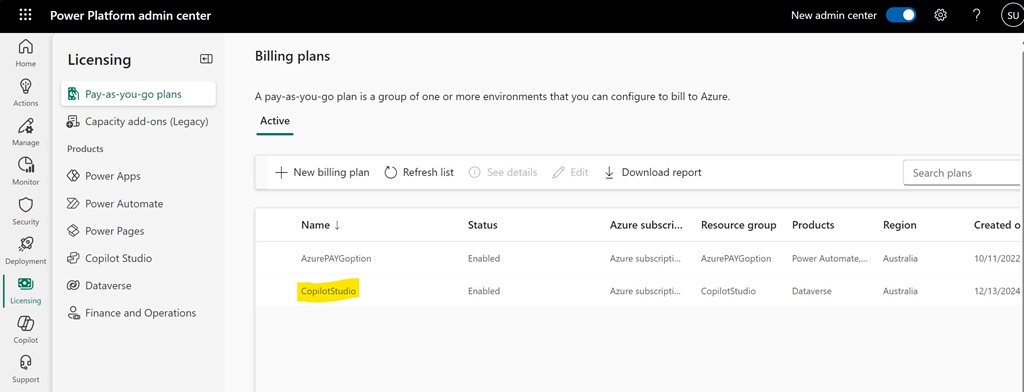
Screenshot 2025-01-17 154952

I want to delete the Power Platform PAYG Billing plan called CopilotStudio as seen above.

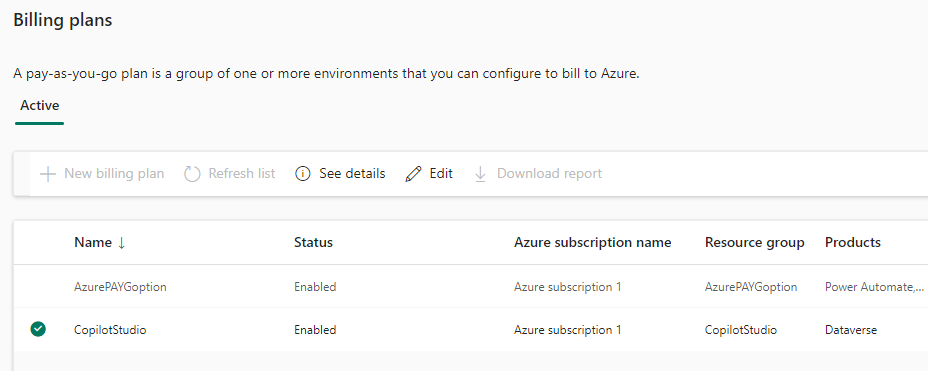
Screenshot 2025-01-17 155309

If I select the pla, as shown above, the the options See details and Edit are available only.

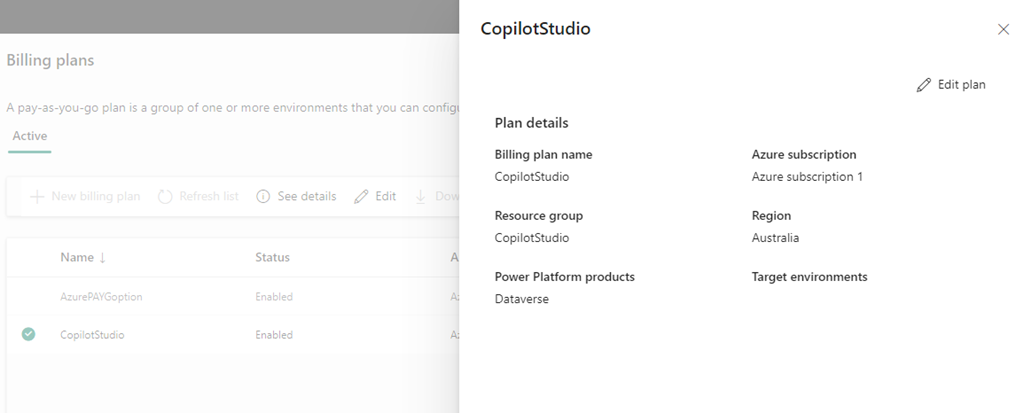
Screenshot 2025-01-17 155502

If I Select See details the above information is shown but with no delete option.

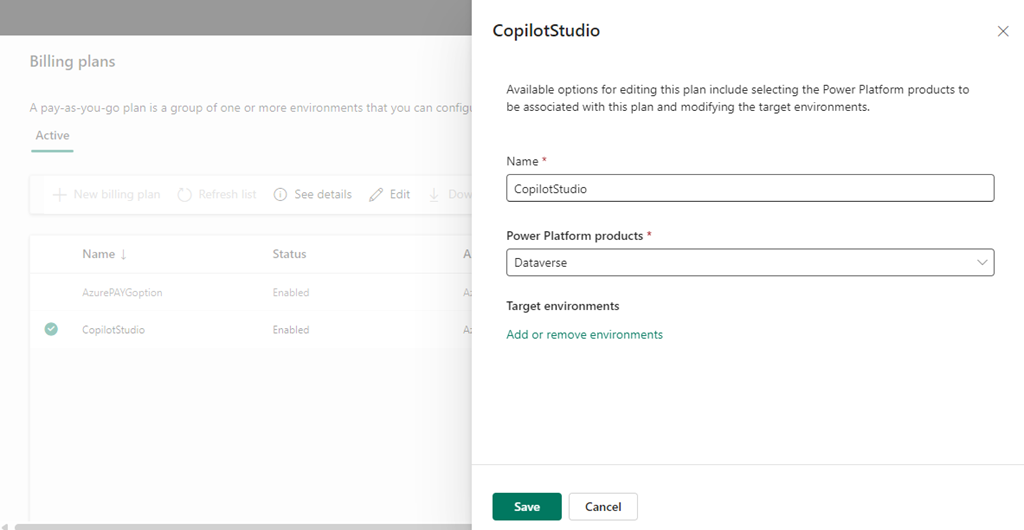
Screenshot 2025-01-17 155808

Selecting Edit plan displays the above, again with no Delete option.

The billing plan has no environments inside it.

Originally, the PAYG Billing plan was tied to an Azure Resource Group that has also now been removed. Yet, the billing plan remains?

Where is the delete option? Anyone know?

Adoption with fun and astronomy

A while back I detailed how to schedule a Dilbert comic to appear daily in a Microsoft Teams channel:

Adoption with fun

Sadly, Dilbert has moved behind a paywall which means that process no longer works. As such, I have been searching for a suitable replacement and have settled on the Astronomy Picture of the Day from NASA.

The basic concept from the Dilbert process is the same. This process also requires a premium Power Automate connector, which you can easily configure using with either a Power Platform Premium license or using Power Platform PAYG configuration with Azure which I have shown previously.

image

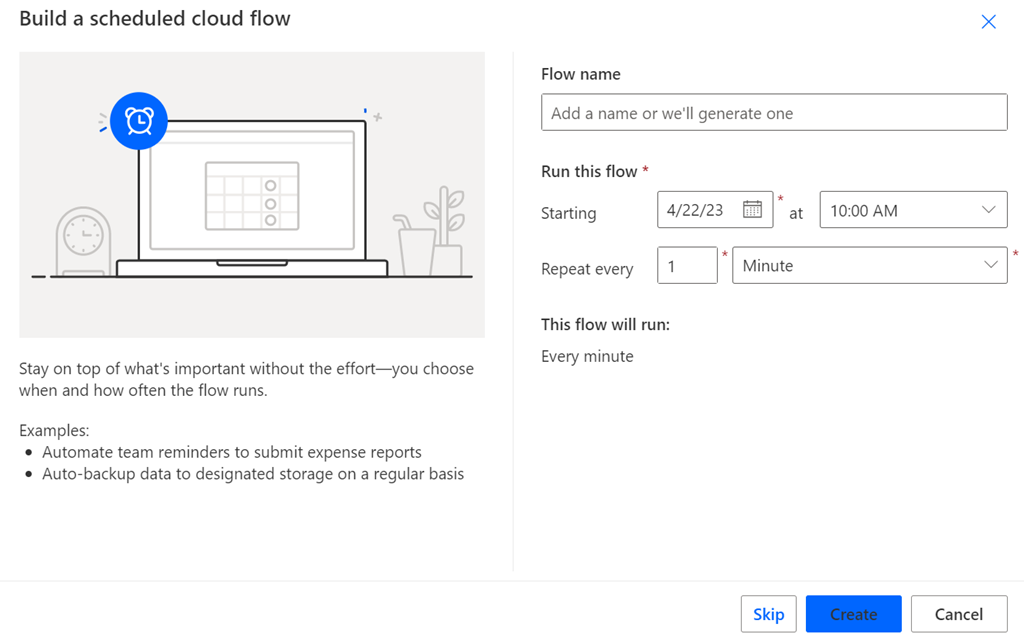
The starting process is to create a new Scheduled Cloud Flow and select the time when you wish that Flow to execute.

image

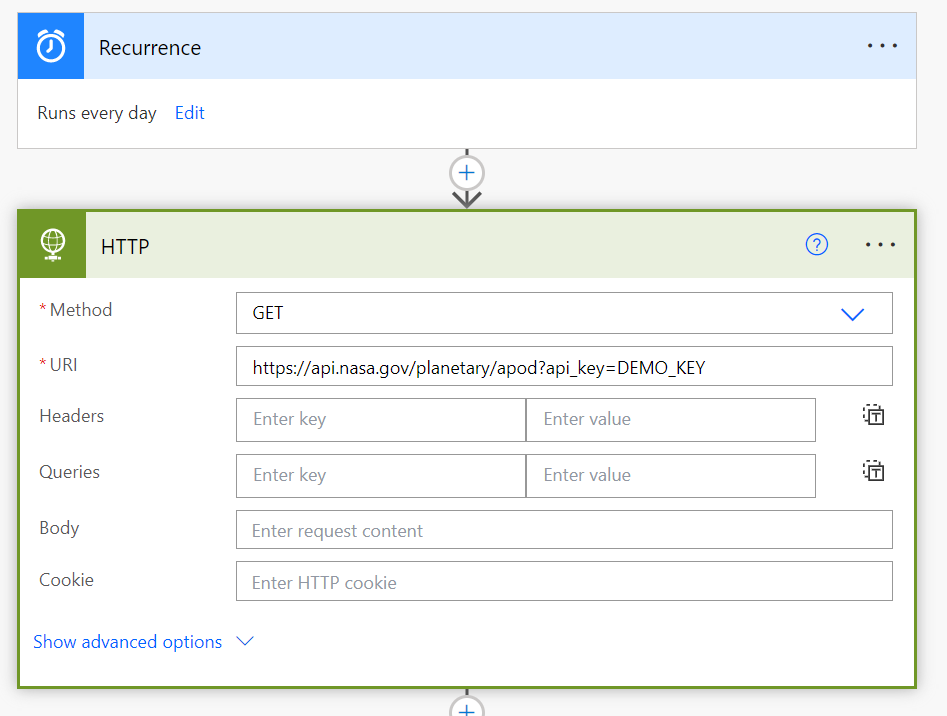
You will then need to add a HTTP action as shown above. This is a premium connection mentioned previously. This HTTP action will need to use a GET method for the URI:

https://api.nasa.gov/planetary/apod?api_key=DEMO_KEY

image

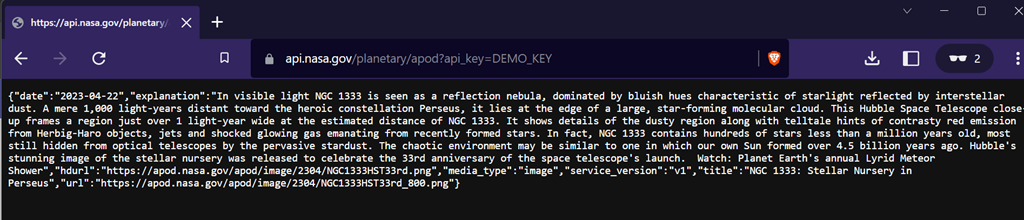
Open that URI in a new browser tab and you should see some JSON information returned as shown above. Copy all of this.

image

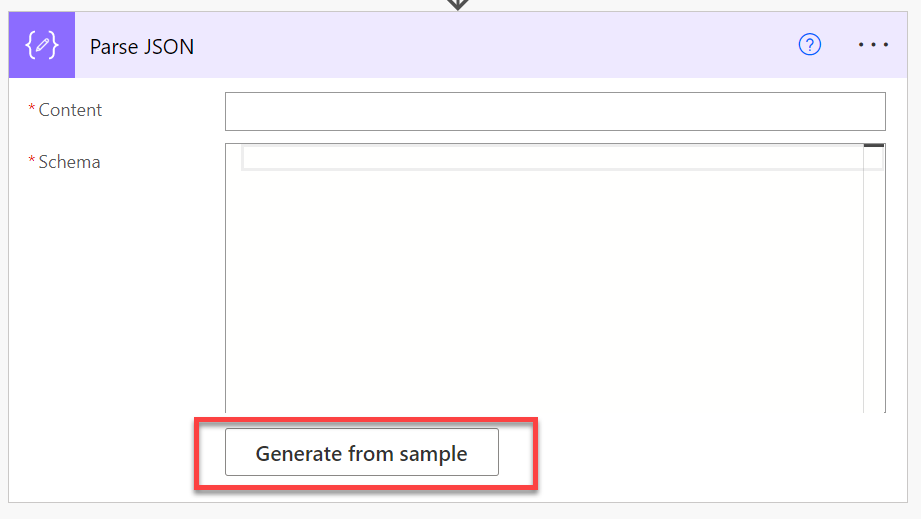
Next add the Parse JSON action to the Flow. Then select the Generate from sample button at the bottom of this action as shown above.

image

Paste the text obtained from browser window previously in here and select Done.

image

Ensure you have the Body option selected in the Content area as shown above.

image

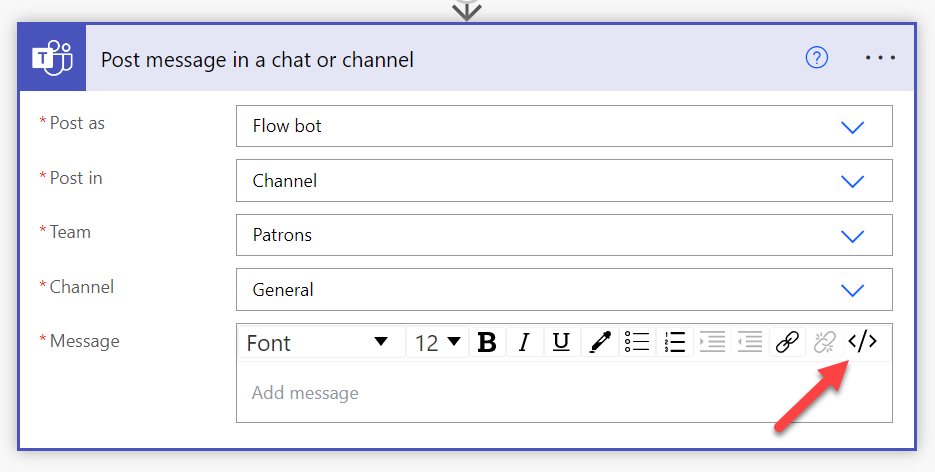
Next, add the Post message in a chat or channel as shown above. Add the appropriate Team and Channel. Then in the Message area select the </> icon in the top right to enable HTML editing.

image

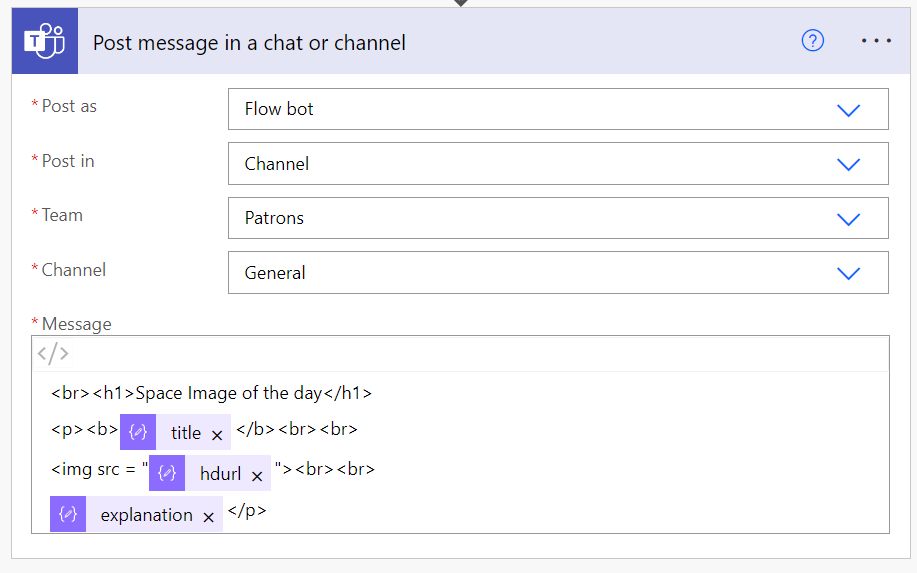
Complete the formatting any way you wish but this is what I used:

<br><h1>Space Image of the day</h1>
<p><b>@{body(‘Parse_JSON’)?[‘title’]}</b><br><br>
<img src = “@{body(‘Parse_JSON’)?[‘hdurl’]}”><br><br>
@{body(‘Parse_JSON’)?[‘explanation’]}</p>

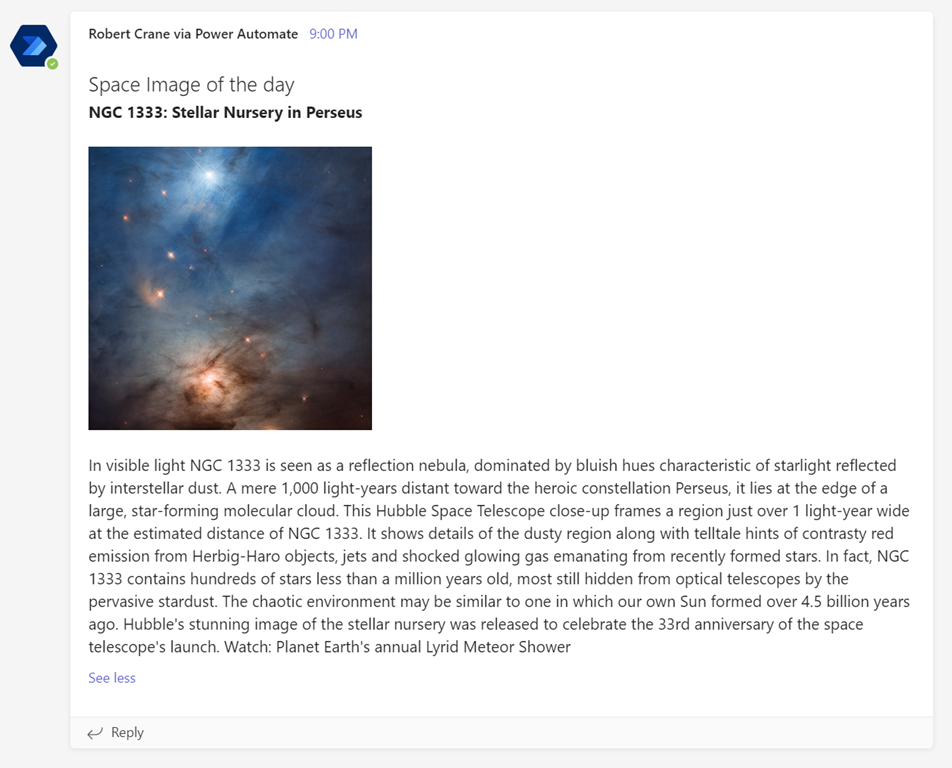
Basically, I’m going to display a heading, then the title, high definition image and explanation (from the returned result).

The result when the Flow runs is:

image

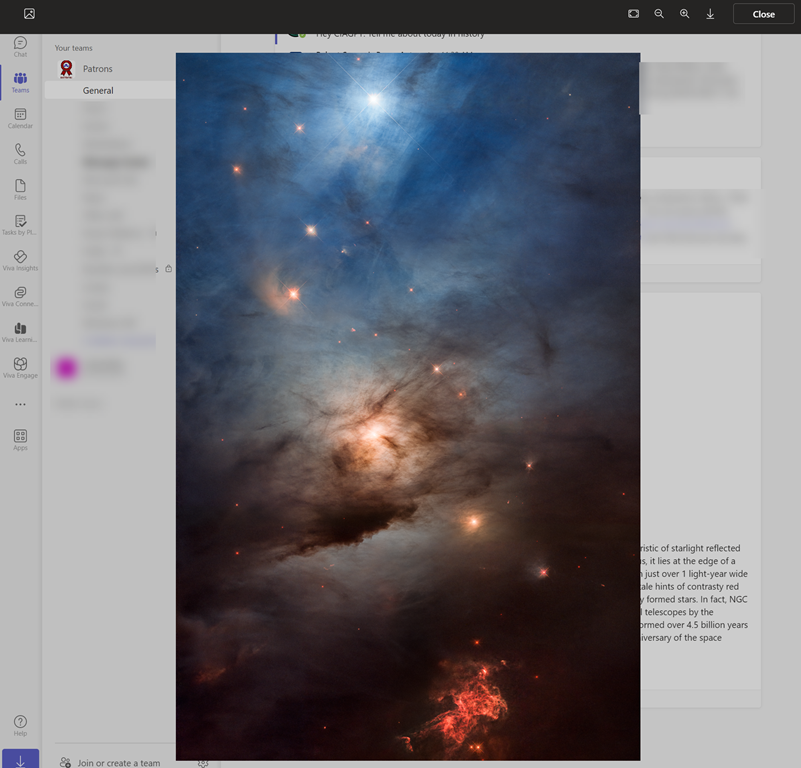
and when the imaged is clicked on, you see something like:

image

Remember, the whole idea here is to encourage people to regularly visit the Team in questions and hopefully drive more engagement of the environment.

CIAOPS Need to Know Microsoft 365 Webinar – December

laptop-eyes-technology-computer

Join me for the free monthly CIAOPS Need to Know webinar. Along with all the Microsoft Cloud news we’ll be taking a look at Power Virtual Agents.

Shortly after registering you should receive an automated email from Microsoft Teams confirming your registration, including all the event details as well as a calendar invite.

You can register for the regular monthly webinar here:

December Webinar Registrations

(If you are having issues with the above link copy and paste – https://bit.ly/n2k2212

The details are:

CIAOPS Need to Know Webinar – December 2022
Friday 16th of December 2022
11.00am – 12.00am Sydney Time

All sessions are recorded and posted to the CIAOPS Academy.

The CIAOPS Need to Know Webinars are free to attend but if you want to receive the recording of the session you need to sign up as a CIAOPS patron which you can do here:

http://www.ciaopspatron.com

or purchase them individually at:

http://www.ciaopsacademy.com/

Also feel free at any stage to email me directly via director@ciaops.com with your webinar topic suggestions.

I’d also appreciate you sharing information about this webinar with anyone you feel may benefit from the session and I look forward to seeing you there.

Power Automate PAYG costs

Recently, I detailed how to enable the Power Platform PAYG billing:

Power Platform PAYG configuration

I now see the following in my environment that has Flows with premium connectors:

image

which basically says:

You can use premium capabilities in this environment. It’s covered by your org’s pay-as-you-go Azure subscription.

The reason I enabled this was because I wanted access to use Premium connectors without having to pay for a higher fixed monthly license cost.

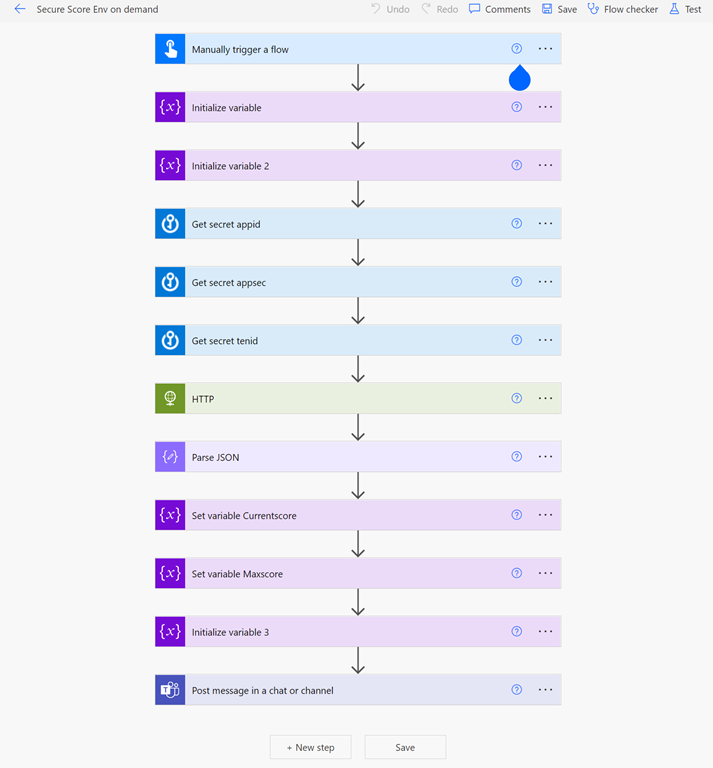
I have the following Flow in this environment that uses two premium connectors:

image

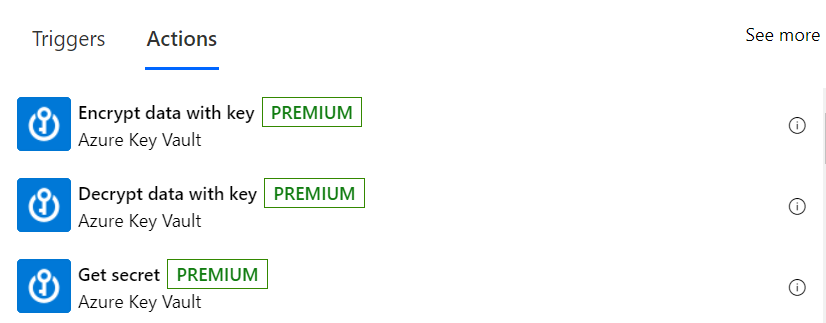
– Azure Key Vault

image

and

– HTTP

image

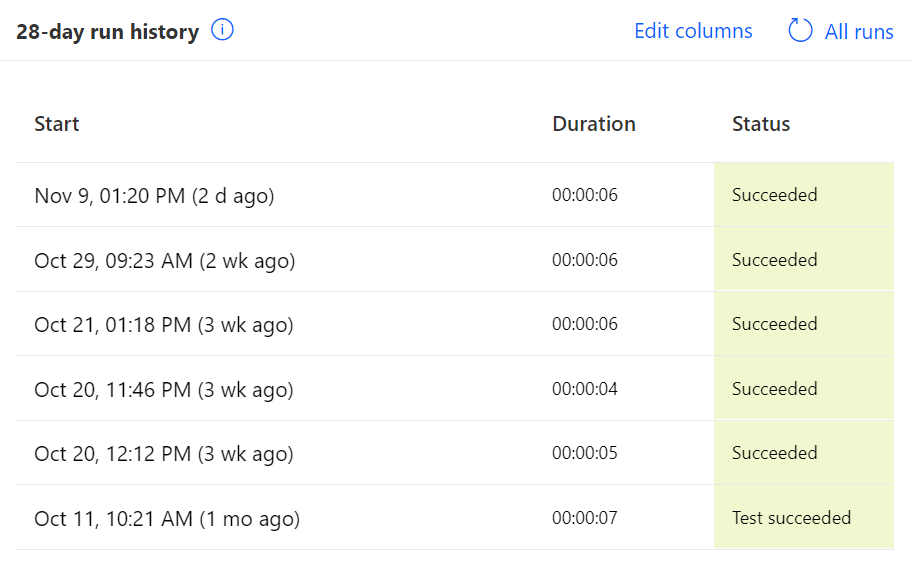
If I now look at the recent Flow runs I see six in total 1 in November and 5 in October.

image

Now looking at the Azure costs by service for November I see:

image

and for October:

image

Therefore, with 5 runs in October my average cost was $3.70 / 5 = $ 0.74 while in November, with only 1 run so far it was $0.92.

Assuming the highest run cost of $0.92 and with the execution of 4 premium connectors in the Flow (3 x Azure Key Vault and 1 x HTTP) that comes to a cost of $0.23 per premium connector.

The big benefit of the Power Platform PAYG option is that it allows quick and easy access to Premium connectors without the need to purchase a higher Power Platform license at a fixed rate per month regardless of usage. This means the PAYG option is great for testing prior to committing to a higher fixed value license or occasional use of Premium connectors. This should be really appealing to many who may only need to use a Flow with Premium connectors a few times in a month. When the PAYG billing approaches the full license cost you can always switch over.

In summary then, from what I can determine, you should allow around $0.25 per Premium connector per Flow run when calculating your PAYG costs with the Power Platform.

Power Platform PAYG configuration

I have spoken about how to

Set up PAYG for Power Platform

I was therefore puzzled when I saw this error in a Flow I created with premium connectors recently

Screenshot 2022-10-11 105235

“… does not have a standard service plan adequate for non-Standard connection”

It was my understanding that Power Platform PAYG would handle this. However, when you read the following documentation it says:

Only production or sandbox environments are available to add to billing policies at this time. Trial environments, developer environments, Dataverse for Teams environments, and default environments cannot be added.

Ok, that means I need to create a new Power Platform Environment and add that to the Power Platform PAYG billing policy.
image

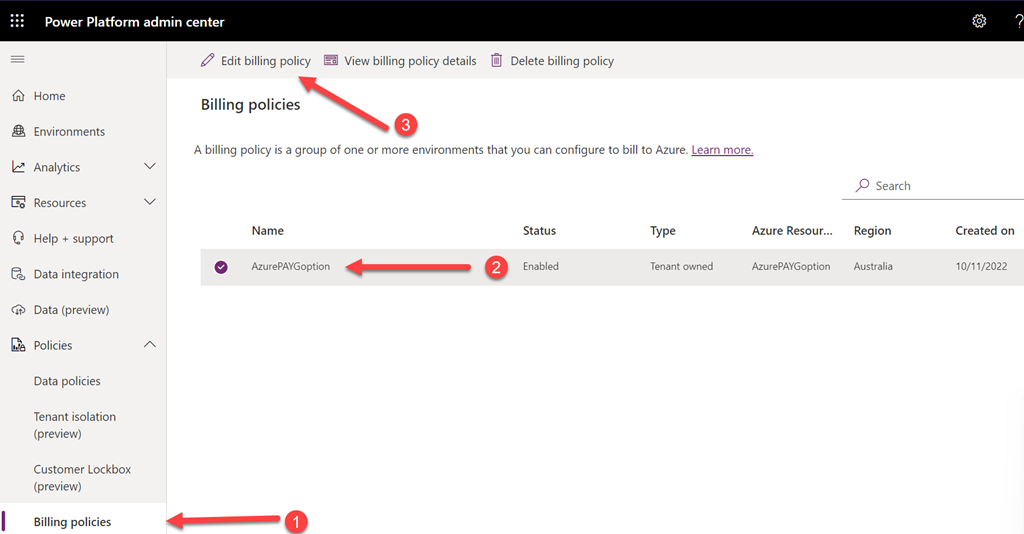
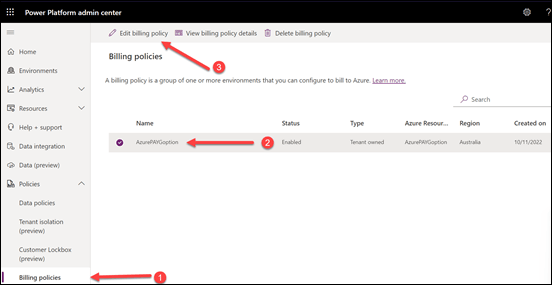
So into the Power Platform Admin center I went. Selecting Billing policies from the Policies option on the left. The direct URL is:

https://admin.powerplatform.microsoft.com/billingpolicies

I then selected the PAYG billing policy I had previously created and then I selected Edit billing policy at the top of the page.
image

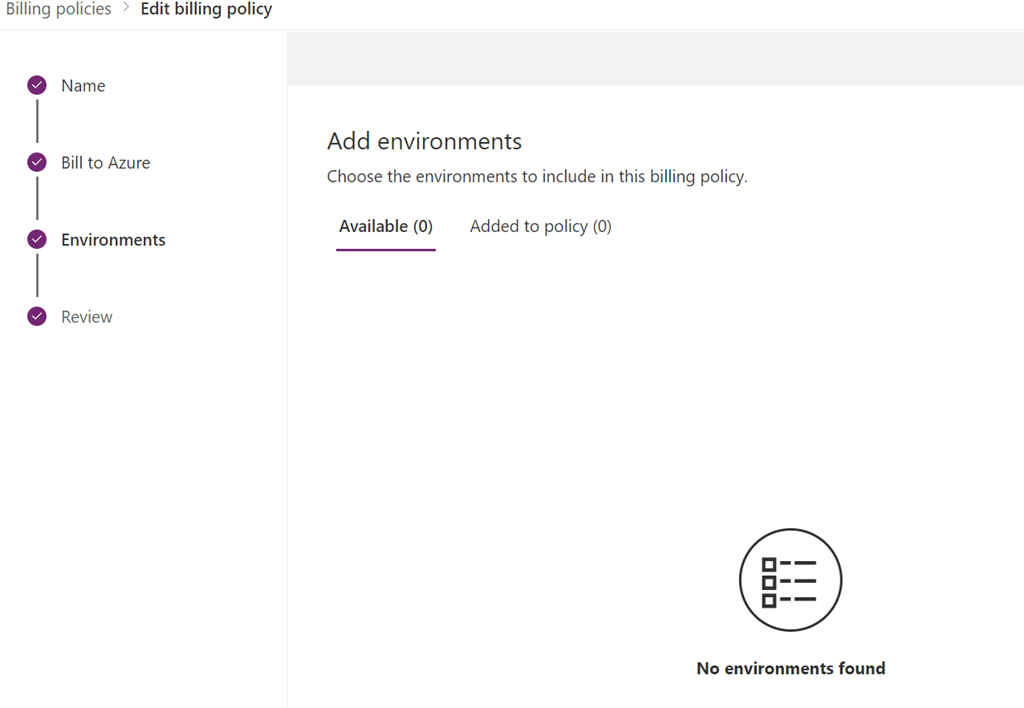
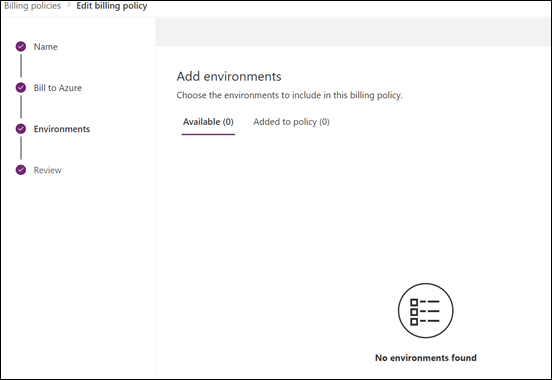
Sure enough, in the Environments section (shown above) I had nothing in there, so no billing was actually happening against the PAYG policy.
image

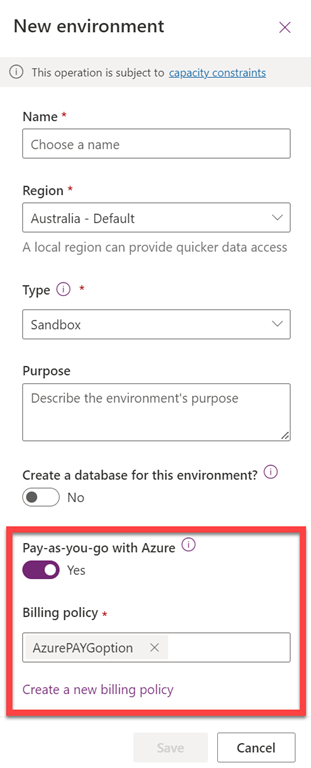
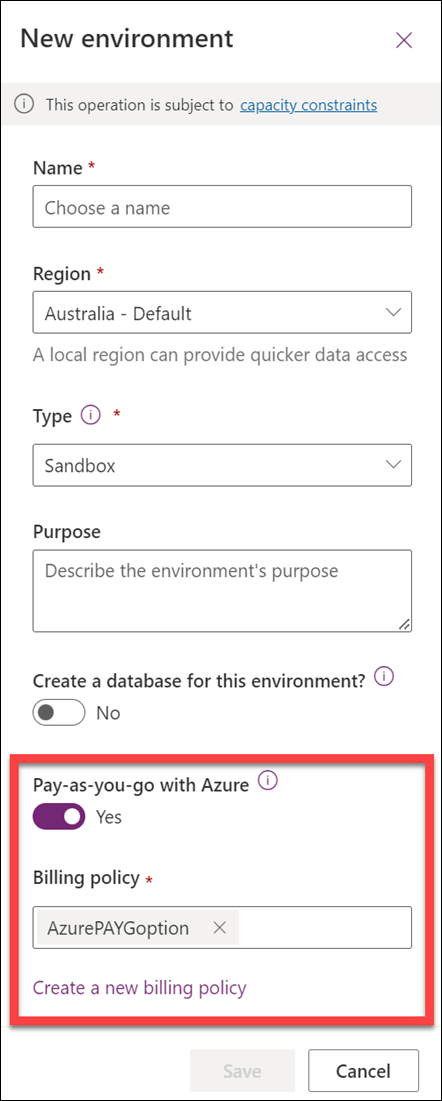
If I now create a New environment in the Power Platform you can see down the bottom there the option to use Pay-as-you-go with Azure. Here you can select an existing PAYG policy as well as create a new one if desired.

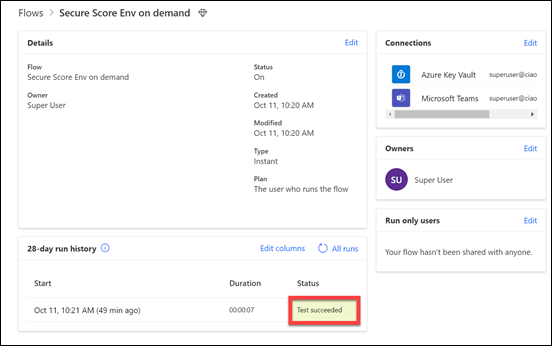
With a new environment created, I exported and imported the Flow I had created previously in the default environment into this new environment with PAYG billing now enabled
image

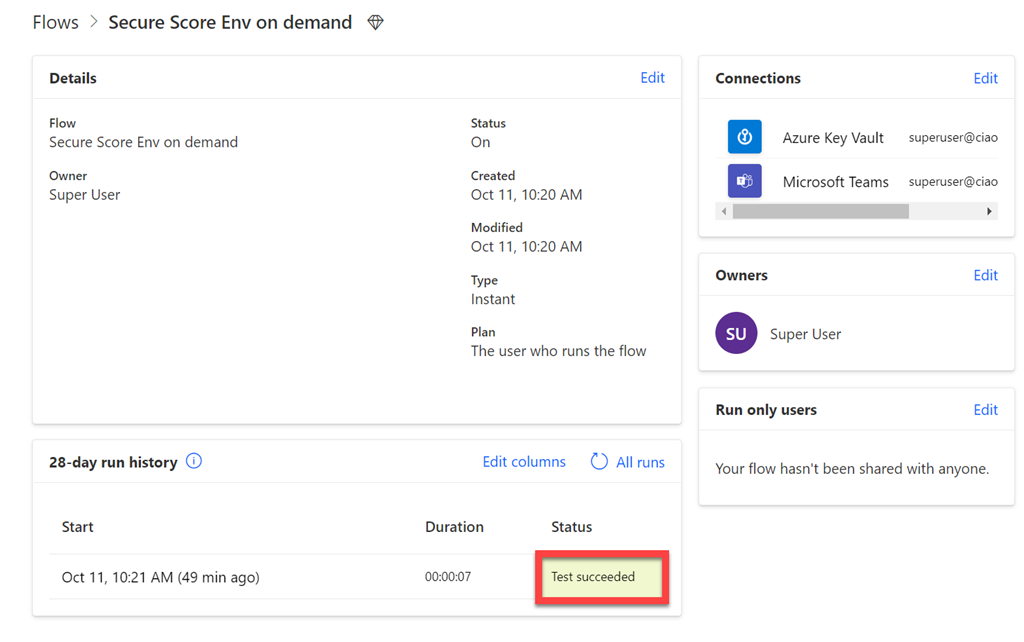
and it ran successfully! Yeah!

So the moral of the story with the Power Platform pay as you go option is that it will not work against the default environment, you need to create a new environment and specify the PAYG option at the point of creation.
image

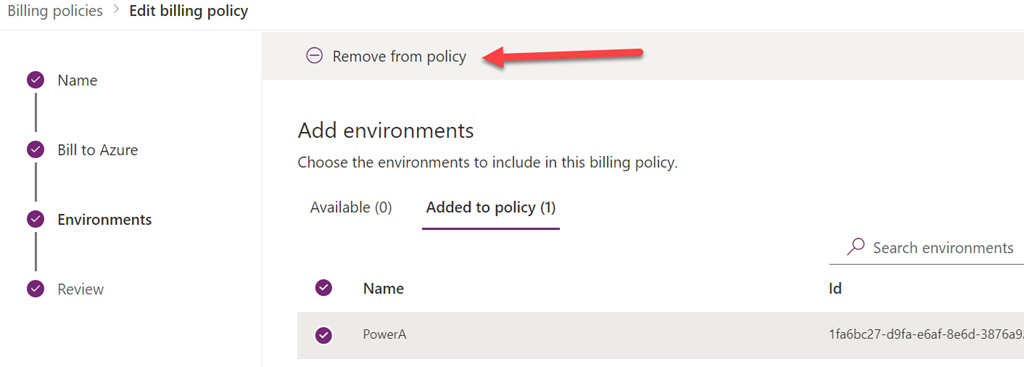
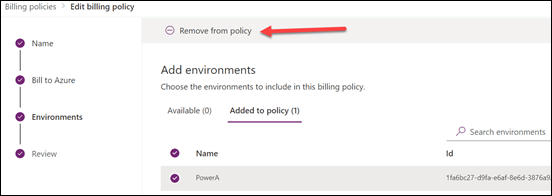
It is also possible to remove the environment you added to the PAYG policy at any point by editing the policy and selecting Remove from policy as shown above at the Environments stage after selecting the environment in the Added to policy menu option.