The task app you already bought four times

MAI_fc3e22436f18508c

Open most small businesses and you’ll find the same thing. Someone’s running their personal to-dos in To Do. The team’s tracking a project on a Planner board. A manager’s got a Trello tab open. And somebody just expensed a Monday.com seat.

Four tools. One job. Nobody can see the whole picture.

Here’s what most people missed. Microsoft quietly folded To Do, the old Planner, Tasks in Teams and Project for the web into a single app — and just called it Planner. One place. No new licence.

That’s not a rebrand. That’s four subscriptions your clients can stop paying for.

And if they’re on a Microsoft 365 Business plan, they already own it.

What is the new Planner, really?

Think of it as one task list that finally spans the messy middle between “remind me to call the accountant” and “ship the office move by March”.

At the bottom sits your personal stuff — the same tasks that used to live in To Do, now showing up under My Tasks and My Day. In the middle are shared plans your team works from together. At the top, if you ever need it, full project scheduling with timelines and dependencies.

Same app. You just go as deep as the job needs.

Here’s the real win for an SMB. The thing you were about to buy Asana for? It’s the middle tier, and it’s already switched on.

Step-by-Step: putting tasks where the work happens

The mistake is opening Planner as its own app and treating it like another silo. Don’t. Put it where the team already talks.

Find the app

In Microsoft Teams, click Apps on the left rail, search for Planner, and add it. Until April 2024 this was the clunkily-named “Tasks by Planner and To Do” — same app, now just Planner. You’ll also find it on the web at planner.cloud.microsoft if you want it in its own tab.

Pin it to a channel

This is the step that changes everything. Open the channel where the team already works — say your client’s Marketing channel — click the + at the top, and add a Planner tab.

Now the plan lives inside the conversation. No app-switching. No “where’s that board again”. The tasks sit right next to the chat about them.

Build the plan

Create a plan, add a few buckets — To Do, Doing, Done works fine — and start dropping in tasks. Assign people, set due dates, done.

Know which tier you’re on

This is where people get nervous about cost. They shouldn’t. Here’s the line:

Included with Microsoft 365:  Grid, Board, Schedule, Charts
Needs a paid Planner plan:    Timeline, People, Goals, dependencies, sprints

Notice what’s missing? There’s no licence to buy for the everyday stuff. Boards, grids, a schedule view and basic charts are all in the box. You only pay if a client genuinely needs Gantt charts and dependencies — and most never will. The admin documentation spells out exactly what sits where.

Why this actually changes behaviour

“Which app has the project in it again?”

When that question disappears, something shifts.

Tasks stop being scattered across four tools and start living in one place the team already opens fifty times a day. Your personal to-dos, your team’s plans, even your old Project schedules — one pane.

For an MSP, this is a quietly brilliant client conversation. You’re not selling anything new. You’re showing them they’ve been paying a third party for something Microsoft already bundles. That builds trust faster than any upsell ever will.

And the migration worry? There isn’t much of one. Your old Planner boards are already there. To Do items flow in on their own. Project for the web has been retired straight into Planner. You’re not moving anything — it already moved.

If you’re rolling out Microsoft 365 and you’re not showing clients this, you’re leaving them to pay for Trello out of habit.

The new Planner isn’t there to give your clients another task app. It’s there to let them close the other three.


Consistency Doesn’t Show Up When Things Are Comfortable

image

A good month in an MSP can hide a lot. The pipeline is healthy, the techs are humming, the client tickets are getting closed, and Friday afternoon feels almost calm. In those weeks, every business looks disciplined. Every process looks tight. Every standard looks honoured.

That’s not consistency. That’s just a quiet stretch.

The real test arrives when something breaks — a bad migration, a difficult client, a tech walking out, a month where revenue doesn’t land. That’s when you find out whether your standards live in your head or live in the way your business actually behaves.

The discipline you don’t see in a good month

I’ve watched MSPs run beautifully for a quarter and then quietly drop the things that made them beautiful the moment work got heavy. The monthly client reviews stop. The patching cadence slips. The onboarding checklist becomes “we’ll get to that next week.” Nobody decides to lower the bar. It just happens, one small omission at a time, until what was a standard is now just a story you tell prospects.

What I’ve come to respect is the unglamorous stuff that keeps going regardless of mood. The same Monday standup at the same time every week. The same security baseline applied to every new tenant. The same call to a client at the same point in their lifecycle, even when there’s nothing wrong. Those rhythms only feel valuable when things get bumpy — and by then it’s too late to start them.

Build the rhythm, then defend it

This is where I think a lot of MSPs underuse what’s already sitting in their stack. A weekly cadence in Microsoft Planner with the same recurring tasks, surfaced through a Teams channel everyone actually opens, is more useful than a polished playbook nobody reads. A standing client review template in Word, kept in the same Teams tab month after month, builds a record that shows whether you actually turned up.

Copilot helps here in a way I didn’t fully appreciate until recently. Asking Copilot in Outlook to summarise a client’s last quarter of email before a review meeting takes ninety seconds and means the conversation starts with something real. Asking Copilot in Teams to recap the last three internal stand-ups before a leadership meeting means decisions don’t get re-litigated. Asking it to pull the highlights from a SharePoint site of project notes before a Monday catch-up turns ten minutes of digging into one minute of reading. The point isn’t the time saved — it’s that the rhythm becomes easier to maintain on the day you’d rather skip it.

Tools don’t create consistency. But the right ones lower the friction enough that you keep showing up on the days you don’t feel like it.

When nobody’s watching

The reason consistency is hard isn’t intelligence or capability. It’s that nobody claps for it. Doing the same review the same way for the eighteenth time in a row produces no dopamine. No client thanks you for the patches that didn’t cause an outage. No prospect signs because your internal documentation happens to be current.

But the MSPs I see growing steadily — not in spikes, but year after year — are almost always the ones doing the boring things on the bad days as well as the good ones. That’s the only kind of consistency that actually compounds, and it’s almost never visible from the outside until much later.

So the question I keep asking myself, and the one I’d put to anyone running an MSP right now, is simple. What did you still do well last month, when nothing was easy? That’s the answer that tells you who you actually are as a business.

Quick Wins with Microsoft To Do & Planner

image

End the Post‑it chaos—manage tasks like a pro.

I still see it everywhere. Sticky notes on monitors. Whiteboards half‑erased. Notebooks full of half‑written to‑dos. And then the same people tell me they’re “too busy” to look at their task list.

The problem isn’t work volume. It’s task sprawl.

What’s changed for me lately is how Microsoft 365 Copilot reframes this mess. Not by magically doing the work for you, but by forcing clarity. Copilot doesn’t tolerate vague intentions. It thrives on decisions. And that’s where tools like Microsoft To Do and Planner suddenly matter a lot more than people think.

Personal work lives in To Do

Team work lives in Planner
Everything else is noise.

Here’s the mental model I use—and it’s one I now teach MSPs managing multiple clients.

If it’s my responsibility, it goes into Microsoft To Do.
If it’s shared responsibility, it belongs in Planner.

Simple rule. Massive impact.

To Do becomes the single place I track personal commitments: follow‑ups, prep work, client actions, things I’ve promised someone else I’ll handle. No tasks scattered across emails, chats, or worse—memory.

Planner is where teams work. Projects, operational tasks, recurring client work. It creates shared visibility, which is the real currency of modern collaboration.

Copilot amplifies this by helping surface what actually matters. When tasks are consistently captured, Copilot can help prioritise, summarise, and prompt next steps. When tasks are scattered… Copilot just shrugs.

A simple setup that actually sticks

For MSPs, especially those juggling multiple clients, complexity is the enemy. Here’s the setup I see working consistently:

  • One To Do list for “Today”, one for “This Week”, one for “Waiting On”
  • One Planner plan per client or per service area, not per technician

  • Buckets in Planner for lifecycle stages: New, In Progress, Blocked, Done

That’s it.

No elaborate taxonomies. No colour‑coded madness. If someone needs a training session just to understand your task system, it’s already failed.

What changes with Copilot is the feedback loop. When tasks live in the right place, Copilot can summarise Planner progress for a client meeting, highlight overdue work, or help you re‑prioritise your To Do list based on what’s slipping.

More importantly, it changes behaviour. People stop “remembering” work and start managing it.

The real win isn’t automation—it’s trust

Here’s what I’ve observed repeatedly: once teams trust that tasks are captured, stress drops. Meetings shorten. Decisions speed up.

Copilot doesn’t replace judgement. It supports it. When I can ask, “What did I commit to this week?” or “What’s blocking this client project?” and get a clear answer, I stop second‑guessing myself.

That’s productivity at a human level.

Not more tools. Fewer excuses.

Try this today

Here’s the challenge I give every team I work with:

Move one sticky‑note task into Microsoft To Do today and report back.

Just one.

Then notice what happens. It stops floating around your head. It gets a due date. It becomes visible. Copilot can actually work with it.

Repeat that daily and, within a week, the chaos starts shrinking.

Microsoft 365 Copilot doesn’t magically make you organised. But it rewards people who are willing to be intentional. Tools like To Do and Planner are already in your stack. Used properly, they turn “busy” into “under control”.

And that’s a quick win worth taking.

CIAOPS Need to Know Microsoft 365 Webinar – April

laptop-eyes-technology-computer

Join me for the free monthly CIAOPS Need to Know webinar. Along with all the Microsoft Cloud news we’ll be taking a look at Planner.

Shortly after registering you should receive an automated email from Microsoft Teams confirming your registration, including all the event details as well as a calendar invite.

You can register for the regular monthly webinar here:

April Webinar Registrations

(If you are having issues with the above link copy and paste – https://bit.ly/n2k2204 – into your browser)

The details are:

CIAOPS Need to Know Webinar – April 2022
Friday 29th of April 2022
11.00am – 12.00am Sydney Time

All sessions are recorded and posted to the CIAOPS Academy.

The CIAOPS Need to Know Webinars are free to attend but if you want to receive the recording of the session you need to sign up as a CIAOPS patron which you can do here:

http://www.ciaopspatron.com

or purchase them individually at:

http://www.ciaopsacademy.com/

Also feel free at any stage to email me directly via director@ciaops.com with your webinar topic suggestions.

I’d also appreciate you sharing information about this webinar with anyone you feel may benefit from the session and I look forward to seeing you there.

Getting Message Center information into Teams

Recently, I wrote the following article:

Syncing M365 Message Center to Microsoft Planner

which took you through the process of getting Message Center information into Microsoft Planner. as good as that it is, the best place for that information should really be in Teams. The reason? With Teams people can ‘chat’ about the topics which adds far more value for an organisation in my opinion.

The good news is that it is very easy to not only sync messages with Microsoft Planner but also have them displayed in Microsoft Teams. It is all accomplished using Power Automate.

image

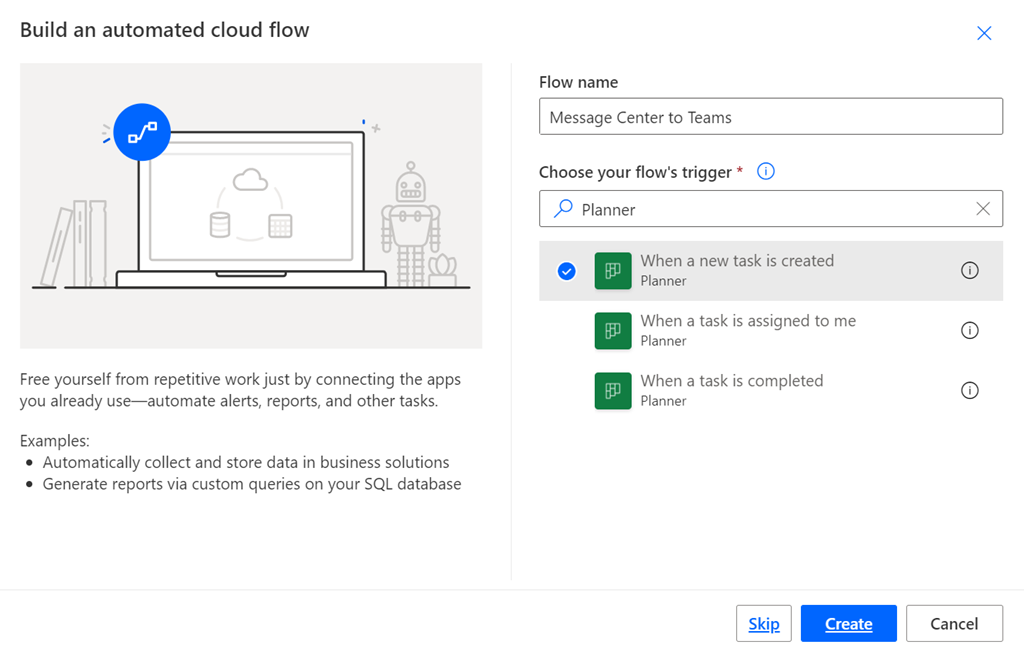
Create a new Flow and use the When a new task is created trigger as shown above. You’ll then need to configure this trigger action to point to the same Microsoft Plan into which you have already set up to sync with the Microsoft Message Center.

image

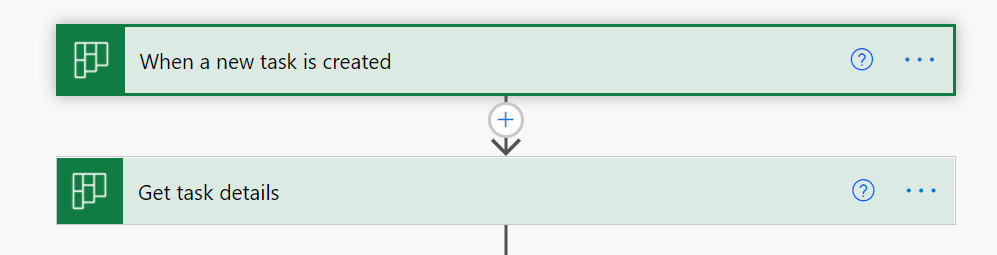
The next action should Get task details as shown above. You’ll need this to actually read the notes from each task, which contains the details of each item from the Message Center.

image

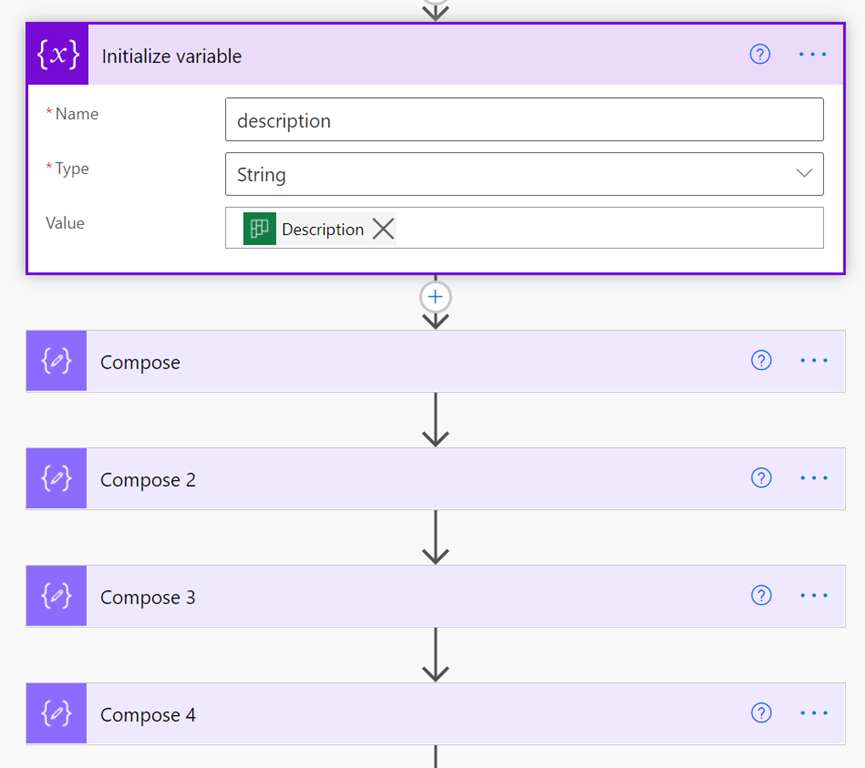
In my case, I save the Description field from the task into a string variable using the Initialize variable action as shown. I then use a number of separate Compose actions to search and replace text inside that variable to tidy up and format the Description field for posting into a Teams chat.

For example I remove the /r/n characters and replace them with the HTML line feed tag </br> using the following expression:

replace(variables(‘description’),decodeUriComponent(‘%0D%0A’),'</br>’)

image

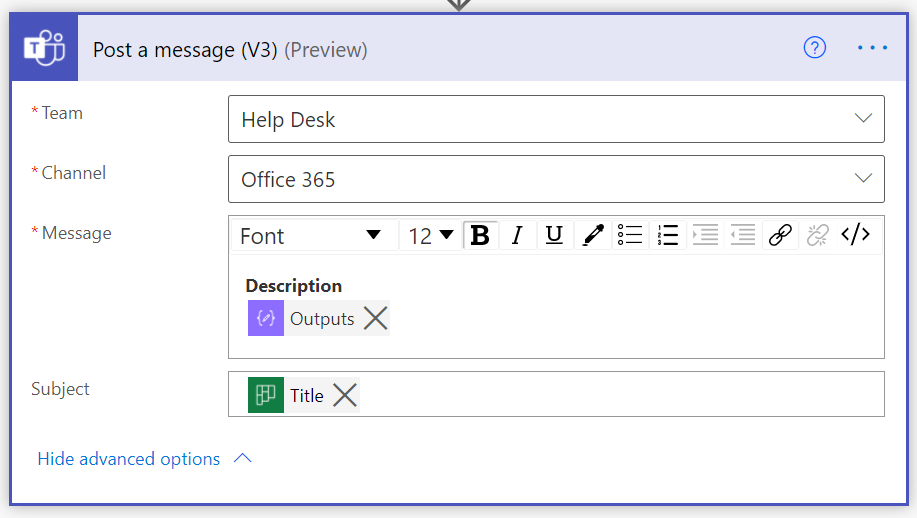
Once I have the Description field formatted the way I want it then I use the Post a message (V3) action as seen above. The Title of the new task from Planner is the subject of the thread and the body is my now nicely formatted Description field, which is the data from the Message Center item.

SNAGHTML210e1093

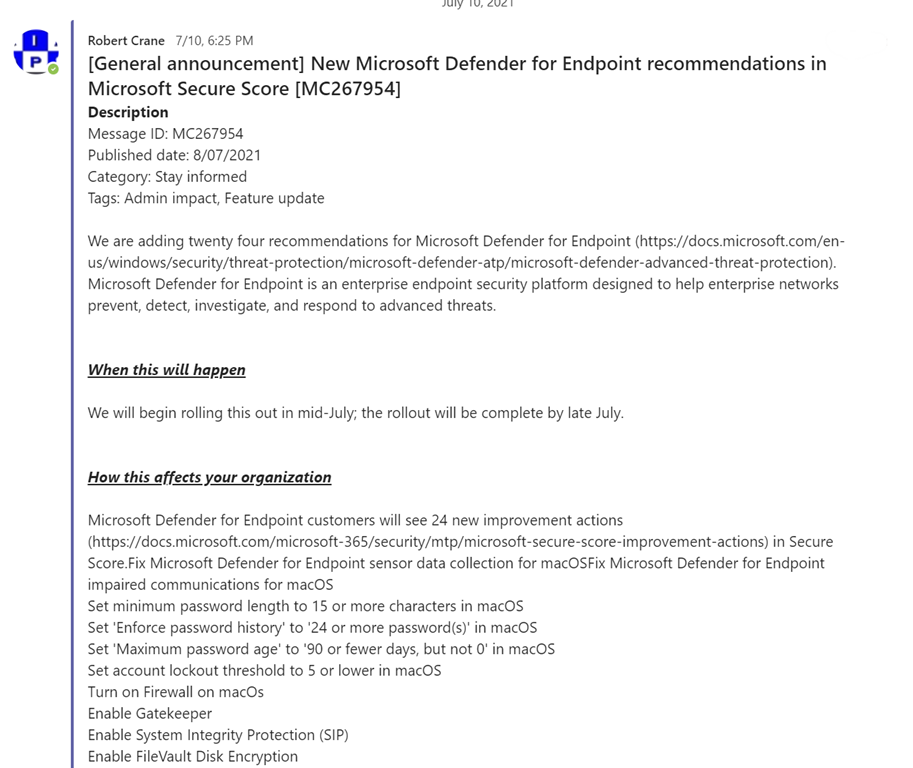
You can see the result in a channel in Microsoft Teams above. Now others can easily add their reactions, comments and generally collaborate far easier than within Microsoft Planner.

I think having the Message center information delivered to Microsoft Teams make a lot of sense since it is a place more people will be spending more of their time generally. However, getting the Message Center information into Microsoft Teams still requires the sync configuration to a Plan first. However, once that is done, Power Automate allows you to achieve just about anything!

Syncing M365 Message Center to Microsoft Planner

image

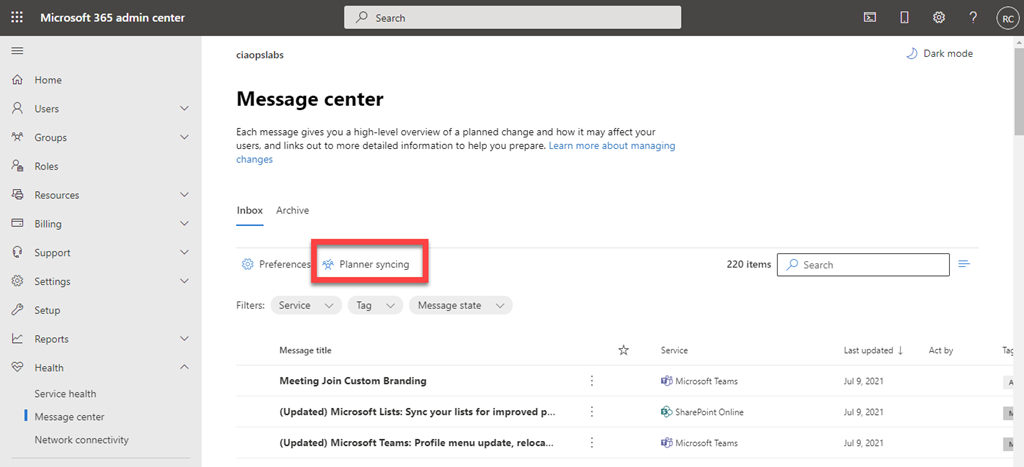
If you want to stay up to date with what Microsoft is developing and implementing with Microsoft 365, then you should be paying attention to information from the Microsoft 365 Message Center. You’ll find this in the Microsoft 365 Admin Center as shown above.

One of the options with this information is to have it delivered via email. To do this, select the Preferences cog as shown above.

image

Doing so will then display a number of configuration options on the right. Select the Email option from the menu at the top as shown.

image

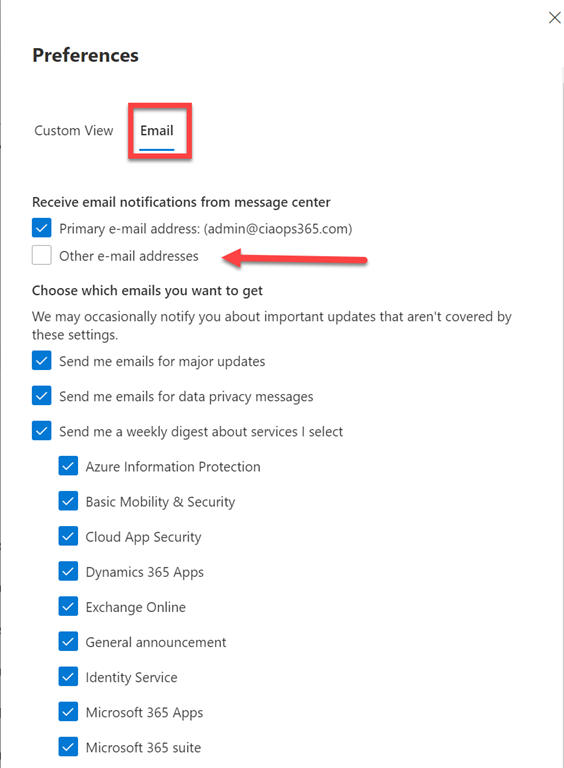
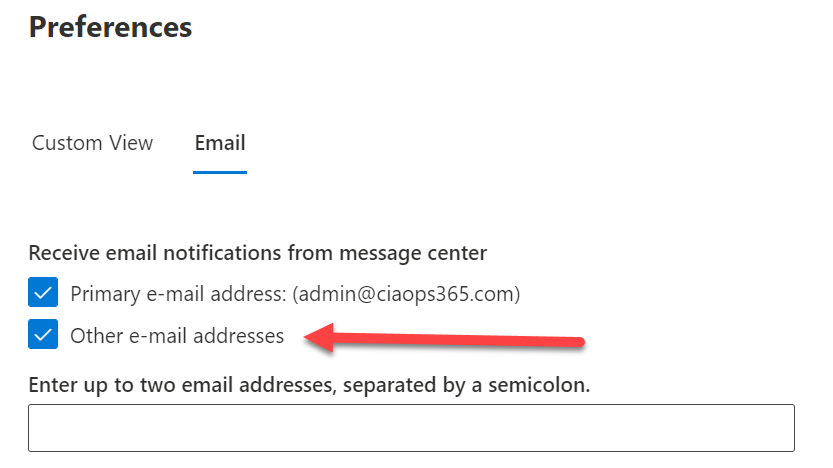
You can now select whether to deliver these messages to the original tenant admin account, which is selected by default, but also up to two email addresses, which need to be separated by a semicolon. You can then select what emails you wish to received. Be warned, there are options for all Microsoft 365 services (like Exchange, SharePoint, Teams, etc) as well as major updates and privacy. Be careful of information overload here!

Select the Save button at the bottom of this dialog to update your preferences.

image

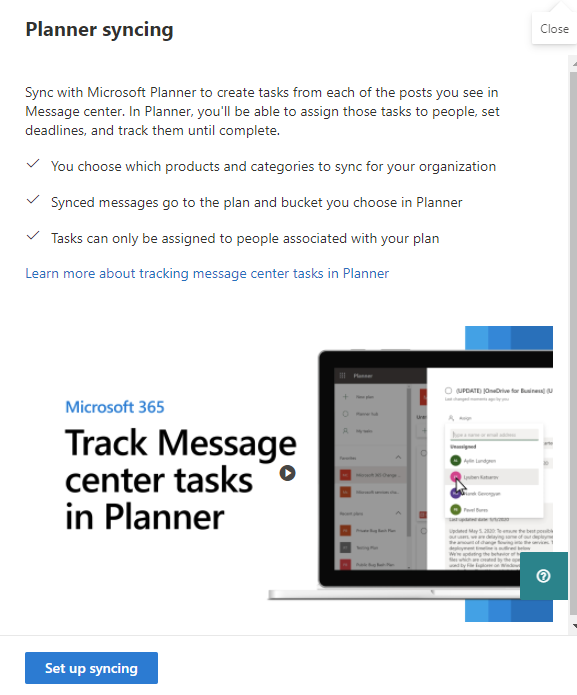
Another very handy option is to sync these messages with Microsoft Planner. To enable this option, select the Planner syncing menu item as shown above.

image

A dialog will now appear on the right, as shown above, that allows you to set up this process using a wizard. Simply select the Set up syncing button at the bottom of the page to commence this process off.

image

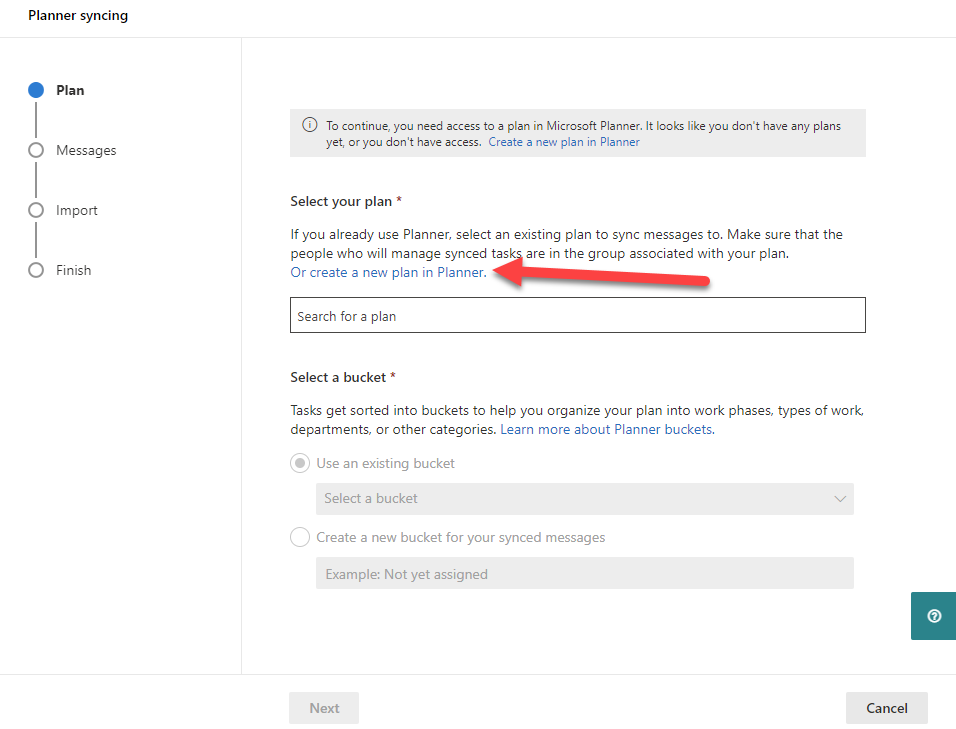
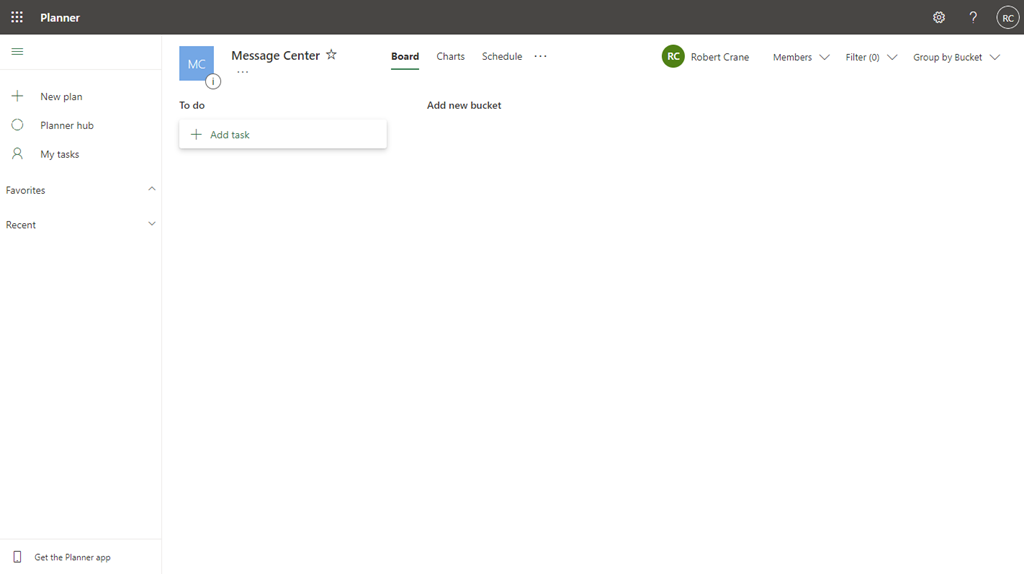
You’ll need to have a Microsoft Plan into which the Message Center will sync. If you don’t already have one, you can select the link on the page as shown to create one.

image

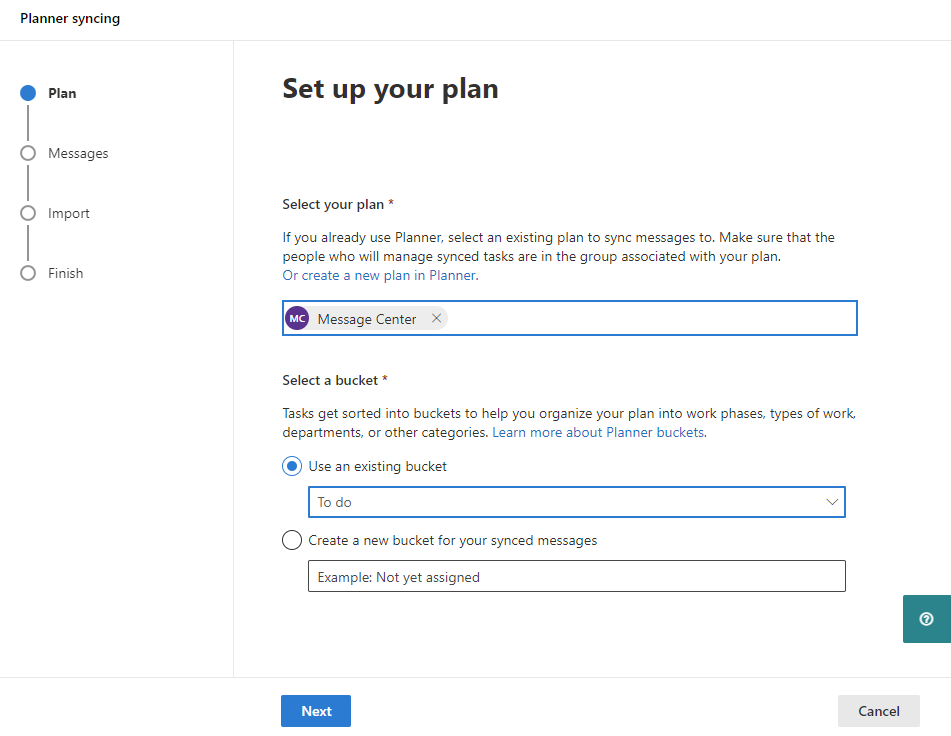
Your destination Microsoft Plan doesn’t need to be anything special. You need at least one bucket into which all the Message Center items will end up. In this case, that bucket will be the standard ‘To-do’ bucket.

image

Select the appropriate Microsoft Plan and the destination plan bucket, or select to create a new one.

Select the Next button at the bottom of the page to continue.

image

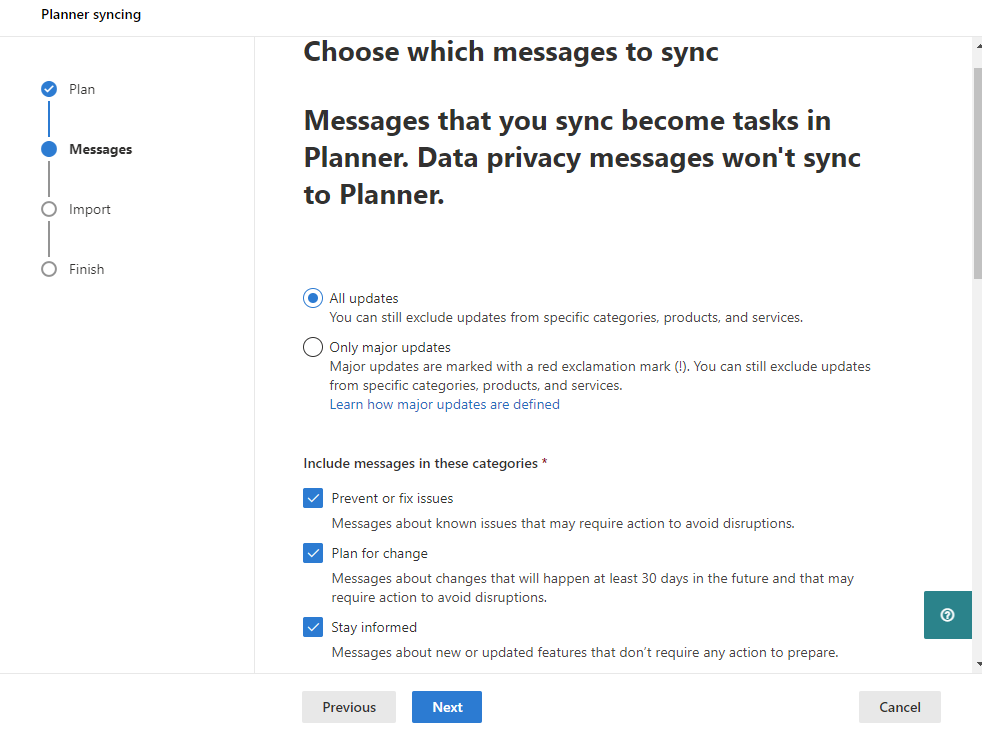
Like the email option, you now need to select which messages you wish to receive.

Select the Next button at the bottom of the page to continue.

image

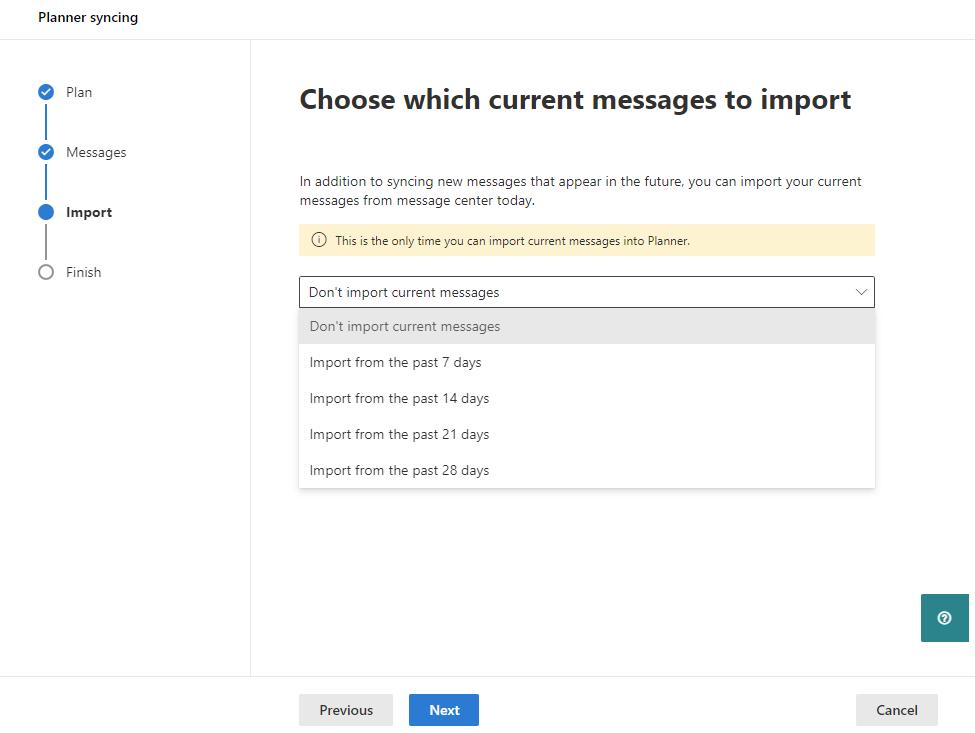
You can now elect to import messages from a previous period i.e. messages already in the Message Center from the last X days.

Select the Next button at the bottom of the page to continue.

image

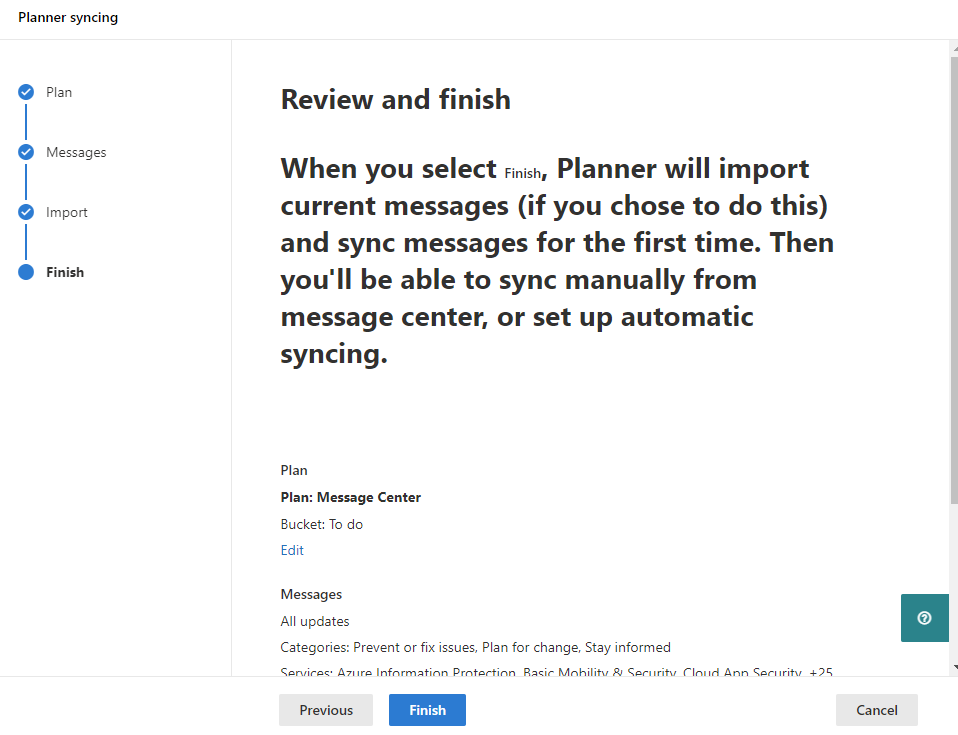
Review the settings.

Select the Next button at the bottom of the page to continue.

image

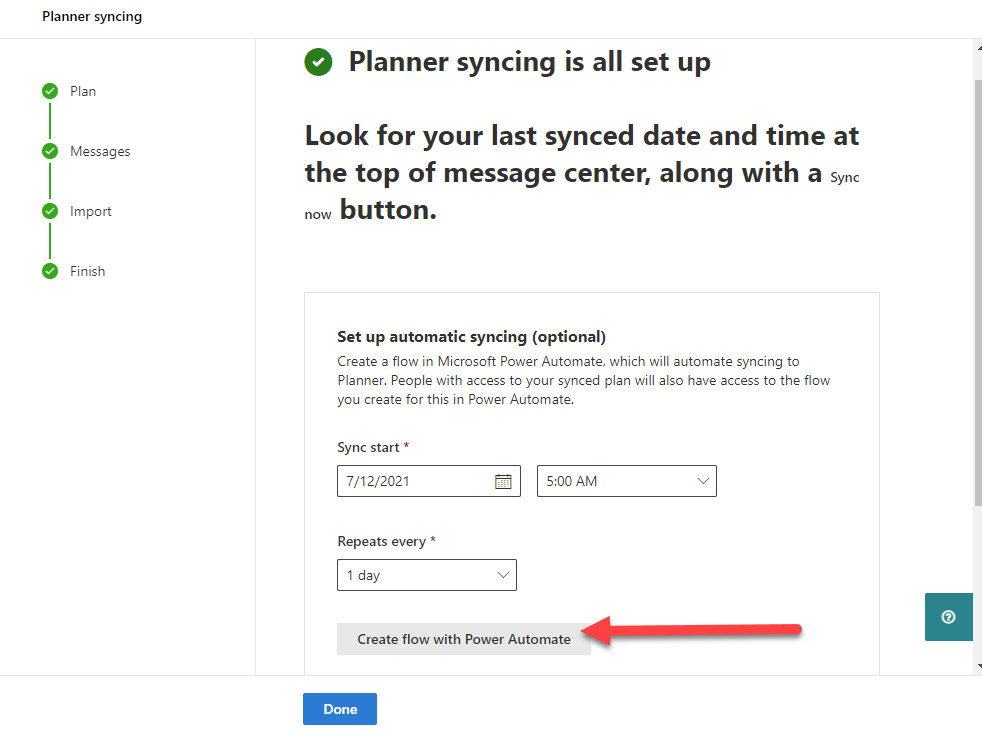
If you wish to set up an automatic process to sync the Message Center messages on a recurring basis, set the desired update time options and select the Create Flow with Power Automate button as shown.

image

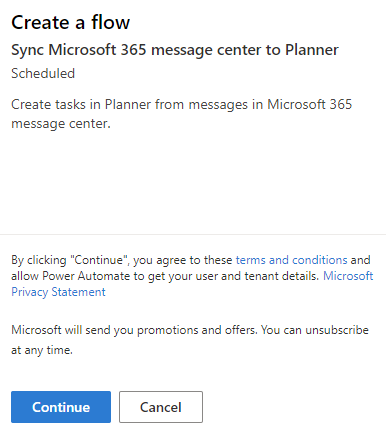
Select the Continue button.

image

You’ll also need to sign in to allow access to the Message Center connector. Simply select the ‘+’ icon and the current account you are logged in with will be used. Ensure that a green check appears to the right of the Microsoft 365 message center as shown above.

image

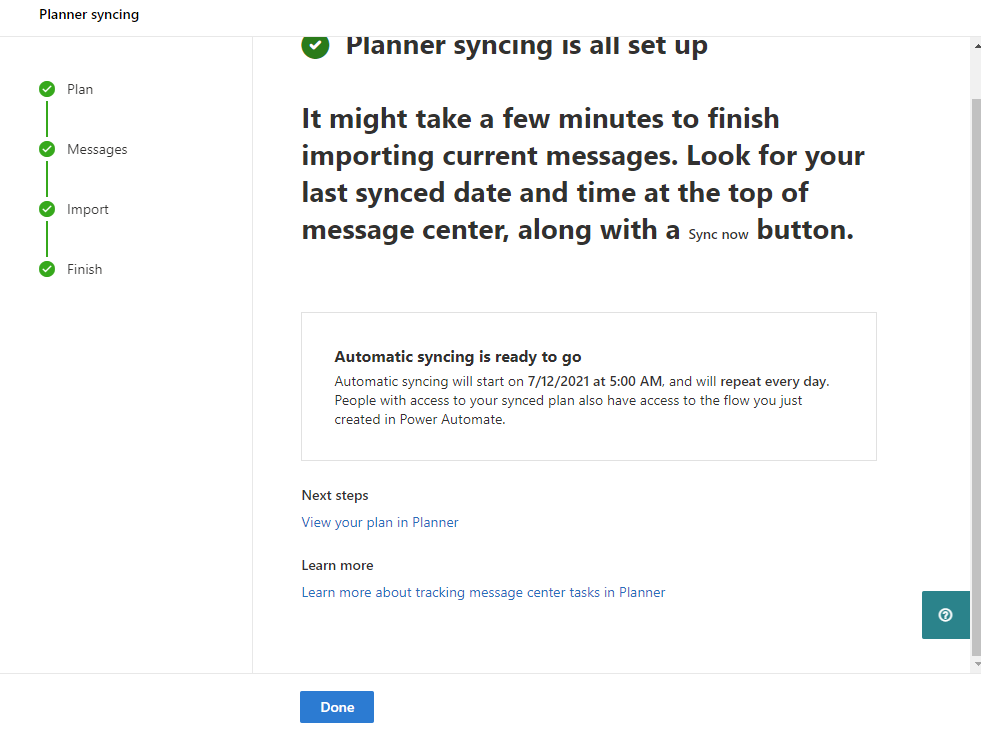
Review the configuration and automatic syncing if enabled, and select the Done button to complete the process.

image

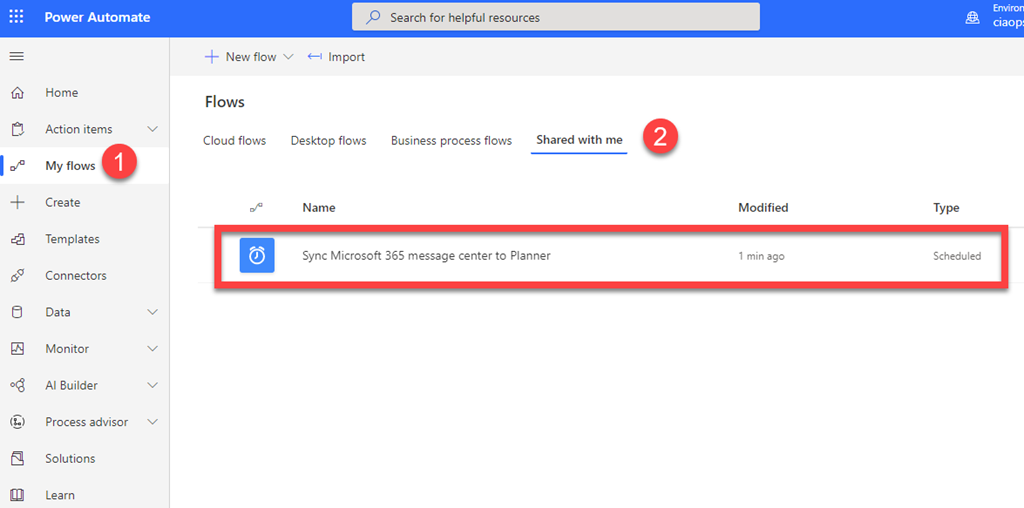
If you now visit the Power Automate service and look My Flows and Shared with me, you should see a Sync Microsoft 365 message center to Planner flow as shown above.

image

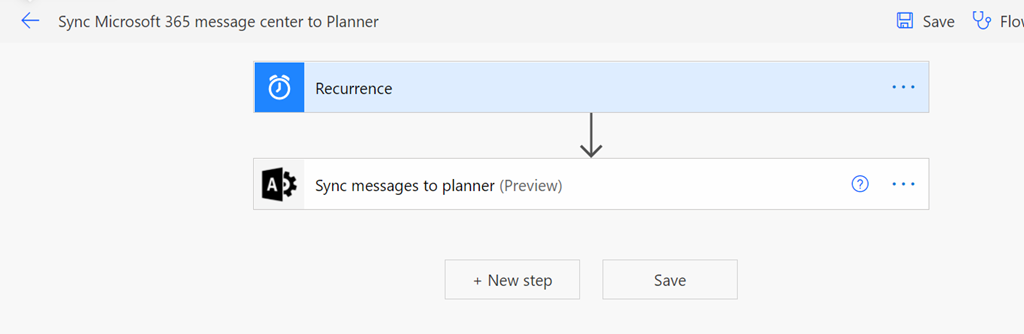
If you edit that Flow, you should see it simply has a recurrence trigger and a Sync messages to planner (preview) action, as shown above. The owners of this Flow will be the group associated with the Microsoft Plan you selected as your destination as well as the user who configured this process. You can always add more owners if you wish to this Flow. The Microsoft 365 message center connection will be authorised by the account you used to set up this process. This can also be altered if needed.

image

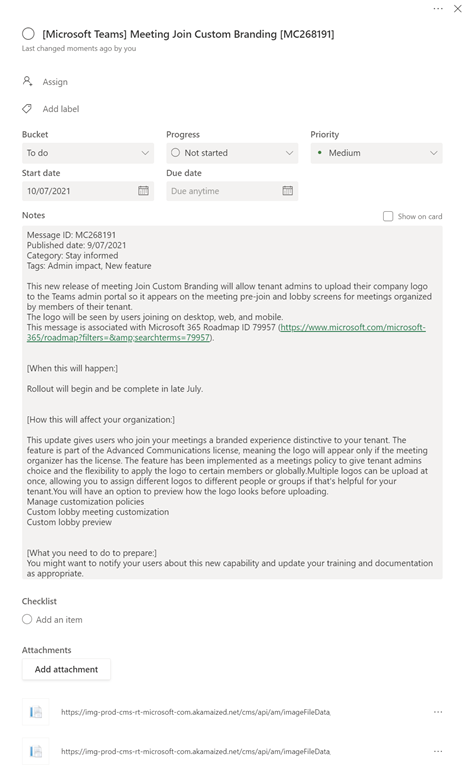
When Message Center data is synced to Planner it will look like the above, with all messages being delivered to the bucket that you nominated in the setup as individual tasks.

image

If you select any of these new Message Center tasks in Planner, they will appear as shown above, with details about the notification in the Notes of the task. These can now be used as any task would be inside Microsoft Planner.

As good as delivering Message Center information to Planner is, I feel that a better destination or this is actually Microsoft Teams. I’ll be covering off how to deliver it to a Microsoft Teams channel in an upcoming post, so stay tuned for that.

CIAOPS Need to Know Microsoft 365 Webinar–August

laptop-eyes-technology-computer

Capturing data electronically is key to being more productive. Businesses can achieve this using Microsoft Forms that is part of Microsoft 365.  This month I’ll show you what Microsoft Forms is, how to use it effectively and how it can help your business. I’ll also have the  the latest Microsoft Cloud updates plus open Q and A as well.

You can register for the regular monthly webinar here:

August Webinar Registrations

The details are:


CIAOPS Need to Know Webinar – August 2020
Thursday 27th of August 2020
11.00am – 12.00am Sydney Time


All sessions are recorded and posted to the CIAOPS Academy.


The CIAOPS Need to Know Webinars are free to attend but if you want to receive the recording of the session you need to sign up as a CIAOPS patron which you can do here:


http://www.ciaopspatron.com


or purchase them individually at:


http://www.ciaopsacademy.com/


Also feel free at any stage to email me directly via director@ciaops.com with your webinar topic suggestions.


I’d also appreciate you sharing information about this webinar with anyone you feel may benefit from the session and I look forward to seeing you there.