The ever changing face of Office 365

image

As outlined in a recent blog post from Microsoft:

Introducing a new home page experience for Office 365 users

things are going to start looking rather different for users when they login to the Office 365 web portal. Above you can see how it is currently,

image

and here you can see what the new experience looks like. Much cleaner. It will also report that the page is far more ‘mobile responsive’ in that it scales and adjusts to window size much better.

image

Also, if you are an Office 365 administrator you are probably familiar with the ‘classic’ interface for managing things shown above. However, a while back Microsoft again announced that a new look and feel is in preview for the Admin center:

The new Office 365 admin center preview

image

which you can now see above.

The changes to the UI a excellent, I gotta say. They make things much clearer, less cluttered and have a much ‘nicer’ look and feel. This is going to help users work (and I would suggest adopt) Office 365 more readily, especially when you compare how Office 365 now looks to other cloud based systems.

I would also point out that if you are an IT reseller who is only doing administration for your customers using the web portal then I reckon it is only a a matter of time before customers decide they can do this for themselves. Honestly, in my opinion, the web console is aimed at end “power” users not resellers.

I would therefore suggest that IT resellers should be doing most of their regular administration via PowerShell for a variety of reasons (the biggest being automation).

Although these interface changes can be a little jarring to some not used to the rapid change in the cloud, they definitely improve the service, make it more appealing for existing and new users and best of all, existing Office 365 users get it for free!

Unfortunately for me personally it means I got to redo my publications, but hey, everyone needs a hobby right?

Conferencing on a budget

Thanks to Office 365 and the Logitech Conference Cam Connect the tools to do basic conferencing have never been cheaper and easier.

As you can see from the above image the Logitech Conference Cam Connect comes in a really neat form factor that includes the ability to broadcast video, sound as well as project to an external HDMI source. The unit is portable and includes a battery as well as being Bluetooth enabled.

The easiest way to use the Logitech Conference Cam Connect is to connect it via USB to a PC and use it with Skype for Business. In small conference room environments it works really, really well. You can also connect it to your mobile device using Bluetooth and mirror what is on the screen and then output that to a HDMI TV connected to the device.

You get all this for around $700 which is really great value I reckon. However, please remember that this i an entry level device. It can’t for example (unfortunately) run via USB and project to an external HDMI screen at the same time. To do that you’ll need to spend more money on dedicated conferencing hardware.

Those minor limitations aside, the combination of this device and Skype for Business via Office 365 provide a hugely price effective entry level conferencing option for many businesses who could never afford the option previously. I really like the fact that it is portable and runs on batteries so you can put it just about anywhere. I have been taking it with me recently and using Skype Meeting Broadcast to live stream a number of events I have been presenting recently. I also like the ability to easily ‘cast’ from most mobile devices to a HDMI monitor using it.

If you have been considering the benefits of conferencing and have Office 365, I’d look at adding the Logitech Conference Cam Connect as a low entry point to giving your business extra flexibility for meetings. Sure, your needs may grow over time but this little device will work well now and well into the future.

Limit SharePoint Online outside sharing

A nice new feature that Microsoft has added across SharePoint Online, including OneDrive for Business, is the ability to whitelist or blacklist domains for sharing.

image

You’ll need to login to the Office 365 web console as an administrator. You’ll then need to navigate to the Office 365 Admin center as shown above.

From here, select the Admin icon on the left and then SharePoint from the menu that appears.

image

From the menu that appears on the left select sharing.

image

You should now see the sharing control options as displayed above.

image

Under the Additional settings, when you select the option Limit external sharing using domains the above box and selector appears.

Here you can now prevent sharing to specific domains by selecting the Don’t allow haring with users from these blocked domains or only allowing sharing to specified domains using the Allow sharing only with users from these domains option..

Thus you can either block a list of domains or allow access only to a list of domains, you can’t do both simultaneously.

Once you apply these settings they will be applied across both Teams Sites and OneDrive for Business for all users.

This now gives you an easy method of controlling which domains you allow your users to share information with across everything in SharePoint Online.

Office 365 Document libraries get a make over

Before I give you some more thoughts on the coming new look and feel for SharePoint Online Document Libraries let me preface all this with a few things:

1. I am coming at this new interface with a certain ingrained bias. Firstly as an IT ‘dude’ and secondly as a long time SharePoint user. I’ve been working with SharePoint Document Libraries for a very long time inside Team Sites and any changes I see are always viewed through this lens. Many others don’t have these long standing biases.

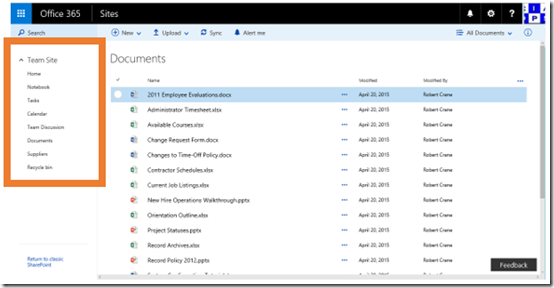
2. There were some issues with the initial roll out of the new look Document Libraries to my tenant and for some reason the navigation on the left of the screen (that shows the remainder of the Team Site) wasn’t displaying.
image

As you can see in the above image, the Quick Start Menu is now basically rendering which does make navigation much better and far less siloing than I thought when I initially saw the new format.
image

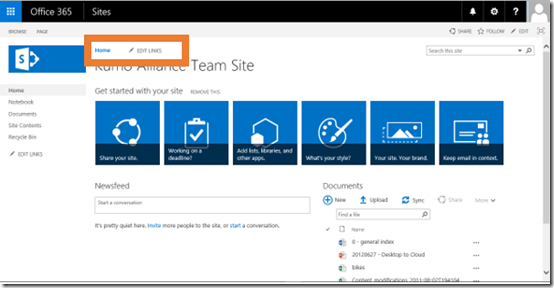
I will however note, that at this stage the traditional Top Link Bar doesn’t display in the new format. In most cases you use the Top Link Bar to navigate to different locations (i.e. Subsites) within your structure.

– This new look and feel for Document Libraries is part of a much broader set of changes that are coming to SharePoint Online. Microsoft has yet to fully announce these plans but we should expect to see an announcement at the Future of SharePoint event, on the 4th of May, which you should sign up for.

With that said, and with some extra poking around I have found the following:

1. The update is currently available only to those on office 365 First Release but will eventually roll out to all users.

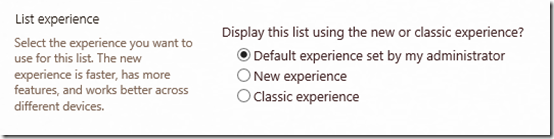
2. In the Advanced Settings for the Document Library there the following option:
image

which allows you to control the default experience. I haven’t yet found where an administrator can set the default experience but it does seem to indicate that it can be configure across the whole Team Site. Hopefully, there will also be a way to set this using PowerShell.

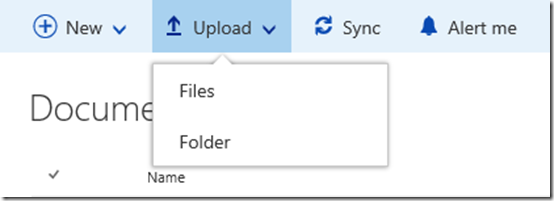
3. You can now upload folder to a Document Library.
image

As you can see from the above, you can now upload folders directly into a Document Library. This is not possible directly using the ‘classic’ interface. This going to make getting information into SharePoint Online much easier.

4. The new grid layout makes things look at lot like Delve.
image

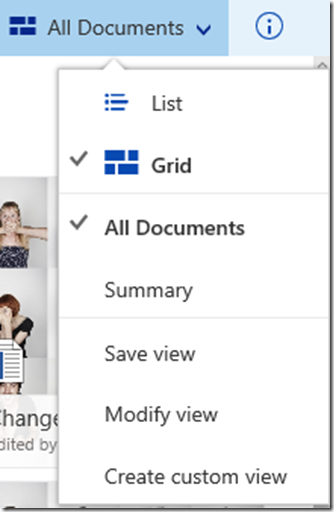
In the top left you’ll find the All Documents menu that allows you to flick between your different existing Views but also to swap to a Grid.
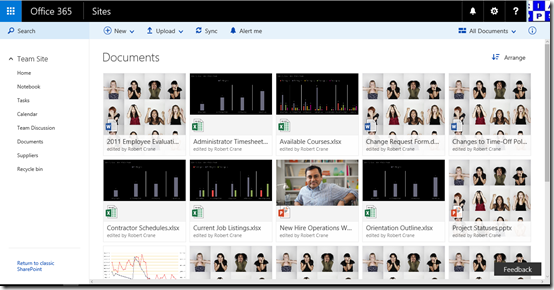
image

This makes the page look very much like Delve, which I personally believe is where Team Sites are headed towards.

5. You can now easily pin a document to the top of a library.
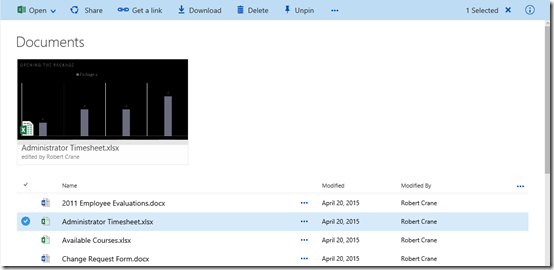
image

When you select a document from the library, you’ll now see a Pin option at the menu across the top of the page. This allows you to have that document(s) highlighted at the top of the page as shown above.

Again, very reminiscent of Boards in Delve to me.

6. Sharing is now easier.

image

Again, when you select a file a new Get a link menu item appears that allows you to quickly and easily share a file with other just by creating a link as shown above. You can still go via the Share menu item to achieve this, but the new Get a link menu item make things much clearer I believe.

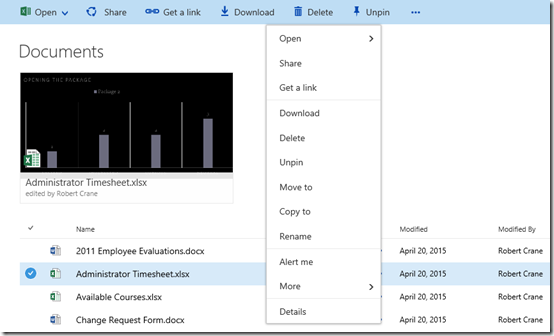
7. Right mouse clicking a file still works.
image

Right clicking on a file still brings up a context sensitive menu as you can see above.

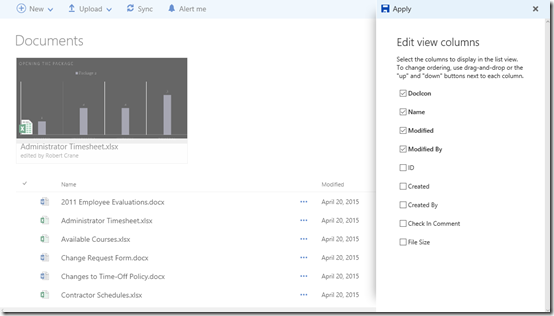
8. The ability to add columns to the view is now much easier.
image

If you select the three dots at the right of the column headings a menu will slide in from the right allowing you to select exactly which columns you want to display. This is much easier for an user to work with than going through and having to create separate Views.

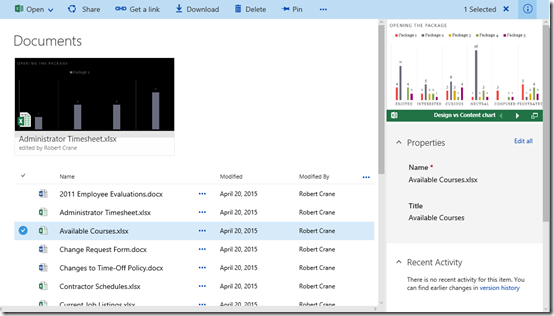
9. You can enable the information blade.
image

If you select the i icon with a circle in it in the top right hand corner an information blade appear on the right that display the properties of the file you have selected. Here you get a preview, can edit other information about the file, view sharing and so on. the information in the blade updates as you select different files.

This is a much better method of exposing file information for users than having to go through the ‘classic’ Ribbon Menu.

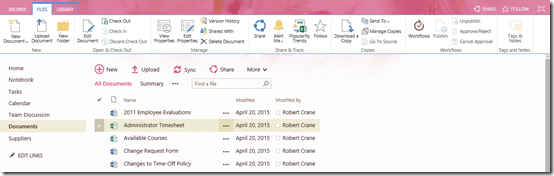
10. The Ribbon Menu has been deprecated in the new interface.
image

As you see from the ‘classic’ interface the Ribbon Menu was a major major way people interacted with the Document Library. However, for most users, the ribbon contained buttons they could use, didn’t understand what they did or were just so small they couldn’t read them.
image

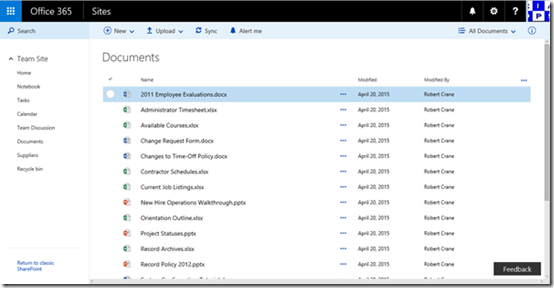
The new interface is a lot cleaner and easier for the ‘average’ user to work with (not a crusty old SharePoint person like me).

One of stumbling blocks for SharePoint was that it was, well, SharePoint. There are some strong reservations about using ‘SharePoint’ based on previous bad experiences. Even when new and improved versions come along, these old biases are hard for many to shake. Having SharePoint not look like ‘old’ SharePoint makes sense when it comes to wider adoption.

So in summary, there is plenty to recommend this new look and feel for Document Libraries. It is important to remember that we are in the middle of a transition to a new way of doing things with SharePoint so we’ll have to wait and see what happens when all the pieces fall into place.

I will however say that changing Document Libraries is changing the fundamental way most users work with SharePoint and I would contend, files in Office 365. That is going to impact a lot of people. That is going to mean a change for most and change is always a hard sell. At the moment we are in transition and change is coming slowly, but it will still freak a lot of people out. The more used to ‘traditional’ SharePoint they are, the more freaked they are going to be (at least initially).

Those who have invested a lot in their Team Site look and feel are going to face challenges with these changes as the interface in the new look and feel is, at the moment at least, completely different and also doesn’t as yet carry across much existing Team Site theming. Having a different look and feel could be quite jarring for some.

We are yet to see how traditional navigation (like the Top Link Bar) will be handled along with some other traditional SharePoint elements. I’m sure however all will be revealed very soon but I expected SharePoint Teams Sites to become more and more like Delve every day!

Kudos also to Microsoft for updating their documentation for these changes so fast:

What is a document library?

Which you should look at for more information.

This seems like siloing to me

One of the big points I make about SharePoint Team Sites is that they are designed for collaboration rather than just storage. This means Team Sites are typically designed to contain not only files but contacts, lists, calendars and so in a structure that make sense for the business. The way many refer to it is as an ‘Intranet’, i.e. a web site full of information (not just files).

image

Microsoft is preparing an update to Team Site Document Libraries which I believe discourages the core of what Team Sites are all about, that is, collaboration.

When you visit a Document Library in a Team Site now you’ll see the above message asking you to Check it out.

image

When you do, you see the new interface as shown above. You’ll note that Document Libraries appear very much like the new OneDrive for Business interface.

Problem for me is that I believe this silos information. The new interface is fine for OneDrive for Business because that is effectively a silo for each users own ‘stuff’ but in a Team Site it doesn’t make sense to me because they are designed to be accessed by multiple people.

image

If you compare this to the ‘classic’ interface above, you can see how many more options the ‘classic’ interface provides. It allows you to see the whole structure, other elements, all the navigation options as well as any theming.

The new interface basically takes you to a place where you only see a simplified version of the files in that Document Library. That isolates, or silos you from other information and effectively prevents collaboration I would suggest.

I appreciate the desire to have a simpler interface for average users but if we go down the path of wide spread adoption of this new interface it is simply going to reinforce the notion that SharePoint Team Sites is nothing more than a file repository, a dumping ground for files if you would.

As I said, I think the new interface is fine for OneDrive for Business but I don’t feel it is appropriate for Team Sites, because these should be designed for encouraging users to share, not taking them to places where they can only see a small subset of the information.

I would also contend, that having this new interface also creates a marked difference between the ‘normal’ Team Site interface and Document Libraries. That difference makes it harder for users to understand and work with because it is inconsistent.

In short, I don’t this new Document Library look and feel is going to help Team Sites be more about collaboration. I fear it simply reinforces the current perception that Team Sites are just old world network shares in the cloud, which they ain’t!

Introduction to Yammer

Enterprise Yammer is part of every Office 365 plan that includes SharePoint and is also now enabled by default. Yammer Enterprise is a business social network that allows people in your company to easily share information in way that it makes contribution easy and search simple.

This video tutorial will take you through the basics of Yammer, show you the different versions as well cover how it integrates with Office 365.

Yammer is an important product that businesses with Office 365 should be taking full advantage of. This tutorial will provide you the information that you need to get up and running with Yammer in your organisation.

Pre-order new CIAOPS SharePoint Online eBook

BTB-SPO-Cover-400H

Happy to announce I have another eBook on SharePoint Online that is not far away from release. As such, it is now available for pre-order at a significant discount. You can pre-order here:

http://www.e-junkie.com/ciaops/product/509950.php

Title

Beyond the Basics with SharePoint Online

About

This book is designed to help you take your knowledge to the next level with SharePoint Online. Once you have mastered the basics it is time to put document approvals, contents types, columns and more to work for you. This book will show you how to do all this plus more. It even covers how to get started using InfoPath and SharePoint Designer to really start customising your environment. SharePoint is an extremely powerful tool for solving business problems so knowing how to use it effectively is going to help you solve these problems faster. If you want the knowledge to do just that and you have already mastered the basics of SharePoint Online, then this is book for you.

Topics

– SharePoint structure overview

– Introduction to Email Alerts

– Introduction to Document Approvals

– Changing the Site Title, Logo and URL

– Document Check In/Out

– Connecting SharePoint to Access

– Content types

– Creating Subsites

– Introduction to Lookup Columns

– Advanced List Editing

– Working with Document Library Versioning

– Introduction to Views

– Using Promoted Links

– Create a Document Library Template

– Using a template to migrate a Document Library

– Creating and Using Site Columns

– Creating and Editing Site pages

– Adding a Yammer feed

– Displaying Linked Lists

– Getting Started with InfoPath

– Saving a Site as a Template

– Creating a new Site Collection

– Using a Template with a new Site Collection

– Deleting a Site Collection

– Getting Started with SharePoint Designer

Once the book is published it will be available in PDF, ePub and MOBI (Kindle) formats. It will be available, along with all my other publications, from my web site as well as via Amazon, iBooks, Nook and so on.

Remember, once the book gets published the price will increase so grab it now while it is discounted as publication is not far away.

More admin control over software deployment in Office 365

Microsoft has added more control for administrators over what options are available to user via the Office 365 Portal.

image

Using the ‘classic’ Office 365 admin center interface you navigate open Service Settings from the menu on the left and then select User software from that list that appears below.

image

On the right you should then see all the options shown above.

image

Via the ‘new’ Office 365 Admin center select Settings (the COG) and then Services & add-ins from the menu that appears.

image

This should take you to the above page.

image

Scroll down through the list until you see Software download settings and select this (the items are arrange alphabetically).

image

This will open a new blade with the same settings as those in the ‘classic’ portal.

image

You’ll see that you can select which Office PC software users can install from the web portal.

image

You can also select which Office Mac software users can install from the web portal.

I would expect to see more options start appearing for administrators via the web portal, so make sure you check back regularly.

If administrators want to push out Office from Office 365 they will need to use the:

Office 2016 Deployment toolkit

method.