Ownership is the key to adoption

It doesn’t matter whether you have the best technology, if people don’t use it then it it totally useless. It is very common for users to have access to a suite of services like Office 365 but rarely use anything more than mere email. Why? Because adoption was not considered something important in the migration and implementation process. I’ve talked about this before:

Stop making your users feel stupid!

The secret to adoption is to take off the technology hat and think like an average user who just wants to get their work done. They aren’t into technology. They aren’t interested in the ‘speeds and feeds’, most are simply interested in being able to do their jobs quicker and easier.

Another key aspect about average users is that they are resistant to change, far more so than those in IT. This means a different process needs to be considered when it comes to introducing new technology to this demographic. One of the major keys, I’d suggest, to successful adoption is fostering ownership.

What do I mean by ownership exactly? What I mean is that users will adopt technology far quicker if they feel a sense of ownership (and control) over what they use. So with a product like Office 365 how does one go about delivering this ownership?
image

image

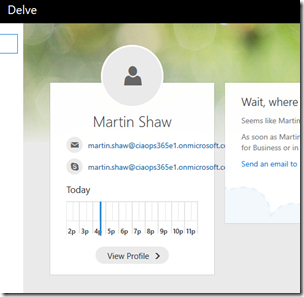
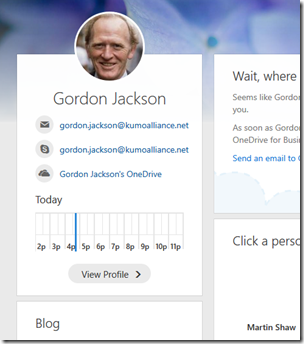
A good example is ensuring that every user has their profile picture set across the Office 365 services as you can see above in Delve. Having your own photo there in Delve immediately gives you a sense of ownership, a place that is ‘yours’ if you may. Having just an outline still makes the system all about IT. It is mere technology. However, with my picture in the profile then the system is ‘mine’.

One suggestion I have for businesses looking to drive Office 365 adoption is to pay for a professional photographer come in take high quality head shots of everyone so they can be used in Office 365. Users can then also use those head shots elsewhere like in Linkedin profiles.

Although most migrations to Office 365 start with email I’m an advocate of implementing Yammer first. Why? Firstly, Yammer has zero infrastructure impact, it is delivered totally via the web. Secondly, it has a mobile client that users can interact with inside and outside the Office (remember the phone is the desktop). Yammer also allows a users voice to be ‘heard’ and encourages ‘water cooler’ style chat online. Finally, Yammer is very much like other social networks that users are familiar with so the barrier to entry is much lower. In essence it becomes a users ‘presence’ in the new environment.

I also don’t recommend starting off with formal business groups in Yammer, I recommend setting up two groups, Social and Office 365 Q & A. Social is designed for general company ‘chit chat’. That is birthdays, best wishes, travel photos, footy tipping competitions and the like. The aim here is to get people using Yammer and comfortable interacting online. If you start with fun, then you are much more likely to see adoption. The Office 365 Q & A area is designed for users to post and share general information about Office 365.

When you implement a pseudo ‘help desk’ like this using Yammer a magical thing happens. For the majority of users it gives them a place they can ‘unload’ their questions and search for answers. However, the magic happens when other users, without prompting, take it on themselves to start answered those questions. Soon you end up with a self supporting help desk and training area in Yammer and all you did was simple tell people how to get there.

After Yammer the next Office 365 workload I suggest you target is OneDrive. Why? Again, because it is ‘personal’ to the user. It is their ‘space’ to upload their own private files. If you force them to go into a Team Site to work initially the change is generally too great. By getting them into OneDrive first you give them valuable experience working with just Document Libraries. This means when you introduce Team Sites down the track they already know something about how to use it, it also looks familiar so it also easier to adjust to and adopt.

After OneDrive then I’d suggest you get your users into OneNote. Show them all the benefits of creating a digital notebooks that is searchable, automatically backed up and available on all devices. Again, the important point here is to start with a personal OneNote for them so they get the feeling of ownership and are not afraid to play around with the technology. This experience will again stand them in good stead when it comes to work with group notebooks.

So in summary, my recommendation on adoption with Office 365 is to make the experience ‘personal’ to start with. I’d also suggest that rather than implementing just emails alone you do things in this order:

1. Email

2. Yammer

3. OneDrive

4. OneNote

That should at least get you started and make your users more open to consuming and utilising the other parts of Office 365, because they now feel some ownership and control of the technology. There will be of course, more adoption work to do but hopefully I’ve given you some ideas on what to focus on to get started and appreciate how successful adoption is about being ‘personal’ rather than being just about technology.

Need to Know podcast–Episode 152

We’re joined in this episode by the chief of Lobster Pot, Rob Farley a Microsoft MVP focused on SQL. However, in this episode we speak to Rob about his experiences in giving a keynote at a recent conference. As Rob explains here, there is far more to a keynote that you think. Luckily we get the low down and all the pointers so stay tuned.

Of course, Marc and I cover off all the latest Office 365 and Azure news to keep you up to date with the latest that’s happening in the Microsoft cloud.

Take a listen and let us know what you think –feedback@needtoknow.cloud

You can listen to this episode directly at:

https://ciaops.podbean.com/e/episode-152-rob-farley/

Subscribe via iTunes at:

https://itunes.apple.com/au/podcast/ciaops-need-to-know-podcasts/id406891445?mt=2

The podcast is also available on Stitcher at:

http://www.stitcher.com/podcast/ciaops/need-to-know-podcast?refid=stpr

Don’t forget to give the show a rating as well as send us any feedback or suggestions you may have for the show.

Resources

@marckean

@directorcia

@rob_farley

Lobster Pot

On keynotes by Rob Farley

Rhino room comedy club

Azure news from Marc

Outlook Customer manager rolling out

Groups now in Mac, iOS and Android

Server 2016 performance tuning

SharePoint Virtual Summit

Microsoft Build 2017

This episode brought to you buy:

https://cpem.io/tJ01Hzu2k.js

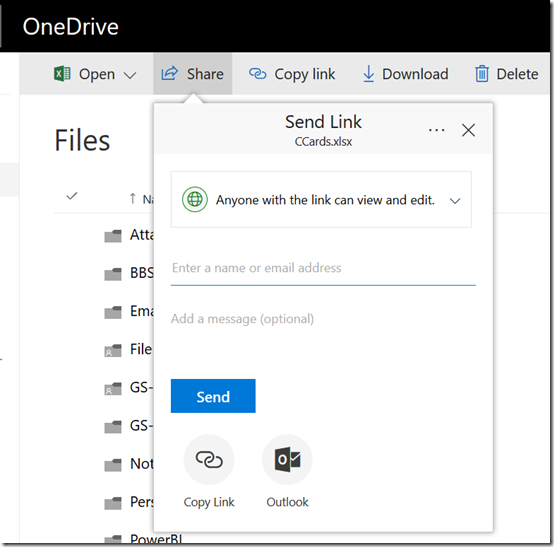
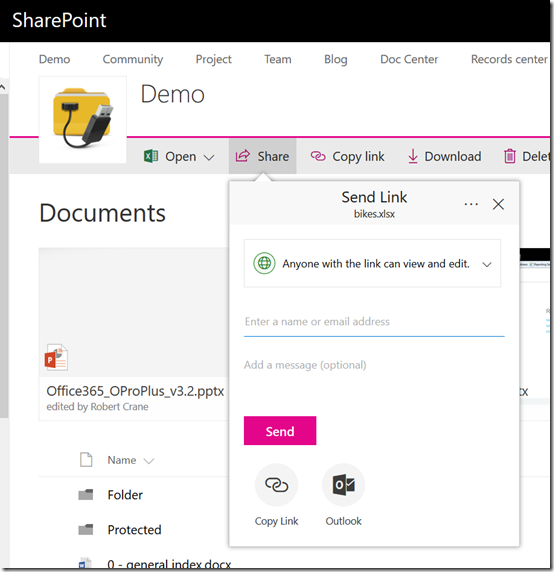
New sharing interface in Office 365

image

Looks like we have a new interface for sharing files in both Teams Sites (above),

image

and OneDrive (above).

Now the sharing option drops down from the Share menu rather than popping up a dialog box in front of everything.

image

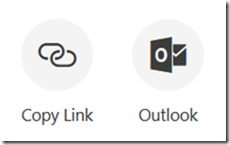
It also has some buttons at the bottom to help you with the way you want to share the item.

image

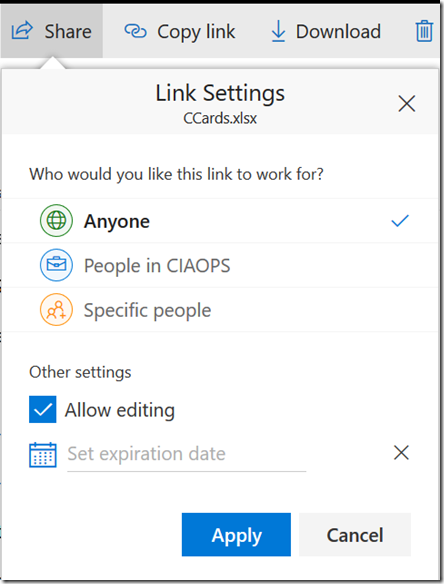
You can adjust the link settings by clicking on the pull down menu for whom you wish to share the link with.

image

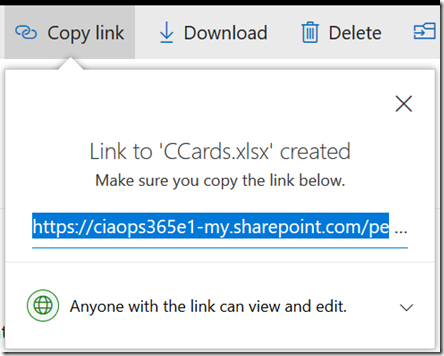
You also get the same style of menu when you try and get a link as shown above.

You may not as yet see these options but expect them to be rolling out to you soon.

In private browsing

I work across many different Office 365 (and Azure) tenants every day. Many times I need to be inside multiple tenants at the same time. How can I do that effectively? I use ‘private’ browsing modes inside each browser to keep login details isolated.

You can think of ‘private’ browsing as an isolated instance of surfing the web. When you start ‘private’ browsing you start with a ‘clean’ environment (no credentials, logins, etc) are remembered. When you close down the sessions everything is forgotten.

Here’s how you start ‘private’ browsing sessions across the major browsers.

Microsoft Edge

image

Right mouse click on the Microsoft Edge browser icon and select New InPrivate window from the menu that appears.

image

If you are already using Microsoft Edge, select the three dots in the upper right to display the above menu. Select the New InPrivate window option.

Google Chrome

image

Right mouse click on the Google Chrome browser icon and select New incognito window from the menu that appears.

image

If you are already using Google Chrome, select the three dots in the top right to display the menu shown above. From this menu select New incognito window.

Internet Explorer

image

Right mouse click on the Internet Explorer browser icon and select Start InPrivate browsing from the menu that appears.

image

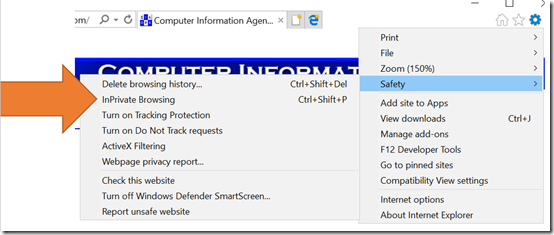
if you are already using Internet Explorer, select the Cog icon in the top right, then from the menu that appears select Safety. From the fly out menu that then appears, select InPrivate Browsing.

Firefox

image

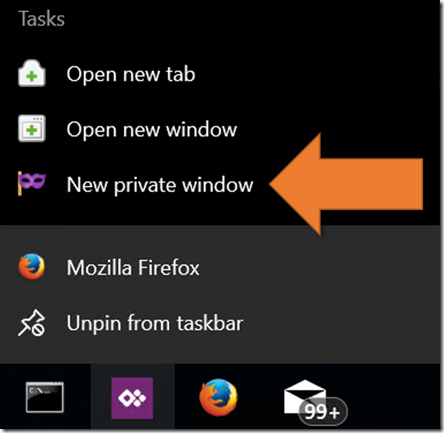
Right mouse click on the Firefox browser icon and select New private window from the menu that appears.

image

If you are already using Firefox, select the three lines in the top right to display the menu shown. From the menu that appears, select New Private Window.

Thus, between these four major browsers and their ‘private’ browsing modes, I can work with eight different tenants all at once. Barely enough, I’m telling you. Barely enough.

Need to Know podcast–Episode 151

We welcome Marc back after a ‘near death’ experience, well according Marc that is. That hasn’t stopped us bringing you the latest Microsoft Cloud news around Office 365 and Azure. We also feature some additional interviews Marc conducted in the halls of Experts Live 2017 recently with the likes of Daniel Mar, Thomas Maurer and Wally Mead. Listen along for loads of great Microsoft Cloud news and info.

Take a listen and let us know what you think –feedback@needtoknow.cloud

You can listen to this episode directly at:

https://ciaops.podbean.com/e/episode-151-experts-live-2/

Subscribe via iTunes at:

https://itunes.apple.com/au/podcast/ciaops-need-to-know-podcasts/id406891445?mt=2

The podcast is also available on Stitcher at:

http://www.stitcher.com/podcast/ciaops/need-to-know-podcast?refid=stpr

Don’t forget to give the show a rating as well as send us any feedback or suggestions you may have for the show.

Resources

@marckean

@directorcia

@danielmar268

@ThomasMaurer

@Wally_Mead

Azure news from Marc

MIcrosoft To Do

No password sign in for Micrfosoft accounts

Changes to Power BI

CIAOPS Introduction to PowerShell course

Upcoming Understanding collaboration in Office 365 CIAOPS training

This show brought to you by:

https://cpem.io/tJ01Hzu2k.js

Changing a Group/Teams icon in Office 365

image

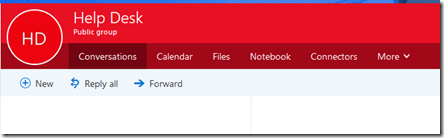
If you go out and create a new Microsoft Team you don’t get the opportunity to add a custom icon for that Team. Thus, you get a Team as shown above with just some letters and coloured background which is rather boring.

image

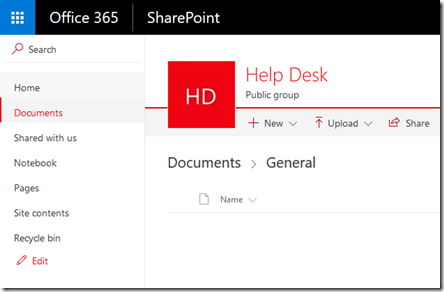
However, when you create a Microsoft Team, you also get a SharePoint Team Site. Unfortunately, this also just has the same ‘standard’ icon by default.

image

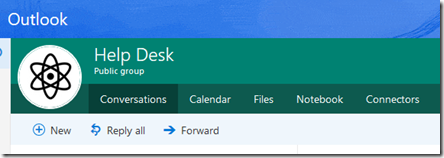
A Microsoft Team also creates an Office 365 Group which again has the same old ‘standard’ icon.

So how do you change the icon?

image

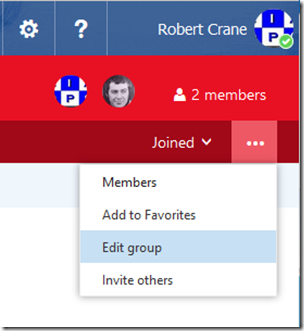
Go to the very right of the Group menu and select the three dots (also called an ellipse). From the menu that appears select Edit Group.

image

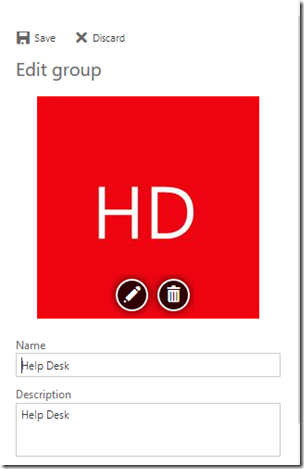
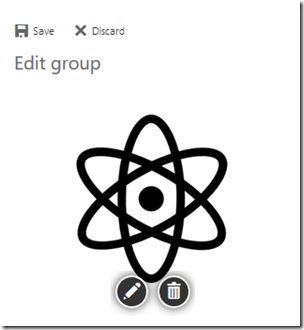
A panel will slide out from the right. Select the pencil icon on the image and upload you new icon.

image

When the new images appears in the pane, select the Save option at the top of the panel, just above the image.

image

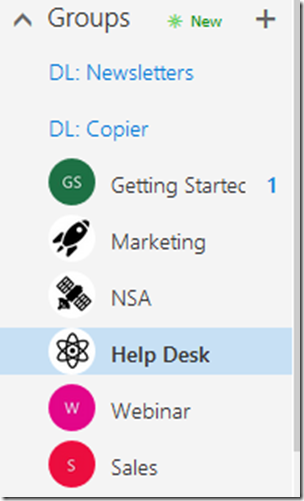
You should see your Group icon update as shown above.

image

You should also see the icon update in Outlook on the web (OWA) as shown above.

image

The SharePoint Team Site icon should also update automatically

image

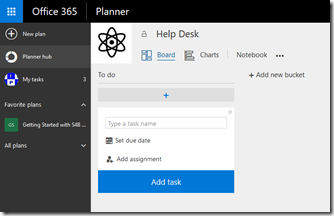
and the Planner plan connected to the Group and Team.

image

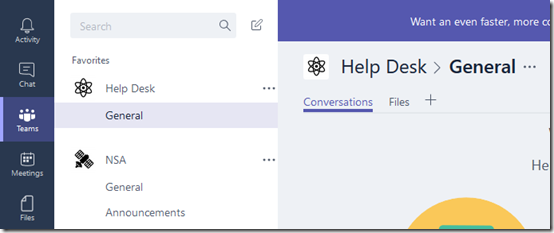
and finally into the Microsoft Teams app itself.

One icon to rule them all!

Understanding collaboration in Office 365 course

people-woman-coffee-meeting2

I’m happy to announce a new course is available from the CIAOPS Academy. This course will focus on the collaboration tools available in Office 365. This means SharePoint, Teams, Yammer, OneDrive and more. You’ll not only learn how these products work but you’ll also learn how to use them effectively to increase the productivity of your business.

The course will divided into 5 live sessions held every Friday in June. Thus:

Friday June 2nd 2017 – SharePoint & OneDrive
Friday June 9th 2017 – Groups, Teams and Staffhub
Friday June 16th 2017 – Yammer & Skype for Business
Friday June 23rd 2017 – Delve & Planner
Friday June 30th 2017 – Migration and Driving adoption

The sessions will run for 1 hour and be recorded. Session time are:

8am – 9am – Sydney, Australia
3pm – 4pm – PDT, USA
6pm – 7pm – EDT, USA
11pm – 12am – BST, UK

The recordings of each session will be available shortly after each session is completed. Although each session will run for 60 minutes, there will be an open Q and A at the end that will continue as long as people have questions not answered in the session.

All the material, including recordings, course notes and additional offers will be available for download after the fact.

The material presented during this course is a great way to fast track you understanding and adoption of Office 365 adoption tools in your business. Not only will you see the technology in use but the sessions will include hands on material for all students to participate in, so you’ll be directly interacting with the technology during the time. This way you’ll get to see and experience exactly what is possible with Office 365 collaboration technologies.

If you are keen to jump on board then I have a special early bird discount as a reward. Normally the cost of the course is US$299 but if you sign up before the 12th of May 2017 at 9:00am you’ll receive $60 off the cost using the coupon code EARLYBIRD1 or this direct link:

Understanding collaboration in Office 365 – $60 early bird discount

Remember, you need to use the link or the coupon code to get the discount.

An additional offer is that if you are not already a CIAOPS Academy affiliate you should sign up so you can offer this course to others and receive a commission. That’s right, just refer this (or any CIAOPS Academy course) to others and you’ll receive a percentage of the course direct to you. To become an affiliate simply sign up for free at the CIAOPS Academy and then contact me (director@ciaops.com) to let me know you want to be an affiliate and I’ll send you all the details and get you signed up asap.

In summary. Sign up for the upcoming CIAOPS Academy Office 365 collaboration course here (and get an early bird discount):

Understanding collaboration in Office 365 – $60 early bird discount

and contact me (director@ciaops.com) if you want to become an academy affiliate and receive commissions for courses you sell.

I hope to see you in attendance at the course in June.

CIAOPS Need to Know Webinar–May 2017

laptop-eyes-technology-computer

Welcome to May and to another Need to Know webinar where you can learn all about the Microsoft cloud. As usual we’ll cover off all the latest Office 365 news (and there will be plenty this month) and I’ll also open the floor to any general questions. Our deep dive focus this month will be on the heart and soul of SharePoint – Document Libraries. You’ll learn how to get more from the locations you store files in SharePoint. If you use SharePoint Online, this is not a session to miss.

You can register for free at:

May Webinar Registrations

The details are:

CIAOPS Need to Know Webinar – May 2017
Thursday 25th of May 2017
11am – 12am Sydney Time

All sessions are recorded and posted to the CIAOPS Academy.

There of course will also be open Q and A so make sure you bring your questions for me and I’ll do my best to answer them.

The CIAOPS Need to Know Webinars are free to attend but if you want to receive the recording of the session you need to sign up as a CIAOPS patron (for only USD$10 per month) which you can do here:

https://www.patreon.com/ciaops

or purchase them individually at:

http://www.ciaopsacademy.com/

Also feel free at any stage to email me directly via director@ciaops.com with your webinar topic suggestions.

I’d also appreciate you sharing information about this webinar with anyone you feel may benefit from the session.