Improved security is a shared responsibility

image

The Internet has ensured that everyone who is connected is connected together. Everyone being connected together has some massive advantages but it also makes us vulnerable to those who wish to exploit this fact. The reason we all get so much spam is because it is so easy and so cheap to send. However, after all these years, why is the dominate email traffic source always spam? It’s because it morphs and evolves to avoid detection. The same applies for other threats such as phishing.

Technology provides some great tools to deal with spam and phishing but they can’t remove 100% of the threats that are out there. Many also rely on people reporting attacks and suspect item in their inbox to security vendors so they can analyse the results and improve their own detection.

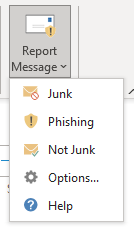
The problem with reporting incidents you come across in your own inbox has been a challenge. Who or where do you send your reports to? Now Microsoft has a free add in for Outlook that allows you to quickly and easily report spam and phishing directly to them.

To do this visit:

https://appsource.microsoft.com/en-us/product/office/WA104381180?src=office

and install the Report Message add in for Outlook to your environment.
image

Then when a suspect email is detected you can easily report it via a few clicks.

For more information about installing and configuring the Report Message add-in across your Office 365 environment see:

Enable the Report Message add-in

Don’t just sit there and ignore spam and phishing attacks. Report them and potentially help save someone else from becoming a victim! When you connect to the Internet you become part of a global community. Help the community fight back again those seeking to take advantage of others. The more we all report attacks the less there will be.

Join me in the fight to take back the Internet!
Check those Office 365 email forwards

One of the most common tasks that hackers perform after they have compromised accounts in Office 365 (usually via a poor password or phishing attack) is to set up an email forwarding rule on mailboxes so they receive a copy of emails to that user.

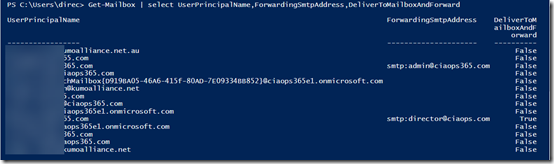
Thus, it is good security practice to ensure that you are aware of all the email forwarding configurations that are enabled on your tenant. To do this you simply need to run the following PowerShell command once you have connected to Exchange Online:

Get-Mailbox | select UserPrincipalName,ForwardingSmtpAddress,DeliverToMailboxAndForward

This will produce a result like:

image

which tells you whether forwarding has been enabled and to which address emails are being sent. Obviously, if you don;t recognise any of these you should investigate further.

There are plenty of ways to run this script on a regular basis but I’m not going to cover that here.

CIAOPS Need to Know Office 365 Webinar–March

laptop-eyes-technology-computer

In light of the recent Australia Data Breach Legislation and the upcoming GDPR policies in Europe the March webinar will focus on security in Office 365. You’ll learn what is available and how ton configure it. There will be the usual news, updates and Q & A on Office 365.

You can register for free at:

March Webinar Registrations

The details are:

CIAOPS Need to Know Webinar – March 2018
Thursday 29th of March 2018
11am – 12am Sydney Time

All sessions are recorded and posted to the CIAOPS Academy.

There of course will also be open Q and A so make sure you bring your questions for me and I’ll do my best to answer them.

The CIAOPS Need to Know Webinars are free to attend but if you want to receive the recording of the session you need to sign up as a CIAOPS patron which you can do here:

http://www.ciaopspatron.com

or purchase them individually at:

http://www.ciaopsacademy.com/

Also feel free at any stage to email me directly via director@ciaops.com with your webinar topic suggestions.

I’d also appreciate you sharing information about this webinar with anyone you feel may benefit from the session.

February Office 365 Webinar Resources

Good to see such large numbers for this month’s webinar. Obviously, a topic of great interest to many.

Slide from this month’s webinar are at:

https://www.slideshare.net/directorcia/ciaops-need-to-know-office-365-webinar-february-2018

f you are not a CIAOPS patron you want to view or download a full copy of the video from the session you can do so here:

http://www.ciaopsacademy.com.au/p/need-to-know-webinars

We looked at PowerApps in this session

Watch out for next month’s webinar.

Need to Know Podcast–Episode 174

In the absence of Marc Kean who is busy at Microsoft, let me introduce my new co-host Brenton Johnson from Uptake Digital. Brenton comes from a ‘born in the cloud’ IT business that looks after customer’s digital needs and implements cloud solutions for them. In this episode we meet Brenton and find out about his background, we also cover some new and updates from the world of Azure and Office 365. Have a listen and let us know what you think of the changes. We are still finding our feet in absence of Marc.

Take a listen and let us know what you think –feedback@needtoknow.cloud

You can listen directly to this episode at

https://ciaops.podbean.com/e/episode-174-let-me-introduce-to-you/

Subscribe via iTunes at:

https://itunes.apple.com/au/podcast/ciaops-need-to-know-podcasts/id406891445?mt=2

The podcast is also available on Stitcher at:

http://www.stitcher.com/podcast/ciaops/need-to-know-podcast?refid=stpr

Don’t forget to give the show a rating as well as send us any feedback or suggestions you may have for the show.

Resources

@contactbrenton

@directorcia

January Update for Microsoft Teams

New features in Planner

New apps in Microsoft Teams

Outlook Groups app is retiring

Use SharePoint web parts to showcase data from inside and outside Office 365

Azure revenues

Hybrid Cloud printing

Azure Cloud Shell

Protect machines using managed disks and ASR

OneDrive Office sync conflicts

I recently wrote an article about

Offline file conflicts with SharePoint Online

that ran through the process of what happens when users go offline when working on shared files.

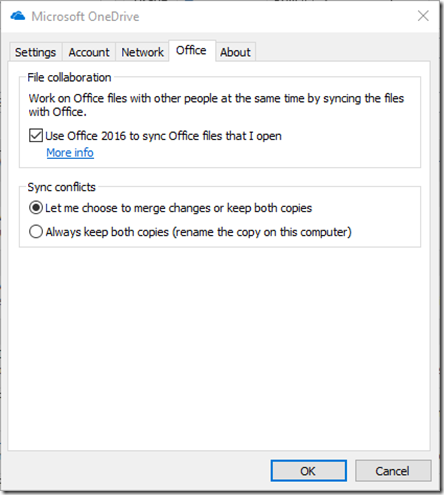
After doing some more poking around in the latest OneDrive for Business sync client I found this under the Office tab in Settings:

image

You can find more information on the first option here:

Use Office 2016 to sync Office files that I open

which notes:

If you turn off this setting, Office will no longer be able to automatically merge changes from different versions of documents. You’ll also be prompted to upload a new copy of a file before you can share it directly from an Office desktop app.

You can also elect how to handle Sync conflicts, which by default is set to Let me choose to merge changes or keep both copies.

The defaults options are going to suit most people but you can go in a customise these if you wish to improve how conflicts are handled in your environment.

Email Message Header Analyzer for Office 365

Much of the diagnostic detail relating to emails is buried in locations that you can’t see. If you have the need to examine email messages for troubleshooting or security this can be a challenge.

image

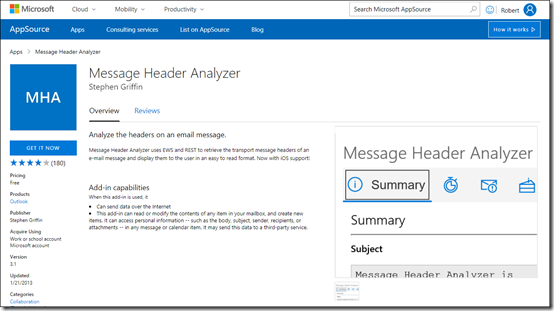
A great tool you can add to your arsenal is the free Message Header Analyzer which you can find here:

https://appsource.microsoft.com/en-us/product/office/WA104005406

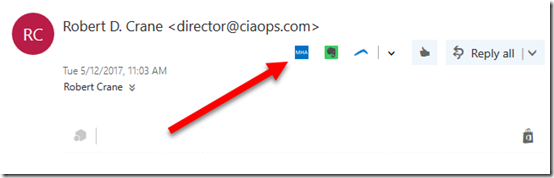
Once installed you will find an additional button in your OWA:

image

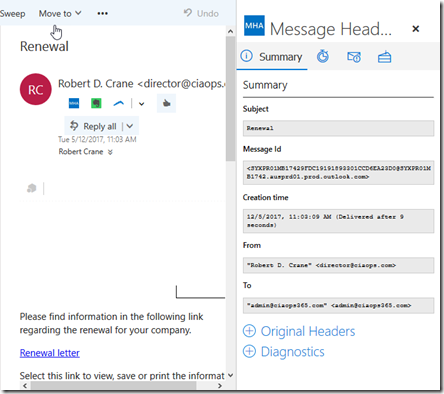
That when selected will give you a range of options you can use to dive deep into the technical information surrounding the email in question.

image

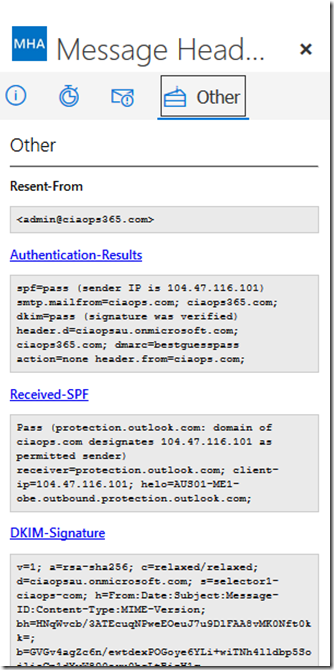
I especially like the ability to dig into the SPF and DKIM style details.

image

If you need in to do any troubleshooting or email analysis on a regular basis I’d highly recommend you add this to your inbox.

Double check those links

Unfortunately, as services like Office 365 become more prevalent so too do the attacks against them. These attacks are going to target people who are the least IT savvy.

image

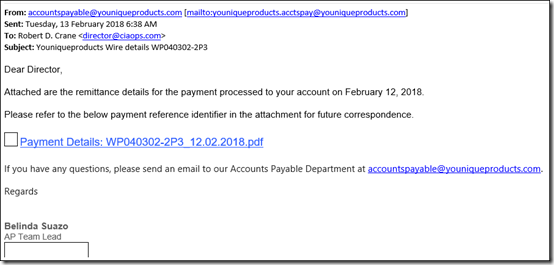
The above is the first example of an email I received this morning. Being close to Valentine’s Day it would be easy for an ordinary user to click on the link provided inside to download the PDF of their order.

image

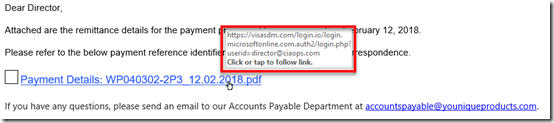
However, if you mouse over that link, you see that it actually re-directs you to a malicious web site, but of course a user isn’t going to know that.

image

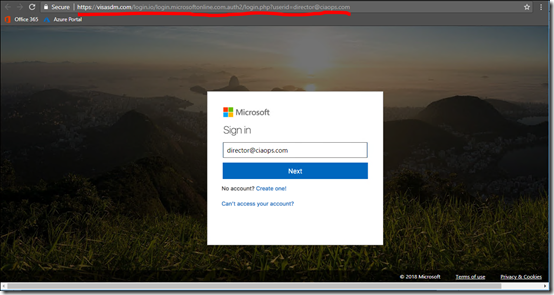
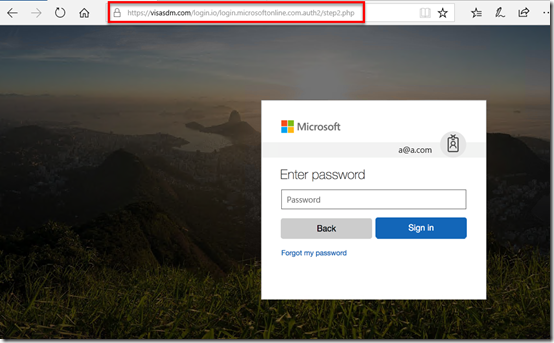
I gotta say that the malicious web site really does look an Office 365 login page doesn’t it? The only obvious give away is the URL at the top of the page.

image

Upon closer inspection you see that it is in fact not going to the Office 365 login URL which is:

image

You’ll also note that the email address is already in the dialog box so all a user would need to do is press enter as they normally would.

image

At the next page they are prompted for their email address. again, very, very authentic looking Office 365 login page.

Typically, the user would enter their password and hit enter. At this point their login details have been sent to the bad guys and the user is redirected to correct Office 365 login page. The user of course, thinks they entered something wrong and go through the process again. However, their account has now been compromised, pretty much without them realising.

image

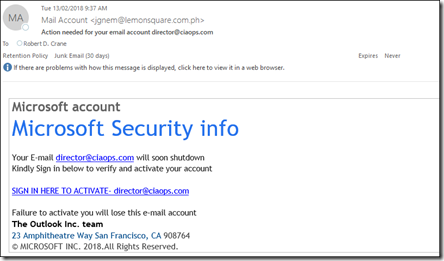
Here is the next phishing email that I received moments after getting the first. This one appears to be directly from Microsoft request an update to the security of the Office 365 account.

This prays on the underlying fear most users have of technology in order to get them to click the link.

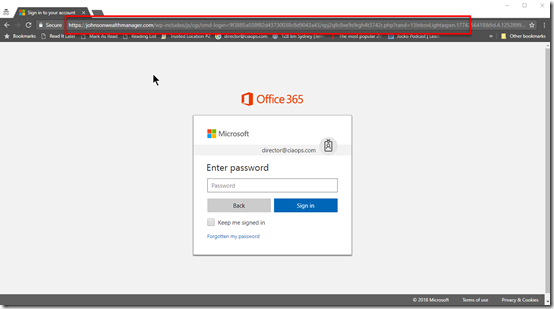
image

If they do so, they are again taken to another ‘official’ looking Office 365 login page as you see above.

SNAGHTML1c8c4fac

Again, this one has a non Office 365 login URL as shown above. Like the previous case, this site has it’s own certificate (HTTPS) making it appear even more legitimate.

So if you come across these sites, first course of action is to report them to Microsoft.

Submit spam, non-spam and phishing scam messages to Microsoft for Analysis

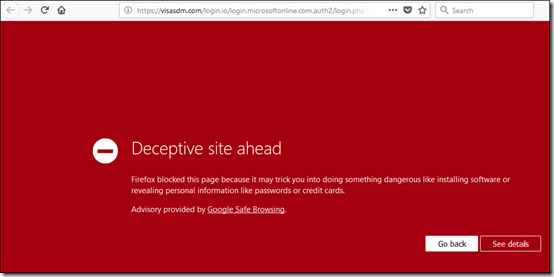
Because these types of attacks are new into the wild they are typically not picked up by reputation based systems. Eventually they picked up, like in the browser here:

image

but until they are, there really isn’t much that can be done.

I’ve said this before, security is tough:

The bad guys keep winning

and technology can’t be used to solve every issue. We need to couple that with education to help people ask the right question before potentially doing the wrong thing.

if something in your inbox doesn’t seem right, chances are it isn’t. So treat it with caution.