
Using M365 Business Premium
The Essential Eight Mitigation Strategy #3 – Configure Microsoft Office Macro Settings requires organizations to disable Office macros by default for users without a demonstrated business need.1In cloud-only environments using Microsoft 365 Business Premium and Microsoft Intune, this can be achieved through multiple complementary approaches:
- Configuration Profiles (Settings Catalog or Imported Administrative Templates)
- Attack Surface Reduction (ASR) Rules
- Microsoft Defender for Endpoint capabilities (included in Business Premium)
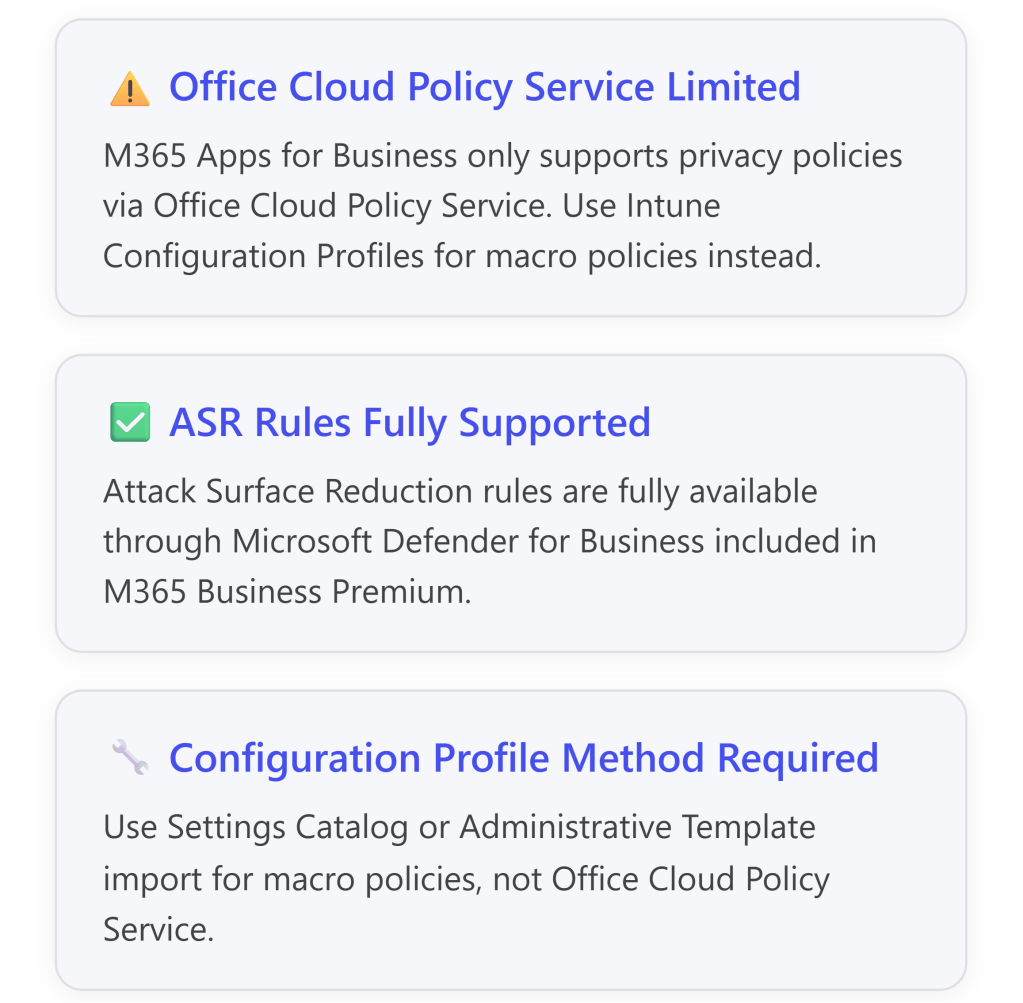
However, there is an important limitation: Microsoft 365 Business Premium includes Microsoft 365 Apps for Business, which has limited support for the Office Cloud Policy Service—only privacy-related policies are supported.2For full macro control policies, you must use Configuration Profiles in Intune instead.3
Understanding Essential Eight Macro Security Requirements
Essential Eight Maturity Level Requirements
The Australian Cyber Security Centre (ACSC) Essential Eight framework defines specific controls for Microsoft Office macro security:4
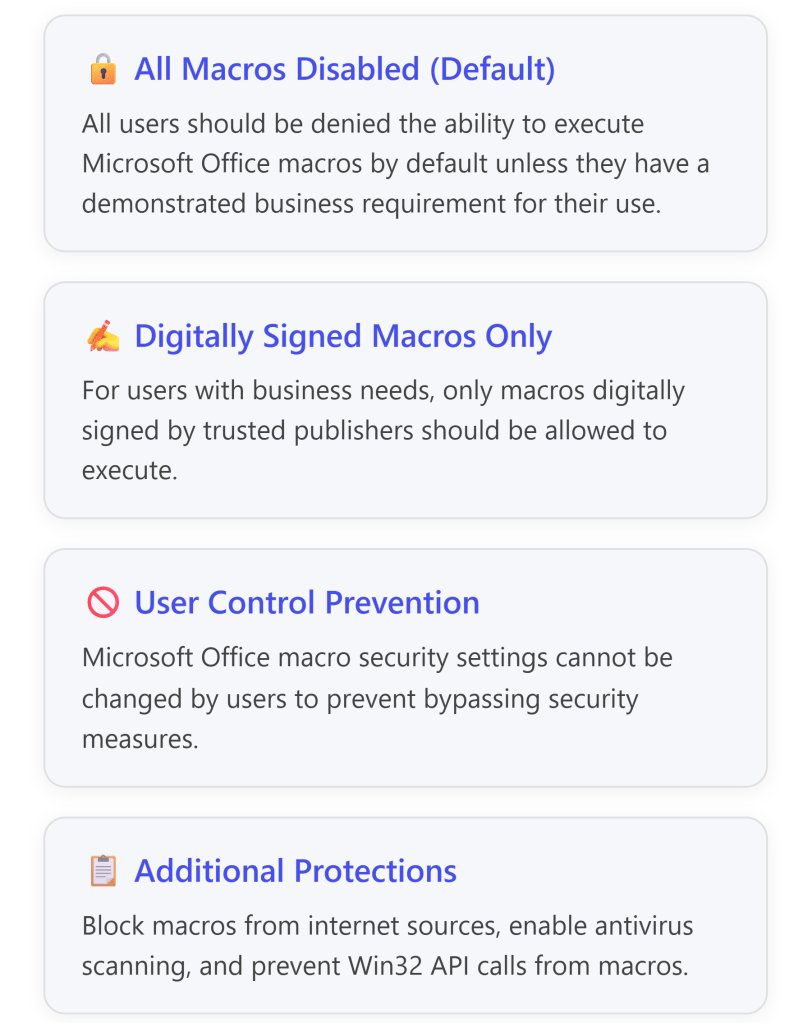
Key ISM Controls (March 2025)
The Essential Eight implementation addresses multiple Information Security Manual (ISM) controls:5
| ISM Control | Requirement | Implementation Method |
| ISM-1671 | Macros disabled for users without business requirement | Configure “Disable VBA for Office applications” policy |
| ISM-1488 | Block macros from internet sources | Enable “Block macros from running in Office files from the internet” |
| ISM-1675 | Disable Trust Bar for unsigned macros | Configure “Disable Trust Bar Notification for unsigned applications” |
| ISM-1672 | Enable macro antivirus scanning | Set “Macro Runtime Scan Scope” to “Enable for all documents” |
| ISM-1673 | Block Win32 API calls from macros | Deploy ASR rule 92E97FA1-2EDF-4476-BDD6-9DD0B4DDDC7B |
| ISM-1489 | Prevent users from changing macro settings | Deploy policies via Intune (users cannot modify) |
Microsoft 365 Business Premium Capabilities for Macro Control
What’s Included in Business Premium
Microsoft 365 Business Premium includes:
- Microsoft Intune for device management
- Microsoft Defender for Business (includes Attack Surface Reduction)
- Microsoft 365 Apps for Business (desktop applications)
Important Licensing Limitations
⚠️ Critical Consideration: The Office Cloud Policy Service (config.office.com) has limited functionality with Microsoft 365 Apps for Business:
- Only privacy control policies are supported6
- Full macro security policies are NOT supported via Office Cloud Policy Service for Business licenses7
- You must use Intune Configuration Profiles (Settings Catalog or Administrative Templates) instead
For full Office Cloud Policy Service support, you would need Microsoft 365 Apps for Enterprise licenses.8
Implementation Approach: Configuration Profiles in Intune
Method 1: Import Pre-Built ACSC Hardening Policy (Recommended)
Microsoft provides pre-built configuration profiles aligned with ACSC guidance. This is the fastest and most reliable method for Essential Eight compliance.
Step-by-Step: Import ACSC Office Hardening Policy

Detailed Steps:9
- Create Target User Group
- Create an Azure AD security group for “All Office Users”
- This group will receive Office apps and hardening policies
- Download ACSC Policy Template
- Download the ACSC Office Hardening Guidelines JSON file10
- Import to Intune
- Sign in to Microsoft Intune admin center: https://intune.microsoft.com[^1]
- Navigate to: Devices > Windows > Configuration profiles > Create
- Select: Import Policy
- Name: “ACSC Office Hardening – All Macros Disabled”
- Browse for the downloaded JSON file
- Click Save11
- Import OLE Prevention Script
- Navigate to: Devices > Scripts > Add > Windows 10 and later
- Name: “OLE Package Prevention”
- Download script from: https://github.com/microsoft/Microsoft365DSC/blob/master/Modules/Microsoft365DSC/Examples/Resources/IntuneDeviceConfigurationPolicyWindows10/OfficeMacroHardening-PreventActivationofOLE.ps1[^1]
- Configure:
- Run script using logged-on credentials: Yes
- Enforce script signature check: No
- Run in 64-bit PowerShell: No12
- Assign to: All Office Users group13
- Assign the Policy
- In the imported policy, go to Assignments
- Included groups: Select “All Office Users”
- Review + Save
Method 2: Manual Configuration Using Settings Catalog
If you prefer granular control, you can manually configure macro policies using Intune’s Settings Catalog.
Step-by-Step: Create Custom Macro Blocking Policy
- Create New Settings Catalog Policy
- Navigate to: Microsoft Intune admin center (intune.microsoft.com)
- Go to: Devices > Configuration policies > Create > New Policy
- Platform: Windows 10 and later
- Profile type: Settings catalog
- Name: “Office Macro Security – Disable All Macros”
- Configure Settings for Each Office Application
The following settings must be configured for each Office application (Word, Excel, PowerPoint, Access, Outlook):14 15
Microsoft Office 2016 (Global Settings)
| Setting Path | Configuration |
| Microsoft Office 2016 > Security Settings | |
| Automation Security | Enabled |
| – Set Automation Security level | Disable macros by default |
| Disable VBA for Office applications | Enabled |
| Security Settings > Trust Center | |
| Allow mix of policy and user locations | Disabled |
Microsoft Excel 2016
| Setting Path | Configuration |
| Excel Options > Security > Trust Center | |
| VBA Macro Notification Settings | Enabled |
| – VBA Macro Notification | Disable all without notification |
| Block macros from running in Office files from the Internet | Enabled |
| Trust access to Visual Basic Project | Disabled |
| Turn off trusted documents | Enabled |
| Turn off Trusted Documents on the network | Enabled |
| Excel Options > Security > Trust Center > Trusted Locations | |
| Allow Trusted Locations on the network | Disabled |
| Disable all trusted locations | Enabled |
Microsoft Word 2016
| Setting Path | Configuration |
| Word Options > Security > Trust Center | |
| VBA Macro Notification Settings | Enabled |
| – VBA Macro Notification | Disable all without notification |
| Block macros from running in Office files from the Internet | Enabled |
| Trust access to Visual Basic Project | Disabled |
| Turn off trusted documents | Enabled |
| Turn off Trusted Documents on the network | Enabled |
| Word Options > Security > Trust Center > Trusted Locations | |
| Allow Trusted Locations on the network | Disabled |
| Disable all trusted locations | Enabled |
Microsoft PowerPoint 2016
| Setting Path | Configuration |
| PowerPoint Options > Security > Trust Center | |
| VBA Macro Notification Settings | Enabled |
| – VBA Macro Notification | Disable all without notification |
| Block macros from running in Office files from the Internet | Enabled |
| Trust access to Visual Basic Project | Disabled |
| Turn off trusted documents | Enabled |
| Turn off Trusted Documents on the network | Enabled |
| PowerPoint Options > Security > Trust Center > Trusted Locations | |
| Allow Trusted Locations on the network | Disabled |
| Disable all trusted locations | Enabled |
Microsoft Access 2016
| Setting Path | Configuration |
| Application Settings > Security > Trust Center | |
| VBA Macro Notification Settings | Enabled |
| – VBA Macro Notification | Disable all without notification |
| Block macros from running in Office files from the Internet | Enabled |
| Turn off trusted documents | Enabled |
| Turn off Trusted Documents on the network | Enabled |
| Application Settings > Security > Trust Center > Trusted Locations | |
| Allow Trusted Locations on the network | Disabled |
| Disable all trusted locations | Enabled |
Microsoft Outlook 2016
| Setting Path | Configuration |
| Security > Trust Center | |
| Apply macro security settings to macros, add-ins and additional actions | Enabled |
| Security settings for macros | Enabled |
| – Security Level | Never warn, disable all |
- Assign the Policy
- Assignments: Select your target user or device groups
- Review + Create
Attack Surface Reduction (ASR) Rules for Essential Eight Compliance
Can ASR Rules Meet Essential Eight Requirements?
Yes, partially. Windows Attack Surface Reduction rules provide critical additional protections that complement macro blocking policies and help meet Essential Eight requirements.16 17
ASR rules are included with Microsoft 365 Business Premium via Microsoft Defender for Business and can be deployed through Intune.18
Essential Eight-Relevant ASR Rules
The following ASR rules directly support Essential Eight mitigation strategies:19 20
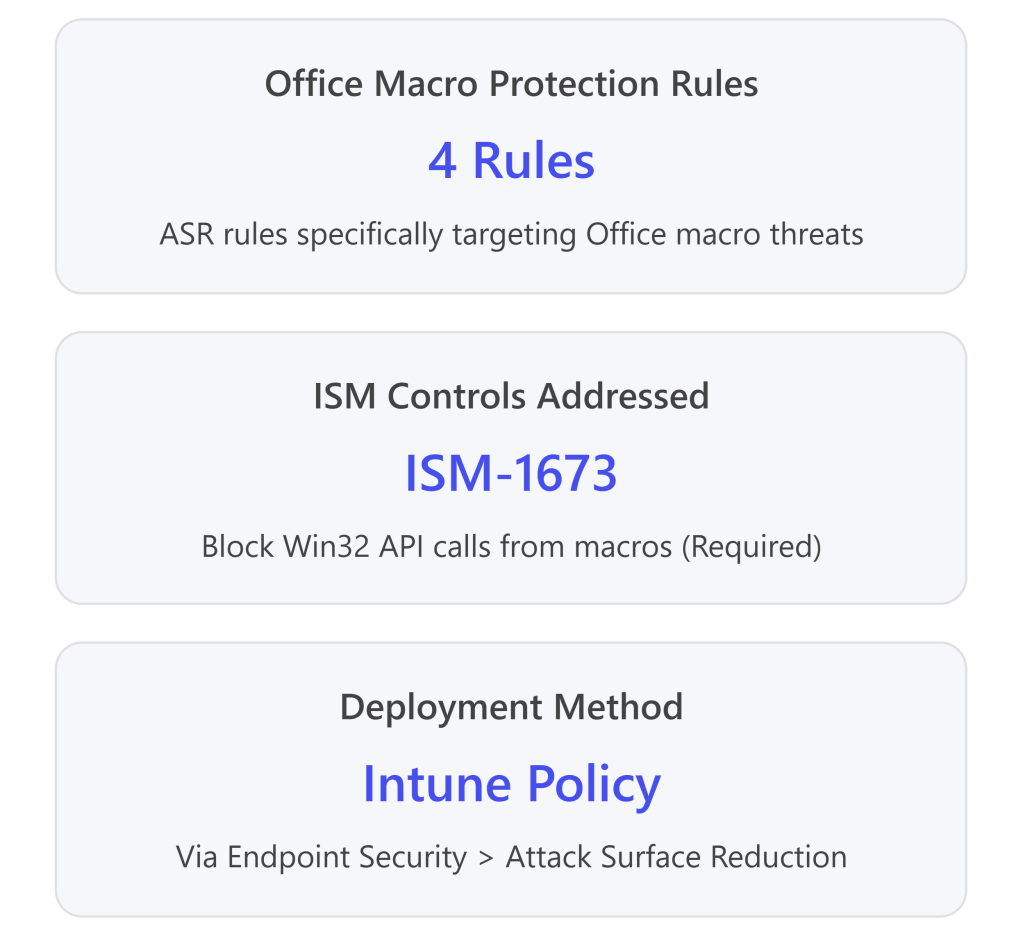
ASR Rules for Office Macro Security
| ASR Rule Name | GUID | Essential Eight Alignment | ISM Control |
| Block Win32 API calls from Office macros | 92e97fa1-2edf-4476-bdd6-9dd0b4dddc7b | ✅ Required – Prevents macros from making dangerous system calls | ISM-1673 |
| Block Office applications from creating child processes | d4f940ab-401b-4efc-aadc-ad5f3c50688a | ✅ Recommended – Prevents macro-launched executables | User App Hardening |
| Block Office applications from creating executable content | 3b576869-a4ec-4529-8536-b80a7769e899 | ✅ Recommended – Prevents macros from creating .exe files | User App Hardening |
| Block Office applications from injecting code into other processes | 75668c1f-73b5-4cf0-bb93-3ecf5cb7cc84 | ✅ Recommended – Prevents code injection attacks | User App Hardening |
| Block Office communication applications from creating child processes | 26190899-1602-49e8-8b27-eb1d0a1ce869 | ✅ Recommended – Protects Outlook from exploitation | User App Hardening |
Step-by-Step: Deploy ASR Rules via Intune
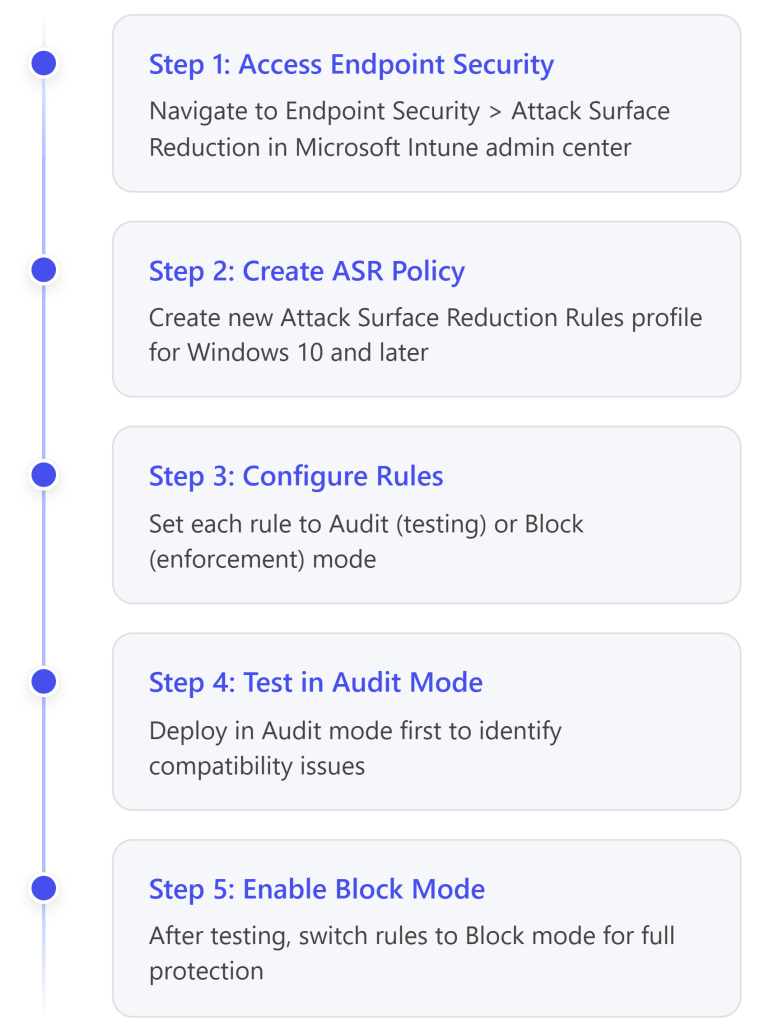
Detailed Implementation Steps:21
- Navigate to ASR Policy Creation
- Sign in to Microsoft Intune admin center: https://intune.microsoft.com
- Go to: Endpoint security > Attack surface reduction
- Click: Create Policy22
- Configure Policy Basics
- Platform: Windows 10, Windows 11, and Windows Server
- Profile: Attack Surface Reduction Rules
- Name: “Essential Eight – Office ASR Rules”
- Description: “ASR rules aligned with ACSC Essential Eight requirements”
- Configure ASR Rules
For each of the Essential Eight-relevant rules, configure the mode:23
| ASR Rule | Initial Mode | Production Mode |
| Block Win32 API calls from Office macros | Audit | Block (Required for ISM-1673) |
| Block Office applications from creating child processes | Audit | Block |
| Block Office applications from creating executable content | Audit | Block |
| Block Office applications from injecting code into other processes | Audit | Block |
| Block Office communication applications from creating child processes | Audit | Block |
Mode Definitions:
- Not Configured (0): Rule is disabled
- Block (1): Rule is enforced
- Audit (2): Rule logs events but doesn’t block
- Warn (6): User receives warning but can bypass24
- Assign the Policy
- Assignments:
- Included groups: “All Windows Devices” or specific pilot groups
- Excluded groups: Any test or exception groups
- Click Next and Create
- Testing and Deployment Strategy
⚠️ Important: ASR rules should be thoroughly tested before full enforcement:25
- Week 1-2: Deploy all rules in Audit mode
- Week 3-4: Review Microsoft Defender for Endpoint logs for blocked activity
- Week 5+: Switch rules to Block mode for full enforcement
- Monitor for false positives and create exclusions as needed
Alternative: Manual ASR Deployment via Graph API
For advanced deployments, you can use Microsoft Graph API to deploy ASR policies programmatically:26
Step-by-Step:
- Navigate to Graph Explorer
- Sign in with administrator credentials
- Grant necessary permissions
- Create POST Request
- Method: POST
- Schema: Beta
- Use ACSC Windows Hardening JSON
- Download the JSON template from: https://github.com/microsoft/Microsoft365DSC/tree/master/Modules/Microsoft365DSC/Examples[^1]
- Copy the JSON content and paste into the request body
- Modify the policy name if needed
- Execute the POST request
- Assign Policy
- Use Graph API or Intune portal to assign the created policy to your device groups
Monitoring and Validation
Verifying Policy Application
After deploying policies, verify they’re working correctly:
- Check Policy Status in Intune
- Navigate to: Devices > Monitor > Device configuration
- Review deployment status for your macro policies
- Check for any errors or conflicts28
- Test on End-User Device
- Have a test user attempt to open a macro-enabled Office file
- Verify that macros are blocked and no prompt appears
- Check that Trust Center settings are grayed out (not user-modifiable)
- Review Microsoft Defender for Endpoint
If you have Defender for Endpoint (included in Business Premium), monitor for macro-related events:29
- Endpoint behavioral sensors collect macro execution attempts
- Cloud security analytics translate signals into insights
- Threat intelligence identifies attacker techniques
- Review alerts in the Microsoft 365 Defender portal (security.microsoft.com)
- Validate ASR Rule Effectiveness
- Navigate to: Microsoft 365 Defender portal > Reports > Attack surface reduction rules
- Review triggered events for each ASR rule
- Identify false positives and create exclusions if needed
Exception Management: Allowing Trusted Macros
Some users may have legitimate business requirements for macros. The Essential Eight framework accommodates this through Trusted Publishers or Trusted Locations.30
Option 1: Trusted Publishers (Recommended)
Trusted Publishers use digital signatures to verify macro authenticity. This is the preferred method for Essential Eight compliance.31
Step-by-Step: Enable Trusted Publishers
- Create Exception Group
- Create Azure AD group: “Office Macro Users – Trusted Publishers”
- Add users with legitimate macro needs32
- Download Trusted Publisher Policy
- Import to Intune
- Navigate to: Devices > Configuration profiles > Import Policy
- Browse for downloaded JSON file
- Name: “ACSC Office – Trusted Publishers Enabled”
- Assign to: “Office Macro Users – Trusted Publishers” group33
- Exclude from Macro Blocking Policy
- Edit your “All Macros Disabled” policy
- Go to Assignments
- Excluded groups: Add “Office Macro Users – Trusted Publishers”34
- Deploy Trusted Publisher Certificates
For each approved macro publisher:35
- Navigate to: Devices > Configuration profiles > Create
- Profile type: Trusted certificate
- Upload the publisher’s code-signing certificate
- Assign to: “Office Macro Users – Trusted Publishers” group
Certificate Requirements:36
- Must use V3 signature scheme (more secure)
- Certificate must be from a trusted Certificate Authority
- Each publisher should have a separate policy for easier management
- Macro Vetting Process
Before signing any macros:37
- Execute macros on an isolated test device with ACSC hardening applied
- Verify no malicious behavior
- Use Microsoft Defender Antivirus scanning (automatic with ACSC policies)
- Consider third-party macro scanning tools for additional validation
Comprehensive Policy Summary Table
Configuration Profile Settings
| Policy Category | Setting | Configuration | Purpose |
| VBA Macro Execution | Disable VBA for Office applications | Enabled | Disables VBA engine globally38 |
| VBA Macro Notification Settings | Disable all without notification | Blocks all macros silently39 | |
| Internet Macros | Block macros from Internet sources | Enabled | Prevents macros from untrusted sources40 |
| Automation Security | Automation Security Level | Disable macros by default | Prevents COM automation attacks41 |
| Trust Center | Turn off trusted documents | Enabled | Prevents trust bypass via document trust42 |
| Turn off Trusted Documents on network | Enabled | Prevents network trust bypass43 | |
| Disable all trusted locations | Enabled | Blocks trusted location bypass44 | |
| Allow mix of policy and user locations | Disabled | Prevents user-defined trust45 | |
| Trust access to VBA Project | Disabled | Blocks programmatic VBA access46 | |
| Macro Scanning | Macro Runtime Scan Scope | Enable for all documents | Enables Defender AV scanning47 |
Attack Surface Reduction Rules
| ASR Rule | GUID | Mode | Purpose |
| Block Win32 API calls from Office macros | 92e97fa1-2edf-4476-bdd6-9dd0b4dddc7b | Block | Prevents dangerous API calls (ISM-1673)48 |
| Block Office apps creating child processes | d4f940ab-401b-4efc-aadc-ad5f3c50688a | Block | Prevents macro-launched executables49 |
| Block Office apps creating executable content | 3b576869-a4ec-4529-8536-b80a7769e899 | Block | Prevents .exe creation50 |
| Block Office apps injecting code | 75668c1f-73b5-4cf0-bb93-3ecf5cb7cc84 | Block | Prevents process injection51 |
| Block Outlook creating child processes | 26190899-1602-49e8-8b27-eb1d0a1ce869 | Block | Protects email client52 |
Key Limitations and Considerations
Microsoft 365 Business Premium Constraints
Testing Recommendations
- Pilot Deployment: Test policies with a small group before organization-wide rollout53
- Audit Mode First: Deploy ASR rules in Audit mode for 2-4 weeks before enforcement54
- User Communication: Notify users about macro blocking to reduce helpdesk calls
- Exception Process: Establish clear process for macro exception requests
- Regular Review: Validate Trusted Publisher certificates annually55
Complete Implementation Checklist
- Phase 1: Preparation
- Create Azure AD security groups (“All Office Users”, “Macro Exception Users”)
- Document current macro usage across organization
- Establish exception approval process
- Communicate changes to end users
- Phase 2: Baseline Policy Deployment
- Download ACSC Office Hardening policy from GitHub
- Import policy to Intune Configuration Profiles
- Download and import OLE prevention PowerShell script
- Assign policies to pilot group
- Test policy application on pilot devices
- Phase 3: ASR Rule Deployment
- Create ASR policy in Endpoint Security
- Configure 5 Office-related ASR rules in Audit mode
- Assign to pilot group
- Monitor events in Microsoft 365 Defender for 2-4 weeks
- Phase 4: Production Rollout
- Review audit logs for false positives
- Create ASR exclusions if needed
- Switch ASR rules to Block mode
- Expand deployment to all users
- Configure Trusted Publisher policies for exception users
- Phase 5: Ongoing Management
- Monitor Defender for Endpoint alerts
- Review exception requests quarterly
- Validate Trusted Publisher certificates annually
- Update policies as new ISM controls are released
Conclusion
Meeting the Essential Eight requirements for disabling Office macros in a cloud-only environment with Microsoft 365 Business Premium is achievable through:
- Intune Configuration Profiles: Disable macros at the Office application level using Settings Catalog or imported administrative templates
- Attack Surface Reduction Rules: Deploy complementary ASR rules to block macro-related attack behaviors
- Exception Management: Use Trusted Publishers for users with legitimate macro needs
- Continuous Monitoring: Leverage Microsoft Defender for Endpoint for visibility and alerting
While Office Cloud Policy Service has limitations with Business Premium, Intune Configuration Profiles provide full macro control capabilities needed for Essential Eight compliance. ASR rules successfully accommodate Essential Eight requirements by providing the necessary technical controls, particularly ISM-1673 (blocking Win32 API calls from macros).
The combination of these approaches provides defense-in-depth aligned with ACSC guidance and enables organizations to achieve Essential Eight Maturity Level 3 for macro security.
References
Microsoft Official Documentation
Microsoft Learn – Essential Eight Guidance
- Essential Eight configure Microsoft Office macro settings
- Site: Microsoft Learn
Microsoft Learn – Essential Eight User Application Hardening
- Essential Eight user application hardening
- Site: Microsoft Learn
Microsoft Learn – Intune Office Policies
- Policies for Microsoft 365 Apps – Microsoft Intune
- Site: Microsoft Learn
Microsoft Learn – Office Cloud Policy Service Overview
- Overview of Cloud Policy service for Microsoft 365
- Site: Microsoft Learn
Microsoft Learn – Attack Surface Reduction Rules Reference
- Attack surface reduction rules reference – Microsoft Defender for Endpoint
- Full URL: https://learn.microsoft.com/en-us/defender-endpoint/attack-surface-reduction-rules-reference
- Site: Microsoft Learn
Microsoft Learn – Manage ASR with Intune
- Manage attack surface reduction settings with Microsoft Intune
- Full URL: https://learn.microsoft.com/en-us/intune/intune-service/protect/endpoint-security-asr-policy
- Site: Microsoft Learn
Microsoft Intune Admin Center
- Microsoft Intune admin center
- Full URL: https://intune.microsoft.com
- Site: Microsoft Intune
Australian Cyber Security Centre (ACSC) Guidance
Cyber.gov.au – Restricting Microsoft Office Macros
- Restricting Microsoft Office macros
- Site: Australian Cyber Security Centre (ACSC)
Cyber.gov.au – Guidelines for System Hardening
- Guidelines for System Hardening
- Site: Australian Cyber Security Centre (ACSC)
Cyber.gov.au – Hardening Microsoft 365 and Office
- Hardening Microsoft 365, Office 2021, Office 2019, and Office 2016
- Site: Australian Cyber Security Centre (ACSC)
Cyber.gov.au – Microsoft Office Macro Security
- Microsoft Office Macro Security
- Site: Australian Cyber Security Centre (ACSC)
Cyber.gov.au – Essential Eight Assessment Process Guide
- Essential Eight assessment process guide
- Site: Australian Cyber Security Centre (ACSC)
Cyber.gov.au – Technical Example: Configure Macro Settings
- Technical example: Configure macro settings
- Site: Australian Cyber Security Centre (ACSC)
ASD Blueprint for Secure Cloud
ASD Blueprint – Office Hardening All Macros Disabled
- ASD Office hardening – all macros disabled
- Site: ASD’s Blueprint for Secure Cloud
ASD Blueprint – Microsoft Office Macro Hardening Design
- Microsoft Office macro hardening
- Full URL: https://blueprint.asd.gov.au/design/endpoints/windows/security/microsoft-office-macro-hardening/
- Site: ASD’s Blueprint for Secure Cloud
ASD Blueprint – Restrict Microsoft Office Macros
- Restrict Microsoft Office macros
- Site: ASD’s Blueprint for Secure Cloud
GitHub Repositories and Templates
Microsoft GitHub – ACSC Office Hardening Guidelines
- ACSC Office Hardening Guidelines (JSON)
- Site: GitHub – Microsoft
Microsoft GitHub – OLE Prevention PowerShell Script
- OfficeMacroHardening-PreventActivationofOLE.ps1
- Site: GitHub – Microsoft
Microsoft GitHub – ACSC Windows Hardening ASR Policy
- ACSC Windows Hardening Guidelines – Attack Surface Reduction policy (JSON)
- Site: GitHub – Microsoft
GitHub – ACSC Essential 8 Office Hardening Module
- benjamin-robertson/acsc_e8_office_hardening
- Site: GitHub – Community
Community and Technical Resources
Reddit – Office 365 Community Discussion
- 365 Business Premium – GPO or config.office.com
- Full URL: https://www.reddit.com/r/Office365/comments/vj3elj/365_business_premium_gpo_or_configofficecom/
- Site: Reddit – r/Office365
Practical365 – Office Cloud Policy Service
- Block Macro Execution with Office Cloud Policy Service (OCPS)
- Site: Practical365
Mr T-Bone’s Blog – Intune Office Policies
- How to use policies for Office apps in Intune
- Site: Mr T-Bone´s Blog
Helge Klein – Blocking Office Macros
- Blocking Office Macros, Managing Windows & macOS via Intune
- Site: Helge Klein
T-Minus365 – Deploy ASR Rules
- Deploy Attack Surface Reduction Rules from Microsoft Intune
- Site: T-Minus365
Azure with Tom – Implementing ASR Policies
- Implementing Attack Surface Reduction Policies
- Site: Azure with Tom
Additional Resources
Microsoft Graph API – Graph Explorer
- Graph Explorer for API Testing
- Site: Microsoft Developer
Microsoft 365 Defender Portal
- Microsoft 365 Defender Security Portal
- Full URL: https://security.microsoft.com
- Site: Microsoft 365 Defender
CISA – Disable VBA Macros Guidance
- Disable Visual Basic for Applications (VBA) Macros (CM0056)
- Full URL: https://www.cisa.gov/resources-tools/resources/disable-visual-basic-applications-vba-macros-cm0056
- Site: Cybersecurity and Infrastructure Security Agency (CISA)







 CIAOPS