SPAM filtering in Office 365–Best practice results

Recently, I asked people to vote on the settings in Office 365 Spam protection they believe should be made active to improve protection. That survey will continue to run and you can add your voice here:

http://bit.ly/o365spam

However, with just over 30 votes as I write this I think we can draw some indications of what the best practice options are going to be.

So let’s start with the ones that should be definitely turned on based on a majority of votes for that condition:

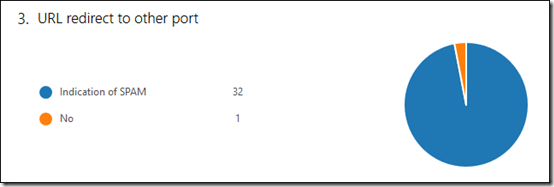
URL direction to another port = ON

image

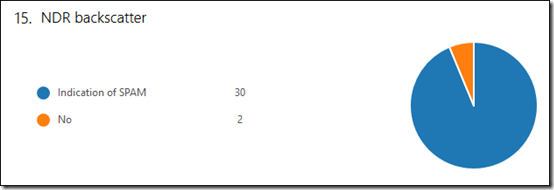
Backscatter = ON

image

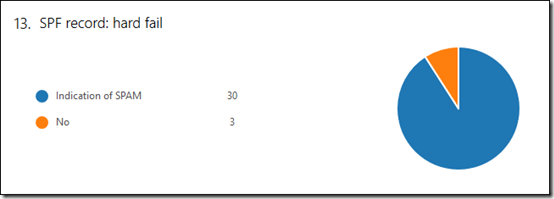
SPF Hard fail = ON

image

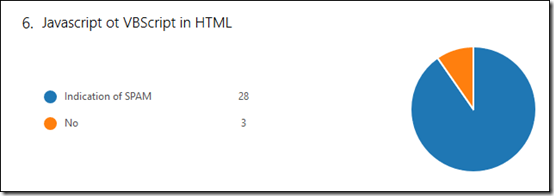
Scripts in HTML = ON

image

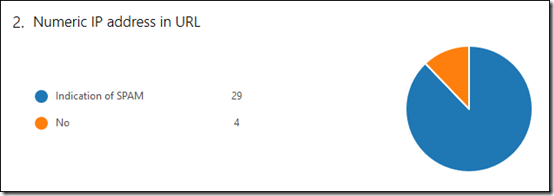
Numeric IP addresses in URL = ON

image

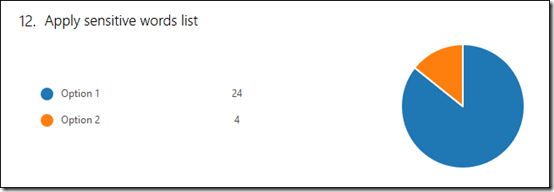
Apply sensitive words list = ON

image

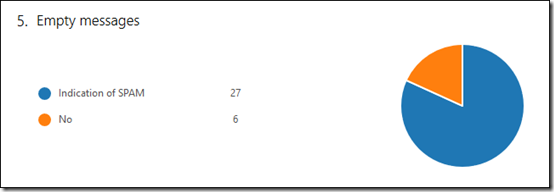
Empty Messages = ON

image

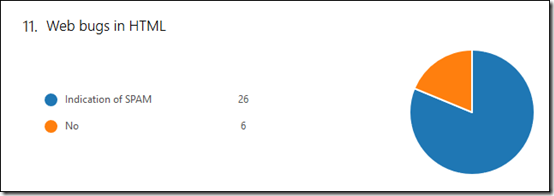
Web Bugs = ON

image

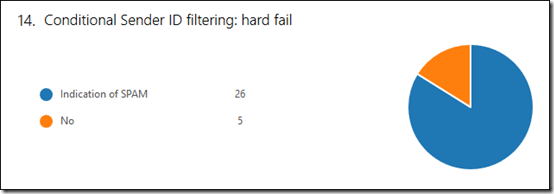
Condition Sender hard fail = ON

image

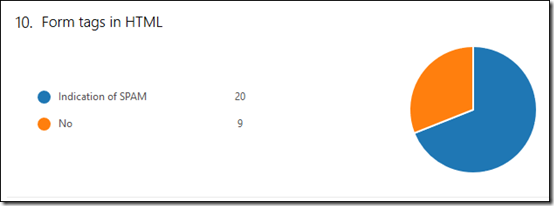
Form Tags in HTML = ON

image

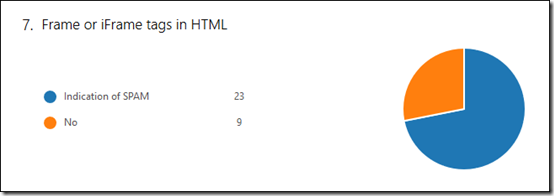
Frame or iFrame tags in HTML = ON

image

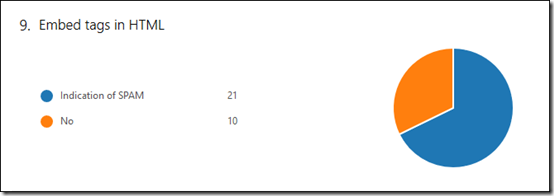
Embed Tags in HTML = ON

image

Next, the one’s that should be off are:

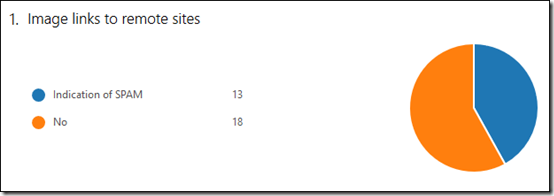
Image links in Remote Site = OFF

image

Lastly, border line results that you probably want to set on if you want aggressive anti spam or off if you want relaxed.

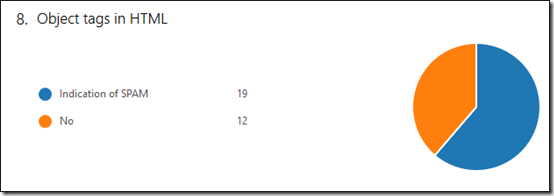
Object tags in HTML = ?

image

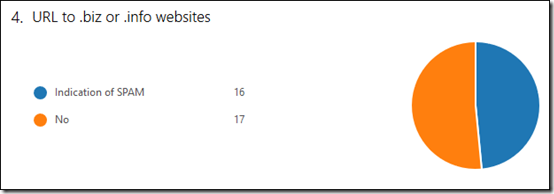
URL to .INFO or .BIZ sites = ?

image

I’ll leave the survey running and you can check the results at any time in the future here.

In upcoming post I’ll show you how to set these options inside Office 365. However, thanks to the wisdom of the crowd (thanks to all who voted) we have an idea of what the settings should be.

SPAM filtering Office 365–Help shape a best practice

image

I hear a lot of people say that they don’t find Office 365 anti-spam filtering as good as other providers. My reply to that is – “Have you ever actually gone in and configured the settings from what is there by default?”. Unsurprisingly, the answer is always No.

The out of the box spam settings you get with Office 365 are designed for the “average” and probably configured for the least business interruption (i.e. less aggressive classification of what is spam). Thus, to get the optimal level of filtering you desire, it is recommended that you go and set the options the way that you want.

I have configured my tenant for the way I wish to handle spam but that is probably not exactly the best place for people to start. So with that in mind I thought that I’d call on the power of the crowd and offer up a survey were people can nominate what they consider to be major indicators of spam, based on the policy options that Microsoft provide. You’ll find that survey here:

http://bit.ly/o365spam

which I encourage you to fill out and share with everyone else.

The idea is that once the results are in I report back on an overall “best practices” starting policy that the majority would feel comfortable with. I can then also show you how to exactly configure that in Office 365.

So please take a moment to complete the survey and share you expertise and thought on the ‘best practice’ approach of configure anti-spam policies in Office 365.

You can find the details on the specific advanced spam filtering options in Office 365 here:

http://technet.microsoft.com/en-us/library/jj200750(v=exchg.150).aspx

CIAOPS Need to Know Office 365 Webinar–June

laptop-eyes-technology-computer

For June, I’m going to help you understand which Office 365 collaboration service you should use when. I’m going to give you a framework that you can apply across just about any organisation to help you make the most of services like Teams, SharePoint, OneDrive, Yammer and so on. I’ll also bring you up to date with everything happening in the Microsoft and Office 365 space as always.

You can register for free at:

June Webinar Registrations

The details are:

CIAOPS Need to Know Webinar – June 2018
Thursday 28th of June 2018
11am – 12am Sydney Time

All sessions are recorded and posted to the CIAOPS Academy.

There of course will also be open Q and A so make sure you bring your questions for me and I’ll do my best to answer them.

The CIAOPS Need to Know Webinars are free to attend but if you want to receive the recording of the session you need to sign up as a CIAOPS patron which you can do here:

http://www.ciaopspatron.com

or purchase them individually at:

http://www.ciaopsacademy.com/

Also feel free at any stage to email me directly via director@ciaops.com with your webinar topic suggestions.

I’d also appreciate you sharing information about this webinar with anyone you feel may benefit from the session.

New CIAOPS classroom training

pexels-photo-355223

I am pleased to announce the first CIAOPS hosted classroom training event.

How to migrate your SMB business to the Microsoft Cloud

Are you puzzled by the best approach to use when migrating a business to Microsoft 365 and Azure? Are you unsure of which services to use and when? Are you unsure how to cost cloud solutions? These and all your Microsoft cloud questions will be answered in this full day, face to face hands on training session. You’ll not only learn what products like Microsoft 365 and Azure are, you’ll learn how to effectively price solutions as well as frameworks that you can apply repeatedly to bring you success with migration, adoption and support. Best of all, you’ll see all the products in action via live demos.

This course is limited to 25 attendees, so hurry to secure your spot today!

Date = Thursday July 19th, 2018
Time = 9am – 5pm
Location = Cliftons Sydney, 60 Margaret St Sydney NSW 2000

Prices

Gold Patron = $149 inc
Silver Patron = $199 inc
Bronze Patron = $299 inc
Non Patron = $399 inc

More information about the CIAOPS Patron program can be found at www.ciaopspatron.com.

At the successful completion of this event it is planned to run this course at venues around Australia. To register your interest for a particular location please visit this link.

More information about the course and registration can be found here:

https://www.ciaopsacademy.com/p/how-to-migrate-your-smb-business-to-the-microsoft-cloud/

I hope to see you there.

Searching the Office 365 activity log for failed logins

image

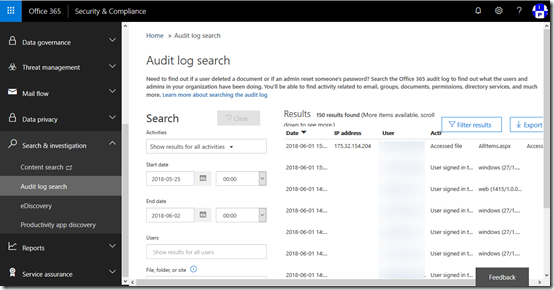
Inside the Office 365 Security & Compliance center, under the Search & investigation menu option on the left you’ll find Audit log search as shown above.

To run a search simply provide a start and end date and select the Search button at the bottom of the screen. You can refine your search by selecting a list of different activities if you want but here we’ll leave the option set to Show results for all activities.

Once the search results are returned you’ll see lots and lots of items as shown above.

image

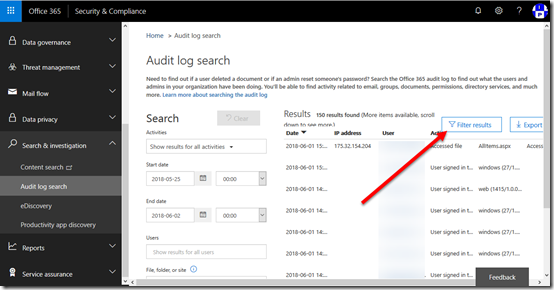
If you now select the Filter results button in the top right, each column will now display a box at the top that you can enter text into.

image

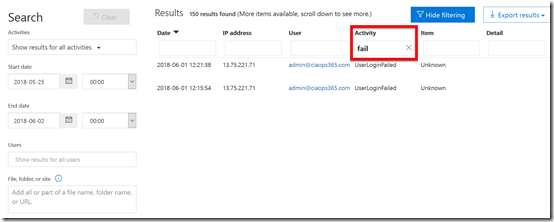
You can now go into the column headers and enter further filtering information. Here I have added the text ‘fail’ to the Activity column as shown. This produces two results for failed user logins.

Adding a filter now only shows the matches on the page.

image

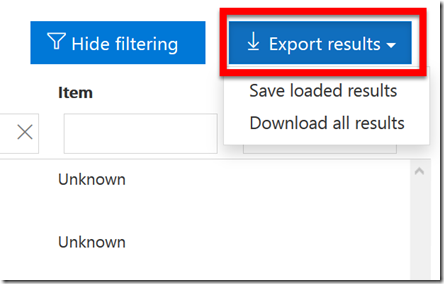
You can also export the data into CSV file by selecting the Export results button next to the filter button.

You can either download everything in the audit logs (Download all results) or just your search query (Save loaded results). Here I have select the Save loaded results option.

image

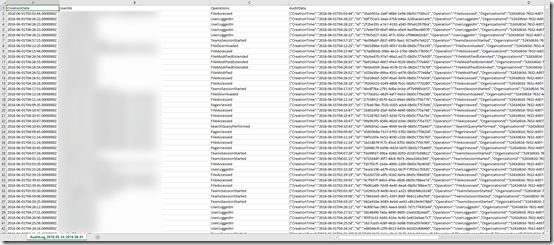
This will then download a CSV file that you can open in Excel and will look like the above.

image

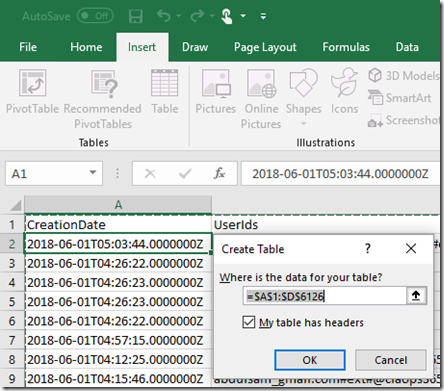
To make these easier to read you should convert the out to a table from the Insert tab and then select the Table icon.

image

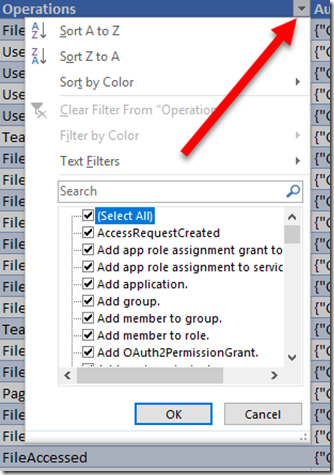
Now that you have a table go to the top row of the Operations column and select the arrow to the right of this as shown. This will display the above menu. Uncheck the Select all option at the top of the list in the lower portion of the displayed dialog box.

image

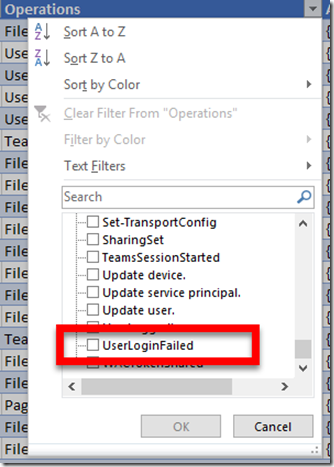
Scroll down this same list and locate the UserLoginFailed option and select it.

This will now basically filter the whole tables of entries to only display those that have a match is UserLoginFailed in the operations column.

image

Which is exactly the result that you see obtained above and the same results we received from the console.

Thus, you can search the audit logs inside Office 365 directly from the portal but you can also export them to Excel to gain more power over how you wish to manipulate and report these events.

Selecting sites to include/exclude in Office 365 DLP

image

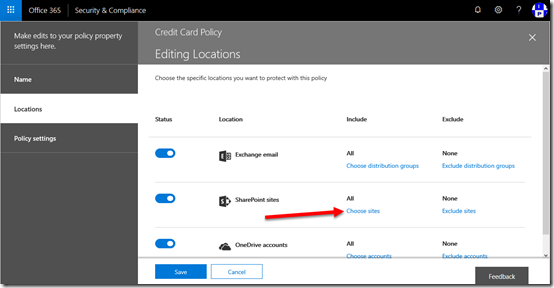
When you create a DLP policy you have the option to exclude or include certain SharePoint sites as shown above.

SNAGHTML6159fb77

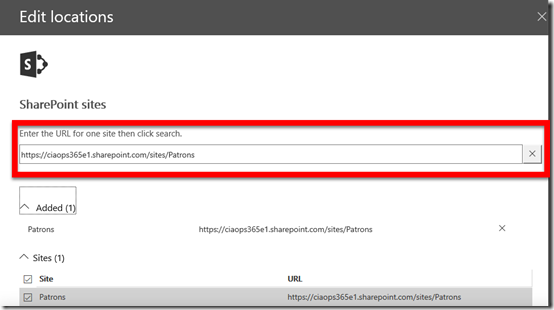
If the sites you wish to include or exclude are anything but the default team site (i.e. https://tenant.sharepoint.com) then you need to manually search for the URL.

Thus, if you are looking to include or exclude a SharePoint site that was created by Microsoft Teams then you need to explicitly search for it by URL to add it to your list as shown above.

Office 365 DLP Document Finger Printing

Data Loss Prevention (DLP) is a way of preventing sensitive information inside you organisation from being sent places you don’t want. Office 365 E3 and above have always included DLP but now Microsoft 365 Business also includes DLP.

There a number of different options you can configure when it comes to DLP inside Office 365. One of these ways is to use DLP is via Document Fingerprinting that allows Office 365 to check information against a template you provide.

Here’s how it works.

image

The first thing I do is create a template of the information I want to be fingerprinted against. Here I have created an invoice template as shown above. Thus, information being sent from my tenant will be checked (‘fingerprinted’) against this to prevent documents that ‘look like’ this template from being sent externally.
image

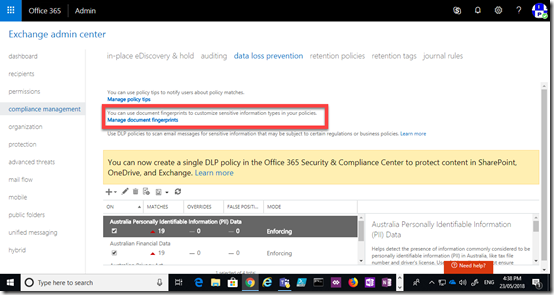
To configure DLP Document Fingerprinting you’ll need to navigate to the Exchange Admin Center and then the compliance management option on the left. You’ll then need to select the data loss prevention option at the top of the page on the right.

On this page you’ll need to select the Manage document fingerprints hyperlink in the top half of the page as shown above. 

image

Here you will see any document fingerprints already configured. Press the plus (+) key to add a new fingerprint document.

image

Simply give the fingerprint a name (in this case Invoice – DLP).

image

In the lower window you’ll need to select the plus (+) symbol and upload the template document that you have created. In my case, I’m going to upload the invoice template shown earlier.

Save you selections.

image

In the lower part of the data loss prevention page you’ll see a list of DLP policies in your tenant. Some of these policies may have been created elsewhere (like the Office 365 Security and Compliance Center). Locate the document fingerprint policies you just created (here called Check for Invoices), select it and then select the edit icon from the menu at the top as shown.

image

You can then further configure the DLP policy. Here I have elected to enable and enforce the policy but there are other options you can select.

Select the rules option from the menu on the left.

image

To create a new rule, select the plus (+) icon from the menu across the top.

image

Here is where you will create the outbound transport rule to check information sent via email. In this case, the rule will apply of the recipient is outside my Office 365 tenant.
image

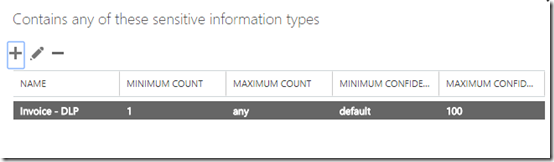
When I select the type of sensitive information I can now select from the document fingerprint I just created.

When there is a policy match, I then elect to block the document, notify the user via a policy tip and send a report to a nominated user.

image

With my new document fingerprinting DLP policy in place I now create a new invoice based on the original template as shown above that you can see is different from the original template but still similar in format.

image

As you can see above, when I attempt to attach this new document via Outlook on the desktop that looks like the previously configured fingerprint document, it activates my DLP policy and prevents the item being sent outside the organisation as desired.

image

I get a similar result if I try and do this using the Outlook Web Client (OWA).

image

I get a policy tip at the top of email as shown above.

image

and when I attempt to send the email I can’t. DLP in action!

This is one example of the DLP capabilities of suitably licensed Office 365 and Microsoft 365 tenants. DLP is great way to prevent standard information, like invoices, being accidentally or maliciously sent outside your organisation.

As I mentioned, DLP is now part of Microsoft 365 Business which means that it an even more enticing offering for SMB who are subject to compliance regulations.