Create Office 365 Activity Alerts using PowerShell

In a previous article:

Create Office 365 Alerts

I detailed how to create Office 365 Activity alerts using the browser. I will point out how important it is to have appropriate alerts set for your tenant, especially when you generally don’t get many configured . your tenant by default.

Of course doing administration tasks via a browser is the slow way to get things done. A much better approach is to use PowerShell and let the script do the heavy lifting.

The first step in this process is to take a look at the following article:

Search the audit log in the Office 365 Security and Compliance center

and locate the heading – Auditing activities which contains a list of the actions that will trigger an alert. There are plenty of things here so pick those that make the most sense and remember that lots and lots of alerts generally doesn’t improve security, it simply creates information overload.

The alert I’ll chose to illustrate is FileMalwareDetected.

Next step is connect to the Office 365 Security and Compliance Center with PowerShell. I’m not going to show you how to do that here as it is easily located elsewhere like here:

Connect to Office 365 Security & Compliance Center PowerShell

With that done, you can now execute the actual commands to configure activity alerts with PowerShell.

$fileandpagepolicyparams = @{
“Name” = “File and Page Alert”;
“operation” = “Filemalwaredetected”;
“notifyuser” = $notifyusers;
“userid” = $userids;
“Description” = “SharePoint anti-virus engine detects malware in a file.”;
}

$result=New-ActivityAlert @fileandpagepolicyparams

Basically, what I’m doing here is creating an array called $fileandpagepolicyparams that contains all the options required for the command that will set the alert. Doing it this way makes it easier to what’s going on and make any additions if needed in my opinion.

The New-ActivityAlert command takes all those array parameters as inputs when an alert is now created.

The $notifyusers are the users you want to receive emails when alerts occurs. The $userids are the users you wish to trigger alerts. If you leave $userids empty it will apply the alert to all users in the tenant.
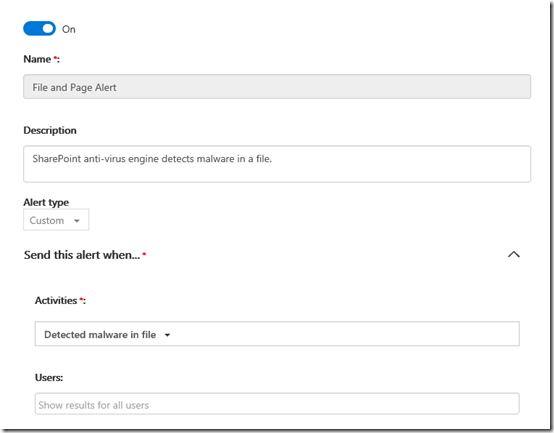
image

You can see the result above once that command is run.

Now the idea is to build a script that configures all the activity alerts you desire and then apply them to a tenant.

image

As you can see above, I generally create about a dozen or so alert policies this way that monitor for a range of activities I believe should have alerts configured for. However, you need to decide what makes sense for you.

Now be very, very careful when you configure activity alerts via PowerShell. Ensure you get all the parameters 100% correct and you check the alert policies in the web interface when you are testing your script, because errors in the script don’t get reported and you end configuring an activity alert that does nothing all because you got a parameter wrong!
Saving Office 365 Login Credentials with PowerShell

I need to log into lots and lots of different Office 365 tenants all the time. Having an easier way to do this and prevent fat fingering the wrong information is a big time saver for me. This is even more the case when I use PowerShell.

I therefore decided that it would be easier to have the ability to save tenant credentials to a local file and then recall these as needed. To save the credentials to an XML file use the command:

Get-Credential | Export-CliXml -Path c:\downloads\tenant.xml

This will prompt you for a login and password as normal but then save the results into an XML in the location you specified.

image

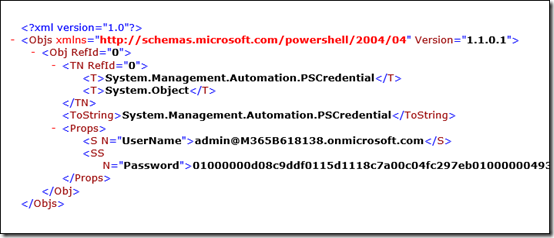
If you look at the XML file created, you can see the username as expected but you’ll notice that the password has been saved securely rather than in plain text.

It is important to note here that this file now contains the access details to the tenant. You need to ensure that the file remains secure because if someone else manages to get it they maybe able to login to the tenant! Beware!

To extract the details from the file and save them into a variable you can use in PowerShell use the following command:

$credential=import-clixml -path c:\downloads\tenant.xml

now you can connect to Office 365 services as normal using:

connect-msolservice –credential $credential

and you you won’t be prompted for the login details.

Hopefully, I’ve covered all the steps in the video above, so you can see it all in action from end to end.

Enabling Office 365 mailbox auditing

You may not be aware that by default Office 365 mailbox auditing isn’t turned on. Don’t believe me? Well check out this article, especially the first paragraph:

Enable mailbox auditing in Office 365

which says:

In Office 365, you can turn on mailbox audit logging to log mailbox access by mailbox owners, delegates, and administrators. By default, mailbox auditing in Office 365 isn’t turned on. That means mailbox auditing events won’t appear in the results when you search the Office 365 audit log for mailbox activity. But after you turn on mailbox audit logging for a user mailbox, you can search the audit log for mailbox activity. Additionally, when mailbox audit logging is turned on, some actions performed by administrators, delegates, and owners are logged by default.

If you want to check your own tenant then connect to Exchange Online with PowerShell and run this command:

get-mailbox | select userprincipalname,auditenabled

You’ll probably see that all the mailboxes don’t have auditing enabled.

To enable auditing, simply run this command:

Get-Mailbox -ResultSize Unlimited | Set-Mailbox -AuditEnabled $true

and then run the first command again to verify it is now enabled for all mailboxes.

You also need to appreciate that out of the box, not all items are audited and you may need to adjust these options, also using PowerShell. The options you can audit for are:

Mailbox auditing actions

I’ll cover how to set these in an upcoming article.

Configuring an Office 365 SPAM filtering policy with PowerShell

I recently wrote an article that shows you how to configure the spam policy in Office 365 using the web interface. If you missed that you can find it here:

Configuring an Office 365 SPAM filtering policy

Doing this multiple times via the web interface is a lot of work. A better approach is to use PowerShell. So once, how have connected to Exchange Online PowerShell, run these two commands:

$policyparams = @{
“name” = “Configured Policy”;
‘Bulkspamaction’ =  ‘movetojmf’;
‘bulkthreshold’ =  ‘7’;
‘highconfidencespamaction’ =  ‘movetojmf’;
‘inlinesafetytipsenabled’ = $true;
‘markasspambulkmail’ = ‘on’;
‘increasescorewithimagelinks’ = ‘off’
‘increasescorewithnumericips’ = ‘on’
‘increasescorewithredirecttootherport’ = ‘on’
‘increasescorewithbizorinfourls’ = ‘on’;
‘markasspamemptymessages’ =’on’;
‘markasspamjavascriptinhtml’ = ‘on’;
‘markasspamframesinhtml’ = ‘on’;
‘markasspamobjecttagsinhtml’ = ‘on’;
‘markasspamembedtagsinhtml’ =’on’;
‘markasspamformtagsinhtml’ = ‘on’;
‘markasspamwebbugsinhtml’ = ‘on’;
‘markasspamsensitivewordlist’ = ‘on’;
‘markasspamspfrecordhardfail’ = ‘on’;
‘markasspamfromaddressauthfail’ = ‘on’;
‘markasspamndrbackscatter’ = ‘on’;
‘phishspamaction’ = ‘movetojmf’;
‘spamaction’ = ‘movetojmf’;
‘zapenabled’ = $true
}

new-hostedcontentfilterpolicy @policyparams

The first basically sets up an array of all the parameters you are going to see into the spam policy. It makes it easier to adjust if you need to.

The second command creates a new policy based off this array that will be called ‘Configured Policy’.

However, after running these two commands you aren’t quite done yet because you have created the policy BUT you actually need to create a rule that uses this policy to do that use the following:

$ruleparams = @{
‘name’ = ‘Configured Recipients’;
‘hostedcontentfilterpolicy’ = ‘Configured Policy’;
## this needs to match the above policy name
‘recipientdomainis’ = ‘domain.com’;
## this needs to match the domains you wish to protect in your tenant
‘Enabled’ = $true
}

New-hostedcontentfilterrule @ruleparams

You’ll need to ensure the policy names match as noted and you include the domains you wish to protect.

image

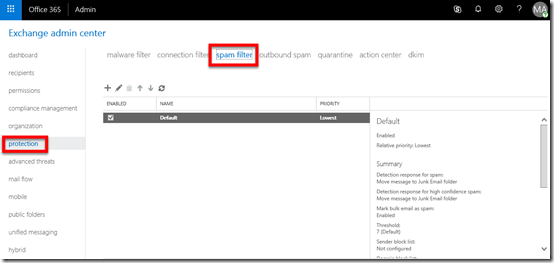
Once this has been completed, if you go and look in your Exchange Admin area, under protection and spam filter, you should see a new policy called ‘Configured Recipients’ that was created by the above script commands.

Save the script away and run it as many times as you need. That should make life easier!

Free CIAOPS Yammer support network

image

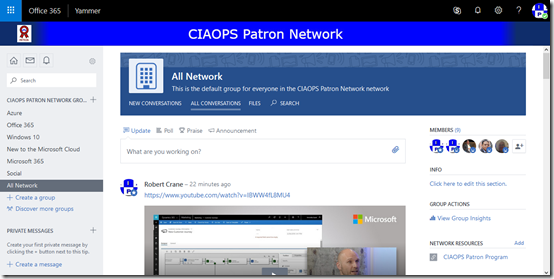
I am happy to announce that I have set up a free CIAOPS Patron support network on Yammer that is focused on the Microsoft Cloud. In there I have groups on Azure, Microsoft 365, Office 365, Windows 10 and more. Members can ask questions, reply to posts as well as a share interesting information to help others.

Although access to this network is free it is by invite only, so if you want access you’ll need to send me an email (director@ciaops.com) requesting access.

I’ve done this in Yammer for a few reasons. Firstly, it is going to give me the experience of managing a ‘larger’ Yammer external network. This will hopefully improve both my technical experience with the product but also skill me more on how to successfully implement adoption. Secondly, I’ve hopefully giving people a way to get a feel for what Yammer is all about, how it works and what benefits it provides. Yammer for me is probably the most important adoption tool as I have said before:

Focus on the “me” services first

so hopefully giving people a reason to come and experience Yammer for themselves will give them a better idea of what role it can play in a business.

Again, this offering is free but by invite only. To secure your invite just email me at director@ciaops.com.

Need to Know podcast–Episode 183

I’m joined by Gabe Long from Microsoft to look at Microsoft 365 Business in depth. Gabe has been involved with the Microsoft 365 Business product since its launch and shares with use all the great new stuff that has been added since April. Of course there is news and updates from myself and Brenton bringing you up to date with the latest from the Microsoft Cloud.

Take a listen and let us know what you think –feedback@needtoknow.cloud

You can listen directly to this episode at:

https://ciaops.podbean.com/e/episode-183-gabe-long/

Subscribe via iTunes at:

https://itunes.apple.com/au/podcast/ciaops-need-to-know-podcasts/id406891445?mt=2

The podcast is also available on Stitcher at:

http://www.stitcher.com/podcast/ciaops/need-to-know-podcast?refid=stpr

Don’t forget to give the show a rating as well as send us any feedback or suggestions you may have for the show.

Resources

Gabe Long

@contactbrenton

@directorcia

CIAOPS Patron program

Upcoming CIAOPS classroom training

Microsoft acquires GitHub

Windows switch to GitHub

Enhanced User Experience for Office 365 Advanced Threat Protection

Office 365 Advanced Threat Protection

What’s new and what’s next with Windows Autopilot

Modernize your SharePoint team sites by connecting them to new Office 365 Groups

Share your mobile screen in Teams meeting

Introducing list sharing in Microsoft To Do

Standard SSD disks for Azure VMs

3 reasons why Azure’s infrastructure is secure

Storage Explorer in Azure portal

Configuring an Office 365 SPAM filtering policy

A common complaint I hear about Office 365 from IT Professionals is that it doesn’t filter spam as well as other third party solutions. My immediate question at that point is always “Well, have you actually gone in and configured ANY of the spam settings in Office 365 to improve your results?” to which the answer is always No. Thus, if you don’t take the time to customise what you get out of the box you’ll only get an out of the box solution which is probably not what you want! Thus, some configuration is required for EVERY Office 365 tenant to improve its spam filtering abilities.

The out of the box spam settings for Office 365 are not configured in an aggressive manner and you should go in and make changes from the defaults I would suggest. Here’s how to do that.

image

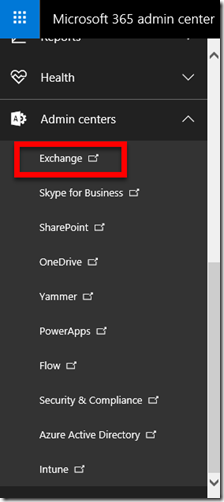
You’ll firstly need to login to the Office 365 portal as an administrator with rights to make changes. You’ll need to then navigate to the Office 365 Admin Center and select from the Admin centers on menu on the left hand side. You’ll find the Admin centers option right at the bottom.

From the list of options that now appear select Exchange as shown above.

image

This will take you to the Exchange Admin center as shown above. In here select the protection option on the left and then spam filter on the right.

You will then typically see a single policy called Default.

image

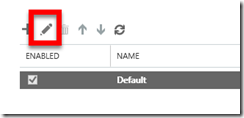
With this default policy selected, press the edit button (pencil) from the menu to view what settings this default policy has.

SNAGHTML58800d3

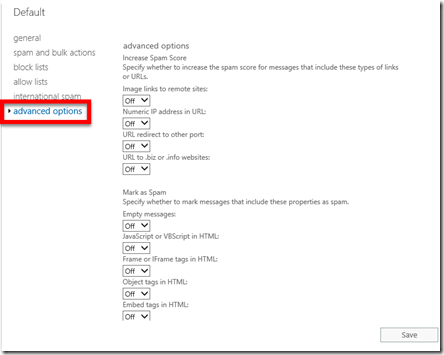
Select the different menu options on the left to view all the settings. Most you will see, like in the advanced settings shown above, are set to off.

You can of course edit this default policy, however it is better practice to go back to the list of policies and create a new one and leave the default one in place.

image

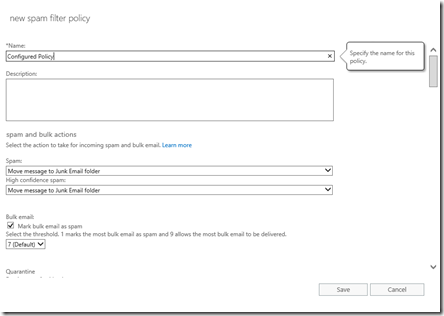
When you create a new policy using the plus button (+) a new dialog will appear like show above.

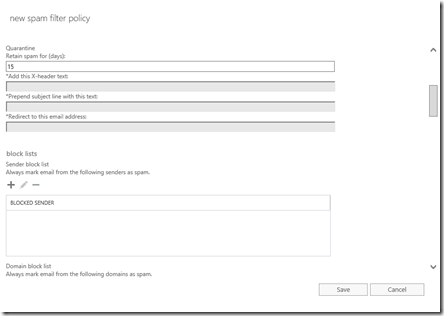
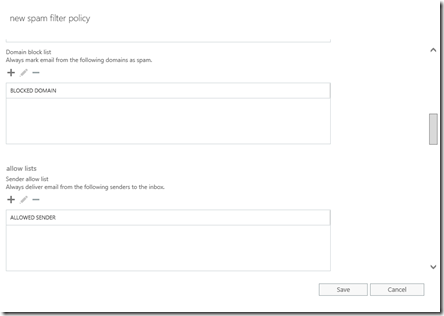
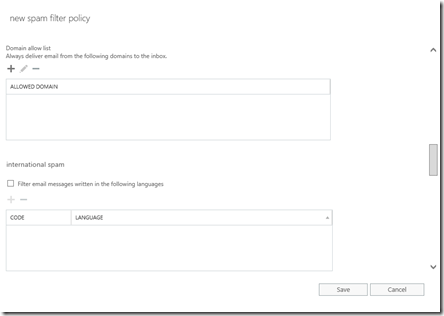
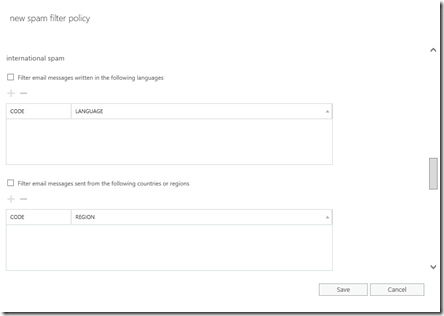
Give the new policy a name and now scroll through the settings to configure them for your needs.

image

image

image

image

image

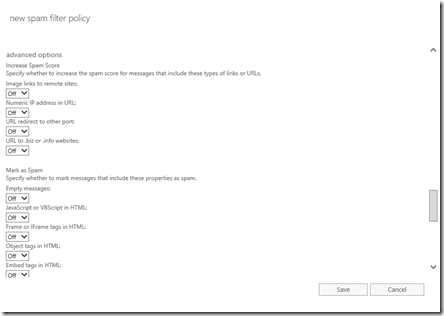
When you reach the advanced options towards the bottom you’ll see a number of options that can set on or off. The crowd sourced results I obtained for these were:

Image links to remote sites = OFF

Numeric IP addresses = ON

URL redirect to other port = ON

URL to .biz or .info websites = ON

Empty messages = ON

Javascript or VBScript in HTML = ON

Frame or iFrame tags in HTML = ON

Object tags in HTML = ON

Embed tags in HTML = ON

Form tags in HTML = ON

Web bugs in HTML = ON

Apply sensitive word list = ON

SPF record hard fail = ON

Conditional sender ID hard fail = ON

NDR backscatter = ON

image

You can then set whether the policy will simply run in test mode if you wish.

image

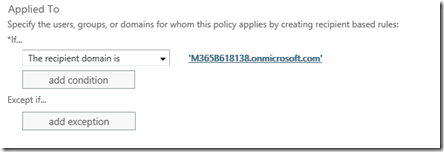
The final option is to determine where this policy will apply. Normally you want this across all your domains and users but as you see, you can have different policies for different users and domains if you wish.

All you now need to do is save the policy and start monitoring the results.

Hopefully, you can now see that out of the box Office 365 does take a very relaxed approached to spam which is not uncommon for most spam protection products. You can, and should, of course go in and configure the available options to be more restrictive. When you do this you will of course get much better results.

This post showed you how to make spam filter setting via the web interface, a much better and more consistent approach across many tenants is to do this using PowerShell. Look out for an upcoming article on this.