
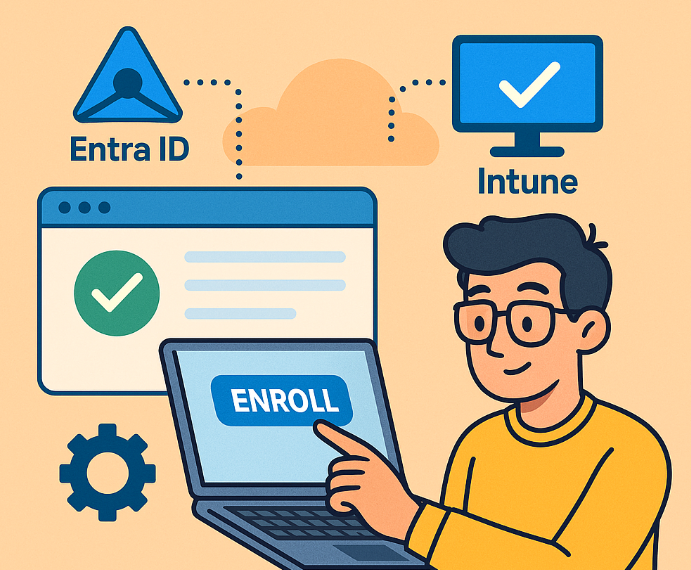
When a device is Entra ID joined *before* the user has an Intune license or before automatic MDM enrollment is configured for that user/group, it won’t automatically enroll in Intune.
Here’s how to get it enrolled without needing to unjoin and rejoin Entra ID (which is the more disruptive option):
Method 1: Trigger Enrollment via Settings (Easiest & Preferred)
This is often the simplest way if automatic enrollment is now correctly configured for the user.
-
Ensure Prerequisites:
- Intune License: Confirm the user logging into the Windows device has an active Intune license assigned (e.g., part of Microsoft 365 E3/E5/F3, EMS E3/E5, or a standalone Intune license).
- MDM User Scope: In the Microsoft Entra admin center (entra.microsoft.com):
- Navigate to Devices > Enrollment > Windows enrollment.
- Click on Automatic Enrollment.
- Ensure the MDM user scope is set to All or a group that the licensed user is a member of. (The MAM user scope is for a different purpose, usually BYOD).
- Navigate to Devices > Enrollment > Windows enrollment.
- CNAME Records: While Entra ID join worked, it’s good to ensure your DNS CNAME records for
EnterpriseRegistrationandEnterpriseEnrollmentare correctly pointing to Microsoft’s services. This is usually fine if Entra join worked, but it’s a foundational piece for MDM enrollment.
- Intune License: Confirm the user logging into the Windows device has an active Intune license assigned (e.g., part of Microsoft 365 E3/E5/F3, EMS E3/E5, or a standalone Intune license).
-
On the Windows Device:
- Log in as the user who has the Intune license.
- Go to Settings > Accounts > Access work or school.
- You should see “Connected to ‘s Microsoft Entra ID”.
- Click on this connection, then click the Info button.
- Look for a Sync button. Click it.
- This action forces the device to re-evaluate its MDM enrollment status with Entra ID. If the user is now in scope and licensed, it should trigger the Intune enrollment process.
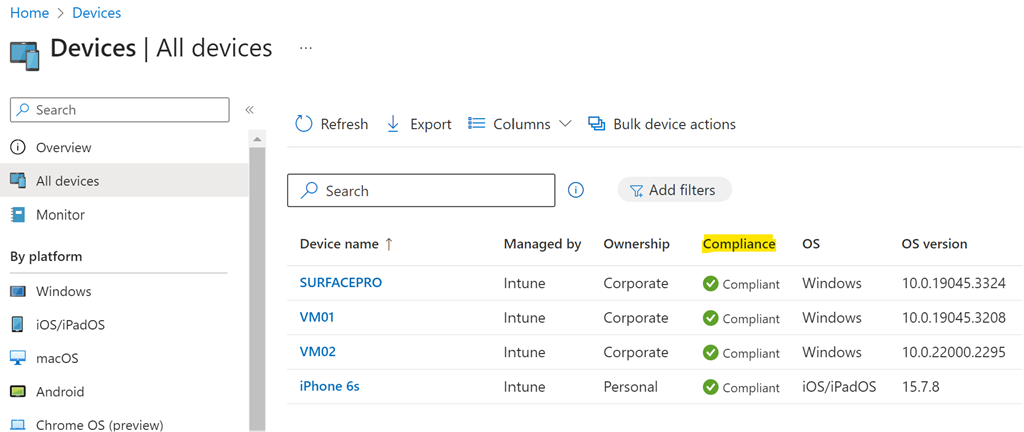
- Wait: Enrollment can take a few minutes. You might see a notification, or you can check the Intune portal (Microsoft Intune admin center) under Devices > Windows to see if the device appears and its compliance status.
- Reboot: Sometimes a reboot helps kickstart the process after clicking “Sync.”
- Log in as the user who has the Intune license.
Method 2: Enroll via Company Portal App
- Ensure Prerequisites: Same as Method 1 (License and MDM User Scope).
- On the Windows Device:
- Install the Company Portal app from the Microsoft Store.
- Open the Company Portal app.
- Sign in with the Entra ID credentials of the licensed user.
- The Company Portal app will typically detect that the device isn’t yet managed by Intune and will guide the user through the enrollment process. Follow the on-screen prompts.
- Install the Company Portal app from the Microsoft Store.
Method 3: Enroll Only in Device Management (Less Common for this scenario but an option)
This method is typically for devices that are not Entra ID joined but you want to enroll them into Intune. However, it can sometimes nudge an already Entra ID joined device.
- Ensure Prerequisites: Same as Method 1.
- On the Windows Device:
- Go to Settings > Accounts > Access work or school.
- Click Connect.
- Crucially, on the “Set up a work or school account” screen, look for a link that says something like “Enroll only in device management” or similar phrasing. Do not just type the email address in the main box, as that will try to Entra ID join it (which it already is).
- Enter the user’s Entra ID email address and follow the prompts.
- Go to Settings > Accounts > Access work or school.
Troubleshooting & Verification:
- Check Intune Portal: After attempting enrollment, go to the Microsoft Intune admin center (intune.microsoft.com) > Devices > Windows. Search for the device. It might take 5-30 minutes (sometimes longer) to appear or update its status.
- Event Viewer on the Device:
- Open Event Viewer.
- Navigate to
Applications and Services Logs > Microsoft > Windows > DeviceManagement-Enterprise-Diagnostics-Provider > Admin.
- Look for events related to MDM enrollment (Event ID 75 or 76 often indicate successful enrollment). Errors here can give clues.
- Open Event Viewer.
- Check MDM URLs in Registry (Advanced):
- Open Registry Editor (
regedit).
- Navigate to
HKEY_LOCAL_MACHINE\SOFTWARE\Microsoft\Enrollments.
- Look for a subkey with a GUID. Inside, you should find values like
DiscoveryServiceFullUrl,EnrollmentServiceFullUrl,PolicyServiceFullUrlpointing to Intune services (e.g.,https://enrollment.manage.microsoft.com/...). If these are present, enrollment likely succeeded or is in progress.
- Open Registry Editor (
- Patience: Sometimes it just takes a little while for all the syncs to happen.
Last Resort (If the above fails and you’re sure licensing/scoping is correct):
- Disconnect from Entra ID and Rejoin:
- Backup important local data if any.
- Go to Settings > Accounts > Access work or school.
- Click the “Connected to ‘s Microsoft Entra ID” account and click Disconnect. Confirm the disconnection.
- Reboot the device.
- After rebooting, go back to Settings > Accounts > Access work or school.
- Click Connect.
- Choose to Join this device to Microsoft Entra ID and sign in with the licensed user’s credentials.
- This fresh join process should trigger the Intune enrollment immediately, assuming automatic enrollment is configured.
Start with Method 1 (Sync button) as it’s the least invasive. Method 2 (Company Portal) is also very reliable.
















 CIAOPS