

Blocking Applications on Windows Devices using Intune (M365 Business Premium)
Managing which applications can run on company devices is crucial for security and productivity. Microsoft Intune (part of Microsoft 365 Business Premium) offers powerful ways to block or restrict applications on Windows 10/11 devices. This guide explains the most effective method – using Intune’s Mobile Device Management (MDM) with AppLocker – in a step-by-step manner. We also cover an alternative app-level approach using Intune’s Mobile Application Management (MAM) for scenarios like BYOD.
Introduction and Key Concepts
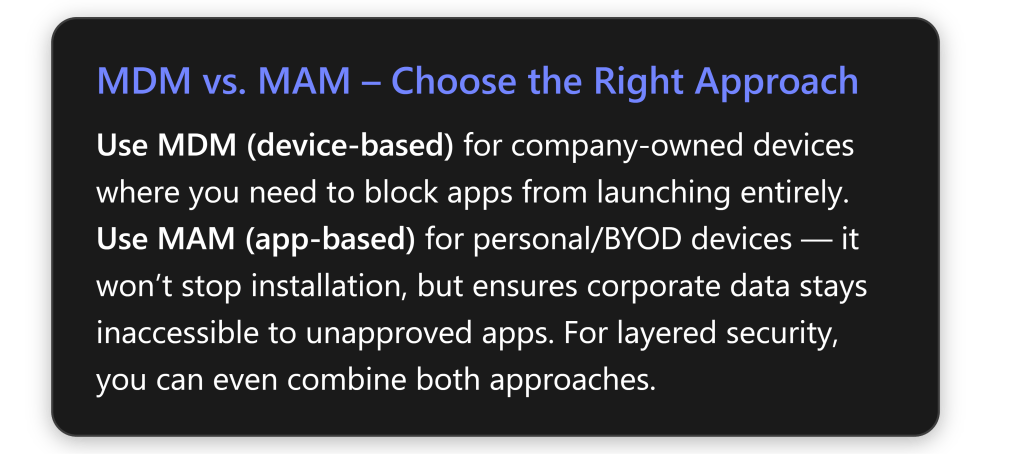
Microsoft Intune is a cloud-based endpoint management service (included with M365 Business Premium along with Azure AD Premium P1) that provides both MDM and MAM capabilities[1]. In the context of blocking applications on Windows:
- MDM (Mobile Device Management) means the Windows device is enrolled in Intune, allowing IT to enforce device-wide policies. With MDM, you can prevent an application from launching at all on the device[1][1]. Attempting to run a blocked app will result in a message like “This app has been blocked by your system administrator”[1]. This is ideal for corp-owned devices where IT has full control.
- MAM (Mobile Application Management) uses App Protection Policies to protect corporate data within apps without full device enrollment. Instead of stopping an app from running, MAM blocks the app from accessing or sharing company data[1][1]. Users can install any app for personal use, but if they try to open corporate content in an unapproved app, it will be prevented or the data will remain encrypted/inaccessible[1]. This is suited for BYOD scenarios.
Most Effective Method: In a typical small-business with M365 Business Premium, the MDM approach with AppLocker is the most direct way to block an application on Windows devices – it completely prevents the app from launching on managed PCs[1][1]. The MAM approach is effective for protecting data (especially on personal devices) but does not physically stop a user from installing or running an app for personal use[1]. Often, MDM is used on corporate devices and MAM on personal devices to cover both scenarios without overreaching on user’s personal device freedom[1][1].
Prerequisites and Setup
Before implementing application blocking, make sure you meet these prerequisites[1][1]:
- Intune License: You have an appropriate Intune license. Microsoft 365 Business Premium includes Intune, so if you have M365 BP, you’re covered on licensing and have the necessary admin access to the Intune admin center[1][1].
- Supported Windows Edition: Devices should be running Windows 10 or 11 Pro, Business, or Enterprise editions. (Windows Home is not supported for these management features[1].) Ensure devices are up to date – recent Windows 10/11 updates allow AppLocker enforcement even on Pro edition (the historical limitation to Enterprise has been removed)[1][1].
- Device Enrollment (for MDM): For device-based blocking, Windows devices must be enrolled in Intune (via Azure AD join, Hybrid AD join, Autopilot, or manual enrollment)[1]. Enrollment gives Intune the control to push device configuration policies that block apps.
- Azure AD and MAM Scope (for app protection): If using app protection (MAM) policies, users should exist in Azure AD and you need to configure the MAM User Scope so Intune can deliver app protection to their devices[1]. In Azure AD -> Mobility (MDM and MAM), set Intune as the MAM provider for the relevant users/groups. (Typically, for BYOD scenarios you might set MDM scope to a limited group or none, and MAM scope to all users[1].)
- Administrative Access: Ensure you have Intune admin permissions. Log into the https://endpoint.microsoft.com (also known as Microsoft Endpoint Manager portal) with an admin account to create policies[1].
- Test Environment: It’s wise to have a test or pilot device/group enrolled in Intune to trial the blocking policy before broad deployment[1]. Also, identify the application(s) you want to block and have one installed on a test machine for creating the policy.
With the basics in place, we can proceed with the blocking methods.
Method 1: Block Applications via Intune MDM (AppLocker Policy)
Overview: Using Intune’s device (MDM) capabilities, we will create an AppLocker policy to block a specific application and deploy that policy through Intune. AppLocker is a Windows feature that allows administrators to define which executables or apps are allowed or denied. Intune can deliver AppLocker rules to managed devices, effectively preventing targeted apps from running[1][1].
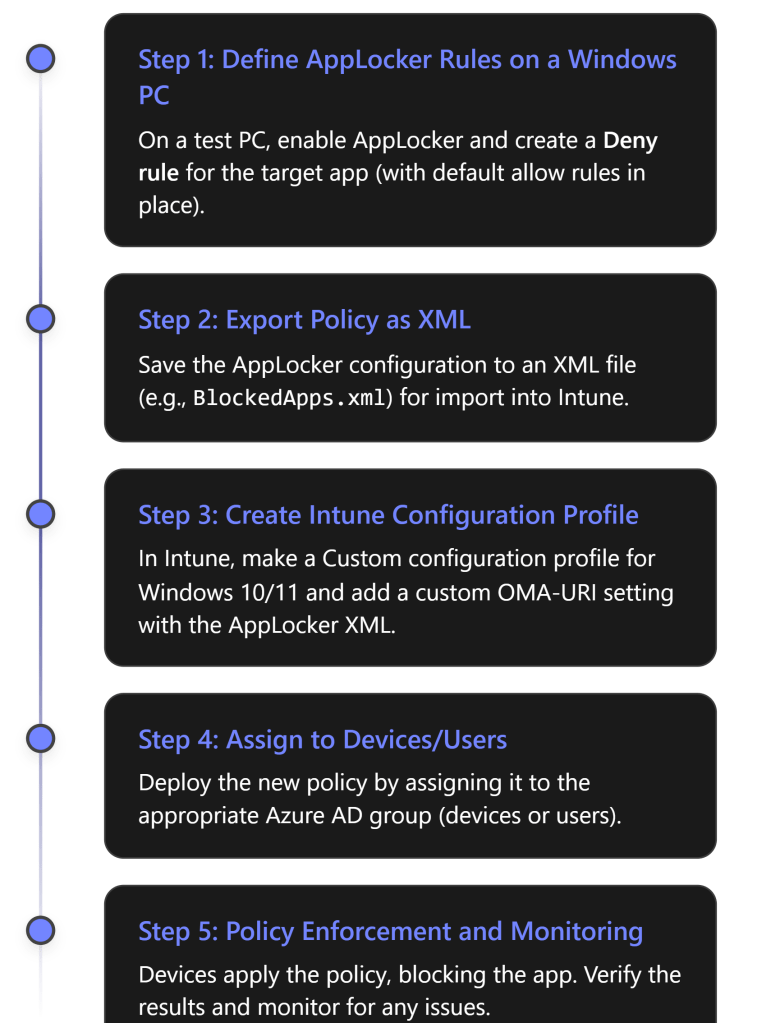
High-Level Steps (MDM + AppLocker):[1]
- Create an AppLocker rule on a reference Windows PC to deny the unwanted application.
- Export the AppLocker policy to an XML file.
- Create an Intune Device Configuration profile (Custom OMA-URI) in the Intune portal and import the AppLocker XML.
- Assign the profile to the target devices or user group.
- Monitor enforcement and adjust if necessary.
We will now go through these steps in detail:
Step 1: Create & Export an AppLocker Policy (Blocking Rule)
First, on a Windows 10/11 PC (your own admin machine or a lab device), set up the AppLocker rule to block the chosen application:
- Open Local Security Policy: Log in as an administrator on the reference PC and run “Local Security Policy” (
secpol.msc). Navigate to Security Settings > Application Control Policies > AppLocker[1]. - Enable AppLocker & Default Rules: Right-click AppLocker and select “Properties.” For each rule category (Executable, Script, Windows Installer (.msi), Packaged app (*.appx)), check “Configured” and set it to “Enforce rules”, then click OK[1]. Next, create the default allow rules for each category: e.g., right-click Executable Rules and choose “Create Default Rules.” This adds baseline allow rules (e.g., allow all apps in
%ProgramFiles%and Windows directories, and allow Administrators to run anything) so that you don’t inadvertently block essential system files or admin actions[1][1]. (Ensuring default rules exist is crucial to avoid locking down the system accidentally.) - Create a Deny Rule for the Application: Decide which app to block and under the appropriate category, right-click and select “Create New Rule…”[1]. This launches the AppLocker rule wizard:
- Action: Choose “Deny” (we want to block the app)[1].
- User or Group: Select “Everyone” (so the rule applies to all users on the device)[1]. (Alternatively, you could target a specific user or group if needed.)
- Condition (Identification of the app): If it’s a classic Win32 app (an EXE), you can choose a Publisher rule (recommended for well-known signed apps), a Path rule, or a File hash rule. For a well-known signed app (e.g., Chrome, Zoom), choosing Publisher is ideal so that all versions of that app from that publisher get blocked[1][1]. You will be prompted to browse for the app’s executable on the system – select the main EXE (for example,
chrome.exeinC:\Program Files\Google\Chrome\Application\chrome.exefor Google Chrome)[1][1]. The wizard will read the digital signature and populate the publisher and product info. You can adjust the slider to define the scope (e.g., blocking any version of Chrome vs. a specific version) – typically, slide to “File name” or “Product” level to block all versions of that app[1]. If blocking a Microsoft Store (UWP) app, switch to Packaged app Rules and select the app from the list of installed packages (e.g., TikTok if installed from Store)[1]. This will use the app’s package identity as the condition. (If the app isn’t installed on your ref machine to select, you can use a File hash, but Publisher rules are easier to maintain when possible[1].) - Complete the wizard by giving the rule a name and optional description (e.g., “Block Chrome”) and finish. You should now see your new Deny rule listed under the appropriate AppLocker rule category[1] (e.g., under Executable Rules for a .exe).
- Confirm Rule Enforcement: Ensure AppLocker enforcement is enabled (the earlier step of setting to Enforced in Properties should handle this). With the deny rule created and default allow rules in place, the local policy will block the chosen app on this test machine.
- Export the Policy: Now export these AppLocker settings to an XML file so we can deploy them via Intune. In the AppLocker console, right-click the AppLocker node and choose “Export Policy.” Save the file (e.g.,
BlockedApps.xml)[1][1]. This XML contains all AppLocker rules you configured.Tip: We only need the relevant portion of the XML for the rule category we configured (to avoid conflicts with categories we didn’t use). For example, if we only created an Executable rule, open the XML in a text editor and find the<RuleCollection Type="Exe" EnforcementMode="Enabled"> ... </RuleCollection>section[1]. Copy that entire<RuleCollection>block to use in Intune[1]. (Similarly, if blocking a packaged app, use the<RuleCollection Type="AppX"...>section, etc.) This way, we import just the necessary rules into Intune without overriding other categories that we didn’t configure[1][1].
Step 2: Deploy the AppLocker Policy via Intune
Now that we have our AppLocker XML snippet, we’ll create a Custom Device Configuration Profile in Intune to deliver this policy to devices:
- Create a Configuration Profile in Intune: Log in to the Intune admin center (Endpoint Manager portal) and navigate to Devices > Configuration Profiles (or Devices > Windows > Configuration Profiles). Click + Create profile.
- Add Custom OMA-URI Settings: In the profile editor, under Configuration settings, click Add to add a new setting. Enter the following details for the custom setting:
- Name: A descriptive name like “AppLocker Exe Rule” (if blocking an EXE) or “AppLocker Store App Rule” depending on your target[1][1].
- OMA-URI: This is the path that Intune uses to set the AppLocker policy via the Windows CSP. Use the path corresponding to your rule type:
- For executable (.exe) apps:\
./Vendor/MSFT/AppLocker/ApplicationLaunchRestrictions/Apps/EXE/Policy[1]. - For Microsoft Store (packaged) apps:\
./Vendor/MSFT/AppLocker/ApplicationLaunchRestrictions/Apps/StoreApps/Policy[1]. - (If you were blocking other types, there are similar OMA-URI paths for Script, MSI, DLL under AppLocker CSP, but most common cases are EXE or StoreApps.)
- For executable (.exe) apps:\
- Data type: Select String (we’ll be uploading the XML as a text string)[1].
- Value: Paste the XML content of the
<RuleCollection>that you copied earlier, including the<RuleCollection ...>tags. This is essentially the AppLocker policy definition in XML form[1]. Double-check that you included the opening and closing tags and that the XML is well-formed. (Intune will accept the large XML string here – if there’s a syntax error in the XML, the policy might fail to apply.) - Click Save after adding this OMA-URI setting.
- Complete Profile Creation: Click Next if additional pages appear (for Scope tags, etc., usually can leave default). On Assignments, choose the group of devices or users to which this blocking policy should apply:
- For initial testing, you might assign it to a small pilot group or a single device group (perhaps an “IT Test Devices” group).
- For full deployment, you could assign to All Devices or a broad group like “All Windows 10/11 PCs” if all devices should have this app blocked[1]. (Consider excluding IT admin devices or others if you need to ensure they can run the app, but generally “Everyone” was set in the rule so any device that gets this policy will block the app for all users on it.)
- After selecting the group, click Next through to Review + Create, then click Create to finish creating the profile[1][1].
Intune will now deploy this policy to the targeted Windows endpoints. Typically, devices check in and apply policies within minutes if online (or the next time they come online).
Step 3: Policy Assignment and Enforcement
Once the profile is created and assigned, Intune will push the AppLocker policy to the devices. On each device:
- The policy is applied via the Windows AppLocker Configuration Service Provider (CSP). When the device receives the policy, Windows integrates the new AppLocker rule.
- If the user attempts to launch the blocked application, it will fail to open. On Windows, they will see a notification or error dialog stating the app is blocked by the administrator or system policy[1][1]. Essentially, the app is now inert on those machines – nothing happens when they try to run it (or it closes immediately with a message).
To summarize the MDM enforcement: the application itself is blocked from running on the device – the user cannot launch it at all on a managed, compliant device[1]. This provides a strong guarantee that the software can’t be used (preventing both intentional use and accidental use of unauthorized apps).
Example: If we deployed a policy to block Google Chrome, any attempt to open Chrome on those Intune-managed PCs will be prevented. The user will typically see a Windows pop-up in the lower-right saying something like “ has been blocked by your organization”[1]. They will not be able to use Chrome unless the policy is removed.
Note: Intune/MDM-based AppLocker policies apply to any user on the device by default. If multiple users use the same PC (as Azure AD users), the blocked app will be blocked for all (since we set the rule for Everyone). Keep this in mind if any shared devices are in scope.
Step 4: Testing, Monitoring and Verification
After deploying the policy, it’s important to verify it’s working correctly and monitor device compliance:
- Test on a Pilot Device: On a test device that received the policy, try launching the blocked application. You should confirm that it does not run and that you receive the expected block message[1][1]. If the app still runs, double-check that the device is indeed Intune-managed, in the assigned group, and that the policy shows as successfully applied (see below).
- Intune Policy Status: In the Intune admin center, go to the Configuration Profile you created and view Device status or Per-user status. Intune will report each targeted device with status “Succeeded” or “Error” for applying the policy[1][1]. Verify that devices show Success for the AppLocker profile. If there are errors, click on them to get more details. A common error might be malformatted XML or an unsupported setting on that OS edition.
- Event Logs: On a Windows client, you can also check the Windows Event Viewer for AppLocker events. Look under Application and Services Logs > Microsoft > Windows > AppLocker > EXE and DLL. A successful block generates an event ID 8004 (“an application was blocked by policy”) in the AppLocker log[1][1]. This is useful for auditing and troubleshooting – you can see if the rule fired as expected. If you see event 8004 for your app when a user tried to open it, the policy is working.
- Monitor Impact: Ensure no critical application was inadvertently affected. Thanks to the default allow rules, your policy should not block unrelated apps, but it’s good to get feedback from pilot users. Have IT or a pilot user attempt normal work and ensure nothing else is broken. If something necessary got blocked (e.g., perhaps the rule was too broad and blocked more than intended), you’ll need to adjust the AppLocker rule criteria (see Step 5).
Common issues and troubleshooting:\ Even with a straightforward setup, a few issues can arise:
- Correct App Identification: Make sure the rule accurately identifies the app. If using a publisher rule for an EXE, it should cover all versions. If the app updates and the publisher info remains the same, it stays blocked. If you used a file hash rule, a new version (with a different hash) might bypass it – so publisher rules are generally preferred for well-known apps[1][1]. For Store apps, ensure you selected the correct app package or used the correct Package Family Name. Microsoft documentation suggests using the Store for Business or PowerShell to find the precise Package Identity if needed[1].
- Application Identity Service: Windows has a service called Application Identity (AppIDSvc) that AppLocker relies on to function. This service should start automatically when AppLocker policies are present. If it’s disabled or not running, AppLocker enforcement will fail. Ensure the service is not disabled on your clients[1][1]. (By default it’s Manual trigger-start – Intune’s policy should cause it to run as needed.)
- Windows Edition: Remember that Windows Home edition cannot enforce AppLocker policies[1]. Pro, Business, or Enterprise should be fine (if fully updated). If a device is not enforcing the policy, check that it’s not a Home edition.
- Default Rules: Always have the AppLocker default allow rules in place (or equivalent allow rules) for all categories you enforce, otherwise you might end up blocking the OS components or all apps except your deny list. If you skipped creating default rules, go back and add them, then re-export the XML. Missing default rules can lead to “everything is blocked” scenarios which require recovery.
- Multiple Policies: In Intune, if you apply multiple AppLocker policies (say two different profiles targeting the same device), they could conflict or override each other[1]. It’s best to consolidate blocked app rules into one policy if possible. If you must use separate policies for different groups, ensure they target mutually exclusive sets of devices or users. In a small business, one AppLocker policy for all devices is simpler[1].
- Policy Application Timing: Intune policies should apply within a few minutes, but if a device is offline it will apply next time it connects. You can trigger a manual sync from the client (Company Portal app or in Windows settings under Work & School account > Info > Sync) to fetch policies immediately.
Step 5: Maintaining and Updating the Block Policy
Over time, you may need to adjust which applications are blocked (add new ones or remove some):
- Updating the Policy: To change the list of blocked apps, you have two main options:
- Edit the AppLocker XML: On your reference PC, you can add or remove AppLocker rules (for example, create another Deny rule for a new app, or delete a rule) and export a new XML. Then, in Intune, edit the existing configuration profile – update the XML string in the Custom OMA-URI setting to the new XML (containing all current rules)[1][1]. Save and let it repush. The updated policy will overwrite the old rules on devices.
- Create a New Profile: Alternatively, you could create a new Intune profile for an additional blocked app. However, as noted, multiple AppLocker profiles can conflict. If it’s a completely separate rule set, Intune might merge them, but to keep things simple, it’s often easier to maintain one XML that contains all blocked app rules and update it in one profile[1]. For example, maintain a “BlockedApps.xml” with all forbidden apps listed, and just update that file and Intune profile as needed.
- Removing a Block: If an application should no longer be blocked (e.g., business needs change or a false alarm), you can remove the rule from the AppLocker XML and update or remove the profile. Removing the Intune profile will remove the AppLocker policy from devices (restoring them to no AppLocker enforcement)[1][1]. However, note that Intune’s configuration profiles sometimes “tattoo” settings on a device (meaning the setting remains even after the profile is removed, until explicitly changed)[2]. AppLocker CSP settings typically are removed when the profile is removed while the device is still enrolled. If a device was removed from Intune without first removing the policy, the block might persist. In such a case, you’d need to either re-enroll and remove via Intune, or use a local method to clear AppLocker policy. Microsoft’s guidance for Windows Defender Application Control (WDAC) suggests deploying an “Allow all” policy to overwrite a blocking policy, then removing it[2]. Similarly, for AppLocker, the cleanest removal is: (a) push an updated policy that doesn’t have the deny rule (or explicitly allows the app), then (b) remove that policy. So, plan the removal carefully to avoid orphaned settings.
- Communication to Users: When implementing or updating blocked apps, inform your users in advance if possible. Users might encounter a blocked application message and create helpdesk tickets if they weren’t expecting it. Ensure that your organizational policy documentation lists which apps are disallowed and why (e.g. security or compliance reasons), so employees know the rules. If an important app is blocked, have a process for exception requests or review.
- User Support: Be prepared to handle cases where a user says “I need this app for my work.” Evaluate if that app can be allowed or if there’s an approved alternative. Sometimes an app might be blocked for most users but certain roles might need it – in such cases, consider scoping the Intune policy to exclude those users or create a separate policy for them with a different set of rules.
Best Practices:
- Pilot first, then deploy broad: As emphasized, always test your blocking policy on a limited set of machines before rolling out company-wide[1]. This prevents any nasty surprises (like blocking critical software).
- Document and Align with Policies: Ensure that the list of blocked apps aligns with written company security policies or compliance requirements. For example, many organizations ban apps like BitTorrent or certain social media or games for compliance/security[3]. Some bans might be regulatory (e.g., government directives to ban specific apps due to security concerns[4]) – make sure your Intune policies support those mandates.
- Gather feedback: After deploying, gather feedback from users or IT support about any impact. Users should generally not be impacted outside of being unable to use the forbidden app (which is intended). If there’s confusion or pushback, it might require management communication – e.g., explaining “We blocked XYZ app because it poses a security risk or is against company policy.”
Alternative Device-Based Protections (Compliance & Conditional Access)
In addition to AppLocker, Intune provides a few other mechanisms to deter or react to forbidden apps on devices:
- Compliance Policy with Script: Intune compliance policies for Windows can detect certain conditions and mark a device non-compliant if criteria are met. While there isn’t a built-in “app blacklist” compliance setting for Windows, admins can use custom compliance scripts to check for the presence of an .exe. For instance, a PowerShell script could check if a disallowed app is installed, and if yes, set the device’s compliance status accordingly[1]. Then you could create an Azure AD Conditional Access policy to block non-compliant devices from accessing corporate resources. This approach does not directly stop the app from running, but it creates a strong incentive for users not to install it: their device will lose access to email, Teams, SharePoint, etc., if that app is present[1][1]. This is more complex to set up and punitive rather than preventive, but can be useful for monitoring and enforcing policy on devices where you might not be ready to hard-block apps.
- Microsoft Defender for Endpoint Integration: If your M365 Business Premium includes Defender for Endpoint P1, note that P1 doesn’t have all app control features of P2, but one thing you can do is use Defender for Endpoint (MDE) for network blocking. For example, if the unwanted “app” is actually accessing a service via web, you can use MDE’s Custom Network Indicators to block the URL or domain (which also prevents usage of that service or PWA)[4][4]. Microsoft’s guidance for the DeepSeek app, for instance, shows blocking the app’s web backend via Defender for Endpoint network protection, so even if installed it can’t connect[4][4]. MDE can also enforce web content filtering across browsers (with network protection enabled via Intune’s Settings Catalog)[4][4].
- App Uninstall via Intune: If an unwanted app was deployed through Intune (for example, a store app pushed earlier), Intune can also uninstall it by changing the assignment to “Uninstall” for that app[4][4]. However, Intune cannot directly uninstall arbitrary software that it did not install. For Win32 apps not deployed by Intune, you’d need to use scripts or other tools if you wanted to actively remove them. In many cases, simply blocking execution via AppLocker (and leaving the stub installed) is sufficient and less disruptive[1][1].
These alternatives can complement the primary AppLocker method, but for immediate prevention, AppLocker remains the straightforward solution on managed devices[1].
Method 2: Block Applications via Intune MAM (App Protection for Data)
For scenarios where devices are not enrolled (personal PCs) or you prefer not to completely lock down the device, Intune’s App Protection Policies provide a way to ensure corporate data never ends up in unapproved apps. This doesn’t stop users from installing or running apps, but it effectively blocks those apps from ever seeing or using company information[1][1]. In practice, an unapproved app becomes useless for work – e.g., a user could install a personal Dropbox or a game on their BYOD PC, but they won’t be able to open any work files with it or copy any text out of Outlook into that app.
This approach uses a feature formerly known as Windows Information Protection (WIP) for Windows 10/11, integrated into Intune’s App Protection Policies. M365 Business Premium supports this since it includes the necessary Intune and Azure AD features.
Key points about MAM data protection:
- It works by labeling data as “enterprise” vs “personal” on the fly. Any data from corporate sources (e.g., Office apps signed in with work account, files from OneDrive for Business, emails in Outlook) is considered corporate and is encrypted/protected when at rest on the device.
- You define a set of “protected apps” (also called allowed apps) that are approved to access corporate data (typically Office apps, Edge browser, etc.)[1][1]. Only these apps can open or handle the corporate data.
- If a user tries to open a corporate document or email attachment in an app not on the allowed list, it will be blocked — either it won’t open at all, or it opens encrypted gibberish. Similarly, actions like copy-paste from a work app to a personal app can be blocked[1][1].
- Unlike MDM, this doesn’t require device enrollment. You can apply it to any Windows device where a user logs in with a work account in an app (Azure AD registered). Enforcement is strengthened by pairing with Conditional Access policies to ensure they can only access, say, O365 data if they are using a protected app[1].
- This is ideal for BYOD: the user keeps full control of their device and personal apps, but the company data stays within a managed silo.
Note: Microsoft has announced that Windows Information Protection (WIP) is being deprecated eventually[1]. It’s still supported in current Windows 10/11 and Intune, so you can use it now, but be aware that long-term Microsoft is focusing on solutions like Purview Information Protection and other DLP (data loss prevention) strategies[1][1]. As of this writing, WIP-based MAM policies are the main method for protecting Windows data on unenrolled devices.
Step-by-Step: Configure Intune App Protection (MAM) Policy for Windows
Follow these steps to set up a policy that will “protect” corporate data and block its use in unapproved apps:
1. Enable MAM for Windows in Azure AD (if not already):\ In the Azure AD (Entra) admin center, ensure Intune MAM is activated for Windows users:
- Navigate to Azure AD > Mobility (MDM and MAM). Find Microsoft Intune in the MAM section.
- Set the MAM User Scope to include the users who will receive app protection (e.g., All users, or a specific group)[1][1]. This allows those users to use Intune App Protection on unenrolled devices.
- Ensure the MDM User Scope is configured as you intend. For example, in a BYOD scenario, you might set MDM user scope to None (so personal devices don’t auto-enroll) and MAM user scope to All. In a mixed scenario, you can have both scopes enabled; an unenrolled device will simply only get MAM policies, whereas an enrolled device can have both MDM and MAM policies (though device-enrolled Windows will prefer device policies)[1][1].
2. Create a Windows App Protection Policy:\ In the Intune admin center:
- Go to Apps > App protection policies and click Create Policy.
- Platform: Select Windows 10 and later[1].
- It will ask “Windows 10 device type:” – choose “Without enrollment” for targeting BYOD/personal devices (this means the policy applies via MAM on Azure AD-registered devices, not requiring full Intune enrollment)[1]. (If you also want to cover enrolled devices with similar restrictions, you could create a separate policy “with enrollment.” For now, we’ll assume without enrollment for personal device usage.)
- Give the policy a Name (e.g., “Windows App Protection – Block Unapproved Apps”) and a description[1].
**3. Define *Protected Apps* (Allowed Apps):**\ Now specify which applications are considered *trusted for corporate data*. These apps will be allowed to access organization data; anything not in this list will be treated as untrusted.
- In the policy settings, find the section to configure Protected apps (this might be under a heading like “Allowed apps” or similar). Click Add apps[1].
- Intune provides a few ways to add apps:
- Recommended apps: Intune offers a built-in list of common Microsoft apps that are “enlightened” for WIP (e.g., Office apps like Outlook, Word, Excel, PowerPoint, OneDrive, Microsoft Teams, the Edge browser, etc.). You can simply check the ones you want to allow (or Select All to allow the full suite of Microsoft 365 apps)[1][1]. This covers most needs: you’ll typically include Office 365 apps and Edge. Edge is particularly important if users access SharePoint or web-based email – Edge can enforce WIP, whereas third-party browsers cannot[1].
- Store apps: If there’s a Microsoft Store app not in the recommended list that you need to allow, you can add it by searching the store. You’ll need the app’s Package Family Name and Publisher info. Intune’s interface may allow selection from the Store if the app is installed on a device or via the Store for Business integration[1][1].
- Desktop apps (Win32): You can also specify classic desktop applications to allow by their binary info. This requires providing the app’s publisher certificate info and product name or file name. For example, if you have a specific line-of-business app (signed by your company), you can allow it by publisher name and product name so it’s treated as a protected app[1][1]. This can also be used to allow third-party apps (e.g. perhaps Adobe Acrobat, if you trust it with corporate data).
- After adding all needed apps, you’ll see your list of protected apps. Common ones: Outlook, Word, Excel, PowerPoint, Teams, OneDrive, SharePoint, Skype for Business (if used), Edge. The idea is to include all apps that you want employees to use for work data. Data will be protected within and between these apps.
- (Optional) Exempt Apps: Intune allows designation of exempt apps which bypass WIP entirely (meaning they can access corporate data without restriction)[1]. Generally do NOT exempt any app unless absolutely necessary (e.g., a legacy app that can’t function with encryption). Exempting defeats the purpose by allowing data leakage, so ideally leave this empty[1][1].
4. Configure Data Transfer Restrictions:\ The policy will have settings for what actions are allowed or blocked with corporate data:
- Key setting: “Prevent data transfer to unprotected apps” – set this to Block (meaning no sharing of data from a protected app to any app that isn’t in the protected list)[1]. This ensures corporate content stays only in the allowed apps.
- Clipboard (Cut/Copy/Paste): You likely want to Block copying data from a protected app to any non-protected app[1]. Intune might phrase this as “Allow cut/paste between corporate and personal apps” – set to Block, or “Policy managed apps only”.
- Save As: Block users from saving corporate files to unmanaged locations (e.g., prevent “Save As” to a personal folder or USB drive). In Intune, this might be a setting like “Block data storage outside corporate locations”[1].
- Screen capture: You can disable screenshots of protected apps on Windows. This might be less straightforward on Windows 10 (since WIP can do it on enlightened apps). Set Block screen capture if available[1].
- Encryption: Ensure Encrypt corporate data is enabled so that any work files saved on the device are encrypted and only accessible by protected apps or when the user is logged in with the right account[1].
- Application Mode (Enforcement level): WIP had modes like Block, Allow Overrides, Silent, Off[1]. In Intune’s UI, this might correspond to a setting called “Protection mode”. You will want Block mode for strict enforcement (no override)[1][1]. Allow Overrides would prompt users but let them bypass (not desirable if your goal is full blocking of data transfer). Silent would just log but not prevent. So choose the strictest option to truly block data leakage.
- There are other settings like “Protected network domains” where you specify which domains’ data is considered corporate (often your Office 365 default domains are auto-included, e.g., anything from
@yourcompany.comemail or SharePoint site is corporate). Intune usually auto-populates these based on your Azure AD tenant for Windows policies. Double-check that your organization’s email domain and SharePoint/OneDrive domains are listed as corporate identity sources. - Set any other policy flags as needed (there are many options, such as requiring a PIN for access to protected apps after a idle time, etc., but those are more about app behavior than data transfer).
5. (Optional) Conditional Launch Conditions:\ Intune’s app protection policies may allow you to set conditional launch requirements – e.g., require device to have no high-risk threats detected, require devices to be compliant, etc. For Windows, a notable one is integrating with Microsoft Defender:
- You could require that no malware is present or device is not jailbroken (not as relevant on Windows), or if malware is detected, you can have the policy either block access or wipe corporate data from the app[1][1].
- These settings can enhance security (ensuring the app won’t function if the device is compromised). They rely on Defender on the client and can add complexity. Use as needed or stick to defaults for now[1][1].
6. Assign the App Protection Policy:\ Unlike device config which targets devices, app protection policies target users (because they apply when a user’s account data is in an app).
- Choose one or more Azure AD user groups that should receive this policy[1]. For example, “All Employees” or all users with a Business Premium license. In a small business, targeting all users is common, so any user who signs into a Microsoft 365 app on a Windows device will have these rules applied.
- If you want to pilot, you could target only IT or a subset first.
7. Enforce via Conditional Access (CA):\ This step is crucial: to ensure that users actually use these protected apps and not find a workaround, use Azure AD Conditional Access:
- Create a CA policy that targets the cloud apps you want to secure (Exchange Online, SharePoint Online, Teams, etc.).
- In conditions, scope it to users or groups (likely the same users you target with the MAM policy).
- In Access controls, require “Approved client app” or “Require app protection policy” for access[1]. In the CA settings, Microsoft 365 services have a condition like “Require approved client app” which ensures only apps that are Intune-approved (they have a list, e.g., Outlook, Teams mobile, etc.) can be used. On Windows, a more fitting control is Require app protection policy (which ensures that if the device is not compliant (MDM-enrolled), then the app being used must have an app protection policy).
- One common approach: Require managed device OR managed app. This means if a device is Intune enrolled (compliant), fine – they can use any client. If not, then the user must use a managed (MAM-protected) app to access. For example, you could say: if not on a compliant (MDM) device, then the session must come from an approved client app (which essentially enforces app protection; on Windows this correlates to WIP-protected apps)[1][1].
- This ensures that if someone tries to use a random app or an unmanaged browser to access, say, Exchange or SharePoint, they will be blocked. They’ll be forced to use Outlook or Edge with the app protection policy in place.
- Without CA, the user could potentially use web access as a loophole (e.g., log into Outlook Web Access via Chrome on an unmanaged device). CA closes that gap by requiring either the device to be enrolled or the app to be a known protected app.
8. User Experience and Monitoring:\ Once deployed, the user experience on a personal Windows device with this policy is:
- The user can install Office apps or use the Office web, but if they try to use a non-approved app for corp data, it won’t work. For example, if they try to open a corporate SharePoint file in WordPad or copy text from Outlook to Notepad, the action will be blocked by WIP (they might just see nothing happens or a notice saying the action is not allowed).
- They might see a brief notification like “Your organization is protecting data in this app” when they first use a protected app[1].
- Their personal files and apps are unaffected. They can still use personal email or personal versions of apps freely; the protection only kicks in for data that is tagged as corporate (which originates from the company accounts)[1][1].
- If they attempt something disallowed (like pasting company data into a personal app), it will silently fail or show a message. These events can be logged.
Admins should monitor logs to ensure the policy works:
- Intune App Protection Reports: Intune provides some reporting for app protection policies (e.g., under Monitor section for App Protection, you might see reports of blocked actions).
- Event Logs on device: WIP events might be logged in the local event viewer under Microsoft->Windows->EDP (Enterprise Data Protection).
- Azure AD Sign-in logs: If Conditional Access is used, sign-in logs will show if a session was blocked due to CA policy, which helps confirm that CA rules are working[1][1].
- Periodically review these logs, and also gather any user feedback if they experience prompts or have trouble accessing something so you can fine-tune the allowed app list or policy settings.
9. Maintain the MAM Policy:\ If you need to add another allowed app (say your company adopts a new tool that should be allowed to access corp data), just edit the App Protection Policy in Intune and add that app to the protected list. Policy updates apply near-real-time to usage. Removing an app from allowed list effectively immediately prevents it from opening new corporate data (though any already saved corporate data in that app would remain encrypted and inaccessible). If an employee leaves, removing their account or wiping corporate data from their device is possible from Intune (App Protection has a wipe function that will remove corporate data from the apps on the next launch).
Summary of MAM Approach: With Intune MAM, the app itself isn’t blocked from running, but it’s blocked from accessing any company info[1][1]. This is ideal if you don’t manage the entire device, such as personal devices. Even if a user installs an unapproved app, it cannot touch work data – making it effectively useless for work. The user retains the freedom to use their device for personal tasks, while IT ensures corporate data stays confined to secure apps[1][1]. This approach requires less device control and is generally more palatable for users worried about privacy on their own machines[1]. The trade-off is that it doesn’t prevent all risks (a user could still run risky software on their personal device – it just won’t have company data to abuse)[1][1].
Comparison of MDM vs MAM Approaches
To summarize the differences between the device-based blocking (MDM/AppLocker) and app-based blocking (MAM/App Protection) approach, consider the following comparison:
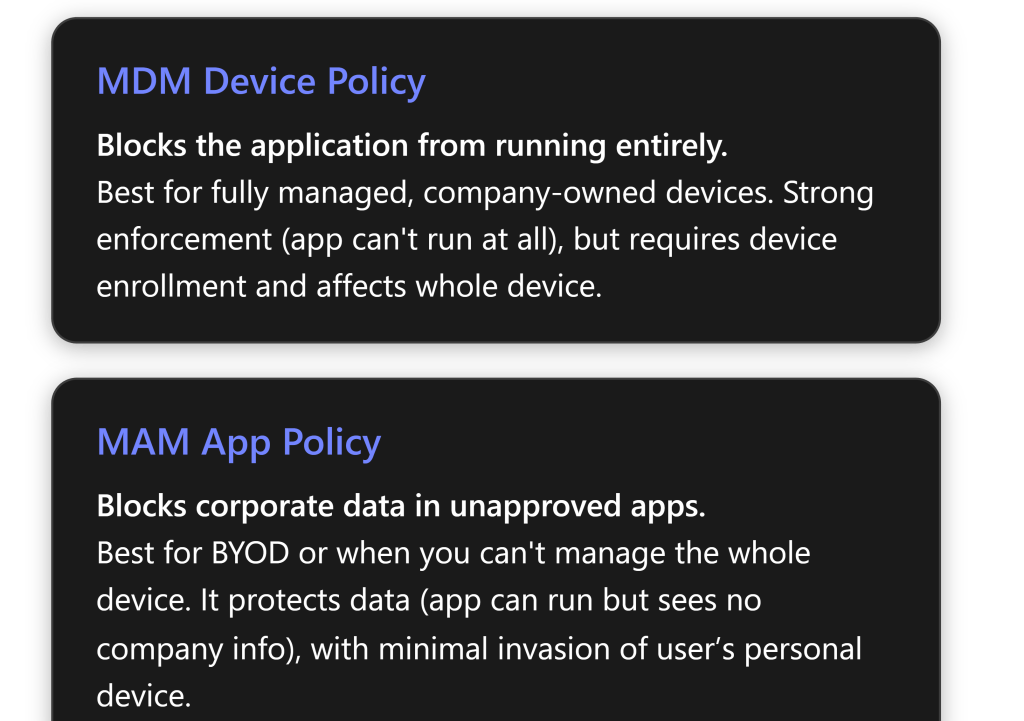
What is blocked: MDM completely blocks the application from launching on the device – the user clicks it, and nothing happens (or gets a “blocked by admin” notice)[1][1]. MAM allows the app to run, but blocks access to any protected (corp) data. The app can launch and be used for personal things, but if it tries to access work files or data, that access is denied or the data is unreadable[1][1].
Use case: MDM is best for company-owned devices under IT control where you want to outright ban certain software for security, licensing, or productivity reasons[1]. MAM is best for personal/BYOD devices (or to add a second layer on corporate devices) where you can’t or don’t want full control over the device, but still need to protect corporate information[1][1].
Implementation effort: MDM/Applocker requires a more technical setup initially (creating rules, exporting XML, etc.) – but once in place, it’s mostly “set and forget”, with occasional updates to the XML for changes[1][1]. It does require devices to be enrolled and on supported Windows editions[1]. MAM is configured through Intune’s UI (selecting apps and settings), which is a bit more straightforward. However, to be fully effective, you also need to configure Conditional Access, which can be complex to get right[1][1]. MAM doesn’t require device enrollment, just Azure AD sign-in.
User experience: With MDM blocking, if a user tries to open the app, it will not run at all. This could potentially disrupt work if, say, an important app was accidentally blocked – but otherwise the enforcement is silent/invisible until they actually try the blocked app[1][1]. With MAM, the user might see some prompts or restrictions in effect (like copy/paste blocked, or a message “your org protects data in this app”)[1][1]. Personal use of the device is unaffected, only when they deal with work data they encounter restrictions. This usually necessitates a bit of user education so they understand why certain actions are blocked[1][1].
Security strength: MDM’s AppLocker is very strong at preventing the app from causing any trouble on that device – if the app is malware or a forbidden tool, it simply can’t run[1][1]. It also means you could lockdown a device to only a whitelisted set of apps if you wanted (kiosk mode scenarios). MAM is very strong for data loss prevention – corporate content won’t leak to unapproved apps or cloud services[1][1]. However, it doesn’t stop a user from installing something risky on their own device for personal use (that risk is mitigated only to the extent that company data isn’t exposed). So to fully cover security, an enterprise might use MDM+MAM combined (MDM for device posture, antivirus, etc., and MAM for data protection on the edge cases).
Privacy impact: MDM is high impact on user privacy – IT can control many aspects of the device (and even wipe it entirely). So employees might resist MDM on personal devices[1][1]. MAM is low impact – it doesn’t touch personal files or apps at all, only corporate data within certain apps is managed[1][1]. If someone leaves the company, IT can remotely wipe the corporate data in the apps, but their personal stuff stays intact[1].
Licensing considerations: Both approaches are fully supported in M365 Business Premium. MDM with AppLocker needs Windows 10/11 Pro or higher (which Business Premium covers via Windows Business, essentially Pro)[1][1]. MAM for Windows needs Azure AD Premium (for CA) and Intune, which are included in Business Premium[1][1]. No extra licensing is needed unless you want advanced features like Defender for Endpoint P2 or Purview DLP in the future.
Additional Tips and Resources
- Use Intune Reporting: Regularly check Intune’s Discovered Apps report (in Endpoint Manager under Apps > Monitor > Discovered apps). This report shows what software is found on your managed devices[3]. It can help identify if users have installed something that should be blocked, or to verify that a banned app is indeed not present.
- Stay Informed on Updates: Intune and Windows are evolving. For example, new features like “App Control for Business” (a simplified interface for application control in Intune) or changes to WIP deprecation may come. Keep an eye on Microsoft 365 roadmap and Intune release notes so you can adapt your approach.
- Training and Communication: Ensure that your IT support staff know how the policies work, so they can assist users. For instance, if a user tries to use a blocked app, the helpdesk should be able to explain “That application isn’t allowed by company policy” and suggest an approved alternative. Provide employees with a list of approved software and explain the process to request new software if needed (so they don’t attempt to install random tools).
- Troubleshooting: If something isn’t working:
- Microsoft’s documentation on https://learn.microsoft.com/windows/client-management/mdm/applocker-csp and https://learn.microsoft.com/intune/apps/app-protection-policy can be very helpful. The Recast Software guide references the AppLocker CSP documentation which details these OMA-URI settings[5].
- The Microsoft Tech Community and Q\&A forums have real-world Q\&As. For example, handling removal of a stuck AppLocker policy was discussed in a community question[2][2].
- The Microsoft Intune Customer Success blog has a post on “Blocking and removing apps on Intune managed devices” (Feb 2025) which provides guidance using a real example (blocking the DeepSeek AI app) across different platforms[4]. It’s a good supplemental read for advanced scenarios and cross-platform considerations.
- Compliance and Legal: If your blocking is driven by compliance (e.g., a government ban on an app), ensure you archive proof of compliance. Intune logs and reports showing the policy applied can serve as evidence that you took required action. Also ensure your Acceptable Use Policy given to employees clearly states that certain applications are prohibited on work devices — this helps cover legal bases and user expectations.
Conclusion
With Microsoft 365 Business Premium, you have robust tools to control application usage on Windows devices. By leveraging Intune MDM with AppLocker, you can completely block unauthorized applications from running on company PCs, thereby enhancing security and productivity. The detailed steps above guide you through creating and deploying such a policy in a manageable way. Additionally, Intune’s App Protection (MAM) capabilities offer a complementary solution for protecting corporate data on devices you don’t fully manage, ensuring that even in BYOD situations, sensitive information remains in sanctioned apps.
In practice, many organizations will use a blend: e.g., require MDM for corporate laptops (where you enforce AppLocker to ban high-risk apps) and use MAM for any personal devices that access company data. The most effective method ultimately depends on your scenario, but with MDM and MAM at your disposal, M365 Business Premium provides a comprehensive toolkit to block or mitigate unapproved applications. By following the step-by-step processes and best practices outlined in this guide, IT administrators can confidently enforce application policies and adapt them as the organization’s needs evolve, all while keeping user impact and security compliance in balance.
References
[1] Blocking Applications on Windows Devices with Intune: MDM vs. MAM …
[2] Allowing a blocked app from Intune policy – Microsoft Q&A
[3] Practical Protection: Banning Apps with Intune | Practical365
[4] Blocking and removing apps on Intune managed devices (Windows, iOS …






 CIAOPS