Important: Mailbox Auditing is Already ON by Default
Good news! Since 2019, Microsoft automatically enables mailbox auditing for all Exchange Online organizations. This means logging is already active for your mailboxes without requiring any manual configuration.
Should You Enable All Available Logging?
No, you should NOT enable all available logging. Here’s why:
Microsoft’s Recommendation: Use the default audit configuration, which Microsoft automatically manages and updates
Storage Impact: Audit logs consume storage space in each mailbox’s Recoverable Items folder (counts against the 30GB default limit)
Performance Consideration: Excessive logging can impact mailbox performance
Automatic Updates: Microsoft automatically adds new important actions to the default audit configuration as they’re released
What’s Logged by Default
The default configuration logs these critical actions:
Result should show False (meaning auditing is enabled)
Step 3: Check Current Mailbox Audit Status
# For a specific mailbox
Get-Mailbox -Identity "user@domain.com" | Format-List Name,AuditEnabled,DefaultAuditSet

# For all mailboxes
Get-Mailbox -ResultSize Unlimited | Format-Table Name,AuditEnabled,DefaultAuditSet
Step 4: Use Default Settings (Recommended)
# Restore default auditing for a mailbox that was customized
Set-Mailbox -Identity "user@domain.com" -DefaultAuditSet Admin,Delegate,Owner
Step 5: Only If Necessary – Customize Specific Actions
# Example: Add MailboxLogin tracking for owner actions
Set-Mailbox -Identity "user@domain.com" -AuditOwner @{Add="MailboxLogin"}

# Example: Set specific admin actions (overwrites defaults - not recommended)
Set-Mailbox -Identity "user@domain.com" -AuditAdmin MessageBind,FolderBind,HardDelete
Step 6: Configure Retention Period
# Default is 90 days, can extend up to 365 days (E5 license required for >180 days)
Set-Mailbox -Identity "user@domain.com" -AuditLogAgeLimit 180

# Apply to all mailboxes
Get-Mailbox -ResultSize Unlimited | Set-Mailbox -AuditLogAgeLimit 180
Step 7: Verify Configuration
# Check what actions are being audited
Get-Mailbox -Identity "user@domain.com" | Select-Object -ExpandProperty AuditAdmin
Get-Mailbox -Identity "user@domain.com" | Select-Object -ExpandProperty AuditDelegate
Get-Mailbox -Identity "user@domain.com" | Select-Object -ExpandProperty AuditOwner
Method 2: Microsoft 365 Admin Center (Limited Options)
Note: The GUI provides limited mailbox audit configuration options. Most settings require PowerShell.
Government contractors with security clearance requirements
Legal hold scenarios requiring complete activity documentation
3. Forensic Investigations
Use Case: Post-incident analysis
Determining if a compromised account’s emails were actually read
Investigating data exfiltration attempts
Proving or disproving unauthorized access claims
Building timeline of activities during security incidents
4. Privileged Account Monitoring
Use Case: Enhanced monitoring for administrative accounts
Service accounts that shouldn’t have regular email activity
Shared mailboxes with sensitive information
Discovery mailboxes used for legal searches
Executive assistant mailboxes with delegated access
Best Practices If You Enable FolderBind/MessageBind for Owners
1. Selective Implementation
# Enable only for specific high-risk mailboxes
Set-Mailbox -Identity "CEO@company.com" -AuditOwner @{Add="FolderBind","MessageBind"}

# Create a list of VIP users
$VIPUsers = "CEO@company.com","CFO@company.com","Legal@company.com"
foreach ($user in $VIPUsers) {
    Set-Mailbox -Identity $user -AuditOwner @{Add="FolderBind","MessageBind"}
}
DLP policies: Focus on preventing data loss rather than tracking all access
The MailItemsAccessed Alternative (E5 Licenses)
For organizations with E5 licenses, MailItemsAccessed is a superior alternative that:
Intelligently aggregates similar activities (reduces noise by 80-90%)
Provides both sync and bind operation tracking
Includes deduplication (removes duplicate entries within 1-hour windows)
Records InternetMessageId for precise message tracking
Better suited for forensic investigations
Automatically enabled for E5 users
Summary Recommendation
Enable FolderBind/MessageBind for owners ONLY when:
You have specific compliance or security requirements
Monitoring high-risk individuals or during investigations
You have the resources to analyze the massive data volume
Storage and performance impacts have been evaluated
You’ve implemented automated analysis tools
Otherwise: Stick with the default configuration and use alternative methods like DLP policies, insider risk management, and the MailItemsAccessed action (for E5 users) for more effective security monitoring.
Overview: What is Microsoft Purview Audit (Premium)?
Microsoft Purview Audit is a unified logging solution that captures user and admin activities across Microsoft 365 services, enabling organizations to track security events, investigate incidents, and meet compliance obligations[1]. Audit (Standard) refers to the baseline auditing features included by default in Microsoft 365 plans, while Audit (Premium) is an enhanced auditing tier providing longer log retention, advanced event insights, and custom retention policies beyond the standard offering[1][1]. In practice, Audit (Standard) gives you searchable audit logs for the last 180 days of activities, whereas Audit (Premium) extends that retention to 1 year (or more with add-ons) and logs additional detailed events (like when a user reads an email or searches content) useful for deeper forensic analysis[1][1].
For small and medium-sized businesses (SMBs) using Microsoft 365 Business Premium, Audit (Standard) is already enabled by default – no setup or licensing is needed to start recording basic audit logs[1]. Administrators can search these logs (e.g. who accessed a file, deleted a SharePoint item, or logged into Teams) to monitor user activity and verify policies. However, out-of-the-box Business Premium only includes Audit (Standard) capabilities. Audit (Premium) features are not included in Business Premium by default and require additional licensing (as detailed below)[2]. Upgrading to Audit (Premium) can be extremely valuable for an SMB: it provides a full year of audit history (instead of 6 months), the ability to retain certain logs up to 10 years, and captures high-value events that help investigate insider risks or security incidents more effectively[1][1].
In summary, Microsoft Purview Audit (Premium) is an advanced auditing solution tailored for organizations with heightened security or compliance needs. It builds upon Audit (Standard) by offering longer log retention, richer analytics, and granular policy control[1]. For an SMB already on Business Premium, enabling Audit (Premium) means bringing enterprise-grade audit and forensics capabilities into your environment – useful for scenarios like in-depth insider threat investigations, detailed tracking of data access, and meeting strict regulatory audit requirements.
Audit (Standard) vs Audit (Premium): Key Differences
Audit (Premium) includes all the functionality of Audit (Standard) and adds important enhancements. The table below compares their features, availability, and licensing:
Capability
Audit (Standard)
Audit (Premium)
Included by default?
Yes – enabled by default for all Microsoft 365 organisations[1]. No extra setup needed.
Partially – available only for licensed users (e.g. those with an E5 or add-on). Requires enabling Advanced Auditing for those users[2].
Audit log retention (default)
180 days (6 months) for all activities[1]. ⃣ (Pre-Oct 2023: was 90 days, now extended to 180) [1]
1 year for core workloads (Exchange, SharePoint, OneDrive, Entra ID) by default[1]; 180 days for other services unless extended.
Extended retention options
None beyond 180 days. (Logs expire after 6 months)
Yes – can retain logs up to 1 year via custom policies. Up to 10 years with an add-on license for specific users[1][1].
Custom audit retention policies
Not available. All activities use default retention.
Available. Create policies to retain certain audit records longer (e.g. by service, user, or activity) up to 1 year (or 10 years with add-on)[1][1].
“Intelligent” audit events (detailed insights)
Not included. Only standard events logged.
Included. Logs detailed events like when emails are read/accessed, replied or forwarded, and when users perform searches[1]. These insights help investigate insider actions (e.g. mass document access)[3].
Audit log search tools
Yes – same tools in Purview portal, PowerShell (Search-UnifiedAuditLog), Graph API, CSV export[1][1].
Yes – uses the same search interfaces as Standard. (Premium just ensures more data is available to search, for a longer period.)
Office 365 Management API access
Yes – baseline access (throttled at standard rate)[1].
Yes – higher bandwidth access (roughly double the API throughput for faster log export)[1]. Useful if exporting logs to SIEM.
Licensing – Business Premium
Included in Microsoft 365 Business Premium (and all M365 plans) with no additional cost[1].
Not included in Business Premium by default. Requires an add-on or upgrade (e.g. Purview Suite or E5 Compliance add-on) to license Audit (Premium) features[2].
Licensing – Enterprise
Included in E1/E3 plans (Standard only).
Included in E5 plans out of the box[4]. Also available with E3 + add-ons (e.g. Microsoft 365 E5 Compliance or E5 eDiscovery & Audit)[5].
*⃣ Note: The default retention for Audit (Standard) was extended from 90 to 180 days in late 2023[1]. All organisations now get six months of audit history without needing E5. Audit (Premium) further extends this to one year for certain services by default, with options for more.
As shown above, the main advantages of Audit (Premium) for an SMB are the longer retention period (12 months) and additional audit data that can be crucial in investigations (for example, the ability to see if a user merely read a file or email, not just that they accessed it)[1]. Audit (Standard) is sufficient for basic admin tracking and recent activity checks, but if you need to investigate incidents over a longer term or require detailed logs for compliance, Audit (Premium) is essential. In particular, regulated industries or scenarios involving potential insider misuse will greatly benefit from the extra visibility and history that Audit (Premium) provides.
Licensing Audit (Premium) in a Business Premium Environment
Microsoft 365 Business Premium includes Audit (Standard) for all users by default, but does not include Audit (Premium) features on its own[2]. To get Audit (Premium) capabilities in an SMB environment with Business Premium, you will need to augment your licensing. Here are the ways to access Audit (Premium) and how each maps to Australian pricing (AUD):
Microsoft Purview Suite Add-on for Business Premium: Introduced in September 2025, this is a new add-on designed for SMBs on Business Premium. For approximately A$15 per user/month (roughly US$10) you can add the Purview Suite, which unlocks Audit (Premium) along with other Microsoft Purview compliance features (like eDiscovery Premium, Insider Risk Management, Information Protection, etc.)[3][3]. The Purview Suite add-on is limited to tenants with 25–300 users (same scope as Business Premium) and offers a cost-effective way to get E5-level compliance capabilities without upgrading fully to E5. Licensing note: The Purview Suite is purchased through your Microsoft 365 admin center or partner as an add-on SKU and requires that all users who need Audit Premium (or other Purview features) have the add-on assigned.
Microsoft 365 E5 Compliance Add-on (or E5 eDiscovery and Audit Add-on): Prior to the Purview Suite bundle, the common way to get advanced auditing on non-E5 plans was to purchase an E5 Compliance add-on. This add-on similarly provides Audit (Premium) rights (as well as the full suite of E5 Compliance features) to users on an E3 or Business Premium plan[5]. The pricing is in the same ballpark, roughly A$18–20 per user/month for the compliance add-on (the Microsoft 365 E5 Compliance license is listed at ~A$216 per user/year in Australia, i.e. about A$18 per month). Functionally, if you have Business Premium + the E5 Compliance add-on for a user, that user will have Audit (Premium) logging enabled (after activating the Advanced Auditing service plan as described later). Similarly, Microsoft offers a more targeted E5 eDiscovery and Audit add-on (which is a subset just focusing on those features). Any of these E5-level add-ons will meet the requirement for Audit Premium.
Microsoft 365 E5 license: A full Microsoft 365 E5 subscription per user includes Audit (Premium) by default[4]. However, E5 is a much more expensive plan (roughly A$80–$90+ per user/month in Australia for the full suite) and is generally outside the budget or seat limit of most SMBs. If an organisation already has some E5 licenses (or the older Office 365 E5) for key users, those users automatically get Audit Premium capability (e.g. audit log retention for their activities goes to 1 year). For an SMB with Business Premium, adopting E5 licenses wholesale is usually not cost-effective; hence the introduction of the SMB-focused add-ons above.
Microsoft Defender and Purview Suite Bundle: For completeness, Microsoft also offers a bundled add-on that combines the Purview Suite and the Defender Suite for Business Premium for around A$22–23 per user/month (US$15)[3]. This includes Audit (Premium) (via the Purview portion) as well as advanced security (via Defender for Endpoint P2, Defender for Office 365 P2, etc.). SMBs that need both advanced compliance and security could opt for this bundle to save costs. However, if your primary goal is enabling Audit (Premium) and related compliance features, the standalone Purview Suite add-on is sufficient.
In summary, an SMB on Business Premium will require an add-on license to use Audit (Premium). The most straightforward path in 2025 is to obtain the Microsoft Purview Suite for Business Premium add-on, which is tailored for organisations of your size and offers the advanced auditing capability at a relatively affordable price point[3]. Each user who needs their activities retained for a year or to generate premium audit events should be assigned the add-on. Once licensed appropriately, those users’ actions will be recorded under the Audit (Premium) tier. (Users without the add-on will continue to be covered only by Audit Standard logs.)
Tip: If you want to try out Audit (Premium) before committing to additional licenses, Microsoft offers a 90-day free trial of Microsoft Purview solutions (which can enable E5 Compliance features like advanced audit during the trial)[2]. This can be activated from the Purview compliance portal trials hub and is a good way to evaluate the benefits (e.g. see if the additional audit log data is valuable for your organisation) before purchase.
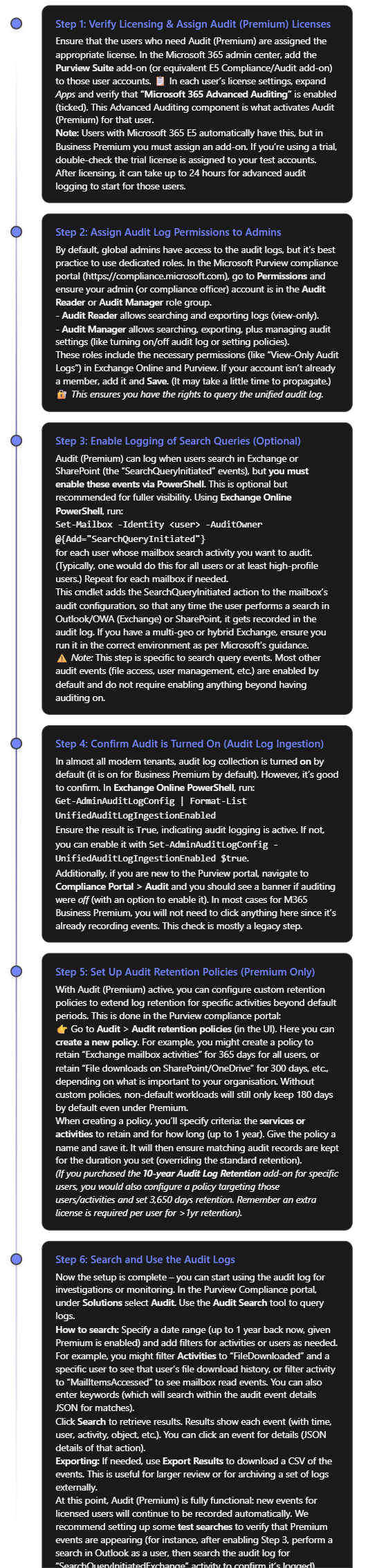
Step-by-Step: Setting Up Microsoft Purview Audit (Premium)
Enabling Audit (Premium) in your Business Premium environment involves a few configuration steps. Below is a step-by-step guide to set up and use Audit (Premium) effectively, assuming you have already acquired the necessary licenses (e.g. Purview add-on or trial):
Note: If you ever need to disable Audit (Premium) or auditing generally (for example, in rare cases for troubleshooting), you can turn off audit log ingestion using the PowerShell command in Step 4 with $false. However, this is not recommended in production as it means you will stop capturing activity logs. In almost all cases, keep auditing enabled at all times for security and compliance continuity.
At this stage, you have set up Audit (Premium) in your Business Premium environment. You should have: the proper licenses in place, appropriate admin permissions, extended audit events (like search logs and mailbox reads) enabled, and custom retention policies (if needed) configured. Now you can leverage these logs to strengthen your organisation’s security monitoring and compliance reporting. In the next section, we’ll discuss how to use these audit logs effectively in common SMB scenarios like detecting insider threats, preventing data leaks, and fulfilling regulatory requirements.
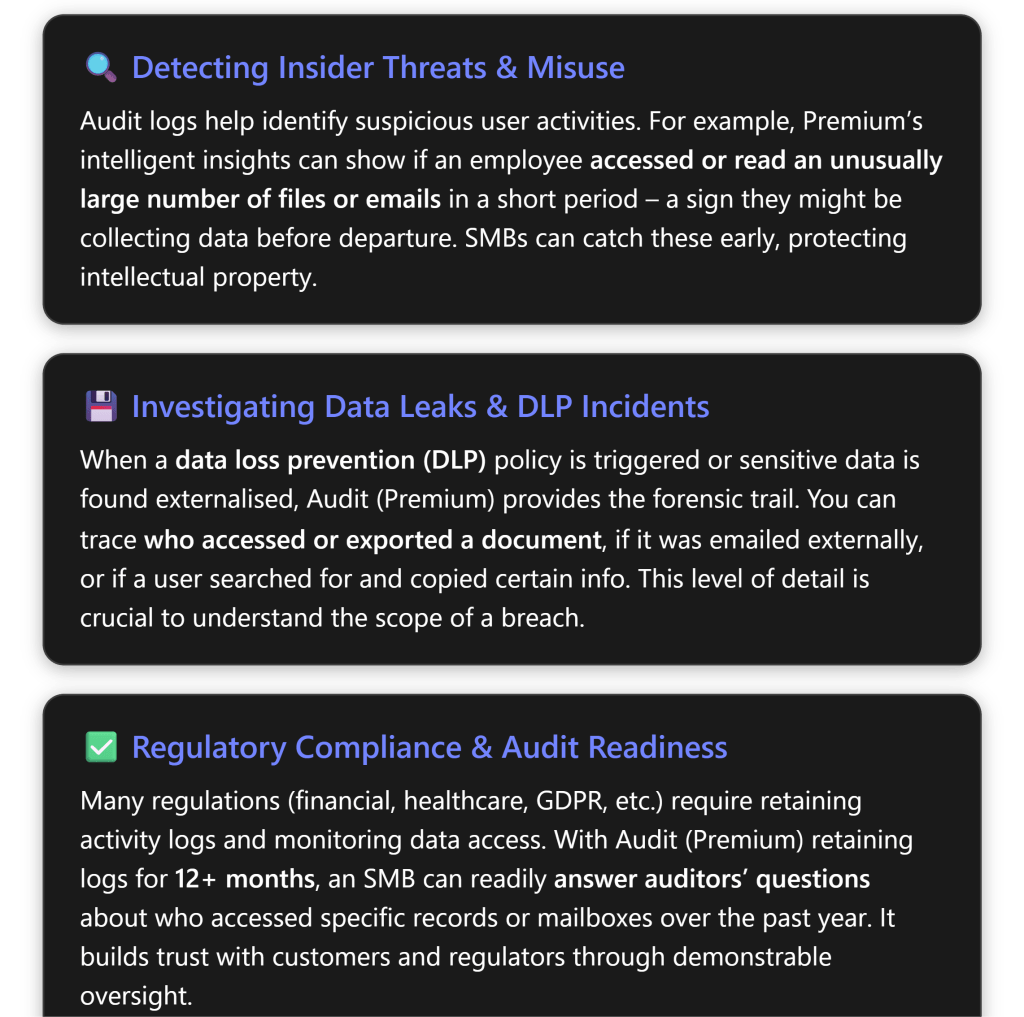
Effective Use Cases for SMBs Using Audit (Premium)
Microsoft Purview Audit (Premium) equips SMBs with powerful capabilities that were once the domain of large enterprises. Here are some key use cases and scenarios where Audit (Premium) can be especially valuable for a Business Premium organisation:
Insider Risk Detection and User Activity Monitoring
Insider threats are a concern for organisations of all sizes. Whether it’s a disgruntled employee or simply an honest employee taking company data home out of misunderstanding, Audit (Premium) can be a critical tool for detection. In an SMB, IT staff can use audit logs to monitor tell-tale signs of risky behavior:
Mass download or access of files: With standard audit, you could see file download events, but only for 180 days. Audit (Premium) ensures you have a full year of file access records. If an employee is leaving and suddenly downloads hundreds of files from SharePoint or OneDrive, you’ll catch that in the logs. You can even set up an alert policy (in the Compliance portal’s Alert section) to notify you of unusual download activity. For example, if user X downloads >N files in an hour, trigger an alert. The audit data (file names, timestamps) will help confirm if they took sensitive information.
MailItemsAccessed (Premium insight): This is a special Audit (Premium) log that records when emails in a mailbox are read/accessed, even by the mailbox owner. Why is this useful? Imagine a scenario where an attacker compromises a user’s email account. They quietly read through the mailbox looking for valuable info. In standard audit logs, if the attacker didn’t send or delete anything, you might not have a clear trail. MailItemsAccessed, however, would show that a large number of emails were opened/read at odd hours[6][6]. This can be an early indicator of compromise or misuse. SMBs can utilize this to detect if, say, a terminated employee’s mailbox was accessed after departure or if a delegated admin is snooping on others’ emails.
Search queries: As enabled in the setup, Audit (Premium) can log what content a user searched for in Exchange or SharePoint. This can be useful in insider investigations – for instance, if an employee was searching SharePoint for “salary data” or other sensitive info before a leak. It’s a niche signal, but in certain cases provides insight into user intent. Insider Risk Management (as a higher-level tool) uses many of these audit signals to score risk, but even without IRM, an admin can manually look at audit logs for such patterns.
Privileged user monitoring: Audit logs also track admin actions (e.g., an admin downloading a mailbox via eDiscovery, or changing a configuration). With longer retention, you can periodically review admin activity. In an SMB, IT admins wear many hats – but it’s good practice to have oversight. For example, you could search the audit log for “Added mailbox permission” or “File deleted” activities over the last year to ensure no unauthorised or unexplained changes were made. This helps with separation-of-duties even in a small IT team.
By actively reviewing these logs or setting up alerts, an SMB can spot internal issues early – before they become major incidents. Microsoft Purview Audit (Premium) essentially provides an “activity DVR” for your organisation: you can rewind and see exactly what a user did, which is invaluable for both deterrence and investigation.
Data Loss Prevention and Forensic Investigations
When it comes to data leaks or policy violations, Audit (Premium) proves its worth by providing a detailed audit trail:
Suppose your company has set up Data Loss Prevention (DLP) policies (available in Business Premium for Exchange/SharePoint/OneDrive). If a DLP policy flags an attempted sharing of sensitive information (e.g. someone tried to email out a list of customer credit card numbers, which was blocked), you can use audit logs to investigate further. The audit log would show the “DLP rule match” event as well as the user’s subsequent activities. Did they attempt another method to send the data? Did they save it to a personal device? Audit logs will show file access, print events (if recorded by Windows and fed into audit logs via AIP), etc., giving a full picture around the incident.
In case of a confirmed data breach or cyber-incident, time is of the essence to understand what happened. Audit (Premium) lets you triage and scope incidents effectively. For example, if a rogue third-party application was discovered (perhaps a user installed an OAuth app that siphoned data), you can search audit logs for activities that app performed or what the user did under its influence. If ransomware hit your SharePoint, audit logs can show which files were mass-deleted or encrypted and by which account. With 1-year retention, you might find the initial entry point which could have been many months ago (some breaches aren’t discovered until long after the fact). Without Audit (Premium), those older breadcrumbs might be gone.
Forensic detail: Audit (Premium) records include useful information such as IP addresses, user agents, object details, etc., for each event[5]. After an incident, you can export relevant logs and hand them to forensic analysts or authorities. For example, after a suspected insider data theft, you could export all audit events of that user for the last 12 months – giving a timeline of their activities (file downloads, email sent, USB device insertions if those were captured by Defender and fed to audit, etc.). This can serve as evidence if needed and guide your response (e.g., which systems to secure or which partners to notify).
One thing to note is that Audit (Premium) isn’t a real-time blocking tool – it’s investigatory. For proactive protection, you’d rely on things like DLP policies, Defender for Cloud Apps (for anomaly detection), etc. But the audit logs are the backbone of investigating any alerts those systems raise. They often answer the questions “what exactly happened?” and “when and who did it?”. For an SMB, having this level of detail can be the difference in confidently handling an incident or being in the dark.
Compliance, Audit Trails, and Reporting
For organisations subject to compliance standards or client security assessments, Audit (Premium) provides assurance that you have robust audit trails in place:
Regulatory audits: If you need to comply with standards like HIPAA, ISO 27001, or various government regulations, auditors may ask for proof of controls. Audit logs can demonstrate controls like data access governance. For example, under GDPR, you should be able to trace who accessed personal data. With Audit (Premium), if a European customer exercises their right to know who accessed their data, you could query the audit log for any access events related to that data over the last year. Many SMBs struggle with these requests, but having the audit log makes it feasible. It shows a commitment to transparency and control.
Retention requirements: Some industries require logs to be kept for longer than 6 months. If you fall under such a rule (or your customers contractually require it), enabling Audit (Premium) is necessary. Moreover, the 10-year audit log retention (with add-on) might be relevant for, say, financial services or healthcare where legal proceedings or investigations can occur years later. SMBs like accounting firms or clinics, for instance, might consider using the 10-year retention for certain high-risk user accounts. Audit (Premium) allows you to meet these needs, whereas without it you’d have to implement an external log archive solution.
Internal audits and policy compliance: Even outside formal regulation, an organisation may have internal policies (“we review admin access every year” or “we ensure only authorised people accessed Project X files”). Audit logs are how you verify and report on these. With the ability to export to CSV and analyze in Excel or Power BI, you can generate internal audit reports. For example, you might periodically review all “File accessed” events on a confidential SharePoint site to ensure only the intended team accessed it. If someone outside the team shows up in the logs, that’s a flag to investigate permissions. Audit (Premium) giving 12 months of data means you can do a thorough annual review, not just a snapshot of recent activity.
Legal eDiscovery synergy: Often, when there’s litigation, you perform eDiscovery (searching across mailboxes and documents for relevant content). Audit logs complement this by showing audit trails of content. E.g., if a legal case questions whether a document was seen by certain people at a certain time, the audit log can confirm access. Interestingly, Microsoft’s eDiscovery (Premium) (also included in the Purview Suite add-on) can leverage audit logs to track views/edits of content. So, Audit (Premium) feeds into a stronger eDiscovery process. For an SMB, this level of preparedness can save a lot of time and cost if a legal situation arises.
In essence, Audit (Premium) helps SMBs operate with enterprise-level diligence. You can confidently answer “Who did what, when, and how” for most actions in your Microsoft 365 environment, even up to a year ago or more. This instills confidence not only within your security team but also for any external parties evaluating your IT controls.
Best Practices for Audit Policy Configuration and Usage
Enabling Audit (Premium) is powerful, but to get the most value (and avoid being overwhelmed by data), consider these best practices for configuring and using your audit logs:
🌳 Define clear audit retention policies: Don’t just blindly keep everything for one year. Decide which activities are most critical to retain longer. For example, Exchange, SharePoint, OneDrive, and Azure AD logs are already kept 1 year by default with Audit Premium[1]. You might not need to extend all other activities to 1 year. Perhaps extend Teams chat audit events or Power BI events if those are important, but maybe you don’t need year-long logs for, say, Sway or Yammer. Tailor the retention policies (Step 5 in setup) to balance useful data vs. clutter. Also, keep in mind storage – although Microsoft stores audit logs in the cloud and it’s not in your tenant data quota, extremely large volumes can affect export and search speed. So retain what you need for compliance/forensics, not just everything.
🔒 Limit and monitor access to audit logs: Audit logs contain sensitive information (they can reveal user activities, email subjects, file names, etc.). Only assign the Audit Reader/Manager roles to trusted personnel. In a small business, this might just be the IT manager or security officer. Consider enabling Multi-Factor Authentication on those accounts (as you should for all admins). Microsoft Purview doesn’t currently generate alerts for audit log access, but you as an admin could manually audit the auditors – e.g., check if someone outside the expected roles ran an audit search (that itself is an auditable event). This ensures privacy and security of the audit data itself.
📊 Use tools to analyze the logs: The Purview portal search is great for interactive queries, but for deeper analysis use export and other tools. For instance, export a month of logs to CSV and use Excel PivotTables or Power BI to spot trends (failed logins over time, most accessed files, etc.). There are also Microsoft Graph APIs to programmatically retrieve audit events, which could feed into a SIEM like Microsoft Sentinel or a custom dashboard[1]. If your SMB uses Sentinel or another security monitoring solution, configuring the Office 365 Management Activity API to pull your audit logs is a good idea[1]. With Audit Premium, you have higher API bandwidth, meaning such integrations will run more smoothly[1]. This way, you can get automated anomaly detection on top of your audit data.
🚦 Set up alert policies for critical events: Within the Compliance portal, under Alerts (or in the older Security & Compliance Center under Alert policies), you can define rules that trigger alerts based on audit events. Common ones to create:
Alert when an admin privilege is granted (e.g., someone added to a role group).
Alert when mass deletion of files occurs.
Alert on eDiscovery searches or content exports (to catch any misuse of those tools).
Alert on downgrading audit or disabling the log (if someone tried to turn off auditing, you want to know immediately). Many default alerts exist (like suspicious logins via Azure AD), but custom ones for these audit events can significantly improve your security oversight.
📆 Periodic audit reviews: Make audit log review a routine. For example, monthly spot checks on different areas: one month review sharing activities on OneDrive, next month review mailbox access logs, etc. In a small business, dedicating a couple of hours per month to this can help you catch issues proactively. It’s like doing an internal audit continuously. You may rarely find issues, but when you do, you’ll be glad you looked. Plus, it familiarizes your team with the logs, so in a crisis you’re already comfortable with the data format and tools.
✍️ Document and communicate audit practices: Let your users know, at least in broad terms, that activities are logged for security and compliance. This can be part of an IT policy users accept. It creates a deterrent effect for malicious behavior (“my actions might be traced”) and also assures well-meaning employees that the company is keeping track in case something goes wrong (“if someone accessed my account, it would be recorded”). Of course, be mindful of privacy laws – in some jurisdictions, you must disclose if you monitor employee communications. Microsoft Purview Audit is generally considered a security log, but transparency is still a good practice.
🤝 Combine Audit with other Purview solutions: If you have invested in the Purview Suite, you likely have tools like Insider Risk Management (IRM), Communication Compliance, etc. These tools use signals from audit logs but provide a layer of AI or policy-driven analysis on top. For example, IRM can create risk scores if an employee downloads a lot of files (as seen in audit logs) and also resigns (HR insight). It might then automatically flag that user. While our focus is audit logs, remember to explore these additional Purview features – they can amplify the value of your auditing by proactively identifying risks using the same data. For an SMB, even a simple policy in Communication Compliance (like flagging rude or threatening language internally) might be beneficial; and audit logs would be the evidence when investigating those flags.
Stay updated on new audit log capabilities: Microsoft occasionally expands auditing functionality. For instance, in late 2023 and early 2024, they made more audit log types available to Standard that were previously Premium-only (increasing the baseline logs all customers get)[6][6]. And they continue to add new event types as Microsoft 365 services evolve (e.g., new collaboration features might generate new kinds of audit records). Keep an eye on the Microsoft 365 Roadmap or TechCommunity blogs for announcements related to Purview Audit. This ensures you’re aware of any new logs you might want to incorporate or new settings to configure. For example, if Microsoft enables some new audit event (like Teams message reactions logging) you might need to adjust retention policies or decide if it’s useful to you.
By following these best practices, you’ll maintain an efficient and secure auditing process. Microsoft Purview Audit (Premium) can significantly strengthen your security posture and compliance readiness, but it should be managed deliberately. The goal is to have the right data, in the right hands, retained for the right amount of time.
Conclusion
Microsoft Purview Audit (Premium) brings enterprise-grade auditing to organisations of all sizes – and with the recent availability of compliance add-ons for Microsoft 365 Business Premium, SMBs can now leverage these advanced capabilities without a full E5 licensing upgrade. By enabling Audit (Premium) in your Business Premium environment, you gain a longer memory of events (crucial for investigations that surface months later) and deeper insight into user behaviors (crucial for detecting insider risks and misuses). This investment helps an SMB to proactively identify security issues, thoroughly investigate incidents or anomalies, and confidently meet compliance obligations with a detailed audit trail[5][1].
In practical terms, after following the setup steps, you will have a robust system where virtually every important action in Microsoft 365 – whether it’s a file read, an email sent, a permission changed, or a login attempt – is being recorded and retained for analysis. The combination of Business Premium’s security features and Purview’s Audit (Premium) gives you a comprehensive view of your digital workplace activities.
Remember that technology is just one part of the equation: ensure your team knows how to use these audit tools (consider Microsoft’s free training modules on Purview Audit) and integrate audit review into your IT processes. With that in place, your small or mid-sized business can enjoy many of the same benefits that large enterprises count on to secure and govern their data – all while using familiar Microsoft 365 interfaces and tools.
By prioritising audit and compliance now, you are not only reducing the risk of incidents but also putting your organisation in a position of strength – able to demonstrate accountability and respond to challenges swiftly. Microsoft Purview Audit (Premium) is a powerful ally in that journey, and with careful setup and use, it will significantly enhance your organisation’s security and compliance maturity.
Microsoft 365 (M365) provides comprehensive logging capabilities to track user activities, administrative actions, security events, and more across its cloud services[2][1]. These logs are crucial for security monitoring, compliance audits, and troubleshooting. Below, we outline the key types of logs in M365 and provide a step-by-step guide to ensure all logging is fully enabled and configured for maximum benefit.
Logging Capabilities in Microsoft 365
M365 generates a variety of logs, each serving different purposes. Key logging categories include audit logs, activity logs, security logs, compliance logs, and diagnostic logs – though there is significant overlap among these terms in practice. The table below summarizes the main logging capabilities:
Log Type
Description
Default Status
Retention (Default)
Unified Audit Log (UAL)
Unified log of user and admin activities across M365 services (Exchange, SharePoint, OneDrive, Teams, etc.). Provides a central audit trail for actions like file access, mailbox operations, user management, and more.
Enabled by default for all organizations (verify status on new tenants).
180 days for standard audit logs; 1 year for Audit (Premium) with E5 licenses (extendable up to 10 years with add-on policies).
Entra ID Sign-In Logs
Security logs of authentication events in Entra ID, including sign-ins and MFA data. Also includes audit logs for directory changes like user creation and role modifications.
Always on by default for all Entra ID tenants.
30 days with Entra ID Premium (P1/P2); 7 days with free tier. Can be extended via external archiving.
Exchange Mailbox Audit Logs
Logs of mailbox actions (e.g., reads, deletes, admin access). Helps detect illicit access and ensure compliance.
Enabled by default for user, shared, and M365 Group mailboxes. Resource mailboxes may require manual enabling.
Included in UAL with standard retention; Advanced Audit (E5) adds detailed access logs.
Message Trace Logs
Tracks email flow in Exchange Online, showing timestamps, status, and any filtering applied (e.g., spam).
Enabled by default (all email transactions logged).
90 days for basic tracing; up to 10 days for detailed traces.
Compliance Logs
Logs for compliance actions like DLP rules, sensitivity labels, retention policies. Primarily captured in UAL.
Enabled by default (once audit logging is active).
180 days (standard); longer with Advanced Audit. Some tools have individual retention settings.
Microsoft 365 Defender Logs
Logs from Defender services (Endpoint, Office 365, Cloud Apps) covering alerts and suspicious activity. Integrated with UAL and Advanced Hunting.
Enabled by default when Defender products are active.
Varies: core events in UAL (180 days); Defender portals store alerts 90+ days; Advanced Hunting retains for 30 days.
Diagnostic and Usage Logs
Diagnostic data from apps and services (e.g., Teams call quality, Office crash logs, SharePoint usage). Used for troubleshooting and performance monitoring.
Varies – many are on by default; some must be manually enabled (e.g., verbose/debug logging).
Varies – client logs remain locally; Microsoft retains service data typically 30–90 days.
Step-by-Step: Ensuring All Logging is Fully Enabled
To get full visibility into your M365 environment, it’s important to verify and enable all relevant logging features. Follow these steps to ensure no audit or logging capability is overlooked:
1. Verify Unified Audit Logging is Turned On: Audit log search is on by default for all Microsoft 365 organizations, but you should confirm this setting, especially for new tenants[4][3]. In the Microsoft Purview Compliance Portal (formerly Security & Compliance Center), go to Audit. If you see a banner saying “Start recording user and admin activity,” auditing is not yet active[4]. Click that banner to enable the Unified Audit Log. Once enabled, M365 will begin recording user and admin activities across workloads. (It may take up to an hour for logging to begin after activation[4].) You can also verify or enable this via PowerShell: run Get-AdminAuditLogConfig | FL UnifiedAuditLogIngestionEnabled – a value of True means auditing is on[4]. If False, enable it with Set-AdminAuditLogConfig -UnifiedAuditLogIngestionEnabled $true (requires the Audit Logs role). This step is critical, as the unified audit log is the central repository for most M365 activity logs.
2. Ensure Mailbox Auditing is Enabled for All Mailboxes: Exchange Online’s mailbox auditing (logging of mailbox access/actions) is enabled by default for all user, shared, and group mailboxes[6]. However, it’s good practice to verify this setting. Run Get-OrganizationConfig | FL AuditDisabled in Exchange Online PowerShell – it should return False (meaning auditing is not disabled, i.e. it’s active)[6]. By default, dozens of mailbox actions (emails read, sent, deleted, etc.) by owners, delegates, and admins are automatically logged without any manual configuration[6]. If for some reason auditing was turned off at the mailbox or org level, re-enable it with Set-Mailbox -Identity <mailbox> -AuditEnabled $true (per mailbox) or Set-OrganizationConfig -AuditDisabled $false for the organization. Also consider enabling auditing on resource mailboxes (room/equipment mailboxes) if needed, as those might not be covered by the default in some cases. Verifying mailbox audit logs are on ensures you capture all email activity events in the audit logs for security and compliance needs.
3. Enable and Check Entra ID Logs: You don’t “turn on” Entra ID sign-in or audit logs – they are always recording by default – but you should ensure you can access them and are licensed for adequate retention. In the Entra ID portal, navigate to Monitoring > Sign-in logs and Audit logs to confirm data is flowing. No specific enablement is required, but note the default retention (generally 30 days for sign-in and audit events with premium licenses, or 7 days on free tier)[5]. To retain Entra ID logs longer or integrate them with other logs, set up Diagnostic Settings in Entra ID to export logs to an Azure Monitor Log Analytics workspace or a SIEM. This involves configuring an Azure Storage/Log Analytics target (requires Entra ID P1/P2 and an Azure subscription)[5]. In summary: verify you have the necessary Entra ID Premium license to capture all identity logs (most M365 enterprise plans include at least P1), and configure log forwarding if you need retention beyond the default.
4. Check Logging for Other Services: Most other M365 services feed into the unified audit log automatically once auditing is on. Verify that activities from key workloads are appearing in the audit log. For example, perform a test action (like accessing a SharePoint file or sending a Teams message) and then search the audit log for that activity to ensure it’s recorded. There is generally no separate “enable” switch for SharePoint, OneDrive, Teams, etc., beyond the unified audit setting – those services automatically log events to the unified log when auditing is enabled[1]. Additionally, M365 Compliance/Protection features (like DLP or label policies) will also log their events to the audit log when triggered. However, if your organization uses Power Platform (Power Apps, Power Automate) or other connected services, ensure auditing for those is enabled in their respective admin settings if applicable (most now also rely on unified audit). Essentially, once the Unified Audit Log is on, all supported M365 services start logging events by default, but it’s good to double-check for any particular application logs you expect.
5. Configure Advanced Audit (if available): If your organization has Microsoft 365 E5 or an add-on like Microsoft Purview Audit (Premium), make sure to take advantage of advanced auditing features. Advanced Audit automatically expands the range of log data captured – for example, it logs mailbox item read access events, SharePoint file access details, and other events that standard audit might not capture[3]. It also extends retention: Audit Premium retains logs for at least 1 year by default and allows creating audit log retention policies for up to 10 years for specific activities[3]. There’s no separate “on switch” if you have the license; you just need to assign the appropriate licenses to users (audit events are tied to user licenses) and the additional events are recorded automatically[1]. Verify that your premium audit events are showing up by searching for a few sample activities (for example, the MailItemsAccess event which records email reads by non-owners – this event is available only with advanced auditing). If they’re not present and you have E5, ensure users’ licenses are correctly applied and that the unified audit log hasn’t been inadvertently turned off. Note: In 2023, Microsoft began rolling out some advanced log types (like detailed email access logs) to standard customers at no additional cost[1], so you may see more detailed events even without E5, thanks to these updates.
6. Set Log Retention Policies (Optional): With Audit (Premium), admins can create custom audit log retention policies to preserve certain logs up to 10 years[3]. If you have this capability and a compliance requirement to keep logs longer than the default, configure a retention policy in the Compliance Center (under Audit -> Audit retention). For example, you might retain all Exchange mailbox audit records for 5 years. Without Audit Premium, you cannot change the 180-day default within the service – in that case, plan to regularly export logs if longer retention is needed (see step 9). For Entra ID logs, use Azure Monitor export as mentioned to keep data beyond 30 days[5]. Ensuring proper retention configurations will help fully “enable” your logging from a data lifecycle perspective, so you don’t lose valuable log data over time.
7. Assign Proper Permissions for Log Access: Having logs enabled is only part of the solution – you need the right roles to access and utilize them. In M365 Compliance Center, only users in specific roles can search the audit log. By default, Global Admins and members of the Organization Management or Compliance Management role groups have this access (these include the Audit Logs role)[3]. You can also assign the dedicated View-Only Audit Logs or Audit Logs role (via Exchange Online’s role management) to any staff who need to review logs[3]. Follow the principle of least privilege: assign view-only roles to auditors or investigators who just need to read logs, and restrict the ability to delete or turn off logging to only a few top admins. For Entra ID logs, roles like Security Reader or Report Reader can view sign-in and audit logs without full admin rights. Make sure these permissions are in place so that the security/compliance team can access logs independently. Logging isn’t fully operational unless the right people can reach the data.
8. Monitor Logs and Set Up Alerts: Once logging is enabled everywhere, configure alerting to get notified of important events rather than having to manually hunt through logs continuously. In the Microsoft Purview compliance portal, go to Alerts (Alert policies) and set up policies for activities of interest. For example, you might create an alert for “Mass download of files from SharePoint” or “Mailbox admin delegation added” – when such an audit event occurs, the system will send an email alert to chosen recipients. Microsoft provides many built-in alert templates for suspicious or anomalous activities. Similarly, in Entra ID you can enable Entra ID Identity Protection alerts for things like impossible travel logins or multiple failed sign-ins. If you have Microsoft Defender for Cloud Apps (MCAS), it can also watch user activity logs (including O365 audit events) and trigger alerts for things like data exfiltration patterns. Setting up these alerts ensures that your logging works proactively for you, raising flags when something in the logs looks wrong. It’s a key step to operationalize your logs for security monitoring.
9. Integrate Logs with Analysis Tools or SIEM: To fully leverage M365 logs, you may want to aggregate and analyze them using advanced tools. Microsoft provides APIs to facilitate this. Enable the Office 365 Management Activity API (now part of the Graph Security API/Purview Audit) if you want to pull audit logs into a Security Information and Event Management (SIEM) system or a custom dashboard[3]. Many organizations integrate M365 audit logs into tools like Splunk, IBM QRadar, or Azure Sentinel (Microsoft Sentinel). For instance, in Azure Sentinel you can use the built-in Office 365 connector to stream audit logs (Exchange, SharePoint, Teams events) and Entra ID sign-in logs continuously. If using a third-party SIEM, set up the polling of the Management Activity API or use the newer M365 Defender Streaming API for real-time event streaming (this requires some Azure setup and is often used to send Defender alerts to an event hub). Additionally, you can export audit search results from the portal in CSV format for offline analysis (the portal allows exporting up to 50,000 events per CSV). Regularly exporting or streaming logs ensures you have a backup of log data outside Microsoft’s 180-day window and allows you to run complex queries or correlations on log data (for example, joining sign-in logs with mailbox logs to investigate a potential breach). Integration with external tools is vital for advanced threat hunting and for keeping logs long-term.
10. Verify and Test Logging Configuration: Finally, conduct periodic tests and reviews. For example, perform known activities (like a test user deleting multiple files, or an admin changing a setting) and then verify those actions appear in the audit log. Check that mailbox audit events (like a delegate reading someone’s mailbox) are being captured by searching the audit log for MailboxAudit entries. Attempt some sign-in events (successful and failed logins) and ensure they show up in Entra ID logs. If you have alert rules configured, trigger a test alert (Microsoft provides a way to simulate some alerts) to see if notifications fire. Review role assignments to confirm only intended personnel have access to log searches. Also, periodically review Microsoft 365 Message Center announcements or Tech Community blogs for any changes to logging behavior or new log types being added. By testing and reviewing, you ensure that logging remains fully operational and reliable as your M365 environment evolves.
Accessing and Managing M365 Logs
Once all logging is enabled, it’s important to know how to access these logs and manage them on an ongoing basis:
Microsoft Purview Compliance Portal (Audit Search): This is the primary GUI to search unified audit logs. Go to Compliance Portal > Audit and use the search interface to query activities by date range, user, file, folder, etc. You can filter by activity type (the portal provides categories) and export results. Keep in mind the interface returns a maximum of 5,000 results per search (most recent first)[3], so use filters to narrow down data if needed. The audit search covers Exchange, SharePoint, OneDrive, Teams, Power BI, Dynamics 365, and many other services in one place.
Exchange Admin Center & Security Portal: Some logs can be accessed in specialized interfaces. For instance, Mailbox audit logs can also be viewed via certain Exchange PowerShell cmdlets (Search-MailboxAuditLog for older approach, though unified audit log supersedes this). The modern Security & Compliance (now split into Purview Compliance and 365 Security) portals also allow audit searching. Additionally, the Exchange Admin Center has the Message Trace tool for email flow logs – you can query by sender, recipient, date, etc., to see what happened to an email (this is separate from the user/admin audit log).
Entra ID Portal (Entra Admin Center): For identity-related logs, use the Entra admin center (Entra ID). Under Monitoring, check Sign-in logs for interactive login events and Audit logs for directory changes. You can filter by status, user, application, and download the logs as CSV or JSON. Entra ID logs provide details like IP addresses, device info, and error codes for sign-ins, which are invaluable for security analysis.
Microsoft 365 Defender Portal: If your organization uses Microsoft 365 Defender services (like Defender for Endpoint, Defender for Office 365, Cloud App Security, etc.), the unified Defender portal (security.microsoft.com) provides an Advanced Hunting feature. This is a query-based search over security logs (using Kusto Query Language). It allows you to query things like email events, device logs, cloud app events, etc., across a 30-day window. While this is more of an analysis tool than raw log search, it effectively lets you tap into detailed log data for threat hunting. The Defender portal also shows Alerts and incidents, which are derived from underlying logs.
PowerShell and CLI: Microsoft provides PowerShell cmdlets for retrieving logs. For audit logs, you can use Search-UnifiedAuditLog in Exchange Online PowerShell to retrieve audit data programmatically (with parameters for date range, users, activities, etc.). For mailbox audit specifically, Search-MailboxAuditLog can be used (though unified log is preferred). Azure AD logs can be fetched via the Azure CLI or PowerShell (Get-AzureADAuditDirectoryLogs and Get-AzureADSignInLogs in the Azure AD module). Using scripts, you can automate log retrieval or integrate with internal tools.
Office 365 Management Activity API: As noted, this REST API allows subscription to various activity log feeds (e.g., Exchange, SharePoint, Azure AD, DLP, etc.). Third-party SIEM solutions often use this to pull data continuously. It requires setting up an app in Azure AD, granting it proper permissions, and then pulling down content via REST calls[3]. Microsoft also has a newer Graph API for audit logs that E5 customers can use for certain advanced events.
Log Analytics / Sentinel: If you route logs to an Azure Log Analytics workspace (via Azure Monitor), you can use Log Analytics queries to search through data, and use Azure Sentinel for correlation rules and alerting. For example, Azure AD sign-in and audit logs forwarded to Log Analytics can be queried with KQL and retained for much longer. Office 365 unified audit logs can also be ingested into Sentinel using the O365 connector, which then allows blending those logs with others (like Azure AD or firewall logs) for a holistic view.
Reports and Insights: M365 provides various activity reports in the Microsoft 365 admin center (under Reports > Usage or Security & Compliance > Reports). These are more high-level (e.g., how many files accessed or emails sent by users), not detailed logs, but they are derived from the logging data. They can be useful for a quick overview or for non-technical audiences. For instance, the Office 365 Secure Score and Compliance Score dashboards show your status and actions, some of which relate to logging/configuration.
Managing logs also involves ensuring their integrity and reviewing them regularly. Remember that log data is only useful if someone looks at it – so implement processes for regular audit log reviews, especially for admin activities or anomalous user activities. Many organizations designate a security analyst or compliance officer to routinely review critical logs (for example, weekly checks of admin activities, or daily review of Azure AD risky sign-in reports).
Best Practices and Security Considerations for M365 Logging
Implementing logging is not just a technical switch – it should be part of your security and compliance strategy. Here are some best practices and considerations:
Auditing Policy and Scope: Understand what activities are being logged and ensure they align with your needs. Microsoft 365’s unified audit covers thousands of events across dozens of services[1]. Review the list of audit log activities available for M365 to know what is captured. If there are critical actions not logged by default, see if advanced audit or another solution is needed. For example, by default you get events like file accessed, modified, shared, login events, mailbox operations, etc. With Advanced Audit, you get extra events like mail item read access and deeper SharePoint query events[3]. Tailor your use of logs to the risks and compliance requirements of your organization.
Retention vs. Volume: Balance log retention with volume. Longer retention is valuable for investigating incidents that happened months ago, but it also means a lot of data. Microsoft now provides 180 days standard retention[4], which is a generous default. If regulatory compliance demands longer (e.g. financial or healthcare sectors might require a year or more of audit logs), use either the Audit Premium with 10-year retention policies, or export the logs periodically to an external archive. Keep in mind Azure AD sign-in logs default to 30 days – if those are crucial, set up forwarding to keep them longer[5]. It’s best practice to have security logs retained for at least 6-12 months, either in the cloud or in your SIEM, to cover the window when breaches might be discovered.
Security of Logs: Treat log data as sensitive. Audit logs can contain information like filenames, email subjects, or user details that might be confidential. Ensure that only authorized personnel can access the logs (via the role-based permissions discussed). All access to auditing data itself is logged – you can see who searched the audit log and what they searched for, which is important for chain-of-custody in investigations. Microsoft also protects the integrity of audit logs internally (they cannot be changed or deleted by users once recorded). Avoid exporting logs to insecure locations or emailing raw logs without protection; if you must share log data for analysis, use secured methods and sanitize if needed.
Monitoring and Anomaly Detection: Logs by themselves are reactive unless you actively monitor them. Leverage tools (or services) that analyze log patterns and flag anomalies. Microsoft 365 has built-in analytics (like Insider Risk Management, which can use audit signals to detect risky user behavior, or Cloud App Security policies that detect impossible travel logins). Even with those, you might use a SIEM or XDR solution to correlate M365 logs with other data (firewall logs, endpoint logs) for a fuller picture. For example, if you see a log of a user downloading 10GB of data from OneDrive at 3 AM, and around the same time your firewall log shows large data egress from that user’s IP – together that indicates a potential incident. Define what constitutes “normal” vs “suspicious” in your environment and set up alerts accordingly.
Combining Multiple Log Sources: Remember that not everything is in one place. For a given incident, you may need to consult multiple logs. Example: To investigate a potential email breach, you’d check Azure AD sign-in logs (for login patterns on that mailbox account), mailbox audit logs (for any unusual mailbox access or email forwarding rules set), unified audit log (for any data exports from SharePoint by that user, etc.), and possibly Defender logs (for malware or phishing alerts involving that mailbox). Get familiar with all the log sources so you know where to look when something happens.
Regular Audit of Logging Configuration: Periodically audit your logging setup itself. Ensure auditing hasn’t been turned off (it’s rare, but an attacker with high privileges could attempt to turn off logging – note that requires Global Admin and is itself a logged event if they tried). Check that new services or features in M365 are included in your audit coverage – Microsoft often adds new audit event types (for example, if you deploy a new M365 app like Viva or Yammer, verify that their activities are being logged). Stay updated via Microsoft’s documentation or announcements on any changes to logging behavior.
Compliance and Privacy: Be aware of data privacy laws – some regulations require informing users that their activities may be monitored and logged. M365 audit logs are typically considered for legitimate security/compliance use, but your organization should have clear policies about log use and retention that align with GDPR, etc., if applicable. Also, if you have data residency requirements, note that audit data is stored in a region (for multi-geo tenants, consult Microsoft docs on where audit logs reside).
Backup and Disaster Recovery of Logs: In cloud services, Microsoft ensures high availability of logging infrastructure, but as a best practice, treat critical logs as you would important data – have a backup. Exporting logs daily or weekly to an immutable storage (like write-once storage) can protect you in case logs are inadvertently cleared or if an account that had access to search logs gets compromised. This is not usually needed for Microsoft’s cloud (since you can trust the service’s durability), but for utmost caution in high-security environments, some do pull logs regularly and keep a separate copy.
Use of Diagnostic Logs: For more in-depth troubleshooting (outside security), know how to enable and collect diagnostic logs. If an issue arises, say with an Office app or an email that went missing, Microsoft Support might ask for client-side logs or run traces. Tools like the Microsoft Support and Recovery Assistant can collect diagnostic logs for Office apps. In Exchange Online, there’s a feature called ** mailbox audit log search ** (as covered) and also message trace for mail flow. In SharePoint/OneDrive, site admins can view some audit logs at the site level if needed. So, beyond security, use logging as a general troubleshooting aid – e.g., to find why a document was inaccessible, or who changed a configuration that broke something.
Integration with Third-Party Tools and Advanced Monitoring
Microsoft 365 logs are powerful on their own, but integrating them with other systems can provide a unified view of your organization’s IT environment:
SIEM Integration: Whether it’s Splunk, Azure Sentinel, IBM QRadar, or any other SIEM, integrating M365 logs allows you to correlate cloud activities with on-premises events. For instance, a SIEM rule might combine a physical badge access log (from a building entry system) with an O365 login log to detect if a user’s account was used from another country while they badged into the office locally – a likely security incident. Most SIEM solutions have connectors or scripts to ingest M365 logs. Use the Office 365 Management API or Azure Event Hub streaming (for Defender alerts) as needed[3]. Azure Sentinel (Microsoft Sentinel) has native connectors for Office 365 (audit logs) and Azure AD, which can be enabled in a few clicks and continuously pull data. Ensure whatever third-party tool you use is properly authenticated and scoped to get the logs it needs (principle of least privilege for API access too).
Third-Party Monitoring and CASBs: Cloud Access Security Brokers (CASBs) and other monitoring tools can also use M365 logs. Microsoft’s own CASB (Defender for Cloud Apps) can ingest audit logs from M365 and provide dashboards of risky behavior (like unusual download patterns, or use of a newly discovered OAuth app by many users). Third-party CASBs (Netskope, McAfee, etc.) similarly can pull these logs via API for their analysis. If using one, follow their integration guides for O365 – typically you create an app in Azure AD and give it the Audit.Read.All permission to the Graph or similar.
Audit Log Customization and Analytics: With logs in a central database or SIEM, you can run custom analytics. Write queries to answer questions like “Who accessed confidential Project X files in the last 6 months?” or “List all admin actions in Exchange in the past week” or “How many failed login attempts did we have each day this month”. Many organizations build reports from log data for compliance reporting (e.g., a monthly access report to demonstrate to auditors that only authorized changes were made). M365’s management API and PowerShell allow you to extract data and feed it into such reports.
Automated Response: Going a step further, you can tie logging to automated responses. For example, using Azure Sentinel or Azure Logic Apps, you could trigger a workflow when a certain log event occurs – like if an account is added to a high-privilege role (logged in Azure AD audit logs), you could automatically remove it or send an approval request to IT. Or if multiple failed logins for a user from different locations appear (from sign-in logs), automatically force a password reset or disable the account pending investigation. Microsoft 365’s ecosystem allows these kind of orchestrations (often referred to as SOAR – Security Orchestration, Automation, and Response). Ensure any automation is tested to avoid false positives causing disruptions.
Recent Updates and New Features in M365 Logging
Microsoft is continually improving M365 logging capabilities. Here are a few notable recent updates:
Expanded Audit Log Coverage (2023): In response to evolving threats, Microsoft announced an expansion of cloud logging for all customers. More log types that were previously exclusive to premium (E5) are being made available to standard (E3) customers. Notably, detailed email access logs and over 30 additional event types are now included in Audit Standard[1]. This change, rolling out from late 2023 into 2024, means even without an E5 license, organizations get deeper visibility (for example, tracking when emails are accessed, not just sent). This was accompanied by an increase of the default audit retention from 90 to 180 days[4][1], significantly boosting the “memory” of the audit log for all customers.
Microsoft Purview Rebranding and Integration: The logging and compliance tools were unified under the Microsoft Purview brand. The Audit log search, Compliance center, and related features might look slightly different as Microsoft integrates them. For instance, Audit search moved from the old Security & Compliance Center to the new Purview Compliance Portal. Microsoft 365 Defender portal now also can be used to search the unified audit log in some cases[3], creating a more seamless experience between security and compliance centers.
Advanced Audit Features: Microsoft Purview Audit (Premium) introduced Intelligent Insights – advanced analysis to help determine the scope of a compromise by processing audit logs in the backend (for example, highlighting unusual download activities automatically). Additionally, the ability to create custom log retention policies up to 10 years for specific activities was introduced for organizations with long-term retention needs[3]. These features are continuously being improved, and Microsoft often adds new auditable events (e.g., new Microsoft Teams or Microsoft 365 Copilot activities are being logged as those services evolve).
Integration and API Enhancements: Microsoft Graph API is gradually becoming a one-stop shop for all sorts of audit log access. New endpoints in Microsoft Graph (beta) can retrieve audit logs across services with a unified schema. This is part of Microsoft’s effort to streamline how developers and tools access the data. Moreover, Azure AD logs can now be streamed in near real-time to Azure Event Hubs using the diagnostic settings – allowing better integration with SIEMs without waiting for the typical 15-minute aggregation. The M365 Defender Streaming API now enables real-time alert forwarding to external systems, which complements the periodic pulling of the Management API for audit data.
CISA and Security Community Guidance: Microsoft worked with the U.S. Cybersecurity and Infrastructure Security Agency (CISA) to release guidance (the Expanded Cloud Logs playbook) for leveraging M365 logs. This highlights how to enable and use these logs for advanced threat detection, reflecting lessons from recent supply-chain attacks. Microsoft’s collaboration with industry partners means best practices for logging are being shared more broadly – it’s wise to stay informed through Microsoft’s security blogs and documentation for such guidance.
Future Developments: Logging in cloud services is an area of rapid development. Expect to see even more granular logs (for instance, deeper visibility into SharePoint file read activities or Teams chat message edits), longer retention included by default for some customers, and more machine learning applied to logs (to detect anomalies). Microsoft 365 Copilot itself will generate audit logs of its operations, and administrators will likely get new tools to review Copilot’s actions via those logs. Keeping an eye on the M365 roadmap and tech community will help you stay ahead of changes in logging capabilities.
In conclusion, Microsoft 365 offers a robust set of logging tools that, when fully enabled, give organizations deep insight into activities and security events in their cloud environment. By turning on and configuring Unified Audit Logging, ensuring all services (Exchange, SharePoint, Azure AD, etc.) are covered, and following best practices for retention, monitoring, and integration, administrators can greatly enhance their security posture and compliance readiness. Remember that logs are your friend in both investigating incidents and demonstrating proper governance – so enable them, protect them, and use them proactively. With the steps and considerations outlined above, you can be confident that all logging capabilities in M365 are enabled and functioning to their fullest extent.[2][1]
Join me for an update of the Microsoft Cloud news as well as some thoughts around the importance and approach to managing logs in Microsoft Cloud Services.
Join me for the latest news and updates from the Microsoft Cloud and then a look at Application Control and how you consider implementing it.
This episode was recorded using Microsoft Teams and produced with Camtasia 2023.
Message trace in the Security & Compliance Center follows email messages as they travel through your Exchange Online organization. You can determine if a message was received, rejected, deferred, or delivered by the service. It also shows what actions were taken on the message before it reached its final status.
Starting in January 2019, Microsoft is turning on mailbox audit logging by default for all organizations. This means that certain actions performed by mailbox owners, delegates, and admins are automatically logged, and the corresponding mailbox audit records will be available when you search for them in the mailbox audit log.
Here are some benefits of mailbox auditing on by default:
Auditing is automatically enabled when you create a new mailbox. You don’t need to manually enable it for new users.
You don’t need to manage the mailbox actions that are audited. A predefined set of mailbox actions are audited by default for each logon type (Admin, Delegate, and Owner).
When Microsoft releases a new mailbox action, the action might be automatically added to the list of mailbox actions that are audited by default (subject to the user having the appropriate license). This means you don’t need to monitor add new actions on mailboxes.
You have a consistent mailbox auditing policy across your organization (because you’re auditing the same actions for all mailboxes).
With this auditing enabled you can do things like:
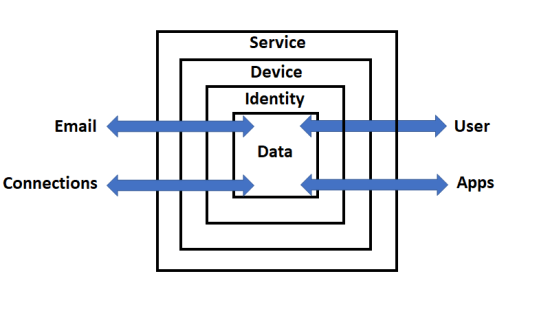
For information more specifically about user logins into the service and the Identity container, the best place to look is in Azure Active Directory (AD).
As you can see with all the options above, it is easy to get to information overload trying to keep up with all those signals. Luckily Microsoft provides a range of services to aggregate all this for you to make monitoring and report easier.
The first is Microsoft Cloud App Security services:
Next, is Microsoft Defender for Endpoint that will aggregate security and threat information for devices in your environment and make it available in a single console.
Hopefully, all this gives you some insight into all the auditing and usage data that Microsoft 365 captures during any interaction within the service. One of the biggest benefits is also how this information is integrated between services, especially those that aggregate information lime Microsoft Cloud App Security and Azure Sentinel. This means you don’t have to crawl through individual log entries, you can use a dashboard and drill down from there. I also like the fact that all of these services and data are accessible using a scripting tool like PowerShell if you want to automate this further.
Remember, throughout this six part series I’ve just looked at what happens when a single email is delivered and view with Microsoft 365. If you expand that out to all the services and capabilities that Microsoft 365 provides you can hopefully get a better appreciate of the protection it provides in place for your data on many different levels.
The call to action for readers is to go away and implement all the security features that Microsoft 365 provides. This may of course vary by the license that you have. You should then consider what additional security offerings the Microsoft cloud stack can offer that makes sense for your business, then implement those. Remember, security is not a destination, it is journey.
When you are looking at various entries in the Azure AD logs you will find, under the Basic Info tab, a Sign-in error code and directly below that a Failure reason field as shown above.
The above, shows you these fields in more detail.
You may not be aware but if you navigate to the web site:
and plug in the Sign-in error code from the event, you should see information like that shown above. Most of it should match what the Failure reason field says. There can however, also be additional information in there that may help you when it comes to troubleshooting these events.
Here is a quick overview of the tenant Unified Audit Logs in Microsoft/Office 365 and how you can access them as well as use them to search what’s happening in your tenant. This can be very handy if you need to track down what a user is doing or if you need to investigate a security incident.






 CIAOPS