Controlling local user group membership with Intune

I recently outlined how to

Control local admin on a device with LAPS and Intune

Once you have LAPS in place I suggested that you want to eliminate any local device administrators as a best practice. You can achieve this via a policy in Intune.

The first step in the process is going to be to determine any local administrator accounts and what they are doing in your environment. A good starting point is this KQL query to look for local admin activity in your device fleet:

DeviceLogonEvents
| where TimeGenerated >= ago(7d)
| where IsLocalAdmin == true
| summarize count() by DeviceName, AccountName,LogonType
| sort by AccountName

That will, of course, only show you logon activity by an account that is a local administrator. For dormant local admin accounts you are going to need to do more work to flush them out. However, the query will at least show you active local admin accounts that maybe impacted by any changes made using something like LAPS.
image

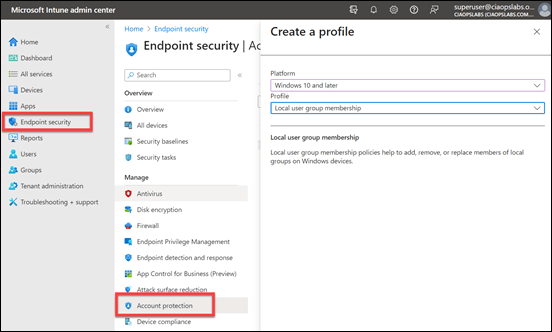
To set a policy to control local groups on Windows devices, login to the Intune management portal and select Endpoint security and Account protection, as shown above. Create a new policy for Windows 10 and later and select Local user group membership as the Profile.
image

Give your policy a meaningful name and continue.

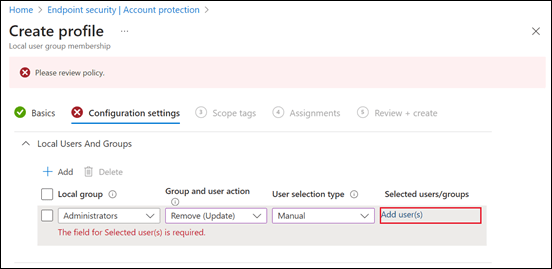
Select the local group (here Administrators), select the action (here Remove) and Manual for the User selection type.

image

When you select the Add users hyperlink in the Selected users/groups field you will see the above blade appear. In here, you’ll find a number of different methods of identifying users. If you have a list of local device admins then you can add them here.

Once you have entered all the users you wish to remove from the local device administrators group, complete the policy and assign it to the audience you wish.

The policy will then roll out to your environment and the changes will be made to the local group membership. In this case, it will remove local users from the local device administrator group so they can no longer administrate the device.

Remember, there are lots of options here. You could different policies for different users and/or devices. You could create policies to not only remove but also add. An example maybe where you wish an Entra ID user to be a local administrator of box. In that case, simply select the option to Add the user from Entra ID to the local administrators group. There is a lot of flexibility here with this policy.

Typically, once your policy has completed and there are no more local administrators you can remove the policy, as hopefully no more local accounts will be created with devices being joined directly to Entra ID. However, you may wish to retain it for if new devices are joined to your environment, especially if you don’t use Autopilot.

In summary then, the process so far, is:

1. Create compliance policies and update devices to be compliant

2. Implement LAPS to control the local device admin account that cannot be deleted

3. Remove all other accounts from local administrator group on devices

Typically, these steps will have no impact on users working with their devices and it commences the process of implementing a consistent environment and making it more secure.

You can read more about this particular policy here:

Manage local groups on Windows devices


Start with Intune Compliance policies

I see many people struggle to get started with Intune and Device Management in Microsoft 365. My recommendation is always to start with configuring Compliance policies. Doing so will give you:

1. A device inventory

2. A list of devices that fail to meet the minimum standards set for connection to corporate data

However, the major benefit is that, by default, Intune Compliance Policies make no change to any of the device or impact users productivity. In effect, Compliance Policies simply READ the status of a device and make NO changes.

Screenshot 2023-09-14 102330

You’ll find Compliance Policies under Devices in the Intune portal as shown above.

Typically, you’ll create at least one Compliance Policy for each different operating systems you have in your environment (i.e. for Windows, iOS, Android, etc). You can, of course, have as many different Compliance Policies as you desire, potentially targeted at different users and or devices. However, the policies you have, the more maintenance and troubleshooting will be required. It is therefore recommended to stick with a single Compliance Policy for each operating system.

Screenshot 2023-09-14 102823

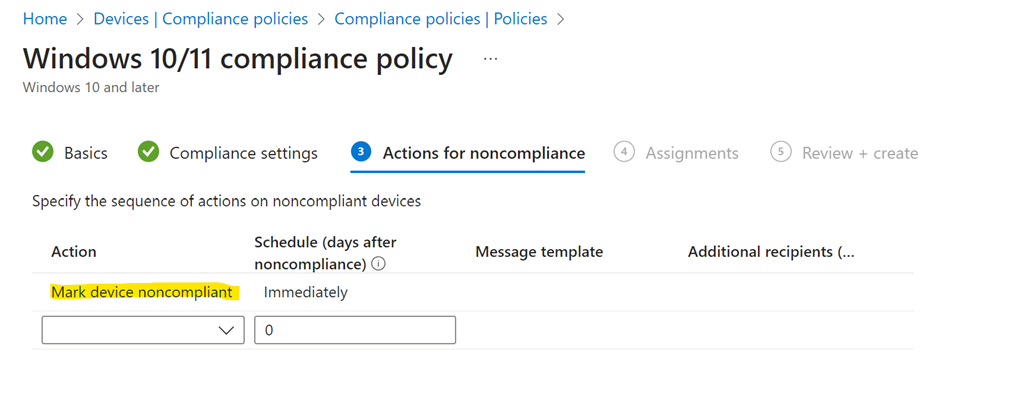
During the policy creation you’ll see a screen as shown above in which you can set actions for devices that fail compliance. You will not that, by default, the only taken is simply to mark the devices as non compliant. That is the only action take. You can add more actions if you want, but importantly, by default, the only action taken is simply to mark devices as non compliant.

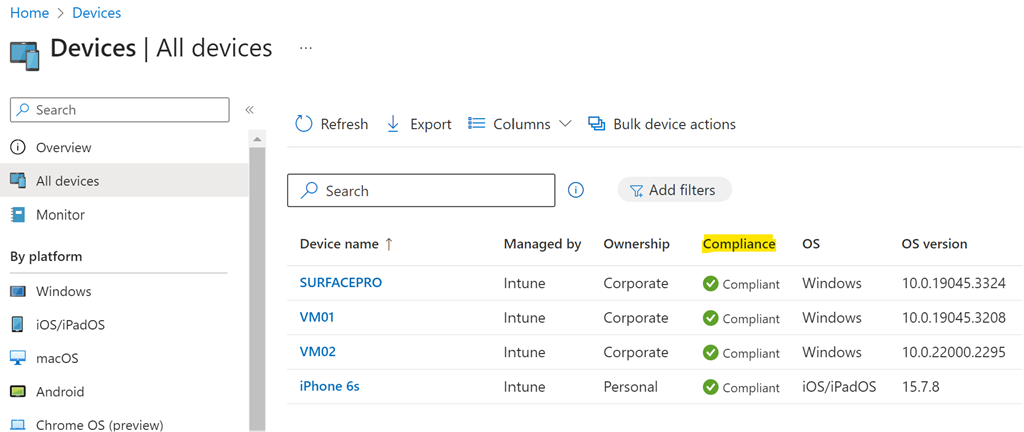
Once you have created and assigned the Compliance Policy the machines covered that policy will be evaluated and results reported back to Intune.

Screenshot 2023-09-14 103209

If devices are found that are not compliant, then you can take action to make them compliant before allowing them to access corporate data.

Above all, using compliance policies is a great way to get an inventory of all the devices in your environment and report their configuration. Of course, these Compliance Policies will continue to be evaluated regularly in case anything changes on the device.

The recommendation then is to start with Compliance Policies to take an inventory of your device fleet before proceeding further with Device management. If you want to read more about Modern Device Management then read my series of blog posts starting here:

https://blog.ciaops.com/2020/09/26/modern-device-management-with-microsoft-365-business-premium-part-1/

Basic Windows Application Control using Intune policies

Application control is a great way to make your Windows devices more secure. However, it can be challenging to create and roll out policies. The good news is that you can apply Application Control using Intune policies. I made this video:

https://www.youtube.com/watch?v=gh0wRZGjnd4

in which I run through the whole process from end to end. I also cover off some of the challenges using this approach as well as some handy troubleshoot tips, especially how to successfully remove the Application Control settings if needed.

Follow along for an easy way to deploy Application Control across your Windows devices using Intune.

Need to Know podcast–Episode 303

Join me for all the news an updates from Microsoft Build as well as a look at the Microsoft Package Manager, Winget.

This episode was recorded using Microsoft Teams and produced with Camtasia 2023.

You can listen directly to this episode at:

https://ciaops.podbean.com/e/episode-303-winget/

Subscribe via iTunes at:

https://itunes.apple.com/au/podcast/ciaops-need-to-know-podcasts/id406891445?mt=2

The podcast is also available on Stitcher at:

http://www.stitcher.com/podcast/ciaops/need-to-know-podcast?refid=stpr

Don’t forget to give the show a rating as well as send me any feedback or suggestions you may have for the show

Brought to you by www.ciaopspatron.com

Resources

@directorcia

@directorcia@twit.social

Join my shared channel

CIAOPS merch store

Become a CIAOPS Patron

CIAOPS Blog

YouTube edition of this podcast

Microsoft Build

Microsoft Build Book of News

Expanding IT value in Windows 11 Enterprise and Intune

Windows 365 boot

Announcing new Windows 11 innovation, with features for secure, efficient IT management and intuitive user experience

Microsoft Mesh: Transforming how people come together in the modern workplace

Bringing the power of AI to Windows 11 – unlocking a new era of productivity for customers and developers with Windows Copilot and Dev Home

Hardening Windows Clients with Microsoft Intune and Defender for Endpoint

Cyber Signals: Shifting tactics fuel surge in business email compromise

Automatically disrupt adversary-in-the-middle (AiTM) attacks with XDR

Use the winget tool to install and manage applications

Winstall.app

Wingetui

Need to Know podcast–Episode 301

News and updates from the Microsoft Cloud and then a deep dive into Compliance policies in Intune. Have a listen and let me know what you think.

You can listen directly to this episode at:

https://ciaops.podbean.com/e/episode-301-compliance-policies/

Subscribe via iTunes at:

https://itunes.apple.com/au/podcast/ciaops-need-to-know-podcasts/id406891445?mt=2

The podcast is also available on Stitcher at:

http://www.stitcher.com/podcast/ciaops/need-to-know-podcast?refid=stpr

Don’t forget to give the show a rating as well as send me any feedback or suggestions you may have for the show

This episode was recorded using Microsoft Teams and produced with Camtasia 2023.

Brought to you by www.ciaopspatron.com

Resources

@directorcia

@directorcia@twit.social

Join my shared channel

CIAOPS merch store

Become a CIAOPS Patron

CIAOPS Blog

YouTube edition of this podcast

Windows 365 Frontline available in public preview

OneNote: Your Digital Notebook, Reimagined with Copilot

Quick Wins to Strengthen Your Azure AD Security

Automating and Streamlining Vulnerability Management for Your Clients

Phone Link for iOS is now rolling out to all Windows 11 customers

Introducing cloud.microsoft: a unified domain for Microsoft 365 apps and service

Centrally manage multiple Microsoft Sentinel workspaces with workspace manager

Announcing Windows LAPS management through Microsoft Intune

Practice Assessments for Microsoft Certifications

Profanity filtering control for live captions in Teams meetings

Getting Endpoint Privilege Management rule policies working

In a recent article:

Getting Endpoint Privilege Management working

I detailed how to get the basics of Endpoint Privilege Management working using settings policies.

The next step in the process is to get the rules policies working in conjunction with this. The scenario will be that we want to only allow a single application to be run with elevated privileges on a device. Here, that application will be Adobe Acrobat installer.

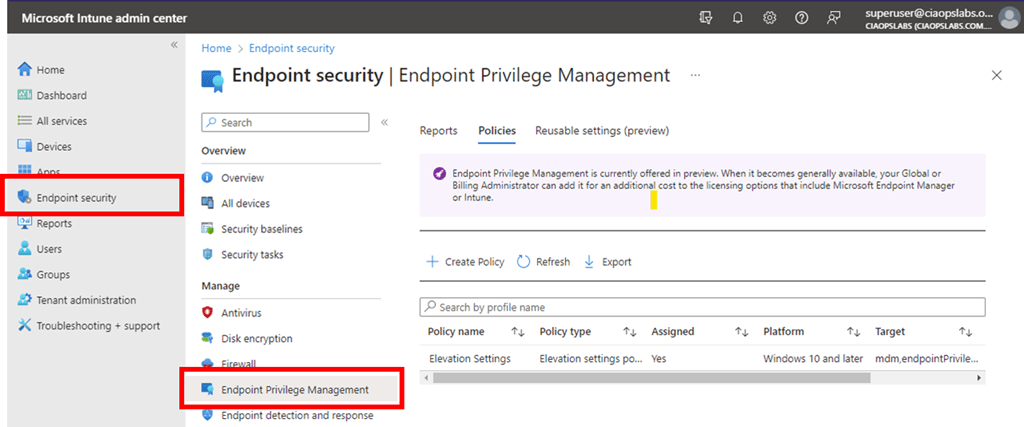
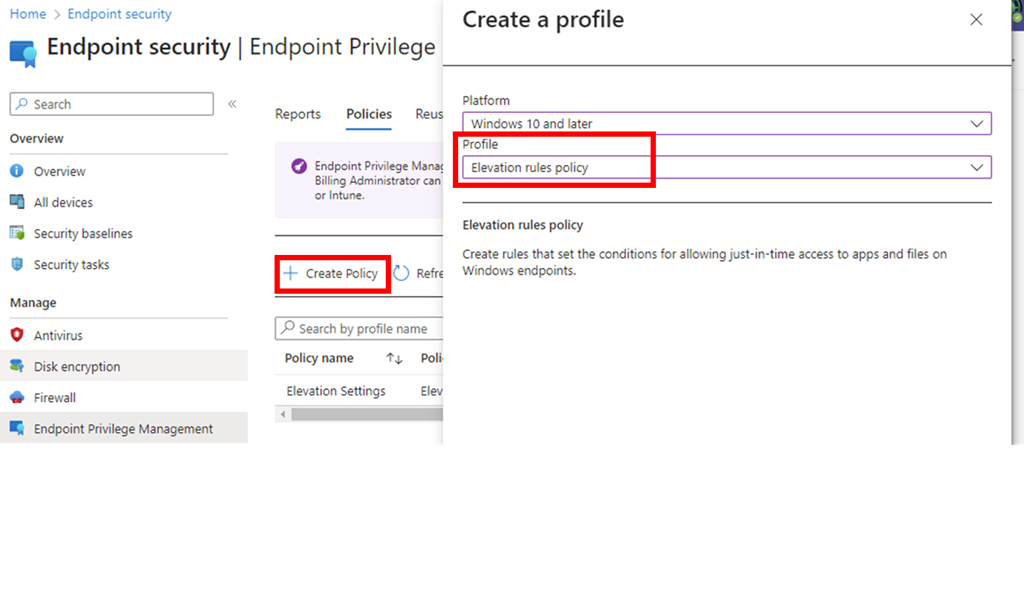
As before, we’ll need to go back into https://intune.microsoft.com under the Endpoint Security menu option as shown above.

image

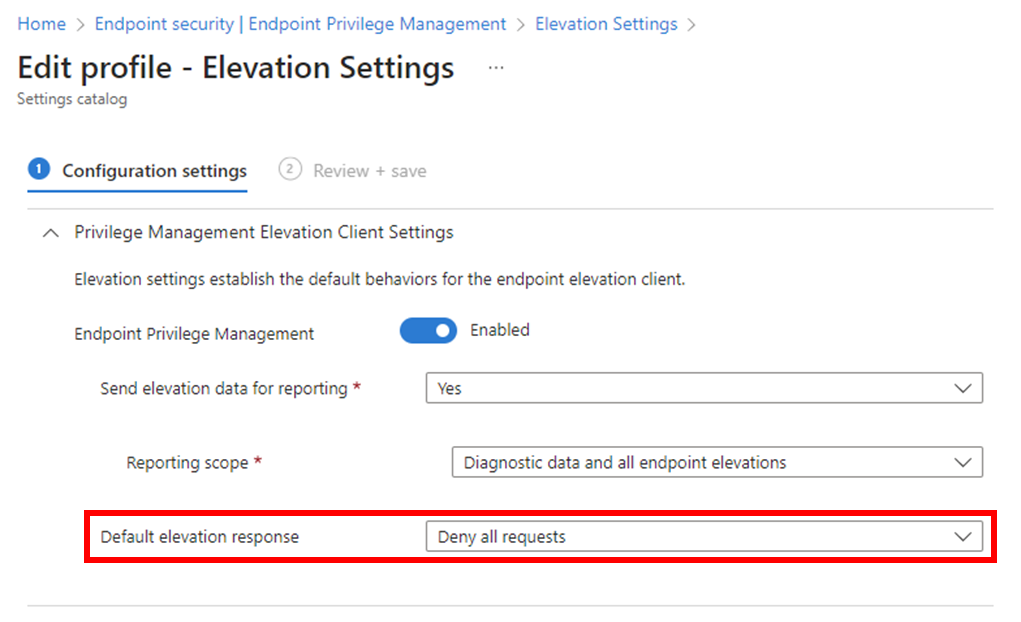
We’ll firstly need to edit the original Settings policy from the previous article and change the Default elevation response to Deny all requests as shown above. This will block any request to elevate by default.

image

Next, we’ll need to create a new policy with the Profile set to Elevation rules policy as shown above.

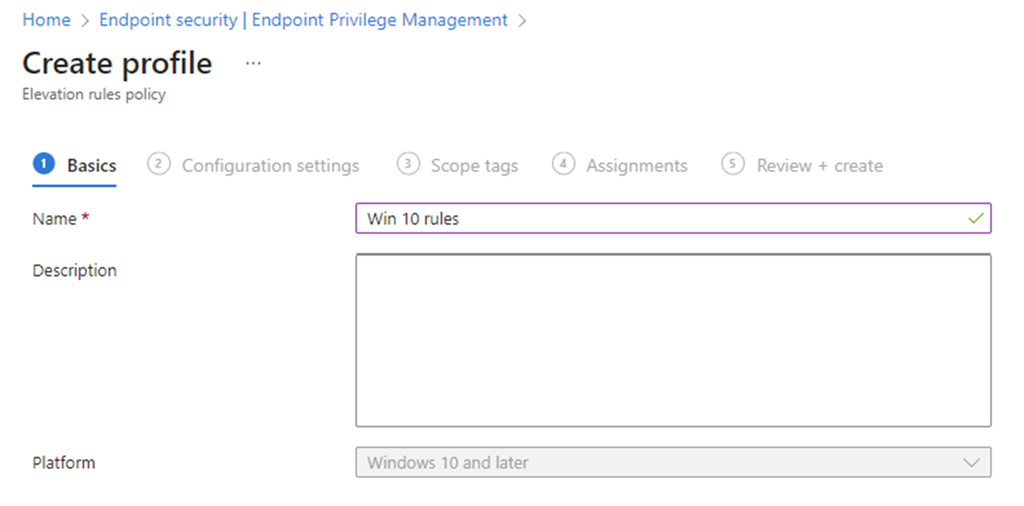
image

As always, we need to give this new policy a name.

image

On the following screen select Edit instance on the right as shown above.

image

On the blade that appears from the right, you’ll need to give the Rule a name and then a description if you wish.

For the Elevate type I have selected User confirmed rather than automatic as well as requiring Validation to be a Business justification as shown.

Next is the actual file name for the Acrobat Reader installer which is acrordr2300120064_en_US.exe in the File name field.

Screenshot 2023-04-04 180747

To get the file hash I used the PowerShell command get-filehash as shown above.

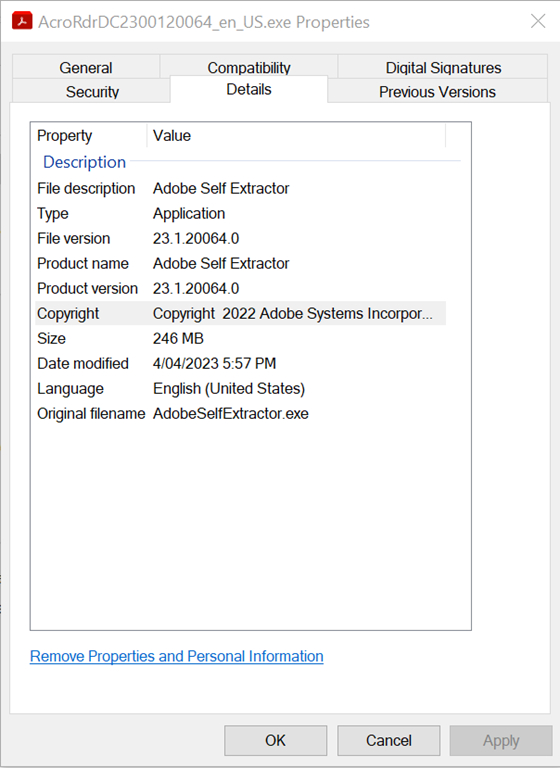
Screenshot 2023-04-04 180929

The remaining details were obtained from the properties of the file, as shown above.

I then saved this Rule and completed the creation of the policy using the standard process, ensuring I applied it to teh appropriate group in my environment.

Once again, you need to wait until the policies have been pushed out to all devices.

Screenshot 2023-04-04 180525

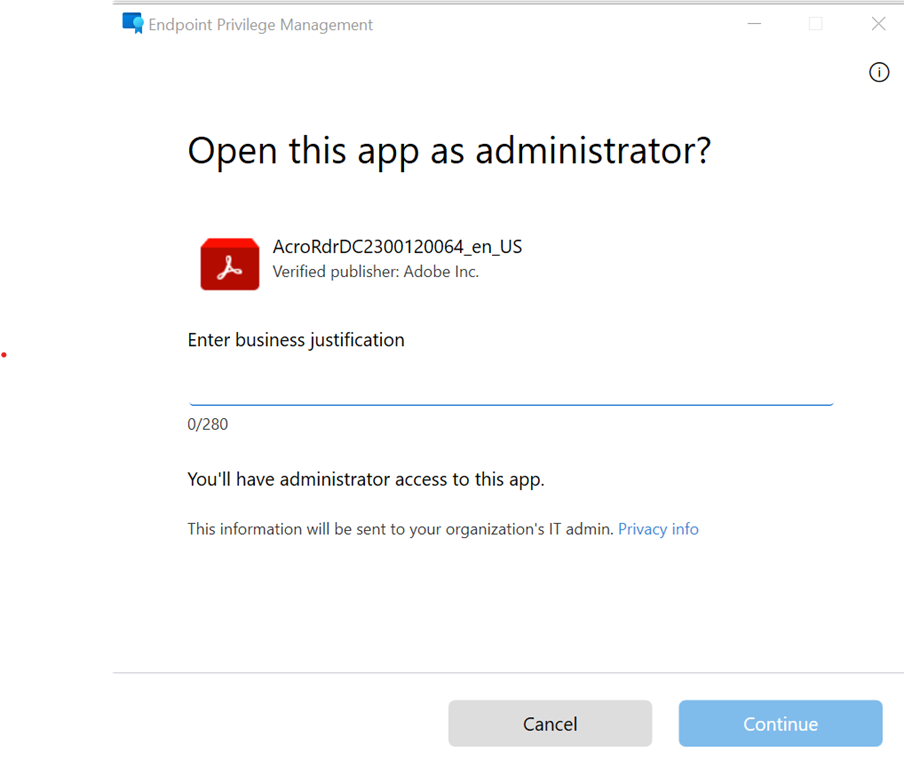
With the policies deployed, if I now right mouse click on the Acrobat Reader installation file and select Run with elevated privileges I see,

Screenshot 2023-04-04 181930

that the configured app is identified in the dialog and I need to provide a business justification for the installation as was configured in the rules policy.

Screenshot 2023-04-04 182041

Screenshot 2023-04-04 182221

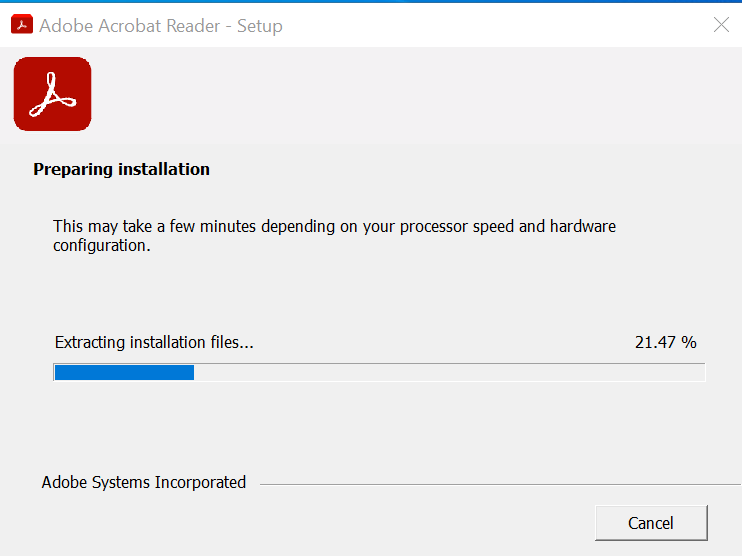
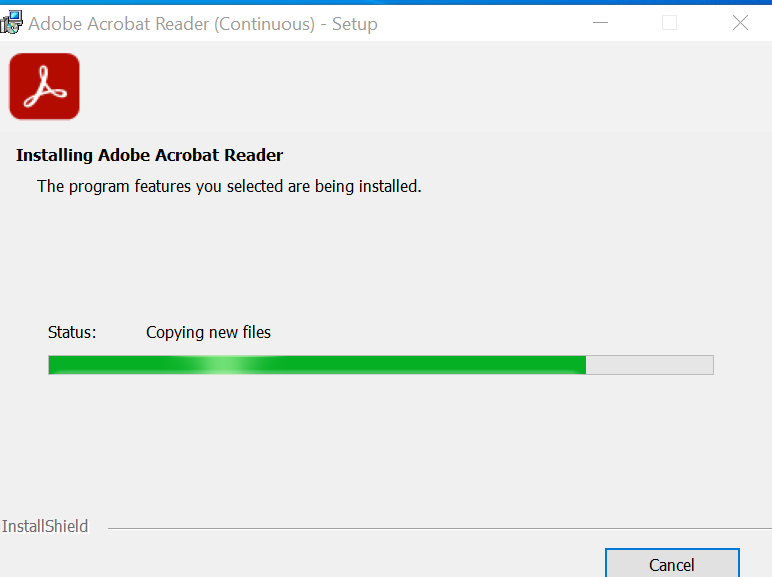
Once that has been completed the application installs as normal.

Screenshot 2023-04-04 182359

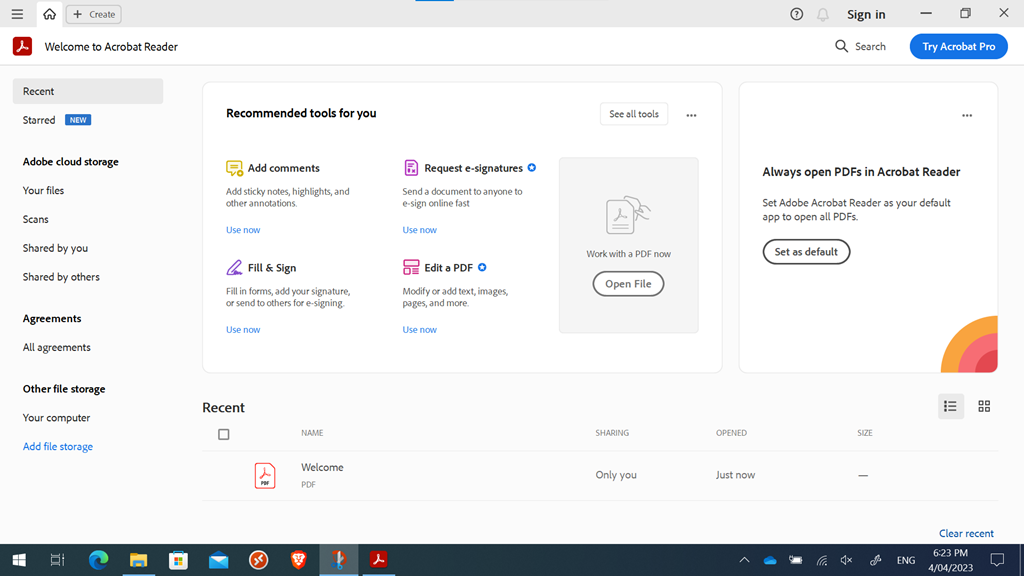
The Adobe Reader application runs on the device once the installation is completed as shown above.

Screenshot 2023-04-04 182512

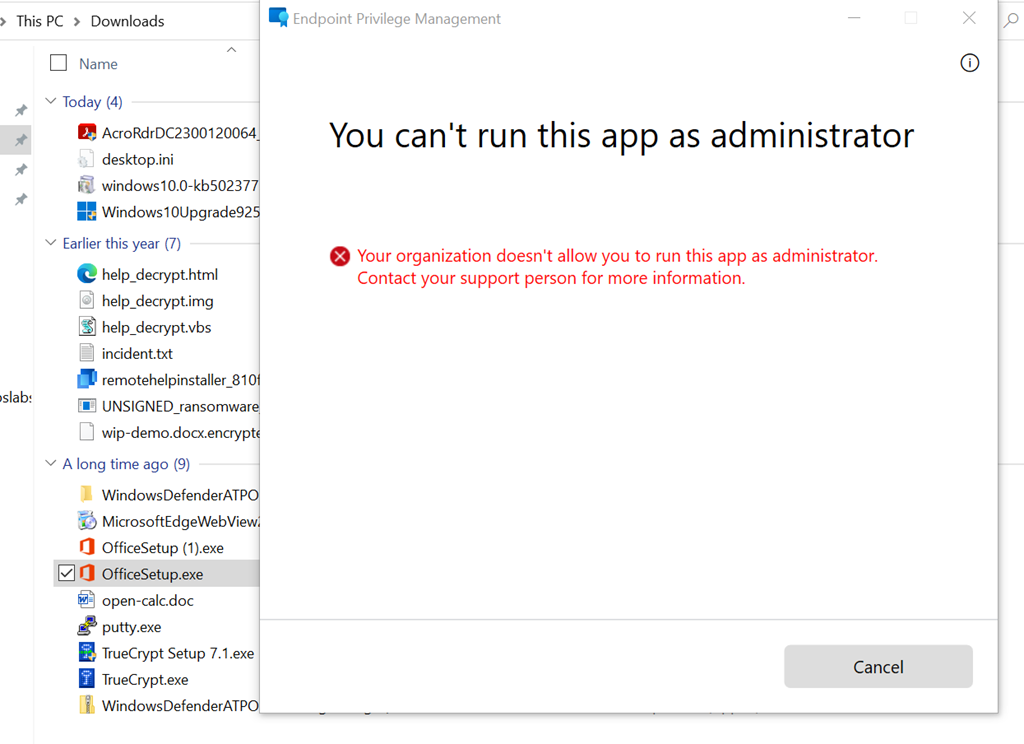
If I try and install another application by using the run with elevated privileges option (here, on the file officesetup.exe), it is blocked as shown above because the default setting policy is deny all. To allow this, another rule for that specific file would need to be created in the policy.

This means that you can now create a default Privilege Management settings policy to deny all requests to elevate and then have specific rules to only allow pre-defined applications to be run as administrator on the device. Remember, all this can be done without needing to have a local administrator on the device.


Getting Endpoint Privilege Management working

If you are not aware yet, Endpoint Privilege Management is now available in public preview.

image

You can find it in https://intune.microsoft.com under the Endpoint Security menu option as shown above.

image

You’ll firstly need to use the Create Policy menu option, as shown to create a policy for your environment.

Select Windows 10 and later for the Platform (only option currently available).

Select Elevation settings policy for the Profile.

Select Create to continue.

image

As always, give the new policy a name and select Next to continue.

image

The most important thing here is to ensure that the option Endpoint Privilege Management is set to Enabled as shown above.

In this case, the Default elevation response is set to Require user confirmation.

Select Next to continue.

Continue through the rest of the policy as normal, ensuring you assign this policy to an appropriate group in your organisation.

image

You can then select on the new policy to view it and then select View report to see the results of how the policy has been applied in your environment.

It is important to ensure your workstations are at the appropriate update level. At the moment that is:

image

The policy will NOT work until you are at this level.

Screenshot 2023-04-04 153526

The above shows the client I used was Win 10 22H2 Build 19045.2788.

Screenshot 2023-04-04 153056
When the policy is applied successfully to the device you will find a new directory C:\Programs Files\Microsoft EPM agent is created as shown above.

Screenshot 2023-04-04 153137

If you look inside that directory you will see the above structure.

Screenshot 2023-04-04 153323

With these files now on the device, you can right mouse click on an executable and you should now see the option Run with elevated access as shown above.

Screenshot 2023-04-04 153409

When you select that option you will now be prompted, per the policy options, to enter a confirmation as shown above.

You can find documentation from Microsoft here:

Use Endpoint Privilege Management with Microsoft Intune