Need to Know podcast–Episode 350

In Episode 350 of the CIAOPS “Need to Know” podcast, along with the latest news from the Microsoft Cloud, we explore how Microsoft Power Pages is revolutionising web development for SMBs. Learn how this low-code platform enables businesses to build secure, scalable portals—without needing full-stack developers. From customer support portals to partner onboarding, discover real-world use cases, a step-by-step guide to building your first portal, and how Managed Service Providers (MSPs) can offer Power Pages as a service. This episode is a must-listen for IT professionals, MSPs, and business leaders driving digital transformation.

Brought to you by www.ciaopspatron.com

you can listen directly to this episode at:

https://ciaops.podbean.com/e/episode-350-power-up/

Subscribe via iTunes at:

https://itunes.apple.com/au/podcast/ciaops-need-to-know-podcasts/id406891445?mt=2

or Spotify:

https://open.spotify.com/show/7ejj00cOuw8977GnnE2lPb

Don’t forget to give the show a rating as well as send me any feedback or suggestions you may have for the show.

Resources

CIAOPS Need to Know podcast – CIAOPS – Need to Know podcasts | CIAOPS

X – https://www.twitter.com/directorcia

Join my Teams shared channel – Join my Teams Shared Channel – CIAOPS

CIAOPS Merch store – CIAOPS

Become a CIAOPS Patron – CIAOPS Patron

CIAOPS Blog – CIAOPS – Information about SharePoint, Microsoft 365, Azure, Mobility and Productivity from the Computer Information Agency

CIAOPS Brief – CIA Brief – CIAOPS

CIAOPS Labs – CIAOPS Labs – The Special Activities Division of the CIAOPS

Support CIAOPS – https://ko-fi.com/ciaops

Get your M365 questions answered via email

Show Notes

Security & Compliance
AI & Copilot
Learning & Productivity
Threat Intelligence
Platform & Tools
Recognition & Industry Updates
AI Governance & Design
Media & Branding

Creating an Automated Agent to Post Historical Computer Events in Teams Daily

Video link = https://www.youtube.com/watch?v=KZkhK41lynI

In this video, I walk you through the process of creating an automated agent that posts daily historical computer events in a Teams channel. Starting from copilotstudio.microsoft.com, I show you how to set up the agent, configure triggers, and manage connections. Learn how to troubleshoot common issues and ensure your agent runs smoothly. Join me as I share tips and insights to help you leverage AI for regular updates in your business. Don’t miss out on this practical guide to enhancing your team’s productivity with automation!

Accessing Azure Key Vault via Power Automate

In a previous article:

Adding a secret to an Azure Key Vault

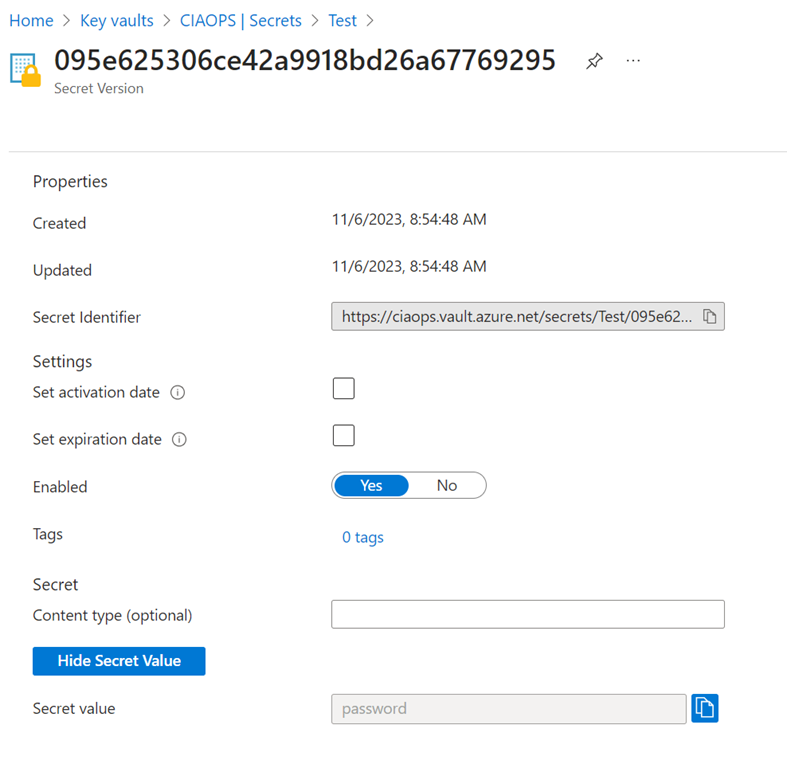
I showed how a secure credential could be saved to an Azure Key Vault and then retrieved either from the browser, or PowerShell. You can however, also retrieve a secret using Power Automate.

image

You can see I have the same ‘super secret’ password stored in the Azure Key Vault above.

The Azure Key Vault connector in Power Automate is a premium connector which means you’ll either need an advanced Power Platform license or you’ll need to set up a

Power Platform PAYG configuration

which is probably the more cost effective approach.

image

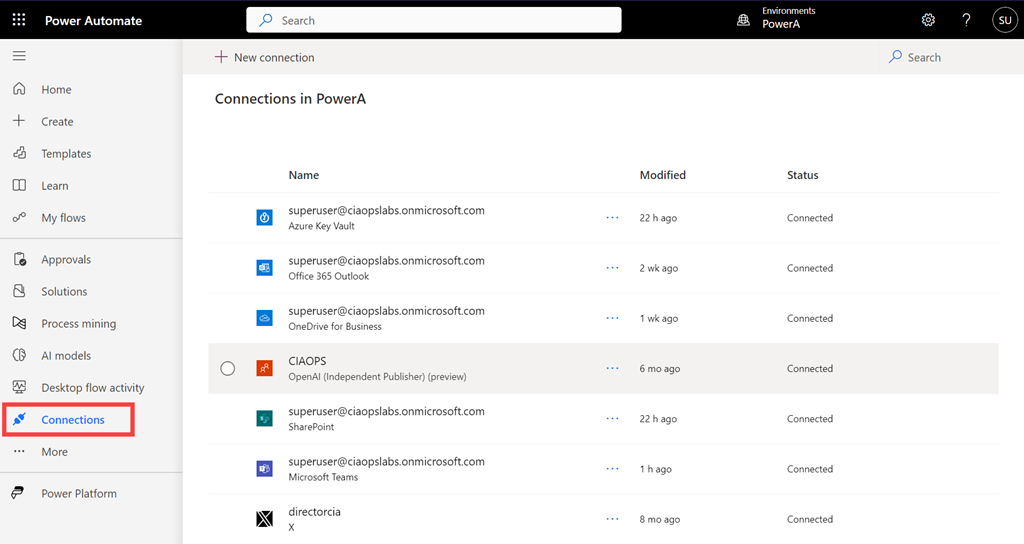
You’ll firstly need to login to your Power Platform environment and select Connectors from the menu on the left as shown above. In here look for the Azure Key Vault connector. If it is not there select the +New connector from the menu at the top.

image

Search for key vault in the top right and then select Azure Key Vault as shown above. You will note that this connector is a Premium connector as highlighted earlier.

image

Enter the vault name and select Create.

image

You should now see the connector displayed in the list as shown above.

image

If you select this connector you will see additional information and the connection Status as well. Icons on the menu bar at the top that allow you to maintain this connector if needed.

image

Create a new flow and add a new step. Search for key vault as shown and select Get Secret as the action below as shown above.

image

If you pull down the Name of the secret field you should see your secret name previously created in the Azure Key Vault as shown above, which you can select.

image

Complete your flow. Here I’m just going to output the value of the secret (i.e. the password) to a Microsoft Team channel.

image

If you now run the flow you see that it succeeds.

image

You should also see the output of the secret (i.e. here the password) stored in the Azure Key Vault displayed as shown above.

Another advantage of using an Azure Key Vault is that you can use it a variety of tools such as PowerShell and Power Automate as I have shown here. This means that the credentials stay secure and can still be accessed via your automation process.

CIAOPS Need to Know Microsoft 365 Webinar – July

Join me for the free monthly CIAOPS Need to Know webinar. Along with all the Microsoft Cloud news we’ll be taking a look at Microsoft Flow.

Shortly after registering you should receive an automated email from Microsoft Teams confirming your registration, including all the event details as well as a calendar invite.

You can register for the regular monthly webinar here:

July Webinar Registrations

(If you are having issues with the above link copy and paste – https://bit.ly/n2k2307

The details are:

CIAOPS Need to Know Webinar – June 2023
Friday 30th of June 2023
11.00am – 12.00am Sydney Time

All sessions are recorded and posted to the CIAOPS Academy.

The CIAOPS Need to Know Webinars are free to attend but if you want to receive the recording of the session you need to sign up as a CIAOPS patron which you can do here:

http://www.ciaopspatron.com

or purchase them individually at:

http://www.ciaopsacademy.com/

Also feel free at any stage to email me directly via director@ciaops.com with your webinar topic suggestions.

I’d also appreciate you sharing information about this webinar with anyone you feel may benefit from the session and I look forward to seeing you there.

Adoption with fun and OpenAI

I’ve detailed how to use an API with Power Automate to inject some engaging content automatically into Microsoft Teams.

Adoption with fund and astronomy

Thanks to API’s I want to extend this to use OpenAI and ChatGPT.

What I want to achieve is to ask a question of ChatGPT via an API everyday something like this:

Tell me about 1 May as a list

When I do this interactively at chat.openai.com I see:

image

I now want something like that to appear in Microsoft Teams daily for each day.

You’ll need to head over to OpenAI and get an API key. Here’s how to do that:

How to get an OpenAI API key in just 5 easy steps

I’d also suggest signing up for an OpenAI API subscription if you want to continue using this service. Here’s an idea of the costs.

image

Create a new Scheduled cloud flow. Don’t forget to change the repeat option to 1 day typically.

image

Add the Current Time action.

Add the Convert time zone action to get the time in your location. Set the format string to Month/day pattern (i.e. May 1).

image

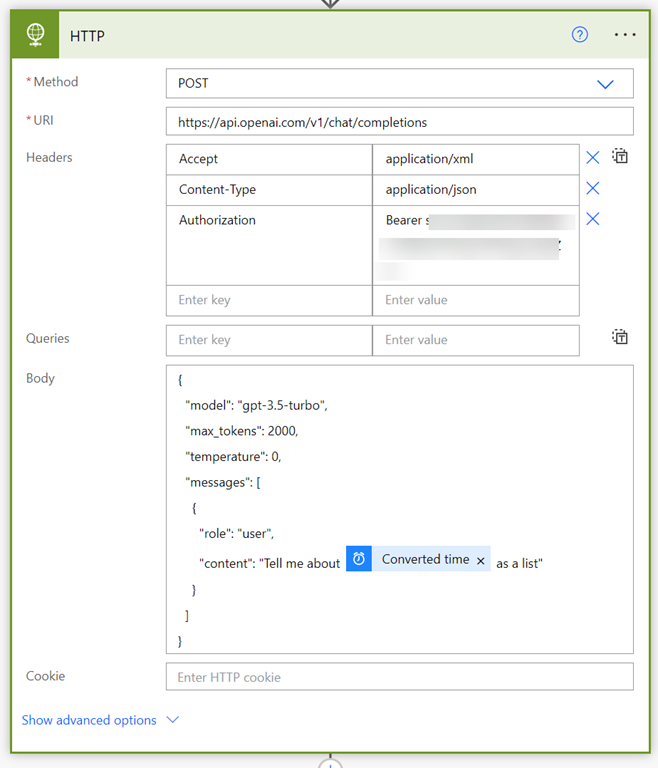
Add the HTTP action. Remember, this is a Premium connector. Set teh following options here:

Method = POST

URI = https://api.openai.com/v1/chat/completions

Accept = application/xml

Content-Type = application/json

Authorization = Bearer (your OpenAI API key)

Body:

{
   “model”: “gpt-3.5-turbo”,
   “max_tokens”: 2000,
   “temperature”: 0,
   “messages”: [
     {
       “role”: “user”,
       “content”: “Tell me about @{body(‘Convert_time_zone’)} as a list”
     }
   ]
}

Ensure you double check all these settings as it is easy to make a mistake.

image

Add the Parse JSON action.

I’ve put the JSON schema you need here:

https://github.com/directorcia/general/blob/master/Power%20Platform/OpenAI/JSON-for-GPT

image

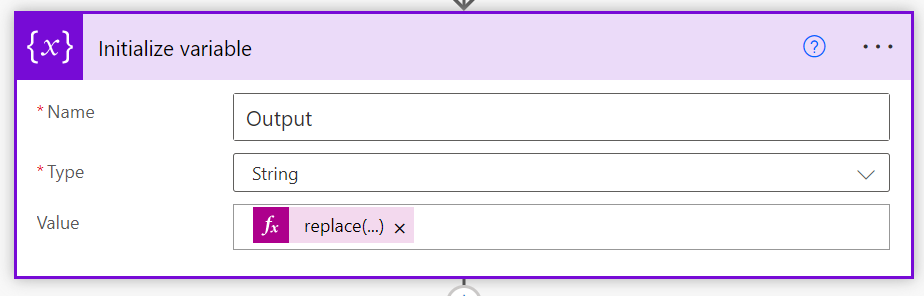
Add the Initialize variable action. We need to extract the returned text and format it so it will display in Teams. That means replacing the ‘/n’ string ‘<br>’. That can be done via this expression:

replace(body(‘Parse_JSON’)?[‘choices’][0]?[‘message’]?[‘content’],’/n’,’<br>’)

NOTE: if you copy and paste this expression and receive an error when you try and save it, you’ll most likely have to change the apostrophe from ‘ to ‘. It’s subtle, but you need to use the one to the left of the ENTER key on most keyboards to get it to work in Power Automate.

image

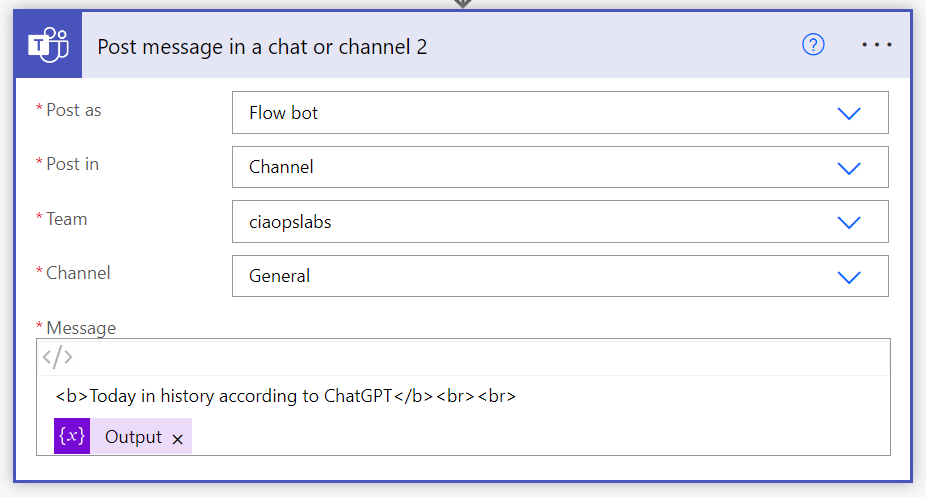
Finally add the Post message in chat or channel action.

image

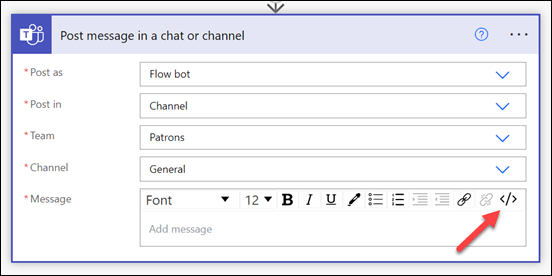
Ensure you swap to the HTML editor using the </> item in the top right of the message as shown above.

Format the message the way you want to and insert variable created previously as shown.

image

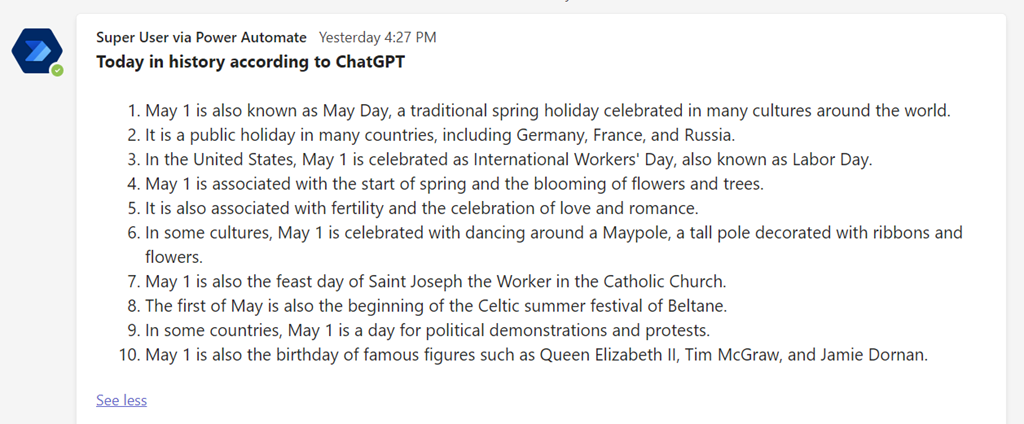
When the Flow executes the output should look something like the above.

Note that GPT isn’t always right! You can also change the AI models if you wish, but remember they have different prices.

Typically, I’d suggest you run this Flow once a day to promote more engagement in your Microsoft Team. Better yet, you can show everyone how you are integrating AI into Teams. Yet another point of engagement in your Microsoft Team and perhaps a way to spark ideas for how you can expand the use of OpenAI in yoru business.

Power Automate Twitter connector failing

*** My resolution to this here – https://blog.ciaops.com/2023/04/27/connect-power-automate-to-twitter-using-a-bring-your-own-app-approach/

Since the 20th of April 2023 the Power Automate Twitter connector has been failing to authenticate. This means you get an error in your Flow that looks like:

image

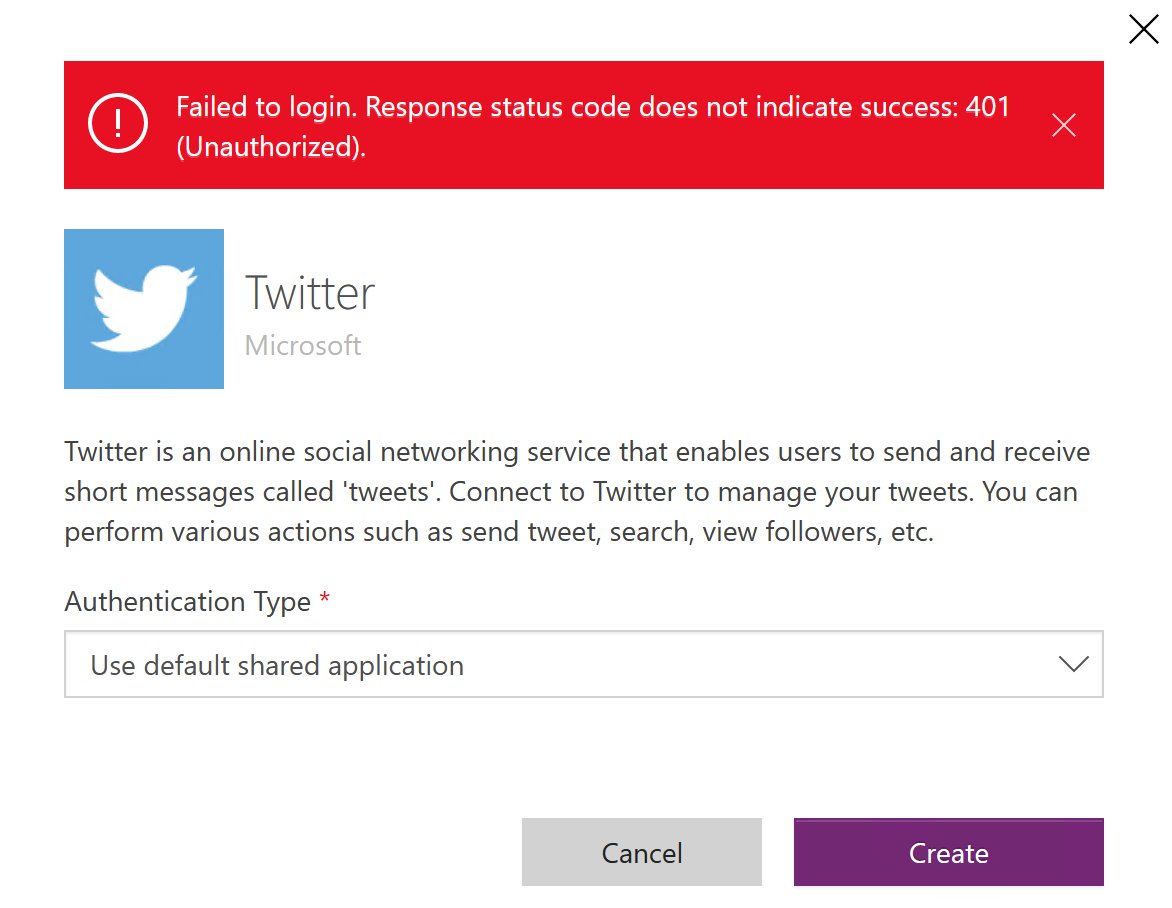
When I tried to fix the connector I am greeted by.

Image

There have no doubt been changes in the Twitter API which have caused this.

I’m trying to find an answer from Microsoft on how this will be handled going forward, but as yet I have not heard nothing back. If I find out, I’ll post here again.

Adoption with fun and astronomy

A while back I detailed how to schedule a Dilbert comic to appear daily in a Microsoft Teams channel:

Adoption with fun

Sadly, Dilbert has moved behind a paywall which means that process no longer works. As such, I have been searching for a suitable replacement and have settled on the Astronomy Picture of the Day from NASA.

The basic concept from the Dilbert process is the same. This process also requires a premium Power Automate connector, which you can easily configure using with either a Power Platform Premium license or using Power Platform PAYG configuration with Azure which I have shown previously.

image

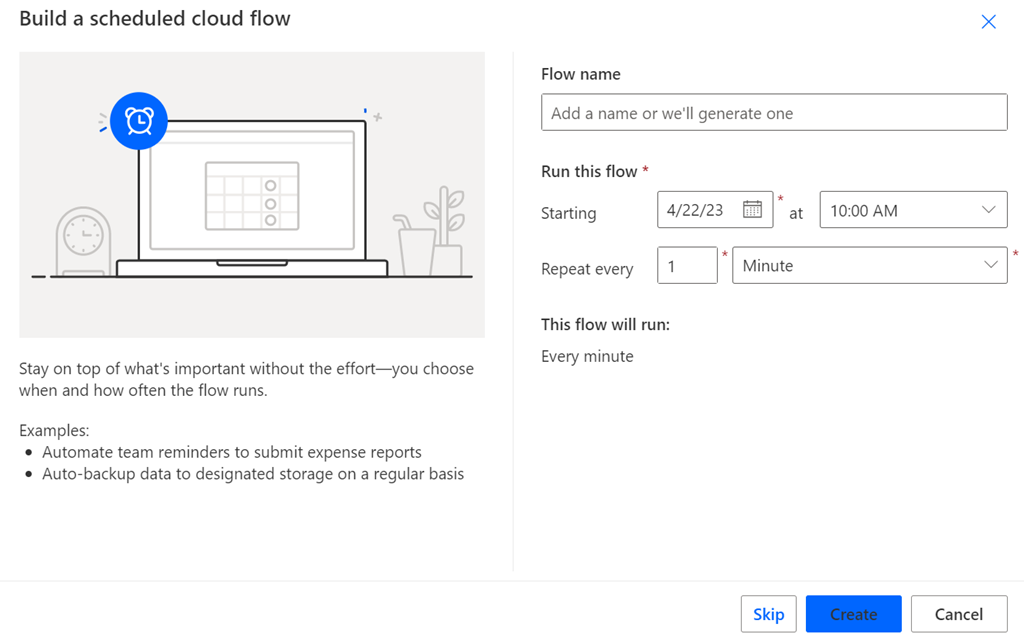
The starting process is to create a new Scheduled Cloud Flow and select the time when you wish that Flow to execute.

image

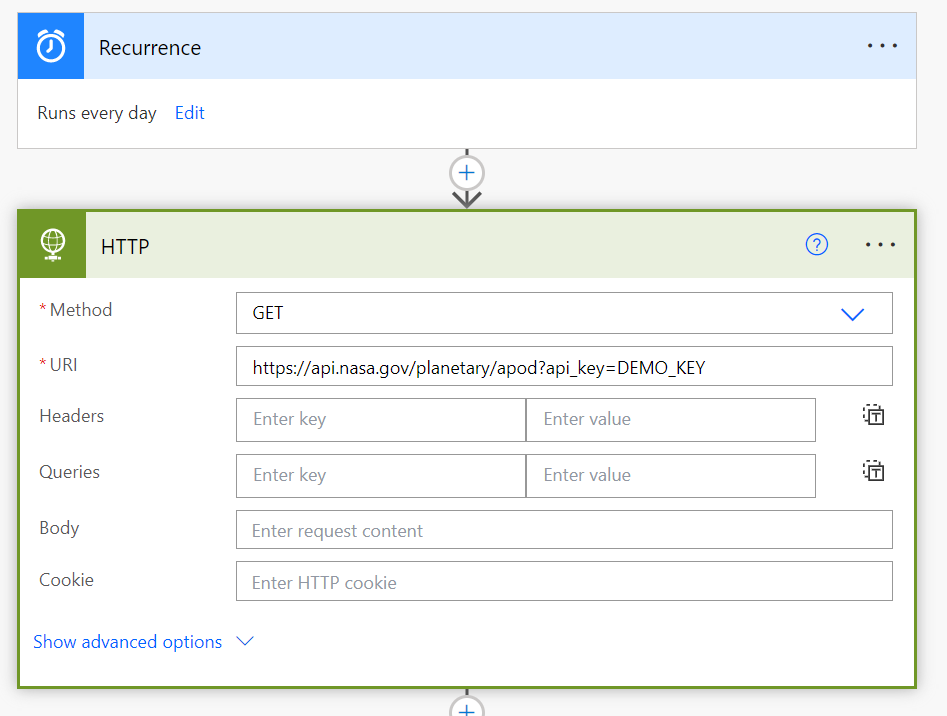
You will then need to add a HTTP action as shown above. This is a premium connection mentioned previously. This HTTP action will need to use a GET method for the URI:

https://api.nasa.gov/planetary/apod?api_key=DEMO_KEY

image

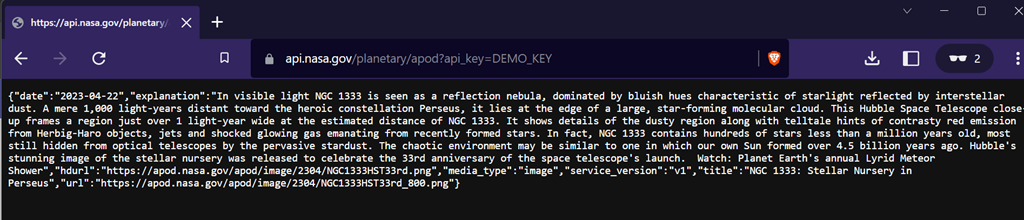
Open that URI in a new browser tab and you should see some JSON information returned as shown above. Copy all of this.

image

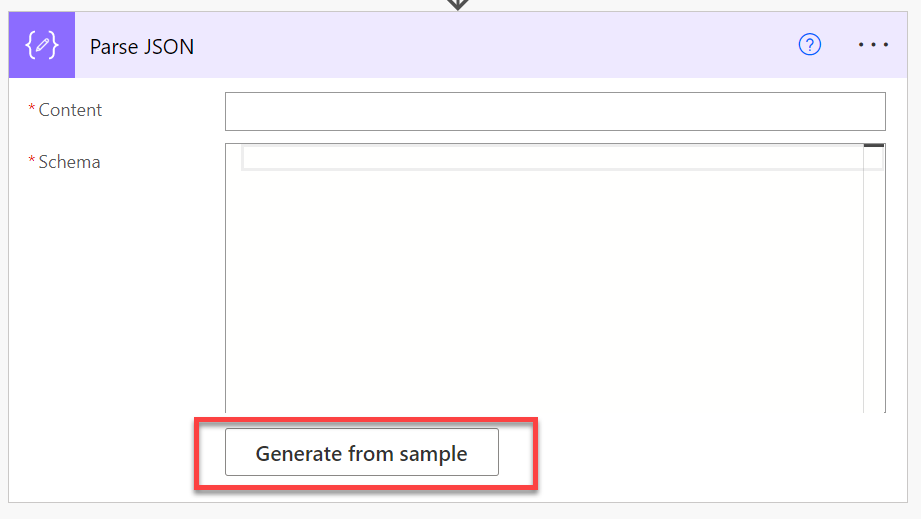
Next add the Parse JSON action to the Flow. Then select the Generate from sample button at the bottom of this action as shown above.

image

Paste the text obtained from browser window previously in here and select Done.

image

Ensure you have the Body option selected in the Content area as shown above.

image

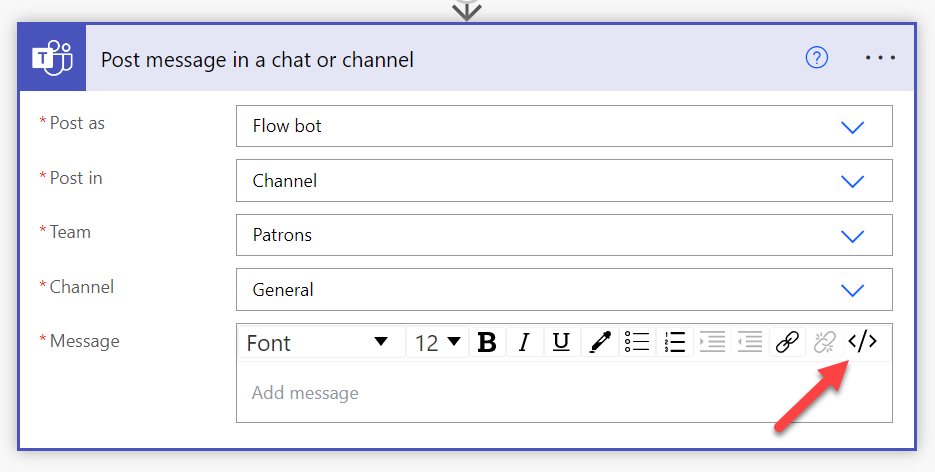
Next, add the Post message in a chat or channel as shown above. Add the appropriate Team and Channel. Then in the Message area select the </> icon in the top right to enable HTML editing.

image

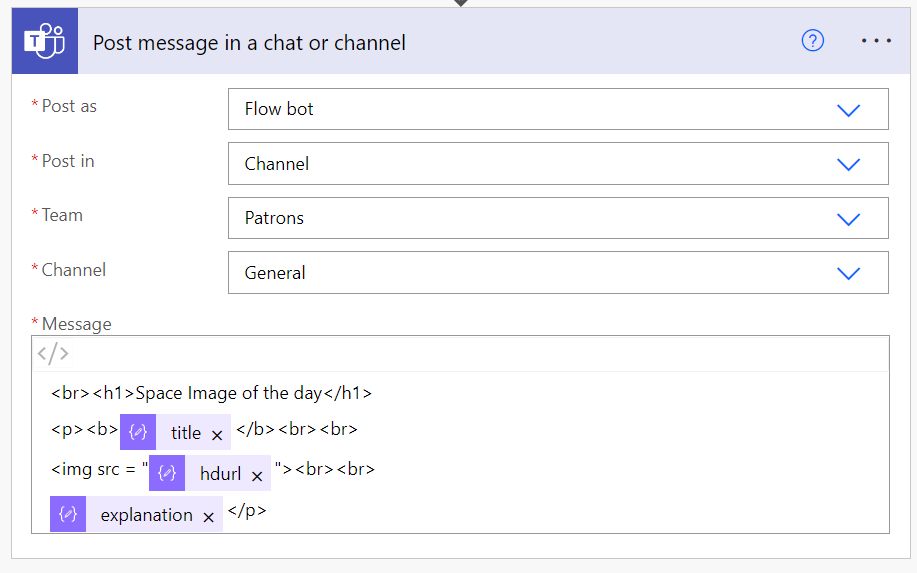
Complete the formatting any way you wish but this is what I used:

<br><h1>Space Image of the day</h1>
<p><b>@{body(‘Parse_JSON’)?[‘title’]}</b><br><br>
<img src = “@{body(‘Parse_JSON’)?[‘hdurl’]}”><br><br>
@{body(‘Parse_JSON’)?[‘explanation’]}</p>

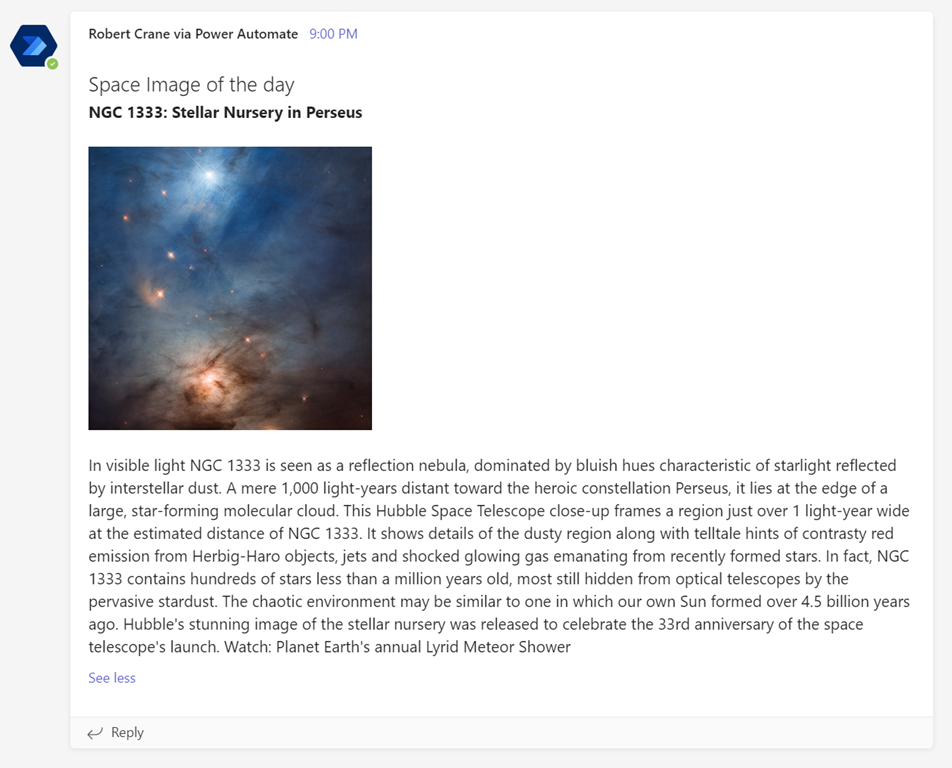
Basically, I’m going to display a heading, then the title, high definition image and explanation (from the returned result).

The result when the Flow runs is:

image

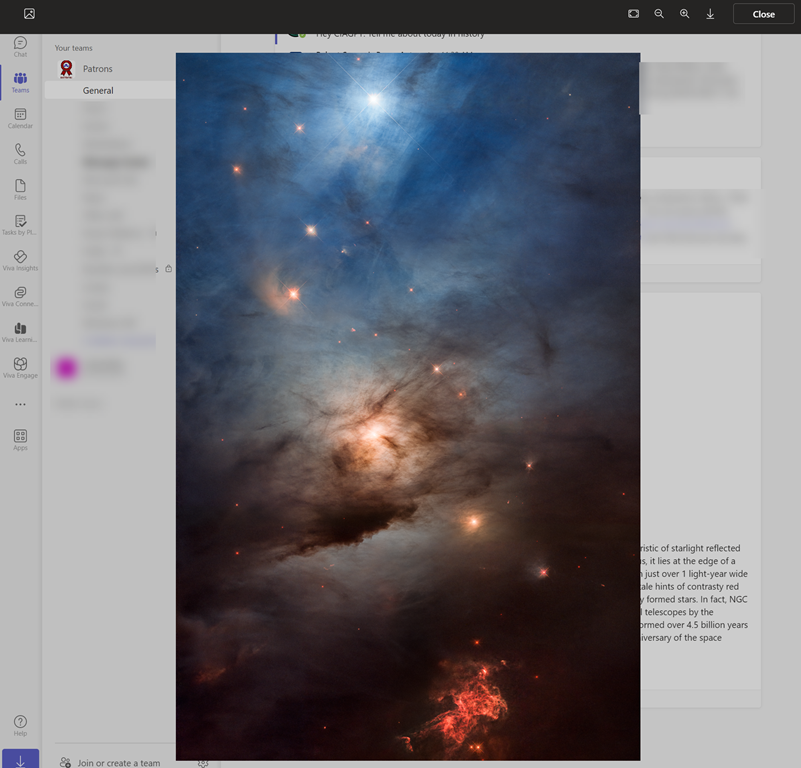
and when the imaged is clicked on, you see something like:

image

Remember, the whole idea here is to encourage people to regularly visit the Team in questions and hopefully drive more engagement of the environment.

An introduction to Power Automate

Direct video link = https://www.youtube.com/watch?v=ob2ShmlMxv4

In this video tutorial I run through the creation of three basic Flows using Power Automate:

1. Capture new tweets that mention some specific text

2. Storing a copy of an email attachment in OneDrive for Business

3. Saving the output from a web API call to Microsoft Teams

All of these are simple to create and use. They can also be easily extended and enhanced upon. I hope they inspire you to spend more time using Power Automate.