Recalling message options in Office 365 OWA

image

There are many times when you want to recall a message you have sent in Outlook or Outlook Web Access (OWA). Generally, you should reconcile yourself to the fact that you won’t be able to achieve this but there is an option in OWA that you can set to allow you to ‘Undo’ you send.

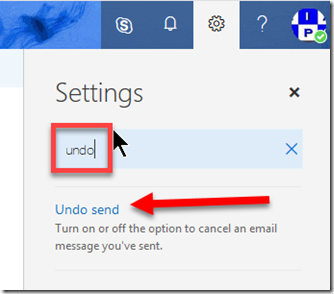
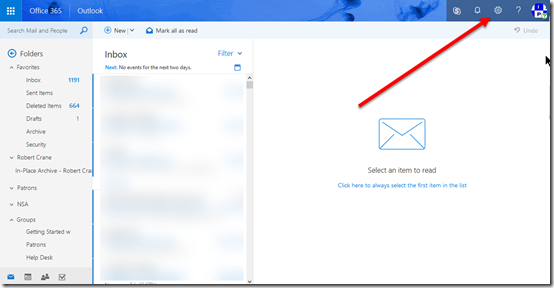
To enable ‘Undo send’ in OWA navigate to OWA in your browser and select the Cog in the top right as shown above.

image

In the search box that appears type ‘undo’ and this should display the Undo send option as shown. Click on this result to navigate to the setting.

image

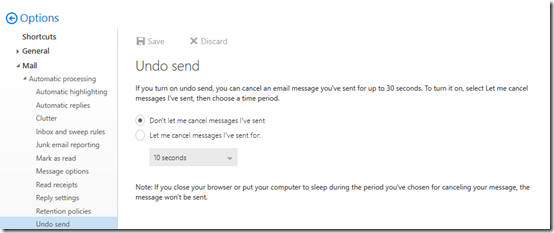
In most cases the Undo send option will be disabled as shown above. To enable simple select the Let me cancel messages I’ve sent for option.

image

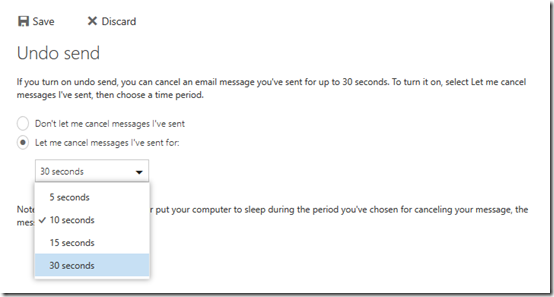
By default, the time you have to undo the send is only 10 seconds so you may want to extend this to the maximum of 30 seconds by selecting that option from the pull down.

image

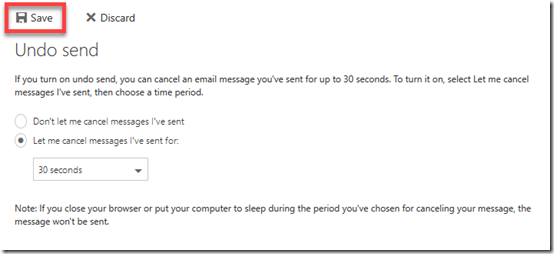
After you have made these changes make sure you select the Save button at the top to update your preferences.

With this option now configured at least you might have the ability to undo a sent email before it goes out. Again, this may not always work but at least now you have an option.

Understanding Office 365 Groups and Teams

A while ago I wrote an article that detailed:

Where to put data in Office 365

and in typical fashion, technology has now moved on. This means that I need to revisit the concept of where you should be putting inside Office 365.

We of course now need to remember that we have new locations like Microsoft Teams and Staffhub, as well as improved locations like Office 365 Groups to house our business data. So let my try and broadly explain the the data locations that are currently available to you in Office 365.
image

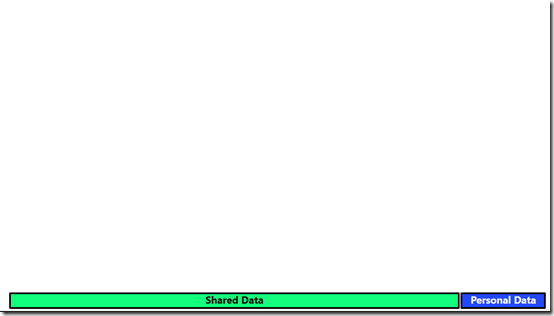
Let’s start by considering the two major types of data we have to deal with in today’s businesses. As the above slide shows, we can typically categorise data it shared and personal. Personal data is typically created and owned by a single user in the business. Personal data is also only shared between a handful of people at most. By contrast, shared data is data that is not owned by any single individual and typically needs to be seen across a wide wide audience.

You also typically tend to find that shared data is a much greater percentage of the overall amount of data as illustrated by the size of the bars above. From here on in, we’ll consider shared data locations being green and private data locations being blue. We will also consider shared data locations to be on the left while personal data locations will be on the right.
image

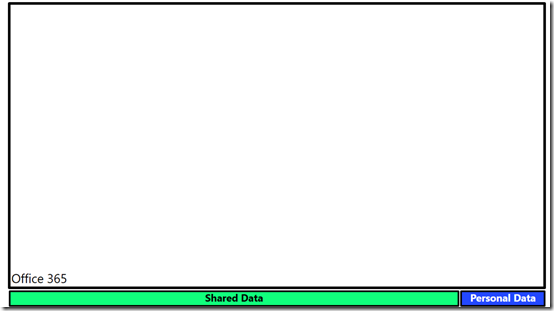
Office 365 provides us a location into which we can store all business data, whether shared or personal. It is the box into which everything will live, both shared and personal.
image

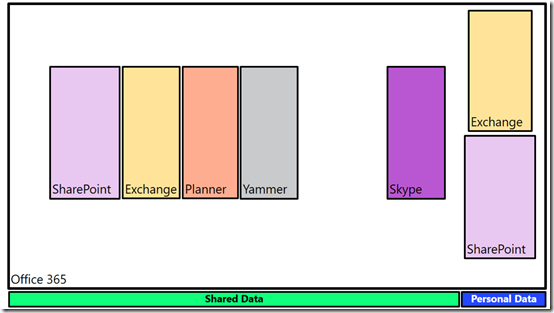
We store business data inside a number of serviceswithin Office 365. These include Exchange for emails, SharePoint for files, Planner for tasks, Yammer for social conversations and Skype for meetings.

You’ll notice that the majority of these services are designed for the storage of shared data, however both Exchange and SharePoint have the ability to store both shared and personal data. Thus, they appear twice in the above slide as locations in which we can store data.
image

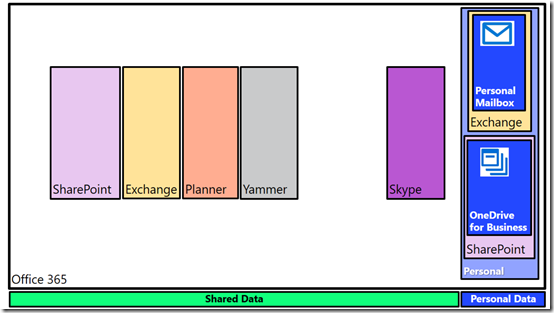
Into the personal data location for Exchange we place a users individual mailbox. This is designed for them to receive emails from outside the organisation and also typically from individuals inside the business. A personal mailbox is not a good location for generic email addresses like accounts@ or info@. It is designed for personal correspondence to and from an individual.

Likewise, SharePoint provides the OneDrive for Business location designed for a user’s personal files. These files are owned by the user and typically shared with a very small number of people. OneDrive for Business is NOT designed as a file server replacement, it is designed as repository for an individual users to store files they typically have on their desktop, on their local hard disk, or on an external USB drive or a home directory on a network.

Thus, Office 365, thanks to both Exchange and SharePoint, provide each and every licensed user a distinct location in which to save their own own personal information. Because that information is still within the Office 365 environment it remain secure and compliant as well as being easy to manage for the business owners.
image

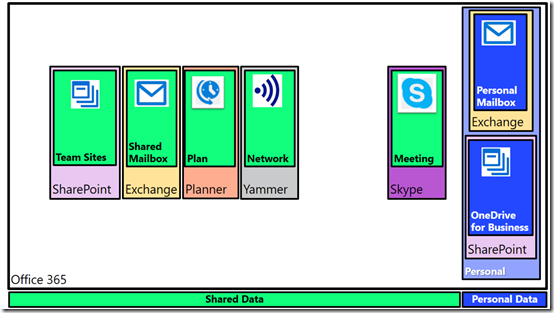
Now Exchange and SharePoint also provide locations to save shared data into. Exchange provides this via shared mailboxes. Best practice is for shared mailboxes to be things like info@, sales@, etc that may need to be shared between a number of people and will also persist beyond any individual currently performing that task.

Likewise, SharePoint provides Team Sites as a location to save information into that all people in the business can access. You can of course provide custom security around all shared Office 365 services as needed.

However now in this space of shared data in Office 365, you get additional locations to store your information. Services like Planner allow the organisation of tasks and schedules across a team. Yammer allows the business to get out of email and work in an enterprise social network. Not only does that reduce email overload for users but because information is shared publically, it makes it more searchable and shareable. Finally, Skype for Business allows people in the business to meet virtually. They can chat, conduct meetings, share desktops, whiteboards, files and more.

Each one of these shared locations can be used stand alone if desired. Thus, you can have a Team Site to fill a single need. Likewise, you can use Skype as a way of chatting to people. As I have written about before:

The modern way of collaboration

To get a job done these days, people need more than stand alone tools. They need all the power of the individual services that Office 365 provides but they need them rolled together in a single place that is easy to work with.
image

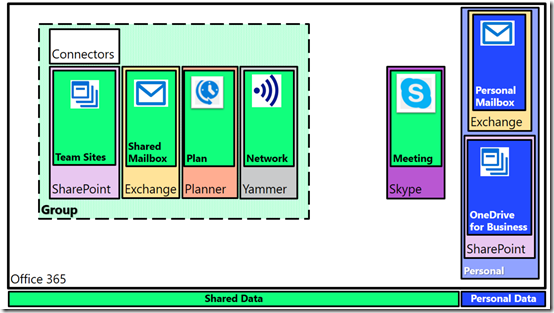
Enter Office 365 Groups. If you combine a SharePoint Team Site, an Exchange shared mailbox, a Planner plan and a Yammer network you get an Office 365 Group. However, an Office 365 Group also provides you with an additional service, called ‘Connectors’, that allows you to bring information from services outside your business (i.e. Facebook, Twitter and more) directly into the Office 365 Group.

You can create as many Office 365 Groups as you need and when you do each one will get its own dedicated SharePoint Team Site, Exchange shared mailbox, Planner plan and Yammer network. You can also still have each service stand alone, like a stand alone Team Site, but each Office 365 Group you create automatically provisions all the individual services inside it and links them together.

Why might you still need a stand alone service like a Team Site?  Maybe you just want a single location to put all your brochures for people to sent to customers. That function might not need email or plans or chat, so you simply provision a stand alone Team Site to perform that function. However, when the people who create those brochures need to actually collaborate, then an Office 365 Group makes sense and you can mix and match as needed.

Again, it is totally up to you how and when you use these services. You may choose to only use stand alone services and no Groups. Likewise, you may choose to only use Groups. The choice if yours. That’s the flexibility Office 365 provides
image

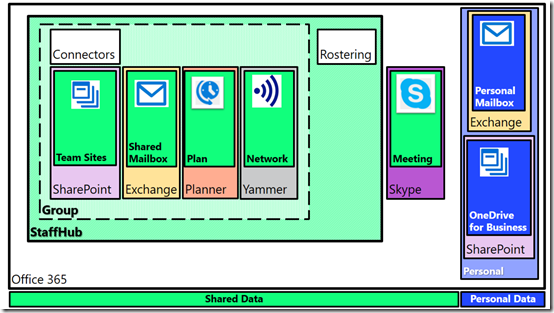
If we now take an Office 365 group and add a Rostering service we get Staffhub. So when you create a new Staffhub for your business to manage rostering and employee times you also get a dedicated SharePoint Team Site, Exchange mailbox, Planner plan, and Yammer network. Do you have to use them all? Of course not, but they are provisioned automatically for you when you create a Staffhub because chances are that you will find use for the services.

Imagine you need to create a roster for your business. You will also probably need to share documents with your staff about their duties. That’s where the SharePoint Team Site fits in. There also probably be the need for staff to chat about their work. That’s where Yammer comes in. Hopefully, you get the idea here is that when you create a Staffhub or Office 365 Group Microsoft automatically gives you a range of stand alone services integrated together because the chances are you’ll find a need for them. It’s bundling at its best!

Again, you don’t need to use them all immediately, but they are there from the start, ready for your to use, whenever you need.
image

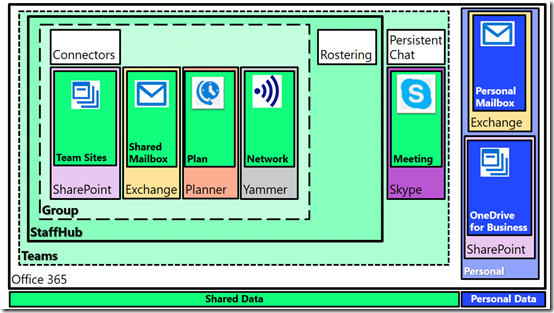
Finally, if we ingrate Skype for Business and add persistent chat to our Staffhub resources (that were a superset of Office 365 Group resources) we get a Microsoft Team.

As with Staffhub, when you create a new Microsoft Team you get everything Staffhub provided plus additional integrated services. If all you want to use is persistent chat then you can use that but again, chances are you are going to need more options down the track so they are automatically provisioned for you.

Everything in Office 365 is built on core services like Exchange for email, SharePoint for files and Skype for Business for communications. You can use each of these services stand alone or you can combine them together in an Office 365 Group, a Staffhub or Microsoft Team.

Of course, there is more planning involved than what I have laid out here when it comes to collaboration but I hope that I’ve made things a bit clearer and shown you all the options Office 365 provides you for storing your information. The trend today is certainly to provisioning something like a Microsoft Team first to give you everything you want immediately, even if you don’t use it all. However, the choice is yours. Go with a single service or go with them all. Do what makes the most sense for your business today and don’t too much about what will happen down the track as you can easily scale up into all the options that Office 365 provides, because typically, you’ll find that what you want is already provisioned thanks to Office 365 Groups, Staffhub and Microsoft Teams.

Exclaimer cloud signatures for Office 365 review

Full disclosure – this is a sponsored post. I was asked to take a look at Exclaimer cloud signatures for Office 365 and write an article based on my thoughts and experiences.

As I have mentioned many times here, one of the most common things I see with traditional IT resellers is that they focus on just doing email migrations to the cloud. The ability to generate on going profits with that business model is simply no longer sustainable for so many reasons.

As I continue to advocate, IT resellers should be looking to add value to what they provide. One of the ways they can add value to email is to provide company wide email signatures.

Exclaimer has one such product called Exclaimer cloud signatures for Office 365 which I’m going to take a look at here. The place to start with the is product is to sign up for a 14 day free trial.

clip_image001

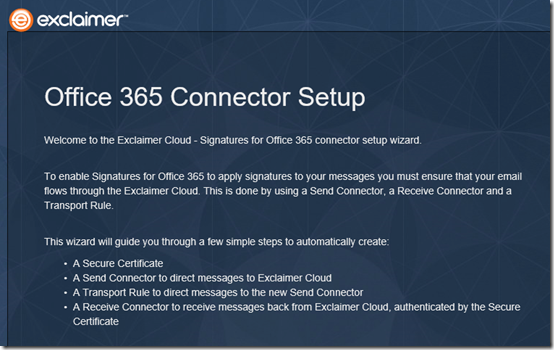
After you have set up an account you’ll need to configure Exclaimer for your tenant. To do this Exclaimer will need admin rights to your tenant to set up a number of Exchange connectors.

clip_image001[5]

Once you provide permissions, you’ll see a number of PowerShell commands running in a window as your tenant is configured. After a few moments you’ll receive notification that everything is complete and now you’ll need to sync you data.

Because Exclaimer cloud is a system based outside your tenant it will need to collect information about your domains and users so it can allow you to manage signatures.

clip_image001[7]

This initial sync may take a little while depending on the amount of information (users and domains) that you have inside your tenant.

clip_image001[9]

Once that is complete you can then choose from a number of templated signatures to get the ball rolling.

Wanting to get this all up and running asap I selected a template and then tried to send an email out so I could see what the result was. Problem was I got a bounce. Hmmm… I waited a little while and tried again. Bounce yet again. Ok, I must be missing something here.

image

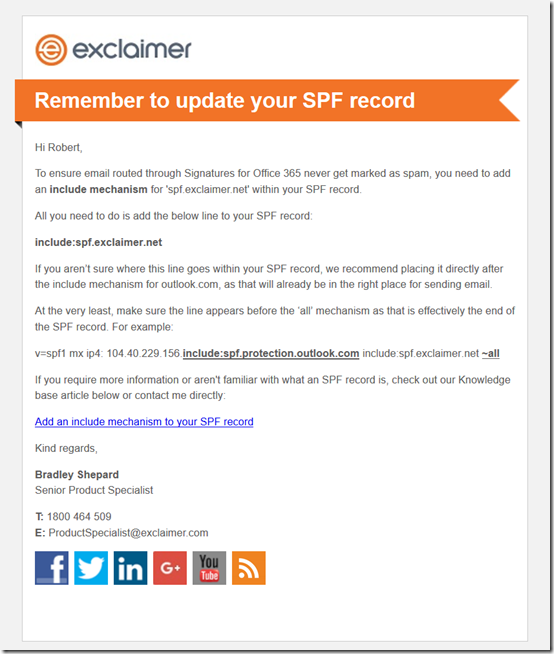
Luckily, I checked the inbox of the account that I had signed up for Exclaimer with and found a handy email telling me that I needed to update my SPF record to include the Exclaimer domain.

Ok, now here’s the problem. I was just using the default @tenant.onmicrosoft.com domain. How do I modify the SPF record in that case?

After a bit of mucking around I couldn’t find a way that you can modify the SPF record for the default @tenant.onmicrosoft.com domain (which makes sense when you think about). PowerShell to the rescue, as I added a custom domain using a script I have created for just such purposes.

Thinking all would be good, I again sent an email and again, frustratingly, it bounced yet again. What they heck?? I thought.

clip_image001[11]

After some nashing of teeth I found an Exclaimer KB article that contained the answer. It was obvious really. I needed to re-sync my tenant to the Exclaimer cloud so all the new details would be available to Exclaimer cloud.

Seems to be that this sync process only occurs once a day which strikes me as being a bit slow. I also couldn’t see where you could the sync to run at a certain time, so at least you’d know when the process does run. It would also be nice to be able to configure the sync to run say 3 – 4 times a day, at specific times, rather than just once. The reason I say this is because in small business, when you add a new user you want their details updated asap and once a day seems like a long time.

Of course, you can go in and run the sync manually at any time as I did, but it would be nice if this sync options was a little more configurable.

So now I go back and send again. Bounce. Oh damm, forget to add the extra entry to the SPF record for Exclaimer as detailed in that email for the custom domain I just added to the tenant. At least now that is easy to add. I quickly added the appropriate information and re-synced just to be safe.

image

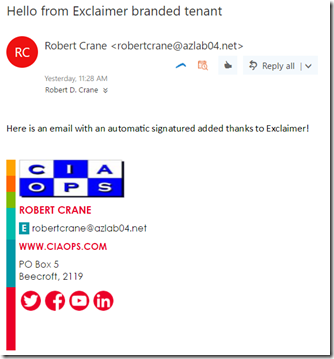
Viola, the email goes through and is received! Yeah.

I like how Exclaimer embeds the graphics into the email so you don’t have to select whether the images can be downloaded after the fact. Nothing annoys me more than receiving an email from someone who has a massive graphic for a signature that is blocked until I elect to download it. Painful.

clip_image001[13]

So I fiddle some more with Exclaimer cloud and work out how to upload images for users and them embed them into signatures like so:

image

The ability to embed head shots is a request I see quite a bit too and Exclaimer makes it dead simple. You just upload the images for each user to the Exclaimer cloud and then add that field in the global signature.

clip_image001[15]

So now what I want to do is add all the additional fields to the signature for phone and fax so it balances up the image I just added. This is easily done using the signature editor. You just drag and drop the fields you require to the signature, save and you are good to go. Or so I thought.

Ok, why aren’t the new details showing up in the signature? Thinking, thinking… Ah yes. Need to do that pesky sync again to ensure the information is matched in the Exclaimer cloud.

clip_image001[17]

Once the sync is complete I see:

image

Yeah. Really, pretty easy. You just need to remember to force the sync when you make changes.

clip_image001[19]

You can also have multiple signatures across your organisation.

clip_image001[21]

As well as apply these to different people (based on group membership). You can also have a signature apply within a certain date range as well which is pretty cool, as it is nice to change signatures up now and again to see whether people are paying attention to what it says down there.

Now, what does Exclaimer cloud actually do in the back end to your Office 365 tenant?

clip_image001[23]

As you can see from the above screen shot it creates two Exchange connectors.

clip_image001[25]

You can see that these basically establish a connection to an Exclaimer mail sever.

clip_image001[27]

It also creates a transport rule that it makes it the highest priority.

clip_image001[29]

It uses that rule to identify messages to send to the Exclaimer cloud as shown above. You can see that this rule uses the connector that was established.

clip_image001[31]

So, what’s the cost for all this? As you can see from the above screen shot, for a typical small business of around 25 users, you’ll be paying A$48.50 per month. Obviously, the more licenses you have the cheaper per license it becomes. That’s pretty good value for a centrally managed and maintained email signature system I’d suggest.

There is a partner program that you can sign up for if you are an IT reseller. If you want more details that what you find on the web site contact Exclaimer to discuss. It would be nice if the program included one single partner console to manage all of you customers signatures but I’m sure whether that is available. As I said, speak with Exclaimer directly for more details of exactly what you receive with the partner program.

Add ons like Exclaimer provide an excellent opportunity for resellers to solve real pain points for customers. The Exclaimer cloud products provides a single location to manage all corporate signatures to ensure they are consistent across the organisation. This is a big pain point for many businesses today.

My feedback on the Exclaimer cloud system is that I find the interface a little dated now and I’d like more flexibility and regularity when it comes to syncing, but these are minor gripes for a product that does its job very well. Once it is all configured correctly, creating and managing signatures is quick and easy. Having the whole system hosted in the cloud means it can be updated anywhere. That’s were IT resellers can add value by perform that tasks for their customers in an ongoing manner (who said you can’t do managed services in the cloud?).

My advice would be to ensure you have everything set up in your Office 365 tenant first, i.e. the domain, the users and their properties. If you don’t, you’ll need to manually re-run the sync to ensure Exclaimer cloud has all the updated details. The other thing to note is that you’ll need to make changes to the default SPF DNS record for the domain. If you can’t change that, then your emails will bounce as I discovered.

The revenue opportunities around pure email migrations are declining rapidly. A reseller should be looking at where they can add value for their customers and Exclaimer cloud signatures for Office 365 provides just such an opportunity.

If you want to learn more about the technology behind Exclaimer, listen to our interview with Brad Shepard, Senior Product Specialist, from Exclaimer all about their product.

Publish your Office 365 calendar publicly

image

There are plenty of times when it is handy being able to give people anonymous access to your calendar not matter where they are.

To enable this, login to your Office 365 web portal.

image

Navigate to your web calendar typically by selecting the calendar icon from the portal home page.

image

In the top right of the page select the Cog icon as shown.

image

This will slide a blade out from the right of the window. At the bottom of this locate and select Calendar as shown, this is under the Your app settings area.

image

Locate and select the option Publish Calendar which appears under the Shared Calendars option towards the bottom on the left.

image

Now determine your sharing options from the pull down menus. Since this is going to be available publically I’d be recommending you select Availability only from the Select permissions options.

Once you have made your changes select the Save icon at the top.

image

You’ll now get a HTML calendar URL as well as an ICS calendar URL that you can copy and paste, then send to any contacts.

image

If you navigate to the HTML link, you should see something like the above displayed. The entries there will depend on the permissions you selected previously.

Of course, when you update your private calendar the external links will also be updated, since they are basically a view onto this calendar.

Once you can configured this and copied the link it makes it really easy to provide people with a idea of what your calendar is like, now and in the future. Pretty cool eh?

Patience is a virtue

I was doing some shifting of domains and emails into Office 365 and came up against a few ‘unique’ issues I thought I’d share.

When I tried to move one domain into Office 365 I was told by the Office 365 DNS wizard that the domain was already in use by another Office 365 tenant! The message I received was:

domain.com was already added to a different Office 365 tenant domain.onmicrosoft.com.

Sign in to that account as an admin, and remove domain domain.com. Then come back here and try adding domain.com to this account again.

If you can’t sign in to domain.onmicrosoft.com as an admin, try resetting your admin password.

Say what?? How could this be I wondered? Then I remembered. I’d use that that email domain to send an Azure Rights Management document to. When the recipient attempted to open that document they were prompted to create a login in Azure Rights Management because the email account wasn’t already on Office 365. The login that they create for Rights Management is actually an Azure AD login. If it is the first time an email from this domain has logged into Rights Management then a new Azure AD tenant is established with this domain and the email address being the global administrator effectively.

This process of creating a ‘free’ Azure AD by a non-Office 365 email account is known as Azure Self Service signup and you can read more about what happens here:

What is Self-Service Signup for Azure?

Ok, so now I know how the domain came to already be associated with an Office 365 tenant but how the hell do I release it?

Luckily, I could remember the password for the Azure Rights Management user so I logged into the Office 365 console with that login. Sure enough, there was the custom domain. Easy enough to remove right? Not quite.

When I attempt to remove the custom domain from this tenant I get prompted that it is already in use by a user. Ok, ok. So I go back to the only user in the tenant (the one that set all this up for Azure Rights Management) and I swap the primary login back to domain.onmicrosoft.com. Good to go right?

Again, no so fast. Now I get, when trying to remove the domain, that the domain is as an alias or used with Skype. Hmm.. as this tenant has effectively no mailbox or Skype licences how do I check or change these?

PowerShell to the rescue! I use the script from the bottom of this post (thanks Bittitan):

https://community.bittitan.com/kb/Pages/How%20do%20I%20remove%20a%20domain%20from%20Office%20365.aspx

to quickly remove every alias that ends in domain.com.

Phew, now I can finally remove the domain from the ‘free’ Azure AD Rights Management tenant.

I now go through the normal process of adding the custom domain back into tenant with the Office 365 licenses I’m trying to build. All good so far. Now I license and create a user. Still all good. However, when I visit the new users mailbox on the web I’m greeted with a message like:

image

Hang on, we’re not quite ready

It looks like your account, user@domain.com, was created 1 hour ago. It can take up to 24 hours to set up a mailbox.

Click here to sign out.

X-Clientld: 2040134E67C145408AAEA2B206CE6183
request-id: ab7e2c74-b653-4f79-96d9-a5bca84f3a75
X-Auth-Error: OrgIdMaiIboxRecentlyCreatedException
X-FEServer: ME 1 PR01CA0033
X-BEServer: SYXPROI MB0976
Date: 12/31/2016 AM

Fewer details…

Check again

Hmmm..not good. Now I start wondering what’s going to happen to the inbound mail to this mailbox? I’ve shifted the DNS records so it will be flowing into the tenant, but will it end up in the mailbox? Lost? Or just be bounced? The unknown is freaking me out.

So I go into the Office 365 Administration area and check the user details and license. All good. I see that the mailbox exists in the Exchange admin area. All good. I turn on archiving for this mailbox and it works, however when I return to the mailbox on the web, same please wait message.

After about 10 minutes of clicking the Check again link I decided that a watched kettle never boils and I go away to do other things.

An hour later I return and get the same result when I try again. However, when I go into the usage statistics of the mailbox in I see that it actually has a small amount of data in it now. I assume this is inbound mail. My assumption is thus, that the mailbox is in fact accumulating inbound email even if I can’t get to it. A small ray of sunshine appears in the clouds of despair.

I also try and connect up a local version of Outlook 2016 to the mailbox, but no joy there either.

I then consider logging a support call via the portal, however when I attempt to do this the only option I’m given is for a phone call back. For some reason there is no email option?? Not wanting to inflict my impatience on others and risk being told to wait the period the message says in plain English in front of my eyes (i.e. the bleeding obvious), I defer logging a support call to further down the track, beyond the 24 hour period (but not a second beyond that!).

Deciding that the best thing is to do what the screen says and wait up to 24 hours and see if it sorts itself out, I head off to other distractions. That however doesn’t prevent me from checking the mailbox at the 3, 6 and 9 hour mark, all with the same result. Damm, this is not looking good!

At the 10 hour mark I try the mailbox again on the web and it looks like it is going to open (I get the ‘preparing Outlook’ screen) but alas same result. However, when I try to connect to the mailbox using my local version of Outlook now I get a connection and can see new emails! Yeah! Things are looking up. Thank you spirit of 2017.

With desktop Outlook connecting to my mailbox I begin to import the emails saved from the previous hosting configuration via PST. Although slow, the process is working. I now check the usage size of this mailbox and it is increasing. So two pluses there. A few minutes later I can now access the mailbox via the web browser. Halleluiah, technology be praised. Never doubted it for a second (rrrrrrright…..).

Thus, long story short. If you are moving an existing account from one Office 365 tenant to another (even if the original doesn’t have a mailbox) beware you may get the delay message shown previously when attempting to access the mailbox. Importantly if you do, don’t panic. Just wait it out. In my case it took 10 hours to come right, but like the message on the screen actually says, it could take up to 24 hours. However, if you check the usage of the mailbox in question and it is increasing, this would indicate that the mailbox is working an receiving emails and provide solace during your extended waiting period.

As they say, patience is a virtue and a virtue I am still perhaps yet to fully learn!

Answering common questions with Office 365 Part 1

I was recently lucky enough to present at the Australian Partner Conference 2016 with Microsoft and two other resellers. The focus of our presentation was around how to answer common user questions with Office 365 and the features that it includes.

What I thought I’d do is share these questions and answers over a few blog posts. So here is part one.

Customer question – I know a lot of businesses that are getting hit by this crypto locker malware where their documents are being encrypted and there are being asked to pay a ransom. I am really worried that one of my employees may inadvertently open an infected file and we’d be in the same boat as we get lots and lots of attachments every day. How can Office 365 protect me against that?

Office 365 already includes advanced malware protection in email by default. With the E5 license you also get:

Advanced Threat Protection

as well which includes the ability to open suspect attachments in a sandboxed environment to determine what happens and take the appropriate action. More details of these features can be found in this video:

By default, every time a document is updated in SharePoint Team Sites or OneDrive for Business the previous version is saved. Thus, if a file does become encrypted it can be quickly rolled back to a previous version.

At the moment, if multiple files do become encrypted and uploaded there is no single command sequence that would allow you roll back multiple files. Unfortunately, rolling back to a previous version has to be done one file at a time. However, as I understand it, Microsoft is working on a process to roll back multiple files via a single command. I also believe it is possible to do this using advanced scripting (aka PowerShell).

Exchange Online also allows you to create rules to automatically exclude certain attachments and quarantine them before they are delivered to end users. A good reference is:

Reducing malware threats through file attachment blocking

You can also use a third party mail cleansing service, such as Mailguard, in front of Exchange Online.

Of course, the best best protection that you can have is informed and paranoid users. Part of any security policy for a business needs to be education not abdication of this to technology. Technology is not 100% reliable, there is always the chance of some attack slipping through the protective technology security net that is erected around the business. On the odd occasion that this should transpire if it greeted with informed and paranoid users then the chance of the payload being delivered, and the business being interrupted, is much lower. You know, an ounce of prevention and all that.

Office 365 provides some excellent protection by default. The premium Office 365 licenses provide better protection. Appropriate configuration and user education provide even more protection. Finally, there is always the option to integrate third party solutions.

Office 365 Collaboration, Skype and Backup


https://docs.com/d/embed/D25192961-2267-4946-0970-001023757425%7eMd4186d87-61d5-259a-4d26-00a8bd86cfff

https://docs.com/d/embed/D25192961-2098-0759-5380-001420694364%7eMd4186d87-61d5-259a-4d26-00a8bd86cfff

https://docs.com/d/embed/D25192961-1989-0156-9410-001012602264%7eMd4186d87-61d5-259a-4d26-00a8bd86cfff

Here are some recent presentations I gave around Office 365:

Collaboration

Skype for Business

and

Backup

In essence they all point to the opportunity Office 365 provides IT resellers to go out and build services on stuff other than email migrations.

In short, if you are not adding value then your days are numbers. And simply moving data from one location to another and doing nothing else is not adding value!