
Full disclosure – this is a sponsored post. I was asked to take a look at Exclaimer cloud signatures for Office 365 and write an article based on my thoughts and experiences.
As I have mentioned many times here, one of the most common things I see with traditional IT resellers is that they focus on just doing email migrations to the cloud. The ability to generate on going profits with that business model is simply no longer sustainable for so many reasons.
As I continue to advocate, IT resellers should be looking to add value to what they provide. One of the ways they can add value to email is to provide company wide email signatures.
Exclaimer has one such product called Exclaimer cloud signatures for Office 365 which I’m going to take a look at here. The place to start with the is product is to sign up for a 14 day free trial.
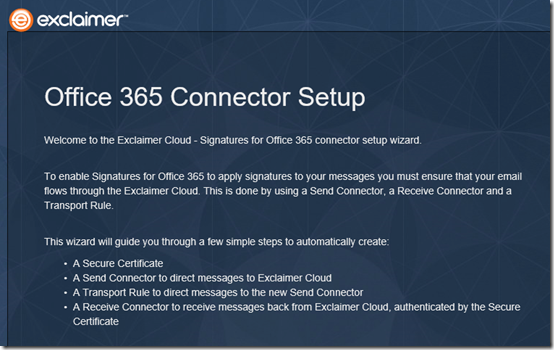
After you have set up an account you’ll need to configure Exclaimer for your tenant. To do this Exclaimer will need admin rights to your tenant to set up a number of Exchange connectors.
![clip_image001[5]](https://lh3.googleusercontent.com/-omWpSuN3oPI/WT064oPcWaI/AAAAAAAAeQk/NYafaPNiRoM-PBAQmLQj178ppH7KWECZgCHM/clip_image001%255B5%255D_thumb%255B1%255D?imgmax=800 "clip_image001[5]")
Once you provide permissions, you’ll see a number of PowerShell commands running in a window as your tenant is configured. After a few moments you’ll receive notification that everything is complete and now you’ll need to sync you data.
Because Exclaimer cloud is a system based outside your tenant it will need to collect information about your domains and users so it can allow you to manage signatures.
![clip_image001[7]](https://lh3.googleusercontent.com/-SnmNk554824/WT0667B30bI/AAAAAAAAeQs/yIreI35UBDYU2DfsGM8-x5SmACmq7qQgACHM/clip_image001%255B7%255D_thumb%255B1%255D?imgmax=800 "clip_image001[7]")
This initial sync may take a little while depending on the amount of information (users and domains) that you have inside your tenant.
![clip_image001[9]](https://lh3.googleusercontent.com/-bvJF-hFzTE8/WT068_2P9CI/AAAAAAAAeQ0/cSVF2wVE0Yo_SAeW6pJcYDth7FTlEhfBQCHM/clip_image001%255B9%255D_thumb%255B1%255D?imgmax=800 "clip_image001[9]")
Once that is complete you can then choose from a number of templated signatures to get the ball rolling.
Wanting to get this all up and running asap I selected a template and then tried to send an email out so I could see what the result was. Problem was I got a bounce. Hmmm… I waited a little while and tried again. Bounce yet again. Ok, I must be missing something here.
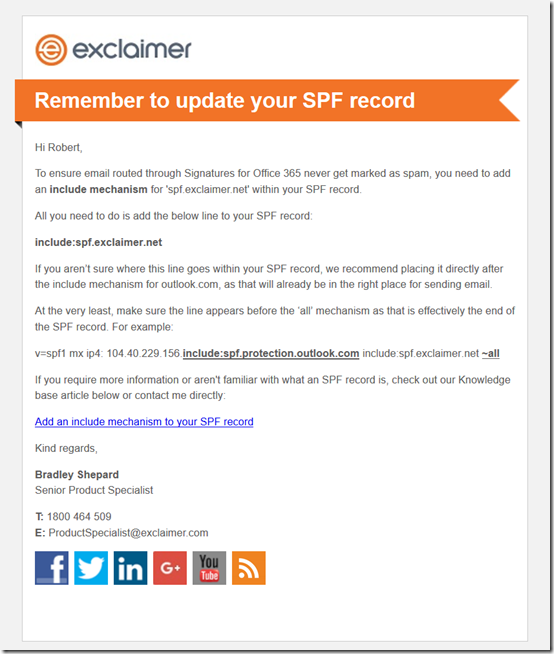
Luckily, I checked the inbox of the account that I had signed up for Exclaimer with and found a handy email telling me that I needed to update my SPF record to include the Exclaimer domain.
Ok, now here’s the problem. I was just using the default @tenant.onmicrosoft.com domain. How do I modify the SPF record in that case?
After a bit of mucking around I couldn’t find a way that you can modify the SPF record for the default @tenant.onmicrosoft.com domain (which makes sense when you think about). PowerShell to the rescue, as I added a custom domain using a script I have created for just such purposes.
Thinking all would be good, I again sent an email and again, frustratingly, it bounced yet again. What they heck?? I thought.
![clip_image001[11]](https://lh3.googleusercontent.com/-Ldw40XQxrCw/WT07BquCs_I/AAAAAAAAeRE/lIV2NWibOSsm_dcFcl9T5BviOBg3XKkJACHM/clip_image001%255B11%255D_thumb%255B1%255D?imgmax=800 "clip_image001[11]")
After some nashing of teeth I found an Exclaimer KB article that contained the answer. It was obvious really. I needed to re-sync my tenant to the Exclaimer cloud so all the new details would be available to Exclaimer cloud.
Seems to be that this sync process only occurs once a day which strikes me as being a bit slow. I also couldn’t see where you could the sync to run at a certain time, so at least you’d know when the process does run. It would also be nice to be able to configure the sync to run say 3 – 4 times a day, at specific times, rather than just once. The reason I say this is because in small business, when you add a new user you want their details updated asap and once a day seems like a long time.
Of course, you can go in and run the sync manually at any time as I did, but it would be nice if this sync options was a little more configurable.
So now I go back and send again. Bounce. Oh damm, forget to add the extra entry to the SPF record for Exclaimer as detailed in that email for the custom domain I just added to the tenant. At least now that is easy to add. I quickly added the appropriate information and re-synced just to be safe.
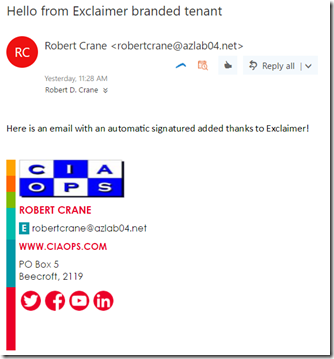
Viola, the email goes through and is received! Yeah.
I like how Exclaimer embeds the graphics into the email so you don’t have to select whether the images can be downloaded after the fact. Nothing annoys me more than receiving an email from someone who has a massive graphic for a signature that is blocked until I elect to download it. Painful.
![clip_image001[13]](https://lh3.googleusercontent.com/-de7w4iIqg_o/WT07GdFP0uI/AAAAAAAAeRU/iaI1Nf_jY6AvgKFXm65kKb1iyl7VH1MYwCHM/clip_image001%255B13%255D_thumb%255B1%255D?imgmax=800 "clip_image001[13]")
So I fiddle some more with Exclaimer cloud and work out how to upload images for users and them embed them into signatures like so:
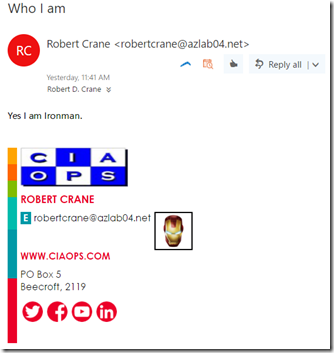
The ability to embed head shots is a request I see quite a bit too and Exclaimer makes it dead simple. You just upload the images for each user to the Exclaimer cloud and then add that field in the global signature.
![clip_image001[15]](https://lh3.googleusercontent.com/-lsMQDH9xnak/WT07Kt9iUSI/AAAAAAAAeRk/a7Ro0_olJxo81Ce5EwAjqlHLjLwqxCFWwCHM/clip_image001%255B15%255D_thumb%255B1%255D?imgmax=800 "clip_image001[15]")
So now what I want to do is add all the additional fields to the signature for phone and fax so it balances up the image I just added. This is easily done using the signature editor. You just drag and drop the fields you require to the signature, save and you are good to go. Or so I thought.
Ok, why aren’t the new details showing up in the signature? Thinking, thinking… Ah yes. Need to do that pesky sync again to ensure the information is matched in the Exclaimer cloud.
![clip_image001[17]](https://lh3.googleusercontent.com/-dA4DB0c-lHk/WT07NdbvWoI/AAAAAAAAeRs/YTEs__MxCBonzNnLWgBA66VrOb1UWOntACHM/clip_image001%255B17%255D_thumb%255B1%255D?imgmax=800 "clip_image001[17]")
Once the sync is complete I see:
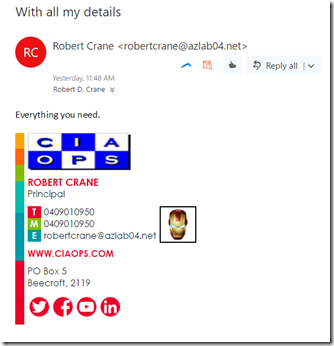
Yeah. Really, pretty easy. You just need to remember to force the sync when you make changes.
![clip_image001[19]](https://lh3.googleusercontent.com/-E4qhqiZZoGk/WT07S46jgII/AAAAAAAAeR8/KOULldvmVQQaNFJQ-gieWJc7g_yUVuNPwCHM/clip_image001%255B19%255D_thumb%255B1%255D?imgmax=800 "clip_image001[19]")
You can also have multiple signatures across your organisation.
![clip_image001[21]](https://lh3.googleusercontent.com/-uRol_QUIlWw/WT07VaX3OlI/AAAAAAAAeSE/Wx-wcjZIB54XTA9hxi2EErBoAr3BjZaOwCHM/clip_image001%255B21%255D_thumb%255B1%255D?imgmax=800 "clip_image001[21]")
As well as apply these to different people (based on group membership). You can also have a signature apply within a certain date range as well which is pretty cool, as it is nice to change signatures up now and again to see whether people are paying attention to what it says down there.
Now, what does Exclaimer cloud actually do in the back end to your Office 365 tenant?
![clip_image001[23]](https://lh3.googleusercontent.com/-zt8YvoQdlw0/WT07YpHOclI/AAAAAAAAeSM/MzuVCvBbqKo0RpmAUlSwXm7-s5B-ajuqwCHM/clip_image001%255B23%255D_thumb%255B1%255D?imgmax=800 "clip_image001[23]")
As you can see from the above screen shot it creates two Exchange connectors.
![clip_image001[25]](https://lh3.googleusercontent.com/-OTCyvE386ZM/WT07bVLNx4I/AAAAAAAAeSU/cUacowCW4tA41UX_k0zbkEngmI9CThpMwCHM/clip_image001%255B25%255D_thumb%255B1%255D?imgmax=800 "clip_image001[25]")
You can see that these basically establish a connection to an Exclaimer mail sever.
![clip_image001[27]](https://lh3.googleusercontent.com/-4niRIkCqkj0/WT07dGQOmaI/AAAAAAAAeSc/cGeonxnHRysM1Y2BHB1JUeXmfweFSA1mgCHM/clip_image001%255B27%255D_thumb%255B1%255D?imgmax=800 "clip_image001[27]")
It also creates a transport rule that it makes it the highest priority.
![clip_image001[29]](https://lh3.googleusercontent.com/-L2zdmrHrIpY/WT07fUC_PXI/AAAAAAAAeSk/4NTBNCIj4ZEgEzmVsFR2JpKs3hSo54RMwCHM/clip_image001%255B29%255D_thumb%255B1%255D?imgmax=800 "clip_image001[29]")
It uses that rule to identify messages to send to the Exclaimer cloud as shown above. You can see that this rule uses the connector that was established.
![clip_image001[31]](https://lh3.googleusercontent.com/-q-awkmQ__sw/WT07inXDk4I/AAAAAAAAeSs/pzS7Ml-ls4Mqcy41Ciwp5m_UWfDAmU9WACHM/clip_image001%255B31%255D_thumb%255B1%255D?imgmax=800 "clip_image001[31]")
So, what’s the cost for all this? As you can see from the above screen shot, for a typical small business of around 25 users, you’ll be paying A$48.50 per month. Obviously, the more licenses you have the cheaper per license it becomes. That’s pretty good value for a centrally managed and maintained email signature system I’d suggest.
There is a partner program that you can sign up for if you are an IT reseller. If you want more details that what you find on the web site contact Exclaimer to discuss. It would be nice if the program included one single partner console to manage all of you customers signatures but I’m sure whether that is available. As I said, speak with Exclaimer directly for more details of exactly what you receive with the partner program.
Add ons like Exclaimer provide an excellent opportunity for resellers to solve real pain points for customers. The Exclaimer cloud products provides a single location to manage all corporate signatures to ensure they are consistent across the organisation. This is a big pain point for many businesses today.
My feedback on the Exclaimer cloud system is that I find the interface a little dated now and I’d like more flexibility and regularity when it comes to syncing, but these are minor gripes for a product that does its job very well. Once it is all configured correctly, creating and managing signatures is quick and easy. Having the whole system hosted in the cloud means it can be updated anywhere. That’s were IT resellers can add value by perform that tasks for their customers in an ongoing manner (who said you can’t do managed services in the cloud?).
My advice would be to ensure you have everything set up in your Office 365 tenant first, i.e. the domain, the users and their properties. If you don’t, you’ll need to manually re-run the sync to ensure Exclaimer cloud has all the updated details. The other thing to note is that you’ll need to make changes to the default SPF DNS record for the domain. If you can’t change that, then your emails will bounce as I discovered.
The revenue opportunities around pure email migrations are declining rapidly. A reseller should be looking at where they can add value for their customers and Exclaimer cloud signatures for Office 365 provides just such an opportunity.
If you want to learn more about the technology behind Exclaimer, listen to our interview with Brad Shepard, Senior Product Specialist, from Exclaimer all about their product.


