End to End email protection with Microsoft 365–Part 2

This is part of a series of articles about email security in Microsoft 365.

End to End email protection with Microsoft 365 – Part 1
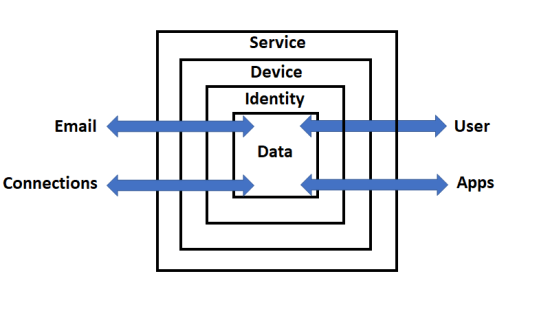
These articles are based on a model I have previously created, which you can read about here:

CIAOPS Cyber protection model

designed to help better explain expansive security included with Microsoft 365.
image

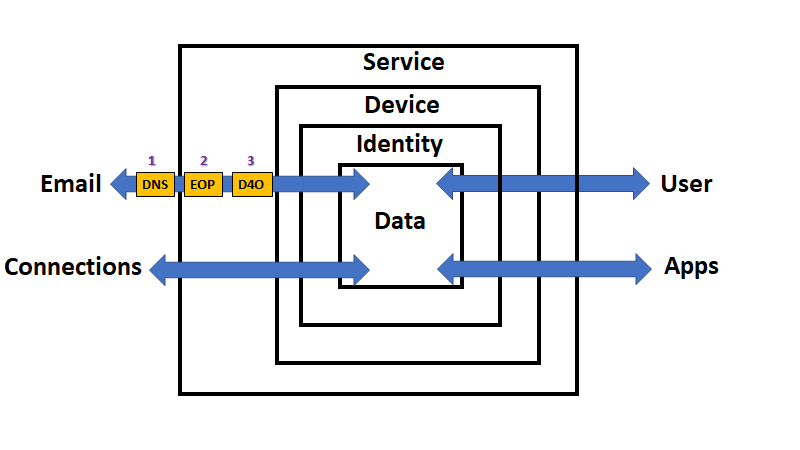
In the previous part of this series I spoke about DNS and Exchange Online Protection (EOP) and the role they play in email security as well as how to configure these in your service. I haven’t as yet spoken about the best practices settings that you should employ. The initial objective here is to help you understand the flow as well as all the security services that can be utilised in Microsoft 365 to better help you protect your data.

If you look at the above diagram, you’ll see that data is flowing via the email connector in and out of our Microsoft 365 environment (the ‘Service’). Through which, so far, we have talked about DNS and EOP, now it is time to move onto Defender for Office 365 (D4O). However, just before we do let, me point out somethings that you may not appreciate. Firstly, via the process far, inbound email data has not yet come to rest. That is, it hasn’t as yet been stored inside a users mailbox, it is still being ‘processed’ by the security feature set of Microsoft 365 (i.e. the ‘Service’). Secondly, and more importantly for security considerations, what we have examined so far largely only ‘scans’ the data and makes security decisions as data passed through that service. It doesn’t generally continue to protect the data once it has been processed by that service. For example, with spam filtering inbound emails are scanned by the anti spam service in EOP, appropriate action taken based on the policies in place but then the data exits the service. Once an email has exited the anti spam service in EOP it will no longer be scanned by the service. To distinguish these type of security services going forward, let’s refer to them as ‘pass through’ security services being that they only handle the data once during its transit through a connector.

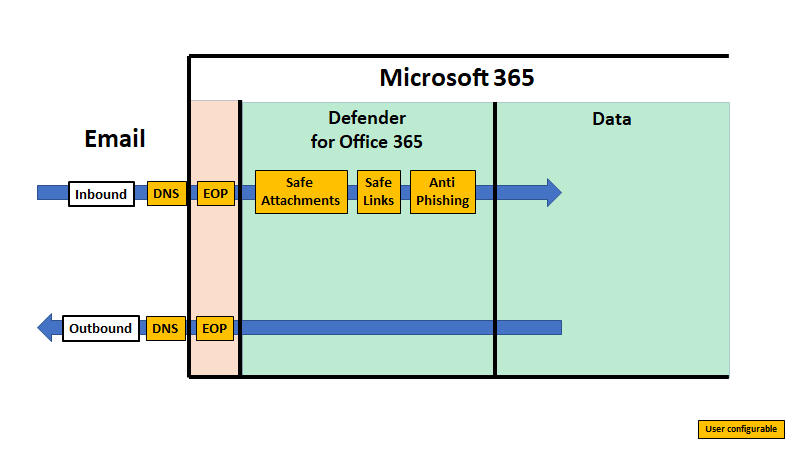
So after DNS and EOP have ‘processed’ the inbound email it is time for Defender for Office 365 (D4O) to do it’s job.
image

Defender for Office 365 is an add-on to existing plans like Microsoft 365 Business Basic and Business Standard but included in Microsoft Business Premium. Interestingly, it is not part of Microsoft 365 E3 but is part of Microsoft 365 E5. In short, we’ll assume the plan here is Microsoft Business Premium.

Defender for Office 365 also has two plans

Gains with Defender for Office 365, Plan 1 (to date):

Technologies include everything in EOP plus:

  • Safe attachments

  • Safe links

  • Microsoft Defender for Office 365 protection for workloads (ex. SharePoint Online, Teams, OneDrive for Business)

  • Time-of-click protection in email, Office clients, and Teams

  • Anti-phishing in Defender for Office 365

  • User and domain impersonation protection

  • Alerts, and SIEM integration API for alerts
  • SIEM integration API for detections

  • Real-time detections tool
  • URL trace
  • So, Microsoft Defender for Office 365 P1 expands on the prevention side of the house, and adds extra forms of detection.

    Gains with Defender for Office 365, Plan 2 (to date):

    Technologies include everything in EOP, and Microsoft Defender for Office 365 P1 plus:

  • Threat Explorer
  • Threat Trackers

  • Campaign views
  • Automated Investigation and Response (AIR)

  • AIR from Threat Explorer

  • AIR for compromised users

  • SIEM Integration API for Automated Investigations
  • So, Microsoft Defender for Office 365 P2 expands on the investigation and response side of the house, and adds a new hunting strength. Automation.

    The above is from The Office 365 security ladder from EOP to Microsoft Defender for Office 365.

    Microsoft Business Premium includes Defender for Office 365 P1, while Microsoft 365 E5 includes Defender for Office 365 P2.

    Unlike EOP, you’ll also note that Defender for Office 365 extends protection actually into the data container as well as providing initial scanning of data as it passes through the service. This effectively means that Defender for Office 365 is monitoring email data inside user email boxes and providing additional protection even after an item is delivered. This is very important to appreciate because once most emails are delivered they are generally no longer protected by scanning technologies like anti-spam policies, especially third party offerings. Therefore, a major of value of using Microsoft 365 is that it can ensure the security of data even after it has been delivered using technology like Defender for Office 365.

    Another point that the above diagram illustrates is that Defender for Office 365 largely applies only to inbound email data. all the policies in Defender for Office 365 are focused at emails being delivered to, not from, mailboxes.

    Finally it is also important to note that previous components in the data flow chain impact Defender for Office 365, DNS probably being the more influential. This is why it is so important to ensure that you have your DNS records (especially SPF, DKIM and DMARC) configured correctly because their impact is more than on a single service in Microsoft 365.

    Defender for Office 365 is composed of three unique components:

    – Safe Attachments

    – Safe Links

    – Anti-Phishing

    Safe Attachments

    As Safe Attachments in Microsoft Defender for Office 365 notes:

    Safe Attachments uses a virtual environment to check attachments in email messages before they’re delivered to recipients (a process known as detonation).

    In short, it will open suspect attachments in a virtual environment and check to see whether they activate any malicious activity such as encrypting data (i.e. cryptolocker attack), changing registry settings and so on.

    Safe Attachments protection for email messages is controlled by Safe Attachments policies. There is no default Safe Attachments policy. Please note that, there is NO default Safe Attachments policy by default! Thus, ensure you have set one up if you are using Defender for Office 365.

    Set up Safe Attachments policies in Microsoft Defender for Office 365

    Safe Attachments will continue to provide protection even after the data has been delivered. This is because the maliciousness of the attachment is evaluated not only at the time the user opens it but also continually as they sit as data in users mailbox. Thus, you need to consider Safe Attachments as protection both during transit and at rest. This is generally different from the role of EOP.

    I will also briefly note here that Safe Attachments protection extends beyond just emails, but I’ll cover that in a later article.

    Safe Links

    As Safe Links in Microsoft Defender for Office 365 notes:

    Safe Links is a feature in Defender for Office 365 that provides URL scanning and rewriting of inbound email messages in mail flow, and time-of-click verification of URLs and links in email messages and other locations.

    In short, it routes any link clicked on in an email through a reputation proxy to ensure that it is safe prior to proceeding. This provides protection against malicious content, downloads, phishing and more.

    Safe Links settings for email messages

    How Safe Links works in email messages

    Safe Links can be configured to provide customised protection:

    Set up Safe Links policies in Microsoft Defender for Office 365

    Safe Links will continue to provide protection even after the data has been delivered. This is because the maliciousness of links is evaluated not only at the time the user clicks on them but also continually as they sit as data in users mailbox. Thus, you need to consider Safe Links as protection both during transit and at rest. This is generally different from the role of EOP.

    I will also briefly note here that Safe Links protection extends beyond just emails, but I’ll cover that in a later article.

    Anti-phishing

    Phishing is when attackers try to trick users into providing secure details in an effort to compromise that account. A common ‘trick’ is to attempt to impersonate a ‘familiar’ email address and try to have the recipient take an action that will result in an account compromise.

    Protection via Defender for Office 365 is again provided by a policy:

    Exclusive settings in anti-phishing policies in Microsoft Defender for Office 365

    Anti-phishing will continue to provide protection even after the data has been delivered. This is because the maliciousness of email content is evaluated not only at the time the user views  them but also continually as they sit as data in users mailbox. Thus, you need to consider Anti-phishing as protection both during transit and at rest. This is generally different from the role of EOP.

    In addition to the above Defender for Office 365 P1 also provides:

    Threat Explorer and Real-time detections

    while Defender for Office 365 P2 additionally provides:

    Threat Trackers

    Automated investigation and response (AIR) in Microsoft Defender for Office 365

    Attack Simulator in Microsoft Defender for Office 365

    Summary

    Inbound email data flows into Defender for Office 365 after it has been processed by EOP. Here additional protection policies are applied. All of these policies can be configured by the user and have capabilities that extend into protecting data even after it has been delivered. This means that a major benefit of Defender for Office 365 is that it not only scans email data during inbound transit but also while it is being stored in the users mailbox over the life of that data item for both current and future threats.

    It is also important to note that many of the Defender for Office 365 do not have appropriate default policies in place and it is up to the user to configure these to suit their environment.

    The inbound email data has yet further protection configurations to be applied to it after being processed by Defender for Office 365 thanks to the capabilities of Microsoft 365. Please follow that process with the next article:

    End to End email protection with Microsoft 365–Part 3

    Current Windows Defender configuration using PowerShell

    image

    I’ve uploaded a new script:

    win10-def-get.ps1

    to my Github repository.

    What this script will do is report back on Windows Defender versions and settings on a Windows 10 device as shown above.

    The interesting thing is that to find the latest version of the released signatures from Microsoft I need to scrape the details from the page:

    https://www.microsoft.com/en-us/wdsi/defenderupdates

    which turns out to be somewhat imperfect because many times my local signature is more current than what is reported on the Microsoft page. Even more interesting is that it doesn’t appear that Microsoft has an API that will report these details! I find that really strange, as one would think it something simple to provide and a common request. Seems not, as I can’t find one anywhere and have to resort to this unreliable scraping method. If you know of a better way to get the latest version and signature information via PowerShell, I’d love to hear.

    The idea with the script is that you can run it on your Windows 10 devices to check that everything is update to date and configured correctly. I’ll keep improving it over time, so feel free to let me know any suggestion you may have on how to improve it.

    Integrate Office 365 with Microsoft Defender for Endpoint

    One of the benefits of using security solutions in the Microsoft Cloud is that they integrate together, quickly and easily. If you are using Microsoft Defender for Endpoint then signals from this can be shared with the Microsoft 365 Threat environment.

    SNAGHTML15c406c8

    To enable this integration navigate to the Office 365 Security & Compliance portal. Expand the Threat Management option from the menu on the left. Then select Explorer from the options that appear. Finally, in the right hand pane scroll to the right until you locate the WDATP Settings hyperlink as shown above, and select it.

    image

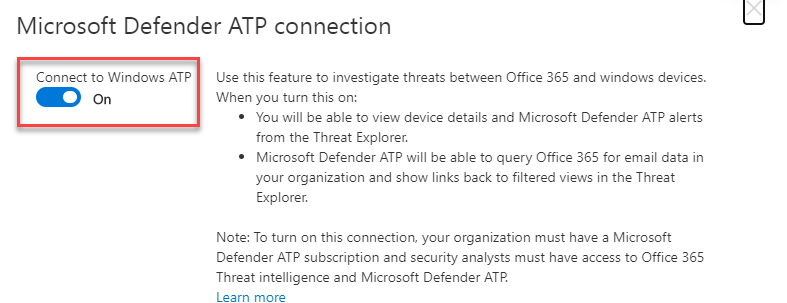
    Ensure the Connect to Windows ATP is set to On, typically it is off by default.

    image

    In the Microsoft Defender Security center navigate to Settings. Select the Advanced features option from the menu on the left. Ensure the Office 365 Threat Intelligence connection is set to On.

    Once done, your systems are integrated and will now share information between them. This will make identifying threats much easier because now:

    • You will be able to view device details and Microsoft Defender for Endpoint alerts from the Threat Explorer.

    • Microsoft Defender for Endpoint will be able to query Microsoft 365 for email data in your organization and show links back to filtered views in the Threat Explorer.

    August poll

    ask-blackboard-chalk-board-chalkboard-356079

    For August I’m asking people:

    Are you considering or using Microsoft Defender ATP in place of other third party anti virus and end point security solutions?

    which I greatly appreciate you thoughts here:

    https://bit.ly/ciasurvey202008

    You can view the results during the month here:

    https://bit.ly/ciaresults202008

    and I’ll post a summary at the end of the month here on the blog.

    Please feel free to share this survey with as many people as you can so we can get better idea of what people are thinking when it comes to Microsoft Defender ATP.

    Need to Know podcast–Episode 246

    Due to circumstances outside my control I have no interview for you in this episode. So it it is just me and the latest news from the Microsoft Cloud. Don’t forget that Microsoft Inspire is not far away either, so there’ll be plenty more news soon.

    This episode was recorded using Microsoft Teams and produced with Camtasia 2020

    Take a listen and let us know what you think – feedback@needtoknow.cloud

    You can listen directly to this episode at:

    https://ciaops.podbean.com/e/episode-246-just-the-news/

    Subscribe via iTunes at:

    https://itunes.apple.com/au/podcast/ciaops-need-to-know-podcasts/id406891445?mt=2

    The podcast is also available on Stitcher at:

    http://www.stitcher.com/podcast/ciaops/need-to-know-podcast?refid=stpr

    Don’t forget to give the show a rating as well as send us any feedback or suggestions you may have for the show.

    Resources

    Microsoft unveils sweeping job training initiative to teach digital skills to 25M impacted by pandemic

    An update on Web Content Filtering

    Reimagining virtual collaboration for the future of work and learning

    Together mode

    The future of work—the good, the challenging & the unknown

    On-demand training sessions for SharePoint, OneDrive, Teams, Yammer, and Stream

    Migration to SharePoint, OneDrive, and Microsoft Teams in Microsoft 365, free and easy

    The Standards at Work Behind the Microsoft Enterprise SSO plug-in for Apple devices

    All the Defenders

    knight

    Microsoft unfortunately has quite a few products under the ‘Defender’ banner that I see causing confusion out there. Most believe that ‘Defender’ is only an anti-virus solution, but that could not be further from the case. Hopefully, I can show you here how broad the ‘Defender’ brand is here and hopefully give you a basic idea of what each ‘Defender’ product is.

    To start off with there are products that are considered ‘Window Defender’ products, although I see the Windows and Microsoft brand intermingled regularly. Here is a list of specific ‘Windows Defender’ products:

    Windows Defender Application Control – WDAC was introduced with Windows 10 and allows organizations to control what drivers and applications are allowed to run on their Windows 10 clients.

    Windows Defender Firewall – By providing host-based, two-way network traffic filtering for a device, Windows Defender Firewall blocks unauthorized network traffic flowing into or out of the local device.

    Windows Defender Exploit Guard – Exploit protection automatically applies a number of exploit mitigation techniques to operating system processes and apps.

    Windows Defender Credential Guard –  Windows Defender Credential Guard uses virtualization-based security to isolate secrets so that only privileged system software can access them.

    In contrast, here are the ‘Microsoft Defender’ products :

    Microsoft Defender Smart screen – Microsoft Defender SmartScreen protects against phishing or malware websites and applications, and the downloading of potentially malicious files.

    Microsoft Defender Antivirus – Brings together machine learning, big-data analysis, in-depth threat resistance research, and the Microsoft cloud infrastructure to protect devices in your organization.

    Microsoft Defender Application Guard – helps to isolate enterprise-defined untrusted sites, protecting your company while your employees browse the Internet.

    Microsoft Defender Security Center – is the portal where you can access Microsoft Defender Advanced Threat Protection capabilities. It gives enterprise security operations teams a single pane of glass experience to help secure networks.

    Microsoft Defender Advanced Threat Protection – is an enterprise endpoint security platform designed to help enterprise networks prevent, detect, investigate, and respond to advanced threats.

    Microsoft Defender Browser Protection –  a non Microsoft browser extension helps protect you against online threats, such as links in phishing emails and websites designed to trick you into downloading and installing malicious software that can harm your computer.

    So, as you can see, there are quite a lot of ‘Defender’ products out there from Microsoft. How and when you get each of these varies greatly as well as their capabilities, since most will integrate together. That however, is beyond the scope of this article but maybe something I explore in upcoming articles.

    For now, just be careful to investigate what is actually meant when it says ‘Defender’ in the Microsoft space!

    Need to Know podcast–Episode 231

    FAQ podcasts are shorter and more focused on a particular topic. In this episode I’ll talk about the different Advanced Threat protection (ATP) offerings that Microsoft has.

    This episode was recorded using Microsoft Teams and produced with Camtasia 2019

    Take a listen and let us know what you think – feedback@needtoknow.cloud

    You can listen directly to this episode at:

    https://ciaops.podbean.com/e/episode-231-all-the-atps/

    Subscribe via iTunes at:

    https://itunes.apple.com/au/podcast/ciaops-need-to-know-podcasts/id406891445?mt=2

    The podcast is also available on Stitcher at:

    http://www.stitcher.com/podcast/ciaops/need-to-know-podcast?refid=stpr

    Don’t forget to give the show a rating as well as send us any feedback or suggestions you may have for the show.

    Resources

    Office 365 ATP

    Defender ATP

    Azure ATP