Keeping tabs on Azure costs via email

A common concern that holds many back from using all the resources available in Azure is consumption billing aka being billed for what you use rather than a flat fee as you get with Microsoft 365 services.

Here’s a way to keep an eye on those costs daily via email.

Firstly, login to the Azure portal as an administrator and then navigate to Cost Management + Billing. Next, you want to set up the report that you want to see daily.

Screenshot 2025-01-19 094010

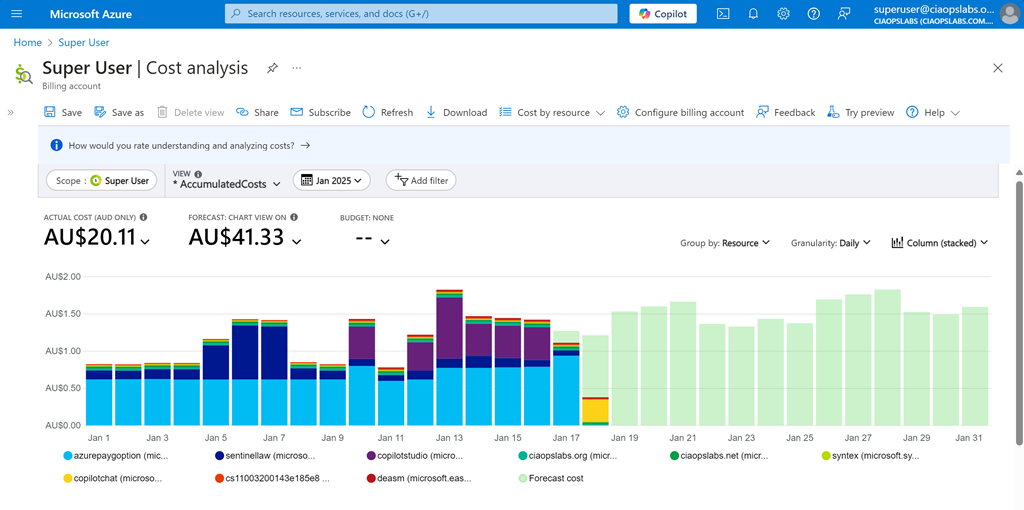
For me I want to see Cost Analysis for the current monthly with accumulated costs, grouped by resource, granularity daily and as a stacked column as shown above. When you have it the way you want select the Save option on the menu at the top of the page.

Screenshot 2025-01-19 095243

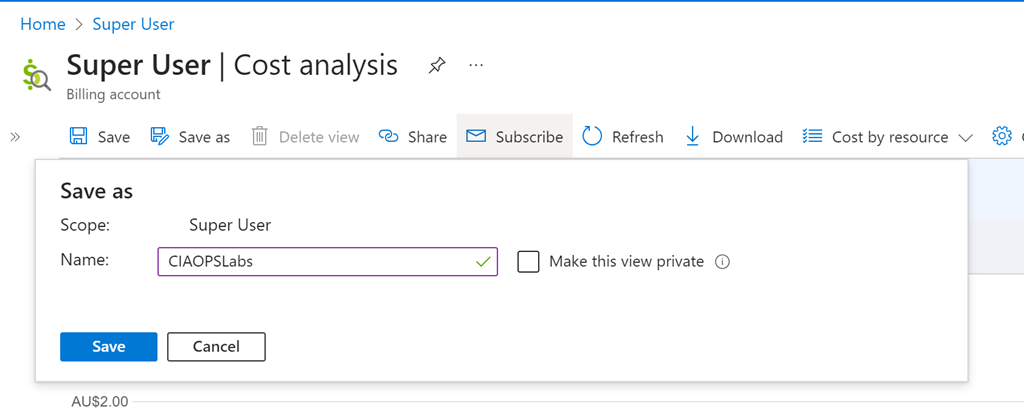
You’ll be asked for a name, as you see above. Select Save when complete. 

Screenshot 2025-01-19 095532

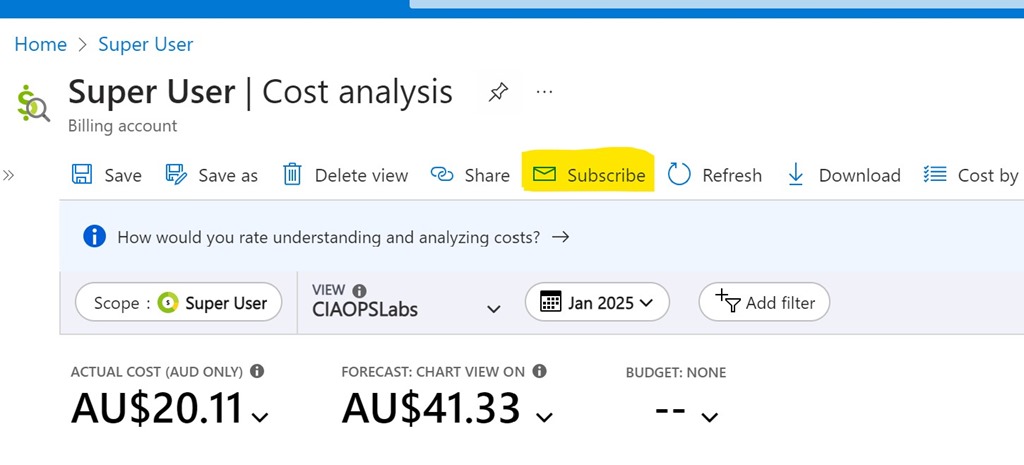
Also on the menu at the top, now select Subscribe as shown above.

Screenshot 2025-01-19 095742

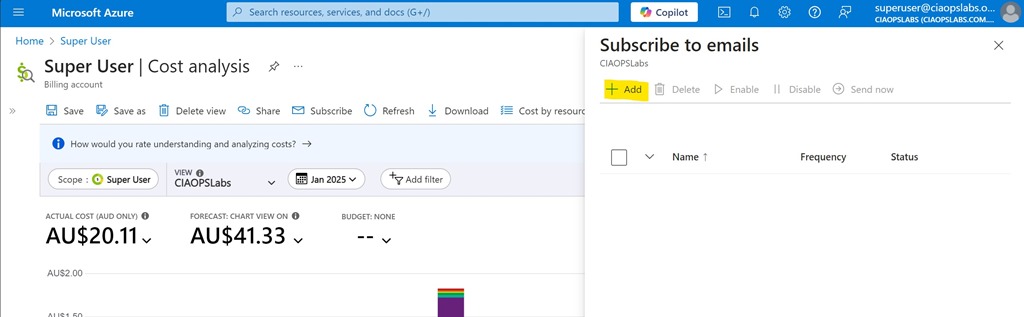
Select the Add option from the Subscribe to emails option that appears on the right as shown above.

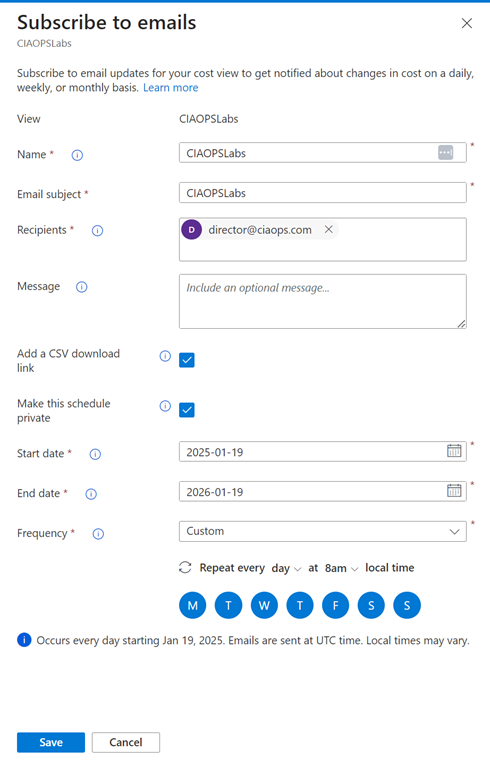
Screenshot 2025-01-19 100019

You should see the View you just saved at the top. Now complete the rest of the fields as desired. Personally, I select the option to include a CSV and want the report every day. The only challenge is that you can only specify a maximum end date 12 months out from the day you configure this. You’ll need to return annually to update this.

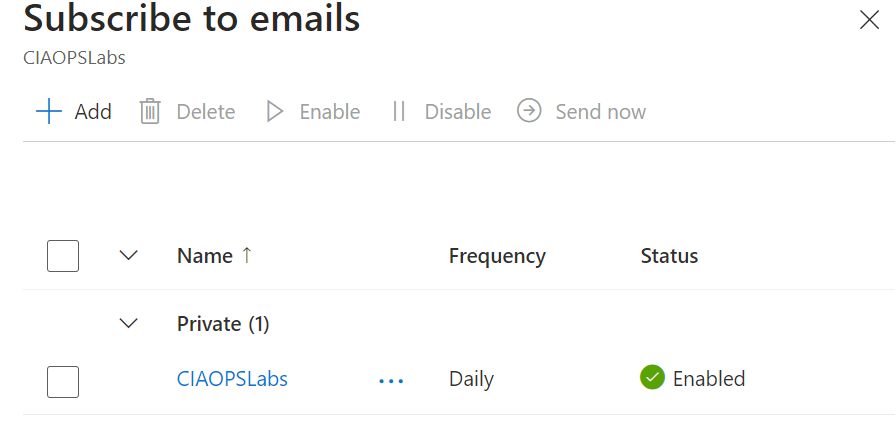
Screenshot 2025-01-19 100354

Select Save at the bottom of screen and you should now see your configuration listed as shown above.

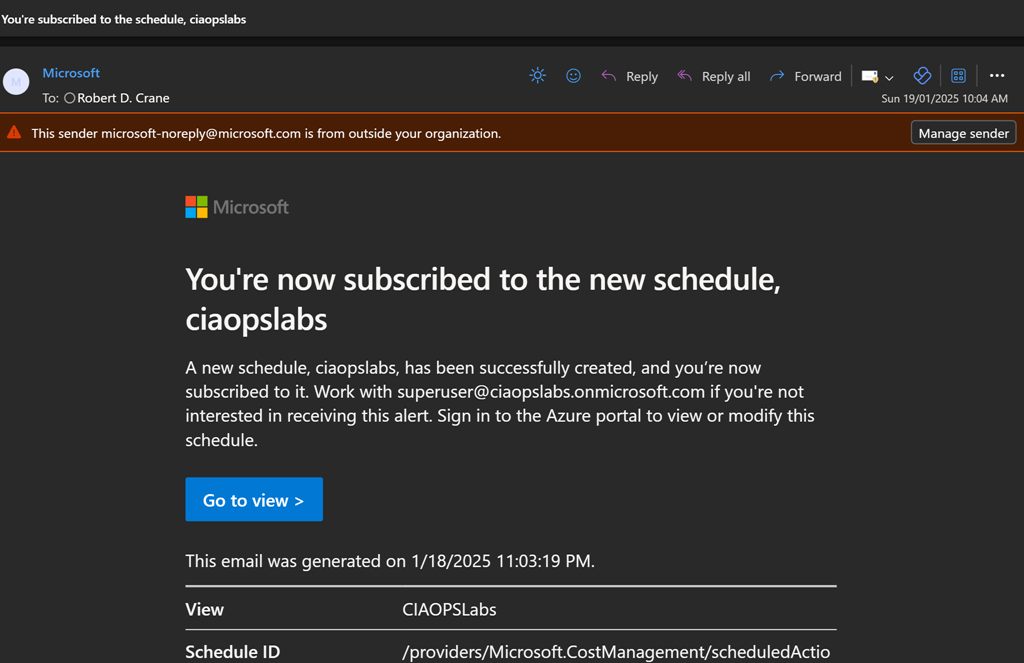
Screenshot 2025-01-19 100809

You’ll get a summary email confirming these settings as shown above.

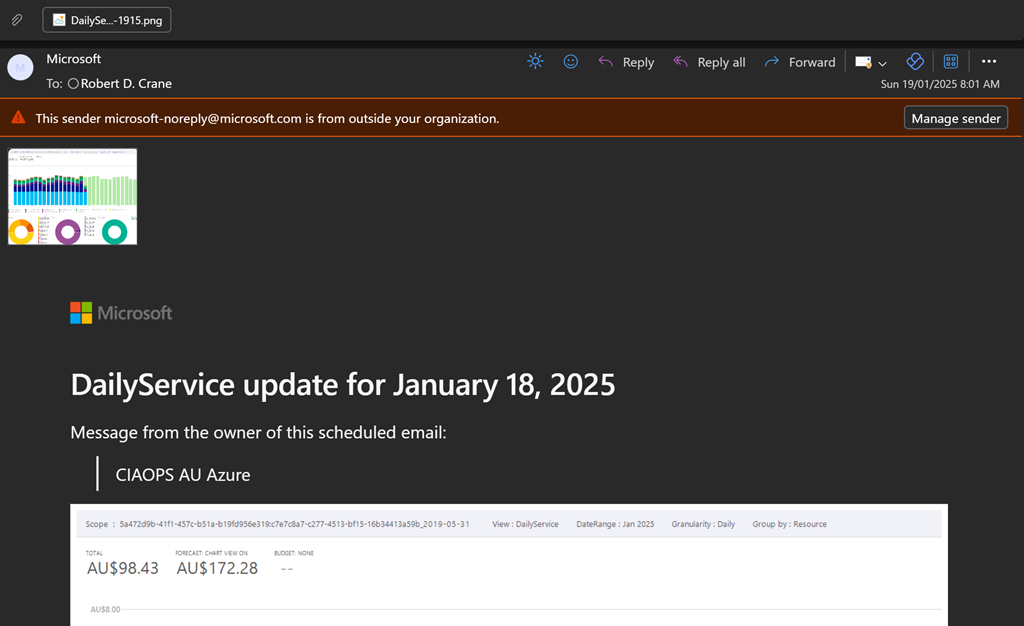
Screenshot 2025-01-19 100531

You should now start receiving a summary email on at the frequency your selected as shown above. You’ll see a screen shot of the report and a CSV attachment if you elected to include that.

Hopefully, this option provides greater piece of mind when it comes to monitoring costs with Azure. Remember, you can create as many subscription reports as you want to see a range of different details if desired.

Configuring a budget for Copilot for Security

Screenshot 2024-04-16 115152

I have previously detailed how Copilot for Security is an excellent tool for SMB:

Copilot for Security – The lowdown for SMB

One of the major things that SMB need to pay very close attention to is the cost of Copilot for Security, given that it needs to be used in an ‘on-demand’ manner to be cost effective for smaller businesses. A good way to keep abreast of those costs is to use Budgets in Azure.

My recommendation is that you configure Copilot for Security in its own Azure Resource Group so that costs and permissions are easier to manage. Inside this dedicated Copilot for Security Resource Group you can attach a budget with notification. To this, navigate to the Azure Resource Group where Copilot for Security is provisioned. Locate the Budgets menu item on the left under the heading Cost Management as shown above. On the right, select +Add from the menu across the top.

Screenshot 2024-04-16 121310

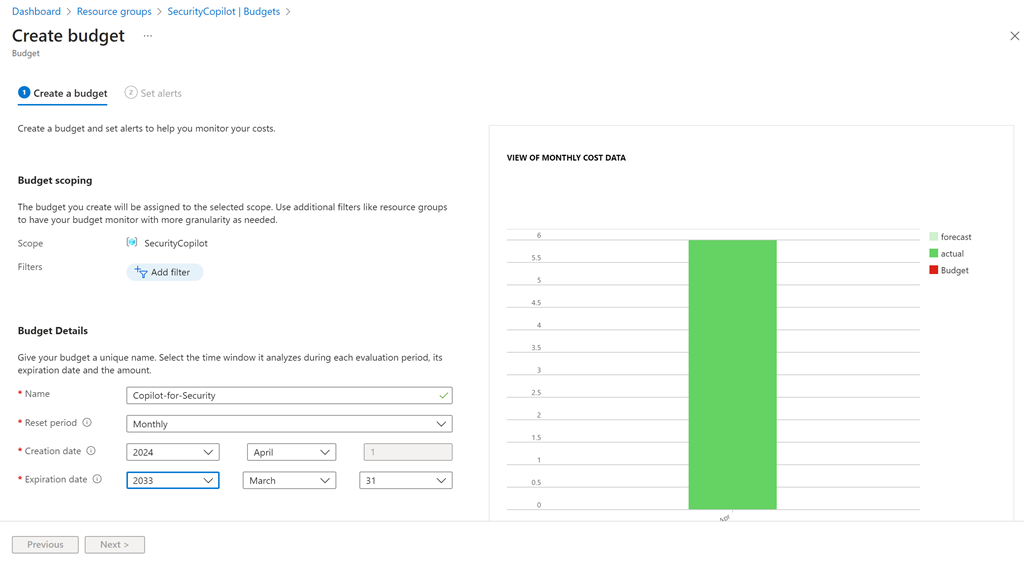
Give the budget a name, a reset period (typically monthly) and date range.

Screenshot 2024-04-16 121617

If you scroll down you’ll see that you can set a budget amount. Here I’m setting the budget to $150. Select the Next button at the bottom of the page to continue.

Screenshot 2024-04-16 121946

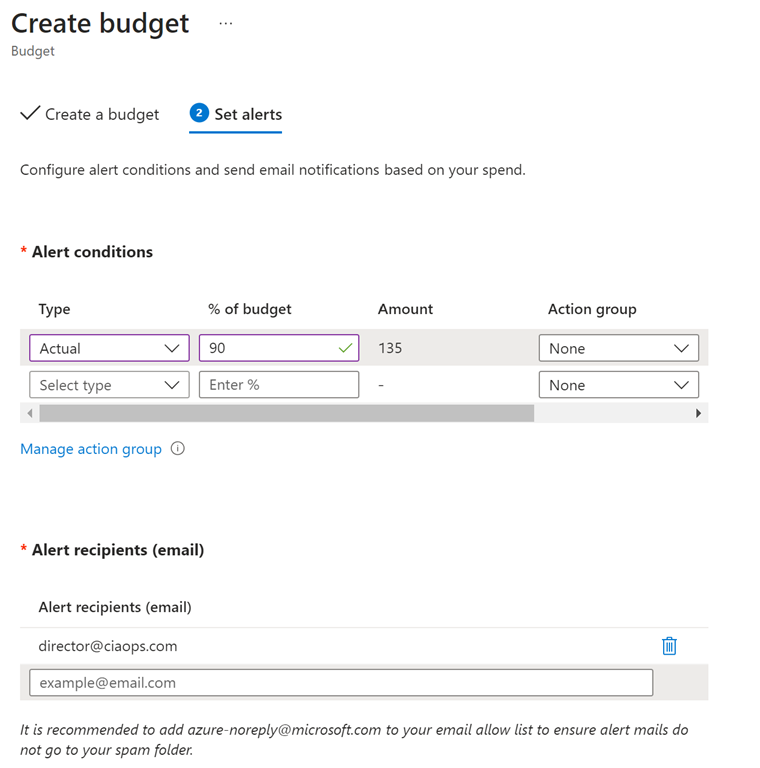
On the next screen you can configure a threshold alert level. Here I set that to 90% of my budget. This means I’ll start getting alerts about Copilot for Security when the cost reaches around $135. You can configure multiple thresholds if you wish.

You can also have the alert take automatic action via an Action Group (say shut down the resources), but I won’t cover this here.

A little further down you can configure the email you wish to receive the notification on. You can configure multiple emails to receive notifications if you wish.

Scroll to the bottom of the page and select the Create button.

Screenshot 2024-04-16 122404

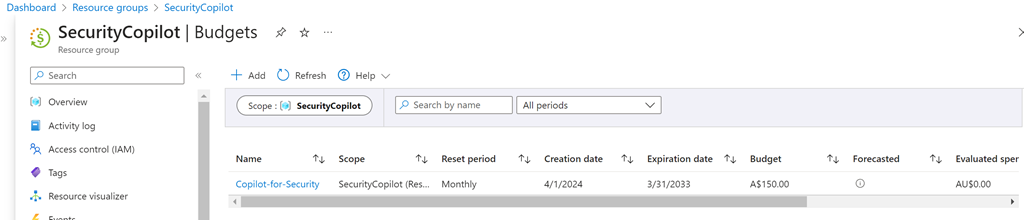
You should now see the budget you just created as shown above. You can click on the name for more details.

Screenshot 2024-04-16 122538

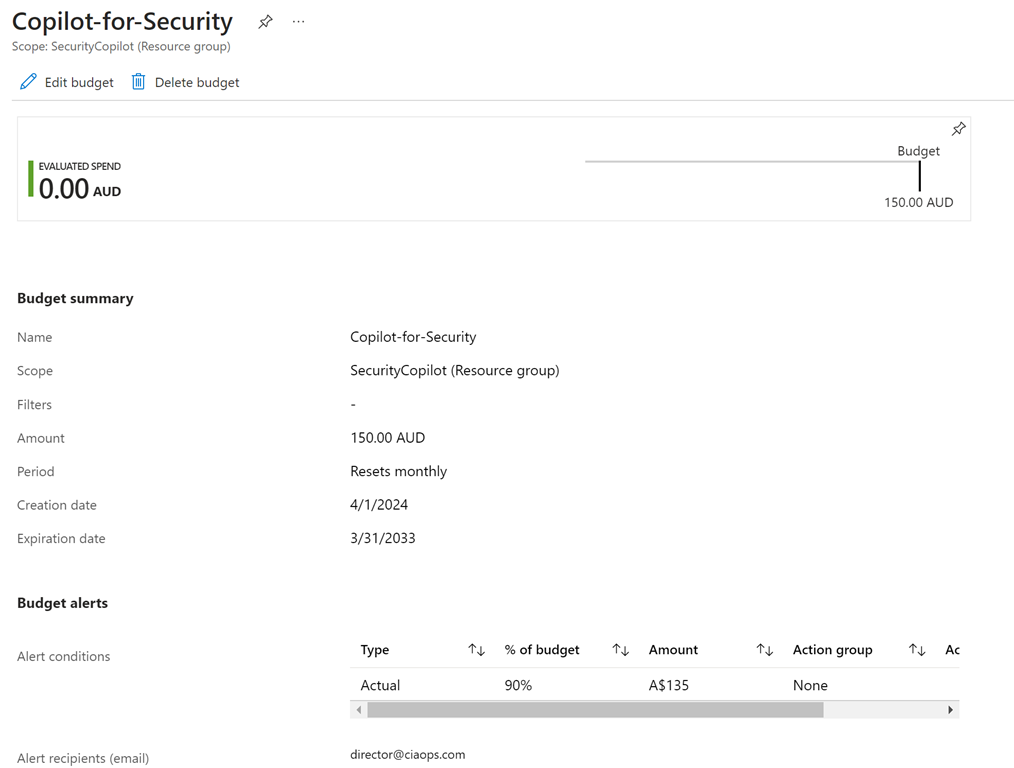
You can also edit and delete the configuration here if you wish.

Now, when you exceed the thresholds you set in this budget, you’ll get an email notification that your spending on Copilot for Security has reached the threshold you set.

Copilot for Security–The day after

Having set up Copilot for Security yesterday,

A day with Copilot for Security

and having an initial look around I decided to de-provision it after I was done for the day.

image

I returned the following day and set it all back up again using the same process as before. No issues.

image

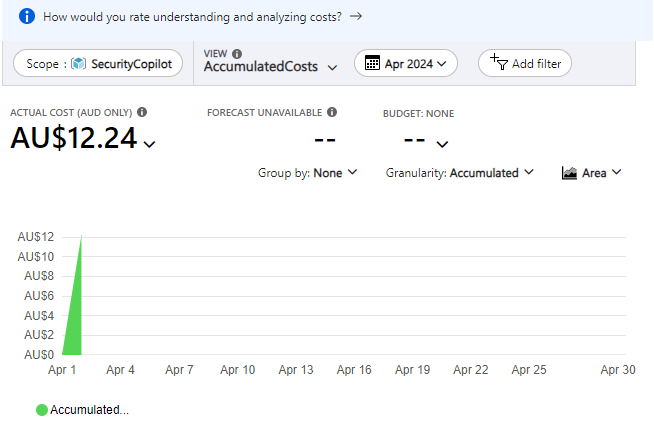
I had a quick look at the billing in my Azure portal and noticed that some charges had appeared as shown above. They seem to however lag actual usage by at least 24 hours or more, so keep that in mind if you are trying to track costs closely

image

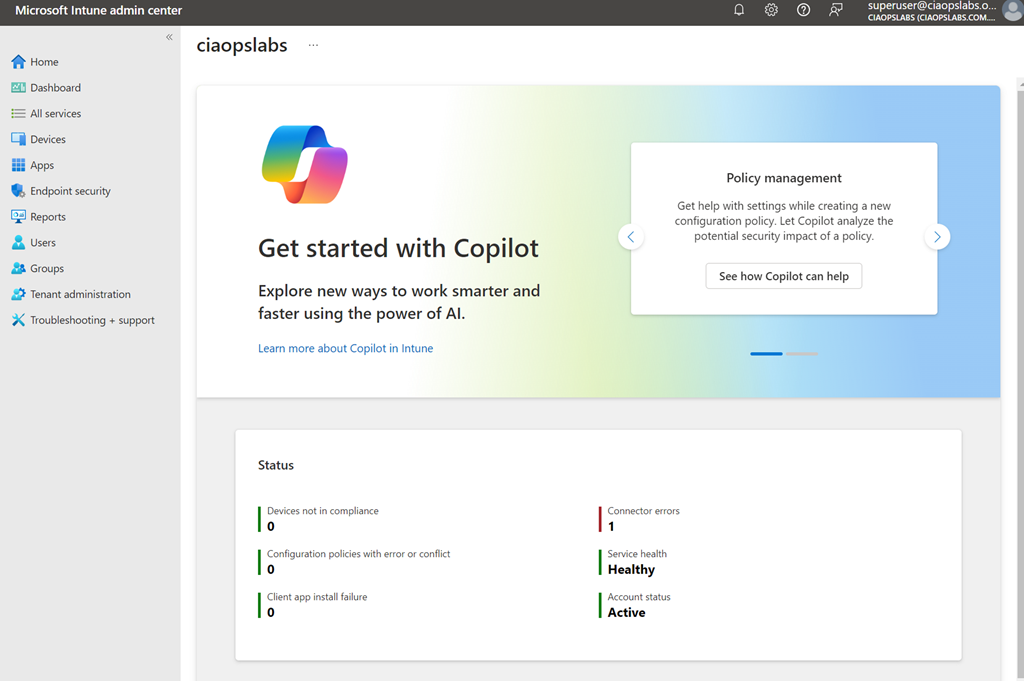
Because I also have Intune in the environment I took a look at where Copilot for Security is surfaced there. As you can see you get a big message in the homepage of the Intune portal when you navigate there reminding you that Copilot for Intune is available to you as part of Copilot for Security.

image

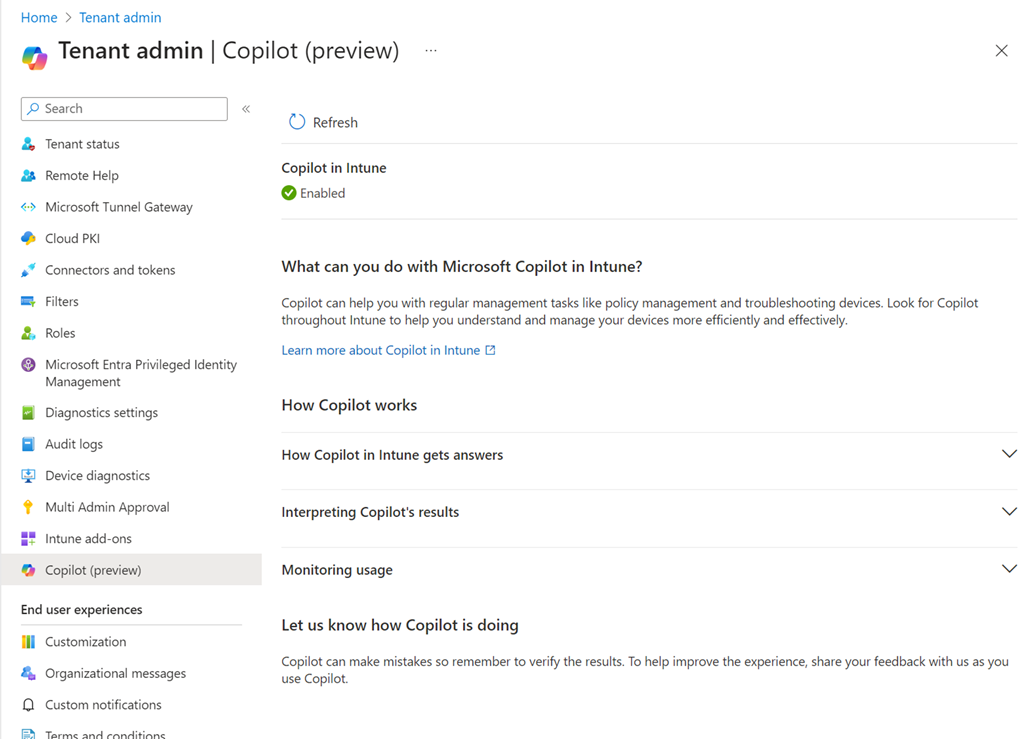
If you visit the Intune Tenant Admin area you’ll find a Copilot area as shown above. My check icon was green so I knew everything was working as expected.

image

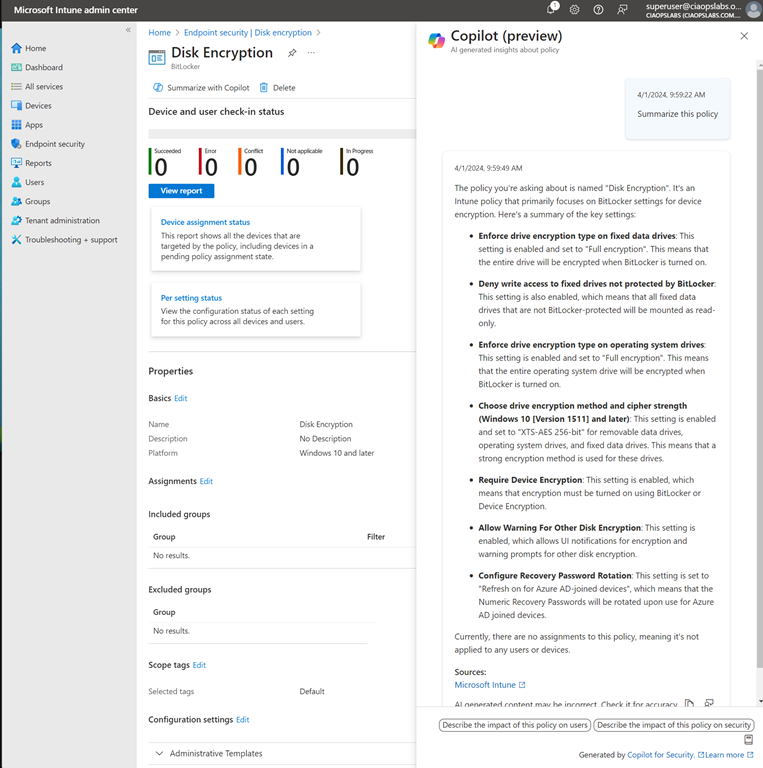
I then opened a policy and found a Summarize with Copilot button which I used to generate the summary you see on the right hand side of the policy. Very handy.

image

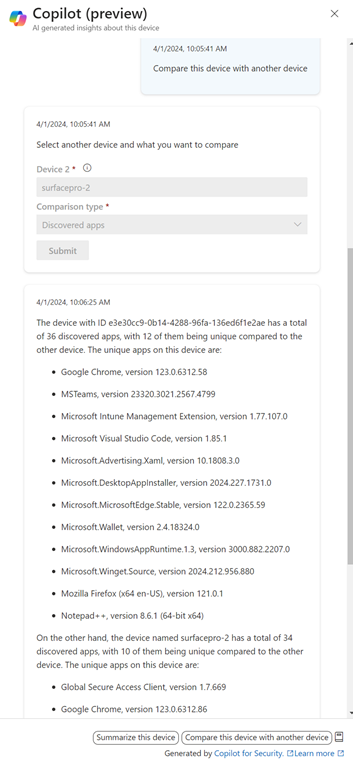
I also found a Copilot button when I looked at individual devices. As you can see above, I can use Copilot to give me a comparison between the apps installed on devices. Nice.

image

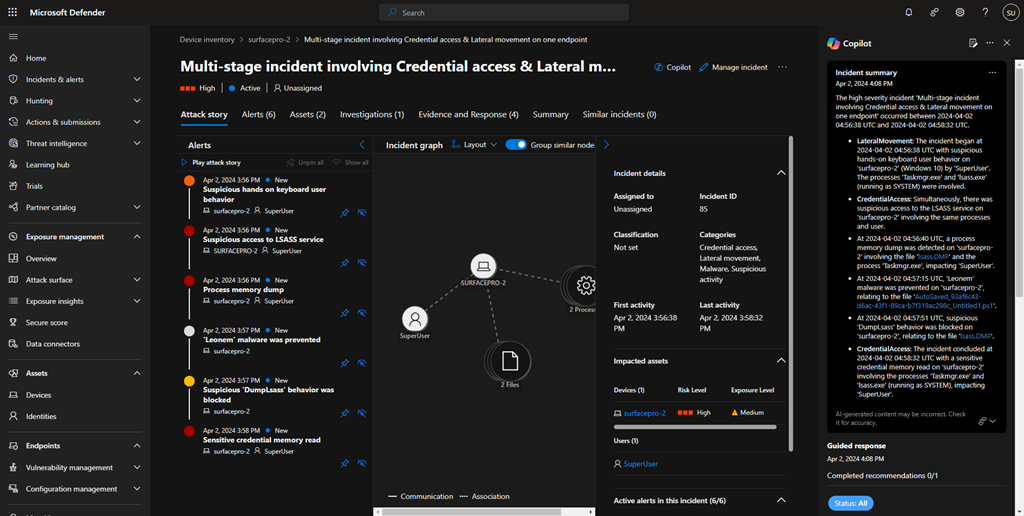
I then generated some security ‘incidents’ on a device and checked the device in the Microsoft Security portal to see how Copilot would be surfaced. You’ll see it appears as a pane on the right, as shown above.

image

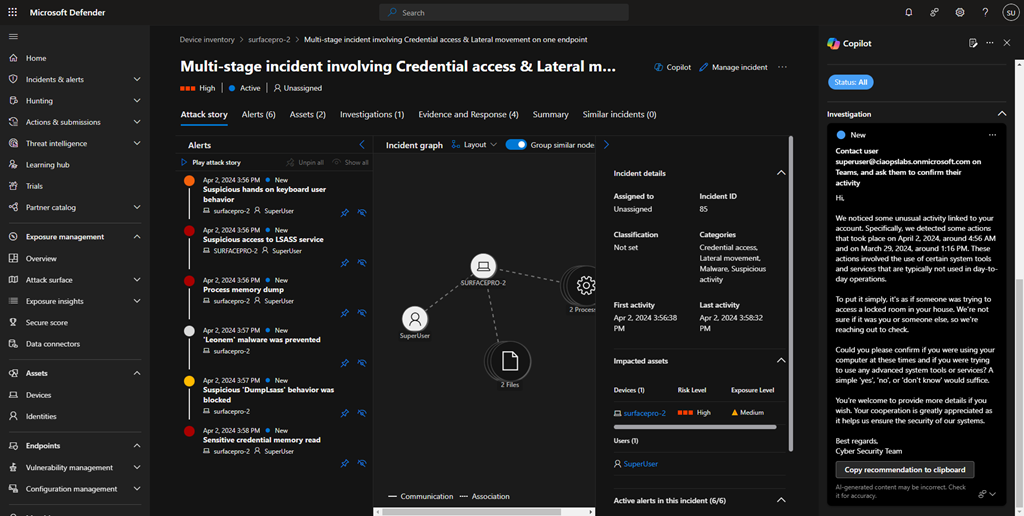
You’ll see in the above screen shot, I got Copilot to draft and email to send to the user of the problem machine. Very handy.

image

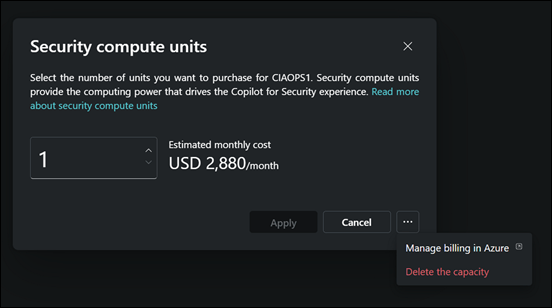
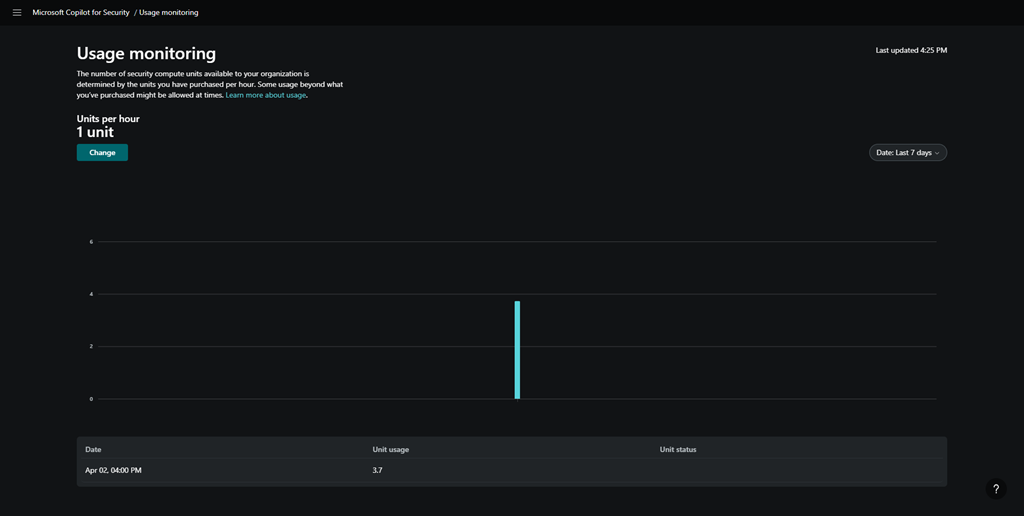
After playing around some more I went and looked at the Copilot for Security usage and you can see above, my unit usage was significantly higher than I initially provisioned. I assume I will be billed for those 3.7 units at US$4ph x the time I was actually playing around (about 1 hour). Let’s see when the costing make their way into the Azure portal.

image

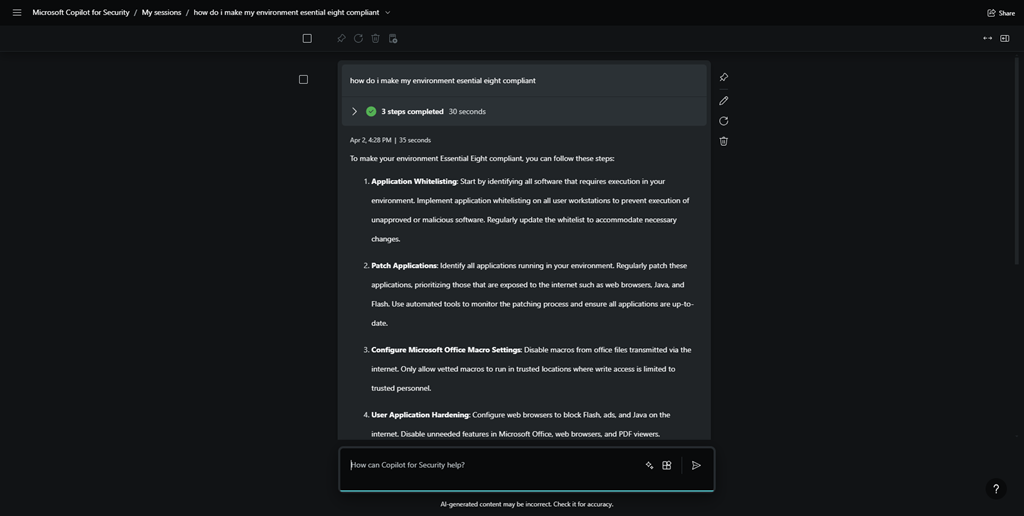
I then went off and asked Copilot for Security about how to make my environment Essential 8 compliant, and you can see the response above.

image

I also found where you can upload you own company files to the environment to give it even more information you can use in your investigations.

image

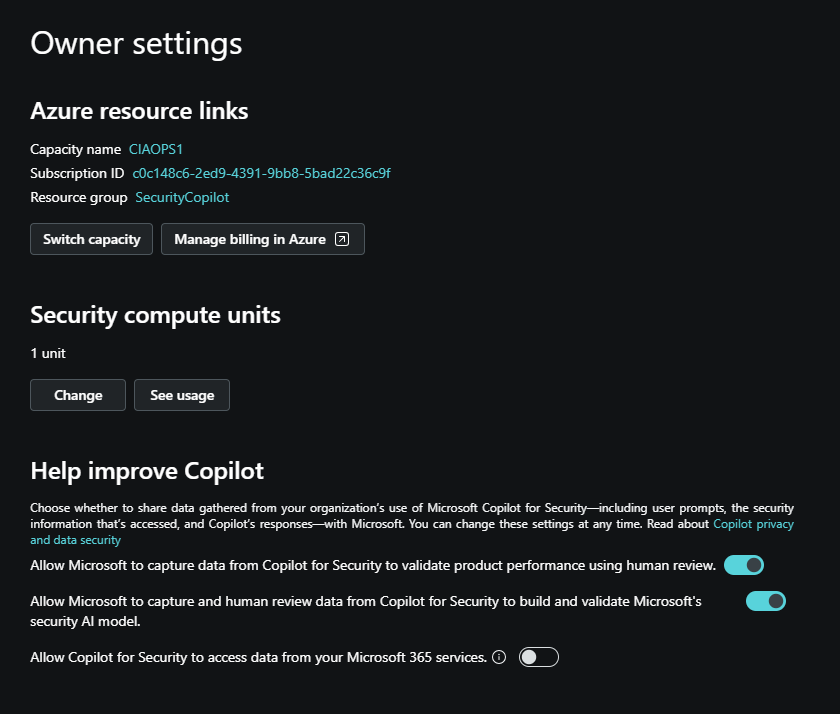
I found an area where there was an option to allow Copilot for Security to access my Microsoft 365 data, shown above.

image

However, for whatever reason, it did not allow me enable this option as you can see from the error above. I’ll try that again during my next session.

So today’s session has shown me that you can de-commission and re-commission Copilot for Security on demand. At the moment that is a manual process via the GUI, but I expect that I’ll be able to script that with something PowerShell soon enough.

Without Copilot for Security being re-enabled I found that most Copilot menu items in places like Intune remained but failed to operate, not unexpectantly. However, when I re-provisioned Copilot for Security again on the second day, all those options worked again. Some took and little while to ‘refresh’, but they all started working again as on the first day.

I also noticed that all my previous chat sessions where all still available and accessible. This is thanks to retention that is part of Copilot for Security. I just need to find out how long that retention is.

So the main thing I learnt from day 2 with Copilot for Security is that you can utilise it on demand. It doesn’t seem that you actually need to have it running 24/7, which is great new for smaller businesses on a budget. I’m sure you get more out of it if you do indeed leave an SCU running 24/7 but seems to me, so far, that you don’t lose much just enabling it as you need.

I also learned that the cost reporting seems to take at least 24 hours to start appearing which can make budgeting a little butt clenching until the actual cost figure appear in the Azure portal. I also learned that after you enable Copilot for Security the menu option remain in the various portals, even after your de-provision the service. Now, these may indeed disappear after a period time if you don’t re-provision but I’d find any of the disable menu items presented any errors, they just didn’t do anything any more. Which is understandable.

In short, I think Copilot for Security will work in an SMB environment but currently, you’ll need to a bit of manual labour to enable and disable the service but I expect that can be improved with automation down the track.

I’ll be playing with Copilot for Security for another day and I’ll then share my overall thoughts and feedback on what I’ve seen and the ROI it provides. However, I will certainly be implementing this, in an on demand capacity, in my production environment.

More updates soon from day 3.

Power Automate PAYG costs

Recently, I detailed how to enable the Power Platform PAYG billing:

Power Platform PAYG configuration

I now see the following in my environment that has Flows with premium connectors:

image

which basically says:

You can use premium capabilities in this environment. It’s covered by your org’s pay-as-you-go Azure subscription.

The reason I enabled this was because I wanted access to use Premium connectors without having to pay for a higher fixed monthly license cost.

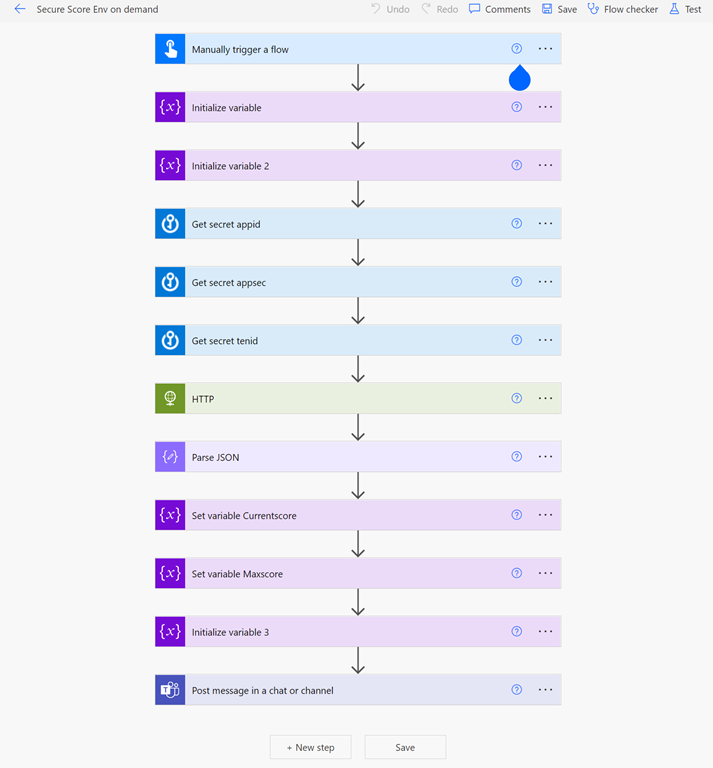
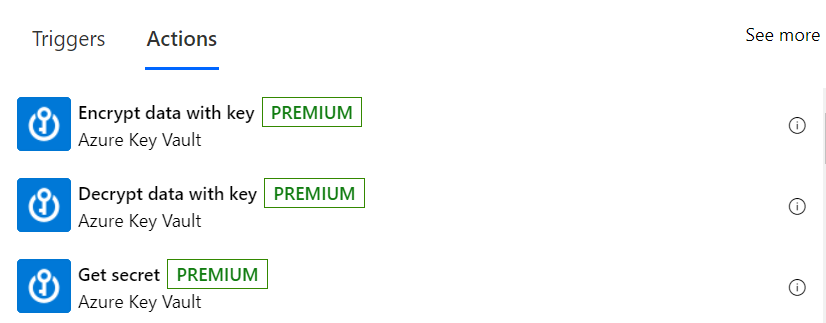
I have the following Flow in this environment that uses two premium connectors:

image

– Azure Key Vault

image

and

– HTTP

image

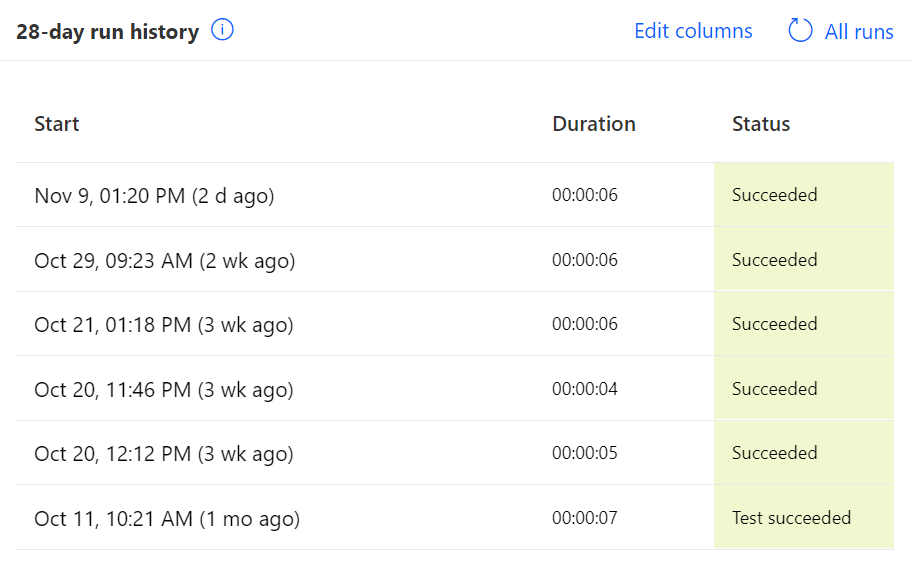
If I now look at the recent Flow runs I see six in total 1 in November and 5 in October.

image

Now looking at the Azure costs by service for November I see:

image

and for October:

image

Therefore, with 5 runs in October my average cost was $3.70 / 5 = $ 0.74 while in November, with only 1 run so far it was $0.92.

Assuming the highest run cost of $0.92 and with the execution of 4 premium connectors in the Flow (3 x Azure Key Vault and 1 x HTTP) that comes to a cost of $0.23 per premium connector.

The big benefit of the Power Platform PAYG option is that it allows quick and easy access to Premium connectors without the need to purchase a higher Power Platform license at a fixed rate per month regardless of usage. This means the PAYG option is great for testing prior to committing to a higher fixed value license or occasional use of Premium connectors. This should be really appealing to many who may only need to use a Flow with Premium connectors a few times in a month. When the PAYG billing approaches the full license cost you can always switch over.

In summary then, from what I can determine, you should allow around $0.25 per Premium connector per Flow run when calculating your PAYG costs with the Power Platform.

Moving to the Cloud–Part 2

This is part of a multi part examination of the options of moving to the Microsoft cloud. If you missed the first episode, you’ll find it here:

Moving to the Cloud  – Part 1

which covered off setting up a site to site VPN to Azure.

The next piece of the puzzle that we’ll add here is storage.

Storage in the Microsoft cloud comes in many forms, SharePoint, Teams, OneDrive for Business and Azure. We’ll get to stuff in Microsoft 365 like SharePoint, Teams and OneDrive later, but to start off with we want to take advantage of the site to site VPN that was set up in Part 1.

In Azure there are three different access tiers of storage; hot, cool and archive. They all vary by access speed and cost. The slower the access, the cheaper it is. Hot is the fastest access, followed by cool, then archive. You can read more about this here:

Azure Blob storage: hot, cool, and archive access tiers

The other variable here with Azure storage is the performance tier; standard or premium. You can read more here:

Introduction to Azure storage

Basically, standard performance tier uses HDD while Premium uses SSD. Apart from performance, the major difference is how the storage cost is actually calculated. With the standard tier, you are only billed for the space you consume BUT you are also billed for access (read, write, delete) operations. With premium, you are billed for the total capacity of the storage you allocate immediately BUT, you are not billed for any access operations.

So the key metrics you need to keep in mind when you are designing a storage solution in Azure is firstly the access tier (hot, cool or archive) the performance tier (standard or premium) and the capacity you desire for each. You may find some combinations are unavailable, so check out the document linked above for more details on what is available with all these options.

The easiest approach to Azure storage is to create an Azure SMB Share and map these directly on a workstation which I have previously detailed here:

Creating an Azure SMB Share

as well as an overview on pricing:

Clarification on Azure SMB file share transactions

Azure SMB files currently only supports hot and cool tiers. You can use archive storage but only via blob access, not SMB files. So what good are all of these you may ask? Well, if you read my article:

Data discovery done right

You’ll find that I recommend dividing up your data into items to be deleted, archived and to be migrated.

So we need to ask ourselves the question, what data makes sense where?

Let’s start with Azure archive storage. What makes sense in here, given that Azure archive storage is aimed at replacement of traditional long term storage (think tape drives)? Into this, you want to put data that you aren’t going to access very often, and that doesn’t make sense going into Teams, SharePoint and OneDrive. What sort of data doesn’t make sense going into SharePoint? Data that can’t be indexed such as large image files without text, Outlook PST backups, custom file types SharePoint indexing doesn’t support (think some types of CAD files and other third party file types). In my case, Azure archive storage is a great repository for those PST backups I’ve accumulated over the years.

Here is the guidance from Microsoft:

  • Hot – Optimized for storing data that is accessed frequently.

  • Cool – Optimized for storing data that is infrequently accessed and stored for at least 30 days.

  • Archive – Optimized for storing data that is rarely accessed and stored for at least 180 days with flexible latency requirements (on the order of hours).

We now repeat this again but with the cool tier storage, remember that this tier now directly supports Azure SMB files. So, what makes sense here? There is obviously no hard and fast rule but again, what doesn’t make sense going into SharePoint? Stuff that can’t be indexed, is typically large, is not accessed that often but more often than archive storage AND you also want to be accessible via a mapped drive letter. In my case, that data that springs to mind are my desktop utility apps (like robocopy), ISO images (of old versions of SharePoint server I keep in case I need to do a migration) and copies of my podcast recordings in MP3 format.

We repeat this again for the hot tier which is fastest and most expensive storage option. Initially here I’m going to place the user profile data when I get around to configuring Windows Virtual Desktop (WVD) in this environment. That needs to be quick, however most other current data files I have will go into Microsoft 365. Being the most expensive tier of storage, I want to keep this as small as possible and only REALLY put data on here that makes sense.

You don’t have to use all three tiers as I do. You can always add more storage later if you need to, but I’d recommend you work out what capacity you want for each tier and then implement it. For me, I’m going for 100GB Archive, 100GB cool and 50GB hot as a starting point. Your capacities will obviously vary depending on how much data you plan to put in each location. That why you need to have some idea idea where all your data is going to go BEFORE you set all this stuff up. Some will go to Azure, some will go to Microsoft 365, some will deleted and so on.

As for performance tiers, I’m going to stick with standard across all storage accounts for now to keep costs down and only pay for the capacity I actually use.

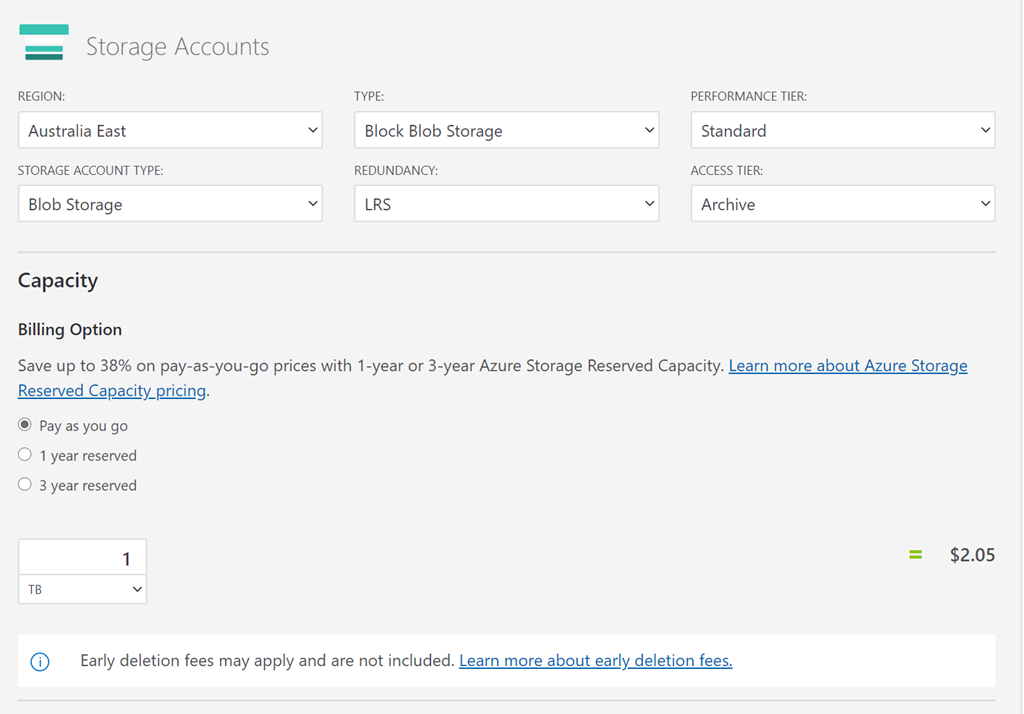
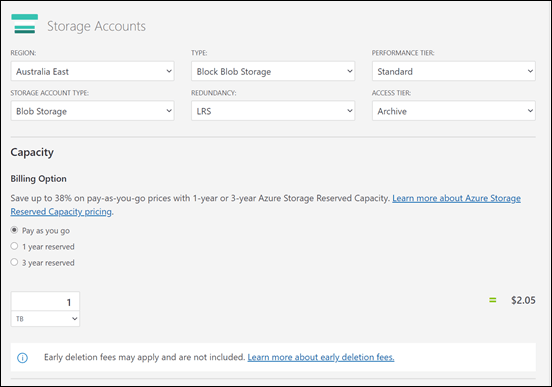
Let’s now look at some costs by using the Azure pricing calculator:
image

I’ll firstly work out the price for each based on 1TB total storage for comparisons between the tiers and to SharePoint and OneDrive for Business.

All the storage calculations are in AU$, out of the Australian East data center, on the standard performance tier and locally redundant unless otherwise stated.

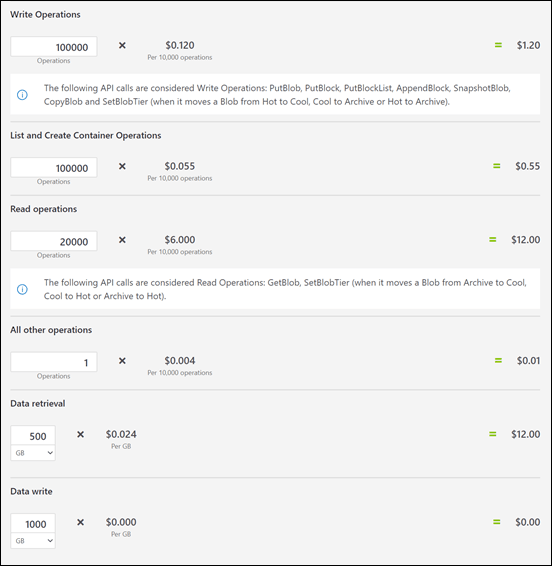
You can see that 1TB or archive storage is only AU$2.05, but it ain’t that simple.
image

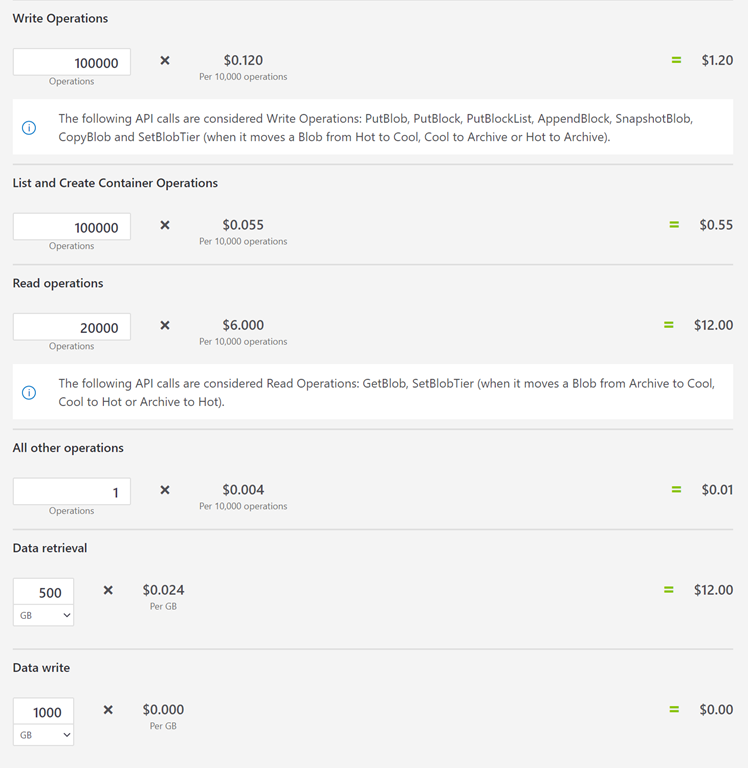
There are other operations, as you can see above that need to be taken into account. I have adjusted these to what I believe makes sense for this example but as you can see, variations here can significantly alter the price (especially the read operations).

The estimated total for 1TB of archive storage on the standard performance tier = AU$27.05 per month.

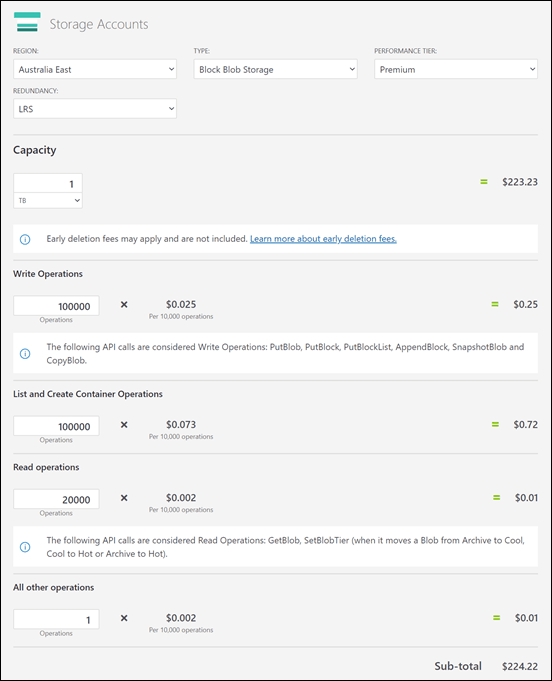
Now, as a comparison, if I change the performance tier to Premium I get:
image

The price of the storage goes way up, while the price of operations goes way down. So, if you want to minimise costs and you have lots of operations on your storage, standard tier is your best option.

The estimated total for 1TB of archive storage on the premium performance tier = AU$224.22 per month.

Basically 10 x the cost above the standard tier.

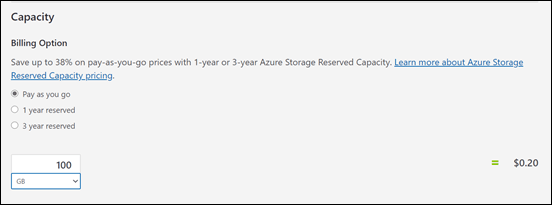
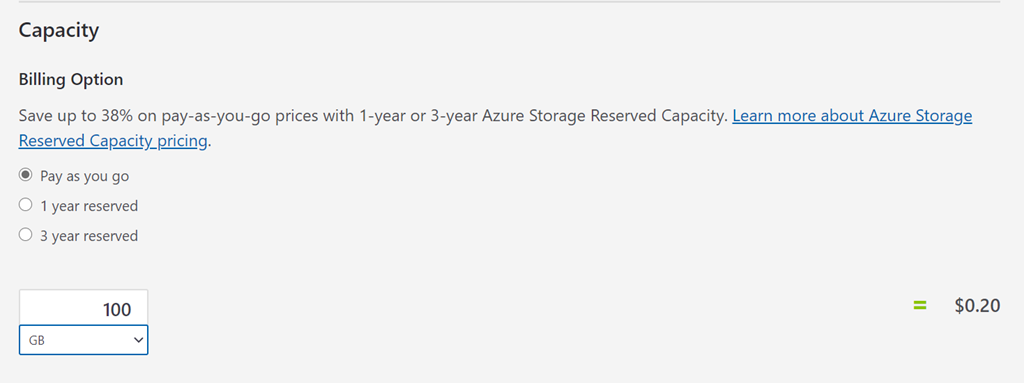
In my case, I don’t need 1TB of storage, I only want 100GB of storage.
image

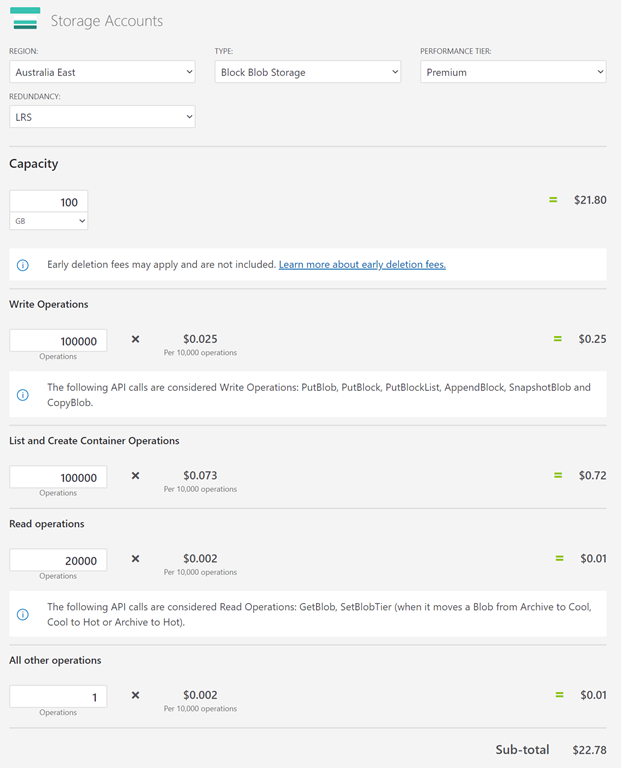
When I now do the estimation of 100GB of archive storage, the cost of just the storage falls by 10x (as expected) to AU$0.20, Don’t forget however about the storage operations which remain the same. So, my storage cost went down but my operation costs remained the same. Thus,

The estimated total for my 100GB of archive storage on the standard performance tier = AU$25.95 per month.

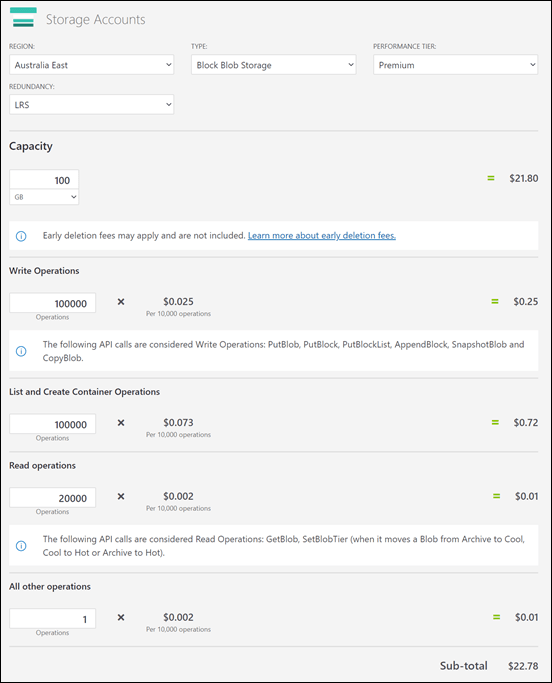
While premium is:
image

The estimated total for my 100GB of archive storage on the premium performance tier = AU$22.78 per month.

As outlined before, as a general rule of thumb with archive storage, premium performance tier is better value for low storage capacity and also low data operations. Once the capacity increases with premium performance, the price ramps ups.

So why would I recommend staying with the standard performance tier? Although, I ‘estimate’ that my archive will be small, I want the flexibility to grow the capacity if I need it. Remember, that we don’t set a storage capacity quota for block storage, it can just grow as needed and the bigger the storage capacity the more it will cost me if I go premium. Given that storage capacity here is more important than working with the data, I want the cheapest storage costs I can get as the data capacity increases. Thus, I’ll stick with the standard access tier. Also, remember that I’m estimating when my storage reaches 100GB here I’ll be billed AU$25.95 per month but until I reach that capacity and the less operations I do on files there, the cheaper this storage will be. I therefore expect my ‘real world’ costs to in fact be much less than this AU$25.95 figure over time.

Let’s now look at the next two storage locations, which will be Azure SMB file shares.

Unfortunately, the pricing calculator doesn’t allow us to easily calculate the price for an SMB Share on a cool access tier (Azure SMB files doesn’t currently support being on the archive tier). However, the pricing is only an estimate, so I know if I place it on a cool access tier it will be cheaper anyway, so I’m going to keep it simple.
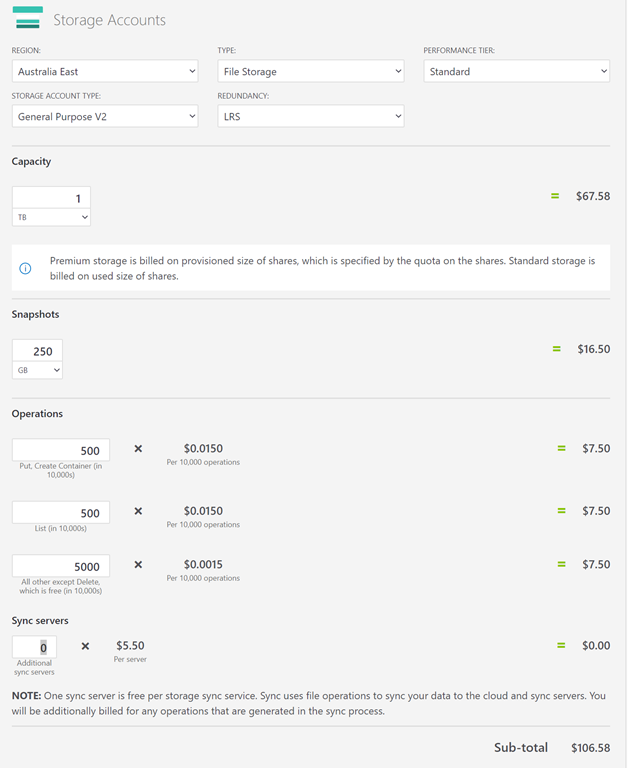
image

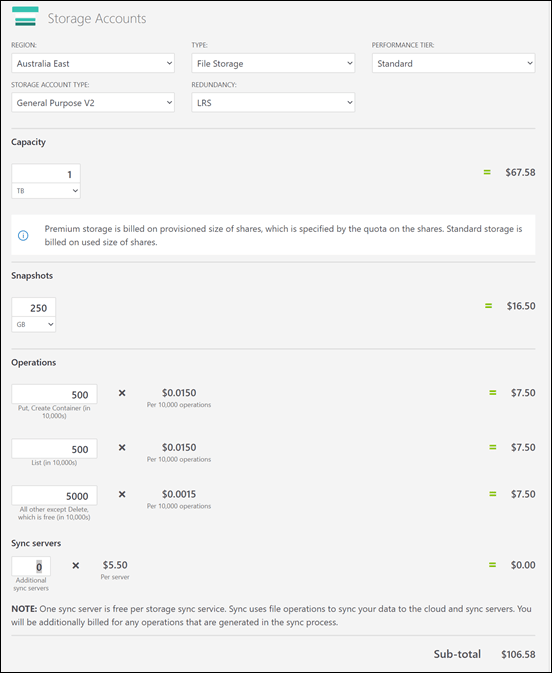
Thus, for reference:

The estimated total for 1TB of SMB file storage on the standard performance tier = AU$106.58 per month.

remembering that for the standard tier we need to take into account the cost of operations as shown.

and for Premium:

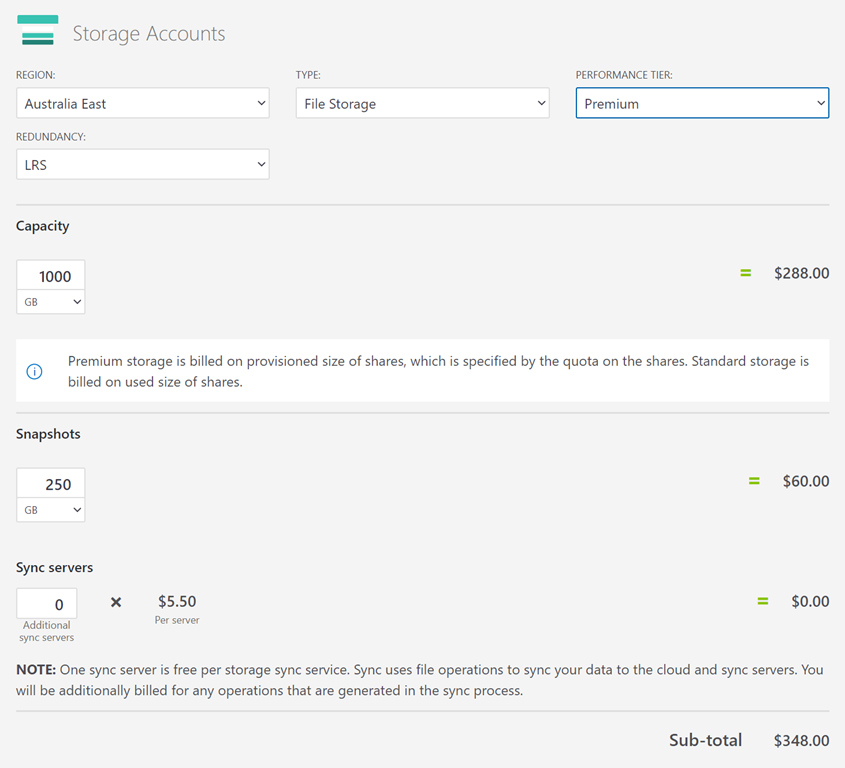
image

The estimated total for 1TB of SMB file storage on the premium performance tier = AU$348.00 per month.

With premium storage, you don’t need to worry about operations, however don’t forget, if you go premium you’ll be paying for the total allocated capacity no matter how much you are actually using. Thus, I’ll again be sticking with standard storage.

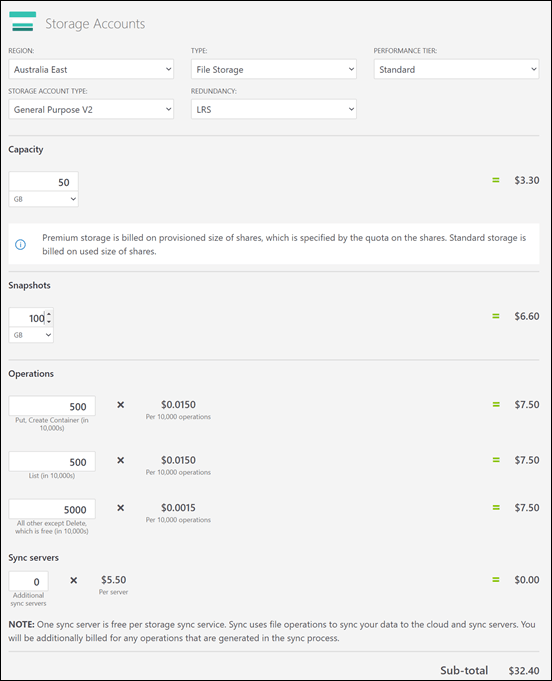
So, for my 50GB Azure SMB files hot tier I calculate the following:
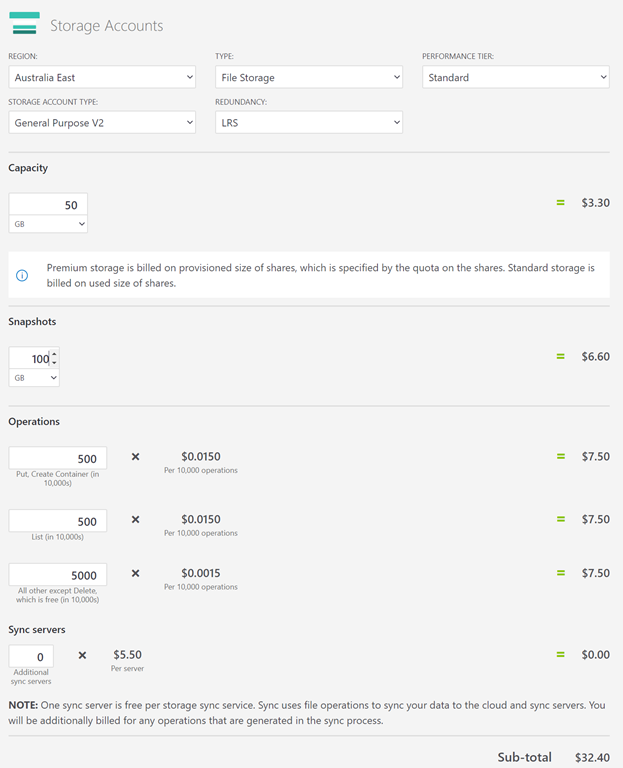
image

The estimated total for my 50GB of hot SMB file storage on the standard performance tier = AU$32.40 per month.

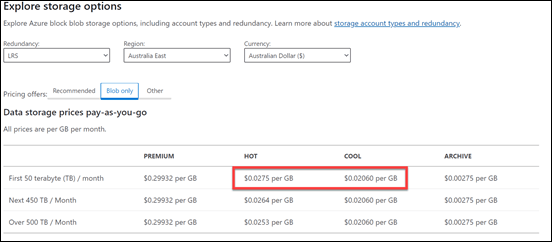
Now how can I get an idea of what the cool SMB file price will be? Although it is not this simple, I’m going to use a ratio from:

Azure Block blob pricing
image

So, by my super rough rule of thumb maths I get:

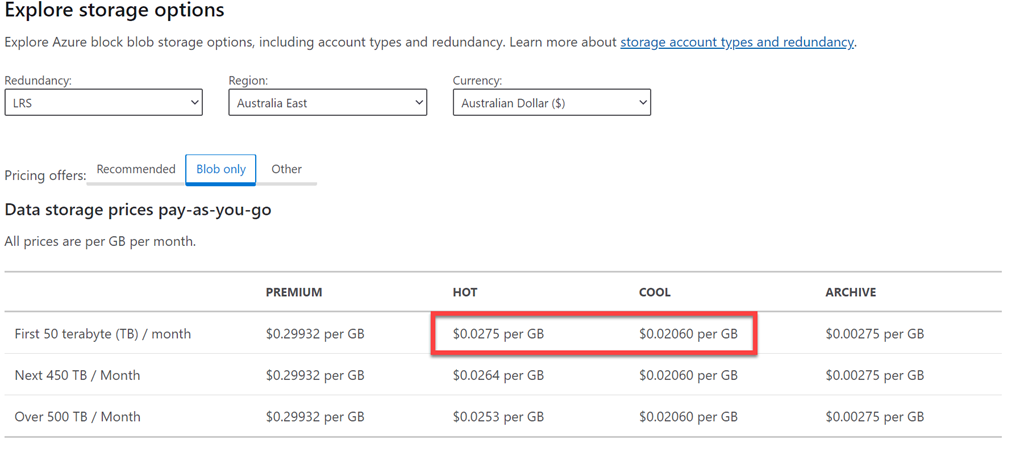
cool/hot = 0.02060/0.0275 = 0.75

Thus, cool storage is 75% the cost of hot storage say.

The estimated total for my 100GB of cool SMB file storage on the standard performance tier = AU$32.40 per month x 2 x 0.75 = AU$48.60 per month

The 2 x is because the hot price I have is only for 50GB and I want 100GB of cool storage.

In summary then, I will create 3 x storage repositories for my data:

– 100GB blob archive storage = AU$25.95 per month

– 100GB SMB file cool storage = AU$48.60 per month

– 50GB SMB file hot storage = AU$32.40 per month

250GB total storage estimated cost = AU$106.95 per month

Again remember, this is my estimated MAXIMUM cost, I expect it to be much lower until the data capacities actually reach these levels.

Now that I have the costs, how do I actually go about using these storage locations?

Because archive storage is blob storage I’ll need to access it via something like Azure Storage Explorer as I can’t easily use Windows Explorer. I’m not expecting all users to work with this data so Azure Storage Explorer will work fine to upload and manipulate data if needed by a select few.

As for the SMB file cool and hot storage I’m going to map these to two drives across my VPN as I have detailed previously:

Azure file storage private endpoints

This means they’ll just appear as drive letter on workstations and I can copy data up there from anything local, like a file server. The great thing is that these Azure SMB file shares are only available across the VPN and not directly from elsewhere as the article shows. That can be changed if desired, but for now that’s they way I’ll leave it. I can also potentially get to these locations via Azure Storage Explorer if I need to. The flexibility of the cloud.

So far we now have:

– Site to Site VPN to Azure (<5GB egress from/unlimited ingress to Azure)= $36.08 per month

– 100GB blob archive storage = AU$25.95 per month

– 100GB SMB file cool storage (mapped to Y: Drive) = AU$48.60 per month

– 50GB SMB file hot storage (mapped to Z: Drive) = AU$32.40 per month

Total maximum infrastructure cost to date = AU$143.03 per month

So we now have in place the ability to start shifting data that doesn’t make sense going into Microsoft 365 SharePoint, Teams and OneDrive for Business. Each of the three new storage locations has their advantages and disadvantages. That is why I created them all, to give me the maximum flexibility at the minimum cost

We continue to build from here in upcoming articles. Stay tuned.

Optimising Azure OMS data ingestion

image

Every month when I receive my Azure bill I take a careful look at it to see if there is anything I can optimise. This month I saw that the top cost was from my Log analytics workspace as you can see above. This however was no surprise because it basically represents that amount of data that had been ingested from my remote workstations into Azure Sentinel for analysis.
image

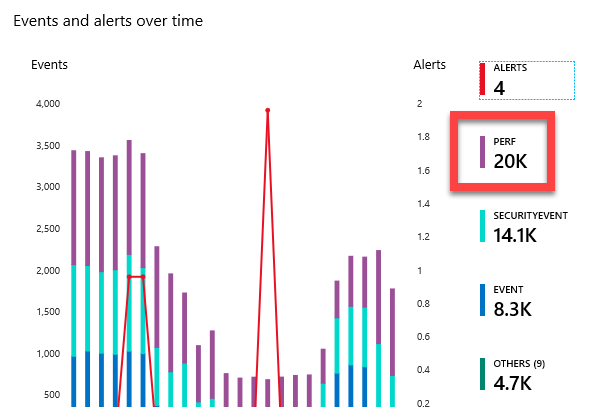
When I looked at Azure Sentinel I can see that I am bringing in more performance logs than security events per day. Now the question is, am I really getting value from having that much ingestion of performance logging? Probably not, so I want to go and turn it down a notch and not ingest quite so much and hopefully, save me a few dollars.

image

To do this, I’ll need to log into the Azure Portal and then go to Log Analytics workspaces.

image

I’ll then need to select Advanced settings from the menu on the left.

image

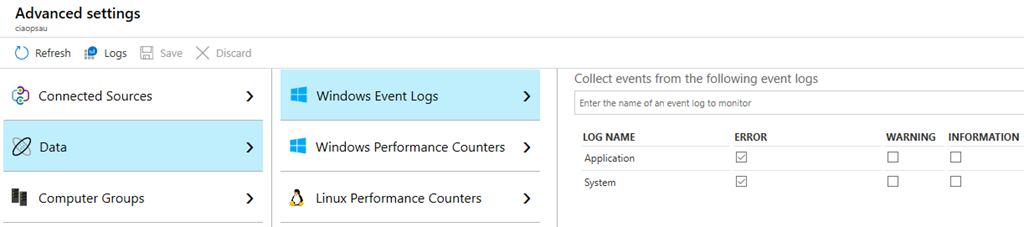
First thing I checked was in Data, Windows Event Logs is that I’m only capturing the errors in the Application and System logs for the devices, which I was.

image

Next I went to Windows Performance Counters and adjusted the sample time limit. I have increased it to every 10 minutes for now to see what difference that makes. I could also remove or add certain performance counters here if I wanted but I wanted to work with the current baseline.

With all that done, I’ll wait and see what the cost differences are in next month’s invoice and adjust again if necessary.