Why following best practices in Azure is a good idea

Over my time I have seen so many Azure solutions built in ways that are contrary to agreed best practices. Why does this happen? Typically, it is because people bring old concepts and methodologies to new environments like Azure. Yes, many of the fundaments are the same. Things like TCP/IP, networking and the like are the same as on premises but others are very, very different.

One of the key differences when it comes to storage with Azure Virtual Machines (VMs) is the disk topology. When you spin up an Azure VM you typically get two drives, C: and D:. C: is the boot partition and holds the operating system while D: is a temporary or caching disk that gets recreated upon every reboot.
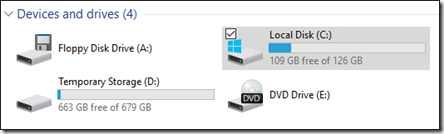
image

Above you can see an example of a topology from an Azure machine. You will see that D: has the label ‘Temporary Storage’.
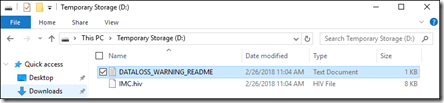
image

A closer looks at D: reveals the contents shown above.

image

If you look at the contents of the warning file you see the above. Note the first line which says (in capitals):

WARNING: THIS IS A TEMPORARY DISK

Why am I emphasising this? I can’t tell you the number of people I have seen bring previous practices to Azure and put production data (such as Active Directory Databases) onto this temporary drive because ‘this is the way they have always done it”. That unfortunately, is only going to end in tears.

Best practice when it comes to Azure is to always add data disks to Azure and start the labelling from F:. Yes, there is an additional cost for adding data disks but that cost is small compared to the flexibility you gain.

Case in point. I have a nested virtualisation server running in Azure that hosts a number of machines for testing. This machine has two data disks striped together for storage and performance optimisation. Using striping is another change from the ‘de-facto’ that I’ll look at in an upcoming article.

Unfortunately, when I put on some recent Windows updates the machine decided it no longer wanted to boot. I tried all the troubleshooting tips to get the system to boot but to no avail.
image

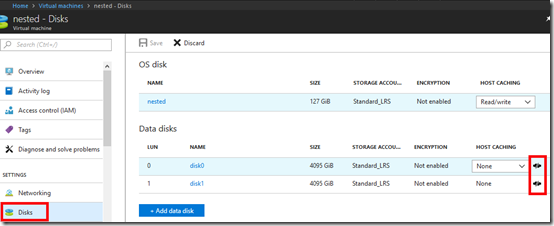
I therefore went in to the disk configuration of the failed machine and ‘detached’ the existing data disks, which as you can see, you can do from the Azure portal, although there are also PowerShell commands to accomplish this.

With the data disks ‘freed’ from the original failed machine, I proceeded to create a new virtual machine to mirror the original failed host. After doing this I went to the disks area of the new machine and selected the option to Add data disk. However, instead of specifying to create new clean disk, I elected to use existing disks and select the ones that I had detached from the failed original.

When I now looked at the new machine, with the existing disk attached, I found that the striping environment was already in place and needed no further configuration. All I needed to do was to restore my virtual machines that were on the data disks using the Hyper V manager. All really simple.

If I had installed everything on the C: drive then I would have lost the lot and would have needed to rebuild every virtual machine in that Hyper V environment from scratch. That would have cost me a lot of time, where in fact the total recovery time here was only a matter of minutes. That’s a BIG difference!

The moral of this tale is that a new environment like Azure does operate in a different manner from previous technologies. It is generally not appropriate to always bring old practices to a new environment without taking time to understand the ‘best practices’ for a new environment. Doing things the same old way just because this is the ‘way it’s always done’ can lead to a lot of pain and heartache. On the contrary, when you take the time to understand any new environment and follow best practices for that environment, things tend to be much easier as the above hopefully illustrates. This applies as much to Azure as it does Office 365. New technologies need new approaches and new best practices.

In summary, please oh please DON’T put your production data on C: or D: with Azure virtual machines.


February Azure Webinar Resources

Here are the slides from the February Azure webinar where we took a look at Azure networking.

https://www.slideshare.net/directorcia/ciaops-need-to-know-azure-webinar-february-2018

The recording is also available at:

http://www.ciaopsacademy.com.au/p/need-to-know-azure-webinars

which CIAOPS patrons get free access to as part of their subscription.

This webinar set more of the ground work for upcoming monthly webinars that will go deeper into Azure features and abilities.

So make sure you sign up for next month’s webinar.

Need to Know Podcast–Episode 174

In the absence of Marc Kean who is busy at Microsoft, let me introduce my new co-host Brenton Johnson from Uptake Digital. Brenton comes from a ‘born in the cloud’ IT business that looks after customer’s digital needs and implements cloud solutions for them. In this episode we meet Brenton and find out about his background, we also cover some new and updates from the world of Azure and Office 365. Have a listen and let us know what you think of the changes. We are still finding our feet in absence of Marc.

Take a listen and let us know what you think –feedback@needtoknow.cloud

You can listen directly to this episode at

https://ciaops.podbean.com/e/episode-174-let-me-introduce-to-you/

Subscribe via iTunes at:

https://itunes.apple.com/au/podcast/ciaops-need-to-know-podcasts/id406891445?mt=2

The podcast is also available on Stitcher at:

http://www.stitcher.com/podcast/ciaops/need-to-know-podcast?refid=stpr

Don’t forget to give the show a rating as well as send us any feedback or suggestions you may have for the show.

Resources

@contactbrenton

@directorcia

January Update for Microsoft Teams

New features in Planner

New apps in Microsoft Teams

Outlook Groups app is retiring

Use SharePoint web parts to showcase data from inside and outside Office 365

Azure revenues

Hybrid Cloud printing

Azure Cloud Shell

Protect machines using managed disks and ASR

Azure Shell comes directly to browsers

One of the really cool things Azure has introduced recently has been it’s Cloud Shell.

image

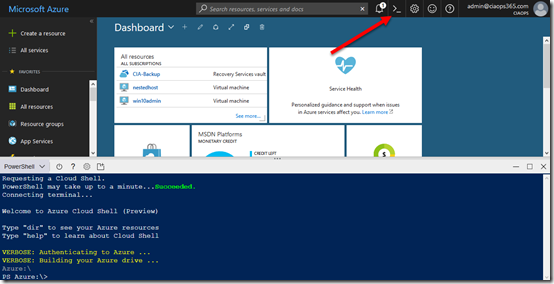
This is the ability to run a PowerShell command line window directly in a browser or on a mobile device. You did this by selecting the shell icon in the portal as shown above. When you did so you got a command line in the lower half of your browser. Really handy.

Now all of this is happening in a browser and until now you needed to access this by logging into the Azure portal. Well, if you now navigate directly to:

https://shell.azure.com

You’ll be able to login to the Azure Cloud Shell directly.

image

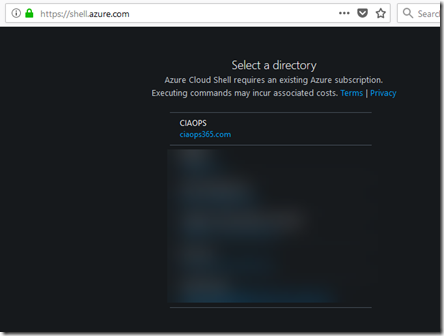
When you go there you’ll need to select a subscription to use (in case your have a few).

image

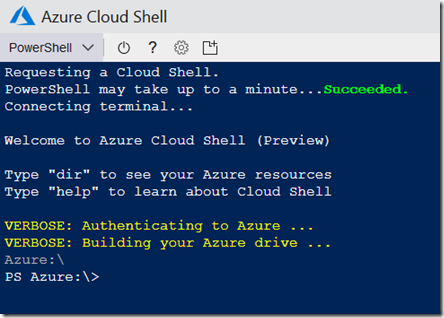
Once you have selected this an Azure Cloud Shell will spin up right in your browser as shown above. It may take a few minutes to do this and actually get to the command prompt, so be patient.

image

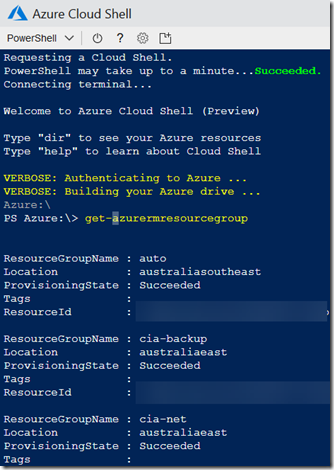
Once there, you can execute PowerShell commands against the tenant.

How cool is that?

CIAOPS Need to Know Azure Webinar–February 2018

pexels-photo-325229

The February session will build on the knowledge we have covered so far and dive into Azure networking. There’ll also be news, updates and well as open Q & A so I’d love to see you attend.

You can register for free at:

February Azure Webinar Registrations

The details are:

CIAOPS Need to Know Azure Webinar – February 2018
Thursday 22nd of February 2017
2pm – 3pm Sydney Time

All sessions are recorded and posted to the CIAOPS Academy.

There of course will also be open Q and A so make sure you bring your questions for me and I’ll do my best to answer them.

The CIAOPS Need to Know Webinars are free to attend but if you want to receive the recording of the session you need to sign up as a CIAOPS patron which you can do here:

http://www.ciaopspatron.com

or purchase them individually at:

http://www.ciaopsacademy.com/

Also feel free at any stage to email me directly via director@ciaops.com with your webinar topic suggestions.

I’d also appreciate you sharing information about this webinar with anyone you feel may benefit from the session.

Learning Azure while mining cryptocurrency

One of the things that I advocate when it comes to learning new technologies is to find a use for it that interests you. Typically, that means find a problem you need to solve as I have said here:

Scratch your own itch

I used this approach to learn about Azure many years ago as I detailed here:

I finally get Azure

I continue to try all sorts of things in Office 365 and Azure but I thought I’d share this experience of using Azure to mine cryptocurrencies.

Warning, warning, spoiler alert – it isn’t profitable from what I can see to use Azure to do cryptocurrency mining. In 24 hours I managed to mine $8 and it cost me $50 in Azure credits. Not a good ROI, however what I learning during that same period was huge.

My aim was to determine how well Azure IaaS faired when it came to mining and what was the optimal family of VMs to use. I settled on using Minergate as the software to do the actual mining. Yes, there are better options when it comes to mining software but Minergate is free, is a simple install and can be set up in a few minutes. Minergate allows you to mine multiple coins, but for this experiment I stuck to just trying to mine Monero.

image

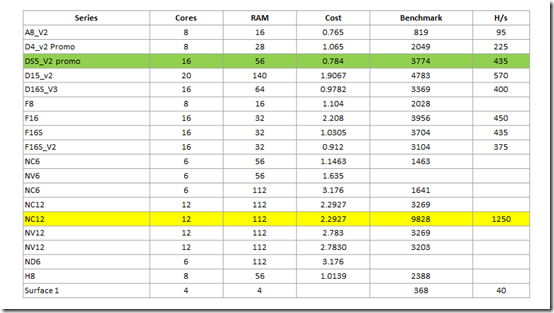
I then proceeded to run up various Azure VMs, install the Minergate software and complete a benchmark. I then set the machine to mining and looked at the Hashes/sec as a second data point.

You can see the results from the table above. The winner was the NC12 VM, even though it was the most expensive to run per minute.

So why do I have two entries for NC12 machines in the table above and why are the results so different? Interestingly, when you run an N series VM in Azure it doesn’t include the drivers for the GPUs. Thus, without installing the drivers you get a plain old CPU server. You’ll find the GPU drivers here:

Set up GPU drivers for N-series VMs running Windows Server

As you can see from the above table, with the GPU drivers loaded the benchmark jumps 3x fold!

Obviously, the more CPUs and GPUs you throw at crypto mining the better results you are going to get and that’s why I reckon the DS5_V2 promo machine is also a good option. The downside here is that the promo pricing won’t last forever in this machine. If the pricing goes up, then it will become less economic to mine.

All in all an interesting experiment and learning experience for me. I will continue to fiddle with crypto mining on Azure down the track and try stuff like using Linux instead of Windows as the OS and maybe look at some clustering options. However, my personal take away is that crypto mining on Azure isn’t economically viable and given that Azure rolls up costs like electricity into a single per hour cost, I don’t see how it can work economically for an individual if they use their own on premises hardware. I’m sure some people do make money mining crypto at home but, at this point, I can’t see how it can truly be profitable.

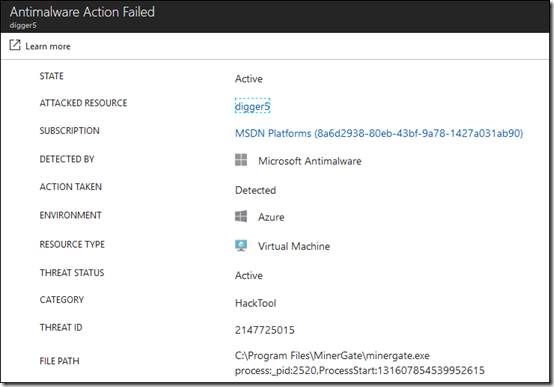
image

Another Azure activity I saw in action was the Security Center which flagged Minergate as malware on my VMs. I’ll now sit down and start playing with this more.

Azure, always interesting but for crypto mining not really profitable (yet!).

January Azure Webinar resources

Slides from my January Azure webinar are now available at:

CIAOPS Need to Know Azure Webinar – January 2018

The recording is also available at:

http://www.ciaopsacademy.com.au/p/need-to-know-azure-webinars

which CIAOPS patrons get free access to as part of their subscription.

This webinar set the ground work for upcoming monthly webinars that will go deeper into Azure features and abilities.

So make sure you sign up for next month’s webinar.

Need to Know Podcast–Episode 173

A solo-cast from me this episode as Marc is busy doing his day job. A bit lonely for the first episode of 2018 but I’ll manage somehow. A quick episode to bring you up to date with what’s happening in the Microsoft Cloud as well as to introduce Microsoft 365 and what that is all about.

Take a listen and let us know what you think –feedback@needtoknow.cloud

You can listen directly to this episode at

https://ciaops.podbean.com/e/episode-173-marc-less/

Subscribe via iTunes at:

https://itunes.apple.com/au/podcast/ciaops-need-to-know-podcasts/id406891445?mt=2

The podcast is also available on Stitcher at:

http://www.stitcher.com/podcast/ciaops/need-to-know-podcast?refid=stpr

Don’t forget to give the show a rating as well as send us any feedback or suggestions you may have for the show.

Resources

@marckean

@directorcia

Outlook for Mac support creation of Office 365 Groups

Submit feedback request to Microsoft

SharePoint updates rolling out

Office customisation tool

Availability of Microsoft SharePoint Migration Tool

Azure site to site VPN

Azure Essentials

Apply labels to sensitive files

PowerShell V6 now available

American Kingpin by Nick Bilton

Introduction to Microsoft 365