Validate email address format with PowerShell

Here’s a handy function you can use in your PowerShell scripts when you need to verify that information contains a valid emails address.

function ValidateEmailAddress {
param (
[string]$EmailAddress
)

    $emailRegex = ‘^[a-zA-Z0-9._%+-]+@[a-zA-Z0-9.-]+\.[a-zA-Z]{2,}$’
$isValid = $EmailAddress -match $emailRegex

    return $isValid
}

Just call the function and specify the text you want to verify as a parameter like:

ValidateEmailAddress(“director@ciaops.com”)

and you’ll get either True or False.

Connect to PnP PowerShell script

The latest pnp.powershell module (V2.X and above) now won’t work with PowerShell v5. Thus, I have updated my PnP connection script:

https://github.com/directorcia/Office365/blob/master/o365-connect-pnp.ps1

to accommodate this.

Thus, if you attempt to run this script in PowerShell version 5 with the latest pnp.powershell module you will typically see:

image

and the error is:

Could not load file or assembly ‘System.Management.Automation, Version=7.2.0.0, Culture=neutral, PublicKeyToken=31bf3856ad364e35’ or one of its dependencies. The system cannot find the file specified.

However, when you run the script in PowerShell V7 you’ll see:

image

that the connection is successful.

I have also taken the opportunity to remove the dependency in the script as well on the now depreciated module MSONLINE and replaced it the Microsoft.Graph module.

This kind of signals the beginning of the end for modern cloud modules in PowerShell 5. However, some still require PowerShell 5 but I expect that to change.

In summary, the latest pnp.powershell modules require PowerShell version 7 and I have updated my connection script to accommodate this.

Announcing the CIAOPS Power Automate online course

image

I have just released my new Introduction to Power Automate course which you can find here:

https://www.ciaopsacademy.com/p/introduction-to-power-automate

The course is designed to give you a kick start into the world of automation with Microsoft 365. You’ll learn what Power Automate and Flows are including how to create the different types as well as use connectors to work with data from a variety of sources.

Inside you’ll find a variety of resources including video tutorials, web references, quizzes, examples and more. Upon completion, you will have the confidence to start automating many processes in your business.

Once you get started with Power Automate you’ll be amazed at how much time you’ll save, all using the tools that come with Microsoft 365.

Start here. Start today. And get more time in your day.

Power Automate Email Arrive action file size only 4 bytes

image

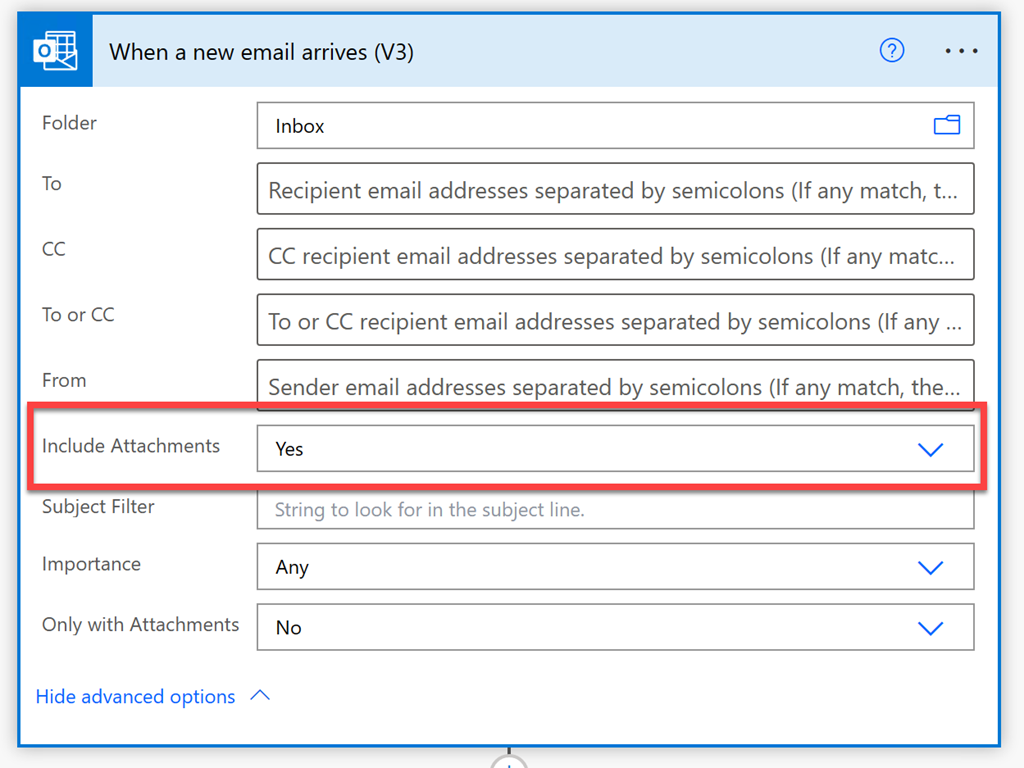
If you create a Power Automate with a trigger of When a new email arrives (V3) and you want to work with attachments in your Flow, ensure you select the Show advanced options as shown above.

image

If you don’t you’ll end up with saved attachments of only 4 bytes in size as shown above as by default the action doesn’t include attachments.

image

To work with attachments in your Flow, ensure the Include Attachments option is set to Yes as shown above. Then you’ll be able to do things like save the whole attachment to OneDrive for Business.


Get Teams Meeting Attendees via PowerShell and the Microsoft Graph

Here’s a handy way to get a list of attendees in Microsoft Teams using PowerShell. I have uploaded the script to do this here:

https://github.com/directorcia/Office365/blob/master/tms-attend-get.ps1

Before you run the script you’ll need to have the Graph PowerShell module installed.

image

You’ll also need to set some variable values for your own environment in the script. You can do this by locating $tenantid in the script as shown above, and setting that to your own tenant URL. Then find $meetingjoinurl and set that to the URL for that meeting. Finally, set $useremail to the email address of the user who created the meeting.

image

The meeting URL is the link people selected to join the meeting as shown above. You’ll also find it in the configuration for the meeting.

image

With all those settings updated, when you run the script it should look something like shown above. The script will connect to the Microsoft Graph with the scopes required to read the meeting details. You may be requested to login to the tenant and then potentially consent to these scopes during the connection phase. The required scopes are:

OnlineMeetingArtifact.Read.All
OnlineMeetings.Read

The script will get the GUID of the creator of the meeting from the email you specified followed by the meeting id from the meeting join link you specified, then the report id for that meeting and finally the report details for the meeting. It will then display the email address (if recorded) of attendees as shown above.

Of course, you can just download the CSV meeting report from the Teams page I know, but this process will be first step in eventually using Power Automate to get meeting attendees and send them an automatic follow up after the meeting. Stay tuned for details on that coming soon. This is simply proof of concept and a handy option if you do indeed just want to use PowerShell to get a list of meeting attendees.

Connect Power Automate to Twitter using a Bring Your Own App approach

*** On July 29 the MS docs now say:

The default shared application (Twitter Client application maintained by Microsoft) is no longer available. The connector now supports only one authentication type – Bring your own application. As of June 2023, it requires a paid Enterprise tier application. However, Twitter’s pricing policy might continue to change.

https://learn.microsoft.com/en-us/connectors/twitter/

Twitter or X as it is now, costs are here:

https://developer.twitter.com/en

Enterprise plans will cost >$5,000 per month!


**** On July 19 2023 this configuration starting reporting errors and now no longer seems to work either!

As I have detailed previously:

Power Automate Twitter connector failing

I needed to regenerate the connection to Twitter in my Flows. The following is what worked for me and I hope it can help you as I didn’t find this set out clearly anywhere else. I found that you needed to create all new Twitter connections in your Flows, so remember to record how these are configured before you go and delete anything.

Step 1. Remove any existing Twitter connections in your Data

image

Navigate to Power Automate and select Data and then Connections from the menu on the left. In the top right of this screen you will find a Search box. Into this search box type:

Twitter

image

You should now see a list of all your existing Twitter connections. ALL of these will need to be removed and thus prior, ensure you have recorded what your Twitter actions do in your Flows, because once you delete the connection here you will NOT be able to see what the actions actually did. They will simply show as invalid.

image

The reason you need to delete ALL the Twitter connections you find is the above error:

Failed to create connection for connection id ‘/providers/MicrosoftPowerApps/apps/shared_twitter/connections/shared-twitter-<guid>’. You have reached the maximum number of connections for the ‘twitter’ API.

I personally found I actually had two connectors. Both years apart, but all must be removed as Twitter now only supports one connection for free.

Step 2. Create Twitter API credentials

Microsoft does provide documentation on this here:

Authentication and Bring your own application

and to start with ensure you are logged into your Twitter account in the browser and navigate to:

https://developer.twitter.com/

image

Select Developer Portal in the top right as shown above.

image

Select the option to Sign up for a Free Account towards the bottom of he page.

image

You’ll then need to write a 250 character or more essay and agree to to all the Terms and Conditions before you Submit.

image

Now select the COG under the default project name that has been created for you as shown above.

image

Select the Edit button as shown above.

image

Select the Delete App button at the bottom of the page. I found that the default app did not have the correct permissions and access so I removed it and created a new one with the right settings.

image

Make sure copy the name of the app because you’ll need to enter at the next dialog before pressing Delete app.

image

Back in the projects dashboard select Add an App as shown above.

image

Give the app a meaningful name select Next at the bottom of the page.

image

Copy the API Key and API Key Secret for later use. Make sure you DO SAVE both the API Key and API Key Secret as they’ll be needed back in Power Automate.Also, keep both of these secure as they control access to your Twitter account.

Select App settings at the bottom of the page to continue.

image

Select the Set up button under the User authentication settings towards the bottom of the page as shown above

image

Ensure:

App permissions = Read and write and Direct message

Type of App = Web App, Automated App or Bot

Call Back URI / Redirect URI = https://global.consent.azure-apim.net/redirect

Website URL = https://global.consent.azure-apim.net/redirect

image

Select he option to Save at the bottom of the page. Select Yes when the above dialog appears to confirm.

image

You’ll now see a Client ID and Client Secret as shown above. You won’t need these so simply select Done to continue. You can re-create them if needed later.

image

Select Yes, I saved it to continue.

Step 3. Reconnect Twitter account in Power Automate

Return to Power Automate, Data, Connectors

image

Select New connection from the top of the page as shown above.

image

Search for Twitter using the Search box in the upper right. Then select the Twitter connector to configure it.

image

Ensure:

Authentication type = Bring your own application

Consumer key = API Key

Consumer secret = API Key Secret

image

A browser pop up will now appear asking you to authorize access to your Twitter account. You’ll need to login here with your Twitter account details. Enter you login details and select Authorize app.

You should then see a confirmation appear in this dialog and the browser pop up window will now close.

image

In the list of connections should now appear an entry for Twitter as shown above, and it it should show as Connected.

image

If you now navigate to where the Twitter action is inside your Flows you should see that the existing one is invalid as shown above.

image

Select the ellipse in the top right hand corner and from the menu that appears select Delete. I found I had to minimise the Twitter action first to allow it to be deleted.

You can now create a new Twitter action which will use the new connector and API that was created.

With that all done you should now Save your Flow and test it to ensure it is working as expected.

In summary, you’ll firstly need to check the existing configuration for any Twitter actions you have in a Flow and record these. Next, you’ll need to remove any and all existing Twitter connections in Power Automate. Remember, there maybe more than one. Next, you’ll need to go Developer area in Twitter. There you’ll need to delete the default app that is created and create a new one. When you create a new one you’ll receive credentials you’ll need to save and use back in Power Automate. Once created you’ll need to configure it with a few additional settings. With that complete, you’ll return to Power Automate and create a new Twitter data connection with the credentials obtained. Finally, you’ll need to remove the old Twitter actions from your Flows and create new ones.

As I said, this process worked for me and I hope it does for you.

Power Automate Twitter connector failing

*** My resolution to this here – https://blog.ciaops.com/2023/04/27/connect-power-automate-to-twitter-using-a-bring-your-own-app-approach/

Since the 20th of April 2023 the Power Automate Twitter connector has been failing to authenticate. This means you get an error in your Flow that looks like:

image

When I tried to fix the connector I am greeted by.

Image

There have no doubt been changes in the Twitter API which have caused this.

I’m trying to find an answer from Microsoft on how this will be handled going forward, but as yet I have not heard nothing back. If I find out, I’ll post here again.