Attack Surface Reduction Rules in Microsoft 365 Business Premium: A Practical Deep Dive

image

If you manage Business Premium tenants for SMB clients, Attack Surface Reduction (ASR) rules are arguably the highest-leverage defensive control you’re not fully exploiting. They ship with Defender for Business (included in Business Premium), they cost nothing extra to enable, and they block the precise behaviours that commodity ransomware and living-off-the-land attacks depend on — Office spawning child processes, Win32 API calls from macros, credential theft from LSASS, and PSExec-style lateral movement. This post assumes you already know what ASR is. The goal here is to help L2/L3 engineers deploy it without breaking line-of-business apps.

Prerequisites the documentation underplays

ASR has hard dependencies that silently downgrade rules to “not configured” if missed. Microsoft Defender Antivirus must be the active AV (not passive, not disabled by a third-party product), real-time protection must be on, and cloud-delivered protection must be on — several rules won’t evaluate without cloud lookups. Verify these under Microsoft Defender portal → Endpoints → Configuration management → Device configuration, and confirm the device shows as “Active” in the device inventory. Tamper Protection must also be enabled tenant-wide; without it, local admins or malware can disable ASR in seconds.

Where to configure in Business Premium

Business Premium gives you two supported paths. The simplified experience lives at security.microsoft.com → Device configuration → Next-generation protection / Firewall, but ASR rules specifically are configured through Intune. In the Microsoft Intune admin center, go to Endpoint security → Attack surface reduction and create an “Attack surface reduction rules” profile targeting Windows 10/11. Avoid mixing this with legacy Endpoint Protection templates or Group Policy — conflicting sources result in the classic “last writer wins” behaviour, and you will spend hours chasing phantom rules. If a device is co-managed or has stale GPOs, check Event Viewer → Applications and Services Logs → Microsoft → Windows → Windows Defender → Operational (event IDs 1121, 1122, 5007) to confirm which source applied.

The rollout pattern that works

Do not flip rules straight to Block. The proven pattern is: enable every rule in Audit mode, leave it for two to four weeks, then review the ASR report at security.microsoft.com → Reports → Attack surface reduction rules. Filter by rule and by device, identify the noisy ones, and build per-rule exclusions before switching to Block. Where available, use Warn mode as a staged step — the user gets a toast and can unblock once, which is invaluable for finance teams running macro-heavy spreadsheets. Warn mode is Windows 10 1809+ only; older builds silently treat it as Block.

Start with the “standard protection” set Microsoft recommends: Block credential stealing from LSASS, Block abuse of exploited vulnerable signed drivers, and Block persistence through WMI event subscription. These have the lowest false-positive rate and the highest return. The two rules that most commonly break things are “Block Office applications from creating child processes” (breaks legitimate mail-merge and older add-ins) and “Block executable content from email client and webmail” (breaks zipped installers).

Pitfalls to pre-empt

Exclusions are path-based and case-sensitive on the file name portion — wildcards work on folders, not extensions. Per-rule exclusions (added in later releases) are preferred over global Defender exclusions; use them so you don’t inadvertently hole-punch the whole AV. If a rule appears to do nothing, check whether the device is in EDR block mode and whether Defender is the active AV — ASR is silently disabled under third-party AV. Finally, ASR events do not always surface as alerts; plumb them into your SIEM via the Defender API or Advanced Hunting (DeviceEvents where ActionType startswith "Asr").

References

How effective is enabling Windows Attack Surface Reduction in preventing a Windows device from Malware?

image

Enabling Windows Attack Surface Reduction (ASR) rules is **highly effective** in preventing a Windows device from many common types of malware and attack techniques. It’s a crucial component of a defense-in-depth strategy.

However, it’s not a silver bullet and its effectiveness depends on several factors.

Here’s a breakdown of its effectiveness:

How ASR Works and Why It’s Effective:

  1. Targets Common Attack Vectors: ASR rules are specifically designed to block behaviors commonly used by malware to infect machines and execute malicious code. This includes:

    • Office Application Abuse: Blocking Office apps from creating executable content, injecting into other processes, creating child processes, or running macros deemed malicious.

    • Script-Based Attacks: Blocking obfuscated scripts (JavaScript, VBScript, PowerShell), or scripts that download/run payloads.

    • Email-Based Threats: Blocking executable content from email clients and webmail.

    • Exploitation Techniques: Preventing credential stealing (e.g., from LSASS), process hollowing, or unsigned/untrusted executables from running from USB drives.

    • Ransomware Behaviors: Some rules can help mitigate common ransomware tactics.
  2. Pre-Execution and Early-Execution Prevention: Many ASR rules intervene before malware fully executes or early in its execution chain, stopping the attack before significant damage occurs. This is more proactive than relying solely on detection of already-running malware.

  3. Reduces Reliance on Signatures: While traditional AV relies heavily on signatures for known malware, ASR focuses on behaviors. This makes it more effective against new or polymorphic malware that might not have a signature yet.

  4. Complements Antivirus: ASR works alongside Microsoft Defender Antivirus (or other AV solutions) and Endpoint Detection and Response (EDR) solutions like Microsoft Defender for Endpoint. It adds an extra layer of proactive defense.

Factors Influencing Effectiveness:

  1. Which Rules Are Enabled: There are many ASR rules. Not all may be suitable for every environment. Enabling more relevant rules increases protection. Some key high-impact rules include:

    • Block Office applications from creating child processes.

    • Block Adobe Reader from creating child processes.

    • Block execution of potentially obfuscated scripts.

    • Block credential stealing from the Windows local security authority subsystem (lsass.exe).

    • Block executable content from email client and webmail.
  2. Mode of Operation (Audit vs. Block):

    • Audit Mode: Logs what would have been blocked. Essential for testing and identifying potential legitimate application conflicts (false positives) before enabling block mode. Provides visibility but no active prevention.

    • Block Mode: Actively prevents the flagged behaviors. This is where the true preventative power lies.
  3. Exclusions: Properly configured exclusions are necessary for legitimate applications that might otherwise trigger ASR rules. Overly broad exclusions can reduce effectiveness.

  4. Configuration and Management: Consistent deployment and management (e.g., via Group Policy, Intune, MEMCM) ensure all devices are protected.

  5. Attacker Sophistication: While ASR stops many common TTPs (Tactics, Techniques, and Procedures), highly sophisticated attackers might find novel ways to bypass specific rules or use techniques not covered by ASR.

  6. Keeping Systems Updated: Microsoft continually updates ASR rules and the underlying Defender platform to address new threats and improve detection logic.

Limitations:

  • False Positives: The primary challenge. Some legitimate applications, especially older or custom-developed ones, might exhibit behaviors that trigger ASR rules. Thorough testing in audit mode is crucial.

  • Not a Complete Solution: ASR doesn’t cover every conceivable attack vector. It won’t stop zero-day exploits against unpatched vulnerabilities if the exploit doesn’t trigger a specific ASR rule behavior.

  • User Experience: If not carefully tuned, blocking legitimate actions can frustrate users.

Conclusion:

Enabling Windows Attack Surface Reduction rules is a very effective proactive measure to significantly reduce the likelihood of malware infection from common attack vectors. It raises the bar for attackers, forcing them to use less common or more sophisticated techniques.

For maximum effectiveness:

  • Start in Audit Mode: Understand the impact on your environment.

  • Gradually Enable Rules in Block Mode: Prioritize rules that block high-risk behaviors with low potential for false positives first.

  • Monitor and Tune: Continuously review ASR logs and adjust exclusions as needed.

  • Use in Conjunction with Other Security Layers: ASR should be part of a comprehensive security strategy that includes antivirus, EDR, firewalls, patching, and user education.

When implemented thoughtfully, ASR is a powerful, built-in tool that provides a substantial boost to Windows endpoint security.

Setting an individual Attack Surface Reduction (ASR) rule in Intune

This series of posts is an approach to implementing Intune inside a business. So far, I have covered off:

1. Create compliance policies and update devices to be compliant

2. Implement LAPS to control the local device admin account that cannot be deleted

3. Remove all other accounts from local administrator group on devices

4. Setting the default search engine in Edge with Intune

5. Managing browser extensions in Edge with Intune

6. Setting an Edge Security Baseline with Intune

The next recommended setting to implement is Attack Surface Reduction (ASR) rules. I’ve detailed how you can set this on individual devices using PowerShell here:

Show ASR settings for device with PowerShell

I’ve also detailed how to do this with Intune previously:

Attack surface reduction for Windows 10

In a nutshell, ASR is going to prevent child processes from launching, which is typically how a malware infection starts.

image

To create a stand alone ASR rule navigate to Endpoint security, Attack surface reduction in the Intune portal and select Create policy, as shown above.

Select the platform as Windows 10, Windows 11 and Windows Server and the profile as Attack Surface Reduction Rules.

Then Create the policy

As always, give the policy a meaningful name.

image

You should then see a list of the 16 standard ASR rule types as well as a rule called Block Webshell creation for Severs.

image

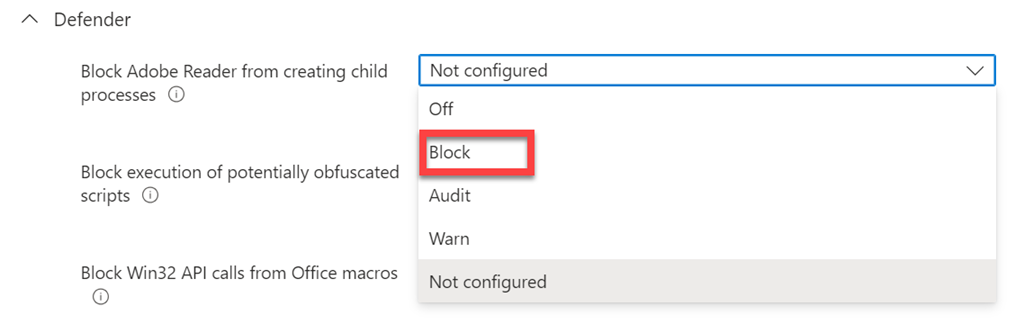
The best practice is to set all of these to Block. However, you will also see options for Audit and Warn if you want to take a more cautious approach.

image

The good thing about an individual ASR policy like this is that you get a lot more options that can be configured, unlike other policies in Intune that also include ASR. An example if the above, where you can provide enter a directory or file which will prevent ASR rules from matching. As an example, a path might be defined as: C:\Windows to exclude all files in this directory. A fully qualified resource name might be defined as: C:\Windows\App.exe.

Best practice is not to have any exclusions.

image

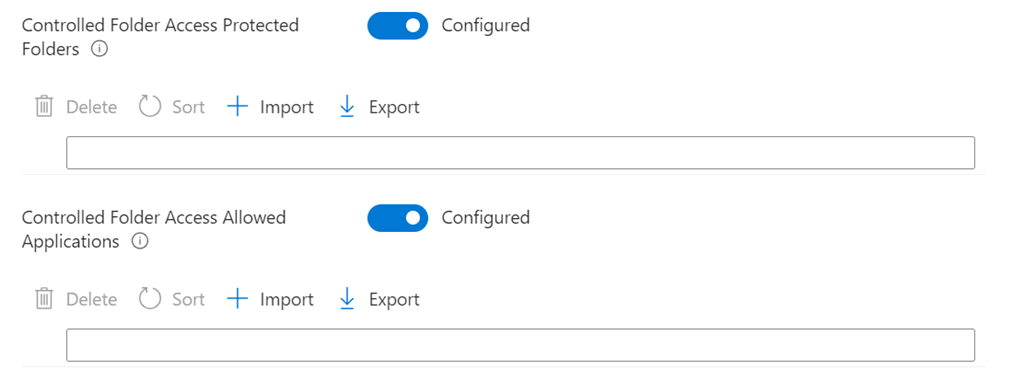
A little further down you’ll see a setting for Enable Controlled Folder Access as shown above. The controlled folder access feature removes modify and delete permissions from untrusted applications to certain folders such as My Documents.

Best Practice is to set this to Enabled.

image

Under this you can set Controlled Folder Access Protected Folders and Controlled Folder Access Allowed Applications. Controlled Folder Access Protected Folder allows adding user-specified folder locations to the controlled folder access feature.  These folders will complement the system defined folders such as My Documents and My Pictures. The Controlled Folder Access Allowed Applications allows user-specified applications to the controlled folder access feature. Adding an allowed application means the controlled folder access feature will allow the application to modify or delete content in certain folders such as My Documents. In most cases it will not be necessary to add entries. Windows Defender Antivirus will automatically detect and dynamically add applications that are friendly.

Best practice is to not have any settings here and to have these both set to Not configured.

image

When you configure an individual rule you’ll also see the ability to set exceptions for just this rule. As an example, a path might be defined as: c:\Windows to exclude all files in this directory. A fully qualified resource name might be defined as: C:\Windows\App.exe.

Once you have determined your settings you then apply the policy to an audience in your environment. You can use multiple policies if needed for different audiences.

If you want to monitor ASR actions in your environment you can use the following KQL query:

DeviceEvents
| where ActionType startswith ‘Asr’

This going to help you identify which devices and processes ASR is impacting, making troubleshooting much easier.

If you want to read more about ASR then visit:

Understand and use attack surface reduction capabilities

I believe ASR is something that should be enabled fully on all Windows devices, withou any exceptions or exclusions. It is an ability included with Windows for free and just needs to be enabled, either by policy or PowerShell. I would recommend setting an individual ASR policy as I have shown above as it provides the greatest flexibility when configuring as well as the greatest number of exclusions if required. Many other Intune policies include the ability to configure ASR but if you have a stand alone policy you should not configure it elsewhere or you may end up with configuration clashes and errors.

The next recommended policy will be for Defender for Endpoint.

Need to Know podcast–Episode 290

I have a few updates from the Microsoft cloud for this episode followed by a discussion about Attack Surface Reduction Rules (ASR) and their importance in reducing your risk.

You can listen directly to this episode at:

https://ciaops.podbean.com/e/episode-290-updates/

Subscribe via iTunes at:

https://itunes.apple.com/au/podcast/ciaops-need-to-know-podcasts/id406891445?mt=2

The podcast is also available on Stitcher at:

http://www.stitcher.com/podcast/ciaops/need-to-know-podcast?refid=stpr

Don’t forget to give the show a rating as well as send me any feedback or suggestions you may have for the show.

This episode was recorded using Microsoft Teams and produced with Camtasia 2022.

Brought to you by www.ciaopspatron.com

Resources

@directorcia

Join my shared channel

CIAOPS merch store

Become a CIAOPS Patron

YouTube edition of this podcast

Microsoft Outlook, your personal organizer, helps you be more productive and in control

Microsoft Digital Defense Report 2022

Investigate incidents more effectively with the new attack story view in Microsoft 365 Defender

Announcing enhanced control for configuring Firewall rules with Windows Defender

What’s New in Microsoft Teams | October 2022

New device control capabilities to manage removable storage media access in Microsoft Intune

Demystifying attack surface reduction rules – Part 1

Demystifying attack surface reduction rules – Part 2

Demystifying attack surface reduction rules – Part 3

Demystifying attack surface reduction rules – Part 4

Enable attack surface reduction rules

Check ASR Rules