CIAOPS Need to Know Azure Webinar–July 2018

pexels-photo-325229

We are going to take a closer look at the newest Azure service – Intune. You’ll learn what Intune is and how you can use it to manage and secure your devices all from the Azure console There’ll also be news, updates and Q and A. I hope to see you there.

July Azure Webinar Registrations

The details are:

CIAOPS Need to Know Azure Webinar – July 2018
Thursday 26th of July 2018
2pm – 3pm Sydney Time

All sessions are recorded and posted to the CIAOPS Academy.

There of course will also be open Q and A so make sure you bring your questions for me and I’ll do my best to answer them.

The CIAOPS Need to Know Webinars are free to attend but if you want to receive the recording of the session you need to sign up as a CIAOPS patron which you can do here:

http://www.ciaopspatron.com

or purchase them individually at:

http://www.ciaopsacademy.com/

Also feel free at any stage to email me directly via director@ciaops.com with your webinar topic suggestions.

I’d also appreciate you sharing information about this webinar with anyone you feel may benefit from the session.

CIAOPS Need to Know Office 365 Webinar–July

laptop-eyes-technology-computer

A new financial year here in Australia is good reason to start planning. Luckily, Office 365 has just the right tool to help us – Planner, which is what we’ll be taking a look at in detail during this month’s webinar. I’ll also bring you up to date with everything happening in the Microsoft and Office 365 space as always.

You can register for free at:

July Webinar Registrations

The details are:

CIAOPS Need to Know Webinar – July 2018
Thursday 26th of July 2018
11am – 12am Sydney Time

All sessions are recorded and posted to the CIAOPS Academy.

There of course will also be open Q and A so make sure you bring your questions for me and I’ll do my best to answer them.

The CIAOPS Need to Know Webinars are free to attend but if you want to receive the recording of the session you need to sign up as a CIAOPS patron which you can do here:

http://www.ciaopspatron.com

or purchase them individually at:

http://www.ciaopsacademy.com/

Also feel free at any stage to email me directly via director@ciaops.com with your webinar topic suggestions.

I’d also appreciate you sharing information about this webinar with anyone you feel may benefit from the session.

Preventing Malware downloads from Office 365

image

If you are unfortunate enough to somehow get malware in your Office 365 tenant you may not appreciate that by default you can still download this, even though it gets detected as shown above.

image

Best practice would be to use the PowerShell command:

Set-SPOTenant –DisallowInfectedFileDownload $true

to prevent users from having the option to download the infected file. Basically, it removes the Download button as shown above. Doing this will apply the setting across all SharePoint Sites, including OneDrive for Business, Teams and stand alone site collections.

From the Microsoft documentation:

If the Set-SPOTenant cmdlet has the DisallowInfectedFileDownload parameter set to:

true (recommended), this happens:

  • All actions, except Delete, are blocked for detected files.

  • People cannot open, move, copy, or share detected files.

  • People see a visual cue that indicates that a file has been identified as malicious. No one can download the file.

false, this happens:

  • All actions, except Delete and Download, are blocked for detected files.

  • People cannot open, move, copy, or share detected files.

  • People see a visual cue that indicates a file has been identified as malicious, but they can choose to accept the risk and download the file anyway.

Allow up to 30 minutes for your changes to spread to all Office 365 datacenters.

The recommended best practice is then to turn this on for all tenants as it is not on by default.

Early access to my new online Microsoft 365 Security course

security-protection-anti-virus-software-60504 (1)

I’m working hard to complete an online course focused on Microsoft 365 Security. What I have decided to do is provide early discounted access to the course while I am still building it. If you sign up at the discounted rate you continue to get full access to all the course the modules without any additional payment.

The course will eventually sell for US$399 but while I’m still building it you can sign up for only US$99. This means that you’ll continue to get full access to everything I add to the course going forward as I build it out.

There are however already a number of modules in there you can take advantage of and I’m working hard to add more every day. Already in there are modules around enabling audit logging as well as Office 365 ATP and Data Loss Prevention.

To take advantage of this limited offer use the coupon code EARLYBIRD at check out for the course or this direct URL with the discount already applied:

https://www.ciaopsacademy.com/p/o365-security/?product_id=715774&coupon_code=EARLYBIRD

Remember this offer can’t last so sign up now.

Azure AD and SharePoint Online user differences

I’ve been developing scripts to work with OneDrive for Business when I fell into a bit of a rabbit hole that lead me to an interesting revelation.

Part of the challenge with working with OneDrive for Business in Office 365 is that not all users have one, even though they are licenses for it. The reason for this is simply that a user’s OneDrive for Business isn’t generally provisioned for them until they start using it. Thus, in my demo tenant there are probably users who haven’t as yet been through the process of having a OneDrive provisioned. No issues.

Secondly, when you share information with external users in SharePoint and Teams you may also find an AD account but that user hasn’t as yet access SharePoint resources for some reason. Maybe, they haven’t accepted the sharing request and so on. Again, no big deal.
image

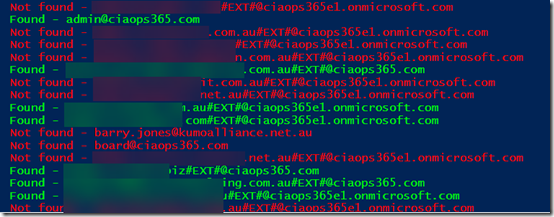
So I created a script that goes through each active Azure AD user in the Office 365 tenant and check to see whether there is a corresponding SharePoint Online user. To do this I used the following commands:

get-spouser

and

get-azureaduser

So I trained these commands on the OneDrive for Business URL which is typically:

https://tenantname-my.sharepoint.com

As you can see from the above report, the green lines indicates matches to accounts in my Azure AD and in my OneDrive for Business. The green tenant users, with a custom domain typically have their own OneDrive for Business. The green External users, distinguished by an account that includes #EXT# are typically accounts outside the tenant that have been shared information with and accepted that sharing request.

Now the red tenant users, typically haven’t had their OneDrive for Business provisioned yet and the red external users typically haven’t accepted the sharing request that has been sent them as yet. All understood.
image

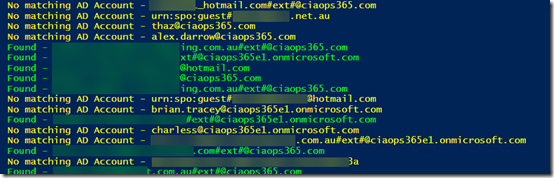
Here’s where the rabbit hole opened up. Ok, I thought, now what happens if I do the reverse? That is, check my SharePoint users against my Azure AD users? So off I went to create a script.

The script came back with the results you see above. All the the yellow accounts are SharePoint users that don’t have a match Azure AD account. Quite a few eh? When I first saw this I panicked a bit, because many of the accounts I didn’t recognize. What was going on here I wondered? Had I been compromised?

In a perfect world, there would be a one to one mapping between Azure AD accounts and SharePoint account. However, things aren’t that perfect, so in my demo tenant, I had created lots and lots of accounts over the years and many had become ‘orphaned’ leaving behind information in SharePoint. Many were just so old I forgotten that I created them and then later deleted the Azure AD account.

Is this a problem? Not really I don’t think, because without an Azure AD account to login to, these ‘orphaned’ resources aren’t much use. Still, if they aren’t needed then they really should be deleted to my mind.

Interestingly, some of these ‘orphaned’ SharePoint users actually still had their own OneDrive for Business that clearly wasn’t being displayed anywhere else. Once I took control of these ‘orphaned’ sites by making myself a Site Collection Administrator I could see what they actually contained. When I was happy it wasn’t needed or in use I deleted these, again using PowerShell.

So what did my trip down the rabbit hole teach me? Firstly, I learned that Azure AD and SharePoint user accounts don’t always line up. Next, I learned that you can end up with ‘orphaned’ SharePoint users and resources that you may want to clean up using PowerShell. I don’t believe these represent any security issues but if they aren’t necessary then they probably should be deleted. However, be careful of system accounts which shouldn’t be removed. Just get rid of those you recognise as no longer being required.

The biggest thing that my exploration taught me is the value of PowerShell to get behind the standard interface of Office 365 and see what is really going on. It gives you much better control and for me it helps me understand much better how everything works.

If you want the scripts that I used to do these comparisons then I suggest you sign up to my Patron community – www.ciaopspatron.com where you’ll find these and whole lot more Office 365, Microsoft 365 and Azure resources.


Checking SharePoint External Users PowerShell Script

image

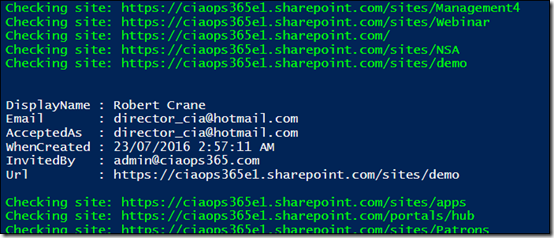
Another things that you should keep your eye on in your Office 365 environment are the external users who have been give access to any of your SharePoint sites. You’ll probably find that many of these should no longer have access, so I’ve done a simple script which you can get here:

https://github.com/directorcia/Office365/blob/master/o365-spo-extusr.ps1

that will basically loop through all your SharePoint sites (including OneDrive and those created by Teams and Groups) and list out all the external users on the screen.

As you can see from the above screen shot, it will tell you the external users name, email, when they were invited and by whom. Importantly, it also shows you which email actually accepted the invitation as this may vary in some cases (another point of investigation potentially).

I’ll continue to work on this script and the others I have in my GitHub repository. So please send me your feedback and suggestions on how to improve what I have developed as well as any ideas for scripts you’d like to see.

Microsoft Video Indexer

https://www.videoindexer.ai/embed/player/9d31188b-b0e7-4e1b-b08b-5545caba2c7f/d4cf35fbb4

Don’t forget to adjust the caption and font on the above from the menu that appears when you mouse over the the panel.
https://www.videoindexer.ai/embed/insights/9d31188b-b0e7-4e1b-b08b-5545caba2c7f/d4cf35fbb4

Thought I’d show you the results of what happens when you use the Microsoft Video Indexer. I have written about this before but now you can upload just audio files. So I uploaded the latest Need to Know podcast to see what happened.

You can see the embedded results above and the direct page here:

https://www.videoindexer.ai/accounts/9d31188b-b0e7-4e1b-b08b-5545caba2c7f/videos/d4cf35fbb4/

I haven’t made any editing changes and there are few funny interpretations and translations there but overall it is very impressive what this technology can do.

There are plenty more options that I’m going to start playing with at the back end but I thought I’d share with you the raw results before I start tinkering going forward.

PowerShell script to check Outlook mail rules

image

After I finished the recent PowerShell script to check for Exchange style mailbox forwards I received some motivate from Robert Pearman to develop a script to also go and check what the Outlook rules are doing for Office 365 mailboxes.

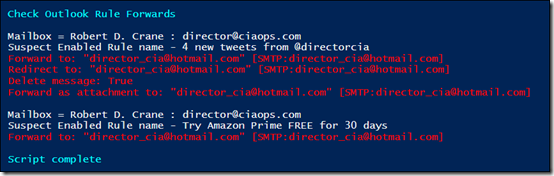
Taking what Robert provided I decided to extend my initial script to report on what I consider suspect Outlook mail rules. Here’s my thinking:

– Firstly there are going to potentially be lots and lots of Outlook rules when you look across all mailboxes in Office 365, so I decided to focus on actions that one could deem to more suspicious than others. I settled on the following rule actions as ones to check: forward to, redirect to, copy to folder, delete message, forward as attachment to and send text message notification to.

–  Turns out you can create an Outlook rule that forwards, redirects and fowards as an attachment messages to alternate email addresses. A bad party could set this up to send themselves emails from a compromised mailbox.

– If a rule copies rather than moves a message then that to me is also suspicious. Why would you want two copies of the same email message in different locations in your inbox unless you aren’t in full full control of the inbox and someone is squirrelling away messages to a location the owner never created?

– If a rule deletes a message then there is a chance that a bad actor is trying to prevent the mailbox owner from seeing something.

– If a rule notifies someone via SMS that may be the fingerprint of a bad actor trying to keep tabs on a mailbox.

I will also admit, that there are plenty of situations where the above situations are the results of legitimately configured inbox rules. However, for the reasons I have indicated, I believe the actions to warrant the most inspection.

As you can see from the above image, the script will do what it did before and check the mailbox rules to see if there are any forwardings as before but now the script will also dig through each mailbox and throw up warnings when a suspect rule is enabled or disabled for a user.

Once you have located any suspect rules, you can then start digging further to see whether there is a business justification for such. If not, then you may have a compromised mailbox on your hands.

You’ll find the updated script at:

https://github.com/directorcia/Office365/blob/master/o365-exo-fwd-chk.ps1

and remember to keep coming back as I’ll continue to update and extend it over time. if you have any feedback on this script of suggestion for things you’d like to see please let me know so I can look at developing them. Thanks again to Robert Pearman for this input on this.