CIAOPS Need to Know Webinar–July 2017

laptop-eyes-technology-computer

Lots of news to cover around Office 365 this month and you’ll get it all on our regular monthly webinar. We’ll also do a deep dive into sharing documents with people in Office 365, especially people outside your business. This is a common need for most business so attend and learn the best practices and how to do it effectively.

You can register for free at:

July Webinar Registrations

The details are:

CIAOPS Need to Know Webinar – June 2017
Thursday 20th of July 2017
11am – 12am Sydney Time

All sessions are recorded and posted to the CIAOPS Academy.

There of course will also be open Q and A so make sure you bring your questions for me and I’ll do my best to answer them.

The CIAOPS Need to Know Webinars are free to attend but if you want to receive the recording of the session you need to sign up as a CIAOPS patron (for only USD$10 per month) which you can do here:

https://www.patreon.com/ciaops

or purchase them individually at:

http://www.ciaopsacademy.com/

Also feel free at any stage to email me directly via director@ciaops.com with your webinar topic suggestions.

I’d also appreciate you sharing information about this webinar with anyone you feel may benefit from the session.

Need to Know podcast–Episode 157

Marc joins us from his deathbed as he struggles with the ‘man-flu’ to stay lucid. You’ll get to experience his flem up close and personal in this episode along with our regular cloud news. After some medication we continue our deep dive into how to migrate from on premises to Azure and Office 365. We build on our previous episode and discuss topics such as file migrations and AD integrations.

Take a listen and let us know what you think – feedback@needtoknow.cloud

You can listen to this episode directly at:

https://ciaops.podbean.com/e/episode-157-migrating-to-the-cloud-ii/

Subscribe via iTunes at:

https://itunes.apple.com/au/podcast/ciaops-need-to-know-podcasts/id406891445?mt=2

The podcast is also available on Stitcher at:

http://www.stitcher.com/podcast/ciaops/need-to-know-podcast?refid=stpr

Don’t forget to give the show a rating as well as send us any feedback or suggestions you may have for the show.

Resources

@marckean

@directorcia

Azure news from Marc

Microsoft Teams external access gets delayed

Microsoft Forms now available to commercial customers

SharePoint communication sites now rolling out

This episode brought to you by:

https://cpem.io/tJ01Hzu2k.js

Azure Backup Reports

image

One of the things that Azure Backup has been improving is the reporting it provides. A new addition is Backup Reports which you can now view in Power BI.

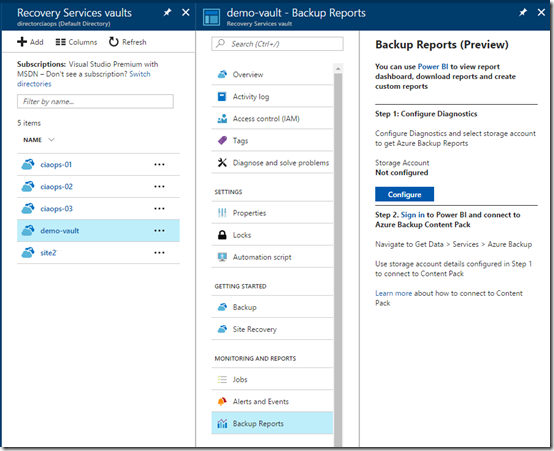
You’ll first need to go into your backup vault and select the option Backup Reports under the Monitoring and Reports section of that particular vault as shown above.

image

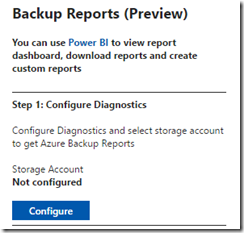
You’ll then need to select the Configure button.

image

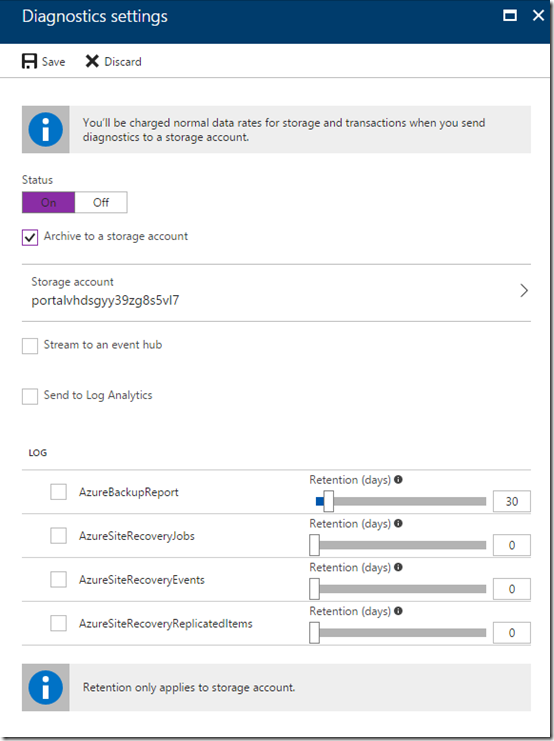
You’ll then need to change the status to On, select an existing Storage account for the logs to accrue into and select the retention period.

Once you have done all this you’ll need to save your settings.

You’ll need to wait about 24 hours for data to start accumulating into the storage account so it can be read by Power BI.

image

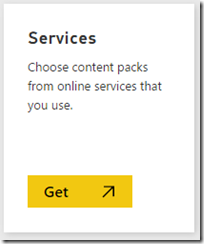
After you have waited an appropriate period of time login to your Power BI console and select the option to Get Data. Then select the Services option.

image

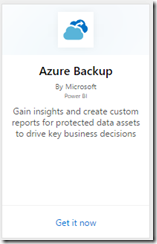
In this list of content pack, locate the Azure Backup as shown above. Once you select this you’ll be prompted for the Azure Storage Account name into which you selected to send the backup reports. You’ll also be asked for the Storage Account Access key.

image

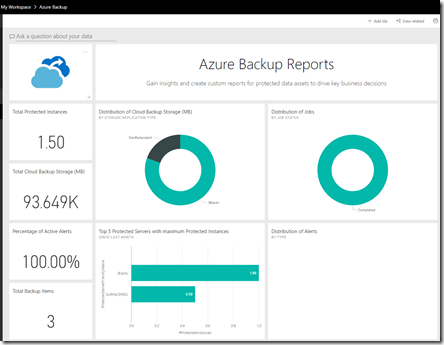
After a few moments, where your data is imported and configured, you should be able to a see a dashboard like that shown above. Remember, you’ll only see data from the point which you created the storage account to capture the logs.

image

You should also find that you have a Power BI report you can access with the tabs shown above for more detailed information.

You can now customised your reports and dashboards to display exactly the backup reporting information you wish to see. If you monitor multiple backups, for multiple different customers say, you can now construct a single location to view all of these thanks to Power BI.

Turning off Teams cloud storage connectivity

I wrote an article recently about how Microsoft

Teams adds cloud storage connectivity

and I noted in there that the ability to connect Microsoft Teams to things like Dropbox and Google Drive was enabled by default, as it typically is.

Of course, there may be the need to disable this ability, which can be done. Let me show you how.

image

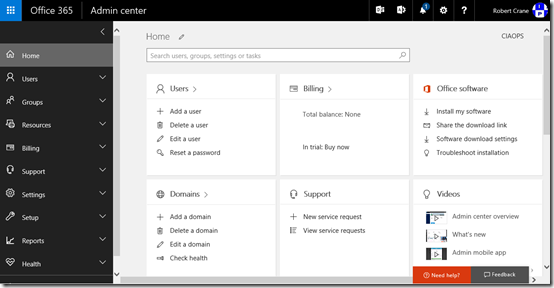
You’ll need to login to the Office 365 portal as an administrator with the rights to make the changes. You’ll then need to navigate to the Admin center as shown above.

image

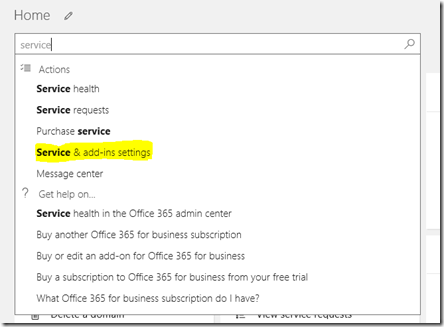
In the search box on the right hand side of the page, type “service” and from the menu that appears select Service & add-ins settings.

image

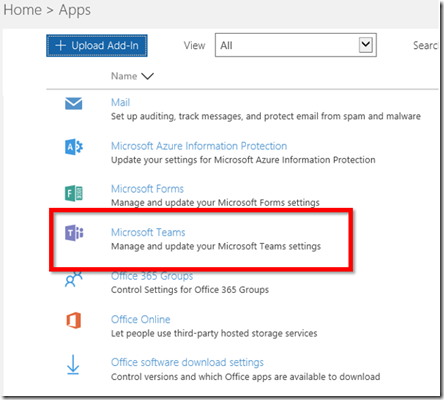
Scroll down the page and select Microsoft Teams from the list.

image

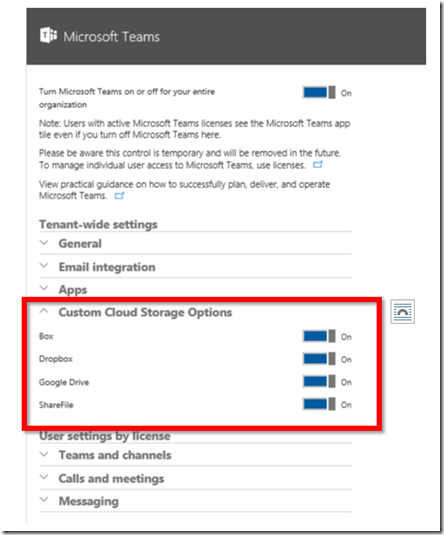
Locate and select the option Custom Cloud Storage Options and expand it as shown above.

You can now unselect one or all of the storage services here.

After you have made your choice ensure you scroll to the bottom of the page and select the Save button to update your preferences.

Need to Know podcast–Episode 156

In this episode we talk to Tas Gray about the tools and processes he has developed to allow resellers to automate Office 365 billing. We discuss the solutions, how to set it up as well as the benefits of billing automation via CSP licensing.

Marc and I also give you the latest cloud news on Azure and Office 365 to help you stay up to date in this fast paced environment. Don’t forget to rate us and let us know your feedback.

Take a listen and let us know what you think – feedback@needtoknow.cloud

You can listen to this episode directly at:

https://ciaops.podbean.com/e/episode-156-automating-office-365-billing/

Subscribe via iTunes at:

https://itunes.apple.com/au/podcast/ciaops-need-to-know-podcasts/id406891445?mt=2

The podcast is also available on Stitcher at:

http://www.stitcher.com/podcast/ciaops/need-to-know-podcast?refid=stpr

Don’t forget to give the show a rating as well as send us any feedback or suggestions you may have for the show.

Resources

@tasgray

@marckean

@directorcia

Office 365 WHMCS

WHMCS

Azure news from Marc

Microsoft Build Australia

Amazon now a big Azure customer

Amazon vs WalMart

Microsoft Forms now available

Microsoft Stream

Microsoft Teams and Dropbox

New Azure VPN gateways

Storage service encryption for Azure managed disks

Increased Azure disk size

This episode brought to you by:


https://cpem.io/tJ01Hzu2k.js

Teams adds cloud storage connectivity

image

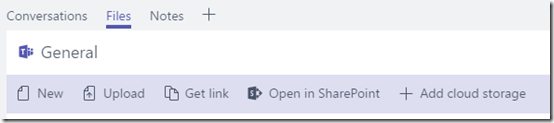
if you go into the files area of any Microsoft Teams channel you’ll now see an option to Add cloud storage.

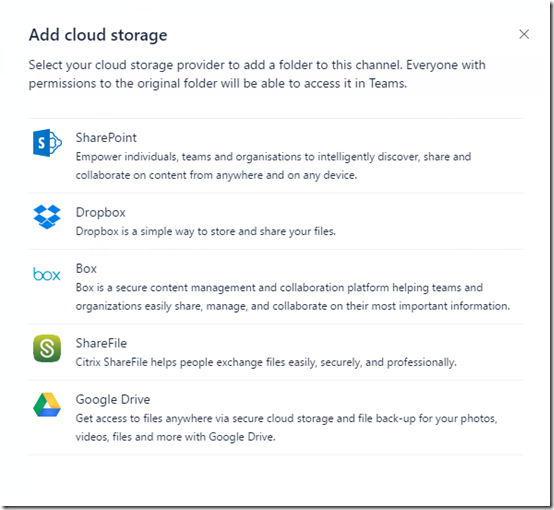
image

You can then add a connection to one of the services shown above.

image

In this case, I added a connection to Dropbox where my podcast recordings are located.

This means that you can now easily access your third party cloud storage locations directly from within Teams and you can effectively put a link to the location of your files directly into the appropriate location within a Microsoft Teams channel.

image

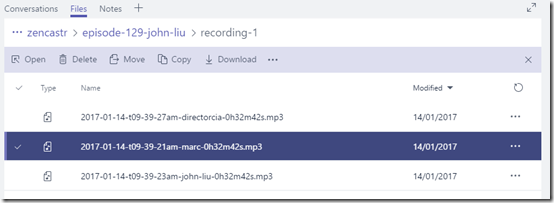
Even better than that, you can now easily go to the cloud storage location you have added and copy or move a file, all within the Microsoft Teams interface.

image

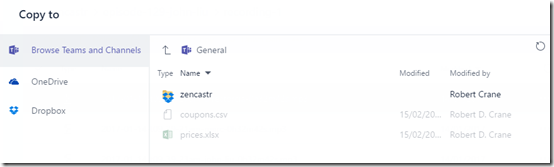
You can then copy the file to another location, not necessarily within the added cloud storage. What immediately sprang to my mind was the ability to copy/move from the added cloud storage directly into the Microsoft Teams files area.

image

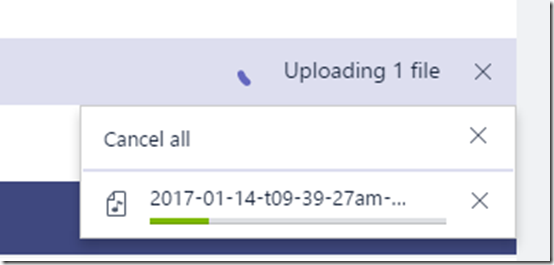
This therefore makes it not only dead easy to migrate files from other cloud storage locations into Microsoft Teams but also dead easy to move them directly into a SharePoint Teams Site.

image

image

Thus, Microsoft Teams now has added an integrated ability to migrate files from other cloud storage services to Microsoft Teams. This is going to be very handy because I see a lot of customers who are already using something like Dropbox but want to move to Microsoft Teams. This new ability allows them to link the appropriate location quickly and easily within a channel and start using those files in their current location. Then over time, they can start migrating them to Microsoft Teams and SharePoint Teams Sites without additional assistance.

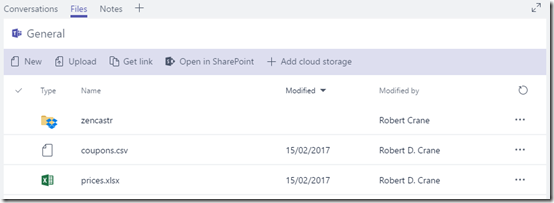
image

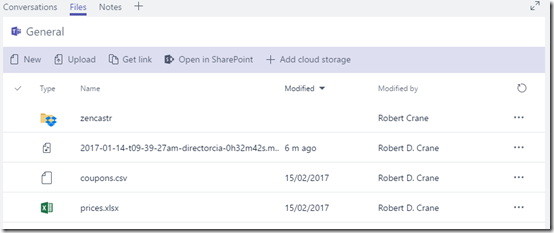
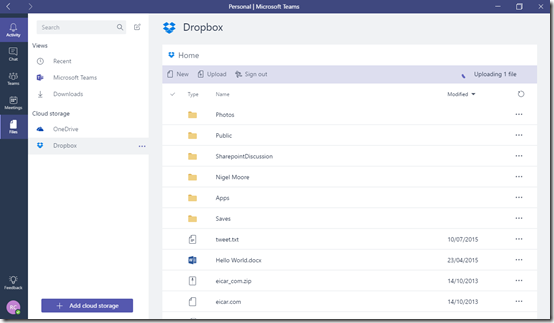
Once the location is linked it will also appear in the Files area of your Microsoft Teams interface as shown above.

I can see Microsoft Teams becoming more and more a central hub of not only Office 365 information but also cloud information. I also like how it is making it easier for people to get started using Office 365 by removing a lot of the complexity and allowing them just to get things done!

June webinar resources

We’ve now crossed the Rubicon of 12 months of CIAOPS Need to Know webinars with the June episode. You can now download the slides from:

https://www.slideshare.net/directorcia/ciaops-need-to-know-webinar-june-2017

If you are not a CIAOPS patron you want to view or download a full copy of the video from the session you can do so here:

http://www.ciaopsacademy.com/p/june-2017-need-to-know-webinar/

I covered as much as I could on Rights Management and had some issues with buttons on the screen when sending emails but I hope that didn’t detract too much from the information presented. But, as always, there is so much more I could have done, so if you have questions let me know. Thanks everyone for attending

you can also now get access to all webinars via:

http://ciaops-academy.teachable.com/courses/need-to-know-webinars

for a nominal fee.

See you next month.

When to use Internet Explorer with SharePoint Online

Although there are fewer people using Internet Explorer these days, there is still a reason to use it when it comes to SharePoint Online in Office 365.

image

That is because when you do you get one additional option you don’t get elsewhere – View in File Explorer as you see above. This option is only available (at the moment) when you browse to a Document Library in SharePoint Online using Internet Explorer.

Viewing in File Explorer effectively maps a location from your Windows file manager on your desktop directly to that Document Library in SharePoint Online. This comes in real handy if you need to bulk copy and move files from one location to another as it makes the Document Library just like any other folder on your computer.

I cover all the basics in the above video, so take a look and let me know what you think, and remember, for the time being at least, Internet Explorer still has its uses when it comes to SharePoint Online!