May webinar resources

https://docs.com/d/embed/D25190661-9264-8810-9010-000861518520%7eMd4186d87-61d5-259a-4d26-00a8bd86cfff

April’s webinar is done and dusted. You can download the slides from:

May 2017 Need to Know Webinar

If you are not a CIAOPS patron you want to view or download a full copy of the video from the session you can do so here:

http://www.ciaopsacademy.com/p/april-2017-need-to-know-webinar/

I covered as much as I could on SharePoint Document Libraries, but there is so much more I could have done. Thanks everyone for attending

you can also now get access to all webinars via:

http://ciaops-academy.teachable.com/courses/need-to-know-webinars

for a nominal fee.

See you next month.

Teams mobile adds access to tabs

image

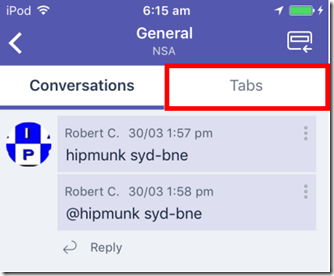
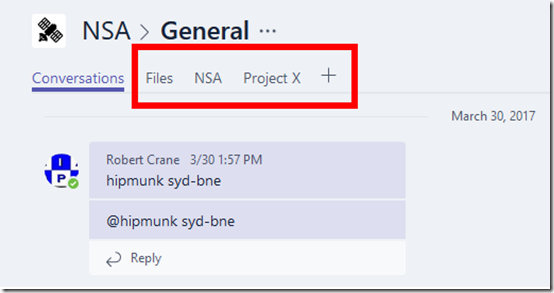
If you navigate to a Team using the browser you can see and add additional tabs to an individual channel as shown above.

image

Since the mobile Teams app launched it was not possible to view those additional tabs. The only option you could access was the Files tab.

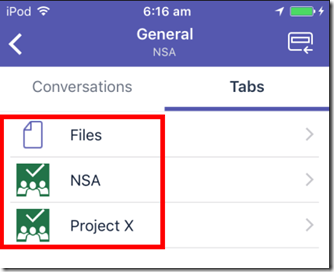
However, as you see above, with the latest iteration of the Teams app (on iOS and Android) there is now a Tabs option when you go into a Team.

image

Once you do you will then see the Tabs as shown in the browser view.

As with all Office 365 mobile apps, make sure that you update them regularly to take advantage of all the latest features.

Another channel already has that name

image

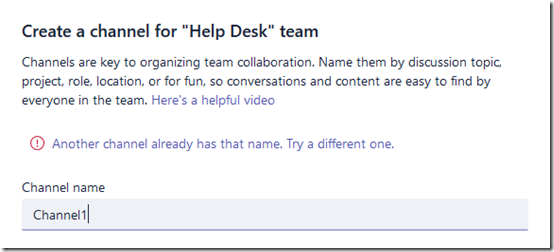
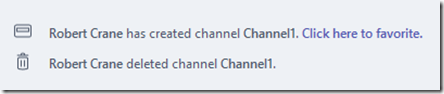
Another item to watch out for currently with Microsoft Teams is when you delete a channel and try and re-create it again with the same name. When you attempt this you get the error above.

image

That seems to be the case even if you delete the channel prior, as shown above.

A search reveals that a few people have experienced this and the reason seems to be basically that the deleted channel remains ‘somewhere’ in Office 365 for compliance reasons.

A link to a discussion on this can be found at:

https://techcommunity.microsoft.com/t5/Microsoft-Teams/Can-t-create-channel-as-it-says-channel-already-exists/td-p/52926

There is also a Uservoice item that you can go and vote up to get this changed.

https://microsoftteams.uservoice.com/forums/555103-public/suggestions/17009224-recreate-deleted-channel

It does say in there that Microsoft are planning to fix this issue but no other word as yet to when. The best solution is probably allow you to create a new channel with the same name but prompt to warn you that you are overwriting compliance information and then give you the option to continue with the overwrite or not.

So, be careful when you delete a Microsoft Team’s channel as you can’t simply recreate it with the same name. A better option would appear to be to edit the Team and change what’s there.

Enabling the Office 365 Adoption Power BI Content Pack

I’m a big one for driving Office 365 adoption through the complete suit of applications. I have spoken previously about developing adoption strategies:

Driving Office 365 adoption

Stop making your users feel stupid

Ownership is the key to adoption

Office 365 adoption spreadsheet

SharePoint Online migration – Start up is key

Rule of three

A very important part of any strategy is being able to measure the results of your adoption tactics. Microsoft has just made that measurement a whole lot easier with the release of the Power BI Adoption content pack for Office 365. Here’s how you enable it for your tenant.
image

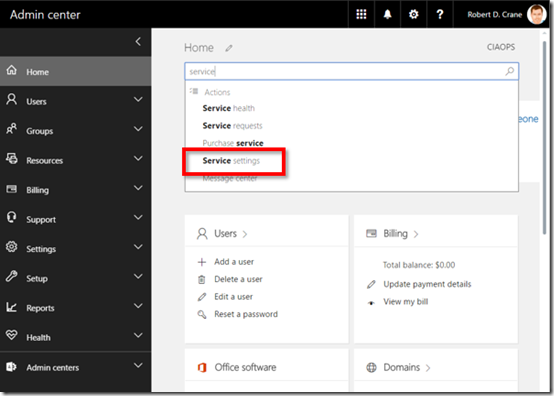
You’ll need to login to the Office 365 Admin center and locate the Service settings. The easiest way to do this is to use the Search functionality.
image

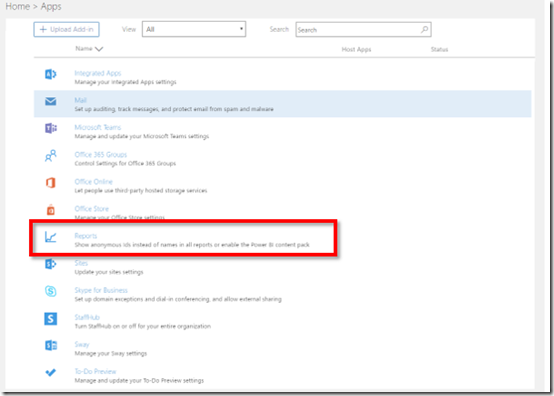
You’ll then need to locate the Reports section as highlighted above.
image

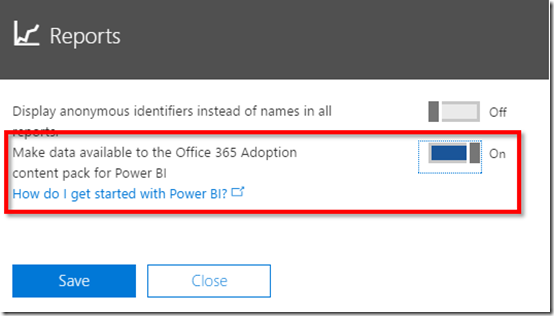
In here turn on the option to Make data available to Office 365 Adoption content pack for Power BI.

This initiates the data collection. This may take between 2 and 48 hours depending on the size of the tenant.
image

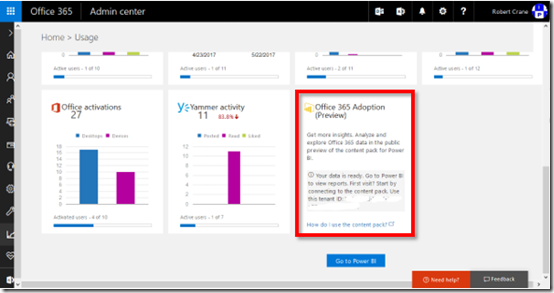
When the data collection has initialised you will find an additional tile in your Admin reporting area as shown above. The tile will contain your Tenant ID which you’ll need to record for the next stage.
image

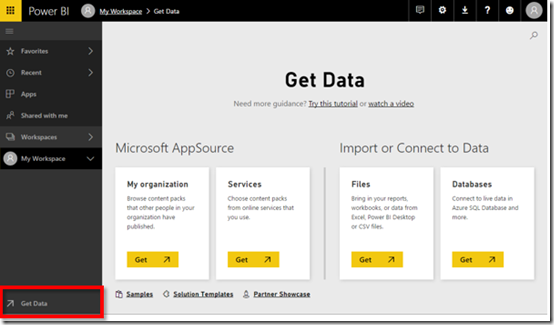
Next navigate to Power BI and select the Get Data option in the lower left of the screen.
image

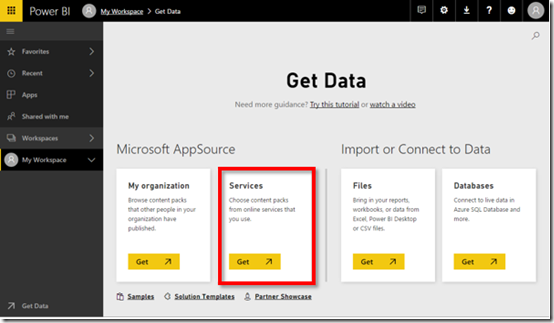
At the Get Data screen select Services.
image

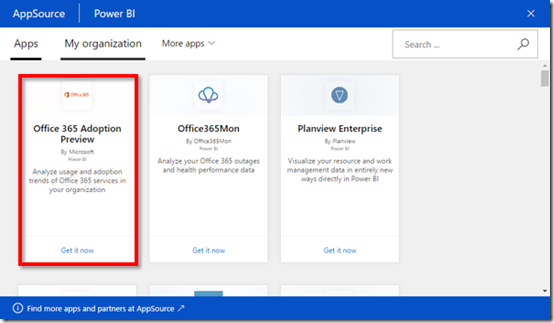
Locate the Office 365 Adoption Preview as shown above and select it.
image

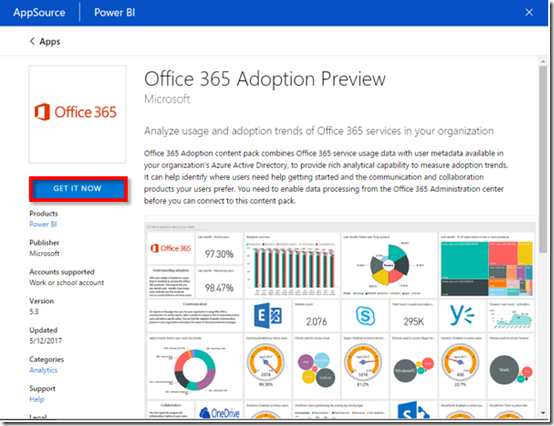
At the next screen, select the Get It Now button on the left.
image

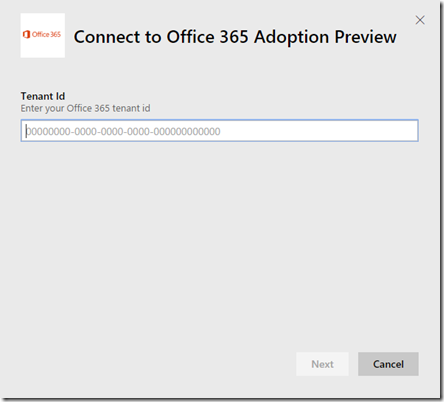
You’ll now need to enter the Tennant Id you recorded above. The other ways you can get your Office 365 Tennant Id are covered here:

https://support.office.com/en-us/article/Find-your-Office-365-tenant-ID-6891b561-a52d-4ade-9f39-b492285e2c9b
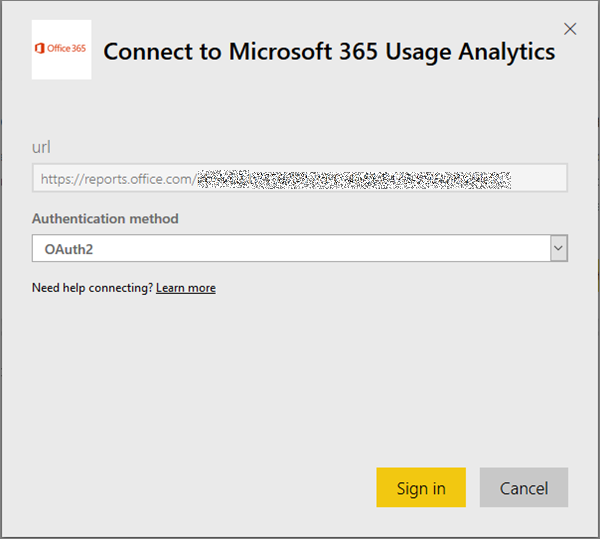
Choose oAuth2 as authentication method

You’ll then need to Sign in.

image

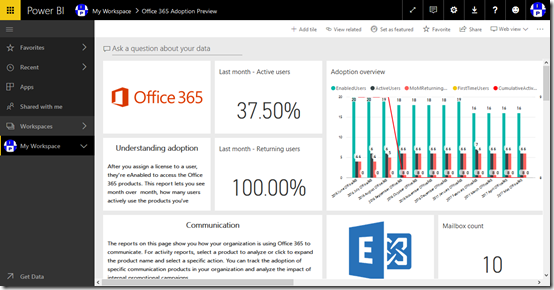
In a moment or two you should then be able to access the adoption dashboard as shown above. Now you have all the functionality of Power BI at your finger tips, directly linked to Office 365 usage data. This makes measuring Office 365 adoption much easier.

The Office 365 content pack is still in preview at this point in time but will update going forward.

Office 365 and Azure codex available to patrons

image

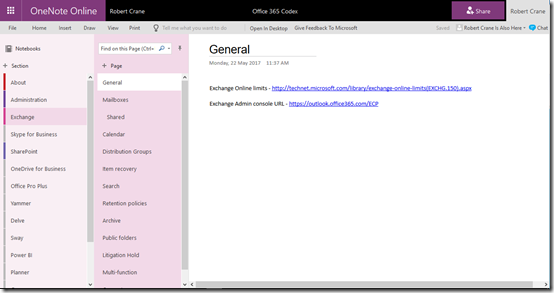
The majority of my learnings end up in OneNote. As you would expect I have OneNote notebooks for just about everything including Office 365 and Azure.

Having them in OneNote means they are searchable, available on every device and I can quickly add information no matter where I am. To my mind, they are pretty much the perfect as a portable personal knowledge base.

I have now taken all my accumulated Azure and Office 365 knowledge and made them available as continually sync’ed OneNote notebooks for CIAOPS Patrons. That’s right, all you need to do to gain access to this material is sign up to be a CIAOPS Patrons for which you’ll get access to both the Office 365 and Azure notebooks (plus I few more I’m planning on releasing) as well as access to my private Facebook community to discuss everything Microsoft cloud as well as a range of discounts (starting at 25%) to my online courses and publications.

The great thing about these OneNote notebooks is that they are dynamic, in that I’ll continue to add information to them over time, posting all the stuff I’m already posted into the Facebook group, but organising it for people to locate quicker when they need to. Best of all, as long as you stay a CIAOPS Patron you’ll get access to this included for as little as US$10 per month. That’s a pretty small price to pay for the notebooks let alone everything else that comes along with being a CIAOPS Patron.

Become a CIAOPS Patron today and enjoy the benefits! You can sign up to be a CIAOPS Patron here:

https://www.ciaopsacademy.com/p/patron/

Introduction to Microsoft Flow

Microsoft Flow is way to automate your business processes. It is way that you can connect to both cloud and on premises services and trigger actions and results.

The above presentation is one that I recent provided to the SharePoint Users Group in Sydney that I re-recorded to make available publically.

If you want the slides they can be found here:

https://docs.com/d/embed/D25190739-0716-1916-3610-001758080412%7eMd4186d87-61d5-259a-4d26-00a8bd86cfff


https://doc.co/6DSLKk

Overview of Office 365 Security

I’ve just completed a roadshow focusing on the security options in Office 365. I certainly cover what is in all plans but I do focus on what is available, and should be implemented, in the advanced plans such as E3 and E5. I also cover how the security in Office 365 can be enhanced using things such as Azure AD Premium, Intune, Azure Rights Management, Enterprise Mobility Suite and more.

The presentation was given to SMB resellers so it also contains some insights from me on how IT resellers can generate revenue for their business while providing greater levels of security for their customers.

Here are the slides:

https://docs.com/d/embed/D25190796-8769-7753-8680-001215495959%7eMd4186d87-61d5-259a-4d26-00a8bd86cfff

or via:

https://doc.co/juEHXA

I’ve also added the session to my free:

Cloud Lecture Series

at the CIAOPS Academy