Configuring Project Madeira to Power BI

If you follow the documentation about connecting Project Madeira to Power BI you might get confused about locating the Web Service Access Key which acts as the password to connect to Power BI.

https://powerbi.microsoft.com/en-us/documentation/powerbi-content-pack-project-madeira/

Here’s the process of how to obtain that access key.
image

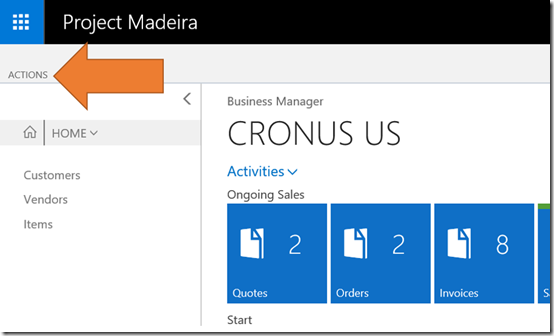
Navigate to your Project Madeira. Select Actions tab in the top left.
image

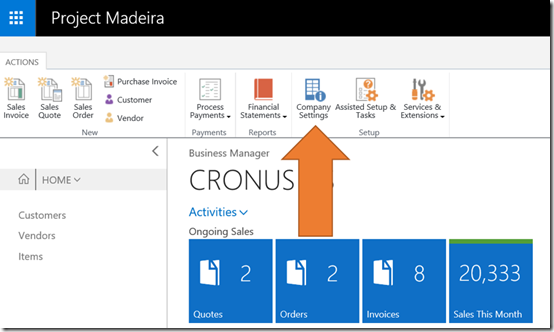
This will reveal a ribbon menu. From this ribbon menu select the Company Settings icon.
image

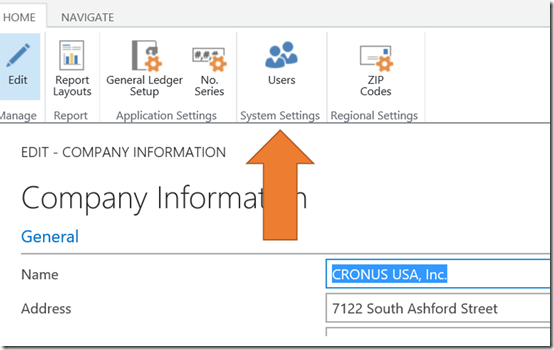
This will open a new dialog. From the ribbon menu now shown select Users.
image

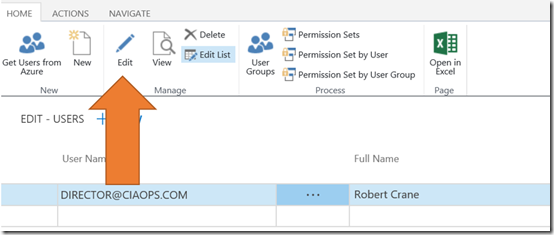
Again, another dialog will open. From the ribbon that now appears, ensure that the primary user is selected from the list and then select Edit.
image

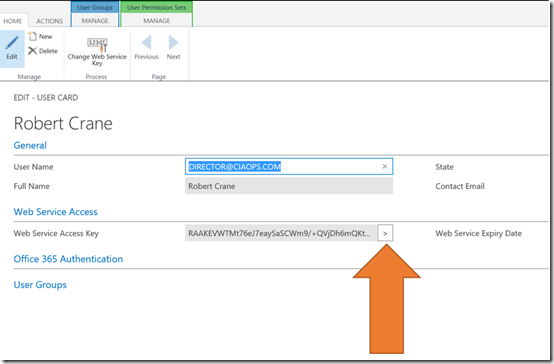
In the body of the page you’ll find a Web Services Access Key area. To generate a new key if one isn’t displayed select the arrow button to the right of the field.

Copy that access key and follow the documentation about connecting to Power BI. Also note the entry for User Name in the general area here, as you’ll also need this.

When you are asked for the login to the service select Basic as the Authentication Method.

Enter the User Name you noted from previous page and then the Web Access Key as the password. Select the Sign in button to complete the connection process.

image

After a few moments of configuration you should be greeted by a new Dashboard connect to Project Madeira as shown above.

Project Madeira is upon us

Interesting announcement from Microsoft about a new cloud product aimed at small top medium businesses – Project Madeira.

image

According to Microsoft:

Project “Madeira” is a business management solution for small and mid-sized organizations that automates and streamlines business processes and helps you manage your business.

and you can get started here:

https://madeira.microsoft.com/en-us/documentation/madeira-get-started/

I haven’t seen much more than this yet. I have signed up using an Office 365 account and seen Project Madeira added to my tenant.

image

But look what that also gives me inside Power BI!

image

A content pack to connect to.

It looks like Project Madeira will do every thing from accounts to customer tracking. Seems to be be quite comprehensive.

Interesting eh? Looks like a pretty powerful package when you consider all this integration. The only question that is unanswered at this stage is how much is it likely to cost when it goes live?

I’ll report more once I have had a good play, but certainly more compelling services from Microsoft that integrates nicely into Office 365.

The ever changing face of Office 365

image

As outlined in a recent blog post from Microsoft:

Introducing a new home page experience for Office 365 users

things are going to start looking rather different for users when they login to the Office 365 web portal. Above you can see how it is currently,

image

and here you can see what the new experience looks like. Much cleaner. It will also report that the page is far more ‘mobile responsive’ in that it scales and adjusts to window size much better.

image

Also, if you are an Office 365 administrator you are probably familiar with the ‘classic’ interface for managing things shown above. However, a while back Microsoft again announced that a new look and feel is in preview for the Admin center:

The new Office 365 admin center preview

image

which you can now see above.

The changes to the UI a excellent, I gotta say. They make things much clearer, less cluttered and have a much ‘nicer’ look and feel. This is going to help users work (and I would suggest adopt) Office 365 more readily, especially when you compare how Office 365 now looks to other cloud based systems.

I would also point out that if you are an IT reseller who is only doing administration for your customers using the web portal then I reckon it is only a a matter of time before customers decide they can do this for themselves. Honestly, in my opinion, the web console is aimed at end “power” users not resellers.

I would therefore suggest that IT resellers should be doing most of their regular administration via PowerShell for a variety of reasons (the biggest being automation).

Although these interface changes can be a little jarring to some not used to the rapid change in the cloud, they definitely improve the service, make it more appealing for existing and new users and best of all, existing Office 365 users get it for free!

Unfortunately for me personally it means I got to redo my publications, but hey, everyone needs a hobby right?

Changing an Azure VM admin password from portal

Sometimes when I’m rushing around in Azure creating new virtual machines (VMs) I sometimes neglect to document the user name and password I use for that newly created VM. Thus, when I try and log in I can’t.

image

Before that meant that I had to delete and re-create the VM which was pretty painful. However, as you can see from the above screen grab, the new Azure portal allows you to drill into the properties of the VM and then select the All settings option in the middle of the page

image

This will open the Settings blade as shown above. One of the options in the support + troubleshooting section at the top of the blade is Reset password.

image

Selecting this will open the Password reset blade as shown above. Now you can enter a new administrator login and password for the VM so you gain access.

This reset password option is only available in the new Azure portal.

Now, if you forget the login to the Azure VM you can simply reset it rather than having to rebuild the whole VM. Handy eh?

Conferencing on a budget

Thanks to Office 365 and the Logitech Conference Cam Connect the tools to do basic conferencing have never been cheaper and easier.

As you can see from the above image the Logitech Conference Cam Connect comes in a really neat form factor that includes the ability to broadcast video, sound as well as project to an external HDMI source. The unit is portable and includes a battery as well as being Bluetooth enabled.

The easiest way to use the Logitech Conference Cam Connect is to connect it via USB to a PC and use it with Skype for Business. In small conference room environments it works really, really well. You can also connect it to your mobile device using Bluetooth and mirror what is on the screen and then output that to a HDMI TV connected to the device.

You get all this for around $700 which is really great value I reckon. However, please remember that this i an entry level device. It can’t for example (unfortunately) run via USB and project to an external HDMI screen at the same time. To do that you’ll need to spend more money on dedicated conferencing hardware.

Those minor limitations aside, the combination of this device and Skype for Business via Office 365 provide a hugely price effective entry level conferencing option for many businesses who could never afford the option previously. I really like the fact that it is portable and runs on batteries so you can put it just about anywhere. I have been taking it with me recently and using Skype Meeting Broadcast to live stream a number of events I have been presenting recently. I also like the ability to easily ‘cast’ from most mobile devices to a HDMI monitor using it.

If you have been considering the benefits of conferencing and have Office 365, I’d look at adding the Logitech Conference Cam Connect as a low entry point to giving your business extra flexibility for meetings. Sure, your needs may grow over time but this little device will work well now and well into the future.

Limit SharePoint Online outside sharing

A nice new feature that Microsoft has added across SharePoint Online, including OneDrive for Business, is the ability to whitelist or blacklist domains for sharing.

image

You’ll need to login to the Office 365 web console as an administrator. You’ll then need to navigate to the Office 365 Admin center as shown above.

From here, select the Admin icon on the left and then SharePoint from the menu that appears.

image

From the menu that appears on the left select sharing.

image

You should now see the sharing control options as displayed above.

image

Under the Additional settings, when you select the option Limit external sharing using domains the above box and selector appears.

Here you can now prevent sharing to specific domains by selecting the Don’t allow haring with users from these blocked domains or only allowing sharing to specified domains using the Allow sharing only with users from these domains option..

Thus you can either block a list of domains or allow access only to a list of domains, you can’t do both simultaneously.

Once you apply these settings they will be applied across both Teams Sites and OneDrive for Business for all users.

This now gives you an easy method of controlling which domains you allow your users to share information with across everything in SharePoint Online.

Sydney SharePoint User Group presentation

I am giving a presentation at the April meeting of the Sydney SharePoint Users Group on the Tuesday the 19th April at 5.30pm at the Sydney Mechanics School of Arts, 280 Pitt Street NSW, which is now even more relevant in light of the changes coming to SharePoint Online.

You can follow the group on Facebook at www.facebook.com/SharePoint.Sydney. On Twitter, use#SYDSP. Also via Meetup.

Topic:

Is SharePoint Pointless?

In a world challenging installations of traditional technologies like SharePoint with new products from Office 365 like OneDrive for Business, Delve, Planner, Yammer and Groups is SharePoint becoming irrelevant? Worse still, is SharePoint becoming a new world version of the old world file share? Attend the interactive session to understand and discuss what new products like Delve and Office 365 Groups bring to the modern workplace and the way people get work done and especially whether SharePoint as we know it still has a place for the information worker.

Registration: To help get an idea of numbers for this event, please register for the event using the links above.

I hope to see you there.