Need to Know podcast–Episode 112

Marc and I kick off the show with a few topical news items and then I dive into an interview with Rayanne Buchianico from Sell my MSP. Rayanne and I cover off what you need to know about selling your IT business. We examine the reasons and how to go about actually doing the selling. There is more to it than you think but that doesn’t mean it’s a process you should put off. even if you currently don’t plan to sell your IT business you never know what the future might hold. The smart move is always be positioning your business for sale, that give you the maximum advantage.

You can listen to this episode at:

http://ciaops.podbean.com/e/episode-112-rayanne-buchianico/

The podcast is also available on Stitcher at:

http://www.stitcher.com/podcast/ciaops/need-to-know-podcast?refid=stpr

Don’t forget to give the show a rating as well as send me any feedback or suggestions you may have for the show.

Resources

@marckean

@directorcia

http://www.sellmymsp.com/

http://www.abcsolutionsfl.com

http://www.sellmymsp.com/begin-with-the-end-in-mind/

http://www.sellmymsp.com/tips-for-doing-what-it-takes-to-sell/

https://www.facebook.com/SellMyMSP/

https://www.facebook.com/ABCSolutionsFL/

https://twitter.com/ABCSolutionsFL

https://twitter.com/SellMyMSP

Show feedback – feedback@needtoknow.cloud 

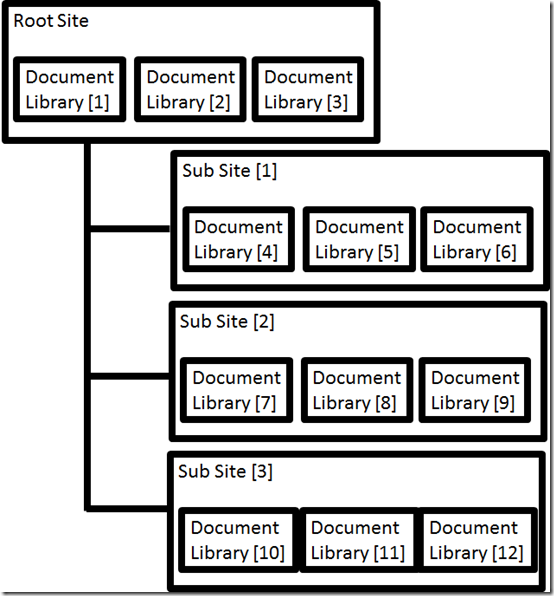
A basic SharePoint Online framework structure

image

Getting the ball rolling with SharePoint Online is intimidating when it comes to using SharePoint Online for the very first time. Many get bogged down in being overly concerned about getting things ‘perfect’ before commencing. Here’s a few tips for you to get the ball rolling with SharePoint Online.

Firstly, the primary goal for any business when it comes to SharePoint Online is adoption! That is actually getting people to use it. This is far and away going to be your biggest challenge because most users will resist the change from files, folders and drive letters. Thus, the sooner you get them using SharePoint Online the better. Also, the easier you make it for them to start using SharePoint Online the better. This means keeping it simple and familiar to start with.

With this in mind, my suggestion is that you create a total of three document libraries in the root site of your default SharePoint Online Team Site. You then create three subsites below the root site than each contain three document libraries. This then gives you a total of 12 locations into which you can copy files.

With this structure in mind you obviously need to name each item as it is created. Here is where you need to make an important decision about the structure of SharePoint that can’t easily be reversed once it is made, so make sure you give it ample consideration before proceeding.

You need to basically decide whether SharePoint Online will be structured by function or location. If you decide by function the subsites will probably be called something like Admin, Finance, HR, etc. However, if it is by location then the subsite would be called something like Sydney, Paris, London, New York, etc.

Once you have the subsites named and created you would then create the three document libraries inside each. These will typically match existing folders on a file server to make it easier for user to identify with (i.e. make the Document Library names the same as existing server folder names). It is possible to change the naming at this point and start afresh but remember, we are looking to maximise adoption which will mean taking the long way round to achieving the end goal. Sub sites and Document Libraries in SharePoint Online can easily be re-named or relocated anytime down the track. Yoru guiding aim should be to reduce the friction of adoption.

So let’s say that you have decided to structure SharePoint Online by function and called the first subsite ‘Admin’. Inside this you’d probably have Document Libraries called Policies, Procedures and Templates for example. Yes, you can create more locations but again start off simple. Even if you have to leave some folders on premises, keep it simple and obvious for users.

So now you have a 2 tier structure in place with 12 locations into which you can put files. These 12 locations also typically map to existing locations on your file server. With this in place I show the customer how to copy one set of files across into the first location. I then have them do the process while I watch and advise, into the second location. Finally, I allow them to copy files into the third location without any feedback from me. At that point they have the knowledge to complete the rest of the location transfers without my help. I also have the confidence to leave them to their own devices and to accomplish this initial date relocation.

A few days later when I check back in with the customer, I usually find they are happily using SharePoint but want to now do more customisations, add more locations for storage, start flattening their existing folder structure by using metadata and so on. Yippee! Achievement unlocked! Initial adoption commenced success. Next?

In summary therefore, the big take aways I’ll give from this are:

1. Keep it really simple to start with.

2. Focus on adoption and getting EVERYONE to use SharePoint above anything else initially.

3. Base your SharePoint structure on either function or location.

Using SharePoint Online is always a journey never a destination. Business needs are constantly changing, so remain flexible and be comfortable with the need to change. However, ensure you have an appropriate adoption strategy based on how your users actually operate not on how you ‘think’ they’ll operate. If you don’t, then you’ll always be wrong and SharePoint Online adoption will always be a struggle. With appropriate planning and a systematic approach, that should never be the case!

Need to Know podcast–Episode 111

In this episode we dive into the world of containers and Docker. We learn about what they are, why they are relevant to IT Pros and how Microsoft is providing more ways to utilise these technologies today. Our special guest subject matter expert is Trevor Sullivan who is a Microsoft MVP and able to explain to us why containers and Docker are so important in today’s technology landscape. Listen and learn.

You can listen to this episode at:

http://ciaops.podbean.com/e/episode-111-trevor-sullivan/

The podcast is also available on Stitcher at:

http://www.stitcher.com/podcast/ciaops/need-to-know-podcast?refid=stpr

Don’t forget to give the show a rating as well as send me any feedback or suggestions you may have for the show.

Resources

@marckean

@directorcia

Trevor Sullivan

https://blogs.msdn.microsoft.com/dotnet/2016/06/27/announcing-net-core-1-0/

https://azure.microsoft.com/en-us/blog/powershell-is-open-sourced-and-is-available-on-linux/

https://blogs.technet.microsoft.com/enterprisemobility/2016/06/23/azuread-conditional-access-for-office365-exchange-sharepoint-in-preview/

https://azure.microsoft.com/en-us/blog/alerting-and-monitoring-for-azure-backup/

Feedback to – feedback@needtoknow.cloud


Uploading Documents to OneDrive for Business

Few people I know who use OneDrive for Business can name ALL the ways that you can get documents into OneDrive for Business. My aim was to cover all of the methods (except for third party tools) in the above video.

So here are the ways I reckon you can do it:

1. Create a new Office document directly in OneDrive for Business using the browser.

2. Upload a single file(s) from the menu bar.

3. Upload folder(s) from the menu bar.

4. Drag and drop directly onto the browser.

5. Open OneDrive for Business using Windows Explorer (requires you to go back to the classic interface).

6. Map a network drive.

7. Save directly from Office desktop applications.

8. Use the OneDrive for Business Sync tool.

9. Third party tool (Spfilezilla springs to mind).

Have I left any out? Let me know if I have but hopefully the video covers everything a new user needs to know about getting data into OneDrive for Business.

Office 365 Data location

image

If you want to see geographically where your data is located in Office 365, login to the Office 365 portal as an administrator. Then select the Admin tile.

image

From the button on the left hand side mouse over the Settings (cog) to display the additional menu as shown above. From this menu select Organization profile.

image

Scroll down the page until you locate the Data location area as shown above. There you should see where the data for this tenant resides.

These links are also very helpful for answering Office 365 data location information:

Microsoft Online Services – Where is my data?

Interactive Map of data locations

Office 365 PSTN Conferencing launches in Australia

Microsoft has announced that dial in PSTN conferencing as part of Office 365 provided directly from Microsoft (i.e. Microsoft provide the dial in phone access for conference calls), specifically via Skype for Business will be available from the 1st of September 2016 in Australia. You can read more about the announcement here:

http://news.microsoft.com/en-au/2016/08/02/microsoft-extends-voice-conferencing-solutions-footprint-to-australia/#sm.001tcpxdm6eqdu4117k1xqqqfk1ru

Although you have been able to do dial in PSTN conferencing via a third party provider for a while here in Australia, this the first time the service has been offered by Microsoft directly.

image

Once your tenant has been enabled for PSTN conferencing, when you go to the Skype for Business Admin area you should see Microsoft Bridge option as shown above that lists all the dial in numbers from locations all over the world.

image

You can also go into the Microsoft bridge settings as shown above to set additional options.

image

Basically how Office 365 dial in conferencing works is that the meeting organiser sets up a normal Skype for Business meeting exactly as they have always done. Provided that user is enabled for PSTN conference dial in, the meeting details will also include a conference id as shown above which is typically unique for that user (here the last digits have been blacked out for privacy).

The meeting organiser then simply connects to the meeting via their normal Skype for Business desktop software and others can join the same meeting via the dial in numbers provided or using Skype for Business on their desktop or mobile device.

However instead, if the meeting organiser wants to join the meeting using only a phone they dial one of the access phone numbers listed above. After dialling this they will be prompted to enter a unique meeting code (the conference ID) that was generated when the meeting was created (blacked out above). After this, as the meeting organiser, they then enter their unique security pin number (provided when they are assigned an Office 365 PSTN conferencing license). Once the unique pin number has been entered they are joined to meeting as an organiser and can manage the call and attendees.

Any other attendee who wished to join via a phone line simply dials an access phone number and enters the conference id to join. Simple.

image

Once a user has been licenses for PSTN conferencing they need to be configured with a PSTN provider as shown above. One of these providers is now Microsoft.

When the user is assigned a PSTN dial in provider they are also given a unique conference id that is used when they schedule meetings with Skype for Business. They are also given a unique security PIN to protect their account should they ever need to manage a conference call using only the phone.

image

They also receive a confirmation email with all these details as shown above.

image

Now, if they organise a Skype for Business meeting, the dial in details will automatically appear in the invite as shown above. They can then send that invite to anyone who will be able to connect either via Skype for Business, a browser or simply via a phone. Easy.

The only thing that I don’t have information on as yet is what the PSTN dial in conferencing costs will be from Microsoft and how they will be charged. I assume that all this will handled like the existing Office 365 licensing and hopefully directly via the CSP program. That should allow resellers to be able to bill direct and manage the amount charged to customers, thereby making some margin. However, at this stage, I have no specific details on how the billing will be handled or the cost involved but I’ll certainly let you know as soon as I do.

Now all of this is extremely exciting as it is providing us here in Australia features that have been standard in other part of the world for a while. However, what excites me more is that fact that with the delivery of PSTN conferencing the full Office 365 Cloud PBX functionality, including the ability to call any phone number directly from Skype for Business can’t be far away. That is going to be a huge game changer, especially in the SMB market.

So my fell Aussies, get ready for PSTN conferencing in Office 365 directly from Microsoft here in the land down under from September 1. Also keep your eye on the horizon because the full Office 365 Cloud PBX and PSTN calling are not very far away I would suggest.

Need to Know Podcast–Episode 110

Marc and I kick off the show with the latest cloud news as usual but then I talk to SMB reseller Jeff Huze from Interconnekt all about the Microsoft Cloud Solution Provider (CSP) that is now available for Microsoft Cloud products such as Office 365 and Azure. We talk about the differences it brings for licensing and the tangible benefits it provides resellers when it comes to growing the cloud business. If you haven’t looked at Microsoft CSP, and you sell Office 365 or Azure, then you should. so tune in and let Jeff explain all about it.

You can listen to this episode at:

http://ciaops.podbean.com/e/episode-110-jeff-huze/

The podcast is also available on Stitcher at:

http://www.stitcher.com/podcast/ciaops/need-to-know-podcast?refid=stpr

Don’t forget to give the show a rating as well as send me any feedback or suggestions you may have for the show.

Resources

@marckean

@directorcia

Azure news from Marc

Jeff Huze

Twitter: @jeffreyhuze

LinkedIn: au.linkedin.com/in/jeffreyhuze

Email: jeff@interconnekt.com.au

Interconnekt

Web: www.interconnekt.com.au

Twitter: @interconnekt

Rhipe CSP

Microsoft CSP FAQ

CIAOPS Need to Know Webinar–September 2016

We’re rolling now. The September Need to Know webinar will be held on Thursday the 22nd of September 2016 at 11am Sydney time. You can register here:

https://attendee.gotowebinar.com/register/7120256258738097411

For September I’m going to focus on the business of benefits of Yammer. I’ll explain how Yammer works and show you how to get started using Yammer as well as some tips and tricks to make it effective in your organisation no matter the size. You’ll also get some insight on how to administer Yammer if that is your role.

Attendees will see hands on demonstrations of Yammer and Office 365 as well as be able to ask any question during the open Q and A session. You’ll also get updates from Office 365 to help you understand what new with the product and how you can take advantage of it. Join me for this revealing webinar and I promise, you’ll learn something you didn’t know about Office 365 that will save you time and money.

The CIAOPS Need to Know Webinars are free to attend but if you want to receive the recording of the session you need to sign up as a CIAOPS patron (for only USD$10 per month) which you can do here:

https://www.patreon.com/ciaops

or purchase them individually at:

http://www.ciaopsacademy.com/

Also feel free at any stage to email me directly at director@ciaops.com with your webinar topic suggestions.

I’d also appreciate you sharing information about this webinar with anyone you feel may benefit from the session.

I look forward to seeing everyone on the webinar in September.