Microsoft Teams and OneNote integration

One of the ways that I describe Microsoft Teams to people is as a simplified and aggregated wrapper over things such as SharePoint Teams Sites and Skype for Business. Many may not appreciate however that it is also a wrapper over one of other favourite products, OneNote.

image

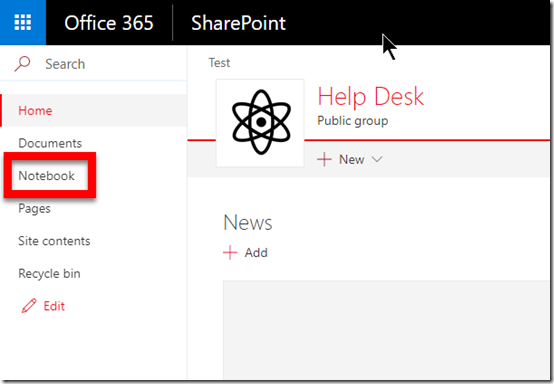
When you create a new Microsoft Team you also get a new SharePoint Team Site as part of that. That SharePoint Team Site contains a OneNote notebook which is known as a ‘site notebook’. To view it, simply select the link Notebook from the Quick Launch menu on the left of the SharePoint Team Site.

image

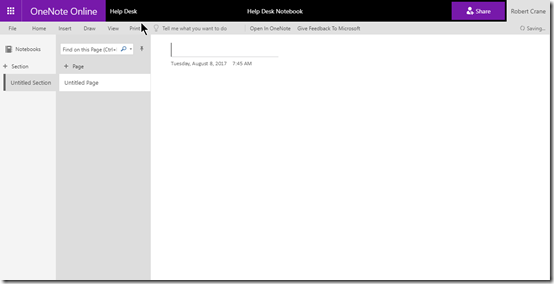
If you open that notebook you’ll see that it is blank, as shown above. OneNote is arranged by sections, inside which are individual pages.

image

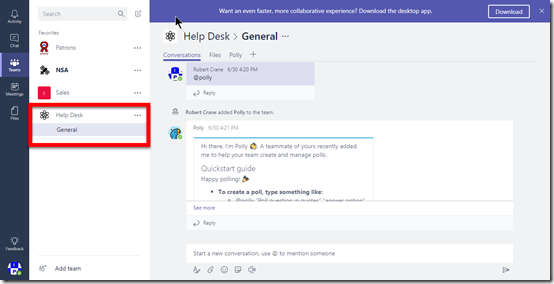
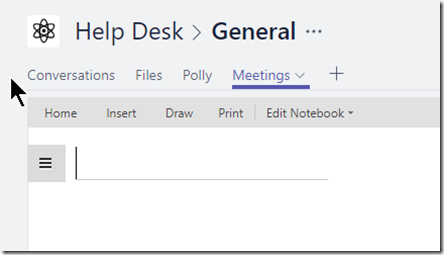
If you now go to that Microsoft Team (in my case, called Help Desk), you will see the normal Conversations and Files tabs at the top of the only channel I currently have in the Team called General, like so:

image

You’ll notice that I have already added a new tab to this channel (Polly) thanks to a bot I’ve inserted into this Team. I’ll cover bots in another post.

What you don’t yet see in the Team channel is anything to do with OneNote. The reason is that OneNote connectivity is not added by default.

SNAGHTML47bbcaeb

To connect this Microsoft Team channel to OneNote press the ‘+’ (plus) item on the menu.

image

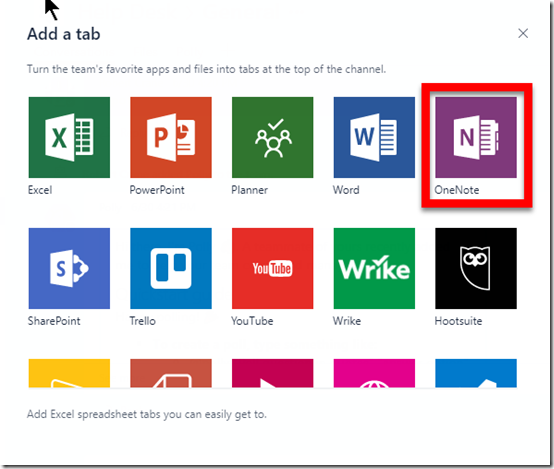
That will display a new window, as shown above with all the items you can add to menu. One of these you should find is OneNote.

Select the OneNote tile.

image

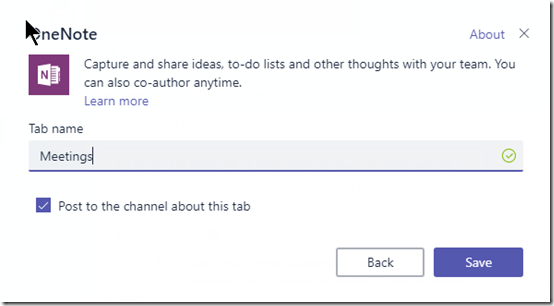
You’ll then be asked to give the new tab a name. Here I have called it Meetings. Select the Save button when you have made your choice.

image

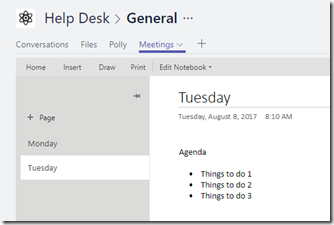
Now you should see a new menu item across the top matching the name you just gave OneNote (here, Meetings). You’ll also notice that you are placed into a OneNote style page below the menu.

image

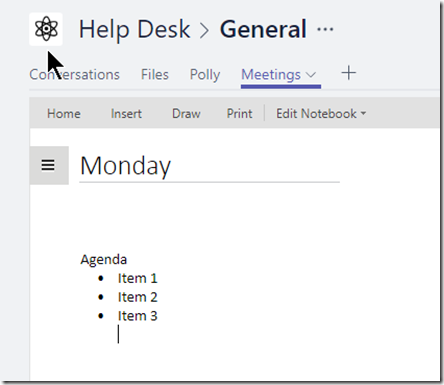
You are now free to give your page a name and enter any notes into that page.

image

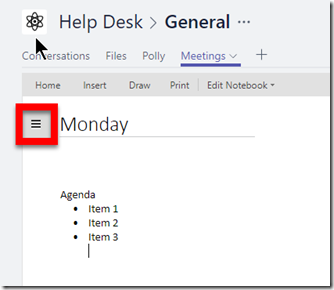
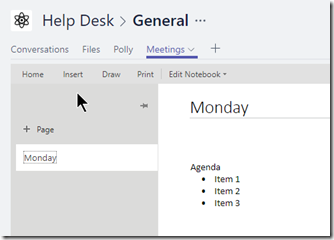
If you now select the ‘hamburger’ menu in the top left of the page you will see,

image

This should now begin to look more and more like OneNote. Here you can go in and create new pages like so,

image

That’s really handy for everyone in that channel to capture information.

image

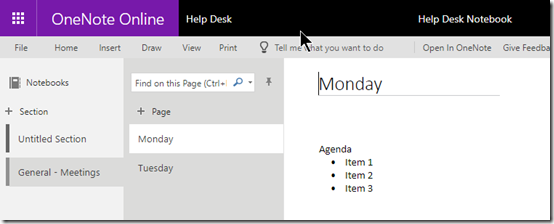
If you now return to the Site Notebook directly in SharePoint you should find the notebook looks something like that shown above. There is a new section with the name Channel – Selection name (here General – Meetings) and the information just enters appears as pages.

Thus, when you add the OneNote option to a Team channel a new section is created in the Site Notebook in the SharePoint Team Site that was created when that Microsoft Team was established. Pages you create in that channel are then saved under that section.

image

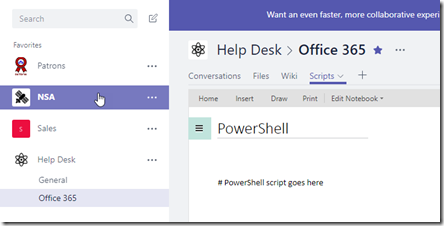
If I now go and create a new channel for that Team (here called Office 365) and then add OneNote to that channel as above, I again get the ability to add pages. Here, I have created a new page called Scripts in my Office 365 channel.

image

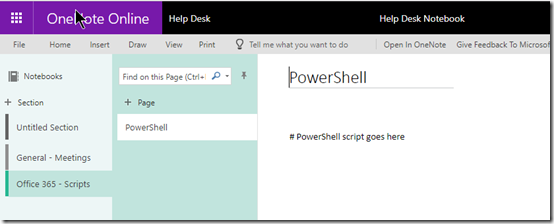
If I now go back to my Site Notebook in the SharePoint Team Site I can see this new channel as a section and the page I created underneath it in standard OneNote format.

So in summary, when you create a new Microsoft Team you get a new SharePoint Team Site. This SharePoint Team Site contains a single OneNote notebook called a Site Notebook. If you then add OneNote to a channel in Microsoft Teams, the name you give that OneNote tab becomes a new section in the Site Notebook. Any new page you create in that channel gets created under this section in the Site Notebook.

image

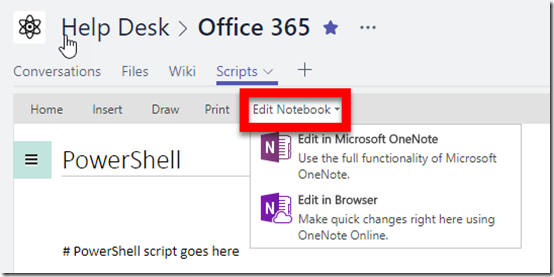
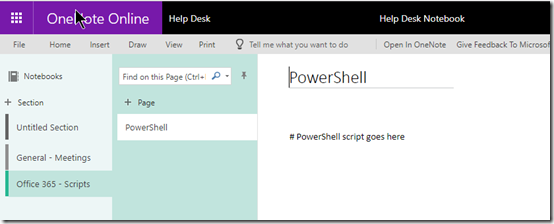
If you elect to Edit Notebook, as shown above, you will get the option to work with the WHOLE notebook in the web or via OneNote on the desktop. That means you are in effect opening the complete Site Notebook where you will see ALL the sections (channels) and pages below like so

image

Given the way the sections are named after the actual channel, hopefully this avoids confusion but there will no doubt be those who don’t see the connection between the Microsoft Team as a whole and all the channels within it and the Site Notebook which holds ALL the OneNote information for the Microsoft Team as a single OneNote notebook file. You can view the OneNote information for the Microsoft Team by channel inside the Microsoft Teams app or for the WHOLE Microsoft Team (i.e. all the channels) at once using the OneNote app.

Hopefully, this articles goes some way to explaining the configuration and connectivity between Microsoft Teams, SharePoint Teams Sites, the Site Notebook and OneNote.

Schedule a Microsoft Teams meeting in Outlook

image

If you have the Microsoft Teams app on your desktop and you check in your Outlook calendar you should see a new button as shown above.

image

This button will allow you to schedule Microsoft Teams meetings. Clicking this will create a new meeting invite in you Outlook calendar as well as the Teams desktop app when saved.

You can read more about this add in here:

https://techcommunity.microsoft.com/t5/Microsoft-Teams-Blog/Now-available-Outlook-add-in-to-schedule-meetings-in-Microsoft/ba-p/71157

Need to Know podcast–Episode 159

We are back after a break due to work scheduling. Listen in for a deep drive into why it has taken so long to get this epidode out. You choose whether you believe it or not but the good news is that we a new episode for you focusing on all the latest from Microsoft, Azure and Office 365. Plenty of product updates and some news about Microsoft’s recent financial performance.

Take a listen and let us know what you think –feedback@needtoknow.cloud

You can listen to this episode directly at:

https://ciaops.podbean.com/e/episode-159-excuses/

Subscribe via iTunes at:

https://itunes.apple.com/au/podcast/ciaops-need-to-know-podcasts/id406891445?mt=2

The podcast is also available on Stitcher at:

http://www.stitcher.com/podcast/ciaops/need-to-know-podcast?refid=stpr

Don’t forget to give the show a rating as well as send us any feedback or suggestions you may have for the show.

Resources

@marckean

@directorcia

Marc’s Azure news

Financial results from Microsoft

Skype for Business call analytics

Updates SharePoint Online sync button

Azure instant file recovery

Azure nested virtualisation

This episode brought to you by:

https://cpem.io/tJ01Hzu2k.js

The CIAOPS Patron program is being revamped

The CIAOPS Patron program has now been operational for over a year and it is time to revamp and improve what the program offers. As such, from the 1st of September 2017 the minimum entry level will be raised from its current US$10 and the sign up process will be moved into my online academy.

There will now be three patron levels you can sign up for, bronze, silver and gold with the following benefits:

Bronze US $25 pm – http://www.ciaopsacademy.com/p/ciaops-patron-bronze/ which provides:

Silver US $50 pm- http://www.ciaopsacademy.com/p/ciaops-patron-silver/ which provides:

Gold US $100 pm – http://www.ciaopsacademy.com/p/ciaops-patron-gold/ which provides:

  • Exclusive access to my private Facebook community
  • Free access to all the recordings from the monthly CIAOPS Webinars
  • Access to my Office 365 and Azure OneNote codexes packed full of information and links
  • Access to being an affiliate and receive 25% commission on all CIAOPS Academy courses you sell
  • At the gold patron level you also get 80% discount off CIAOPS Academy courses and free access to any publication
  • a monthly one on one remote consulting session for training or problem solving

So if you wish to be grandfathered into the Bronze level at US$10 then you’ll need to sign up before the 1st of September 2017 to take advantage of this offer. You can sign up by visiting the CIAOPS Online Academy and using the code PATRONGF during checkout for the Bronze Patron offering or you can visit this link directly:

http://www.ciaopsacademy.com/p/ciaops-patron-bronze/?product_id=372657&coupon_code=PATRONGF

Don’t forget that I’m aiming to build lots more value into my patron program going forward so if you are looking for the best information around Azure and Office 365 as well as being part of a community of progressive IT Pros looking to grow and share their knowledge of the Microsoft cloud, then now is the time to sign up to get the best deal.

Here is what other community members say about the value that being a CIAOPS Patron has provided their business

“Robert is a huge credit to the SMB support community, his knowledge of the Office 365 and Azure space is unsurpassed. I wouldn’t hesitate to recommend Robert’s blog, podcast, training resources and his Patreon funded tech community.” – Nick Lloyd, Active Business Communications UK

“Staying abreast of the rapid changes in the IT industry in today’s world can be a daunting and timely exercise. Since using the resources of Robert Crane from CIAOPS we have been able to better filter out the unnecessary noise of public information and better manage our time required to keep our fingers on the pulse. Robert’s informative knowledge base and CIAOPS Academy is a MUST HAVE resource for anyone seeking to better understand the changes required today to stay on top of the IT industry.” – Craig Young, Green Data IT

“I recommend Robert Crane for the wealth of experience he brings with Office 365 and Azure, with this experience he provides a vast amount of resources for sharing and learning at various levels.” – Robert Coleiro, Computer Help Sydney

I hope that you’ll join us.

Data Discovery done right

image

One of most common mistakes I see people make when they migrate IT systems is simply dumping all the old information from source to destination.

Migrating is the perfect opportunity for businesses to look at the data they have and basically do a ‘clean up’. Think of what happens when you physically move locations. You look at what you have, you throw some stuff away and your reorganise what you have into the new location. Rarely, if ever, do you take the contents of each room and dump them into exactly the same room at the new location. Moving house is an opportunity most people take to ‘clean up’. Why are you therefore not taking the same opportunity when it comes to migrating IT systems?

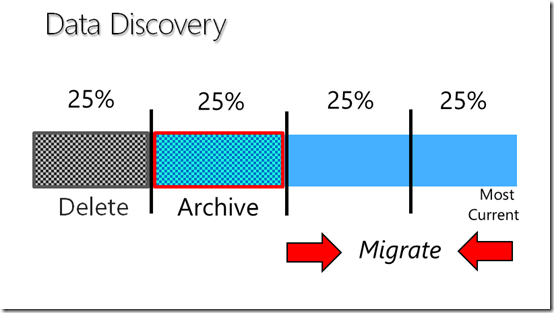
The system that I like to use is to divide digital data up into 4 logical segments. Now, in my experience a good rule of thumb here is that you can divide data up into four major categories, each of which will have a different action performed on it.

Firstly, there will be data you need to delete. By delete I mean erased from existence. Just because you can stick it on a USB thumb drive doesn’t mean you should. Data that should be deleted is typically duplicated information, large images or videos and stuff that is no longer relevant. In my case, keeping information about Office 365 from over 3 years ago makes little sense as the product is completely different. Thus, it should be deleted.

The next segment of data to consider is stuff that is still relevant and should be archived. In most cases archived data is required for compliance. Here in Australia, the typical compliance time frame is 7 years. Thus, data beyond 7 years can probably go into the ‘deleted’ bucket. Archive data is stuff a business wants to keep to refer back to or perhaps base new material on. If part of the migration of the IT systems is moving to the cloud then there are two options when it comes to dealing with data to be archived.

Firstly, any archived data can be done so on-premise and not moved to the cloud. Typically, this means moving it to a USB Hard disk or perhaps a local server or workstation. When, and if required, the device is hauled out, connected up and data accessed as required.

The other option with data to be archived is that it can be moved to somewhere like a dedicated SharePoint Team Site. The advantages of doing this are that the data can be marked as read only but is then indexed by Office 365. Indexing information makes it available to the business simply via the many search mechanisms in Office 365. The downside of moving archived data to the cloud? It has to be uploaded. If there is a lot of data that may take a while but once it is there it becomes lot more useful in my books that it would if it remained on premises. The other things about moving data to be archived is that the structure is not altered, it is moved ‘as is’.

With deleted and archived data now removed from the source location you are typically left with 50% of the original data. At this point my advice is to continue the migration process from the outsides in. That is you migrate the oldest and the newest data first and I’ll explain why but let’s firstly consider the oldest data.

When you commence shifting the oldest data you’ll find that some of this can also be moved to the archive but everything else should typically just be moved. By moved I mean taken to a new location without making major changes to the structure it is in. This means that if you have a folder of information that is ‘old’ you move it and its contents directly into a new SharePoint Team Site Document Library typically. You do the same with the next oldest source of information.

The reason that you don’t make major changes to the structure of ‘old’ data is that, in theory, it is not being accessed that often and there is no real value to be gained by doing a complete re-structure because it isn’t used that often. Basically, you just want to move it as is because eventually it will end up being archived.

At the end of the spectrum that newest data, or the data that is the most current and being used constantly should be re-structure before being moved. This means that most of the current data won’t end up in the same structure as it is found on the source. The most current data should be moved to where it makes the most sense for the business given the new abilities in the destination. For Office 365, this means that you shouldn’t ‘dump’ you current data into a single Document Library in the default SharePoint Online Team Site. It means you should probably be shifting some data into Microsoft Teams, use data into OneDrive for Business, some to Yammer and so.

The other reason I advocate moving the most current data is around adoption. If your process is to progress from the least current to the most current, then users will not typically be using the advantages that Office 365 provides on the data they work with daily. You really want users to take advantage of everything Office 365 provides them immediately they have access to the system. Thus, you should always restructure the most current data and move it to where ever make sense in Office 365 to give users the immediate benefits.

Thus, in summary, we can categorise the data on a source system as follows:

Delete = old duplicate and unwanted dated. To be erased

Archive = data to be kept without changes make to structure

Moved = active but older data to be moved without changes to structure.

Restructured = most current data to be moved to new locations that take advantage of the features available.

So, you should never be simply dragging and dropping your data from on premises file servers directly into SharePoint. You need to take the time and clean it up and categorise like shown above. Once complete, you then migrate it to the place that makes the most sense in the new system. Doing so will ensure you get the maximum return for the investment in the new system and optimise the information brought forward. Continuing to accumulate data between systems is simply being lazy and failing to leverage one of your most important business resources.

My blog turns 10

pexels-photo-484363

July 14 2017, marked a significant anniversary for this ‘wee tiny’ blog of mine. It has just past the 10 year mark! I actually think that I started before the 14th of July 2007 but the first entry here on blogger is:

https://blog.ciaops.com/2007/07/determining-whether-your-machine-has.html

So, let me tell you the story of my blog over the years.

The genesis of the blog was back around 2003 on Small Business Server 2003. When I was applying Windows Updates to my SBS box I wanted a place to record what I had just installed. The reason for this was I finding a lot of updates at the time were causing issues on the SBS so recording what I had put on when made it easier to roll back if necessary.

Most of this recording was done the Companyweb wiki, which I soon expanded to holding more than just server updates. Soon, the Companyweb wiki was full of all those hard learnings I made over time.

About this time I discovered a colleague was ‘blogging’ using some proprietary blog software (sorry, I can’t remember for the life of me what it was). Finding the concept intriguing I did what any technician did, I downloaded a copy of the software, set it up on my own web server and started publishing to the Internet. Me too, me too.

As time went on this software became harder and harder to manage and more and more things started to go wrong with it. I decided to move my blogging platform to a standalone version of SharePoint, again running on a server I managed and maintained.

That solution worked for many years. I eventually virtualised the underlying hardware the blog was running it on and continued to run it for many years. In fact you may still find some of today’s links pointing to the old SharePoint location.

The straw that broke the camel’s back for SharePoint as a blogging platform was all the blog spam that was accumulating. I really wanted people to be able to add value to conversation and comments I had started but alas the SharePoint platform was simply overwhelmed by the amount of blog spam being thrown at it, no matter what I tried to prevent it.

Another reason for shifting platforms is that when I went overseas to speak at an event I was pointing everyone to my blog for information but unbeknownst to me, my server running the blog had blown a power supply the day I left and was down until I returned. Not good.

At that point I knew it was time to move to a completely hosted system and someone else worry about the infrastructure. I had a look at a few platforms but settled on Google’s blogger for a couple of reasons. Firstly, it was simple. Next, it didn’t seem to have as many security and vulnerability issues and others and most importantly, I figured that being on a Google platform would give me the best SEO ‘Google-juice’.

So, around May 2010 I moved all the existing posts from my own SharePoint machine to Blogger, and continued from there. I did this manually (i.e. copy and paste) and as you can imagine it took a long, long, long time. That also taught me a lesson about backing up my posts to another medium. I now do so using an automated sequence in If This Then That that takes a copy of each blog post I create automatically and saves it to a cloud based OneNote. That means that I not only have a back up copy of all of my posts on every device, it also means I can easily search all my posts offline and easily reuse them elsewhere. If you have a hosted blog, my question to you is, how are you backing up your content?

Since then, Blogger has worked well for me. I use Open Live Writer to compose my posts and upload to Blogger. A few years ago there was a hiccup with publishing as Microsoft had discontinued Live Writer but had made it open source (a la Open Live Writer). However, Google had made changes to improve the security of services like Blogger and now Open Live Writer couldn’t post! Talk about painful. However, the end result was that representatives at Google and Microsoft worked together to resolve the issue for everyone (and there were many). You can read more about this here:

A story with a happy ending

Apart from that, I really can’t fault Blogger as a platform. I acknowledge that it may not be the most sophisticated and it may not have all the features, but you know what? At the end of the day it does the job of helping me to get my information out so I reckon it is pretty good.

If I add up all the posts I have done here it comes to about 2,309 (including this post) over the 10 years. These days I’m writing about 230 – 240 posts a year, which is effectively one every few days. Some are about my business and what I provide but the majority are around the technologies I work with, these days Office 365 and Azure. Why do I do this? Why do I spend so much time writing and publishing?

In essence, the reason that I blog is chiefly for myself. When I learn something new I have a discipline to document it. In most cases, there is no reason that other can’t benefits from that documentation as well. That’s why I publish what I find here. I have benefited from others shared information so my blog is a small contribution back to greater good I feel.

The second reason I blog and recommend it as a practice to all is that when people ask me what can I do to improve myself and my business? My answer is three fold, read more, write more and speak more. You wanna get better? Consume more information by reading. I’m talking about ‘deep’ reading, not just web articles, I’m talking about books. You can follow what I read here:

Goodreads (reading list) feed –https://www.goodreads.com/user/show/708903-robert

Nothing has expanded my knowledge more than reading and as they say, “Leaders are readers”.

Reading is a private activity but the second leg of improvement comes from writing. There is of course nothing wrong with writing privately and I do that via a journal, however, there is more benefit to be gained by writing publically. The best way to understand this is to watch this video with Seth Godin and Tom Peters.

In essence, writing helps get thoughts out of head and into a form that others can understand. Doing so successfully is a skill worth cultivating, especially in business. Unfortunately, it is a skill I don’t see many developing today. So, by writing stuff down, and making it public, you are improving the way that you communicate with others and you are learning how to deal with others who will judge your work both good and bad, rationally and irrationally. That experience, that risk, is an opportunity for personal growth many don’t take. But if you do, then you have the advantage over the majority who don’t.

The final piece of the puzzle is speaking more. Speaking in public builds on what you have learned in your reading. It builds on the experiences and method you use when you write. It is the quintessential business skill. Those who can speak well can get their point across to others. I was lucky enough to be ‘forced’ into public speaking in my first job out of university. I continued to develop the skill from there by teaching at community college. I continue to polish that skill today with every class I teach, presentation I give or workshop I’m involved with. They say that people fear public speaking more than death. Thus, if you can conquer that fear using a system built on the skills of reading and writing, you become one of the few who no longer fears death. In essence, you become immortal.

Ten years is a long time to be at something in the technology game. I’ve seen and written about a lot of changes in the industry. I hope to be doing the same for many more years to come. It is however, nice to take a breath and reflect on a body of work that started out as nothing more than your own documentation to being a place that random strangers on the internet can find value from that one piece of information they are looking for. I work hard to make it a place worthy of those that subscribe and follow regularly. I welcome constructive comments, not spam though, both good and bad on any post I have or will write. People taking time to comment on a blog post adds additional value on top of what I create, so don’t be afraid to add something. Even something as simple as letting me know the information I provided helped you in some way goes a long way to giving me the energy and focus to dedicate to what I produce here.

Yes, each and every blog post takes time (sometimes a significant amount of time) to create. Yes, I am happy to give it away for free in order that others may benefit because it helps me get better. It helps me improve the way I communicate. It helps me be a better at my business. It helps me ‘polish’ my art and improve with each post. The more I write the better I get and the same applies to anyone else who does so regularly and consistently. It ain’t hard. Get behind the keyboard and publish. You’ll be amazed, as I have, at where the journey will take you.

July Webinar Resources

My latest webinar is complete. You can now download the slides from:

https://www.slideshare.net/directorcia/ciaops-need-to-know-webinar-july-2017

If you are not a CIAOPS patron you want to view or download a full copy of the video from the session you can do so here:

http://www.ciaopsacademy.com/p/july-2017-need-to-know-webinar/

We focused on the various methods you can use in Office 365 to share information with those outside your business. Everything from email attachments to Yammer we spent time on. Thanks everyone for attending

you can also now get access to all webinars via:

http://ciaops-academy.teachable.com/courses/need-to-know-webinars

for a nominal fee.

See you next month.

Office 365 supervision policies

image

One of the really great things about Office 365 is it’s compliance features. Here’s one you may not know about.

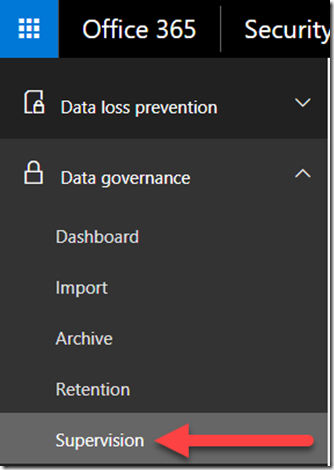
Navigate to the Security and Compliance center after logging into your tenant as an administrator with appropriate rights. From the menu on the left select Data Governance.

Then from the menu that appear select Supervision.

image

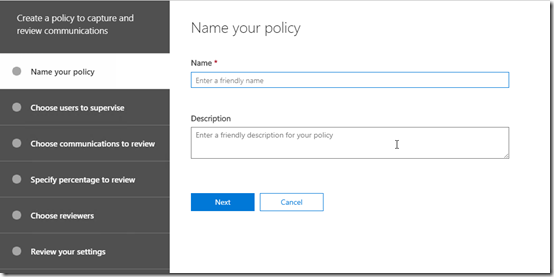
You’ll need to create a new policy which you’ll start by giving a Name and a Description.

image

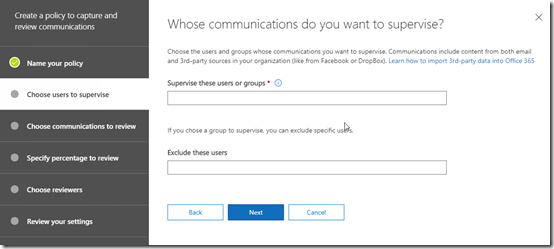
Next, select which users in your tenant you want to supervise. That is, which users communications do you wish to monitor.

image

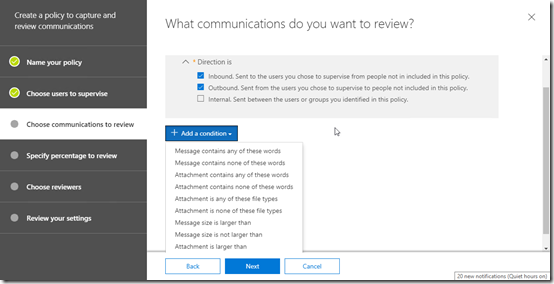
Next, select the monitoring direction, here I selected Inbound and Outbound. I also elected to Add a condition but you’ll also see there are lot of monitoring choices here form the pull down menu.

image

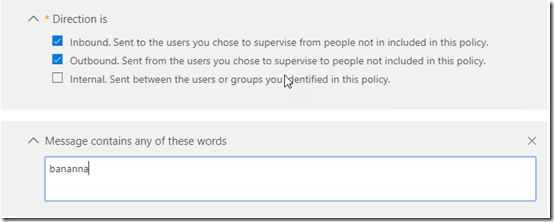
I decided that I want to monitor my users for the use of the word ‘bananna’ because I really want to know what the monkey’s are doing with my banannas. Yes, I spelt it in a special ‘unique’ way so I can trigger this condition deliberately for demos.

image

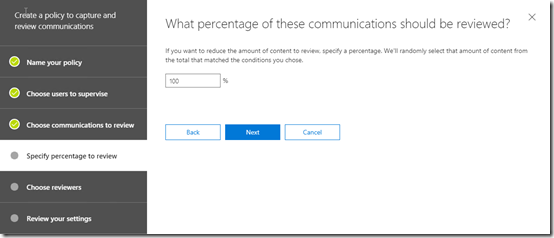
Next, I decided what level of communications I want to review. The default here is 10% and you’ll need to be careful about overloading yourself with too much to monitor. I set this to 100% in this case so I will always get a result (again for demo reasons).

image

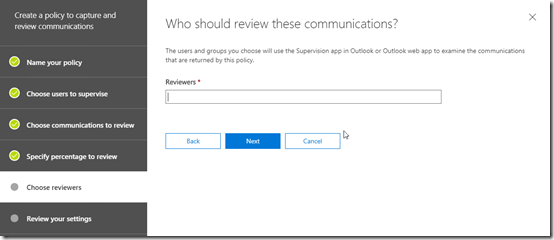
Next, I enter the users who will review the material. Basically, these people will get access to the material to review which I’ll come to soon.

image

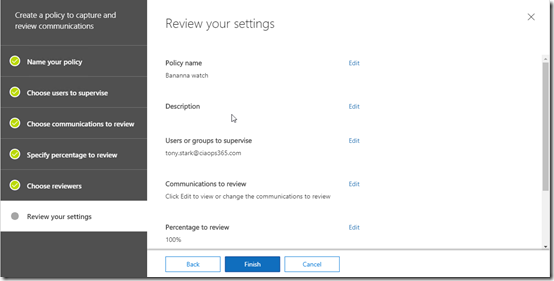
You review your settings and Finish to save and enforce the policy.

image

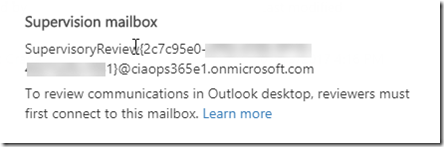
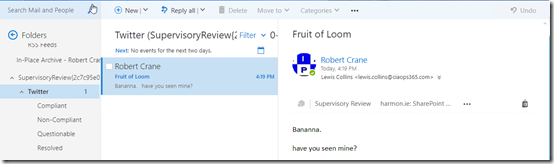
What Office 365 now does is effectively create a private shared mailbox that the reviewers can attach to and into which the material to review will be sent. They simply attach to this mailbox as they would any other shared mailbox. The details of this mailbox will be provided once the policy has been enabled.

image

As you can see, my reviewer can now attach to the supervisory shared mailbox and view any contents there. As you can see there is already a need to review an email that mentions the search term ‘bananna’. Those damm monkeys!

As I mentioned, Office 365 really has some great tool to monitor communication in your business. Take a look inside the Security and Compliance center to see options are available to you.