Need to Know podcast–Episode 161

Marc and I and both back at our desks for this round of updates from the Microsoft Cloud. Not a huge amount of things happening but we expect there to soon be with Microsoft Ignite not far away. So listen in for the latest Office 365 and Azure news for this week.

Take a listen and let us know what you think –feedback@needtoknow.cloud

You can listen to this episode directly at:

https://ciaops.podbean.com/e/episode-161-were-back/

Subscribe via iTunes at:

https://itunes.apple.com/au/podcast/ciaops-need-to-know-podcasts/id406891445?mt=2

The podcast is also available on Stitcher at:

http://www.stitcher.com/podcast/ciaops/need-to-know-podcast?refid=stpr

Don’t forget to give the show a rating as well as send us any feedback or suggestions you may have for the show.

Resources

@marckean

@directorcia

Azure news from Marc

Office 365 Groups expiration

New updates to OneDrive for iOS app

Improved Azure log analytics

New Azure regions in Canberra AU

Azure just in time VM access

This episode brought to you by:

https://cpem.io/tJ01Hzu2k.js

Document co-authoring with SharePoint Online

A very common question people ask when they use SharePoint Online or OneDrive for Business is whether multiple people can work on the document simultaneously, and the answer is yes provided they are Office documents.

Since back in 2010, SharePoint and Office have allowed users to edit documents together. Each iteration of the products has made this co-authoring more and more seamless, till today you simply don’t worry about it at all.

As my video tutorial demonstrates, you can simply start editing a file, in the browser or on the desktop, and immediately you’ll be able to work on it, even if there are others already there. You’ll see other people editing the document as you do as well be able to chat with them if you want.

Of course, for the times when you need to work exclusively on a document you can “check out” the document, preventing others from editing until you “check in” the document again.

So not only does SharePoint Online provide co-authoring ability natively, it also supports the basics of document management right out of the box. These are just some of the reasons why it is superior to traditional file shares.

For more information on working on document together in Office 365 see:

Document collaboration and co-authoring

Using Office 365 to stay up to date

Here’s a way that I specifically use Office 365 to keep up to date with partner news from Microsoft.

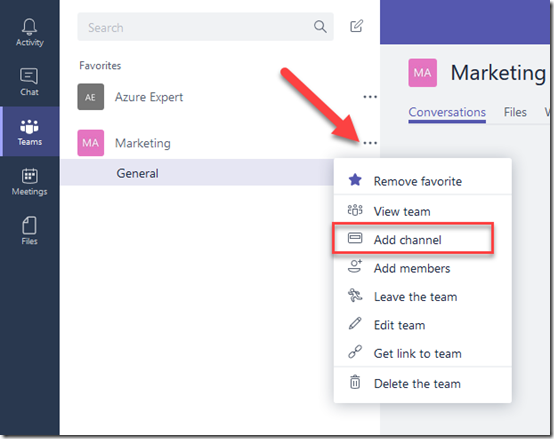
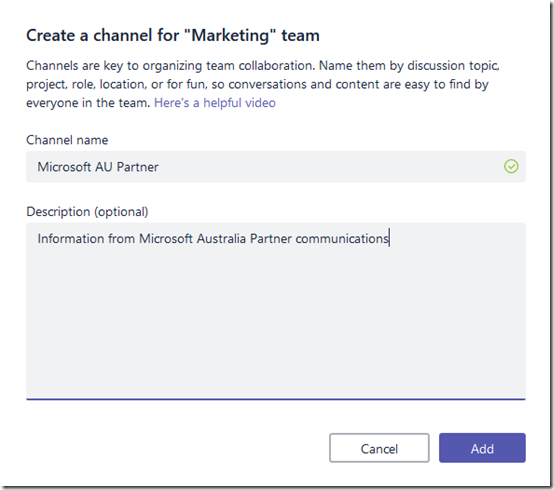
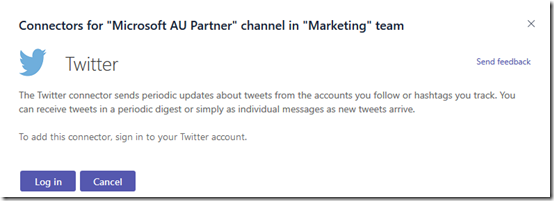
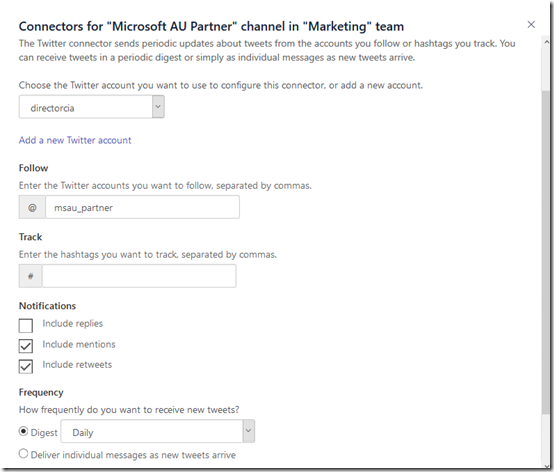
As I have mentioned here previously, I have created an Office 365 Group in my tenant called ‘Marketing’. That gives me a range of services including a SharePoint Team Site, an email list, a plan and more. What it also gives me is a range of “connectors”.

What are connectors you may ask? They are basically a way for you to consume information from services outside the Office 365 Group. These services can be other Office 365 Services BUT they can also be third party services like Twitter, Facebook, etc.

The aim of the game here is ensure that I receive regular information from the Microsoft Australia Partner Blog which you can find here:

https://blogs.msdn.microsoft.com/auspartners

image

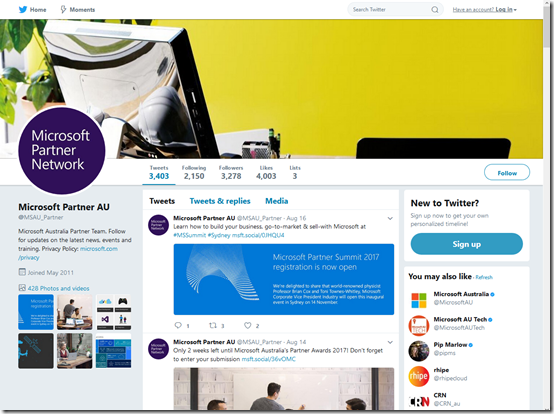
You’ll notice that it does have a few follow options:

image

In this case, I want to get an RSS feed so I obtain the URL for that which is:

https://blogs.msdn.microsoft.com/auspartners/feed/

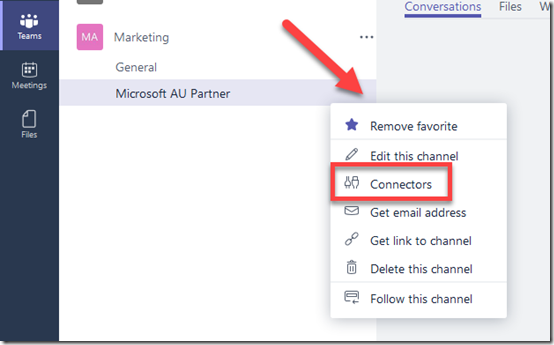
I now head over to my existing Office 365 Marketing Group and look for the connectors option.

image

You’ll find these over in the top right.

image

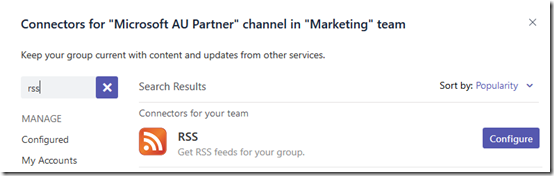
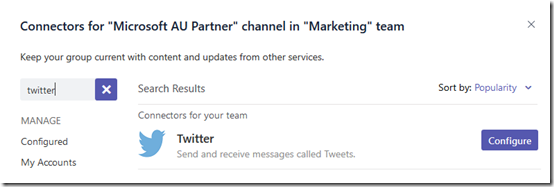
Here you’ll find heaps and heaps of different services you can connect to. I’ll select the RSS option via the appropriate Add button.

image

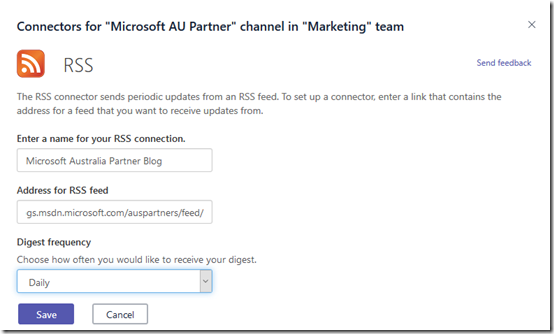
I’ll now simply complete the fields using the information I obtained previously from the actual site. I’ll also elect to only receive a daily digest update.

When complete, I select Save.

image

I receive an email confirming the connector has been set up correctly.

image

and I get my first digest summary. How easy was that?

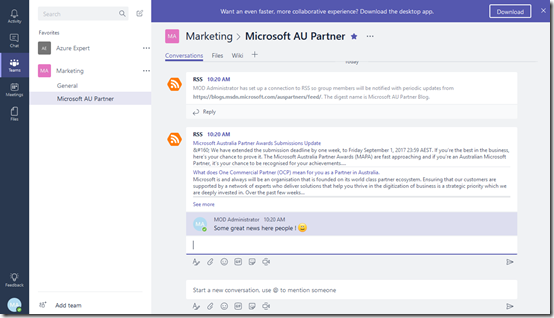
Now because the information is being sent to an Office 365 I can have multiple members of that group who receive the same digest without them having to do anything.

SNAGHTML1faa7173

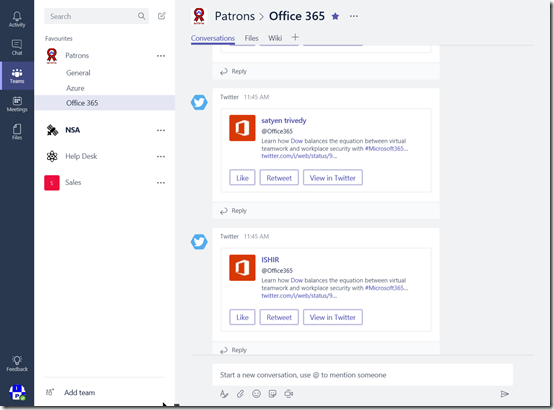
We can even discuss this information directly in the Office 365 Group as you see above.

SNAGHTML1fac1a60

Now anyone in the group can search that whole Office 365 Group quickly and easily for information that is feeding in there from places like the source web site I just set up.

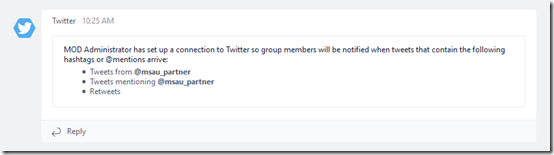
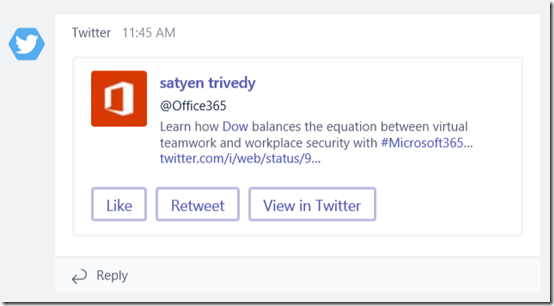
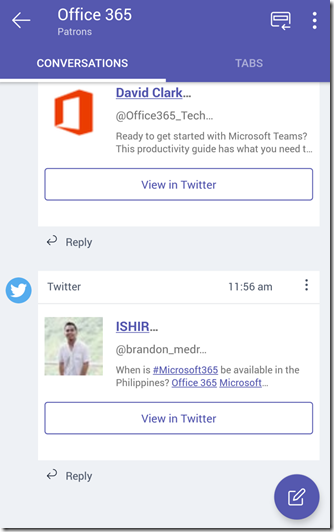
As you can see from the screen shots, I feed quite a few services into my Office 365 marketing group. Everything from Twitter, to Facebook, Mailchimp and now the Microsoft Partner Network blog site. Best of all? I did with a few clicks using the power of Office 365. Even better, I have even more services as part of this Office 365 Group I can call on (such as a SharePoint Team Site) to automate my marketing even further.

Digital Workplace Conference

Interested in learning about how to transform your business with the latest digital tools? if so, then there is no better place the the Digital Workplace Conference held in Sydney next week. I’ll certainly be going along to learn about the latest technology from some of the brightest minds in the industry.

I also have access to a special $100 discount code for the full 2 day event that you can use if you want to attend. Simply contact me (director@ciaops.com) and I’ll let you know all the details.

If you are going I hope we can catch up so please reach out and let me know when we can meet up.

Re-indexing a SharePoint Online Document Library

Ok, so let’s say that for some reason you have a document in a SharePoint Online Team Site that aren’t being shown in search. One option you can try is to re-index the Document Library. Here’s how.

image

Start by navigating to the Document Library you wish to re-index. Select the COG in the top right hand corner.

image

From the menu that appears, select Library Settings.

image

Under the first column, General Settings, select Advanced Settings.

image

Scroll down the page that appears until you locate the Reindex Document Library button and select it.

image

You should now see the above dialog window. Select the Reindex Document Library.

Your Document Library will now be reindexed completely during the next indexing process at the back end of SharePoint Online. This process may take 15 – 20 minutes to full complete so be patient.

After that time period has elapsed, see whether your information is now available in search.

Some suggested Office 365 Settings changes

image

I have just noticed there seems to be some additional settings in Office 365 for the user environment. If you select the COG in the top right of your Office 365 portal you will see the menu displayed above. What I didn’t previously remember was the Notifications and Language and time zone options that I now see.

image

You can now go into the Notifications area and disable those web based alerts, which I must admit I personally found detracted from my productivity when I was working in the browser.

SNAGHTML53fcaae

At the bottom you’ll find an option to set your location and country formats.

image

Now that I have set this to Australia I’ll have to see whether it fixes a few places in Office 365 I’ve be struggling to change from the US date format (like in Planner). If it does, I’ll do a follow up article but for now, disabling is web based notifications is enough to calm my Chi.