Centralised Office 365 Add in deployments with PowerShell

The three common Outlook add-ins I suggest be deployed across the entire organisation are:

1. Report Message

2. Message Header Analyzer

3. FindTime

You can allow users to deploy these individually but that opens up potential security concerns if users can install their own add ins. The better way is to deploy these centrally for all everyone.

You can do this using the Admin center in Office 365 but an even smarter way is to use PowerShell to do this, especially if you are going to install these add ins in multiple tenants.

To achieve this with PowerShell you are firstly going to have to go download and install the:

Office 365 Centralized Deployment PowerShell

which will allow you to deploy add ins using PowerShell commands.

Once you have installed this software go and fire up PowerShell command editor. You’ll need to connect/login to this service using the command:

Connect-OrganizationAddInService

but I’ve made connecting to the service easy for you by uploading a connection script to my GitHub repository here:

https://github.com/directorcia/Office365/blob/master/o365-connect-ctrldply.ps1

The thing to note about the connection is that this services doesn’t appear to support MFA identities so you’ll need to use an admin account that doesn’t have MFA enabled on it.

Once you have connected you’ll need to install the add in into the tenant using the command:

New-OrganizationAddIn

when you do this you’ll need to know the ‘Asset ID’ of the add in, which you will find in the URL for that add in in the store. The asset id appears in the form of WA104381180 for example. However, rather than you hunting around for these I’ve got them for you here:

Report Message = WA104381180

Message Header Analyzer = WA104005406

Findtime = WA104379803

The full command looks like:

New-OrganizationAddIn -AssetId ‘WA104381180’ -Locale ‘en-US’ -ContentMarket ‘en-US’

make sure you change the Locale and ContentMarket options to suit your environment.

You’ll then need to enable the add in within the tenant using the command:

Set-OrganizationAddIn

for this you’ll need to the ‘Product Id’ of the add in. You can find that by running the command:

Get-OrganizationAddIn

Here are the Product Id’s for my recommended add ins:

Report Message  = 6046742c-3aee-485e-a4ac-92ab7199db2e

Message Header Analyzer = 62916641-fc48-44ae-a2a3-163811f1c945

FindTime = 9758a0e2-7861-440f-b467-1823144e5b65

The full command to enable the add in within the tenant looks like:

Set-OrganizationAddIn -ProductId 6046742c-3aee-485e-a4ac-92ab7199db2e -Enabled $true

Finally, you’ll need to assign the add in to users. In this case, I believe these add ins should be mandatory for all users. Thus you run the command:

Set-OrganizationAddInAssignments -ProductId 6046742c-3aee-485e-a4ac-92ab7199db2e -AssignToEveryone $true

to do this.

Now you are all done and those add ins will roll out to every user in your tenant.

To read more about the PowerShell options available to you with PowerShell and centralised add in deployment check out this from Microsoft:

Use the Centralized Deployment PowerShell cmdlets to manage add-ins

I have also made the full deployment scripts for these three add ins available on my GitHub repository to save you time. You’ll find that script here:

https://github.com/directorcia/Office365/blob/master/o365-addin-deploy.ps1

That should make deploying your favourite Office add ins into Office 365 easier.

Need to Know podcast–Episode 191

Brenton and I get you up to date with all the most important announcements from Microsoft Ignite. You’ll hear about the new Microsoft Virtual Desktop services, improvements in OneDrive, and some exciting updates happening with Microsoft Stream. Throw in a Windows 10 update with news about Azure and there isn’t enough to cover everything in one episode. All this and whole heap more on this special Ignite update on the Need to Know podcast.

Take a listen and let us know what you think –feedback@needtoknow.cloud

You can listen directly to this episode at:

https://ciaops.podbean.com/e/episode-191-news-from-microsoft-ignite-2018/

Subscribe via iTunes at:

https://itunes.apple.com/au/podcast/ciaops-need-to-know-podcasts/id406891445?mt=2

The podcast is also available on Stitcher at:

http://www.stitcher.com/podcast/ciaops/need-to-know-podcast?refid=stpr

Don’t forget to give the show a rating as well as send us any feedback or suggestions you may have for the show.

Resources

@contactbrenton

@directorcia

Windows 10 1809 update

Top learnings from Microsoft Ignite

Password-less sign-ins

New in Teams

Microsoft Search gets serious

Search is one of the key technologies we have at our disposal today. It is often overlooked and under rated, but without it we’d be drowning in a sea of data rather than being able to find what we want in an ocean of information.

Search is pervasive throughout the Office 365 suite but it has been implemented in a rather haphazard way across the many different services over time. One of these key services that you can really take advantage of tenant wide search in my books, is Delve as I have said:

Delve should be the center of your Office 365 universe

because it allows you to easily and quickly search across a number of Office 365 information repositories. However, now there is better way.

At the recent Ignite conference, Microsoft demonstrated a willingness to align all it’s search abilities in a consist way and under a single banner being Microsoft Search.

Microsoft Search—cohesive search that intelligently helps you find, discover, command, and navigate

Some, like Mary Jo Foley and Paul Thurrott, in fact think this is the biggest news from Ignite as the above video attests.

So, with all that said, how you you start using this more unified approach to search in your Office 365 tenant today? Easy, enable “Bing for Business”. Here’s how.
image

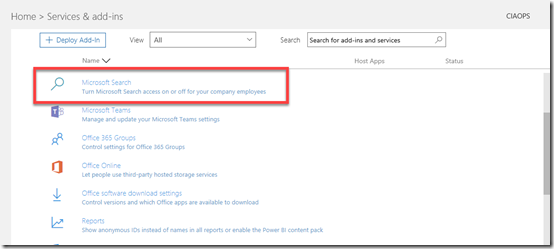
Login to your Office 365 tenant as an administrator and go to the Admin center. Locate the Services & add-ins section and from the list that appears there, select Microsoft Search.
image

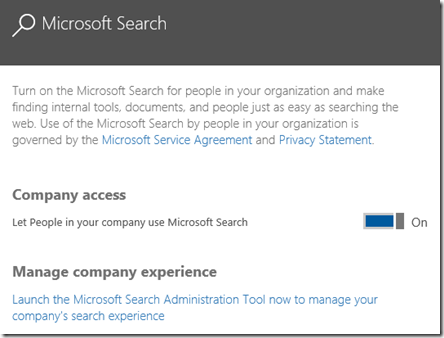
Then turn on the option for Company access as seen above and Save the settings.

I’d then visit the following URL to set up Bing for Business.

https://www.bingforbusiness.com/admin

if you need to, login using an Office 365 administrator account.
image

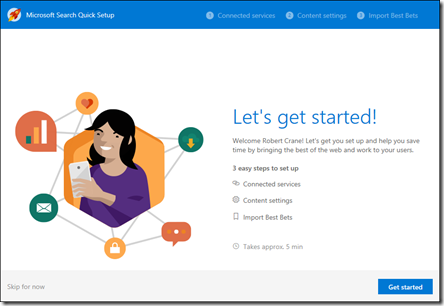
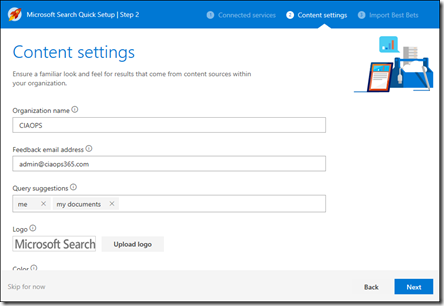
You should then be stepped through an initial setup wizard,
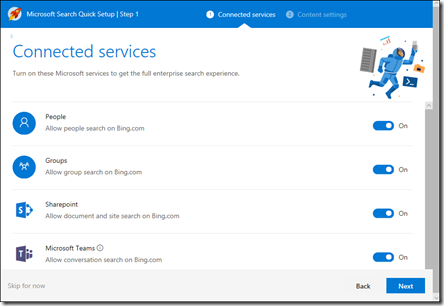
image

that asks you the various places that you’d like to have included in you unified search as shown above.
image

You can also provide the feedback email address for users as well as logo if you wish.
image

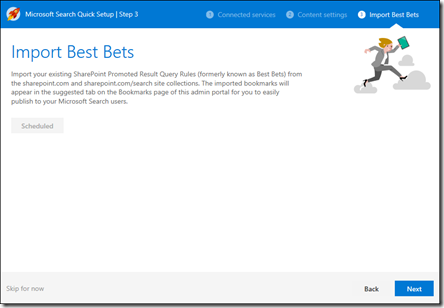
You SharePoint Best Bets will be imported if you selected SharePoint in the list of items to include.
image

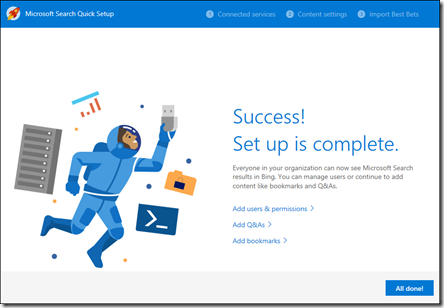
With that complete, you should now be good to go.
image

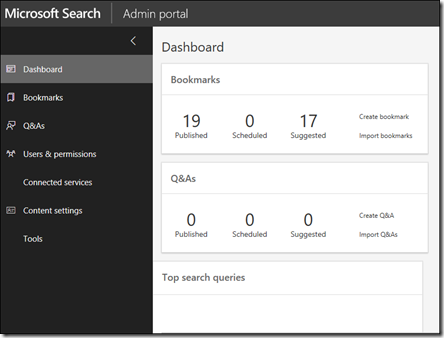
You can return to this search console at a later stage to view statistics and provide better control over your user’s experience. I’ll take a look at more of that in an upcoming article.
image

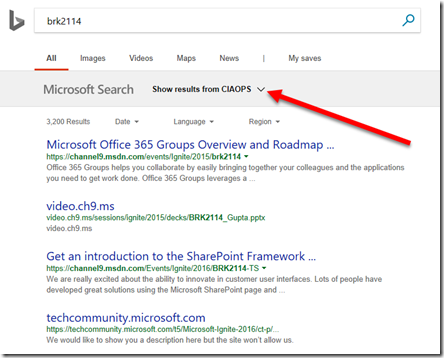
Now, if a tenant user logs into, and uses Bing search, you’ll see an extra banner at the top of the page as shown, for Microsoft Search. Here you can select to see the results from inside your Office 365 environment at the top of the page.
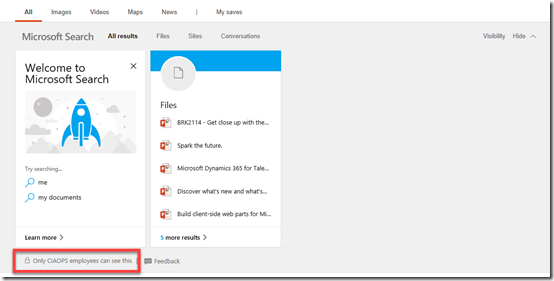
image

Selecting to see these results will display an expanded set of cards as you see above. It is important to note that these search results are ONLY visible to people inside your tenant, who have logged onto Bing with their Office 365 credentials. It doesn’t mean your complete Office 365 information is available on the public Internet!
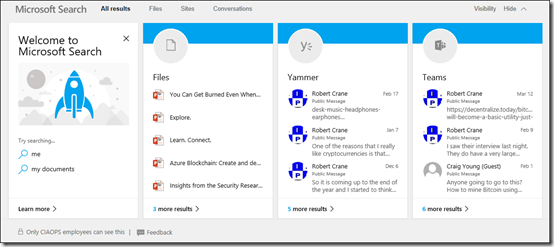
image

As I search for different items I get different results as shown above, including results from places like Yammer and Teams.
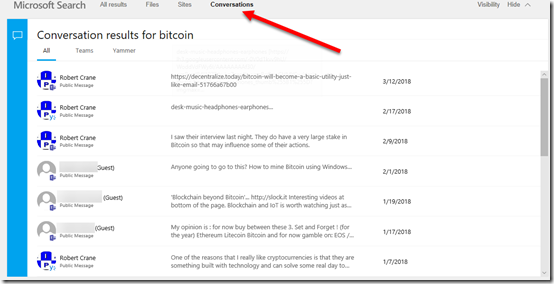
image

If you select the Conversations option at the top of the page, it will show you matching chats from Microsoft Teams as shown above. That is pretty powerful when you stop and think about it.

This is only the beginning of what Microsoft has planned for a unified search experience. We should see this make it’s way down into the Windows 10 desktop search box as well, meaning you can get results across your whole Office environment directly from you Windows 10 desktop. Now, that is really unified search!

Search is something that we use just about every day. Making this easier, more relevant and more consistent is really going to boost people’s productivity and reduce frustration. It is also going to provide people with a more familiar search experience and truly be a single place to go and find “everything” inside and outside you tenant.

So, go and turn this unified search option on in your Office 365 tenant today and start using the power of search to improve that way that your business works.

Enabling modern authentication in Office 365 script

Just a quick note to let you know that I have uploaded another short script to make life a bit easier. This one will enable modern authentication in a tenant for Exchange Online and Skype for Business Online (it is already on for SharePoint Online).

Modern authentication basically prevents multiple logins when using multi factor authentication for desktop apps like Outlook and Skype for Business client. You can read more about this here:

How modern authentication works for Office 2013 and Office 2016 client apps

Enabling modern authentication will also impact older clients like Office 2010, so enable it on your tenant with the understanding that when you do you really should be running the latest version of Office on all desktops.

That said, you can find my script here:

https://github.com/directorcia/Office365/blob/master/o365-modern-auth.ps1

Note, that you’ll need to have connected to Exchange Online and Skype for Business online in PowerShell for the script to execute correctly.

CIAOPS Need to Know Office 365 Webinar–October

laptop-eyes-technology-computer

Heaps of news and update to cover from the recent Microsoft Ignite conference plus a deep dive into SharePoint is going to keep us pretty busy this month. If you want to know the latest and coolest technologies coming to your Office 365 environment plus get a better understanding of how SharePoint integrates with services like Microsoft Teams then don’t miss this month’s webinar.

You can register for the regular monthly webinar here:

October Webinar Registrations

The details are:

CIAOPS Need to Know Webinar – October 2018
Wednesday 24th of October 2018
11am – 12am Sydney Time

All sessions are recorded and posted to the CIAOPS Academy.

There of course will also be open Q and A so make sure you bring your questions for me and I’ll do my best to answer them.

The CIAOPS Need to Know Webinars are free to attend but if you want to receive the recording of the session you need to sign up as a CIAOPS patron which you can do here:

http://www.ciaopspatron.com

or purchase them individually at:

http://www.ciaopsacademy.com/

Also feel free at any stage to email me directly via director@ciaops.com with your webinar topic suggestions.

I’d also appreciate you sharing information about this webinar with anyone you feel may benefit from the session.

CIAOPS Patron price changes

I am letting people know that I will be raising the entry prices for my CIAOPS Patron program from the 1st of January 2019. However, every one who is already in the program before that date will be grand fathered in at their existing rate.

Thus, if you have been thinking of jumping on board to take advantage of all the great resources that are available as apart of the program such as detailed Office 365 and Azure notebooks, a private community forum, access to online training and more, well now is the time to act. You can read more about these resources here:

www.ciaopspatron.com

If you join the program before the 1st of January 2019 you’ll not only receive all the existing benefits but all the new ones I plan to start rolling out in the new year.

If you work with the Microsoft Cloud, particularly Office 365 and Azure, then you are going to get loads of benefits from this program. It is really the best way to stay up to date with the Microsoft Cloud, all in a single location.

I hope to see you inside the program soon. Don’t hesitate, join the other successful Microsoft Cloud professionals who are already part of this program.

Absorbing content from Ignite 2018

One of the biggest challenges with events like Microsoft Ignite is simply the sheer scale of information presented. There is no way that you can see everything you want, let alone absorb it all in the time.

The great thing is that apart from Microsoft Live Streaming everything for those like me that weren’t there but they also record it and make it available at:

On demand sessions

Simply search for the session, title or topic that you want. The video content actually ends up on YouTube on the Microsoft Ignite channel. However, at the moment, the sessions from Ignite are unlisted so you need to know their direct URL.

As I did with Ignite 2017 I have created a list of all the session URLs on YouTube and posted that on my GitHub here:

https://github.com/directorcia/general/blob/master/ignite2018.txt

There currently are not many sessions in the list but I’ll continue to add them as I go along, so make sure you book mark that location. Also, if you find a link to a session please send it to me so I can include it.

Now one of the other things I like to do is go and grab all the slides from the sessions and upload them to my SharePoint site so I can search them if needed. There is great PowerShell script here:

https://gallery.technet.microsoft.com/Ignite-2016-Slidedeck-and-296df316

That will allow you to grab all the slides and all the videos if you want. The script is also smart enough to determine what you already have if you re run it as you can see –

image

and you may need to do this as all the content is not up there just yet. I’ve managed to grab about 1,115 or 1,620 sessions so far but I’ll be running the script a few more times over the next couple of weeks to make sure I get everything.

It’ll take me a a full 12 months to go through all these sessions but it is worth the investment and kudos to Microsoft for making all this content available to anyone and everyone.

More interesting news from Ignite 2018

Here are some more announcements from Microsoft Ignite 2018 that caught my eye:

Office 365 / Microsoft 365

Announcing new Microsoft Forms features at Microsoft Ignite – https://techcommunity.microsoft.com/t5/Microsoft-Forms-Blog/Announcing-new-Microsoft-Forms-features-at-Microsoft-Ignite/ba-p/263007

Introducing Multi-Geo in SharePoint and Office 365 Groups – https://techcommunity.microsoft.com/t5/Office-365-Blog/Introducing-Multi-Geo-in-SharePoint-and-Office-365-Groups/ba-p/263302

SharePoint powers teamwork in Office 365 – Ignite 2018 announcements – https://techcommunity.microsoft.com/t5/Microsoft-SharePoint-Blog/SharePoint-powers-teamwork-in-Office-365-Ignite-2018/ba-p/255465

What’s new in Microsoft Stream – Ignite 2018 announcements – https://techcommunity.microsoft.com/t5/Microsoft-Stream-Blog/What-s-new-in-Microsoft-Stream-Ignite-2018-announcements/ba-p/260334#

Beginning in October, employees can watch videos on the go with the Stream mobile app for iOS and Android, with support for offline viewing.

Passwordless phone sign-in with the Microsoft Authenticator app (public preview) – https://docs.microsoft.com/en-us/azure/active-directory/authentication/howto-authentication-phone-sign-in

Microsoft Whiteboard is now available for more devices – https://techcommunity.microsoft.com/t5/Office-365-Blog/Microsoft-Whiteboard-is-now-available-for-more-devices/ba-p/255431

Whiteboard on iOS – https://itunes.apple.com/us/app/microsoft-whiteboard/id1352499399

Azure

Private preview of Azure VM Image builder – https://azure.microsoft.com/en-us/blog/announcing-private-preview-of-azure-vm-image-builder/

Azure monitor alerting just got better – https://azure.microsoft.com/en-us/blog/azure-monitor-alerting-just-got-better/

Move Managed Disks and VMs now available – https://azure.microsoft.com/en-us/blog/move-managed-disks-and-vms-now-available/

Introducing Azure Functions 2.0 – https://azure.microsoft.com/en-us/blog/introducing-azure-functions-2-0/

