Policy that prevents you from granting iOS Accounts the permissions

I was configuring an iPhone to access a Microsoft 365 Business tenant and when I attempted to add email to the native iOS email client I received the following error.

image

An administrator of Contoso has set a policy that prevents you from granting iOS Accounts the permissions it is requesting.

If I then closed that error message I was presented with:

image

Strange, haven’t seen this one before.

Turns out that one of the best practice recommendations I use on tenants is to disable users being able to Outlook plugins which I detailed here:

Thwarting the ransomware cloud

The down side to preventing this is that it also prevents iOS adding an Office 365 email account when you have modern authentication enabled, which again is best practice.

So, to allow iOS to add an Office 365 email account in the native iOS app you’ll need to allow users to “consent to apps accessing company data”.

There are two methods to achieve this. You can firstly go to the Azure Portal as an administrator, locate Azure AD | Users | User settings as shown below:

image

Then select the hyperlink Manage how end users launch and view their applications as shown above.

image

From here, set the option Users can consent to apps accessing company data on their behalf to Yes and Save the change.

The second method is to use PowerShell with the command:

set-MsolCompanysettings -UsersPermissionToUserConsentToAppEnabled $true

Remember, that enabling this option will also allow users to potentially accept malicious add-ins in their application like Outlook so you should disable it once your iOS devices have been configured.

It would be nice if there was a policy that could be configured to change this setting just for iOS, but alas that currently isn’t the case that I can see. You’ll therefore need to go through this disable-enable-disable sequence to maintain best practices and allow iOS devices to be added to your environment.

CIAOPS Patron price change

As mentioned in a previous update, I will raising the entry price for my CIAOPS Patron program from the 1st of January 2019. However, if you join before then you will be automatically grandfathered in at the existing rate.

You can find out more information and sign up here:

www.ciaopspatron.com

As an extra incentive to join before December 1 2018, I will be offering a free Yubikey to anyone who signs up prior to that date. Yubikeys can be used for MFA with Azure AD amongst other security configurations.


So sign up today to become a CIAOPS Patron and take advantage of this free Yubikey offer until the 1st of December.

My OneNote daybook template

image

A while back I detailed how I use OneNote to replace my paper diary. You can read about that here:

One of the ways I use OneNote

The main benefits of a “daybook” for me are:

1. It is searchable

2. It is backed up

3. It is available on all my devices

This concept of a “daybook” is something that I use in my Office 365 adoption process. I have users create their very own “daybook” as part of learning how to use OneNote and OneDrive.

Creating a whole OneNote diary can be time consuming and many people simply want a completed “daybook” template that they can start using immediately. If you do, then I have uploaded to my GitHub repository for you here:

https://github.com/directorcia/general/blob/master/Daybook.onepkg

Simply download the file and open it with your favourite version of OneNote.

Go forth, save the trees and OneNote.

Adding an Apple Certificate to Intune

When you use Intune to manage your Apple devices you’ll need to add a push certification to allow control of the device. If you don’t do this, then you’ll get error messages about failing to join when you try and enrol the device using the Intune Company Portal App on the device.

image

To add a management certificate you’ll firstly need to login to the Azure portal as an administrator. You’ll then need to navigate to Intune.

Once there, select Device enrollment from the menu.

image

Next select Apple enrollment from the new menu that appears.

image

When you do this a new window should appear on the right. Select the top option, Apple MDM Push certificate.

image

You will see the enrolment status at the top of the page. If this is a new tenant, the status will show Not set up as shown above.

image

Scroll down the windows to commence the set up process.

Place a check in the I agree box in section 1.

Then select Download your CSR from section 2.

image

Save this certificate file on your local machine. Make a note of this location as you’ll need to upload it soon.

image

Scroll down to section 3 and select the hyperlink Create your MDM push Certificate.

image

This will open a new browser window and ask you to login using an Apple ID. if you don’t have one of these yet, you’ll need to create one. If you are doing this on behalf of a company it is best practice to use an Apple ID that is linked to the business rather than the individual.

image

Once you have logged in, you’ll see any certificates that you have already created.

Select the Create Certificate button in the top right.

image

Accept the terms and conditions.

image

Browse to the location where you downloaded the certificate file from Intune previously. Select the file. Then select the Upload button.

image

In a moment you should now see that a new certificate has been created for you. It is important to note that certificate last for 12 months, after which time it will be required to be replaced or renewed.

Select the Download button to copy the new Apple management certificate to your machine.

image

Save this Apple management certificate on your local machine and remember where it is located.

image

Return to the Azure portal and the setup in Intune.

In section 4 enter the Apple ID that you used when you created the certificate.

In section 5 browse to the Apple management certificate you just downloaded.

When complete, select the Upload button at the bottom of the page.

image

In a few moments you see a message from the Azure portal indicating that the certificate has been successfully uploaded.

image

If you now scroll to the top of the page in Azure you should see that the status is now Active as shown above.

You have now successfully uploaded and configured an Apple management certificate into Intune. You can now proceed to enrol your Apple devices into Intune management. Just remember, that this certificate is valid for 12 months, after which time you’ll need to renew it.

Need to Know podcast–Episode 193

Join us in this episode as Brenton speak with Lorenzo Coppa from Gluh, which is clever way for IT Resellers to sell more hardware with less hassle and overhead. Brenton and I also bring you up to date with all the latest Microsoft Cloud news. Just because Ignite is over doesn’t mean that the news stops from the cloud. We’ll bring you up to date with everything you need to know.

Take a listen and let us know what you think –feedback@needtoknow.cloud

You can listen directly to this episode at:

https://ciaops.podbean.com/e/episode-193-it-gluh/

Subscribe via iTunes at:

https://itunes.apple.com/au/podcast/ciaops-need-to-know-podcasts/id406891445?mt=2

The podcast is also available on Stitcher at:

http://www.stitcher.com/podcast/ciaops/need-to-know-podcast?refid=stpr

Don’t forget to give the show a rating as well as send us any feedback or suggestions you may have for the show.

Resources

@contactbrenton

@directorcia

Gluh

Updated version of Windows 10 1803 rolling out

Ignite book of news

Create an organisation wide team in Microsoft Teams

New capabilities coming to the SharePoint Migration Tool

How Azure AD can help clean up data in your on-premises Active Directory

Reset passwords from all versions of Windows

Ignite 2018 session Youtube index from CIAOPS

ID Fix tool

The benefits of certification

pexels-photo-262485

I’m seeing a growing number of progressive IT Professionals wanting to become certified so they can differentiate themselves from the crowd. I’m also seeing many of the same tired old responses to why people won’t get certified. Most of these are really just based on fear of failure.

The first major excuse people use is around the fact that they believe practical experience is enough. The problem is that practical experience is not consistent across the field. Everyone’s practical experience varies. How do you go about measuring that in a consistent manner? What is the best way to determine that everyone meets certain minimum standards? How to actually ensure that people have some idea about the products they install and support? Answer? Certification. Complete an independent standard exam to demonstrate your knowledge across a broad range of topics on the product. That provides you with a skills measure against the field. It provides external parties a way to very that you are indeed knowledgeable in what you say you are. It provides a public benchmark.

The next major excuse people provide is that fact that the topics covered in the certification aren’t relevant. Every course will cover both material that is and isn’t directly relevant. It is therefore important to focus on certifications that are most aligned to the profession you are working in or you wish to head. Also, don’t forget that technology changes over time, as do the needs for people in their careers. The skills you have today may not be the skills you need tomorrow. They may also not be the skills you require if you desire to change roles down the track. Broadening your knowledge is a good thing because there are many areas where you simply don’t have the experience. Certification forces you to examine and at least learn these to some basic level.

Another common excuse I see is the claim that customers never ask to see any type of qualifications from IT people. This may be because most people “assume” that IT Professionals are exactly that, professional. One of the traits of being professional is the desire to keep up to date and continue to develop knowledge that can be applied to helping those you serve. Doing things the same old way because it has ‘always’ worked is not being professional, it is being ignorant. Many of the careers we consider ‘professional’ like engineers, accountant, doctors, lawyer and so on are generally required to complete some ongoing form of professional development. This is aimed at ensuring that they stay current with all the trends in their field. It ensures that appreciate the changes that are happening that affect the people that they serve. If you want to join say the Institute of Professional Engineers, for example, you will need to commit to completing ongoing professional development.

Certification is going to give you recognition from an independent authority that you have competent knowledge in that topic. It is going to make you prepare and broaden your knowledge of the product. There hasn’t been a certification process that I have gone through where I didn’t learn something new. That is really the key reason for undertaking certifications, they are an excellent way to grow your own knowledge about your profession. This concept of learning is really the difference between those that undertake certification and those that rail against it. Certification doesn’t make you an expert but it does ensure you know your subject. If you really know your stuff, then you are more than willing to be tested on it.

My experience is that the people who rail most loudly against the benefits of certifications are those that have the greatest fear of being exposed as not really knowing as much as they think or claim. If you are confident in your knowledge you should welcome the chance to prove whether your knowledge is indeed as thorough as you believe and as current as your believe. You should always welcome the chance to learn more no matter what form it comes in. You should also welcome the chance to push yourself because certification isn’t really about external accomplishment, it is about the inner satisfaction of setting goals and achieving them.

There is a reason that people pursue higher learning delivered from places like university and technical colleges. They do this to provide themselves with a greater level of knowledge that can potentially be applied to their career and in turn given them greater opportunities and outcomes. Will they use everything they learning immediately? No. Are they likely to use everything they learn in these higher institutions during their career? No. Are they going to have to continue learning throughout their career? Of course. There is reason they call institutions like universities centres for “high education”.

Those who wish to achieve understand that they need to invest in themselves. They understand that they need to invest in knowledge to provide them with a competitive advantage. They also understand that if they continue the lifelong pursuit of knowledge they will continue to lead those that don’t. They understand that technology is now changing so rapidly that there isn’t any other option but to embrace on going learning and development. Failing to do so will consign you to the status of ‘has been’.

Are certifications are prefect measure of knowledge? No. Do they have merit beyond the mere academic results they provide? Absolutely. Those that embrace this as a lifelong commitment to learning will reap the benefits. They see certifications as not only an endorsement of their knowledge but also as a way to challenge and lift themselves beyond the mediocre. Those that deride certifications are probably fearful of not living up to where they believe their knowledge and currency is. Remember, as Archilochus said, “We don’t rise to the level of our expectations, we fall to the level of our training.”

Customising the top navigation bar in Office 365

image

You may not realise that you can customise the top navigation bar in Office 365 as a global administrator. This will give you some branding and navigation options across your tenant.

image

Navigate to Organizational profile in the Admin center and select to Edit the option Manage custom themes for your organization.

image

You now need to simply upload the required graphics but you will note that you can include a URL for the logo you add. This URL can basically be any web site address.

image

From the above, you can see that I’ve uploaded a logo, set the logo link to point to the default SharePoint site for the tenant and set a background image for the banner.

image

If you scroll further down the page you will a number of additional options, including the ability to display the full name for the logged in user, which I have selected.

Save you selections.

image

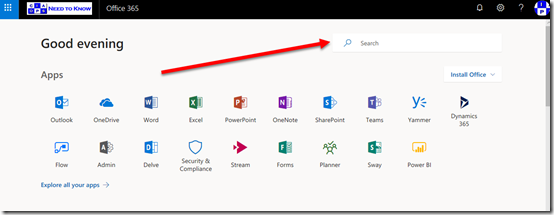
Without the banner background your navigation will appear like what you see above.

image

With the banner background your navigation will appear like what you see above.

image

If you then click on the logo you’ll be taken to the web site you entered during the configuration. In this case, to the default SharePoint site for the tenant.

Hopefully, you can now see a few more branding options for your Office 365, including the ability to link to any web location via a logo. That, I find is a very common request from many organisations.