Get started with Office 365 on the front page

image

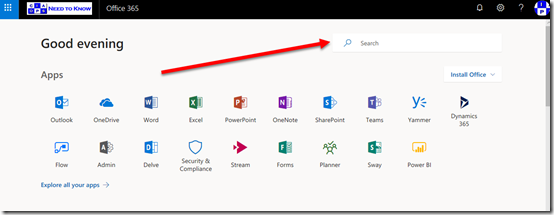
When most users access Office 365 they start on the front page as shown above. There is lots of really great and helpful stuff on this page but many people in my experience don’t take a moment to actually see what is here and understand how it can make their lives easier.

The first of these benefits is Search which you’ll find in the upper right corner of the page as shown. This will find information for you across all of Office 365.

image

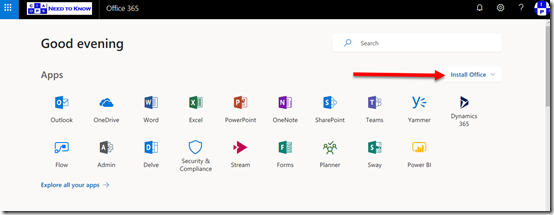
Then there is the ability to down and install a local version of Office via the Install Office button also on the right. Remember that you get 5 installs of Office on PC’s and Macs, 5 on tablets and 5 on phones.

image

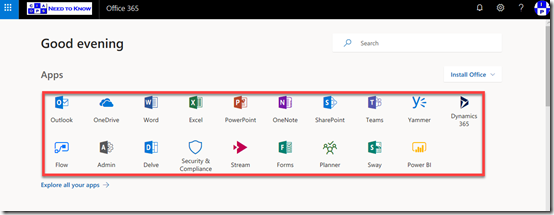
Hopefully most people are familiar with the Apps in the middle of the page that give you access to your Office 365 services simply by selecting them.

image

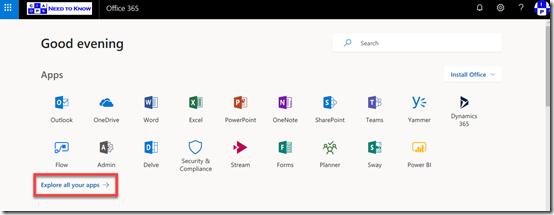
Of course, if you don’t see the app that you are after then you can select the Expand all your apps option to see all the Office 365 services you have access to.

image

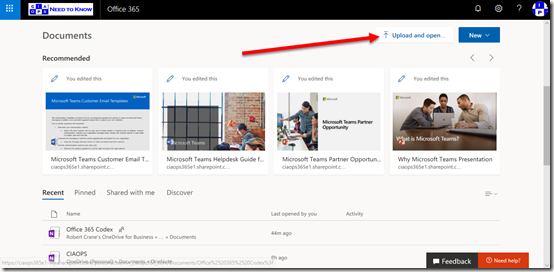
If you now scroll down you’ll see that you can Upload documents directly from this page,

image

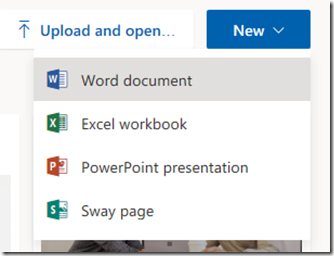
as well as create a New Office document.

image

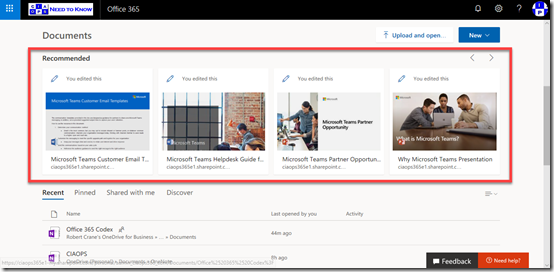
A little further down you’ll see Recommended documents. These recommendations come from the Office Graph and are files you make not have seen but have access two. These recommendations are typically files that your peers are working on.

image

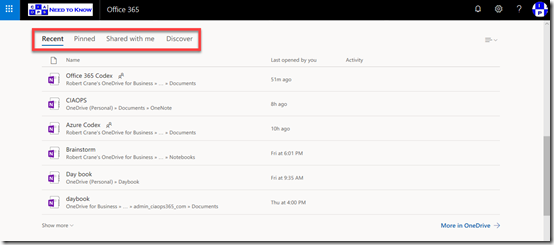
Further down you’ll find a number of categories of your files as shown above, including Recent files that you have been working on, which is handy.

image

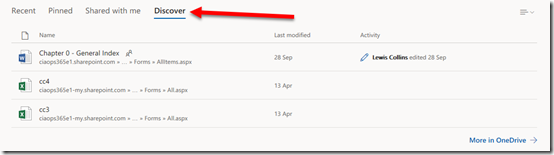
Here again, you’ll find the Discover option to view files that the Office Graph finds relevant for you.

image

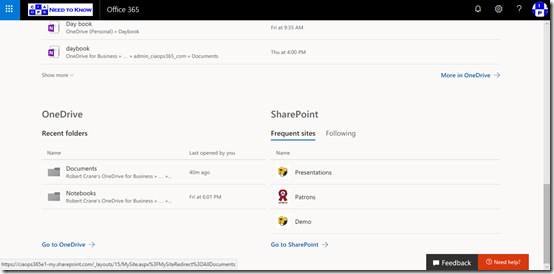
Right at the bottom you’ll find access and information about your OneDrive for Business and SharePoint sites.

So, this start page is a great summary for a user of all the stuff that they need access to. Take a moment and have a look at what it says for you and you may find that it is indeed the best way to get to your information in Office 365.

Teams resource information from SharePoint site

image

Hopefully you know that when you create a Microsoft Team you get a range of resources automatically provisioned, including a SharePoint Site, group mailbox and calendar, Planner and more.

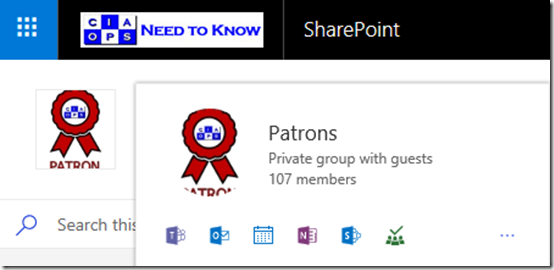
If you mouse over the icon for the Microsoft Team in the SharePoint that was created as part of that Team you’ll see a nice summary of the Team’s resources as shown. Clicking on this small icon will take you direct to the Team, the Team inbox, calendar, notebook, SharePoint site, Planner, etc.

image

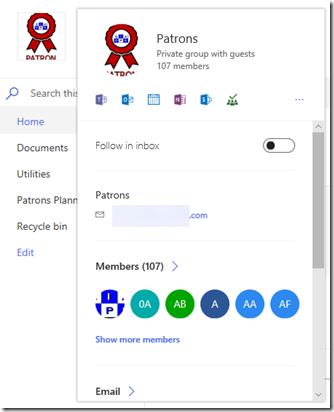
If you leave your mouse there for a little longer a more extensive card will appear, as shown above. You will notice the option to Follow in inbox at the the top.

image

If you scroll right to the bottom of this card you’ll find a Show more option which, when selected, will display even more information about the Team as shown above.

So to get some handy short cuts to all your Microsoft Teams resources, just roll your mouse over the icon.

Lest We Forget

Today marks the 100th anniversary of the end of the First World War. It represented the industrialisation of warfare and a taste of what was to come.

Australia’s role in the war was significant. Some have said it is really the only war where Australia has fought the major enemy on the major front. That being the Germans across northern France.

Australia’s role in the war wrought over 215,00 casualties.

In the 4 years of War approximately 416,809 had joined up and of these 313,814 had embarked for duty overseas. 65% of these were killed or wounded compared to 51% for Britain, 50% for Canada and 59% for New Zealand. Nearly 40% of all Australian males 18 – 44 voluntarily enlisted. One in five or 63,163 died on active service during the war.

313,814 embarked from Australia of which approximately 295,000 served on the Western Front. 53,000 died in France and Belgium, 18,000 have no known grave, 152,171 wounded. Between 27 March and 5th October 1918, the AIF made up less than 10% of British forces but captured 23% of the prisoners, 23.5% of the enemy guns and 21.5% of the ground taken from the Germans. 52 Victoria Crosses were awarded to Australians who fought on the Western Front. Many did not survive and live to receive their honour.

Over 13 million people were killed during the war and it would prove not to be the war to end all wars unfortunately.

So on this 100th anniversary we pause, remembering those who died and never returned, those who served and did return and the many other who continued to serve when this country called. All we can do is say thank you and promise never to forget.

Lest We Forget

For more information on the Australian battlefields of World War One wish my website www.anzacsinfrance.com.

Setting up an iOS Intune device configuration policy

Before you set up any iOS device configuration policy in Intune it is best practice to ensure:

You have added an Apple management certificate to Intune

and

You have set up an iOS Intune device compliance policy

with those two tasks complete you can now create an iOS device configuration policy. A configuration policy applies settings and configurations to the iOS device joined to this environment.

image

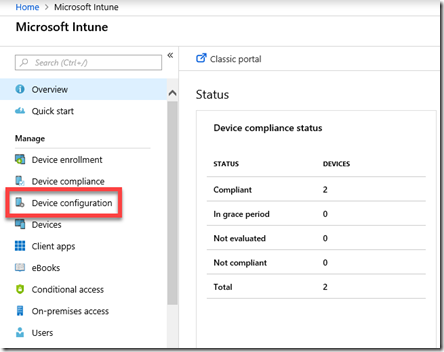
Open the Azure portal as an administrator and navigate to Intune. From the menu that appears on the left select Device configuration as shown above.

image

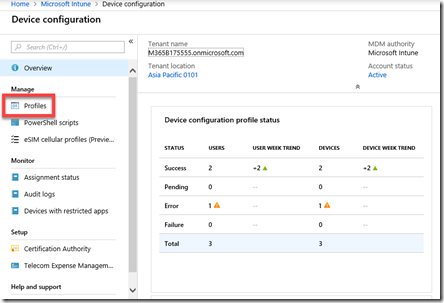
Next select Profiles from the menu on the left as shown above.

image

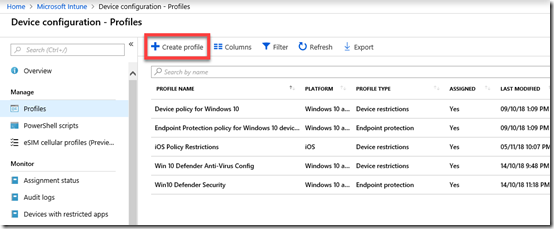
Here you will see any profiles that already exist. To create a new policy simply select Create policy from the menu bar across the top as shown.

image

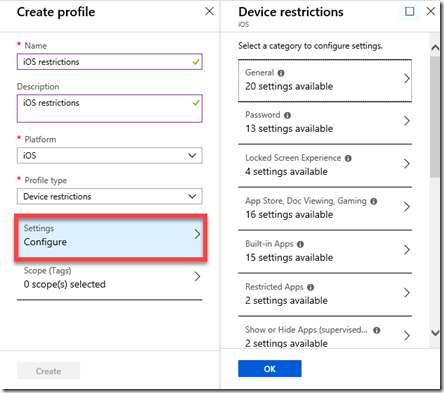
Gove the policy a Name and Description. Select iOS as the platform.

image

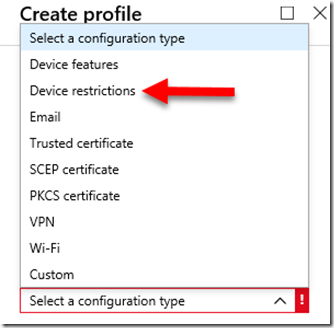
You’ll see that there are lots of different configuration types you can select to create configuration policies for. In this case we’ll select Device restrictions as an example of how to configure a policy, but remember there at least 9 options here you need to consider.

Remember, you can have multiple policies if you desire as well a number of the different configuration type policies if you want.

image

If you now select Settings towards the bottom of the window as shown above, you will see the numerous range of configuration options you can set for devices.

image

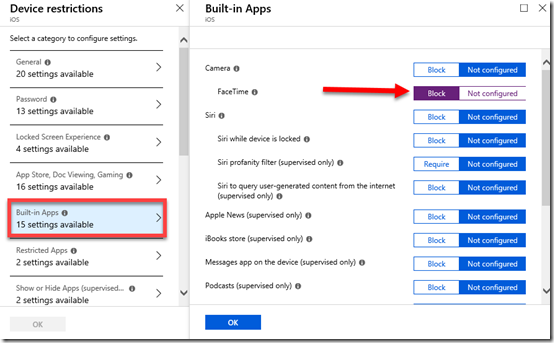
In this case I’ll simply illustrate changing one setting by selecting Built-in Apps and then Blocking Facetime as shown above.

Make sure you select OK at the bottom of any screen on which you make changes.

image

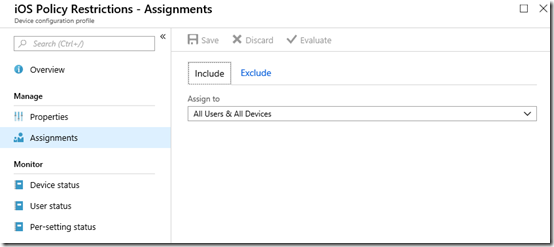
The final step once you have made all your selections and Saved the policy, is to assign the policy. Here I have assigned it to All Users & Devices as shown.

image

You can revisit and make changes to your policy at any time by navigating to it and selecting it.

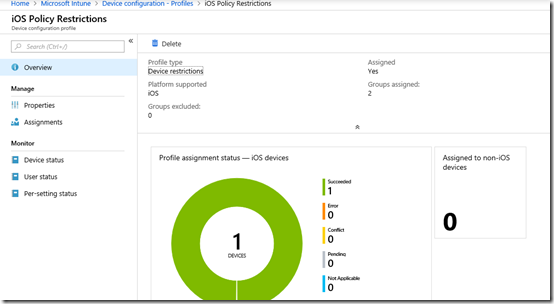
The options at the bottom of the menu on the left above: Device status, User Status and Per-setting status will again give you a summary of how this policy has been applied to devices.

Once we have all this in place we can now start joining actual devices to this environment so they can be manged. When we do that, they will be checked against the compliance policy and then have any configuration policies applied.

I’ll cover the process of adding devices to this environment in an upcoming article.

Setting up an iOS Intune device compliance policy

Once you have added an Apple certificate to allow device management for iOS as I have detailed previously here:

Adding an Apple Certificate to Intune

the next step in the process to get your iOS device managed is to create a specific iOS compliance policy in Intune.

A compliance policy is basically a set of rules that the device must follow to be considered compliant. If the device fails these rules then it is considered noncompliant and you are able to take action on that such as excluding it from connecting to your corporate data. Compliance for all devices is checked regularly.
image

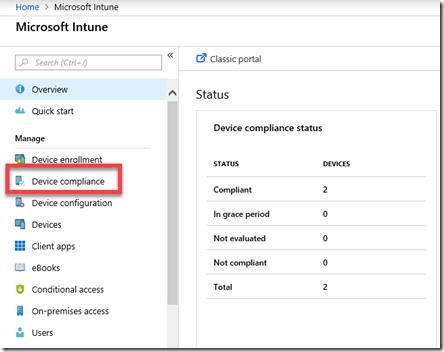
To create this compliance policy you’ll need to login to the Azure portal and navigate to the Intune service. Once there, you’ll find an option in the menu Device Compliance as shown above, that you’ll need to select.
image

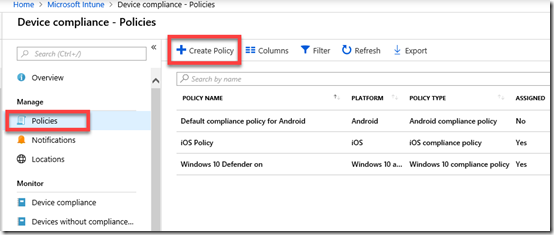
You’ll then need to select Policies on the left and the Create Policy option from the menu on the right that appears as shown above.

You may also see number of other existing policies here for different platforms. Note, that it is possible to have multiple compliance policies for the same platform if desired.
image

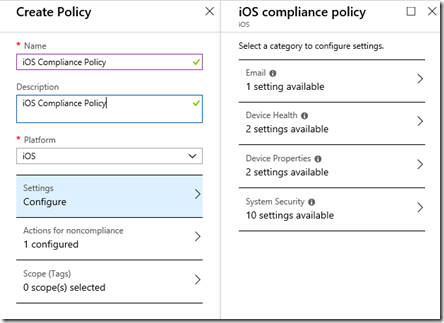
You’ll now need to give the new iOS compliance policy a Name, Description and select the Platform as iOS as shown above.

You’ll then need to select the Settings option below this to configure compliance rules. When you do so another blade will appear on the right with four categories: Email, Device Health, Device Properties and System Security as shown above.
image

You can configure as many options as you like here but I’m going to cover what I consider the basics for iOS compliance.

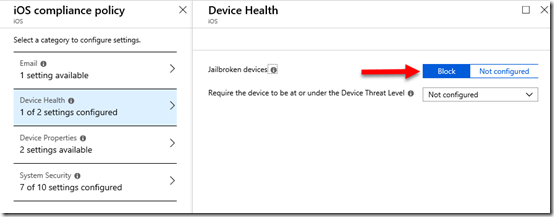
In Device Health, set Jailbroken devices to Block as shown above.
image

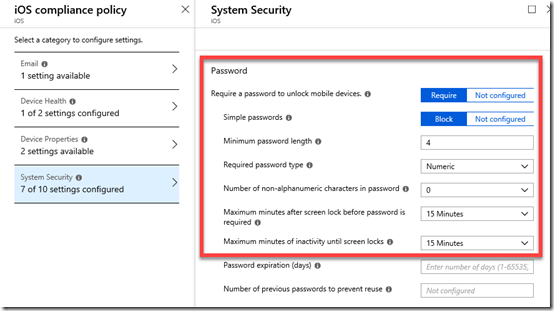
In System Security set the Password options as shown above.

Make sure you select OK at the bottom of each setting to update your preferences.
image

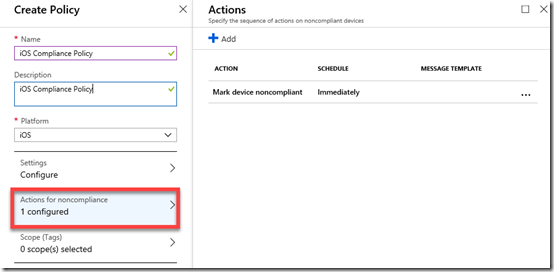
If you go into the Actions for noncompliance you’ll see there is currently a default option to Mark device noncompliant.
image

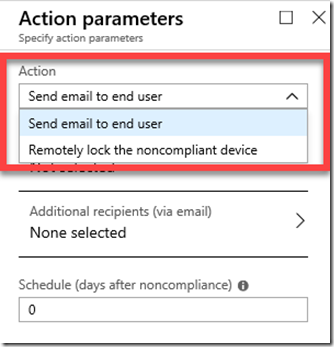
You can add more actions here, to Send email to end user and/or Remotely lock the noncompliant device if you wish.

When you have finished making your change, ensure that you Save the policy.
image

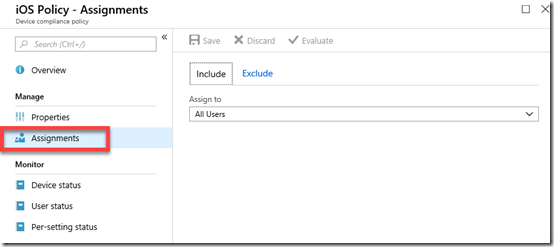
Now that the new iOS compliance policy has been created you’ll need to apply that policy to a group of users. To do this, select the policy you just created from the list of compliance policies. Then select the Assignments option from the menu on the left.

It is probably easiest to apply this new policy to all users but you can certainly select a group of users as well as exclude user if you wish.

Once again, when you have made you selection, ensure you Save any changes to have the policy applied to these users.
image

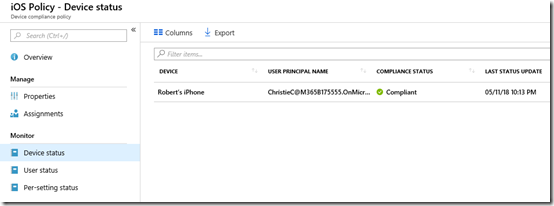
When devices connect to the tenant, they will be evaluated to be compliant or not. When this occurs, you can again examine the options at the bottom of the policy to see the device status as shown above. This will tell you whether connected devices are compliant (here they are).
image

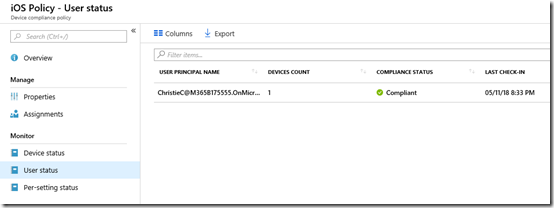
You can also get the status by user, because remember, some users may have multiple devices.
image

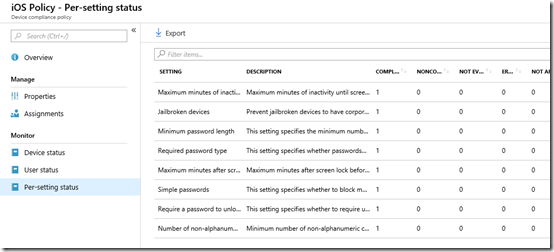
Finally, you can also examine the per-setting status. This is handy if a device has failed compliance and you want to know exactly what setting(s) have caused this failure.
image

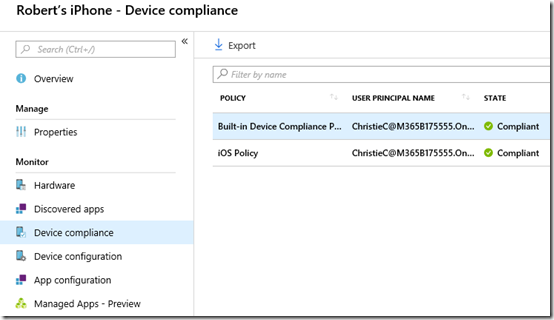
You can also see the compliance by examining the individual device in Intune as shown above.

You’ll see here that there is in fact a default compliance policy as well as any your have created.

Selecting the Built-in Device Compliance Policy will show you its settings like so:

image

Basically, the Built-in Compliance Policy simply checks whether device is active, the user exists in the tenant and another compliance policy has been assigned. Thus, the device won’t be considered compliant by default until we create at least one compliant policy for the platform.
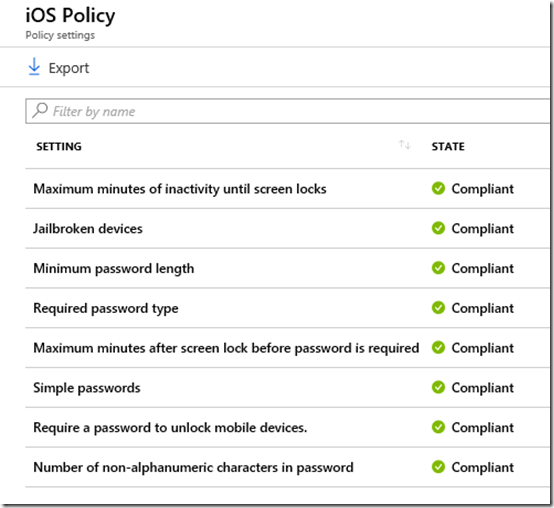
image

If you instead select any of the custom compliance policies that you created you will see whether each individual setting is considered compliant in that policy as shown above.

So, creating a device compliance policy is important when we wish to use Intune to manage devices. You need to create a compliance policy for each platform with the settings against which devices will be continually checked. This will ensure that devices connecting to your environment maintain the settings you desire.

The next step will be setting up device configuration policies to actually configure how the device operates. That will be covered in an upcoming article.


Need to Know podcast–Episode 194

=””>

More news this week from the Microsoft Cloud. Plenty of things that you need to know around Microsoft 365 and Azure so we bring it to you in another all news episode.

Take a listen and let us know what you think –feedback@needtoknow.cloud

You can listen directly to this episode at:

https://ciaops.podbean.com/e/episode-194-cloud-update/

Subscribe via iTunes at:

https://itunes.apple.com/au/podcast/ciaops-need-to-know-podcasts/id406891445?mt=2

The podcast is also available on Stitcher at:

http://www.stitcher.com/podcast/ciaops/need-to-know-podcast?refid=stpr

Don’t forget to give the show a rating as well as send us any feedback or suggestions you may have for the show.

Resources

@contactbrenton

@directorcia

7 things Steve Jobs can teach you about business

How to be Jason Bourne

Keeping up to date

Microsoft MCA and Acceptance wording

https://uptakedigital.zendesk.com/hc/en-us/articles/360000549816

Windows 10 Home on the new Surface PC line

Windows Server 2019 RDS will not support Office Pro Plus from Office 365

New Office deployment customisation tool

What’s new for Microsoft To-Do in October 2018

Office 365 soars to 155 million active users

Windows Defender now runs in a sandbox

Hardware OAUTH tokens in Azure MFA in the cloud now available

Outlook for Mac adds administrative controls

CIAOPS Patron program offer

Policy that prevents you from granting iOS Accounts the permissions

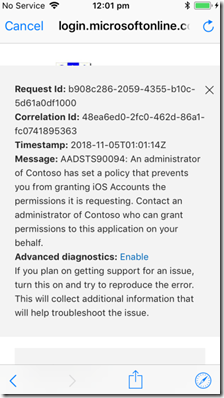
I was configuring an iPhone to access a Microsoft 365 Business tenant and when I attempted to add email to the native iOS email client I received the following error.

image

An administrator of Contoso has set a policy that prevents you from granting iOS Accounts the permissions it is requesting.

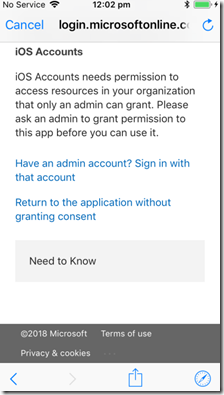
If I then closed that error message I was presented with:

image

Strange, haven’t seen this one before.

Turns out that one of the best practice recommendations I use on tenants is to disable users being able to Outlook plugins which I detailed here:

Thwarting the ransomware cloud

The down side to preventing this is that it also prevents iOS adding an Office 365 email account when you have modern authentication enabled, which again is best practice.

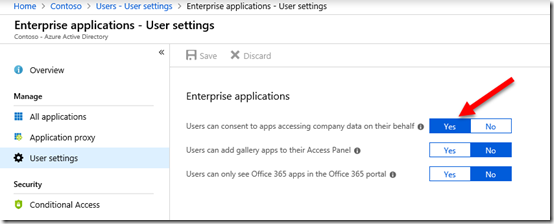
So, to allow iOS to add an Office 365 email account in the native iOS app you’ll need to allow users to “consent to apps accessing company data”.

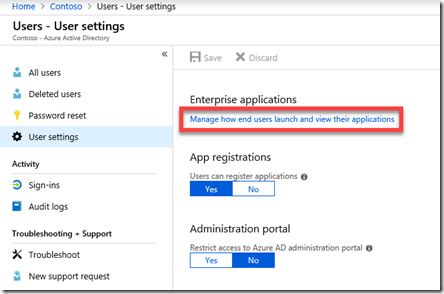
There are two methods to achieve this. You can firstly go to the Azure Portal as an administrator, locate Azure AD | Users | User settings as shown below:

image

Then select the hyperlink Manage how end users launch and view their applications as shown above.

image

From here, set the option Users can consent to apps accessing company data on their behalf to Yes and Save the change.

The second method is to use PowerShell with the command:

set-MsolCompanysettings -UsersPermissionToUserConsentToAppEnabled $true

Remember, that enabling this option will also allow users to potentially accept malicious add-ins in their application like Outlook so you should disable it once your iOS devices have been configured.

It would be nice if there was a policy that could be configured to change this setting just for iOS, but alas that currently isn’t the case that I can see. You’ll therefore need to go through this disable-enable-disable sequence to maintain best practices and allow iOS devices to be added to your environment.

CIAOPS Patron price change

As mentioned in a previous update, I will raising the entry price for my CIAOPS Patron program from the 1st of January 2019. However, if you join before then you will be automatically grandfathered in at the existing rate.

You can find out more information and sign up here:

www.ciaopspatron.com

As an extra incentive to join before December 1 2018, I will be offering a free Yubikey to anyone who signs up prior to that date. Yubikeys can be used for MFA with Azure AD amongst other security configurations.


So sign up today to become a CIAOPS Patron and take advantage of this free Yubikey offer until the 1st of December.