Need to Know podcast–Episode 267

I speak with Aaron Dinnage from Microsoft who is the author of the great licensing resource Microsoft 365 maps. Aaron shares the history of this project and it takes to update it every month. We also get some great insights and suggestions when it comes to Microsoft 365 licensing.

This episode was recorded using Microsoft Teams and produced with Camtasia 2020.

Brought to you by www.ciaopspatron.com

Take a listen and let us know what you think – feedback@needtoknow.cloud

You can listen directly to this episode at:

https://ciaops.podbean.com/e/episode-267-aaron-dinnage/

Subscribe via iTunes at:

https://itunes.apple.com/au/podcast/ciaops-need-to-know-podcasts/id406891445?mt=2

The podcast is also available on Stitcher at:

http://www.stitcher.com/podcast/ciaops/need-to-know-podcast?refid=stpr

Don’t forget to give the show a rating as well as send us any feedback or suggestions you may have for the show.

Resources

Aaron Dinnage – Linkedin, Twitter

https://m365maps.com/

https://m365maps.com/guide.htm

Office 365 Platform Service Descriptions

Microsoft Teams now brings family and friends together to call, chat, and make plans

OneDrive Roadmap Roundup

Announcing Public Preview of OneDrive Sync Admin Reports

New Azure AD Capabilities for Conditional Access and Azure VMs

Introducing Webinars in Microsoft Teams: Easy, professional webinars to engage customers

A fluent new look for the Azure icon

Business email compromise: How Microsoft is combating this costly threat

Forrester names Microsoft a Leader in the 2021 Enterprise Email Security Wave

Connect to SharePoint PnP using PowerShell

The SharePoint PnP module is a handy way to get access to more granular aspects of the SharePoint Online that the standard administration modules doesn’t. You’ll find more details about the module here:

PnP PowerShell

image

I’ve created a free script to allow you to connect to SharePoint Online PnP that supports MFA logins. You’ll find the script here:

https://github.com/directorcia/Office365/blob/master/o365-connect-pnp.ps1

When you run this script it will firstly connect to Microsoft Online so it can determine what the correct name of your tenant is. Next, it will use this to connect to the SharePoint Online administration service to determine all the SharePoint sites you have in your tenant. It will then allow you to select from a list of all these site after which it will connect to your selection using SharePoint PnP.

image

The first time a connection is made to SharePoint PnP it will require you to accept a swag of permissions as shown above. These are required to allow SharePoint PnP to perform it administration role, so you’ll need to accept these. You’ll only need to this once for each user that needs to use SharePoint PnP PowerShell.

Once connected you can perform any of the SharePoint PnP commands:

SharePoint PnP commands documentation

All the Defenders–Updated

knight

A while back I wrote an article on All the Microsoft Defender products. It’s now time to update that since much has changed in that short time period.

Microsoft unfortunately has quite a few products under the ‘Defender’ banner that I see causing confusion out there. Most believe that ‘Defender’ is only an anti-virus solution, but that could not be further from the case. Hopefully, I can show you here how broad the ‘Defender’ brand is here and hopefully give you a basic idea of what each ‘Defender’ product is.

To start off with there are products that are considered ‘Window Defender’ products, although I see the Windows and Microsoft brand intermingled regularly. Here is a list of specific ‘Windows Defender’ products, typically tied to Windows 10 devices, and typically only available with Windows 10 Enterprise but not always:

Windows Defender Application Control – WDAC was introduced with Windows 10 and allows organizations to control what drivers and applications are allowed to run on their Windows 10 clients.

Windows Defender Firewall – By providing host-based, two-way network traffic filtering for a device, Windows Defender Firewall blocks unauthorized network traffic flowing into or out of the local device.

Windows Defender Exploit Guard – Automatically applies a number of exploit mitigation techniques to operating system processes and apps.

The four components of Windows Defender Exploit Guard are:

  • Attack Surface Reduction (ASR): A set of controls that enterprises can enable to prevent malware from getting on the machine by blocking Office-, script-, and email-based threats
  • Network protection: Protects the endpoint against web-based threats by blocking any outbound process on the device to untrusted hosts/IP through Windows Defender SmartScreen
  • Controlled folder access: Protects sensitive data from ransomware by blocking untrusted processes from accessing your protected folders
  • Exploit protection: A set of exploit mitigations (replacing EMET) that can be easily configured to protect your system and applications

Windows Defender Credential Guard –  Uses virtualization-based security to isolate secrets so that only privileged system software can access them.

Windows Defender System Guard – Reorganizes the existing Windows 10 system integrity features under one roof and sets up the next set of investments in Windows security. It’s designed to make these security guarantees:

  • Protect and maintain the integrity of the system as it starts up

  • Validate that system integrity has truly been maintained through local and remote attestation

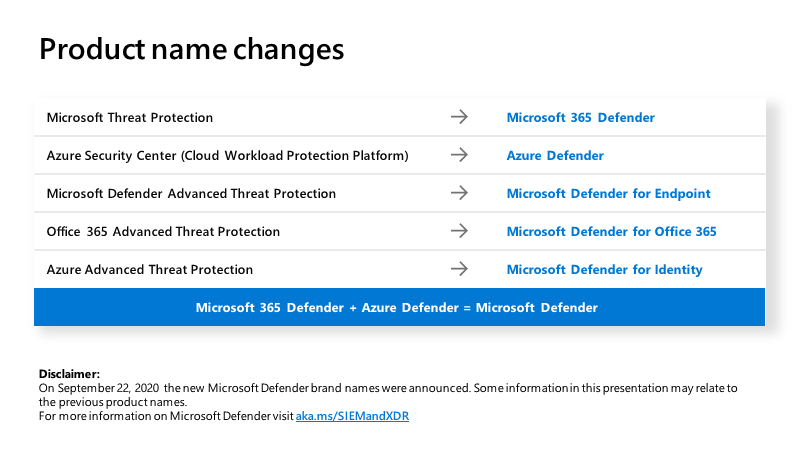
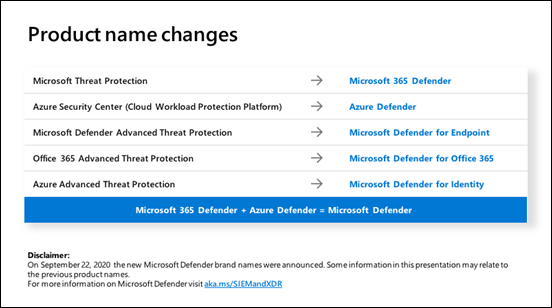
In contrast, here are the ‘Microsoft Defender’ products many of which have been re-branded lately:
image

Microsoft 365 Defender – (over arching service which includes other Defender services) is a unified pre- and post-breach enterprise defense suite that natively coordinates detection, prevention, investigation, and response across endpoints, identities, email, and applications to provide integrated protection against sophisticated attacks.

Microsoft Defender for Office 365 – (previously Office 365 ATP) Safeguards your organization against malicious threats posed by email messages, links (URLs), and collaboration tools.

Microsoft Defender for Identity – (previously Azure ATP) Cloud-based security solution that leverages your on-premises Active Directory signals to identify, detect, and investigate advanced threats, compromised identities, and malicious insider actions directed at your organization.

Azure Defender – (previously Azure Security Center) Provides security alerts and advanced threat protection for virtual machines, SQL databases, containers, web applications, your network, and more. It includes:

Microsoft Defender for Endpoint – (previously Defender ATP) an enterprise endpoint security platform designed to help enterprise networks prevent, detect, investigate, and respond to advanced threats especially on user devices like desktops, laptops and mobiles.

Microsoft Defender Smart screen – Microsoft Defender SmartScreen protects against phishing or malware websites and applications, and the downloading of potentially malicious files.

Microsoft Defender Antivirus – Brings together machine learning, big-data analysis, in-depth threat resistance research, and the Microsoft cloud infrastructure to protect devices in your organization.

Microsoft Defender Application Guard – helps to isolate enterprise-defined untrusted sites, protecting your company while your employees browse the Internet.

Microsoft Defender Security Center – is the portal where you can access Microsoft Defender Advanced Threat Protection capabilities. It gives enterprise security operations teams a single pane of glass experience to help secure networks.

Microsoft Defender Browser Protection –  a non Microsoft browser extension helps protect you against online threats, such as links in phishing emails and websites designed to trick you into downloading and installing malicious software that can harm your computer.

So, as you can see, there are quite a lot of ‘Defender’ products out there from Microsoft. How and when you get each of these varies greatly as well as their capabilities, since most will integrate together. That however, is beyond the scope of this article but maybe something I explore in upcoming articles.

For now, just be careful to investigate what is actually meant when it says ‘Defender’ in the Microsoft space!


Microsoft Secure Score should be your security benchmark

Security is tough. There are many different settings in many different places I know, however my suggestion is that you should start, and continue to use, Microsoft Secure Score as your security benchmark when it comes to the protection of your environment will make things much easier and provide a simple starting point.

To start, visit:

https://securescore.office.com/

You’ll need to login with a Microsoft 365 administration account to view the results.

image

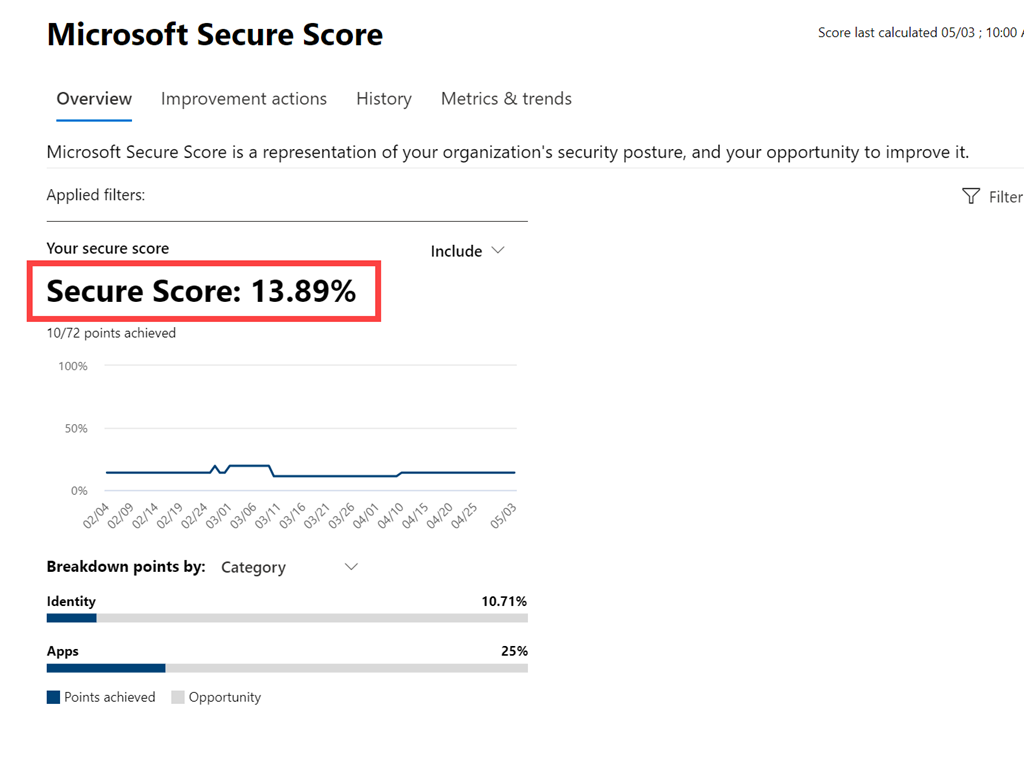
You should then pretty much see your Secure Score, out of 100, front and centre as shown above. Think of this score as an aggregation of your entire Microsoft 365 environment.

To me, your Secure Score should be at least 80% and higher if possible. If it’s not, then you have some work to do.

If your Secure Score is less than 80% and you are not the person responsible for configuring your Microsoft 365 environment then you need to open a dialog with them about improving your score. If you are paying an external business to manage your Microsoft 365 environment then you should ask them to show you what their own  Secure Score is.

– If their Secure Score is LOWER than what your is, then I would suggest it is time to find someone else who is actually serious about security.

– If their Secure Score is EQUAL to what yours is, ask them to show you a plan for how they plan to get your Secure Score to at least 80%. If they are unable to, again, think about whether you should be using them.

– If their Secure Score is HIGHER than yours is, ask them why that is so and how long will it take for your score to equal or exceed theirs.

A well configured tenant, to best practices, will normally come in with a Secure Score of 65% or so. To me, getting a tenant to 80% does require some work but it isn’t all that hard. Remember, good security means expending some effort. This means that if your Secure Score is well below the 65% mark, then you should be taking immediate action to improve it and implement things to best practices as soon as possible.

image

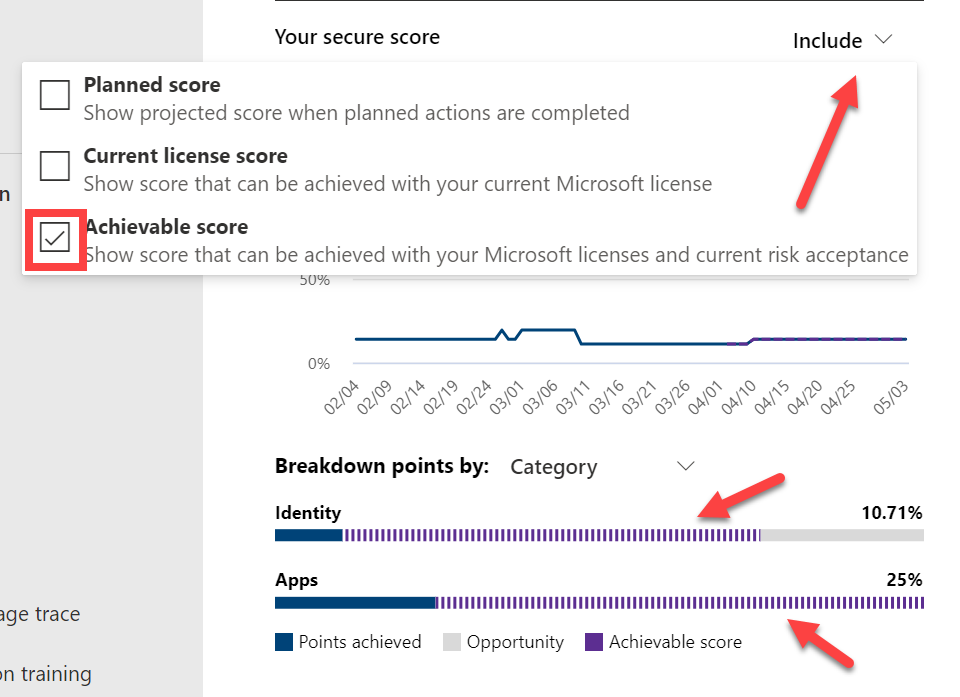
Now go back to your Secure Score console and select the Include menu in the top right as shown and select the Achievable score as shown. This now shows you what Secure Score you could achieve if you implemented everything you are currently paying for (i.e. licensed for). In essence, this shows you how much security stuff you are paying for that has not been enabled. If that is large, then add that item to your security To-Do list as well.

So in summary, in my opinion,

– Anything below a Secure Score of 30% means you are highly vulnerable I believe.

– Anything below a Secure Score of 50% indicates that best practices have not been fully applied.

– Around 67% is the Secure Score you should expect for a tenant configured to best practices and with all security features enabled.

– Around 80% is the Secure score you should be aiming to get to as soon as possible, mindful of the fact that it will required additional configurations to get to this level.

– A Secure Score of 100% should be your ultimate goal over time. Perhaps a better approach is to always be looking to improve your score above the recommended 80% I indicated. This will require many fiddly and time consuming settings throughout your environment BUT remember, each time you complete one of these your environment will be more secure and that fact should also be reflected in your Microsoft Secure Score.

Azure Cloud Shell now available in Microsoft 365

image

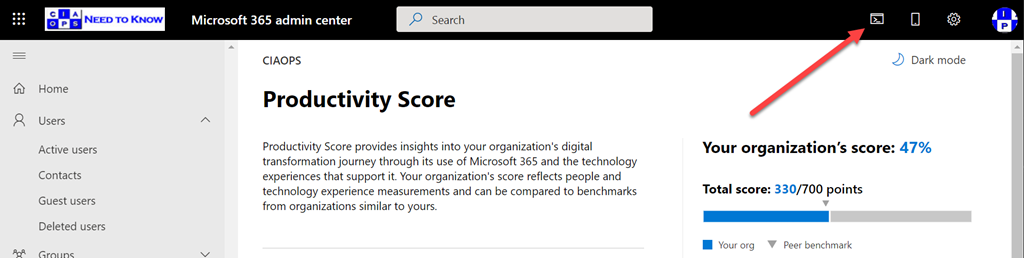
If you take a close look at your Microsoft 365 admin center, as shown above, you might see a new icon in the top right. The Azure Cloud shell is now available right from here.

image

If you select that, you’ll then see a PowerShell style window appear at the bottom of page as shown above. Here you can run all your favourite scripts directly in a browser!

I’ve covered the Azure Cloud Shell in previous articles:

Azure Cloud Shell

Connecting to Exchange Online with Azure Cloud Shell

and you can read the Microsoft documentation here:

Overview of Azure Cloud Shell

The only limitation seems to me is that you need an active Azure subscription tied to your Microsoft 365 environment because Azure Cloud Shell does need some storage to operate. But who doesn’t have an Azure subscription in their tenant these days right?

Deploy Office 365 and Azure together

(Hint, this is another reason to ALWAYS sell an Azure subscription when you sell Microsoft 365 if you are a reseller).

Hopefully, Microsoft might allow some included storage in the future for those without an Azure subscription.

Having the ability to run PowerShell directly from the browser with Microsoft 365 is a super handy addition and hopefully the functionality will keep extending with this.

New options in Defender for Endpoint web filtering

image

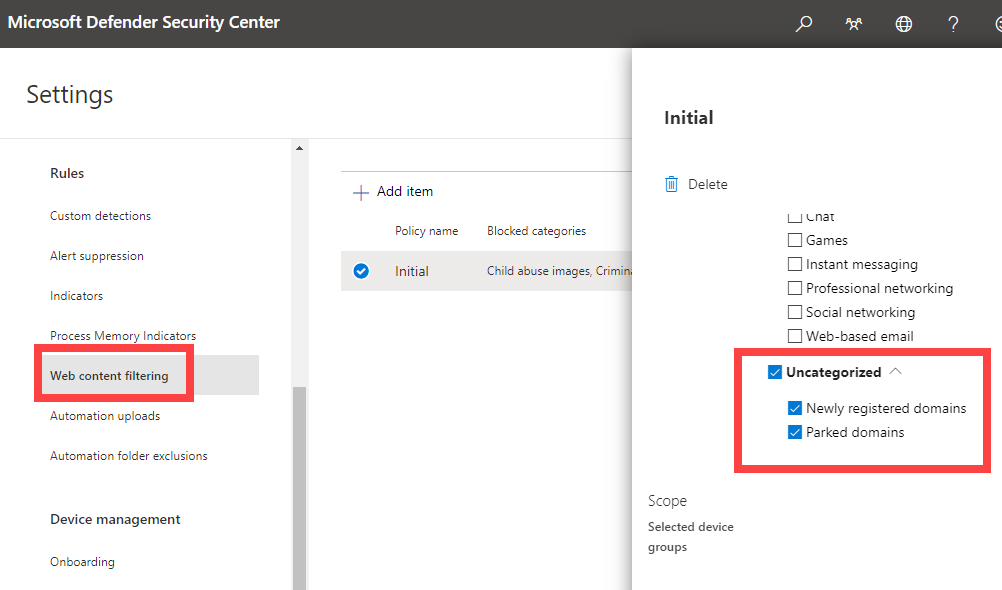
A nice new option I just noticed in Defender for Endpoint web filtering. As shown above, you can now block users navigating to newly registered domains and parked domains that can be used for phishing attacks.

To set this, navigate to Settings, the under Rules select Web content filtering and create or adjust a policy to include all the Uncategorized options as shown above.