Prevent alerts from DiscoverySearchMailbox

image

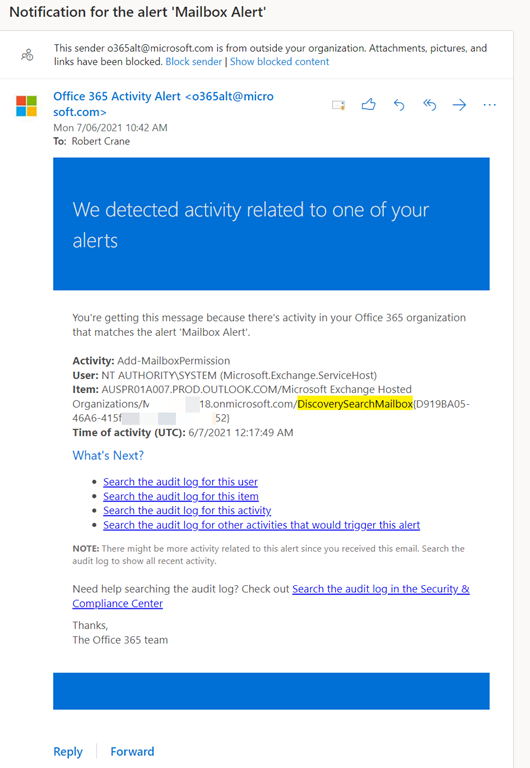
When you set up bulk alerting for mailboxes you may end up enabling alerts for system mailboxes like DiscoverySearchMailbox as shown above. This will mean receiving regular alerts about changes to that mailbox by the system. This basically means Exchange Online is performing some expected administrative process on a mailbox, which triggers a configured alert.

To reduce the noise caused by these alerts you can do the following to disable it:

image

Firstly connect to Exchange Online using PowerShell. My script for that is here:

https://github.com/directorcia/Office365/blob/master/o365-connect-exo.ps1

next run the command to find any DiscoverySearchMailbox

get-mailbox -ResultSize unlimited | Where-Object {$_.name -MATCH “Discovery”} | Select-Object alias, displayname, auditenabled

which should give you a result like shown above.

$dsm = get-mailbox -ResultSize unlimited | Where-Object {$_.name -MATCH “Discovery”}

Run the above command to save the mailbox details to a variable. Then run:

set-mailbox -identity $dsm.alias -AuditEnabled $false

to disable auditing for that mailbox.

image

if you now re-run

get-mailbox -ResultSize unlimited | Where-Object {$_.name -MATCH “Discovery”} | Select-Object alias, displayname, auditenabled

you should find that the auditing is now disabled for that mailbox as shown above.
Microsoft Teams Webinars not allowing registrations for everyone

I have been looking forward to the new Teams Webinar functionality. So as soon as I saw it appeared in my tenant I was keen to implement it.

image

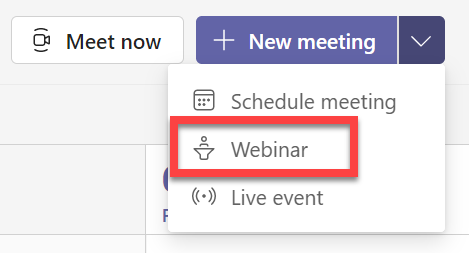
I went to the calendar app inside Microsoft Teams and displayed all the meeting options available in the top right as shown above. In there I could see that I had the Webinar option, which mean that I was in theory good to set up a webinar.

image

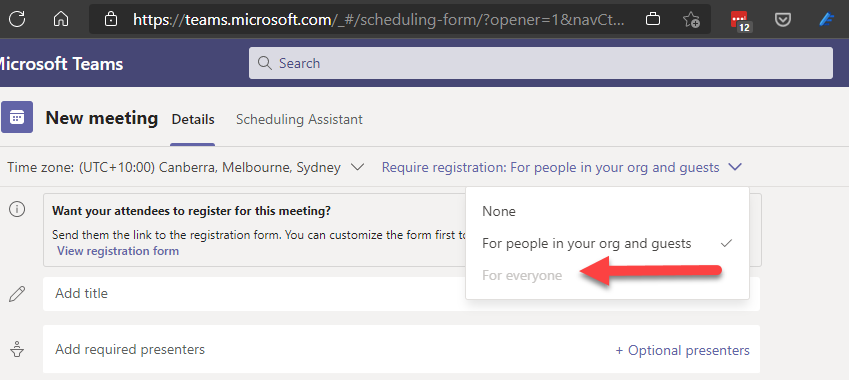
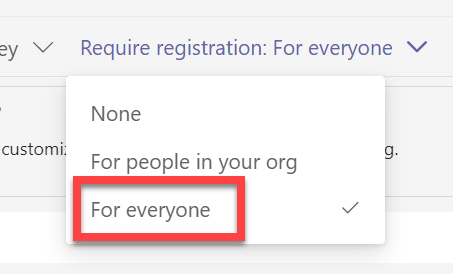
However, I discovered I had a problem that I couldn’t require registration For everyone as shown above. The  option was greyed out!

A little digging revealed this article:

Set up for webinars in Microsoft Teams

which indicated I need to run the following PowerShell commands:

Set-CsTeamsMeetingPolicy -AllowPrivateMeetingScheduling $True

and

Set-CsTeamsMeetingPolicy -WhoCanRegister Everyone

to allow anyone, including anonymous users, to register for webinars.

So, I ran these commands and waited, and waited, and waited but the For Everyone option would still not allow selection??

After much investigation here is what solved the issue for me.

I went into the Teams administration area and selected Users on the left or you can use the direct link:

https://admin.teams.microsoft.com/users

I then found the user in my tenant I wanted to check and select them.

image

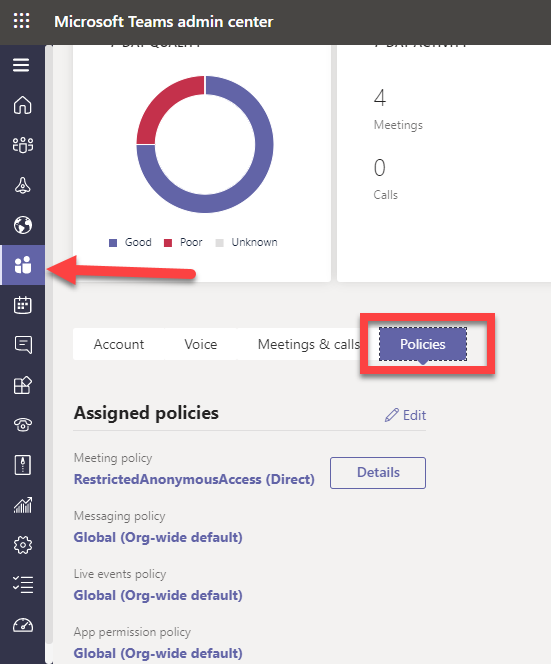
I then selected Policies from the menu in the middle of the page as shown above.

image

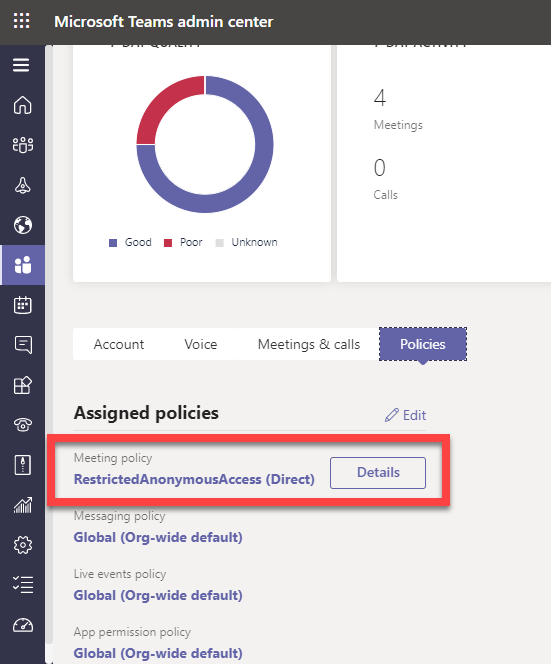
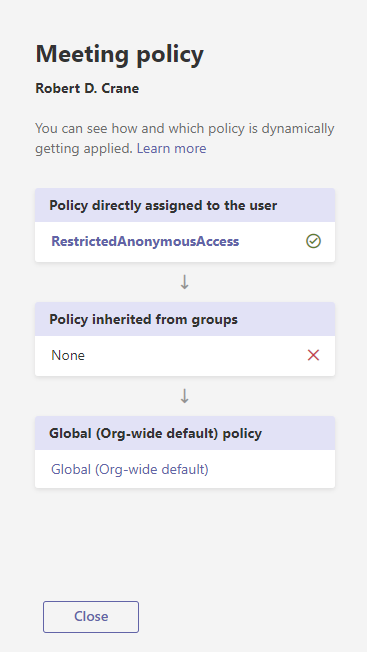
In my case, you’ll note that the Meeting policy is set to RestrictedAnonymousAccess (Direct) as shown. I then selected Details button and the following dialog appeared from the right:

image

RestrictedAnonymousAccess didn’t sound like the right option to have set, so I closed that dialog and selected the Edit button to change the policy assignments.

image

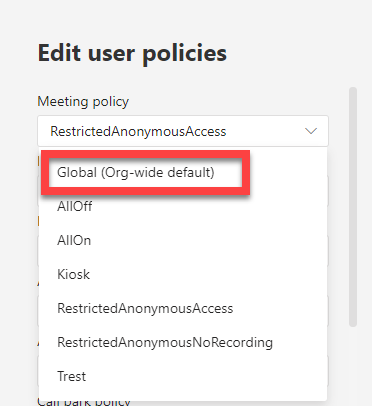
I changed the Meeting policy option to Global (Org-wide default) from the list that appeared and saved the changes.

image

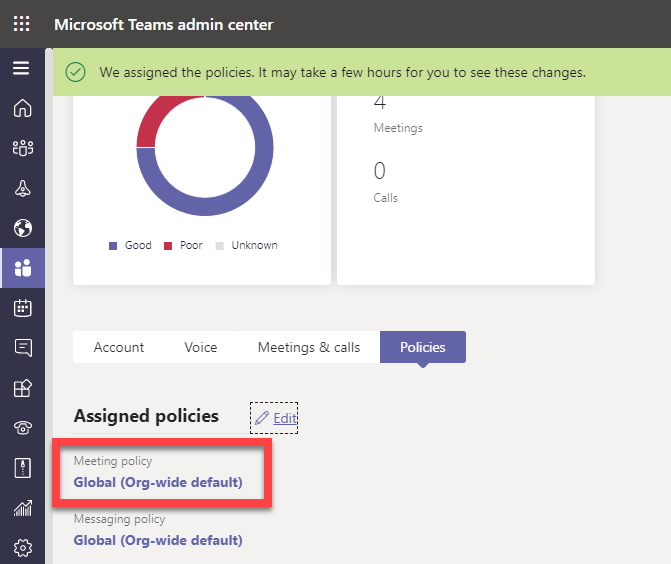
I received an assignment message at the top of the screen and the Meeting policy value changed to Global (Org-wide default) as shown above.

image

After about one hour or so I could now see the For Everyone option in the Teams webinar registration section could be selected and I was good to go!

I have no idea why the Meeting policy had changed from Global To Restricted but I found the same configuration on another tenant I have. It may have something to do with the security I set up for my environments. Not sure. However, hopefully, if you see the same issue you now know where to look to get it sorted!

CIAOPS Need to Know Microsoft 365 Webinar – June

laptop-eyes-technology-computer

I think we should  try something a little different this month for the session. I’m going to attempt to use the new Microsoft Teams Webinars feature. For anyone who has attended a previous session this means the registration process will look a little different, but in the end it should achieve the same result but with less manual work by me. To start with you need to navigate to:

http://bit.ly/n2k2106

and submit your registration details. Shortly after this you should receive an automated email from Microsoft Teams confirming your registration, including all the event details as well as a calendar invite!

How this all works come webinar time I’m still working out, but hopefully I should be across it all before the webinar starts. However, I’m sure there will be things that I’ll learn during the process, so if you want to see what unfolds then you best register to find and be part of the inaugural CIAOPS Teams webinar!

The topic for this month will be Device Management. I’ll dive into how you connect and manage devices in Microsoft 365 including iOS, Android and Windows devices. You’ll see how Microsoft 365 Device Management is a great way to improve the security of your information environment. As always, I’ll also share the latest news and events from Microsoft and as always, there’ll be plenty of time for your questions, so I hope you’ll join me at the event.

You can register for the regular monthly webinar here:

June Webinar Registrations

The details are:

CIAOPS Need to Know Webinar – June 2021
Friday 25th of June 2021
11.00am – 12.00am Sydney Time

All sessions are recorded and posted to the CIAOPS Academy.

The CIAOPS Need to Know Webinars are free to attend but if you want to receive the recording of the session you need to sign up as a CIAOPS patron which you can do here:

http://www.ciaopspatron.com

or purchase them individually at:

http://www.ciaopsacademy.com/

Also feel free at any stage to email me directly via director@ciaops.com with your webinar topic suggestions.

I’d also appreciate you sharing information about this webinar with anyone you feel may benefit from the session and I look forward to seeing you there.

IAMCP Video Presentation

I recently did a presentation for the International Association of Microsoft Channel Partners Quarterly Briefing and you can find the slides here:

https://www.slideshare.net/directorcia/microsoft-365-security-overview

The videos is also available now at:

https://www.youtube.com/watch?v=bGEfjgIfhdE

if you want to take a look.

Thanks again to the IAMCP for the opportunity to present on Microsoft cloud security.

CIAOPS Secwerks 1 registrations now open

pexels-pixabay-60504

With the venue now secured I am please to announce that registrations for CIAOPS Secwerks 1 in Melbourne CBD on Thursday August 5th and Friday August the 6th are now open. If you are not a CIAOPS Patron there is an early bird offer of $440 inc GST if you use the coupon code SWEB at check out. After that date, the price will be $798 inc GST. Note, costs exclude food which is not available in the venue. You can register now at:

https://www.ciaopsacademy.com/p/secwerks

The event is a 2 day hands on Level 400+ deep dive into security for Microsoft 365. It will cover topics such as:

– Exchange Online Security

– Windows 10 device hardening

– Incident monitoring and handling

– Effective identity security

– Data protection and more

If you have the responsibility for the management of Microsoft and Office 365 environments, then this session is for you.

I’ll be posting more information about the event in the coming weeks but if you do have questions please feel free to contact me via director@ciaops.com.

I look forward to seeing you at the event.

Missing calendar icon in Microsoft Teams

image

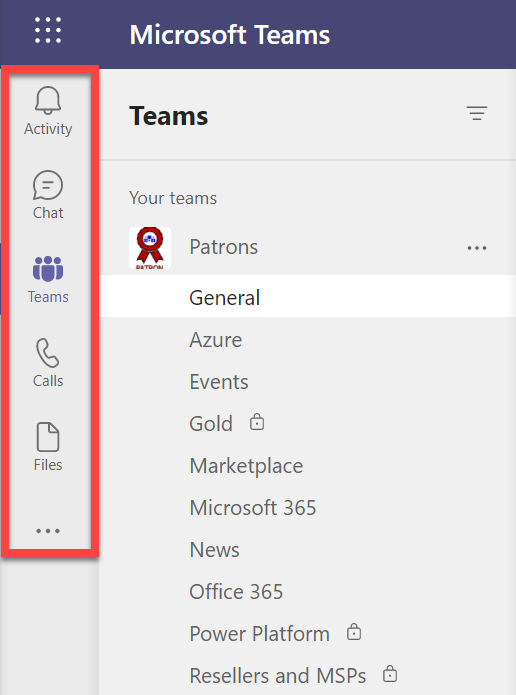
I recently ran a Live Event in Microsoft Teams and wanted to get back to the event resources but found my calendar was missing as seen above. This was evident on both the desktop and web interface.

image

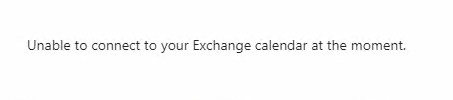
When I attempted to use the link from the Live Event appointment in the calendar in my Outlook I was greeted with the above message:

Unable to connect to your Exchange calendar at the moment

I thought this strange as i had scheduled the Live Event using the calendar icon in Teams?

Turns out that what I had done in the meantime was disable Exchange Web Services (EWS) in my environment. Doing so affects a number of services in my environment including Teams and Exchange Add-ins as it turns out.

If you are seeing the same issues you can use PowerShell to check the EWS status of your environment. You’ll firstly need to connect to Exchange Online with PowerShell which you can do using my script:

https://github.com/directorcia/Office365/blob/master/o365-connect-exo.ps1

then run the following command to see what the EWS settings are at the tenant level:

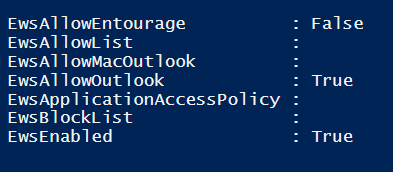
Get-organizationconfig | fl ews*

to which you should see something like:

image

From what I understand you’ll need to ensure that EWSEnabled and EWSAllowOutlook are NOT False (i.e. disabled). This will take care of allowing EWS for any new mailboxes created from this point forward.

Also run the command:

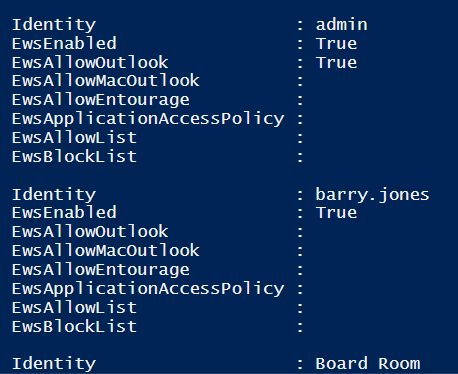
Get-CASMailbox  | fl identity, ews*

which should result in a list of all the EWS for each user like so:

image

Make sure that users do not have EwsEnabled or EwsAllowOutlook set to False (i.e. disabled). If it is you can use the command:

set-casmailbox –identity user@domain.com –ewsenabled $true –ewsallowoutlook $true

command to re-enable it and set it to True.

If you change an EWS setting for an individual mailbox it can take 4 – 24 hours for that change to flow through according to documentation I’ve seen. In my case however, I found by logging out and back in the change appeared almost immediately.

image

It should then re-appear in Teams as shown above. If it doesn’t, simply use the three dots (ellipse) at the bottom of the list to add it back in. You may also need to right mouse click it once you have added it back in and “pin” it to the side menu, so it stays there.

So in a nutshell, don’t disable EWS in your environment because things like Microsoft Teams needs it! If you are missing your calendar in Microsoft Teams or have issues with Outlook Add-ins, check EWS is enabled.

Register your interest for a hands on, deep dive Microsoft 365 Security event

pexels-pixabay-356065

If you are interested in attending a hands on in person 2 day deep dive event into Microsoft Security including:

– Exchange Online

– Windows 10 hardening

– Effective incident monitoring

– Identity security

– Data protection

and more then I encourage you to register your interest now for CIAOPS Secwerks 1 in Melbourne CBD over 2 days, Thursday the 5th and Friday the 6th of August 2021. I expect demand to be extremely high for this event and I will have more to share when I have confirmed all the details. However, feel free to reach out to me if you want more information. Please register your interest here to be kept up to date with the event:

http://bit.ly/ciaopsroi

The theme of this event will be to help you understand all the technologies that the Microsoft Cloud provides, how to configure them appropriately and get your Microsoft Secure Secure above 80%. The material covered will be technical and cover all the basics but then to extend beyond Level 400. The course is specifically designed for those who need to provide security for environments connected to Microsoft 365.

I hope to see you there.