Offboarding devices from Microsoft Defender for Business using Power Automate

Recently, I wrote an article to make offboard from Microsoft Defender for Business easier:

Offboarding devices from Microsoft Defender for Business using an API with PowerShell

Because this offboarding process utilises an API we can use that with other services such as Power Automate.

Before devices can be offboarded, a list needs to be created that can be accessed by Power Automate. Refer to this article:

Get a list of devices from Defender for Business into a SharePoint list

for details about creating an inventory of devices saved to a SharePoint Online list.

image

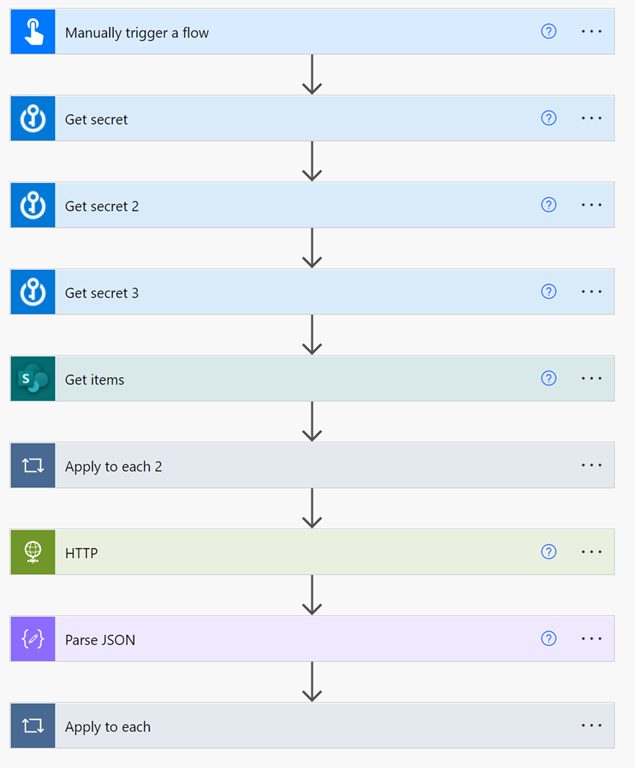
The summary of the Flow to do this device offboarding process is shown above.
image

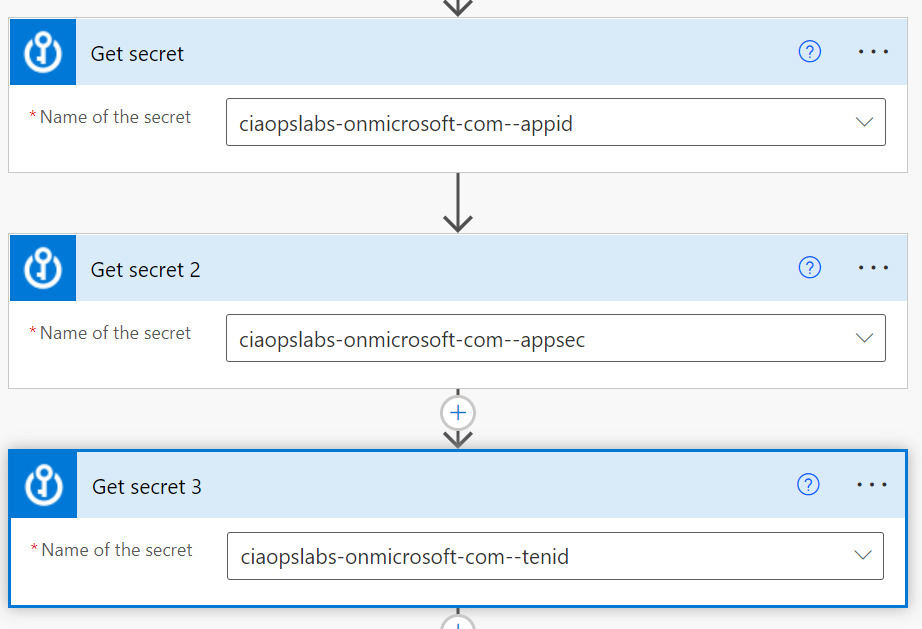
Once the Flow has been triggered I grab the Azure AD application credentials from the Azure Key Vault. I’ve covered off how to create an Azure AD application here:

https://blog.ciaops.com/2019/04/17/using-interactive-powershell-to-access-the-microsoft-graph/

and using a PowerShell script I wrote here:

https://blog.ciaops.com/2020/04/18/using-the-microsoft-graph-with-multiple-tenants/

Getting the Azure AD application credentials into an Azure Key Vault can be done manually or by using this scripted process I’ve covered previously:

Uploading Graph credentials to Azure Key Vault

Once they are in the Azure Key Vault they are easy to access securely using the Flow action Get secret as shown above.
image

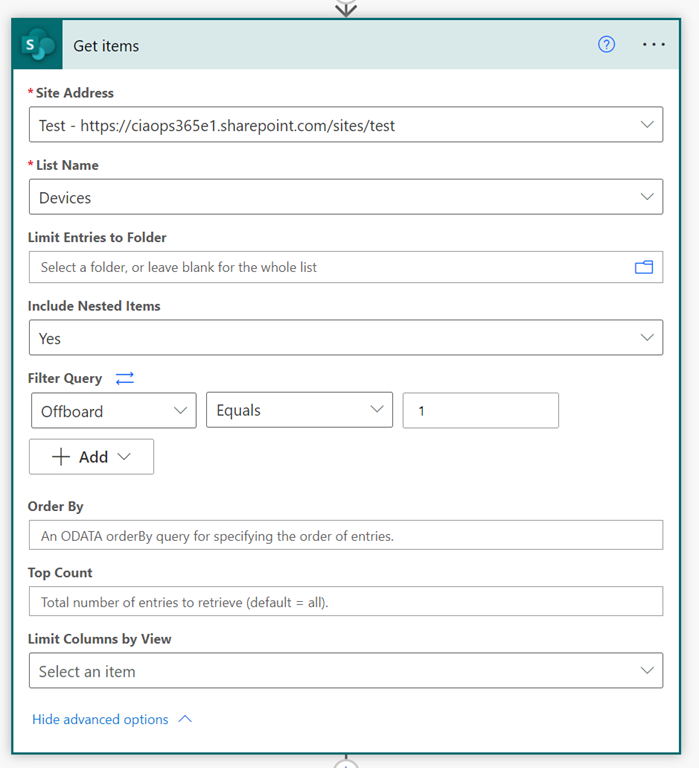
Next comes the Get items action as shown above. This filters the list of devices using a column called Offboard and returns items that have this as Yes (or = 1 for Power Automate).

image

A new variable is then created and the initial API offboarding URL is saved into it. This will later be appended with the actual device number that is being offboarded which is required by the API.

image

For each item that was returned from the filtered list of devices (i.e. those that been selected to offboard),

image

the offboarding API URL needed to be extended to include the unique Device ID from the returned results and the string /offboard.
image

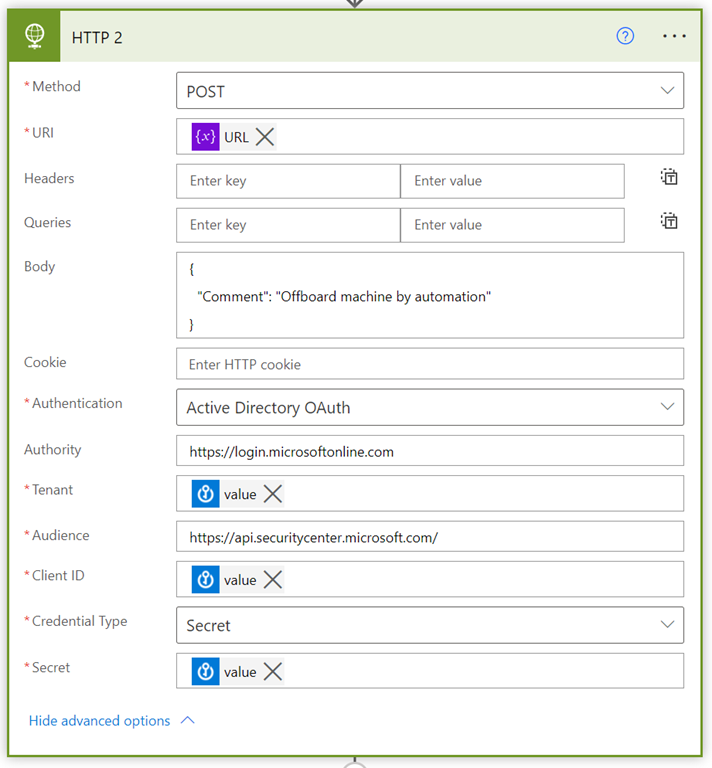
Thus URL now needs to be ingested by the HTTP action as shown above. It is important that the body contain the following JSON:

{
   “Comment”: “Offboard machine by automation”
}

This was taken from the documentation:

Offboard machine API

The other access parameters come from Azure AD application that were extracted from Azure Key Vault earlier on in the Flow.

image

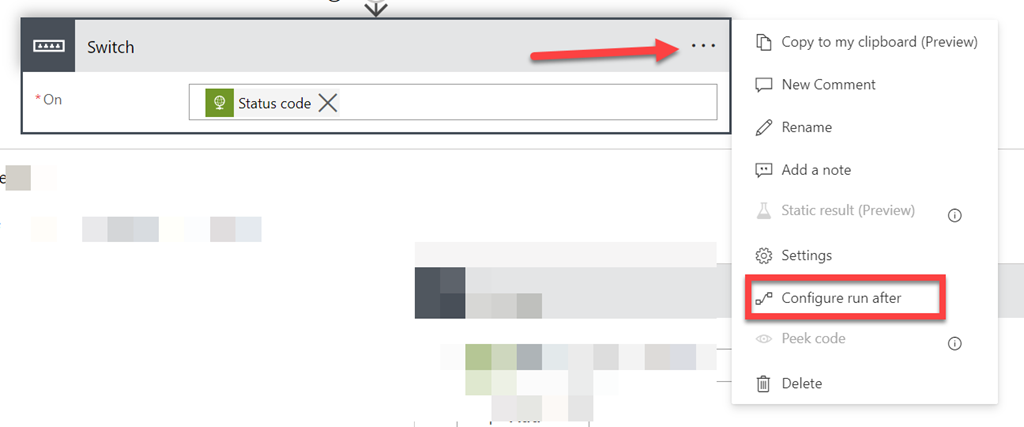
Because the return from the HTTP action can vary, we now need to have a Switch action as shown above.
image

In the top right hand corner of the Switch action, select the ellipse (three dots) and then Configure run after from the menu that appears.

image

Because the result from the HTTP action could be 400 (i.e. failure or BadRequest) we still want the Flow to proceed. If the Switch action is not used the Flow will fail like so:

image

Using the Switch action and selecting both the is successful and has failed options shown above, will allow the Flow to continue on.

image

If the HTTP action does return a BadRequest, the left hand side Case condition is met. For any other return, the right hand side Case condition will be executed.

In the case of a return status code = 400, the body of the returned JSON will be parsed and the field Result will updated in the device list for that item with the Message information taken from the JSON results.

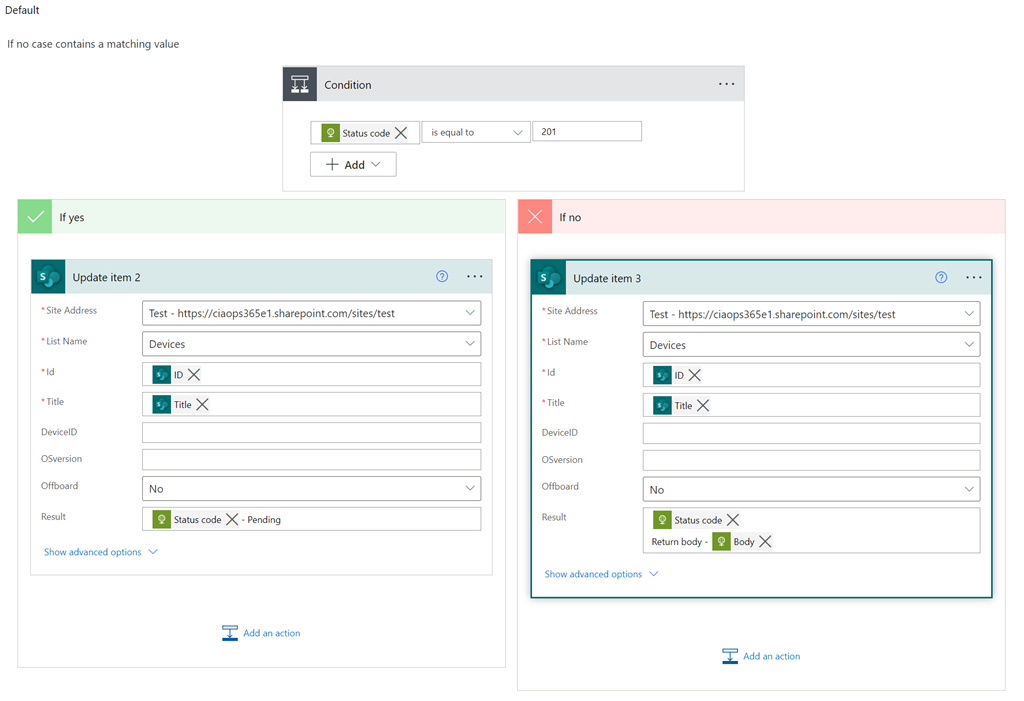
In the case of any other return code the following will be executed:
image

Once again, there could a variety of different returned status codes from the HTTP action, however here I’ll just have a single condition to see if it is successful (status code = 201) and for anything else the results will be updated to the Result field for the device in question.

image

The last action required, after the Switch, is to reset the URL variable back to the original string in case there are other devices that have been selected to offboard. Failing to do this will result in an incorrect API URL for every device after the first match.
image

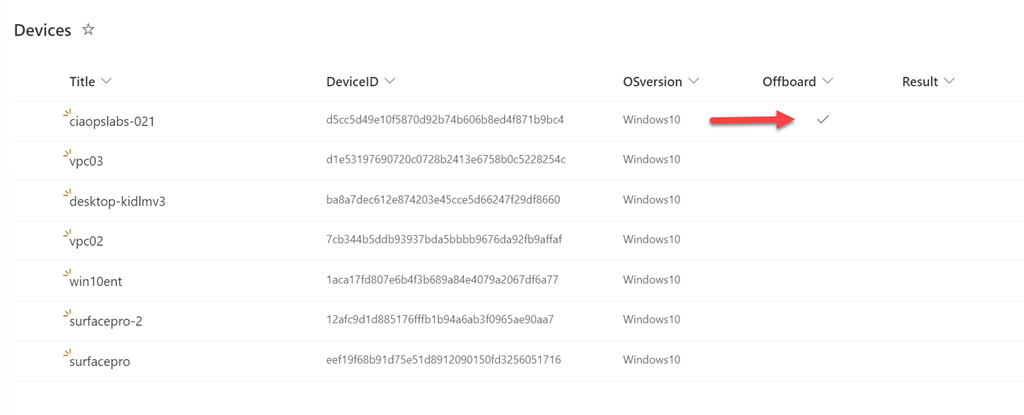
What this offboarding process looks like in practice would therefore be to select which devices to offboard from the SharePoint list, by setting the Offboard column to be Yes, as shown above.

image

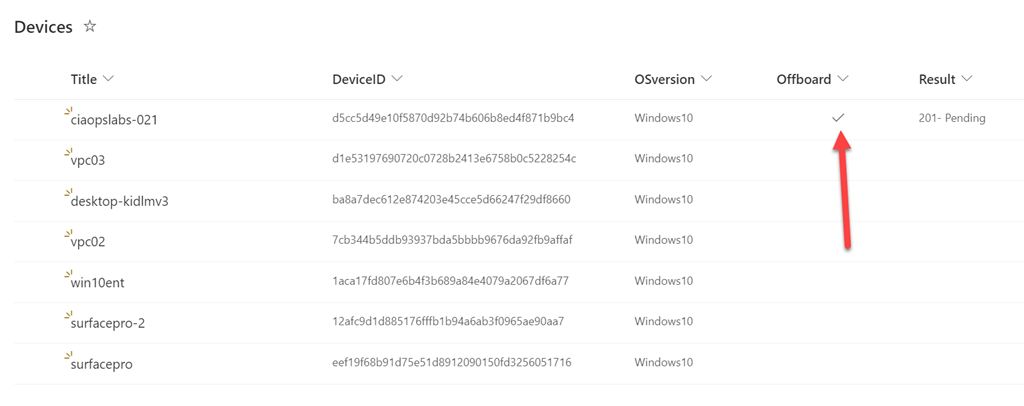
Once the offboard Flow has been run, the results for those selected devices are found in the Result column and Offboard column has been reset to be No for each of these, as shown above.
image

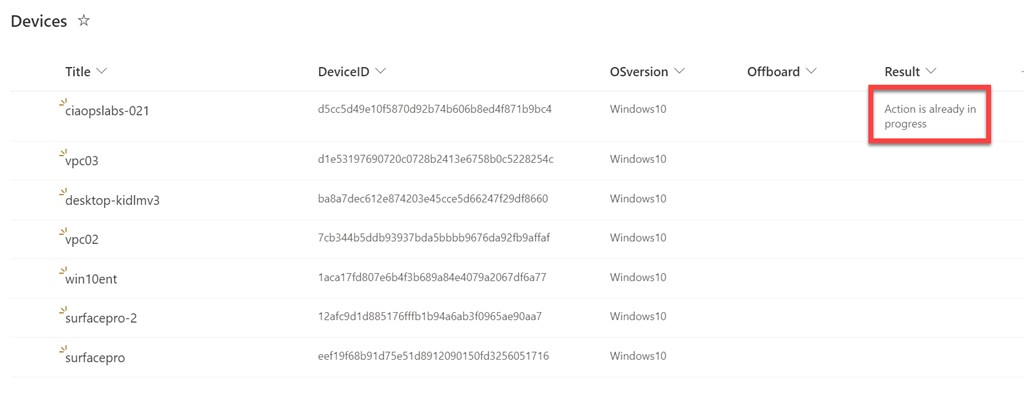
If you set the Offboard column to Yes again for this device and re-rerun the offboarding Flow,
image

the Flow runs successfully, even though a base request resulted  during the HTTP action and the information from that is captured and stored in the Result field as shown above.

There are edge case conditions this Flows doesn’t accommodate. This is normally due to the correct information not being fully populated in the portal. This typically happens in the short period you create or add add a device to Defender for Endpoint. It is simple enough to add these checks in the Flow, but for the sake of simplicity that are not included here.

This whole process again demonstrates the flexibility and capability combining APIs with Power Automate can provide. Remember, you can set this whole process up to work across multiple tenants, it doesn’t have to be restricted to just the tenant you are on. Using Power Automate allows you to easily extend a solution to maybe include email notifications, updates into a Microsoft Team and more.

So these are some ways you can offboard devices from Microsoft Defender for Business:

Via a local script

Using Endpoint Manager and Intune

Using PowerShell

and using Power Automate as detailed here.
Get a list of devices from Defender for Business into a SharePoint list

image

One of great things about an API is that it can be used in many places. I showed how to:

Offboard devices from Microsoft Defender for Business using an API with PowerShell

and I can do something similar with the Power Platform.

First step in that process is to get a list of Microsoft Defender for Endpoint devices and put them into a pre-existing list in SharePoint. For that I use the above Flow.

image

Once the Flow has been triggered I grab the Azure AD application credentials from the Azure Key Vault. I’ve covered off how to create an Azure AD application here:

https://blog.ciaops.com/2019/04/17/using-interactive-powershell-to-access-the-microsoft-graph/

and using a PowerShell script I wrote here:

https://blog.ciaops.com/2020/04/18/using-the-microsoft-graph-with-multiple-tenants/

Getting the Azure AD application credentials into an Azure Key Vault can be done manually or by using this scripted process I’ve covered previously:

Uploading Graph credentials to Azure Key Vault

Once they are in the Azure Key Vault they are easy to access securely using the Flow action Get secret as shown above.

image

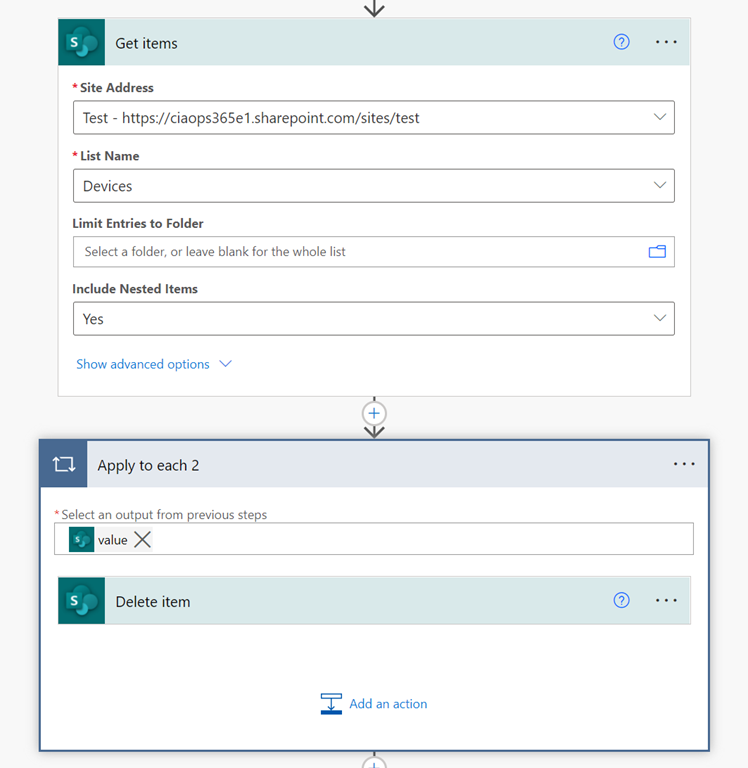
The next step is to delete devices I already have in the list in SharePoint because I want only current devices to be brought in. To achieve this, I get all the items from my destination SharePoint list using the Get items action. Then, using the Apply to each action and the Delete item action inside that loop, existing entries will be removed so I have a clean list.

image

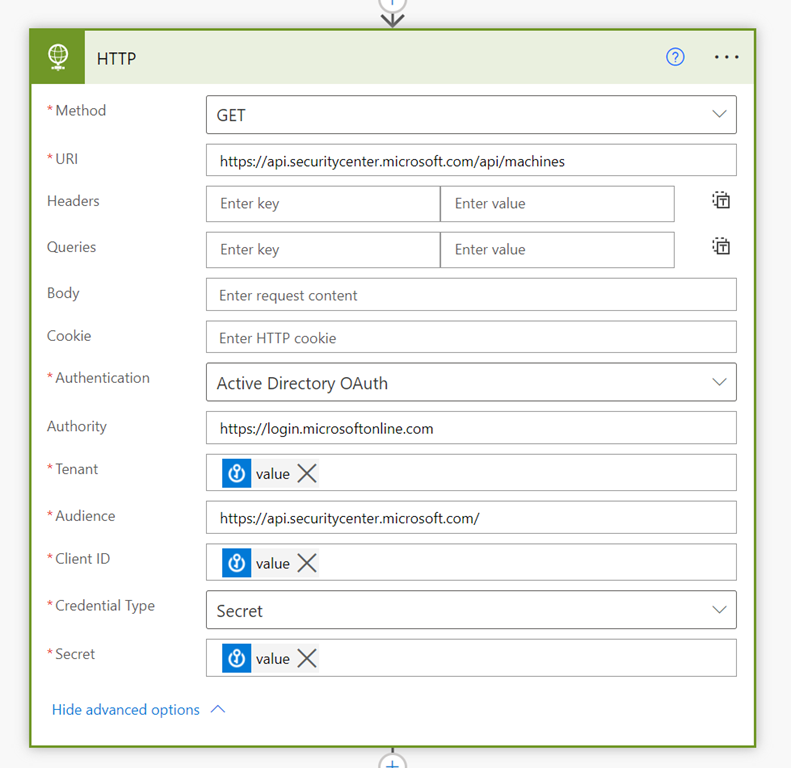
I’ll now use the HTTP action to execute an API call to the Defender environment as shown above. The API endpoint URI to get a list of devices in Defender for Endpoint is:

https://api.securitycenter.microsoft.com/api/machines

Access is granted via Active Directory Auth and the Authority is https://login.microsoftonline.com. You also need to use the credentials of the Azure AD application obtained previously from the Azure Key Vault, as shown above. Ensure that the Audience is https://api.securitycenter.microsoft.com/.

image

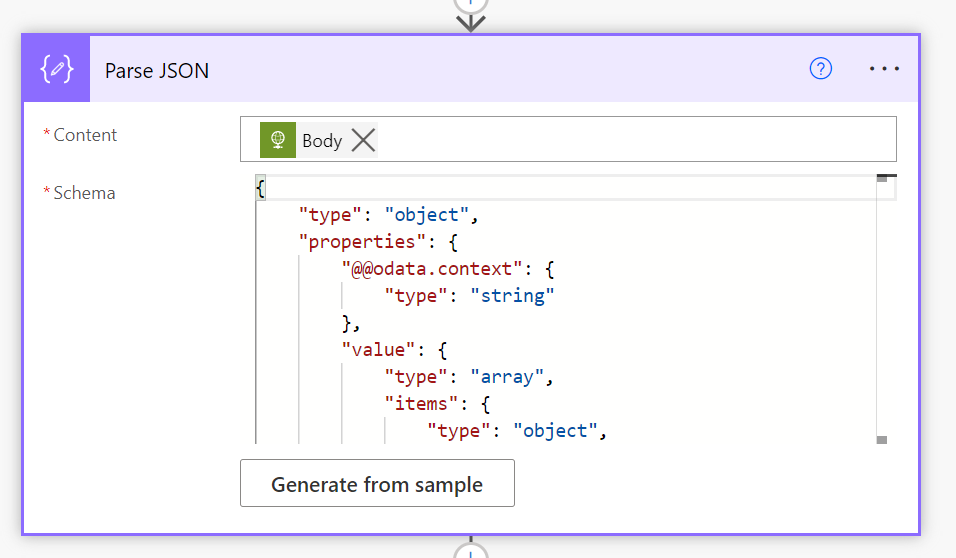
The output of this API request will be a JSON file so we now use the Parse JSON action to obtain the fields needed. To understand what the JSON looks like and insert a copy into this action look at the Microsoft documentation here:

List machines API

which provides a response sample that you can use.

image

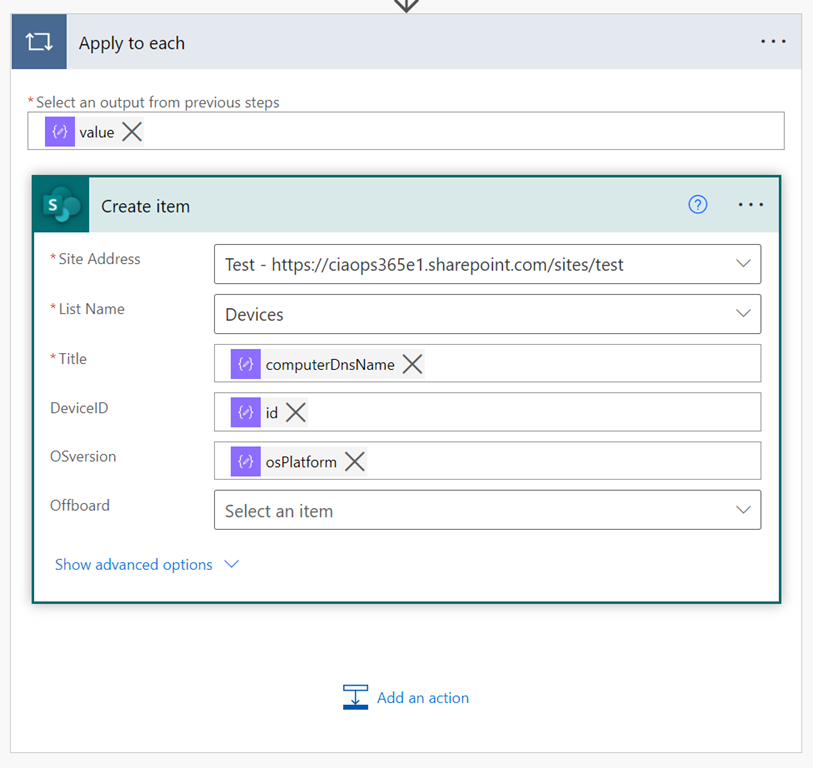
The last action in the Flow is to take the parsed JSON output and enter those details into the pre-existing SharePoint list that you need to create to house this information.

image

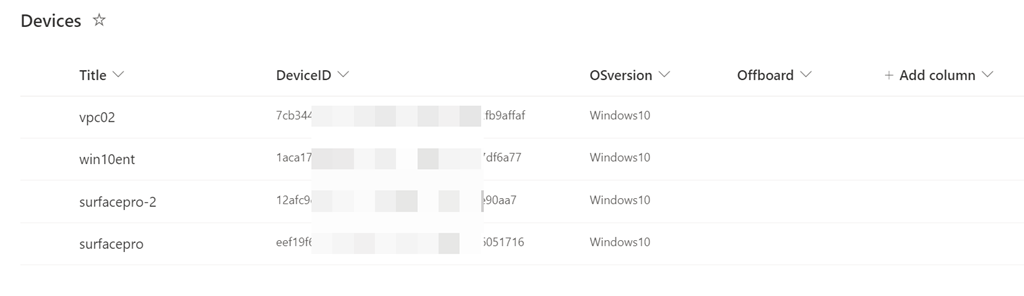
I’ve kept the destination list simple, as you can see above. Basically, the final Apply to each action places each device and its information as a row into the destination SharePoint list.

image

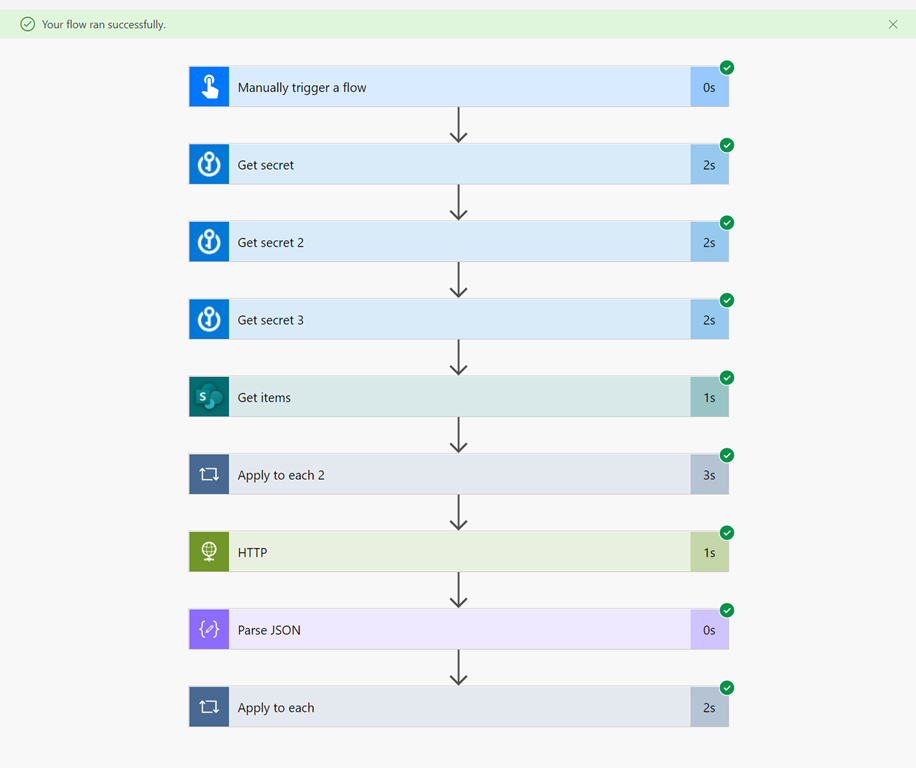
If I now run this Flow, I see it runs successfully.

image

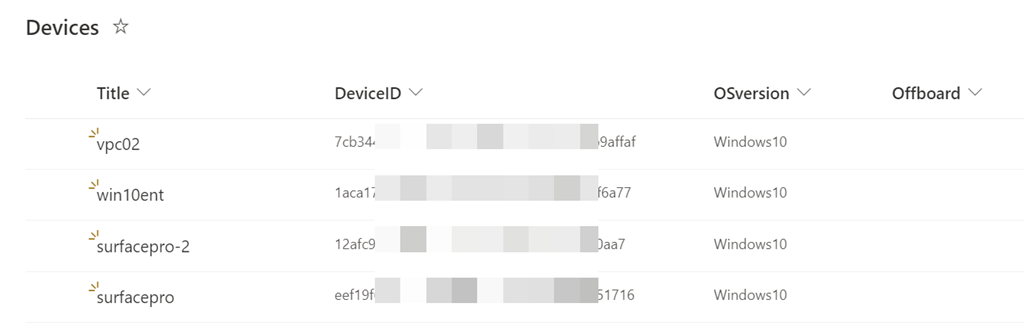
Looking at my SharePoint list I see I have a new list of items as expected.

image

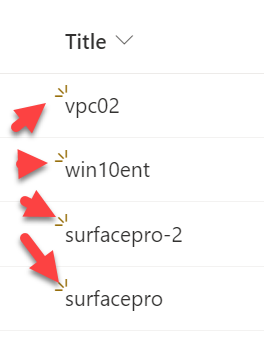
If you weren’t aware, the ‘eyelashes’ on an entry in SharePoint indicate it is new.

Now I have copy of all the machines in my Defender for Endpoint in a SharePoint list. You will also see that my SharePoint device list contains an additional ‘Offboard” column that I am going to use when I implement another Flow to offboard devices from Defender for Endpoint, much like I did with PowerShell previously.

You can also easily extend the operation across multiple tenants if I want using Azure AD applications in each.

The great thing about using the Power Platform and APIs is that for many, it is much easier to get the result they want rather than having to write code like PowerShell. Also, the Power Platform environment has many capabilities, such as sending emails, adding extra metadata, etc. that are much easier to do than using PowerShell. Once the Defender for Endpoint device list is in SharePoint there is really no end to what could be done.

With that in mind, stay tuned for an upcoming post on how to use what’s been done here and another Flow to actually offboard devices from Defender for Endpoint.

Offboarding Windows 10 devices from Microsoft Defender for Business

In a recent article I covered off how to:

Onboard Windows 10 devices to Microsoft Defender for Business

Two easy methods of onboarding Windows 10 devices to Defender for Business

Now we need to know how to offboard Windows 10 devices from Microsoft Defender for Business.

The first place to start is to review this article from Microsoft:

Offboard devices from the Microsoft Defender for Endpoint service

It details the following points:

– The status of a device will be switched to Inactive 7 days after offboarding.

– Offboarded devices’ data (such as Timeline, Alerts, Vulnerabilities, etc.) will remain in the portal until the configured retention period expires.

– The device’s profile (without data) will remain in the Devices List for no longer than 180 days.

– In addition, devices that are not active in the last 30 days are not factored in on the data that reflects your organization’s threat and vulnerability management exposure score and Microsoft Secure Score for Devices.

– To view only active devices, you can filter by health state, device tags or machine groups.

In essence what this means is that although you offboard a device a lot of information about that device will remain in the portal. Also, even after offboarding a device, if you look in the Endpoint portal, at first glance the device still appears to be there. The reality is that offboarding a device doesn’t make it ‘disappear’ from the portal immediately. This means we’ll need to use another method to verify that the device has actually been offboarded.

image

The easiest way is to look in the following registry key on the machine:

HKLM:\Software\Microsoft\Windows Advanced Threat Protection\Status

and examine the value of the key:

OnboardingState

If that is set to 1, as shown above, then the device is still considered connected to Microsoft Defender fo Endpoint. Thus, to confirm the device has been offboarded, we need to check that this value is 0.

You’ll also need to have a license for Intune/Endpoint Manager to enable this process from a centralised location.

Although not completely necessary it is best practice to have the integration between Microsoft Endpoint Manager portal and Defender for Endpoint enabled. Visit:

https://endpoint.microsoft.com

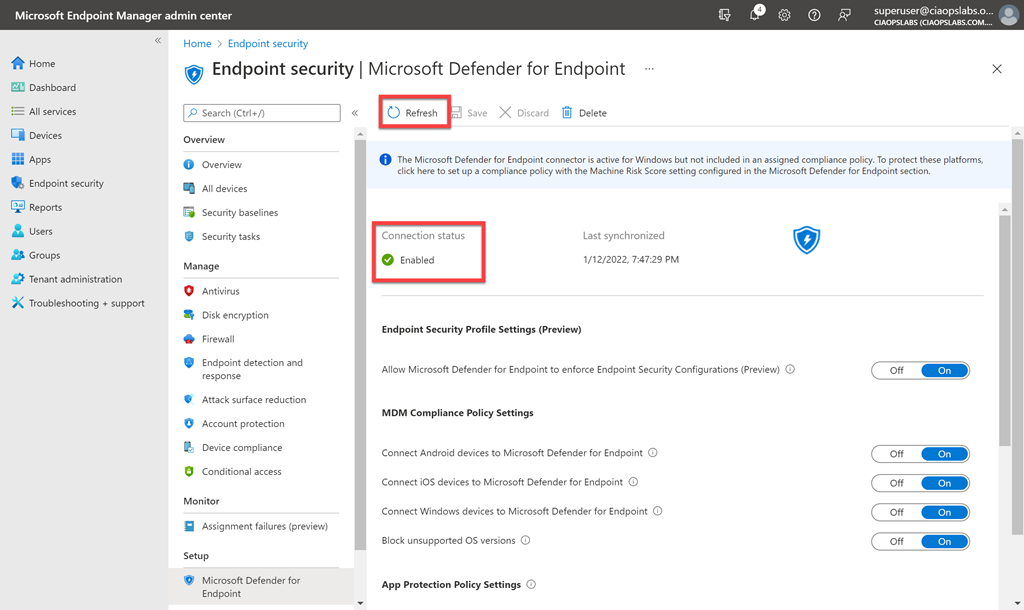
image

As shown above, here, navigate to Endpoint Security, then Microsoft Defender for Endpoint. Ensure that the option Connection status is enabled. If it isn’t then take a look at my previous onboarding article that shows you how to enable this.

Next, navigate to:

https://security.microsoft.com

image

You should see the screen above. Scroll down this page.

image

Select Settings as shown above and then Endpoints from the options that appear on the right.

image

From the menu on left scroll down and select Offboarding. On the right then select Windows 10 and 11 as the operating system. Then select Mobile Device Management / Microsoft Intune. With these selections made a Download package button should appear. Select this to download a zip file that contains a file called WindowsDefenderATP_valid_until_YYYY-MM-DD.offboarding

For security reasons, the package used to Offboard devices will expire 30 days after the date it was downloaded. Expired offboarding packages sent to a device will be rejected. That expiry date will be contained in the filename.

image

Navigate back to Microsoft Endpoint Manager and select Devices | Configuration profiles, then Create Profile.

image

Select Windows 10 and later for the Platform and Templates from the Profile type.

image

Select Custom from the list and then Create.

image

Give the policy a name and description and select Next to continue.

image

Select the Add button.

image

Enter the following details into the fields that appear on the right as shown above:

Name = <unique name>

OMA-URI = ./Device/Vendor/MSFT/WindowsAdvancedThreatProtection/Offboarding

Data type = String

Value = <contents of the unzipped file WindowsDefenderATP_valid_until_YYYY-MM-DD.offboarding downloaded from Defender for Endpoint portal>

image

The WindowsDefenderATP_valid_until_YYYY-MM-DD.offboarding file can be opened with Notepad and should look like the above.

Press the Save button to continue.

image

The Configuration settings page should now look like the above with the single entry you just configured.

Press the Next button to continue.

image

You now need to select which items this policy will apply to. In general, you are not going to be offboard all your devices at the same time from Defender for Endpoint. What we need to do then is target a specific group of devices.

A good approach to achieving this is to create a dedicated device group, with only the devices you wish to offboard with this policy. I detailed how to create such a group in Azure AD here:

Create a dynamic group in Azure AD

In this case, the dynamic group is called To be retired and I will assign it to the Intune policy as shown above.

Continue to select Next and then Create to complete the policy creation process.

image

If you select the Device status option as shown above, you’ll see whether the policy has been successfully applied to the devices. How long this takes will depend on when the devices ‘check in’ to get the policy.

As mentioned initially, there is no easy way to confirm that the device has successfully been offboarded unless you look at the registry key:

HKLM:\Software\Microsoft\Windows Advanced Threat Protection\Status\OnboardingState

and ensure that it is equal to 0. To assist with this I have created this free PowerShell script:

https://github.com/directorcia/Office365/blob/master/mde-offboard-check.ps1

image

That will show you the onboarding status as shown above.

Also, remember that the device will continue to be displayed in the Defender for Endpoint unless you use a display filter. Offboarding causes the device to stop sending sensor data to the portal but data from the device, including reference to any alerts it has had will be retained for up to 6 months.

If you want to offboard more devices you simply need to add them to the group you configured the offboarding Intune policy is assigned to. Remember, that after 30 days you’ll need to go and download a new offboarding package from the Defender for Endpoint console and upload the contents of the new WindowsDefenderATP_valid_until_YYYY-MM-DD.offboarding file to the offboarding Intune policy to allow devices to be successfully offboarded going forward. However, you can leave the policy in place and simply update it as and when needed.


Create a dynamic group in Azure AD

The purpose of a dynamic group in Azure AD is to be one based on a query. This means the membership of this group is then constructed on the successful matching of that query. The use case I’m going to build here is a dynamic Azure AD group that will contain devices that I wish to retire from an Azure AD.

To use dynamic groups in your environment you are going to need to be licensed for Azure AD P1 or P2. Thankfully, if you are using Microsoft 365 Business Premium, you’ll have Azure AD P1.

The way that the machines to be retired will be identified is by their unique Device ID as it appears in Azure AD. Thus, first stop will be the Azure AD portal to record these unique Device Ids.

image

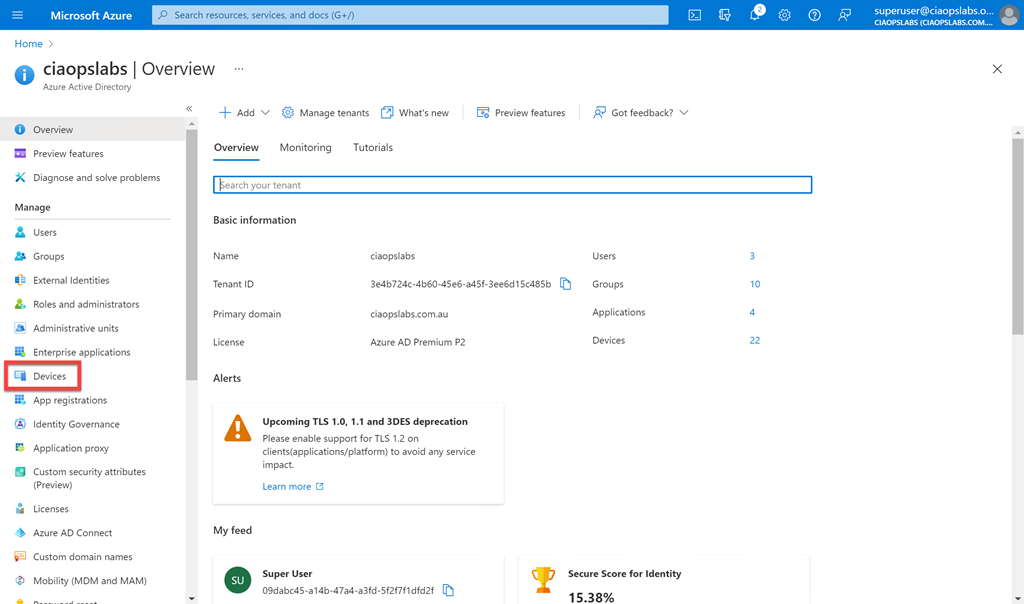
Navigate to the Azure AD portal as an administrator (https://aad.portal.azure.com) and select the Devices item on the left hand side as shown above to see all the devices your Azure AD knows about.

image

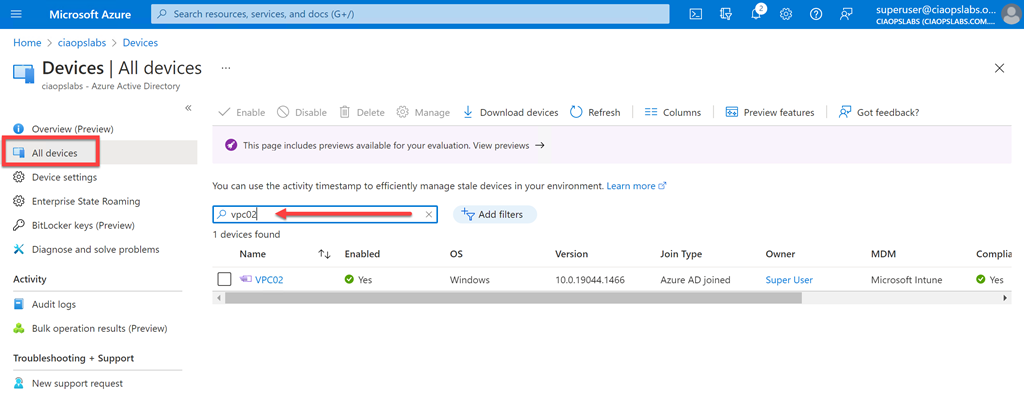
In the page that appears, select All devices on the left and then search for the device(s) you wish using the search box on the right as shown above. Here, I’m searching for the device called VPC02. Select the device name to get more information about that device.

image

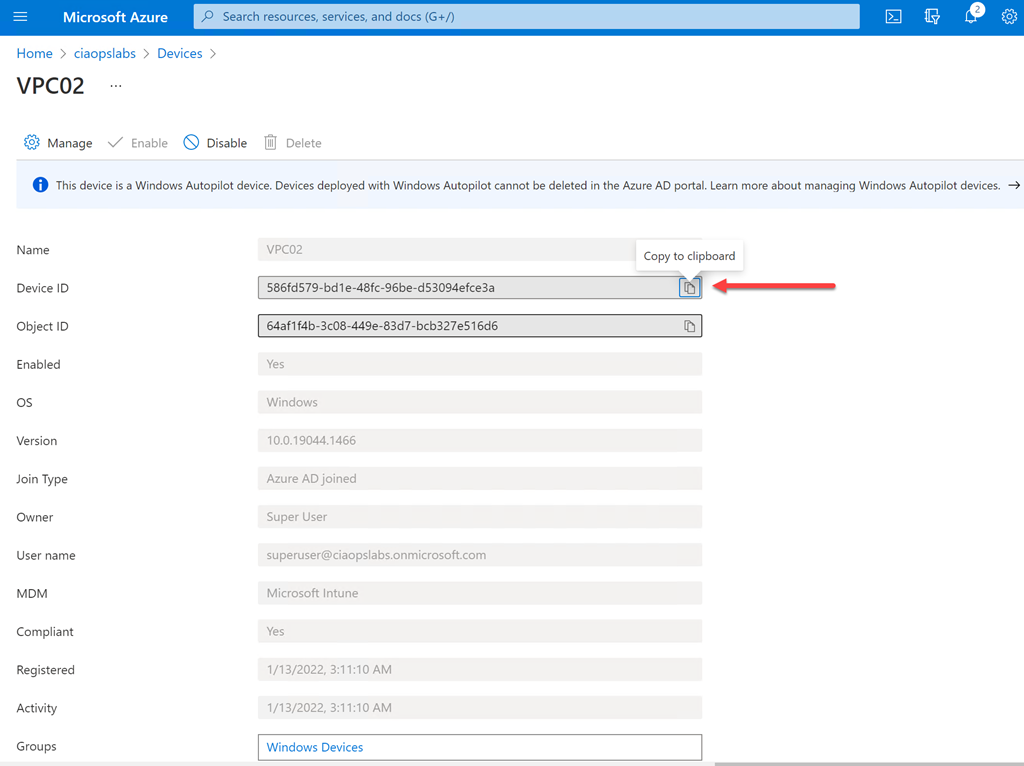
On the details page for the device you should now find the unique Device ID, as shown above. You should take a copy of this as it will be needed later.

Repeat the above process to obtain the unique Device ID of all the devices in Azure AD you wish to retire.

image

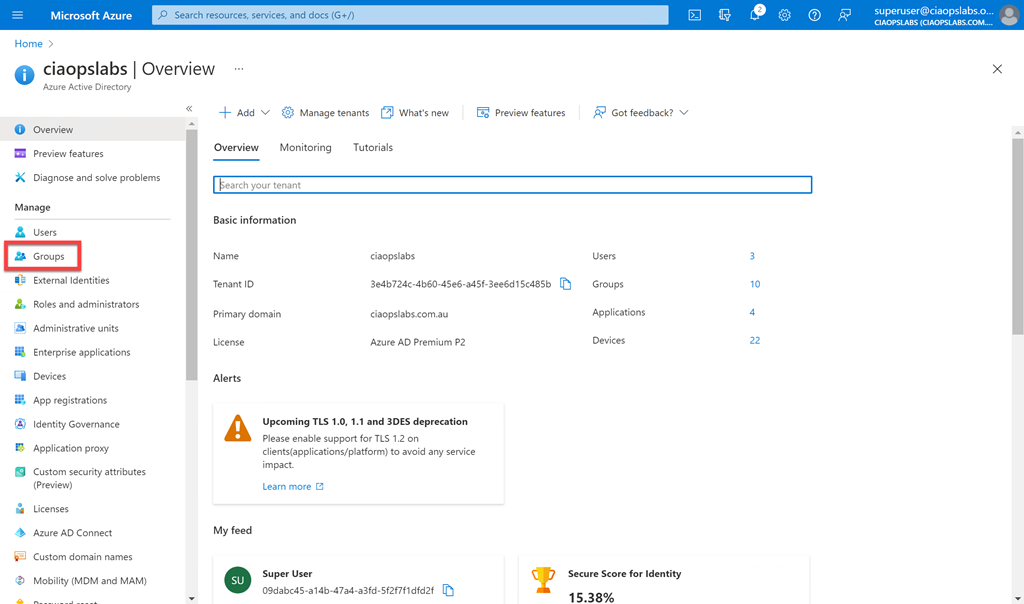
Return to Azure AD portal home page and now select Groups from the menu on the left.

image

Select the option on the top right for a New group.

image

Set the group type to Security. Give the group a meaningful name (here To be retired) as well as a description. Finally, ensure that the Membership type is set to Dynamic Device, because in this case we want to query a list a devices in Azure AD.

image

At the bottom of the options, select the Add dynamic query hyperlink as shown above.

image

On this page you will build the dynamic query for the membership of the group. Here we want to query the deviceid property to see whether it equals the Device Id we obtained initially for the device(s) we wish to retire.

Each unique device will generally require its own unique query line with the And/Or set to Or for this use case.

image

Once you add the entries at the top of the page you’ll see the actual rule syntax displayed in the box below, as shown.

image

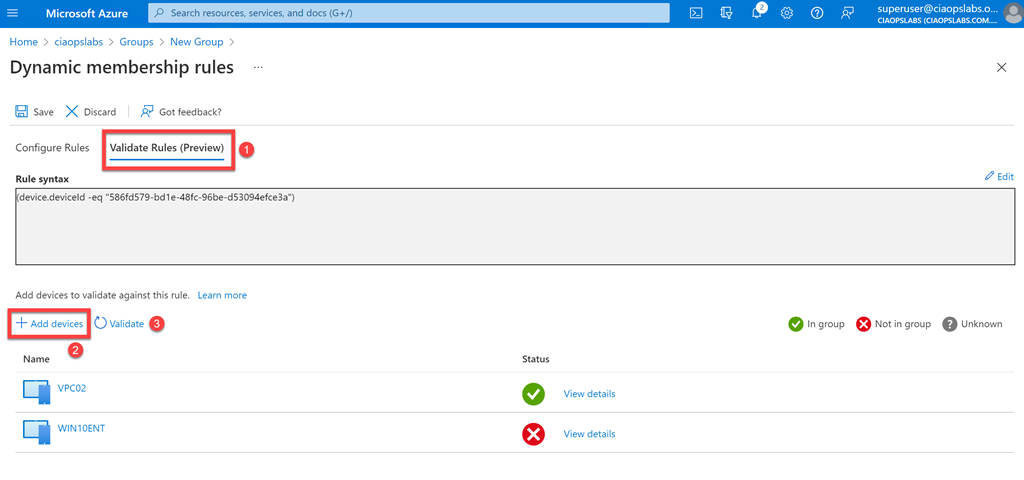
To test the query returns the expected results, select the Validate Rules (Preview) option at the top of the page as shown. Next, Add devices you wish to test the query with. In the case above, I selected a machine I knew should match (VPC02) and one that wouldn’t (WIN10ENT). These selections will be validated and results displayed.

Here, the validation returns the expected results for this use case, so I can select the Save button at the top of the page to continue.

image

In the list of Azure AD groups, you should now be able to see the one that you just created.

.image

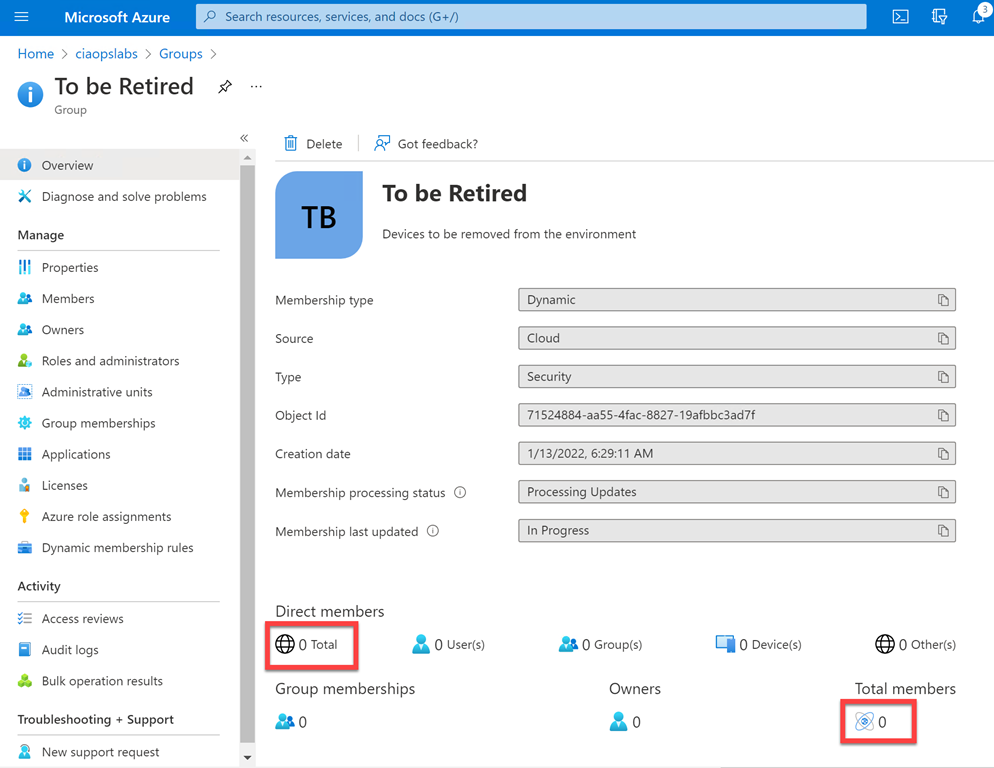
If you now select this new group you will probably find that it doesn’t have any members as yet as seen above.

SNAGHTML7d6fd8d

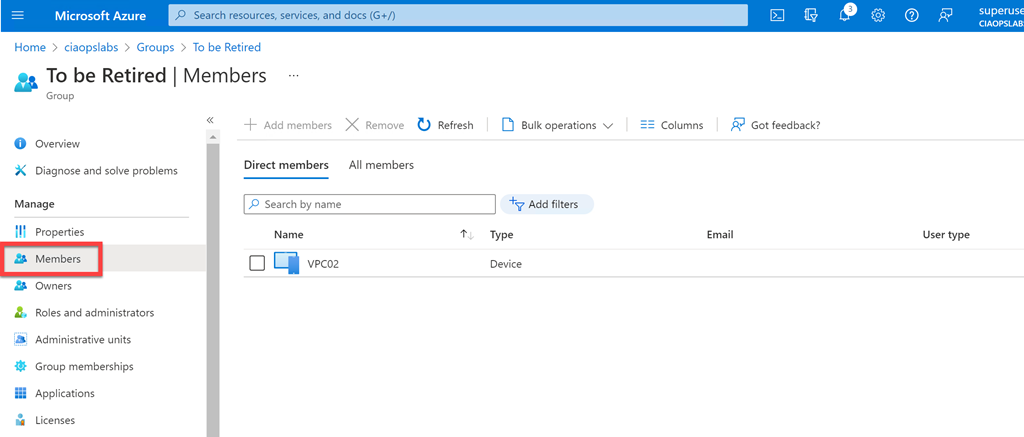
Fear not. Because the group is dynamic, it will take a few moments to run the query you created and populate it with matching members. When it has done this after a short time, you will be able to find the results in the Members option on the left hand side as shown above. Check that they match the expected results.

image

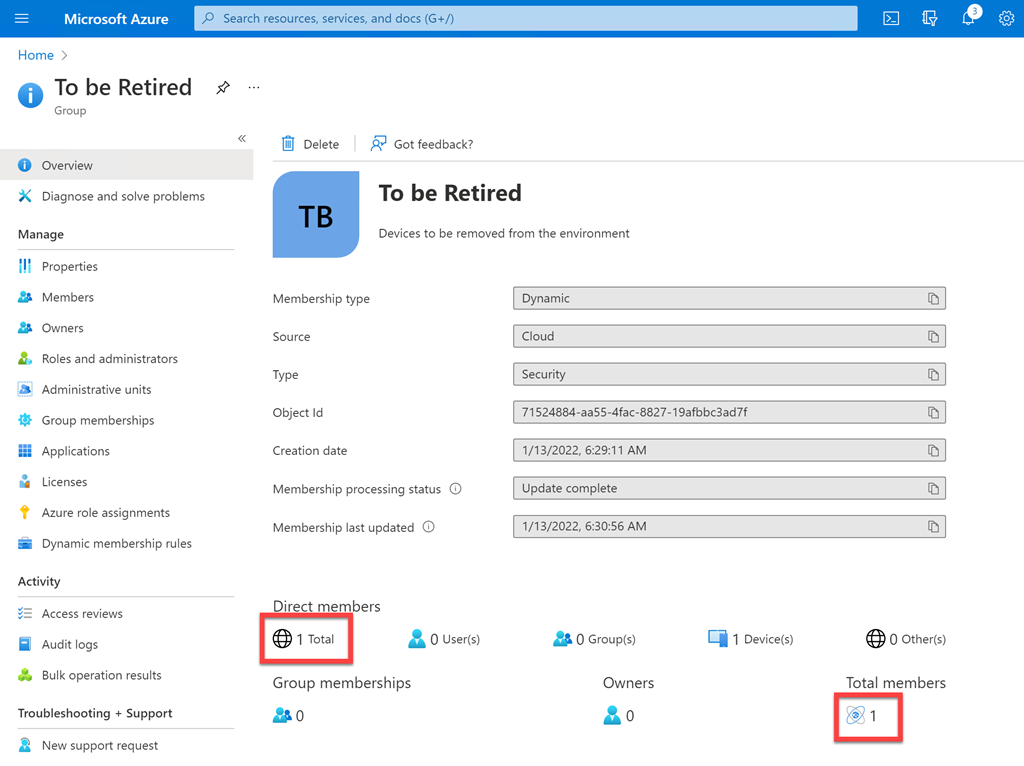
At that point, the Overview page should also display the correct count of members as shown above.

You can of course edit this Azure AD Dynamic Group at any point and change the membership criteria. In the case of retired devices, we’ll need to go in again and add any new Device Id’s for devices we want retired from our environment down the track.

A dynamic group can be based on just about any criteria and you may use it to identify new devices, users in the marketing department and so on. The queries can also be quite complex and it is recommended you consult this documentation from Microsoft for more information:

Dynamic membership rules for groups in Azure AD

In this case, we can now use this dynamic group of old devices to off board them cleanly from our Microsoft 365 environment. Stay tuned for upcoming articles on how to do this.

Two easy methods of onboarding Windows 10 devices to defender for Business

I recently detailed a way to use Endpoint Manager and Intune to onboard Windows 10 devices to Microsoft Defender for Business:

Onboarding Windows 10 devices to Microsoft Defender for Business

I’ve now extended that to include this video:

https://www.youtube.com/watch?v=UM-WZjHgy88

that shows that method plus using a local script. Using a local script is a good backup method to use if you are in a hurry or have issues with a device in your environment not receiving the policy.

Onboarding Windows 10 devices to Microsoft Defender for Business

One of the big benefits of Windows 10 devices when it comes to onboarding them to Microsoft Defender for Business is that they already have the ‘client’ software installed. That being Windows Defender. All the onboarding process needs to do is connect up the ‘backend plumbing’ so that Windows 10 also sends security information to the Microsoft 365 Security portal.

The first step in this onboarding process is to ensure that your Windows 10 devices are already Azure AD joined. You’ll also need to have a license for Intune/Endpoint Manager to enable this process from a centralised location.

Next, visit the Microsoft Endpoint Manager portal at:

https://endpoint.microsoft.com

image

As shown above, here, navigate to Endpoint Security, then Microsoft Defender for Endpoint. Ensure that the option Connection status is enabled. If it isn’t then open a new browser tab and navigate to:

https://security.microsoft.com

image

You should see the screen above. Scroll down this page.

image

Select Settings as shown above and then Endpoints from the options that appear on the right.

image

Scroll through the options presented and select Advanced features as shown. Location the Microsoft Intune connection option and set it to On. You may also want to have a look through the list of all the other available settings and also turn these on if desired.

You may need to wait a little while until connection status back in Endpoint Manager reports as being enabled.

image

You can always use the Refresh button at the top of the page, but be prepared for a short wait while the connection is made.

While you are on this Endpoint Manager page you will also probably want to turn all the settings available here.

image

Still in Endpoint Manager, you’ll now need to select Devices, then Configuration Policies, then Create profile as shown above.

image

Select Windows 10 and later for the Platform and Templates from the Profile type.

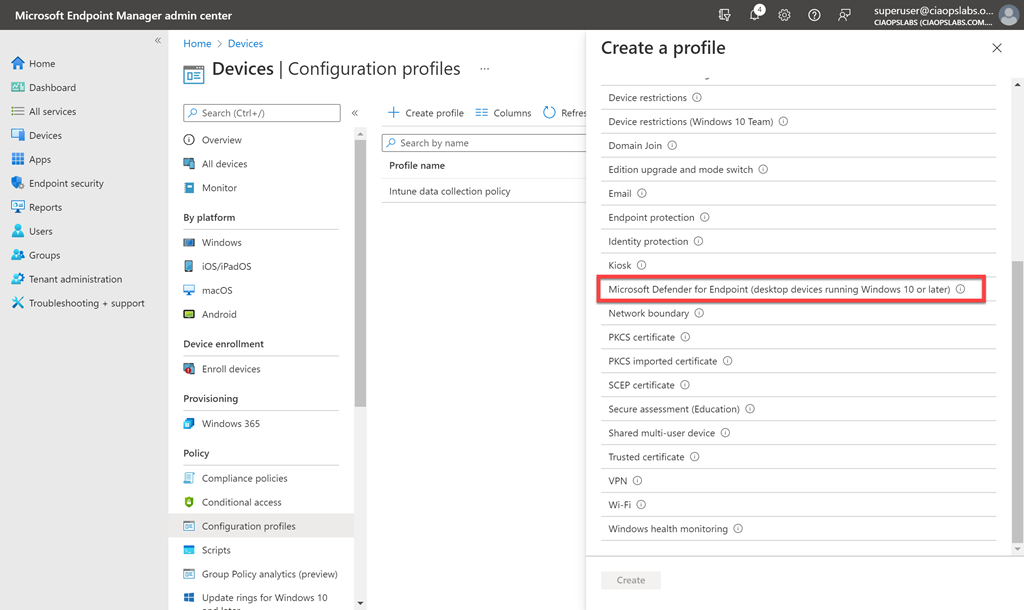
image

Scroll through the list of templates and select Microsoft Defender for Endpoint (desktop devices running Windows 10 or later).

image

Give this new policy a meaningful name and select the Next button at the bottom of the page to continue.

image

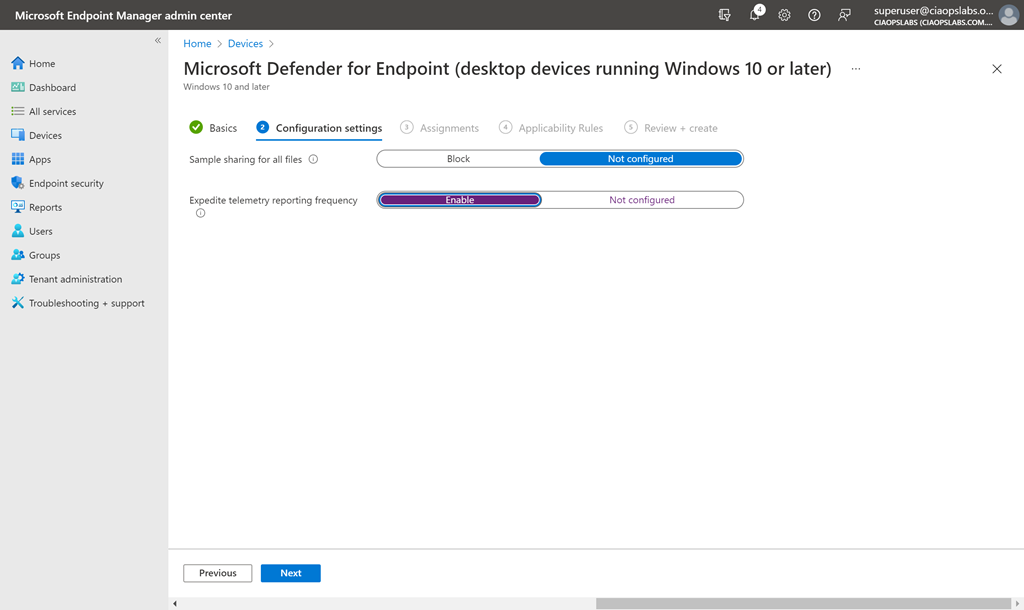
You don’t have to make any changes on the Configuration settings page but I like to Enable the option for Expedite telemetry reporting frequency. Select the Next button at bottom of the page to continue.

image

On the Assignments page you need to configure which groups this policy will include and exclude. Generally, you want to select All devices as shown above, but you can select whatever suits your configuration needs.

Continue through the remaining policy configuration pages and Create the new policy.

image

If you go back and look at the properties of the policy as shown above, you note an additional Configuration setting that wasn’t displayed when the policy was created – Microsoft Defender for configuration package type is set to Onboard. This is what effectively will onboard the Windows 10 devices for you automatically.

image

You can now use the Device Status option to monitor when this policy is applied to each device. Note that this status may take a while to change and the policy to be applied as it is dependent on when the devices ‘check in’ for policy updates.

image

Once the devices ‘check in’ and receive the policy, their status should be displayed as shown above with the Deployment status field now reporting as Succeeded.

image

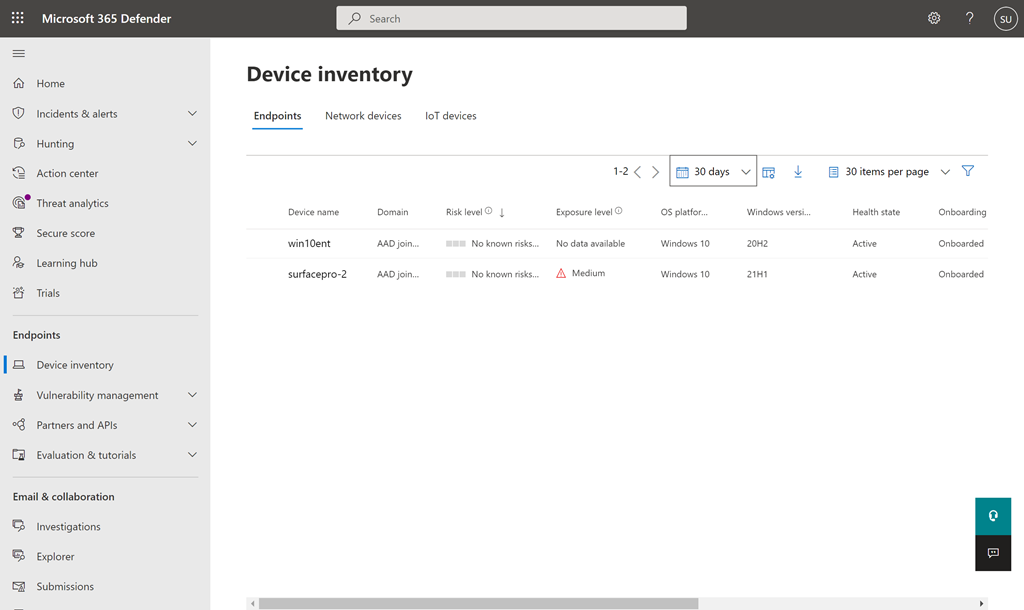
You can see which devices have been successfully onboarded to Defender for Endpoint by selecting the Device inventory option in the Microsoft 365 Security Center as shown above. Until machines have their ‘plumbing’ connected back to this console via the onboarding process they will not appear.

image

Once that onboarding process is complete on the device, it should appear in the Device inventory as shown above.

image

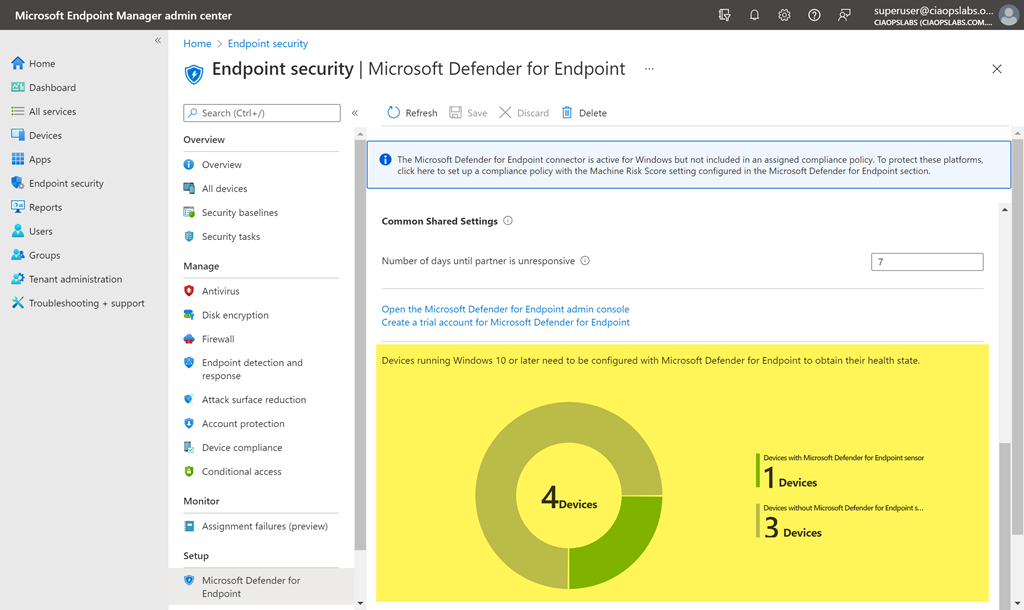
If you return to Endpoint Manager and scroll to the bottom of the Microsoft Defender for Endpoint screen, as shown above, you’ll see a summary of the devices onboarded.

The great thing is that you only need to do all this once, because once the Intune connection and Device configuration policy is in place, all Windows 10 machines will automatically be onboarded to Defender for Endpoint and all the options the Microsoft Security Center.

Celebrating anniversaries with Power Automate

A very common requirement is to remind people about anniversaries. In a business this could take the form of birthdays or commencement dates. It could, however, just as easily be any sort of event that happens on a certain date.

Previously, I’ve shown how to:

Send recurring tweets using Microsoft Flow

However, in this case, instead of simply rotating through a list of posts we want to match today’s date to a date on a list and then broadcast the message that corresponds to that date entry.

image

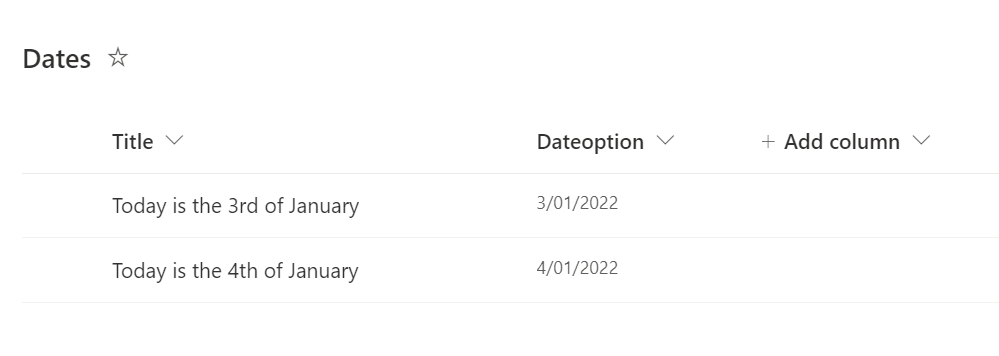
The starting point for this process is to create a reference list containing the dates and details you wish to share. I recommend that easiest place to do this is in a SharePoint list, as shown above. Of course, this list can contain as much detail and additional columns as you wish, but for this, I’ll keep it simple and just have two fields. It is important that you have at least one column (here Dateoption) that refers to the current year in which that item will be displayed.

image

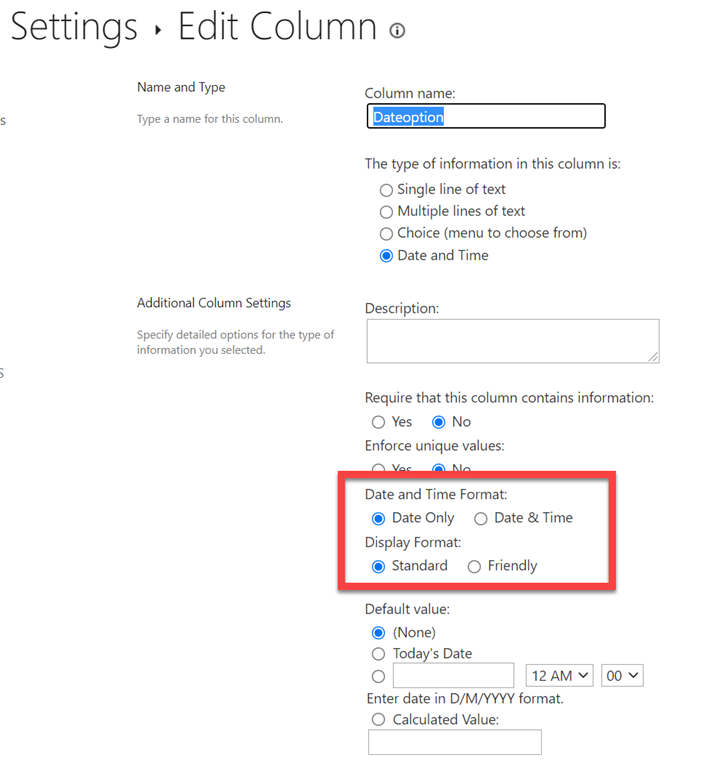
For simplicity, I have also configured my date column in the SharePoint list to exclude time and display in standard format as shown above. There is nothing stopping you using Date & Time if you wish, it just makes the filtering a little more complex later in this process.

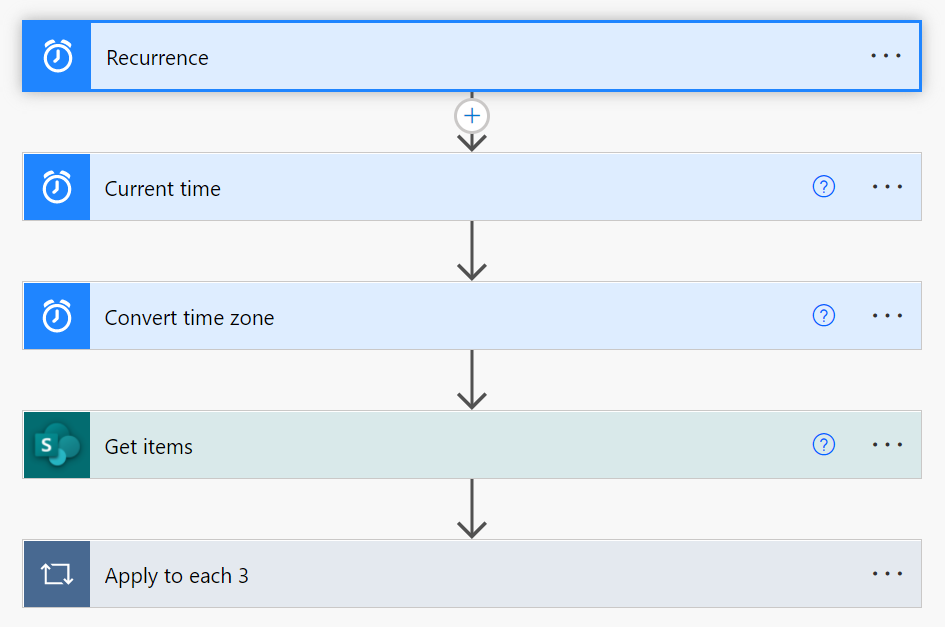
You’ll then want to create a Power Automate Flow that looks like this:

image

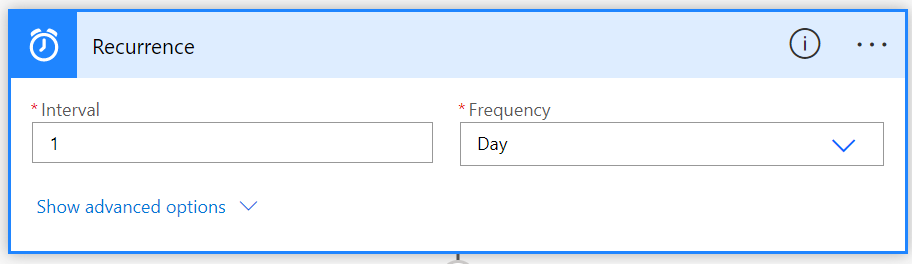
It all starts with a Recurrence action that will trigger this process once a day like so:

image

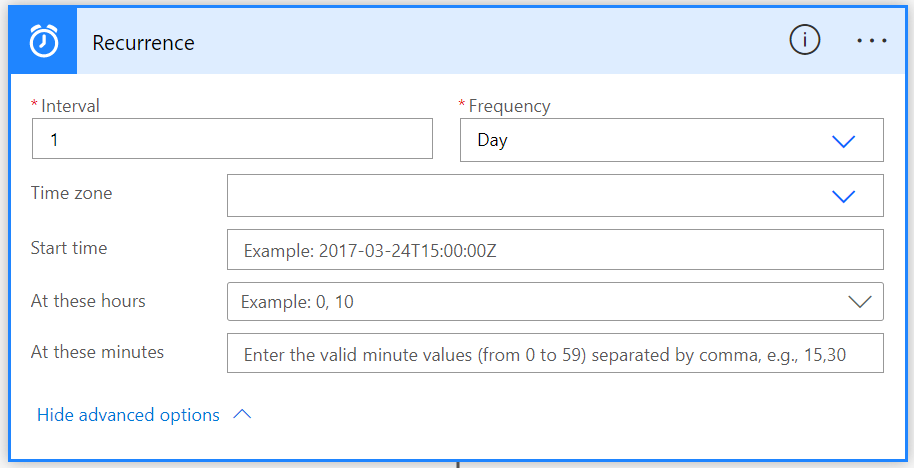
If you select the Show advanced options in this action like so:

image

You can set an exact time when this Recurrence action will be triggered (say 10am). However, since this example is a daily anniversary, we only need to trigger it at any time during the day.

image

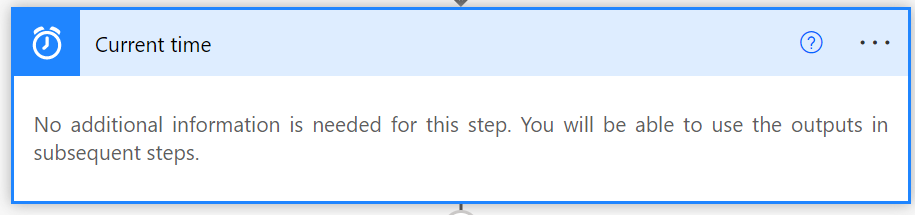
We now need our process to determine what the current date is and we can do this using the Current time action as shown above.

image

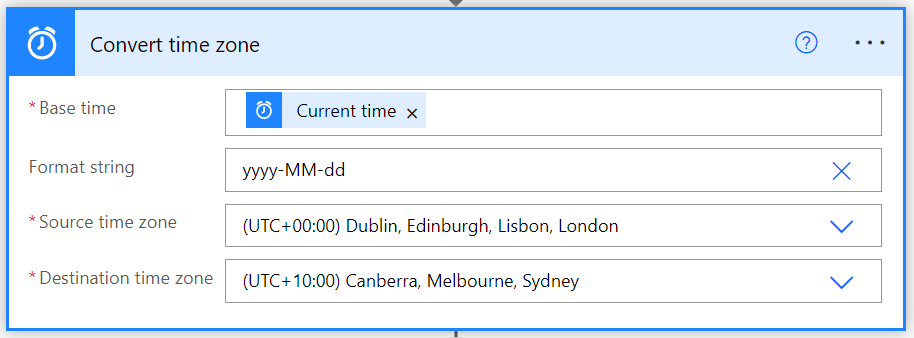
Next, add the Convert time zone action. There are two reasons for adding this action. Firstly, the Current time action returns today’s date in UTC which may cause issues if you are not in that time zone like me. Thus, I want the current time BUT I want it as a local value (i.e. to reflect the actual time in Sydney, Australia), thus the Source and Destination time zone field settings.

The second reason for the Convert time zone action is so the time value is in the right format for a comparison test later on in the process. Thus, the Format string field should be set to yyyy-MM-dd as shown.

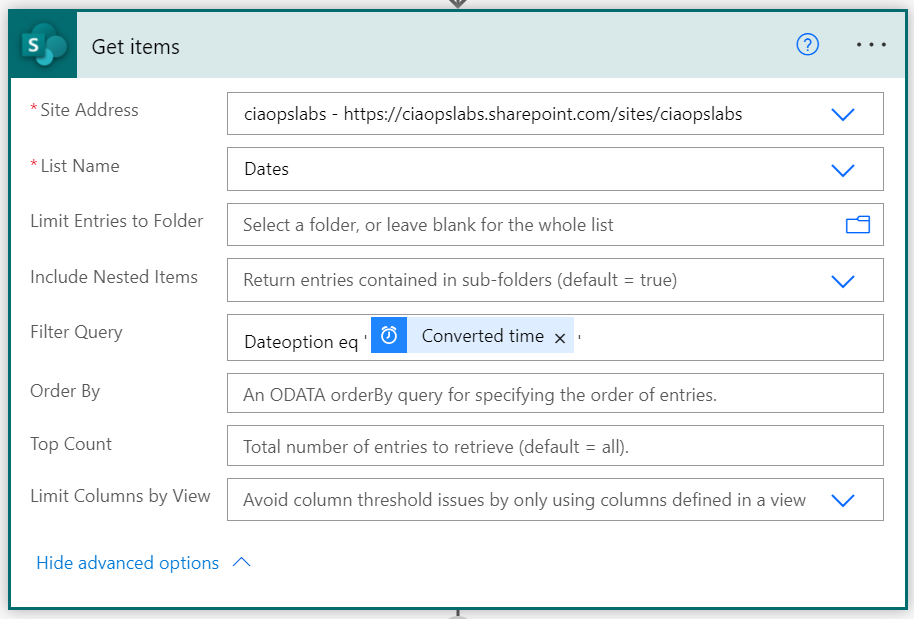
Now, I need to add the Get items action to actually go and look at what is in my SharePoint list.

image

In this action I enter the Site Address and List name, however I also expand the advanced options to reveal the Filter Query field as shown.

image

The Filter Query field will limit the items returned by this action to only those that match the filter. Thus, I want the returned items to only be those that match today’s date, which I have correctly formatted and stored in the Converted time action result. Thus, I want to compare the date field from my SharePoint list (here Dateoption) to the Converted time result. It is important to note that I have enclosed Converted time result in single quotes (‘) to convert the value to a string for comparison. It is very important that you do that, otherwise you’ll get errors when your Flow runs.

image

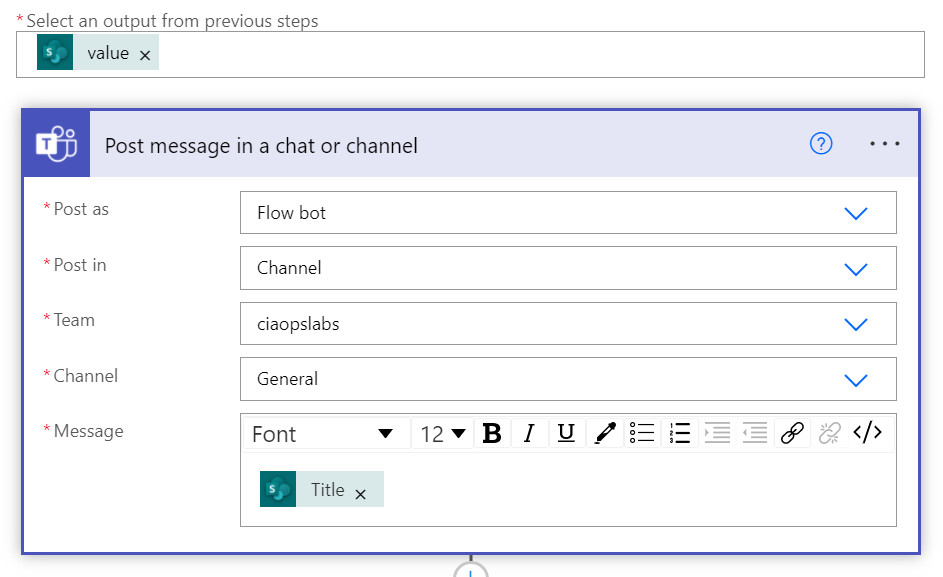
With the values that the Get Items action returns you’ll need to perform a number of steps. For this you use the Apply to each action as shown above.

image

In the case of this example, I’m simply going to post the text from the Title field in the SharePoint list that matches today’s date into a chat message as shown above. Again, this action could be anything you want, in fact, I’ll talk about how I use this with Twitter later on. For now the expectation is that if there is a match in the SharePoint list for today’s date, then the text for that entry will appear in a Teams chat message.

image

We need to do one more thing before we are finished here. As this is an anniversary calendar, we want to increment the current item for today and have it reoccur on the same date next year. To do that we use the Add to time action as shown by adding 12 months to the result date we have determined as shown above.
image

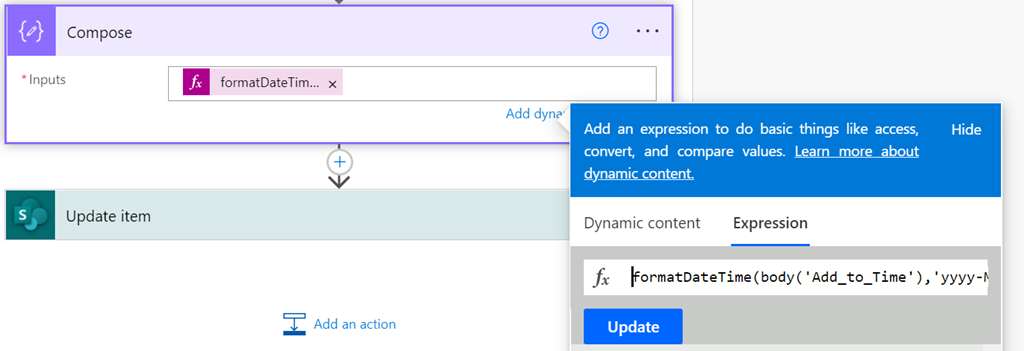
Before the new date can be added back to the SharePoint list it needs to be formatted correctly. This is achieved using the Compose action as shown using the following expression:
formatDateTime(body(‘Add_to_Time’),’yyyy-MM-dd’)

You’ll notice that that date format yyyy-MM-dd is the same as the one we set in Convert time zone action earlier.

image

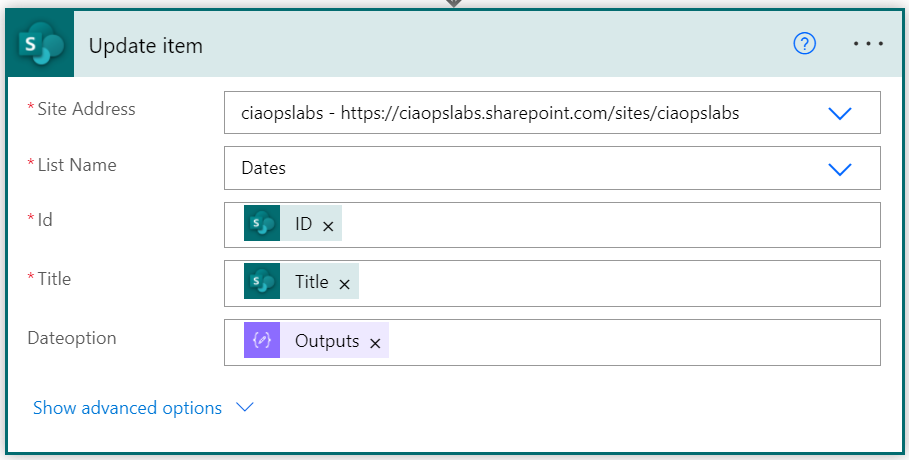
All that remains is to use the Update item action to update the item in the SharePoint list with the new date entry just composed. As shown above, the same SharePoint site and list is selected, along with the item ID and Title but the Dateoption field is set to contain our new formatted date output from the previous action.

You can now save your Flow and run a manual test.

image

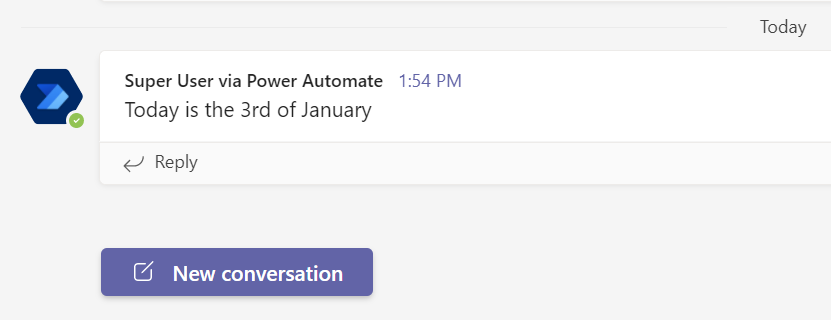
If I look at the chat in my Team I see the expected message that matches the item Title field in the original SharePoint list.

image

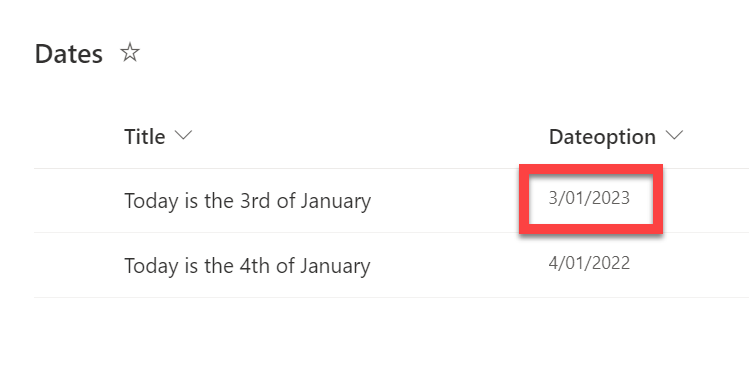
Also looking at my original SharePoint list I see that the date of today’s item has been incremented twelve months as shown.

image

One of the ways that I use this process with Twitter is to regularly post anniversary dates around ANZAC participation from World War One, which are taken from my site ANZACS in France.

The idea is that that the Flow checks this list of dates and then tweets out the text in the Title field if there is a match. Then it increments the PostDate field twelve months ready for next year. You’ll also see that I have added another custom column that records the original date of action just so I can filter and sort easily. Feel free to follow @ANZACSIF to be reminded of these dates.

As I initially mentioned, I believe there are plenty of applications for this type of process in a business. The most common ones I would suggest are for staff birthday and anniversary reminders. The great thing is that with Power Automate it is easy to modify this process to suit whatever need to have. It also makes it easy to edit the events and more if you need to because all you need to do is modify the SharePoint list that this process uses.

The possibilities are endless thanks to the Power Platform.

CIAOPS Need to Know Microsoft 365 Webinar – January

laptop-eyes-technology-computer

Join me for the free monthly CIAOPS Need to Know webinar and the first for 2022. Along with all the Microsoft Cloud news we’ll be taking a look at using OneNote for collaboration.

Shortly after registering you should receive an automated email from Microsoft Teams confirming your registration, including all the event details as well as a calendar invite.

You can register for the regular monthly webinar here:

January Webinar Registrations

(If you are having issues with the above link copy and paste – https://bit.ly/n2k2201 – into your browser)

The details are:

CIAOPS Need to Know Webinar – January 2022
Friday 28th of January 2021
11.00am – 12.00am Sydney Time

All sessions are recorded and posted to the CIAOPS Academy.

The CIAOPS Need to Know Webinars are free to attend but if you want to receive the recording of the session you need to sign up as a CIAOPS patron which you can do here:

http://www.ciaopspatron.com

or purchase them individually at:

http://www.ciaopsacademy.com/

Also feel free at any stage to email me directly via director@ciaops.com with your webinar topic suggestions.

I’d also appreciate you sharing information about this webinar with anyone you feel may benefit from the session and I look forward to seeing you there.