Join my Teams Shared Channel

Microsoft now has the capability to create a Shared Channel. I have created a Shared Channel in my own tenant that I am freely making available to anyone who wants an invite to see what Shared Channels are all about.

If you are keen on participating then you’ll need to take some actions in your own tenant first to allow the connection.

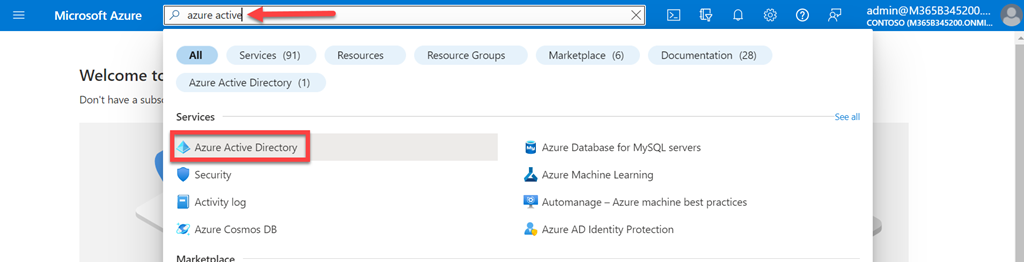
As an administrator open the Azure portal.
image

In the top search box inside the Azure portal search for Azure Active Directory. Then select the service matching that when it appears as shown above.
image

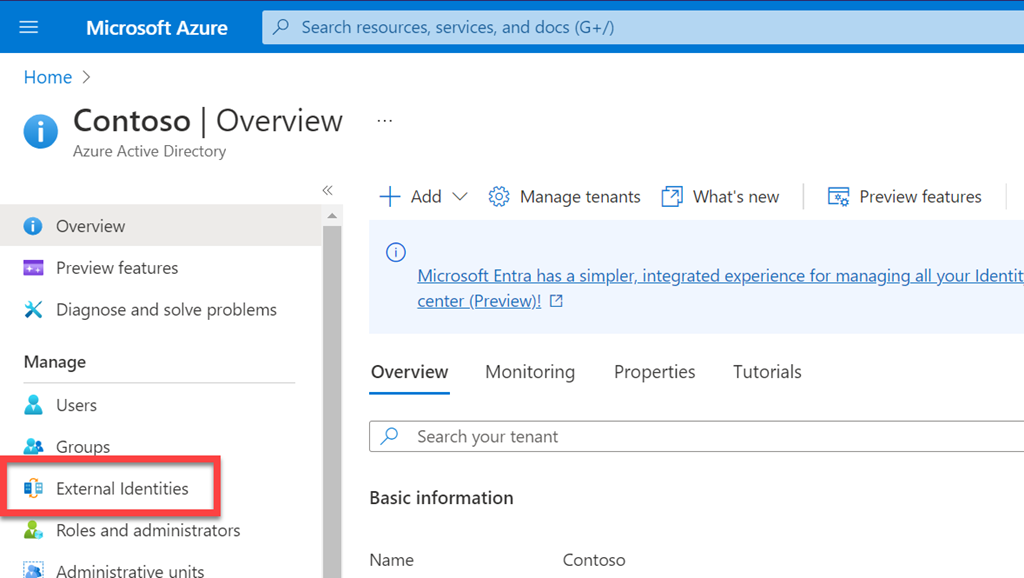
From the menu that appears on the left select External Identities.
image

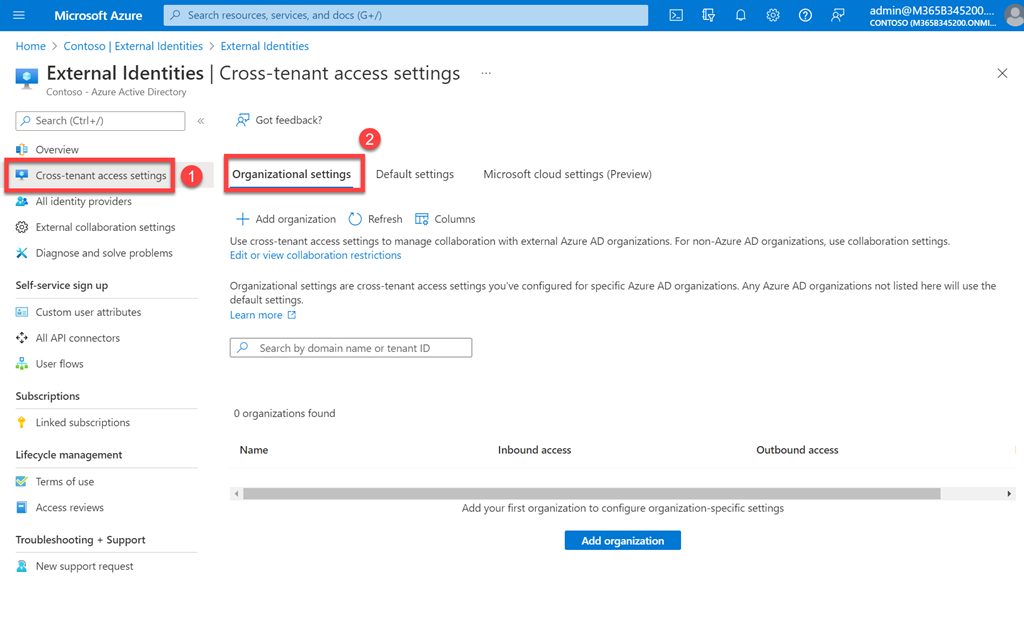
On the screen that appears, select Cross-tenant settings from the menu on the left. Then select Organizational settings on the right as shown above.
image

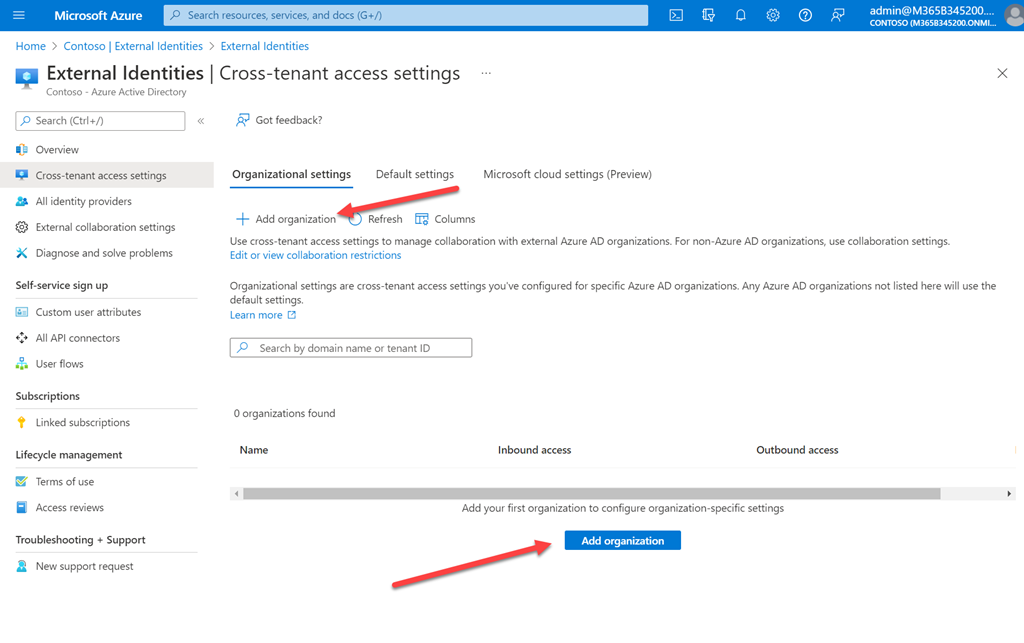
Now select Add organization either from the menu at the top or the button at the bottom as shown.
image

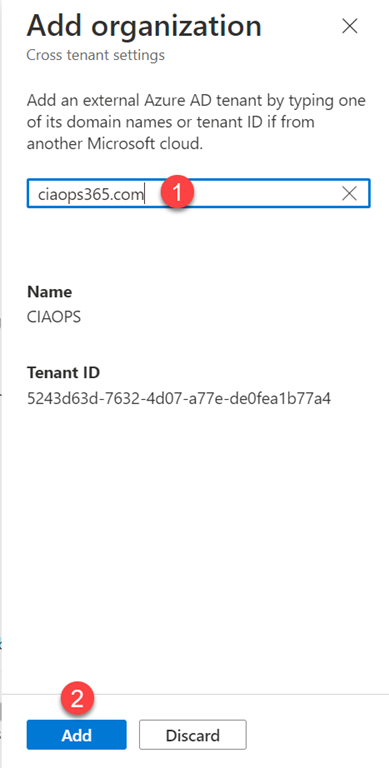
From the dialog that appears from the right enter either the domain ciaops365.com or the tenant id 5243d63d-7632-4d07-a77e-de0fea1b77a4. You see the name as CIAOPS after this is completed successfully. When it does appear as shown above, select the Add button.

image

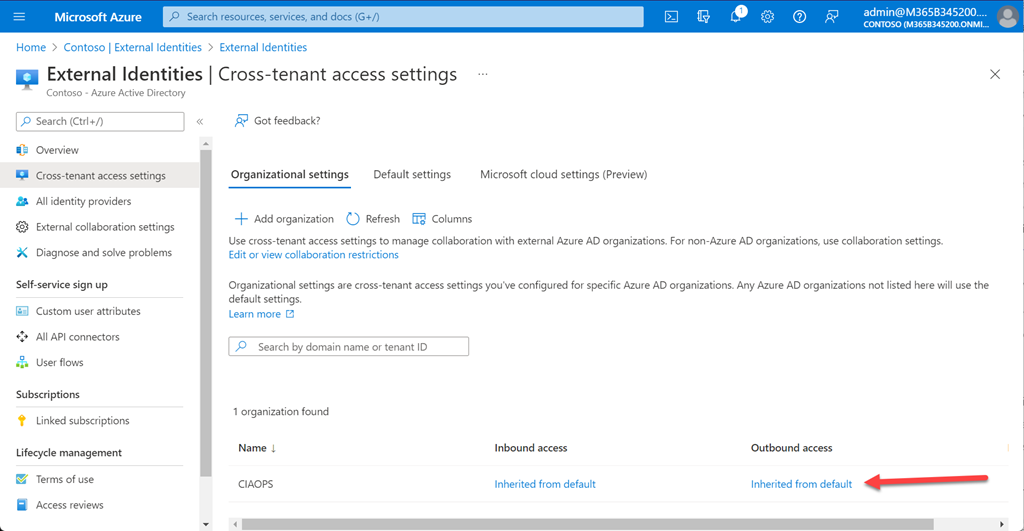
A CIAOPS entry should now appear as shown above.
image

Select the hyperlinked text under the Outbound access heading which will say Inherit from default.
image

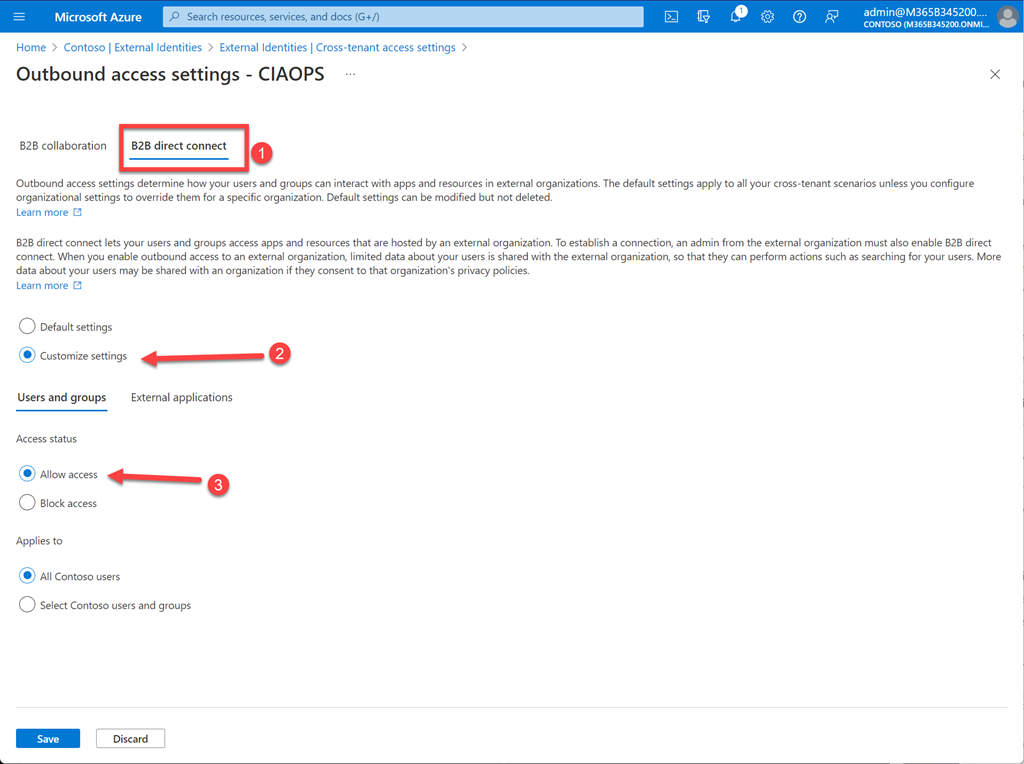
Select B2B direct connect from the menu across the top. Then select Customize settings. Finally, select Allow access as shown above.
image

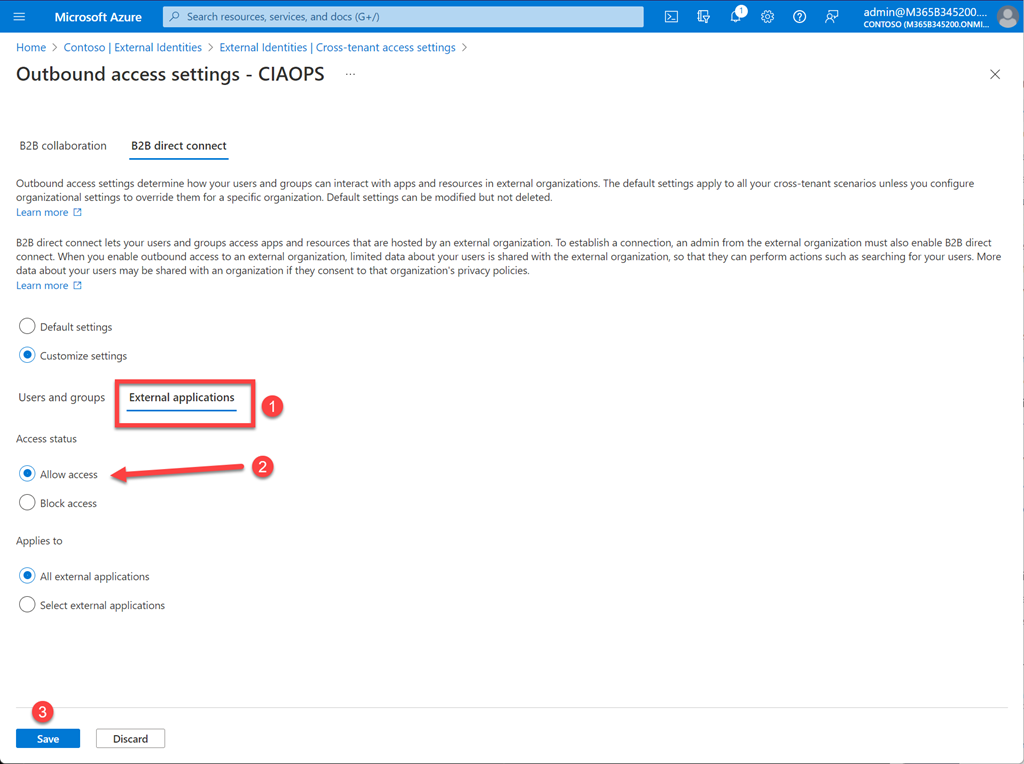
Select the External applications tab. Then Allow access. Finally, select Save at the bottom of teh screen.’

If you take a moment to read the top of the screen before you press Save you’ll see:

Outbound access settings determine how your users and groups can interact with apps and resources in external organizations. The default settings apply to all your cross-tenant scenarios unless you configure organizational settings to override them for a specific organization. Default settings can be modified but not deleted.Learn more

B2B direct connect lets your users and groups access apps and resources that are hosted by an external organization. To establish a connection, an admin from the external organization must also enable B2B direct connect. When you enable outbound access to an external organization, limited data about your users is shared with the external organization, so that they can perform actions such as searching for your users. More data about your users may be shared with an organization if they consent to that organization’s privacy policies.Learn more

In short, you have allowed your tenant to access my shared Teams channel from just my tenant (ciaops365.com).
image

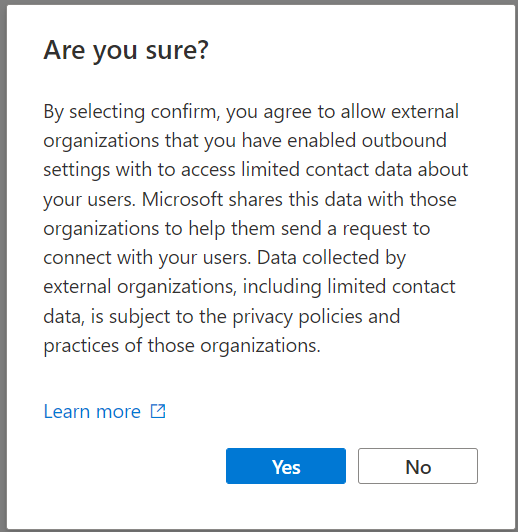
When you do press Save you see the above message. Press Yes to continue and accept.

That is all the configuration you need to do inside your tenant. What you then need to do is send me an email (director@ciaops.com) letting me know you’d like to be added to my shared channel. When I receive this I will add you.
image

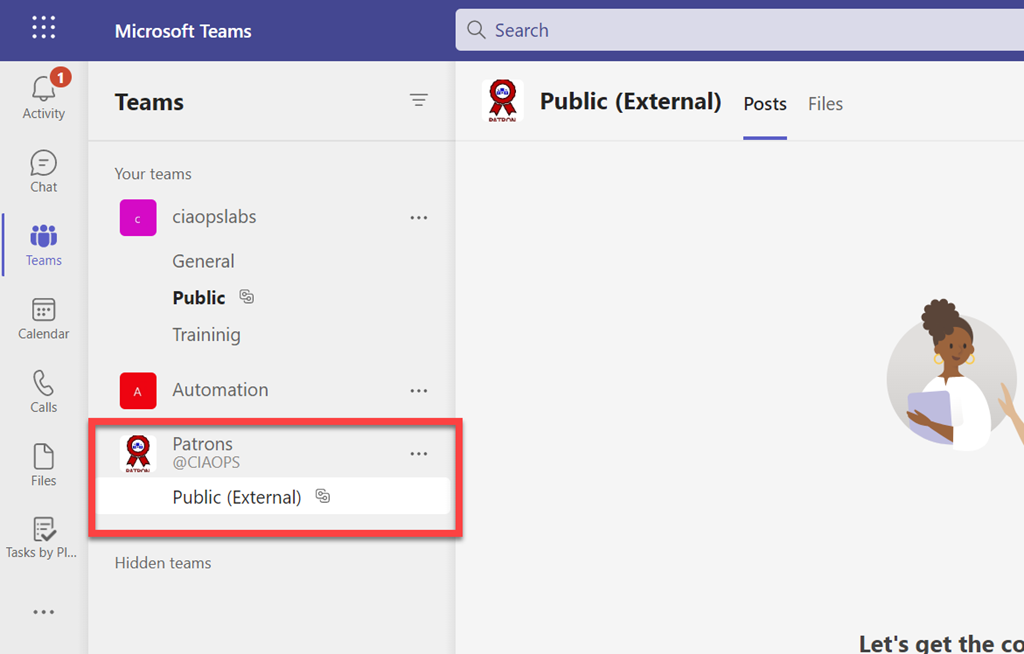
After I’ve added you the shared channel should appear in your Teams environment as shown above without the need to switch tenants.

Once you are in my shared channel encourage you to participate and get involved with the content that is there. More details are inside my shared channel. To get things started post a message about why you are in the shared channel and say hello to everyone else.

Feel free to let others know about this offer as I’d like to make my shared channel a free resource for people to come and share information about the Microsoft Cloud.
Power Automate Azure Key Vault access inconsistencies

I’m in the process of building a Flow that connects to a Dataverse database inside a Microsoft Team. When you create this you get the ability to create Cloud Flows (aka Power Automate).

image

However, there is an issue when you try and use something like Azure Key Vault actions here.

image

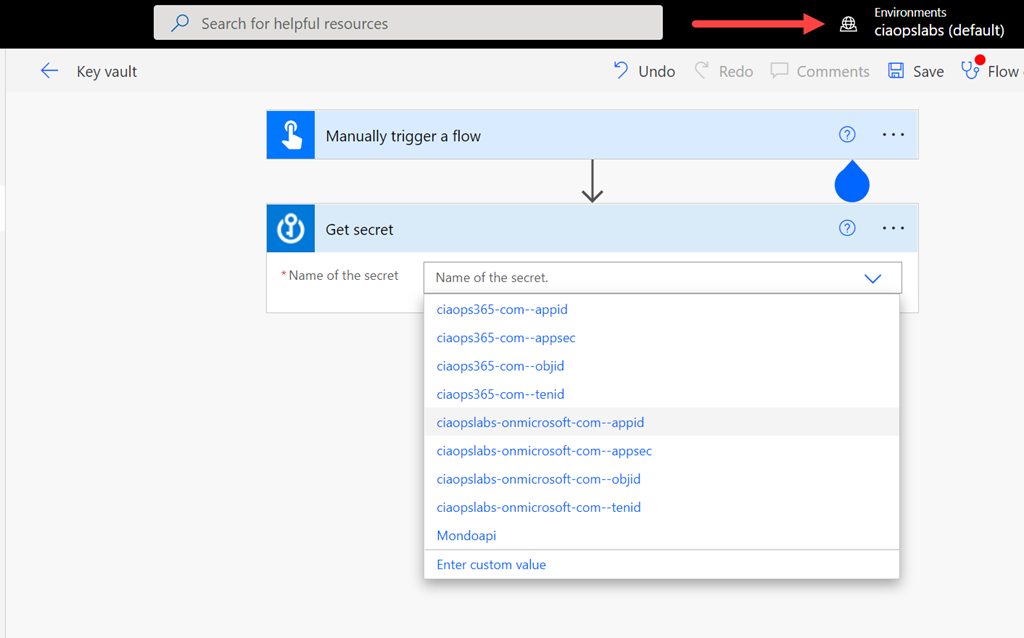
In the above, you can see that I’m in my default Power Automate environment and the Get secret action of Azure Key Vault is accessible as expected and shows all the items I have inside the vault.

image

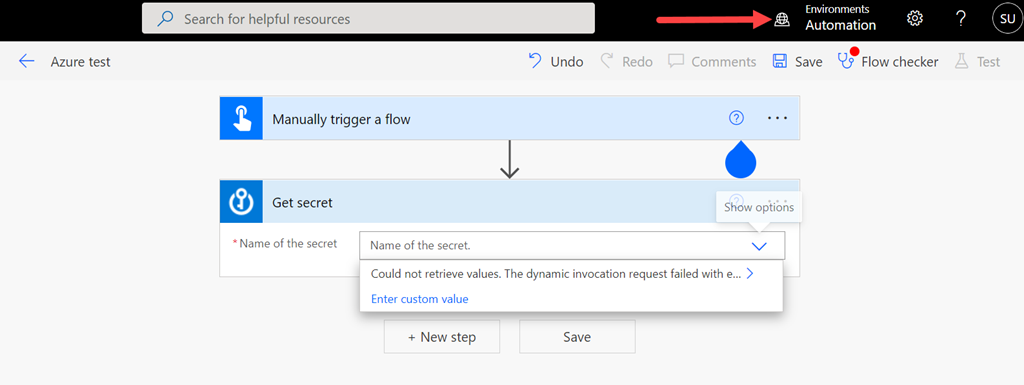
However, if I swap to another environment that was created as part of a Team (here an environment called Automation), you’ll see that I can add the Azure Key Vault action Get Secret but I no longer see the items inside that vault as I did before! I am using the same user in both cases.

It has clearly something to do with the connection,

image

which shows up as invalid as you can see above.

image

If I try and add a new connection, I see the above dialog but can’t make any changes or enter any information. Looks like I might need to investigate the Connect with a service principal option perhaps?

However, for now, there seems to be a limit when you use the Azure Key vault actions inside anything that is not the default environment for the Power Platform in your tenant. I will assume this is because these environments are limited to Microsoft Teams and have innate restrictions that I’ll need to find information on. If you know what this is, I’d love to hear from you.

Using PowerShell to create Teams from a CSV file

There was another Teams import from CSV PowerShell script that someone was working on and having issues with. That script was a bit old and used commands that had been changed in the Microsoft Teams PowerShell module since the script was created. So I have taken that script (unfortunately original source specifically unknown but credit noted) and modified it and uploaded to my Github repo here for all to use:
https://github.com/directorcia/Office365/blob/master/o365-tms-import.ps1

and the CSV file in the format required is here:

https://github.com/directorcia/Office365/blob/master/o365-tms-import.csv

image

Now that it is in my Github it is easy for me to update when and if required. I encourage you to also go in and have a look at the comments to understand what is going on.

In essence the script will import the data from CSV file and loop through all the entries creating a new Microsoft Team and then the channels specified in this Team as well as assign member and admin roles for you.

If you use the –debug command line parameter it will record a log file for you.

I have also added some error checking and improved output, as shown above, to give you a better idea of what is going on in each step.

I will note that when you assign member and admin permissions to the Team created via this script they seem to take  while to show up in the portal. So be patient, as they will appear. This isn’t a limitation of this script but just the refresh cycle of the portal.

There are some additional items I want to add but take a look and let me know what you’d like to see added or if I have made any errors that need fixing. Don’t forget to check back regularly for updates.

Enabling security defaults will enforce MFA on external users

A really good questions that I came across was whether enabling security defaults on a tenant will enforce MFA for external guest users.

Here is the documentation for security defaults:

Security defaults in Azure AD

and when enabled one of the things it will do is:

Require all users to register for Azure AD Multi Factor

which says:

All users in your tenant must register for multi-factor authentication (MFA) in the form of the Azure AD Multi-Factor Authentication. Users have 14 days to register for Azure AD Multi-Factor Authentication by using the Microsoft Authenticator app. After the 14 days have passed, the user can’t sign in until registration is completed. A user’s 14-day period begins after their first successful interactive sign-in after enabling security defaults.

The question is does “all users” include external guest users who have been invite into a tenant for collaboration on Microsoft Teams say? This is important because Microsoft is starting to enforce security defaults on all tenants.

Interestingly, none of the documentation seems to call out specifically whether “all users” does in fact include external guest users. After some digging I came across this post:

All users should be changed to all “member” users · Issue #78194 · MicrosoftDocs/azure-docs (github.com)

which has a response from someone at Microsoft and it says:

“Follow up from the product group… Security defaults should apply to guest users as well.”

So it looks as though it does indeed appear that security defaults applies to external guest users but I wanted to be sure.

image

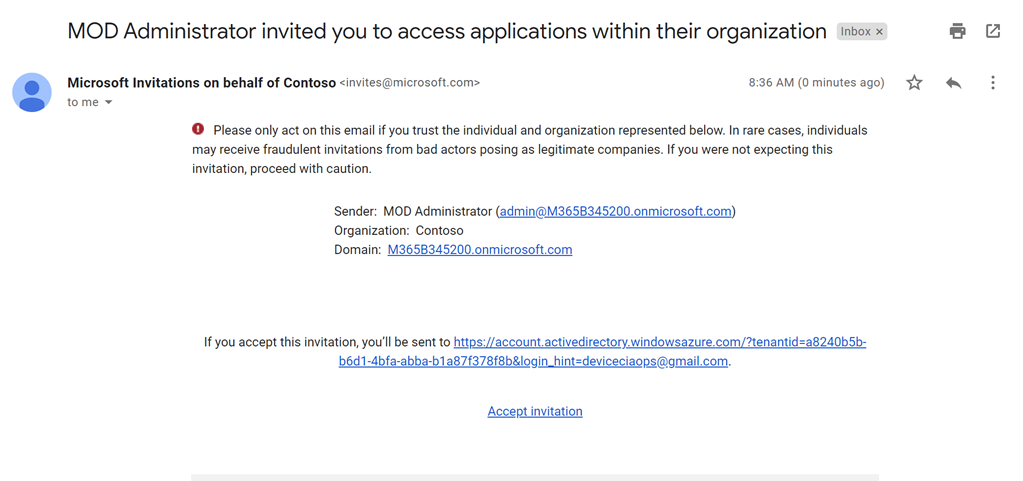
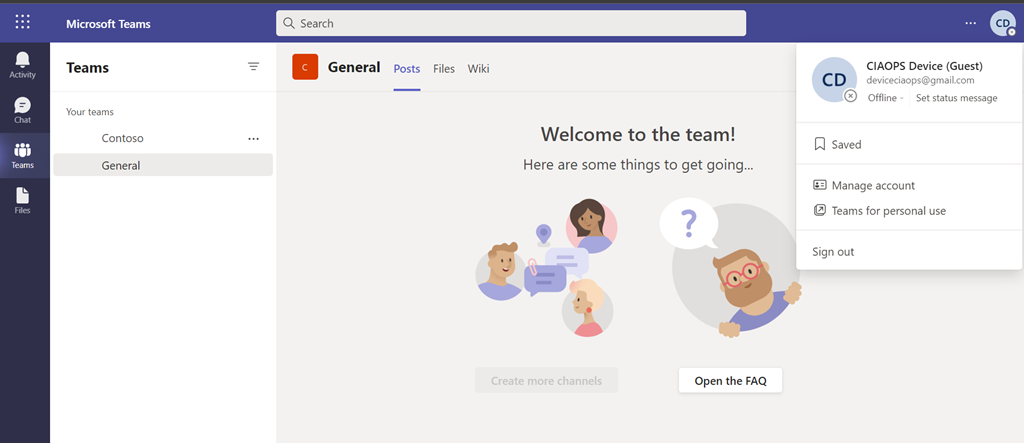
I took a generic Gmail account I use and invited that user into a demo tenant that didn’t have security defaults enabled.

image

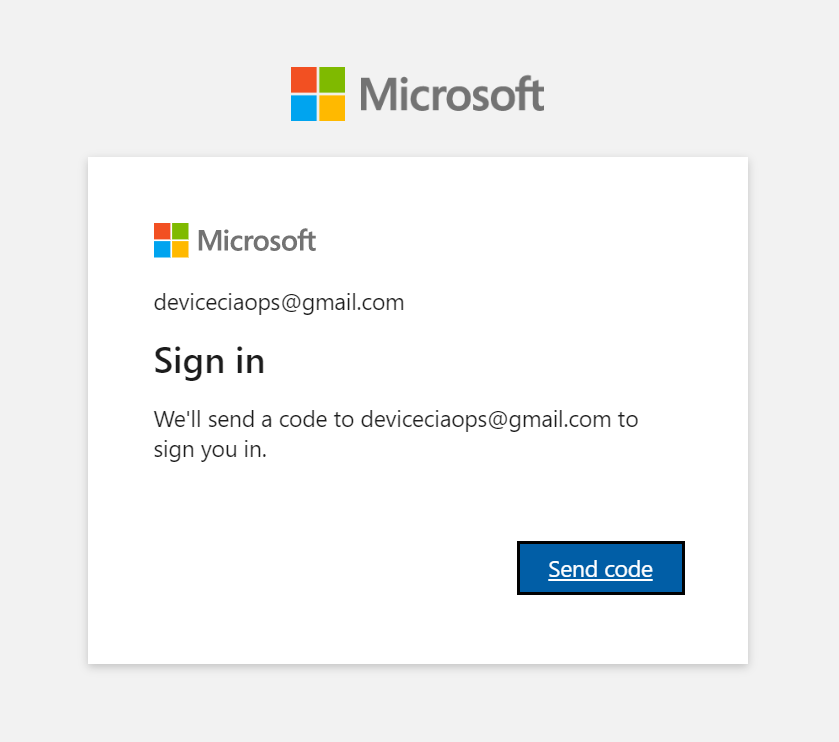
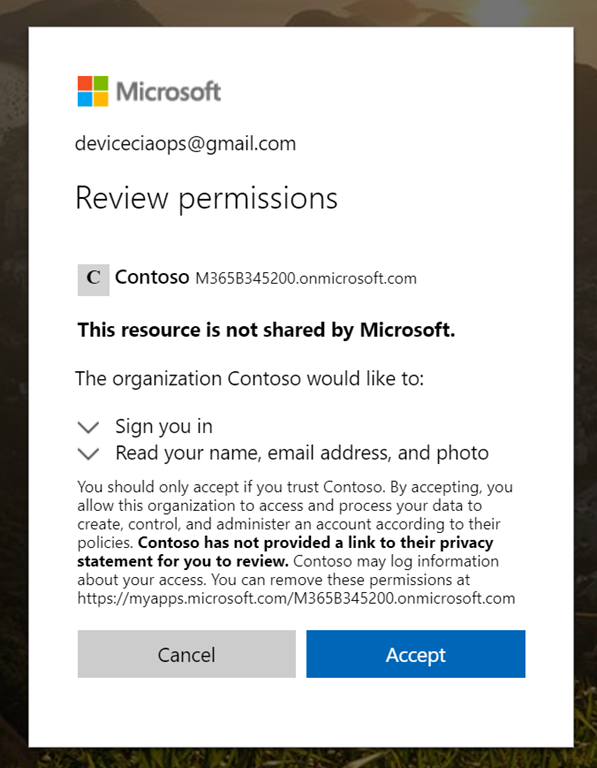
That user went through the expected process of connecting to the tenant.

image

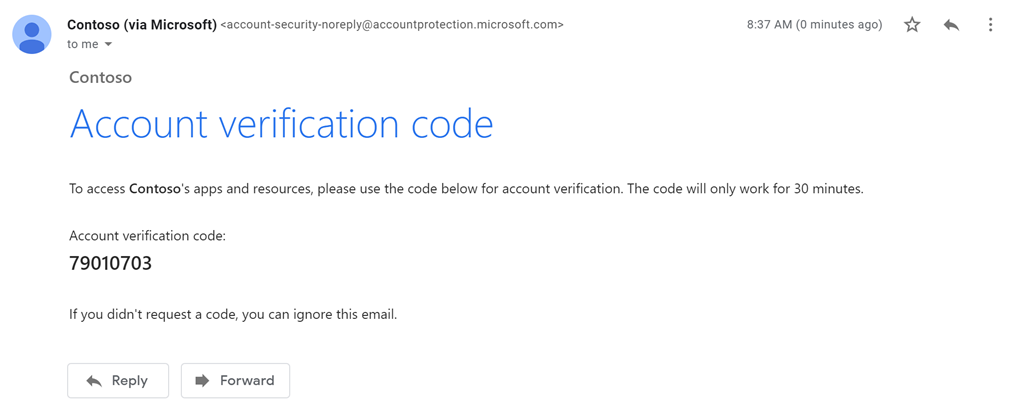
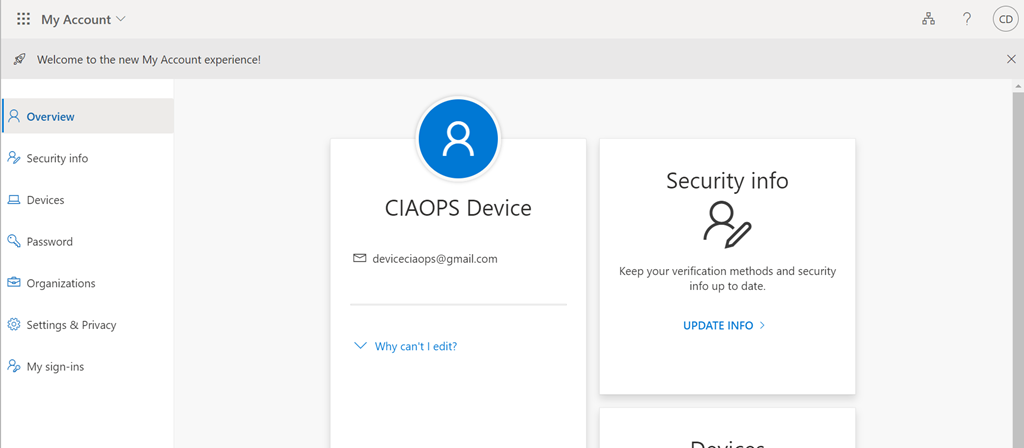
using the email code verification process.

image

until they could access the tenant.

image

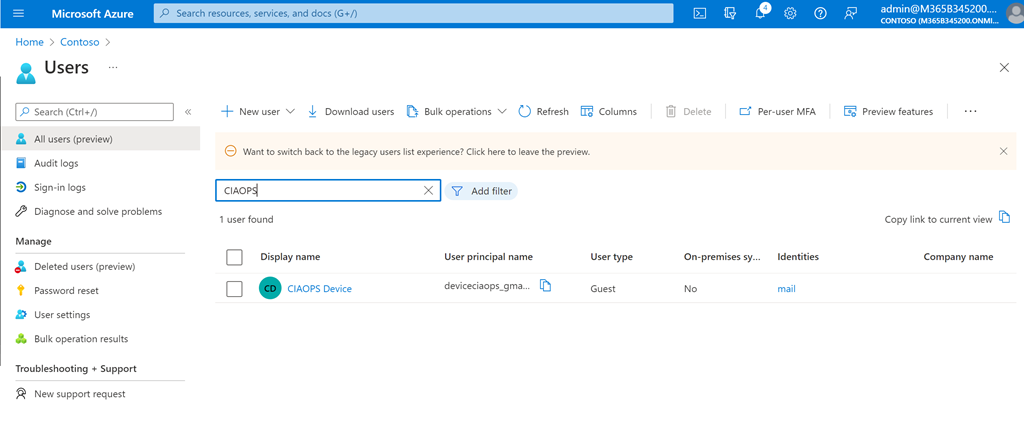
I also verified that they appeared in the Azure AD for that tenant.

image

So everything as expected so far.

image

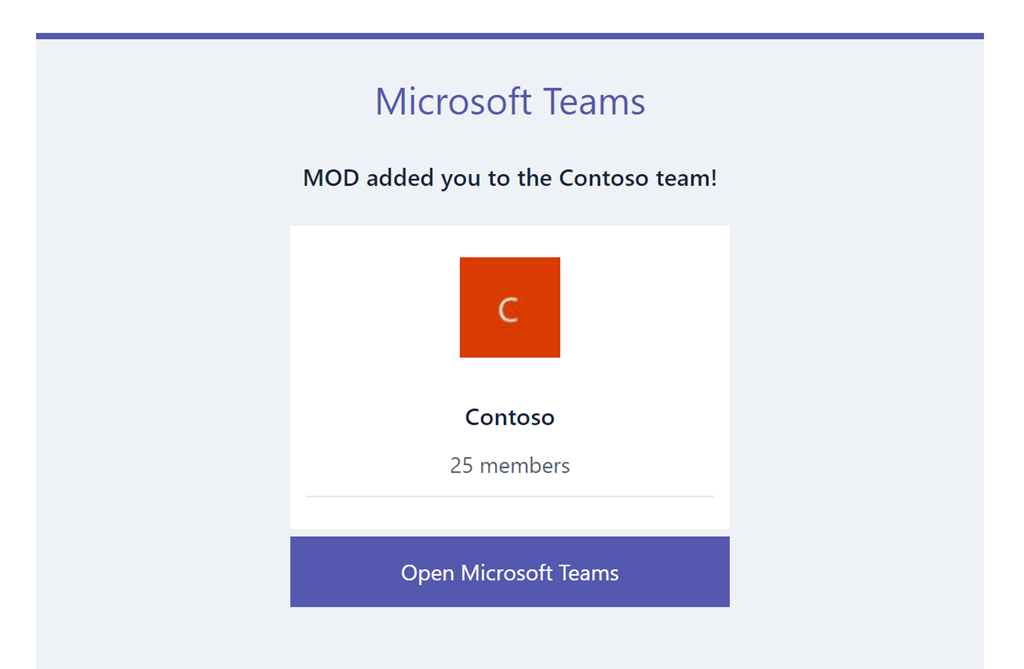
Next, I invited that same user to a Microsoft Team inside that tenant.

image

and they could access that Team using the normal email code authentication process. I tried this a few times to ensure they could access the Team without needing anything but the usual email code. So far, so good still.

image

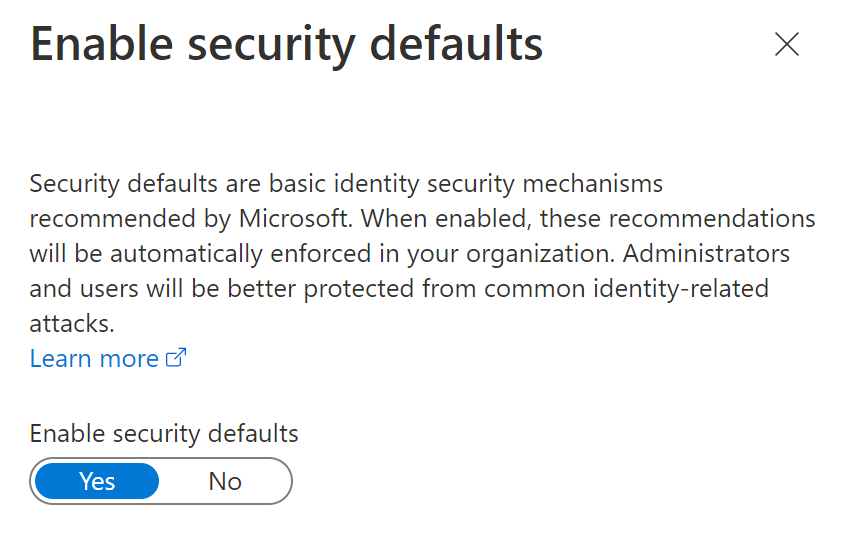
I then went in an enabled security defaults for the tenant.

image

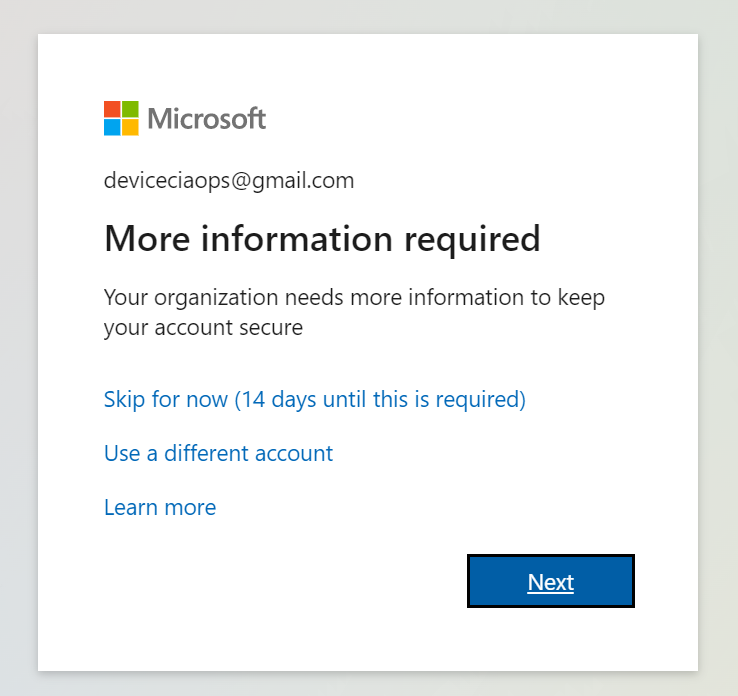
After a few minutes wait to let the policies kick in I tried to login as the external guest user again to Microsoft Teams directly, and after providing a login and getting an email code I was prompted to enable MFA for the user as seen above.

image

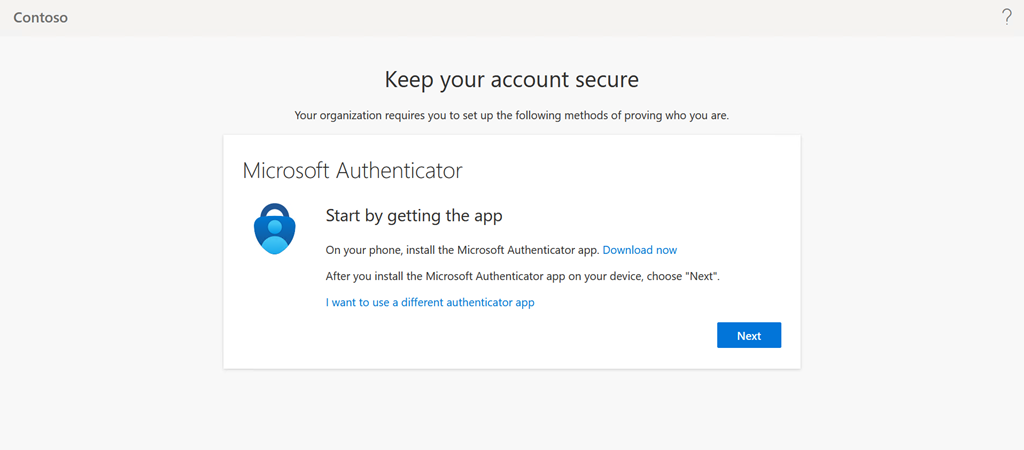
Selecting Next will take you through the standard MFA registration process as you see above.

It is therefore the case that if you enable security defaults for a tenant, all users, INCLUDING any external guest users, will be REQUIRED to enable MFA to access resources inside that tenant.

Why this is important is because Microsoft will be enabling security defaults on ALL tenants as detailed here:

Raising the Baseline Security of all organizations in the World

which says:

“Based on usage patterns, we’ll start with organizations that are a good fit for security defaults. Specifically, we will start with customers who aren’t using Conditional Access, haven’t used security defaults before, and aren’t actively using legacy authentication clients.

Global admins of eligible tenants will be notified through email and the Microsoft 365 Message Center. Then, starting in late June [2022], they’ll receive [a] following prompt during sign-in”

Being it is now June 2022, this process has commenced. You can disable security defaults if you wish, even after they have been enabled, if desired per the details in the above link.

Given that I couldn’t find a specific answer about global external users being impact by security defaults, hopefully this now provides a reference for other looking for the same information.

Create a Dataverse database in Microsoft Teams

What I want to achieve in this process is to create a single Microsoft Dataverse database inside a Microsoft Teams and allow a basic Power Automate to add data to it.

image

Firstly, navigate to a Microsoft Team in the environment (here Automation), and select the + (plus) icon along the menu on the right as shown above.

image

In the list of options that appears, search for, and select Power Apps as shown above.

image

The first interesting thing, once you do that, is you typically can only select from pre-existing Power Apps that are listed in the dialog. However, there is an option create an app in Power Apps that you can select towards the bottom of the dialog as shown above.

image

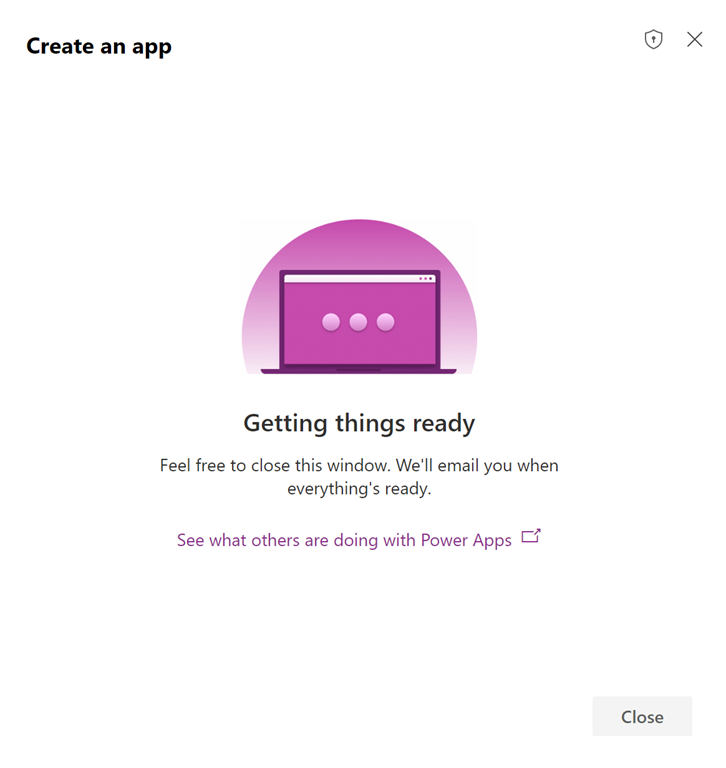
You should then see the dialog display, like the one above, telling you to wait while things get set up.

image

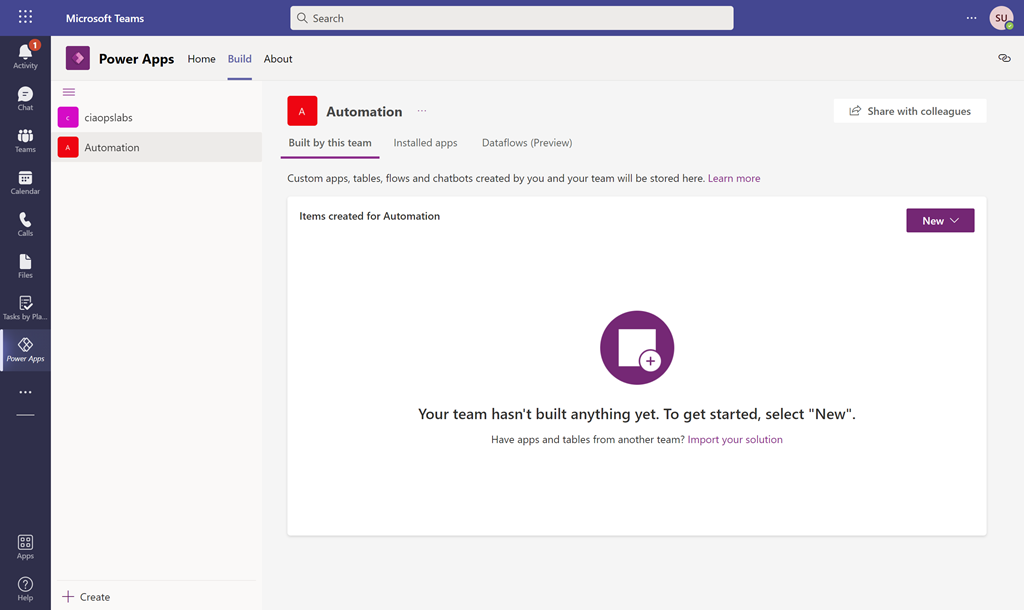
If this process gets hung up after a minute or two, just refresh the page in your browser. You should now see something like that shown above with a list of the Microsoft Teams on the left. If you select the Microsoft Team you want to put the Dataverse database into (here Automation) you should see that nothing is built yet in the information area on the right.

image

Select the New button on the right and then App from the options that appear as shown above.

image

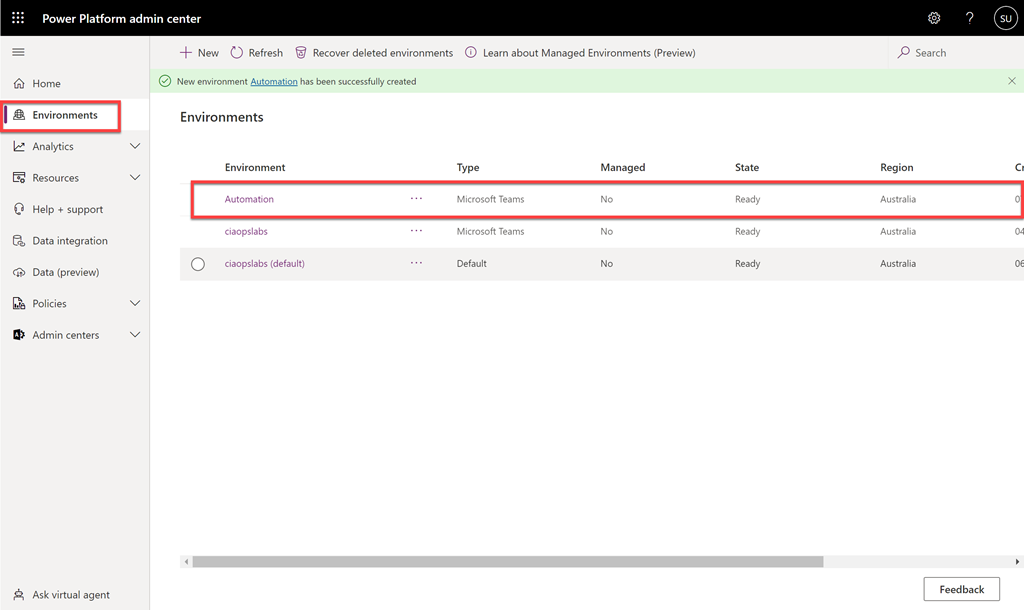
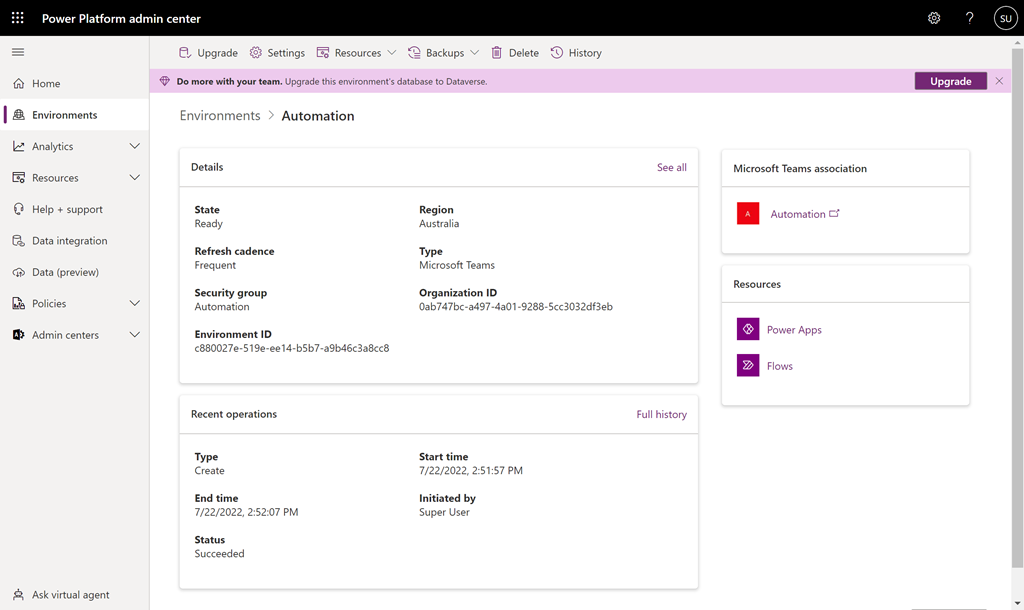
If you take a quick peek at the Power Platform admin center, in a new browser tab, and then Environments from the menu on the left or use the direct link:

https://admin.powerplatform.microsoft.com/environments

You’ll see that a new Power Platform environment has been created matching the name of the Microsoft Team (here Automation).

As the Microsoft documentation on Power Platform environments says:

https://docs.microsoft.com/en-us/power-platform/admin/environments-overview

A Power Platform environment is a space to store, manage, and share your organization’s business data, apps, chatbots, and flows. It also serves as a container to separate apps that might have different roles, security requirements, or target audiences.

In essence, think of an environment as a container to store things you create in the Power Platform. When you create a Power Platform App inside a Microsoft Team, it creates them in a unique container.

image

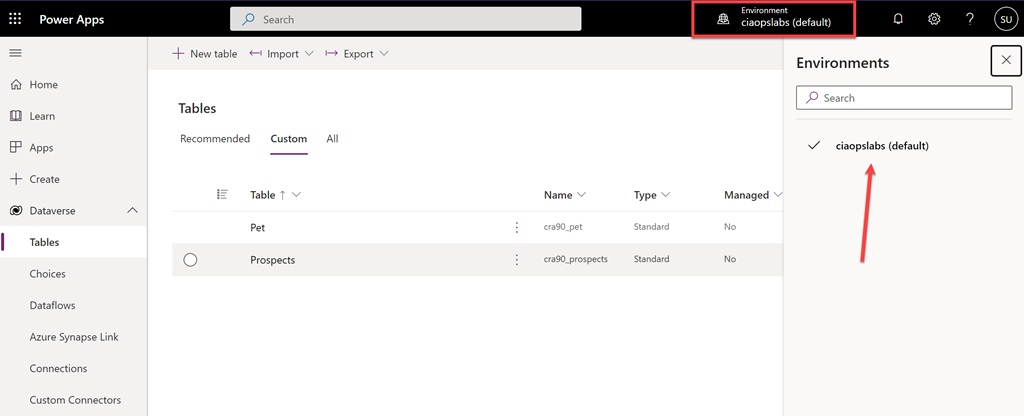
The idea is that you should be able to easily switch between environments. However, if you navigate to the Power Platform service directly at:

https://make.powerapps.com/

You are not able to see the environment just created in Microsoft Teams as shown above for some reason. It seems the only environments you can see here are those created directly in the Power Apps make portal.

image

You can drill into the new Teams environment you just created in the Power Platform admin center by selecting it from the list. Information about the environment will be displayed as shown above.

image

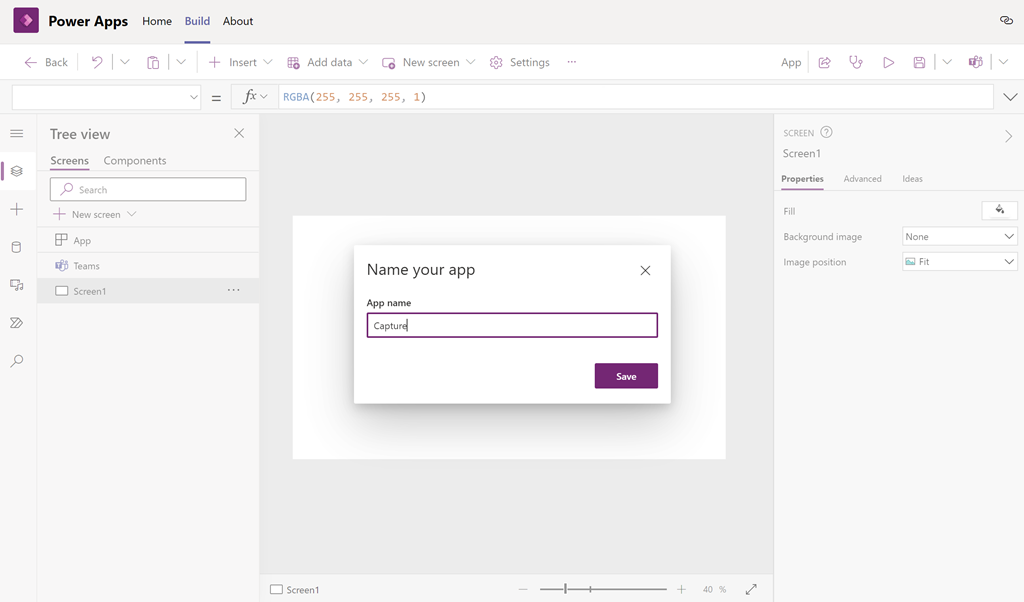
If you return to your app creation process inside the Microsoft Team, you’ll now need to give your app a name (here Capture)

image

Typically, you build a full app here but for now all we want to create is a single database, so select the Data icon on the left (cylinder) as shown and then select the Create new table button to the right of it.

image

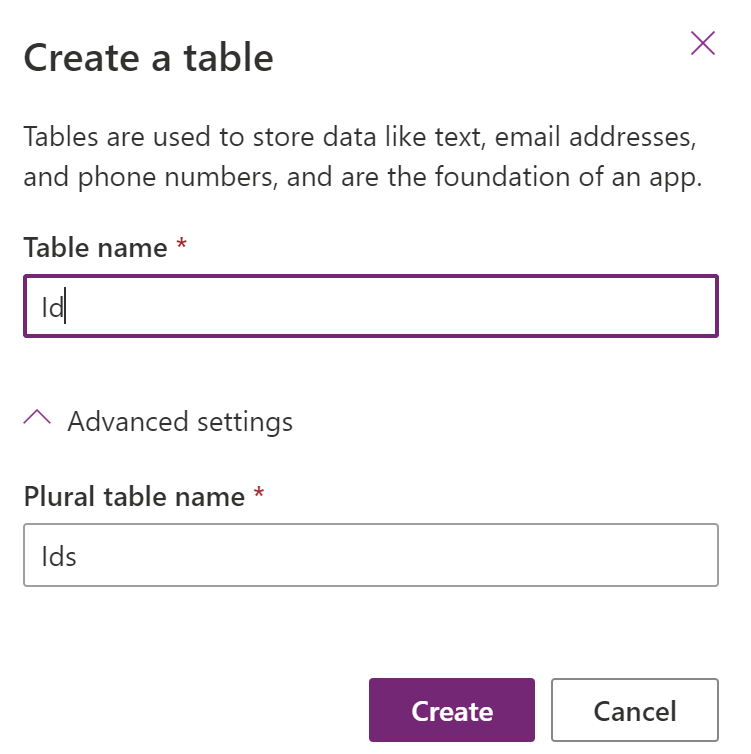
You’ll then be asked to give the table a name (here Id). If you open the Advanced settings option at the bottom of the dialog, you’ll see that there are not many additional options to select from.

Select the Create button to continue.

image

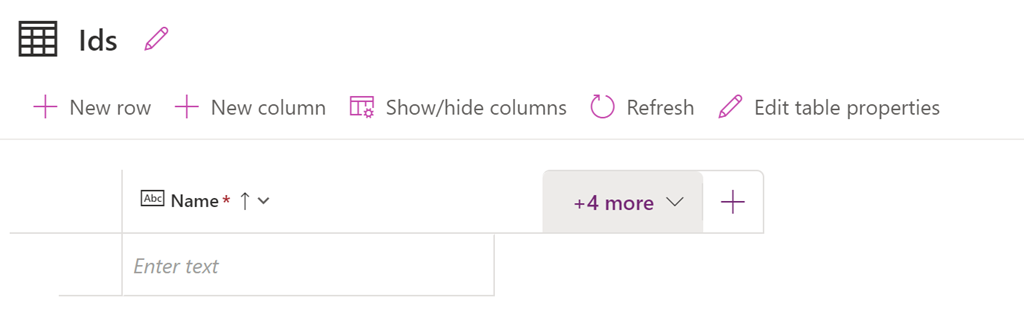
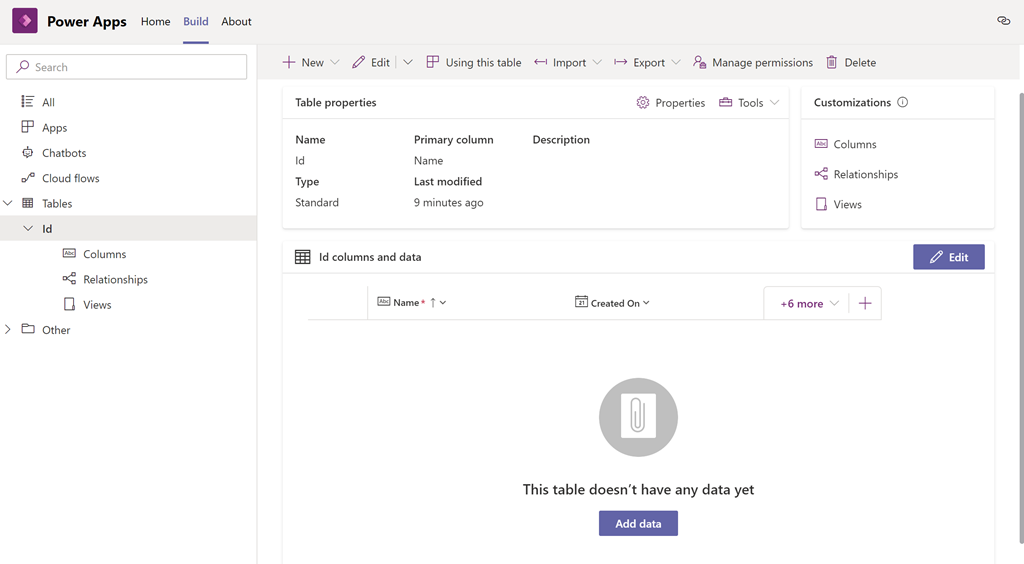
You should now see the table displayed as shown above. You’ll also notice that there is already a column called Name created. This is a bit like when you create a new SharePoint list and get a single column created for you as well.

image

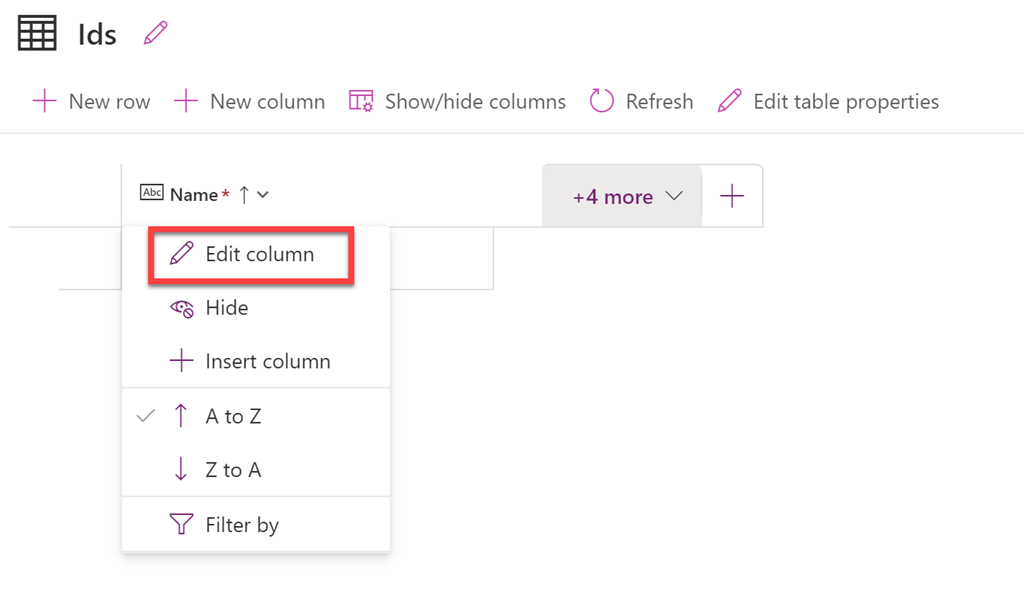
If you try and edit this initial column by selecting the header and then the Edit column option from the menu that appears above,

image

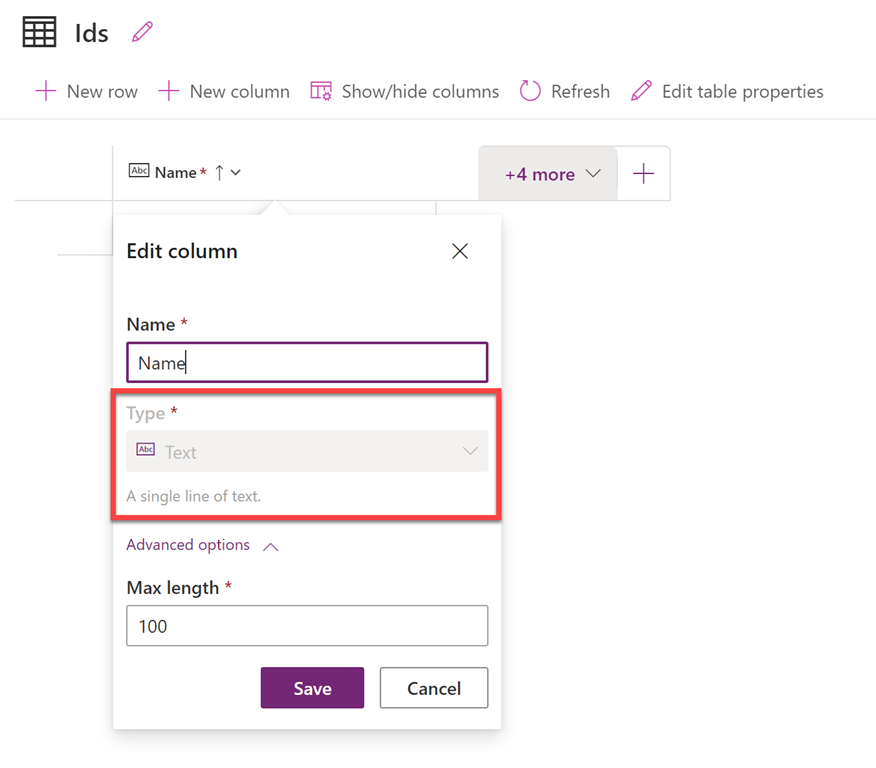
you’ll find there are not a lot of options available. This maybe limiting or just annoying as it is in SharePoint, but for now just leave that column in place. You’ll just need to remember to put some data in it as it is a required field.

image

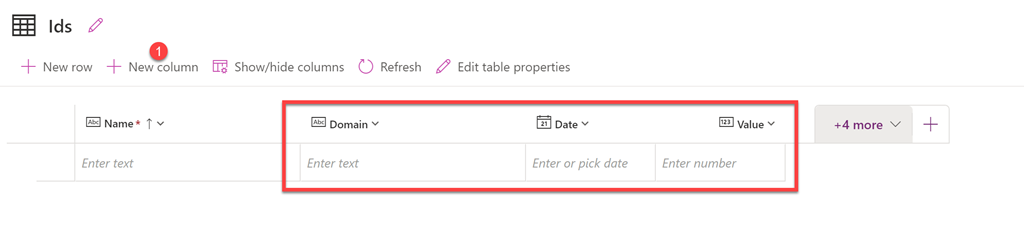
You can then add any addition columns you require. Here I’ve added the columns Domain, Date and Value. These are the fields I want to populate with custom data.

image

If I return to the previous screen you should now see the Dataverse database listed as shown above.

image

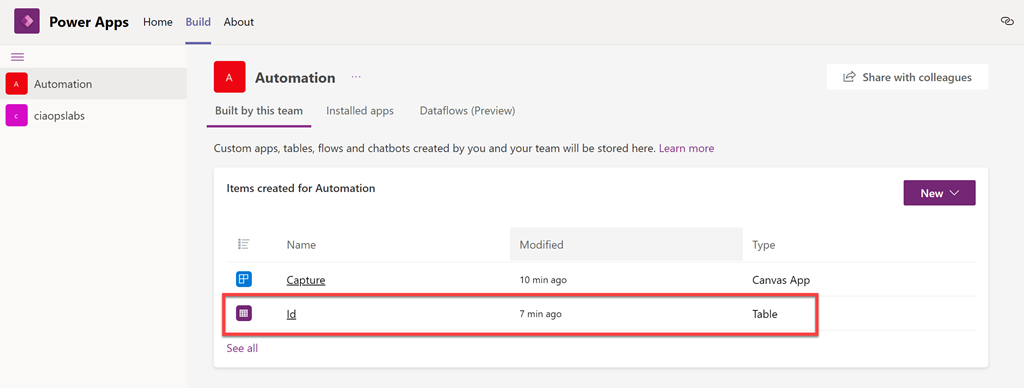
Returning to the Build page in Power Apps in Microsoft Teams, and selecting the Microsoft Team (here Automation), you should now see some entries in the Items created for Automation list on the right. Here, you should also see the database just created as noted above.

image

If you select the database directly from this screen you can drill in and see the table and any entries as shown above. No data appears in the table yet as none has been added.

image

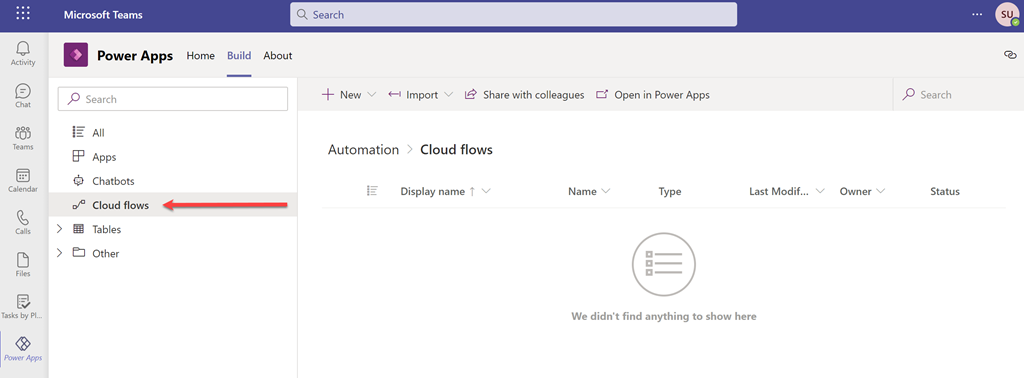
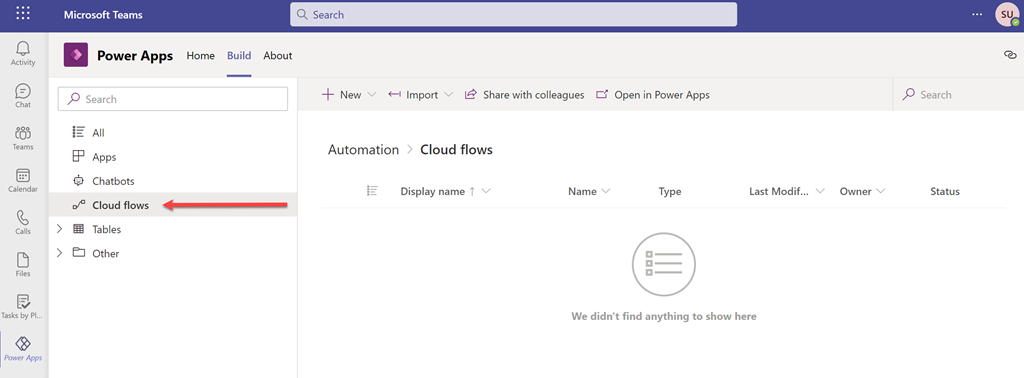
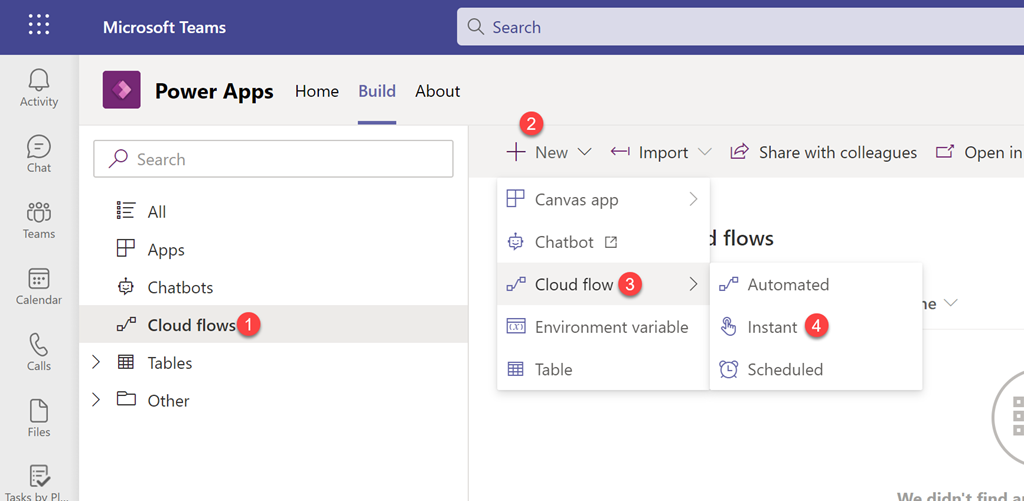
The way to get data into the database here will be via a very basic Power Automate Flow. It is a good practice to create this also inside the same Power Platform environment in which the Dataverse database was just created. Do this via the Cloud Flows option on the left as shown above.

image

To create a Flow, select Cloud Flows, then from the menu at the top on the right select the + New button. From the options that appear select Cloud Flows then type of Flow desired (here an Instant Flow).

image

The process for creating a Flow is the same as if you were creating a stand alone Flow via the Power Automate service. In this case, simply add the Dataverse Add a new row action as shown above. Configure this action to connect to the Dataverse database created earlier (Ids), then add some random text for the required default Name field (Hello), then data for Date, Domain and Value as shown above.

Save and Run the Flow.

image

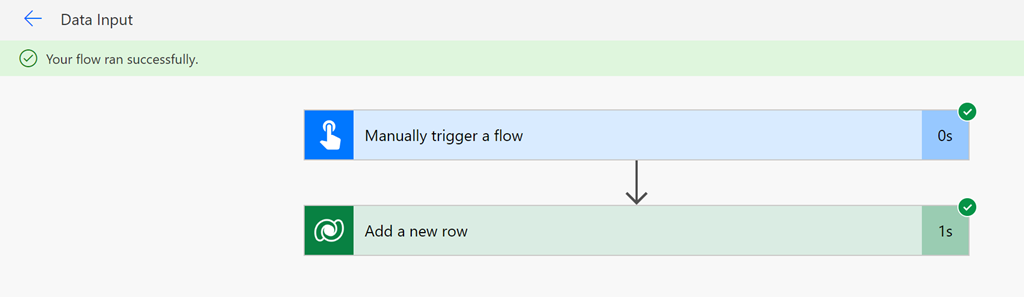
If everything is correct, the Flow should run without errors as shown above.

image

If you then look at the details of the database you should see that it now has data inside it as shown above.

image

You could also create a Flow directly from the Power Automate service, but remember to switch to the new Microsoft Teams environment that was created by adding a Power Automate app to the Microsoft Team before creating the Flow.

image

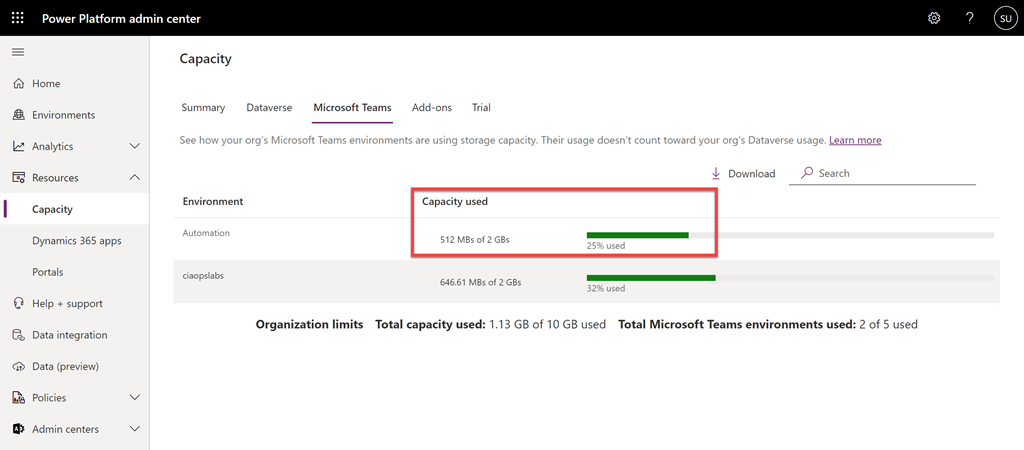
The final interesting item here is to look at the capacity of the new database in the Power Platform admin center where you’ll find that, although you have a total size of 2GB, about 25% has already been consumed by the system.

For more information about the Dataverse for Teams consult the Microsoft documentation here:

About the Microsoft Dataverse for Teams environment

Defender for Endpoint device execution restrictions

This is a video run through of the recent articles I wrote:

Microsoft Defender for Endpoint device isolation

Microsoft Defender for Endpoint restrict app execution

This video will show you how to both isolate a device and restrict app execution on a device. Both of these are great ways to respond to a suspected device security threat and limit security breeches while still allowing remote troubleshooting.

Microsoft Defender for Endpoint Restrict app execution

In a recent blog I looked at how Microsoft Defender for Endpoint can allow an administrator to restrict a device from communicating with everything except the Defender for Endpoint admin console. You’ll find that post here:

Microsoft Defender for Endpoint device isolation

Isolating a device is a pretty drastic measure, however Defender for Endpoint does have another device restriction option that is probably less intrusive known as Restrict app execution.

What Restrict app execution does is that it present applications that are not signed by Microsoft from running.

image

To Restrict app execution on a device firstly navigate to:

https://security.microsoft.com

and select the Device inventory from the options on the left. This will display a list of all the devices that Defender for Endpoint knows about. Select the device you wish to isolate from the list. In the top right hand side should appear an option Restrict app execution as shown above.

image

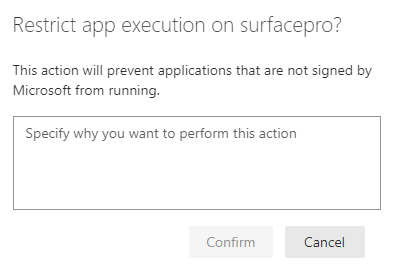
Once you select this option you’ll need to provide a reason for this restriction and press the Confirm button. This action will be logged in the admin console for later reference.

image

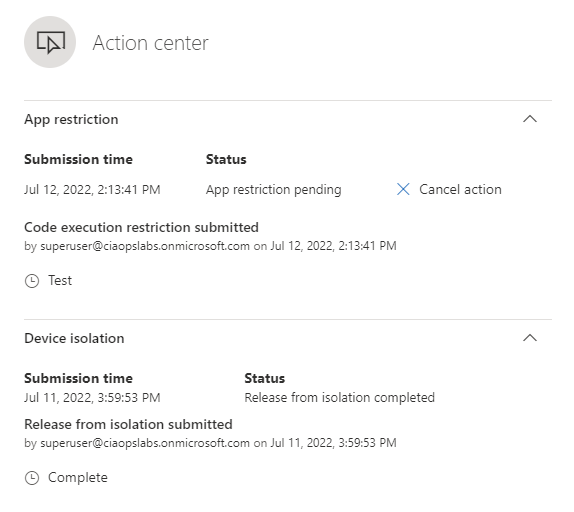
You will see the action item display as shown above. You can also cancel if required here.

On the device, in a matter of moments, a message will now appear:

Screenshot 2022-07-12 141355

and if a non Microsoft application is run you’ll see:

image

putty.exe

image

Brave browser

This process is using Windows Defender Application Control (WDAC) that I have spoken about before:

Windows Defender Application Control (WDAC) basics

which you can apply yourself via a policy, but in this case, it is being applied on the fly, which is impressive!

To remove this device restriction, all you need to do is select

image

the Remove app restriction which can be again found in the top right of the device page.

image

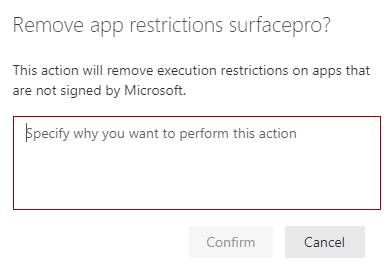
You’ll again be prompted to enter a reason for removing the restriction and then you’ll need to select the Confirm button.

image

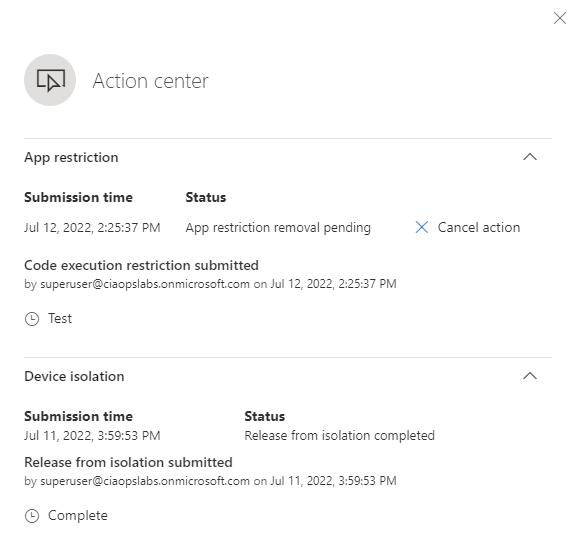
The Action center confirmation will then appear as shown above and in a very short period of time the restriction will be removed from the device.

image

These confirmation can be found in the Action center option on the left hand side menu under the Actions & submissions item as shown above.

This is handy option in Defender for Endpoint for isolating a possible security issue on a device while minimising the impact to the user. Of course, smart attackers will use Microsoft tools located on the device, such as PowerShell to compromise machines to avoid this restriction. However, typically, they will also need to run a non-Microsoft application somewhere along the line which this technique will block.

For more information about Microsoft Defender Restrict app execution see the Microsoft documentation here:

Take response on a device

and remember that Restrict app execution is another feature that can be used with Defender for Endpoint when responding to security threats on devices.

Microsoft Defender for Endpoint device isolation

Let’s say that you have device that you believe has a security threat serious enough that it should be ‘unplugged’ from the network. Doing so physically makes it hard to troubleshoot any incident unless you are in front of that machine. However, Defender for Endpoint allows you to isolate the machine from the network while still remaining connected to the Defender for Endpoint console.

image

To initiate the device isolation navigate to:

https://security.microsoft.com

and select the Device inventory option from the menu on the left hand side. That should show you a list of all devices that Defender for Endpoint knows about. Select the device you wish to isolate from the list that appears.

In the top right side of the device page you will find the option to Isolate a device. If you can’t see that option check the ellipse (three dots). Select the ellipse to display the menu shown above. In that menu should be an option Isolate device, which you should select.

image

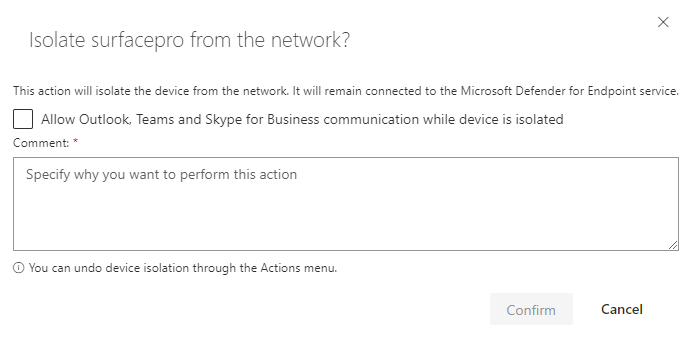
You’ll now see a dialog appear as shown above asking you to confirm that you wish to isolate the selected device. You also have the option here to allow Outlook, Teams and Skype for Business while device is isolated if desired. You’ll also need to enter a reason for isolating the device. When all that is done, select the Confirm button.

image

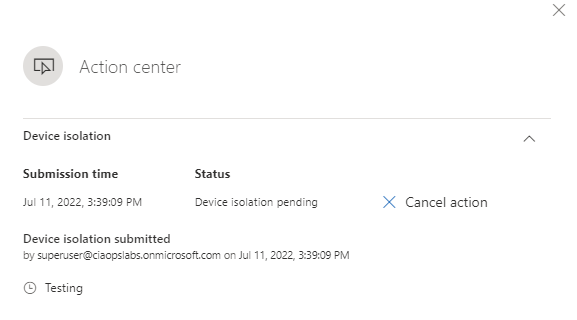
You should now see the action confirmed in the security console as shown above. You also have the ability to cancel this if needed here.

clip_image002

Almost immediately, the device being isolated will warn the current use that isolation is taking place and the network is disabled as shown above. At that point the user will no longer be able to navigate beyond their current machine (i.e. no browsing Internet or local LAN, no printing and no emails). More importantly, any other covert sessions will also be blocked preventing a security threat from spreading.

image

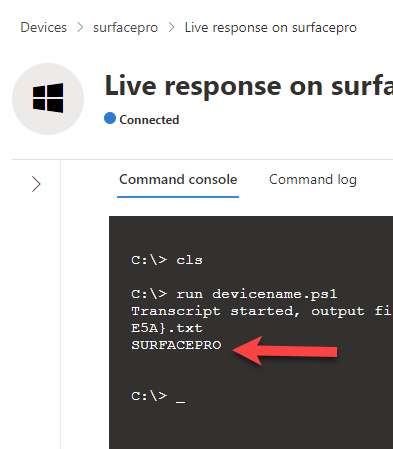
As an administrator you will however be able to launch a Live response session in the Defender console, as shown above, to triage the device and run PowerShell scripts if needed.

image

If you now look in the menu in the top right of this device when you have completed your work, you will see an option Release from isolation as shown above, for that device.

image

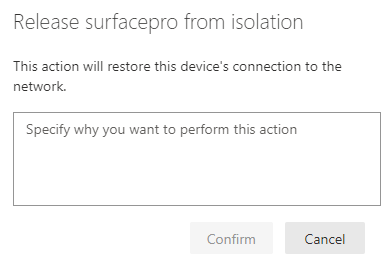
You will once again need to provide a reason why this device is being released from insolation and then select the Confirm button to complete the process.

image

The Action center will appear again as the isolation is removed. You again, have the option to cancel this if you wish.

image

The history of the actions taken to isolate and release the device can be found in the Action center menu option under the Actions & submissions heading on the left in the Microsoft Security center.

Defender for Endpoint allow you to quickly and easily isolate a suspected device from all network connections but allow it to remain connected to the Defender console for remote troubleshooting. If you want to read more about this process then consult the Microsoft documentation here:

Isolate devices from the network