Connect Power Automate to Twitter using a Bring Your Own App approach

*** On July 29 the MS docs now say:

The default shared application (Twitter Client application maintained by Microsoft) is no longer available. The connector now supports only one authentication type – Bring your own application. As of June 2023, it requires a paid Enterprise tier application. However, Twitter’s pricing policy might continue to change.

https://learn.microsoft.com/en-us/connectors/twitter/

Twitter or X as it is now, costs are here:

https://developer.twitter.com/en

Enterprise plans will cost >$5,000 per month!


**** On July 19 2023 this configuration starting reporting errors and now no longer seems to work either!

As I have detailed previously:

Power Automate Twitter connector failing

I needed to regenerate the connection to Twitter in my Flows. The following is what worked for me and I hope it can help you as I didn’t find this set out clearly anywhere else. I found that you needed to create all new Twitter connections in your Flows, so remember to record how these are configured before you go and delete anything.

Step 1. Remove any existing Twitter connections in your Data

image

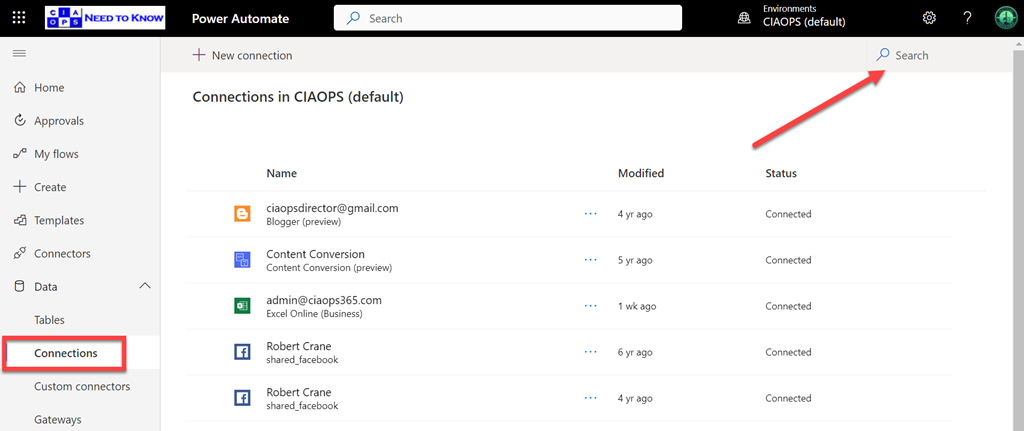
Navigate to Power Automate and select Data and then Connections from the menu on the left. In the top right of this screen you will find a Search box. Into this search box type:

Twitter

image

You should now see a list of all your existing Twitter connections. ALL of these will need to be removed and thus prior, ensure you have recorded what your Twitter actions do in your Flows, because once you delete the connection here you will NOT be able to see what the actions actually did. They will simply show as invalid.

image

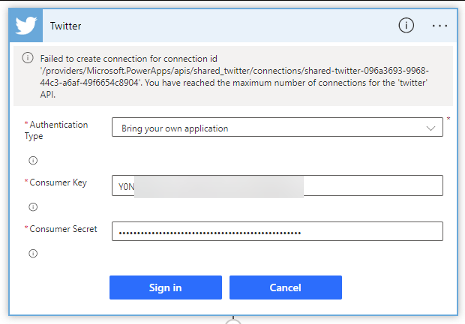
The reason you need to delete ALL the Twitter connections you find is the above error:

Failed to create connection for connection id ‘/providers/MicrosoftPowerApps/apps/shared_twitter/connections/shared-twitter-<guid>’. You have reached the maximum number of connections for the ‘twitter’ API.

I personally found I actually had two connectors. Both years apart, but all must be removed as Twitter now only supports one connection for free.

Step 2. Create Twitter API credentials

Microsoft does provide documentation on this here:

Authentication and Bring your own application

and to start with ensure you are logged into your Twitter account in the browser and navigate to:

https://developer.twitter.com/

image

Select Developer Portal in the top right as shown above.

image

Select the option to Sign up for a Free Account towards the bottom of he page.

image

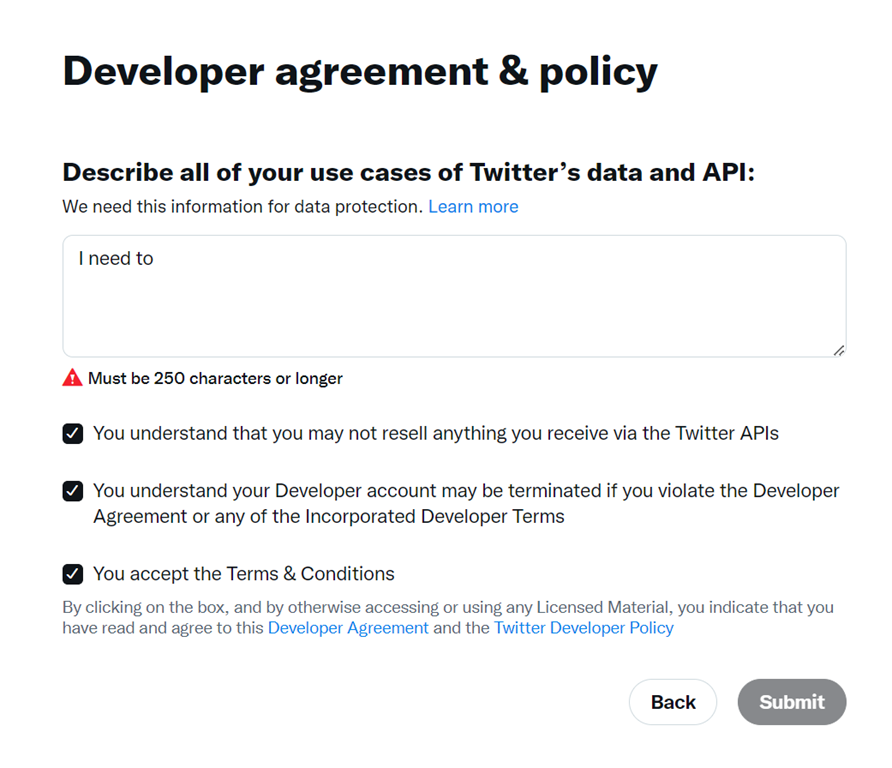
You’ll then need to write a 250 character or more essay and agree to to all the Terms and Conditions before you Submit.

image

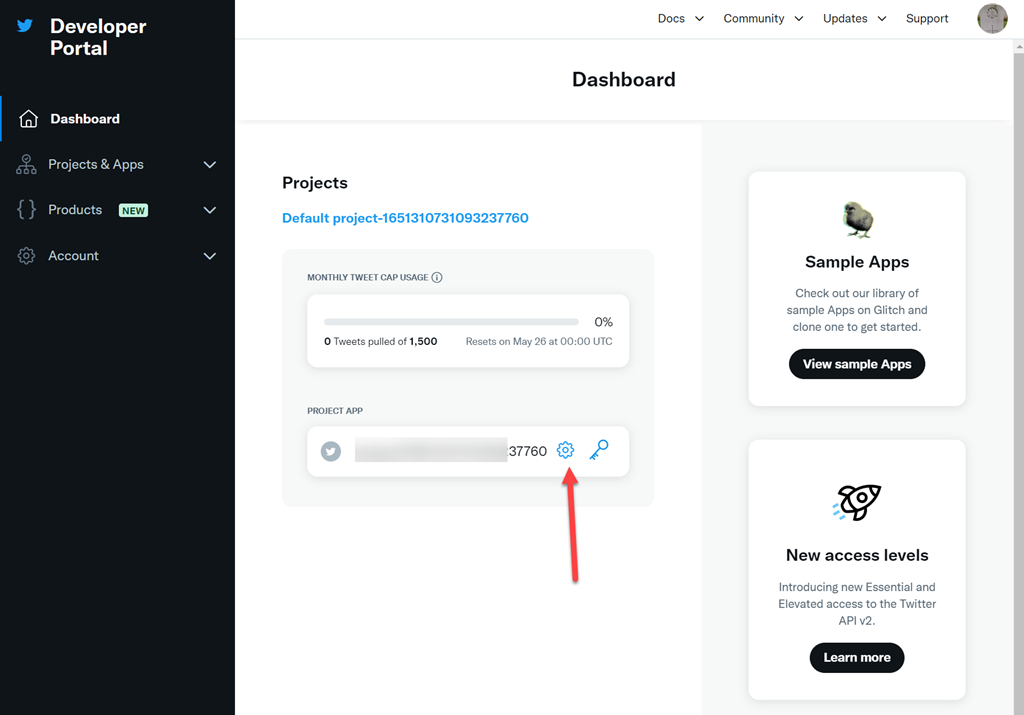
Now select the COG under the default project name that has been created for you as shown above.

image

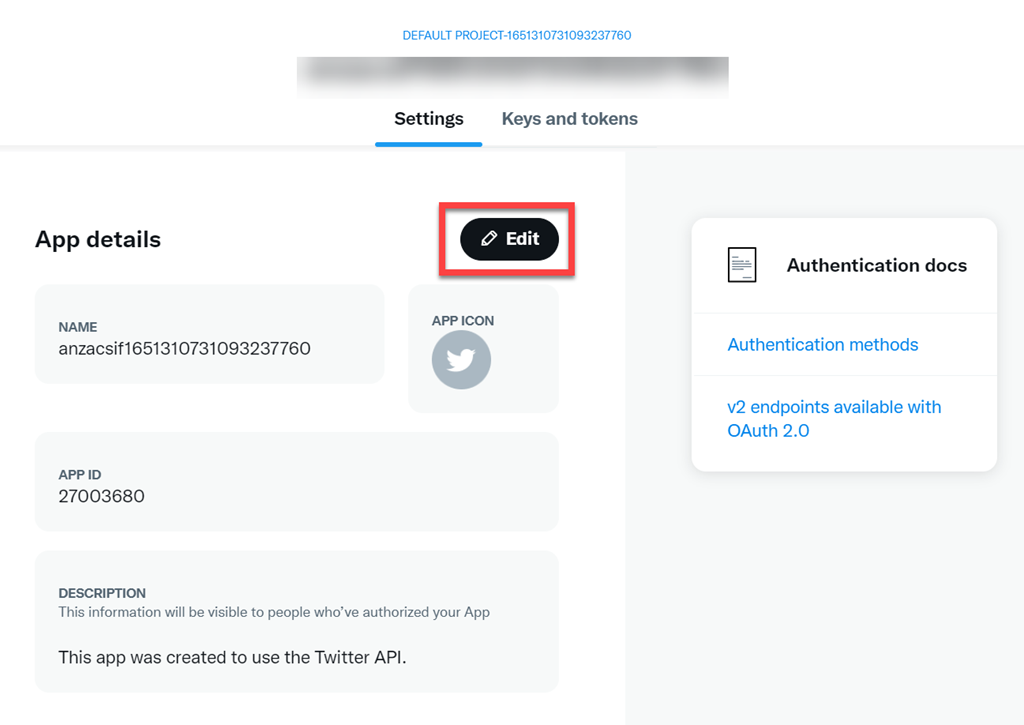
Select the Edit button as shown above.

image

Select the Delete App button at the bottom of the page. I found that the default app did not have the correct permissions and access so I removed it and created a new one with the right settings.

image

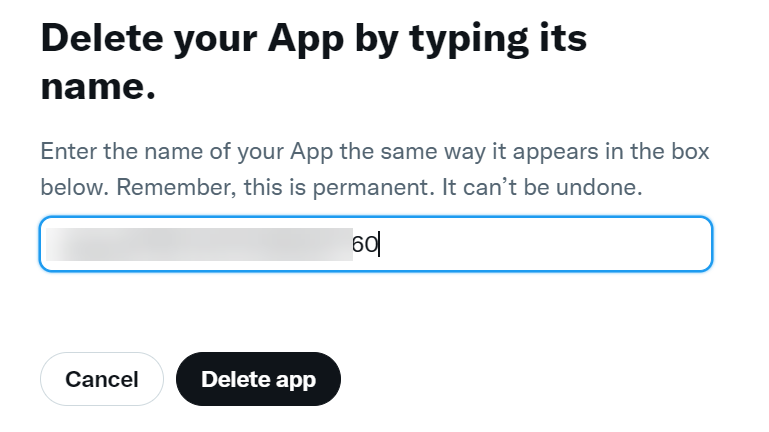
Make sure copy the name of the app because you’ll need to enter at the next dialog before pressing Delete app.

image

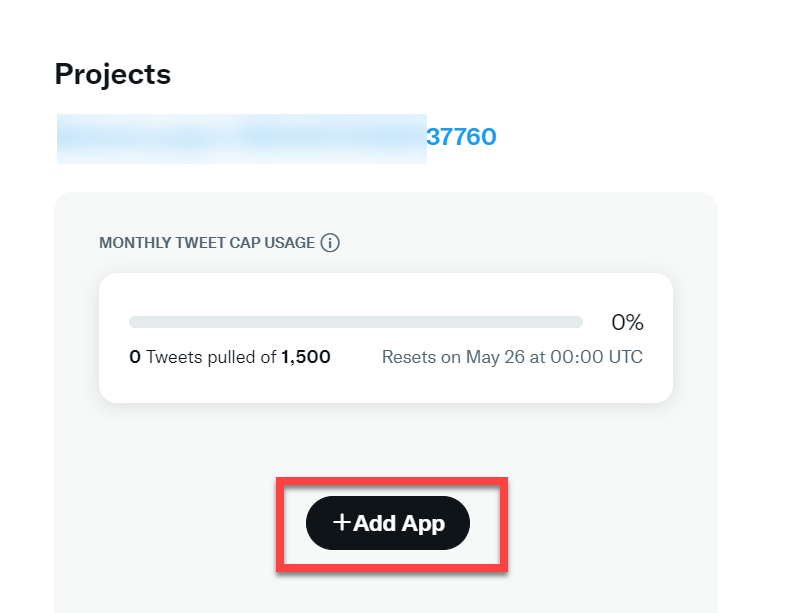
Back in the projects dashboard select Add an App as shown above.

image

Give the app a meaningful name select Next at the bottom of the page.

image

Copy the API Key and API Key Secret for later use. Make sure you DO SAVE both the API Key and API Key Secret as they’ll be needed back in Power Automate.Also, keep both of these secure as they control access to your Twitter account.

Select App settings at the bottom of the page to continue.

image

Select the Set up button under the User authentication settings towards the bottom of the page as shown above

image

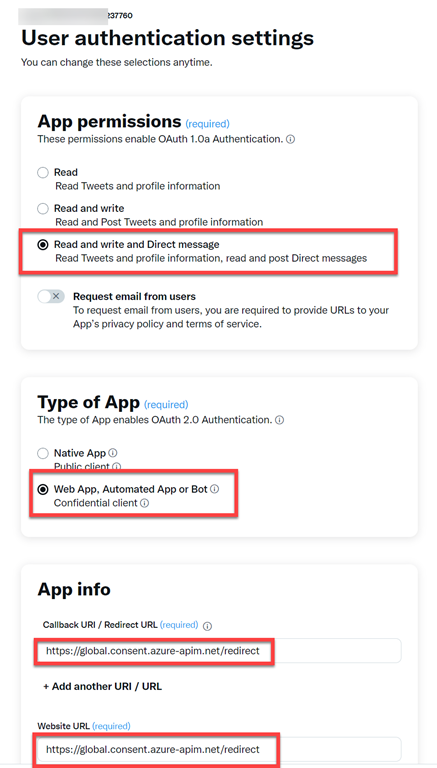
Ensure:

App permissions = Read and write and Direct message

Type of App = Web App, Automated App or Bot

Call Back URI / Redirect URI = https://global.consent.azure-apim.net/redirect

Website URL = https://global.consent.azure-apim.net/redirect

image

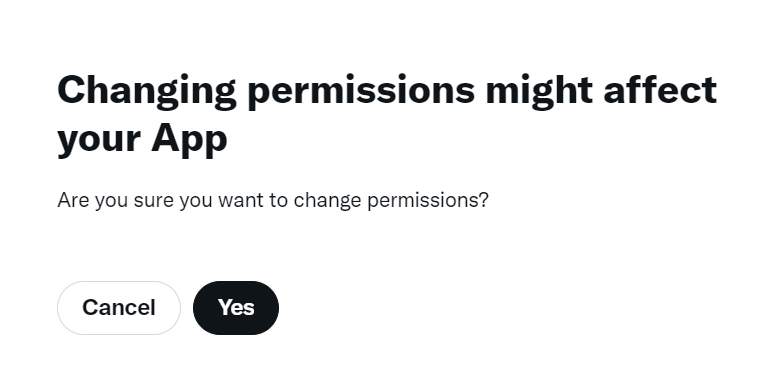
Select he option to Save at the bottom of the page. Select Yes when the above dialog appears to confirm.

image

You’ll now see a Client ID and Client Secret as shown above. You won’t need these so simply select Done to continue. You can re-create them if needed later.

image

Select Yes, I saved it to continue.

Step 3. Reconnect Twitter account in Power Automate

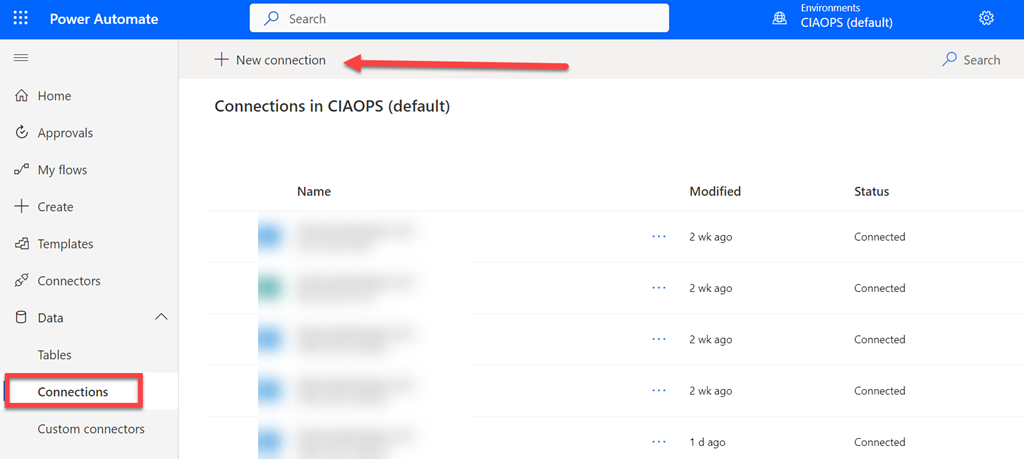
Return to Power Automate, Data, Connectors

image

Select New connection from the top of the page as shown above.

image

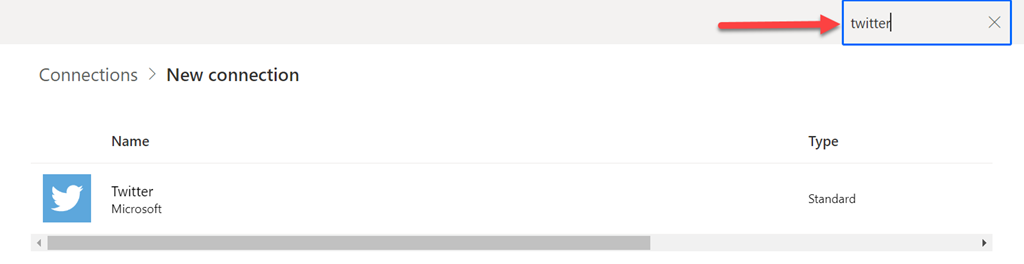
Search for Twitter using the Search box in the upper right. Then select the Twitter connector to configure it.

image

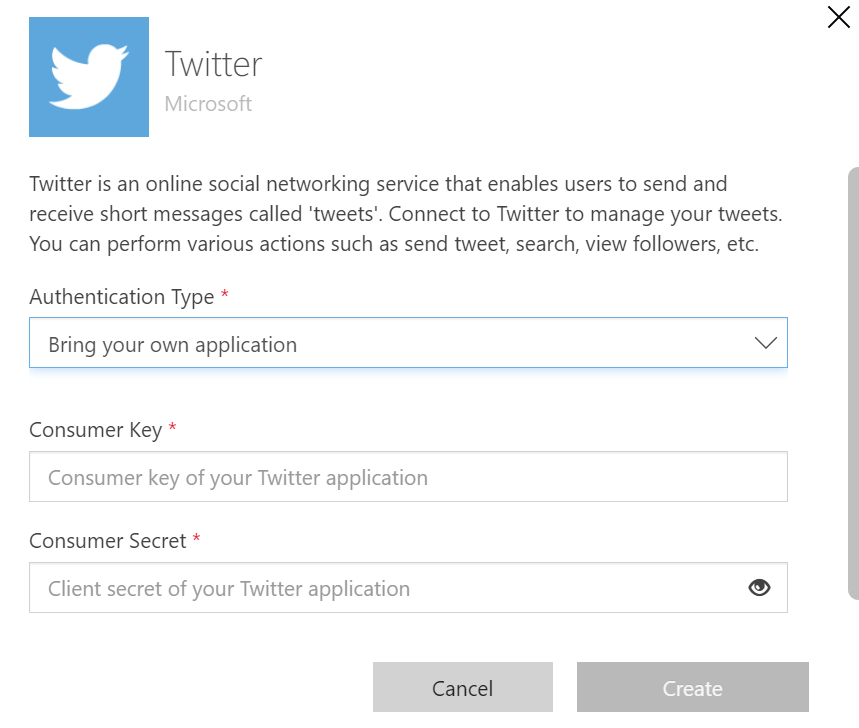
Ensure:

Authentication type = Bring your own application

Consumer key = API Key

Consumer secret = API Key Secret

image

A browser pop up will now appear asking you to authorize access to your Twitter account. You’ll need to login here with your Twitter account details. Enter you login details and select Authorize app.

You should then see a confirmation appear in this dialog and the browser pop up window will now close.

image

In the list of connections should now appear an entry for Twitter as shown above, and it it should show as Connected.

image

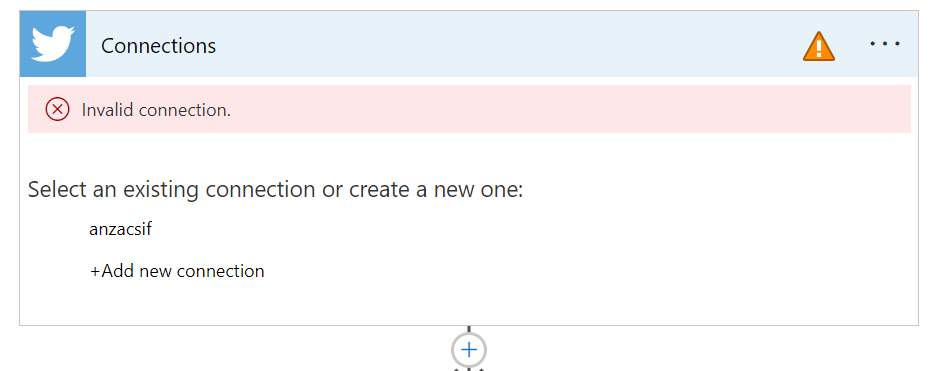
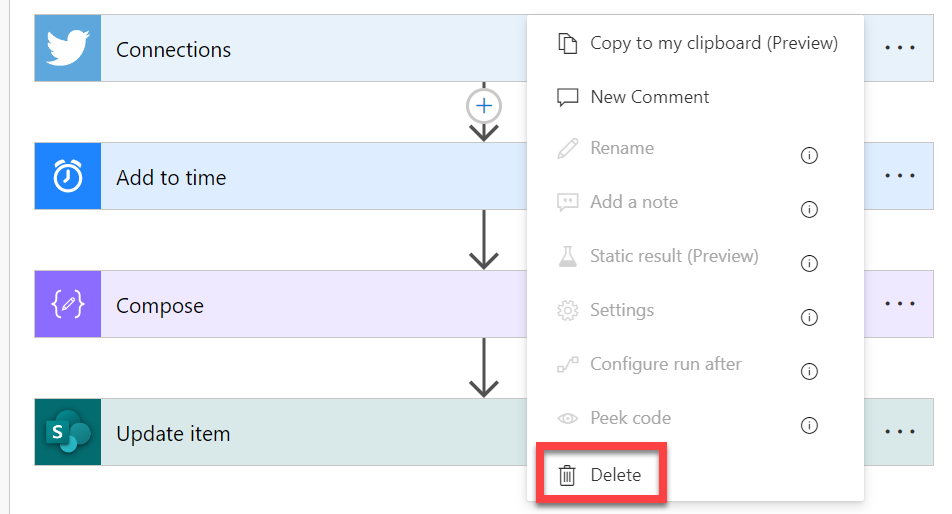
If you now navigate to where the Twitter action is inside your Flows you should see that the existing one is invalid as shown above.

image

Select the ellipse in the top right hand corner and from the menu that appears select Delete. I found I had to minimise the Twitter action first to allow it to be deleted.

You can now create a new Twitter action which will use the new connector and API that was created.

With that all done you should now Save your Flow and test it to ensure it is working as expected.

In summary, you’ll firstly need to check the existing configuration for any Twitter actions you have in a Flow and record these. Next, you’ll need to remove any and all existing Twitter connections in Power Automate. Remember, there maybe more than one. Next, you’ll need to go Developer area in Twitter. There you’ll need to delete the default app that is created and create a new one. When you create a new one you’ll receive credentials you’ll need to save and use back in Power Automate. Once created you’ll need to configure it with a few additional settings. With that complete, you’ll return to Power Automate and create a new Twitter data connection with the credentials obtained. Finally, you’ll need to remove the old Twitter actions from your Flows and create new ones.

As I said, this process worked for me and I hope it does for you.

Power Automate Twitter connector failing

*** My resolution to this here – https://blog.ciaops.com/2023/04/27/connect-power-automate-to-twitter-using-a-bring-your-own-app-approach/

Since the 20th of April 2023 the Power Automate Twitter connector has been failing to authenticate. This means you get an error in your Flow that looks like:

image

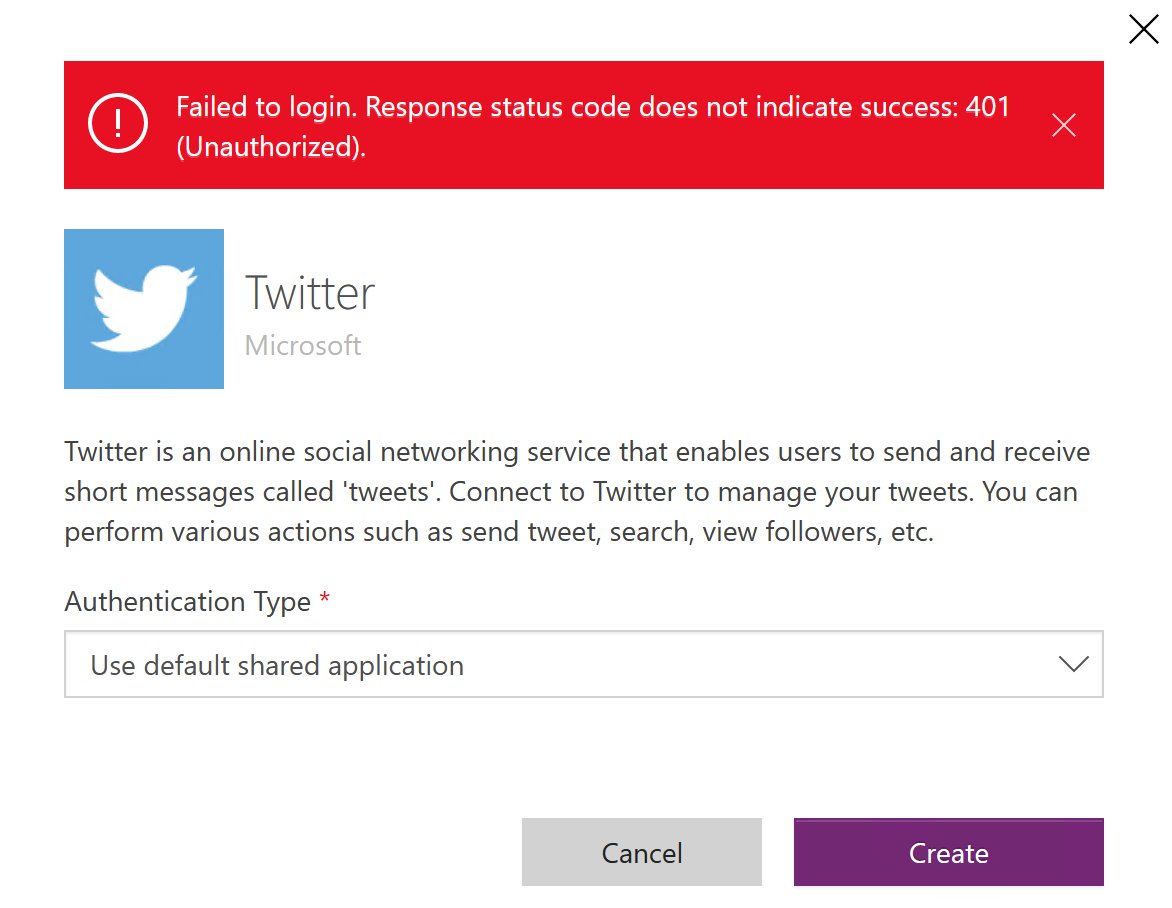
When I tried to fix the connector I am greeted by.

Image

There have no doubt been changes in the Twitter API which have caused this.

I’m trying to find an answer from Microsoft on how this will be handled going forward, but as yet I have not heard nothing back. If I find out, I’ll post here again.

Adoption with fun and astronomy

A while back I detailed how to schedule a Dilbert comic to appear daily in a Microsoft Teams channel:

Adoption with fun

Sadly, Dilbert has moved behind a paywall which means that process no longer works. As such, I have been searching for a suitable replacement and have settled on the Astronomy Picture of the Day from NASA.

The basic concept from the Dilbert process is the same. This process also requires a premium Power Automate connector, which you can easily configure using with either a Power Platform Premium license or using Power Platform PAYG configuration with Azure which I have shown previously.

image

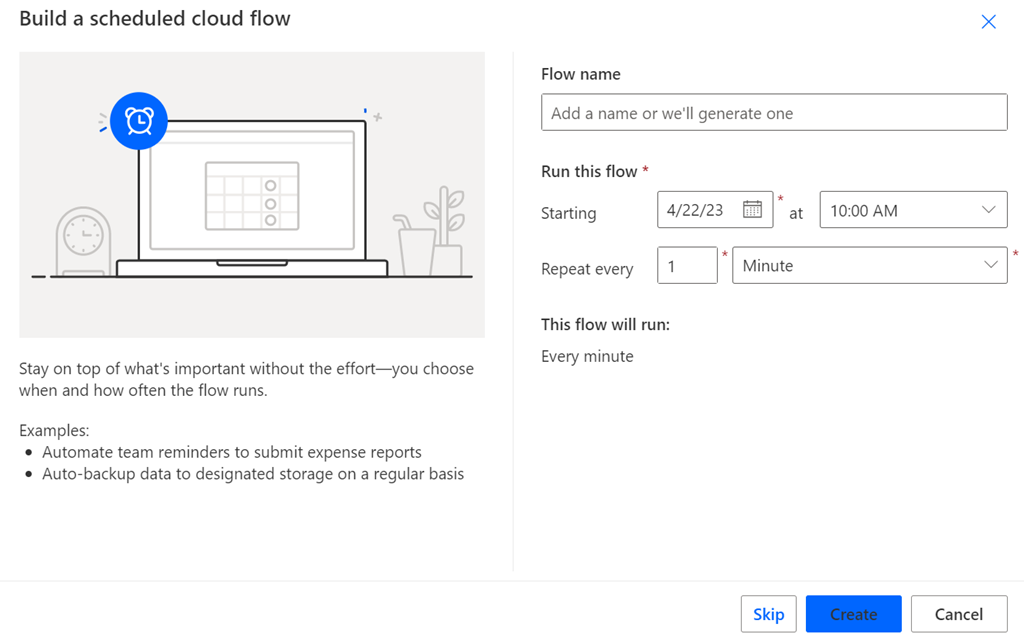
The starting process is to create a new Scheduled Cloud Flow and select the time when you wish that Flow to execute.

image

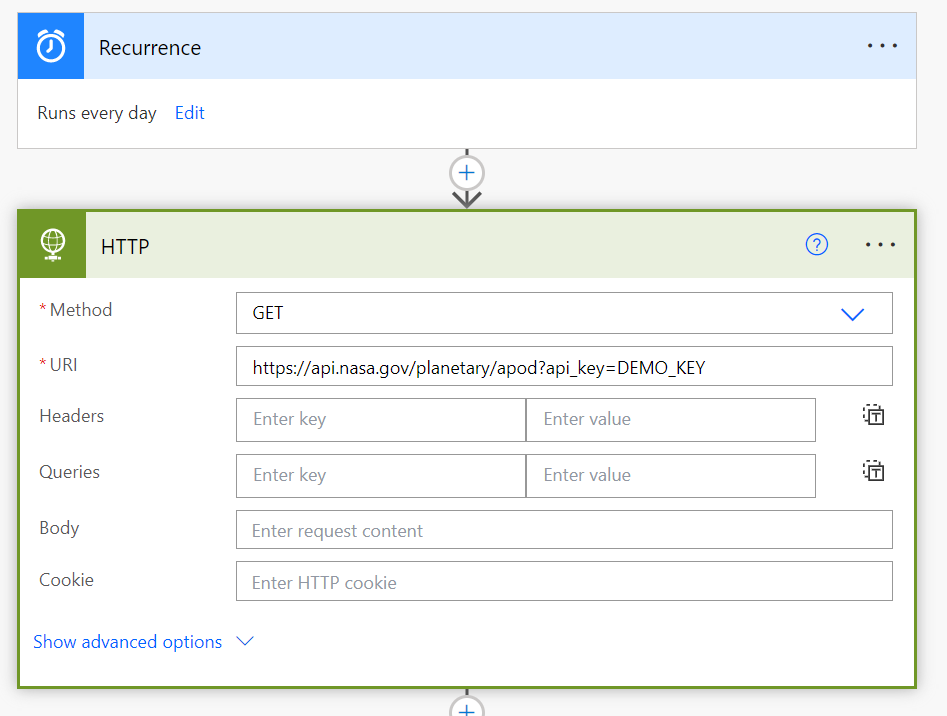
You will then need to add a HTTP action as shown above. This is a premium connection mentioned previously. This HTTP action will need to use a GET method for the URI:

https://api.nasa.gov/planetary/apod?api_key=DEMO_KEY

image

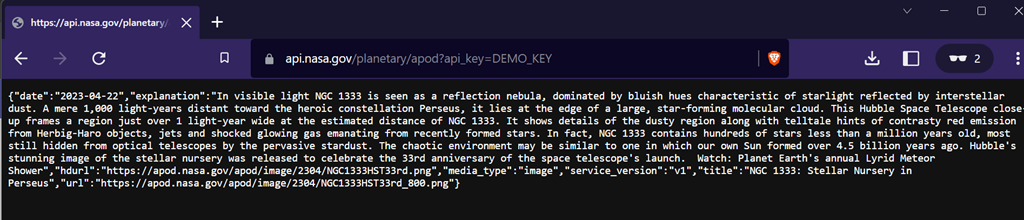
Open that URI in a new browser tab and you should see some JSON information returned as shown above. Copy all of this.

image

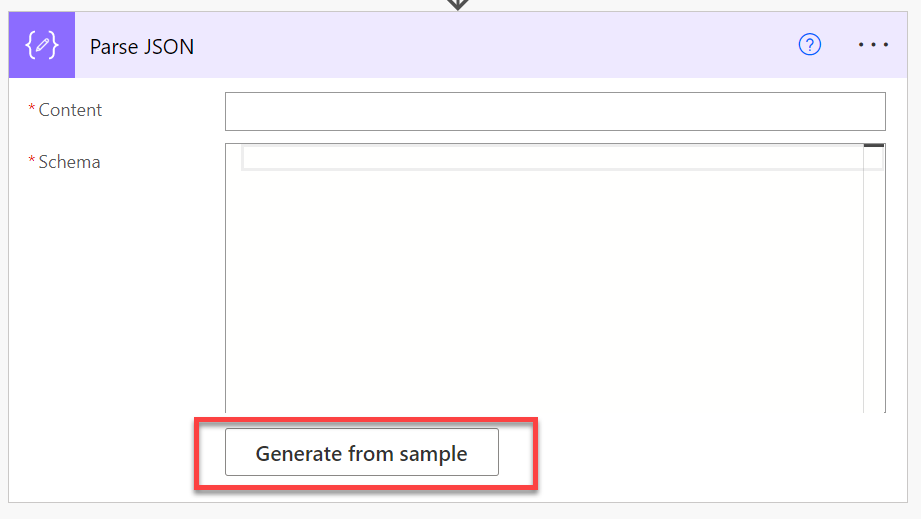
Next add the Parse JSON action to the Flow. Then select the Generate from sample button at the bottom of this action as shown above.

image

Paste the text obtained from browser window previously in here and select Done.

image

Ensure you have the Body option selected in the Content area as shown above.

image

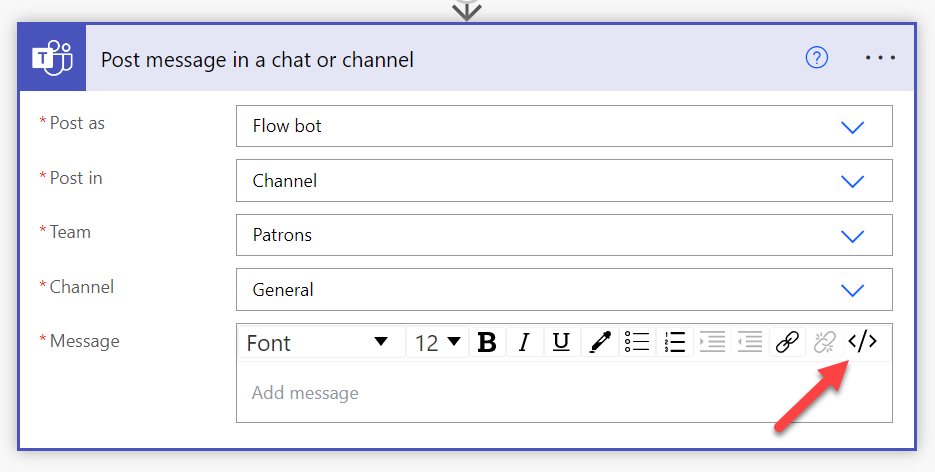
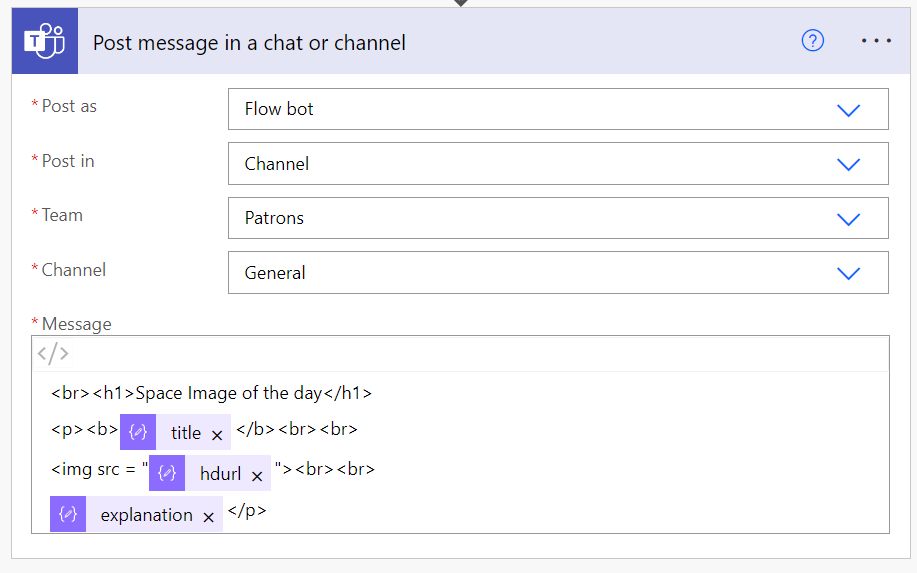
Next, add the Post message in a chat or channel as shown above. Add the appropriate Team and Channel. Then in the Message area select the </> icon in the top right to enable HTML editing.

image

Complete the formatting any way you wish but this is what I used:

<br><h1>Space Image of the day</h1>
<p><b>@{body(‘Parse_JSON’)?[‘title’]}</b><br><br>
<img src = “@{body(‘Parse_JSON’)?[‘hdurl’]}”><br><br>
@{body(‘Parse_JSON’)?[‘explanation’]}</p>

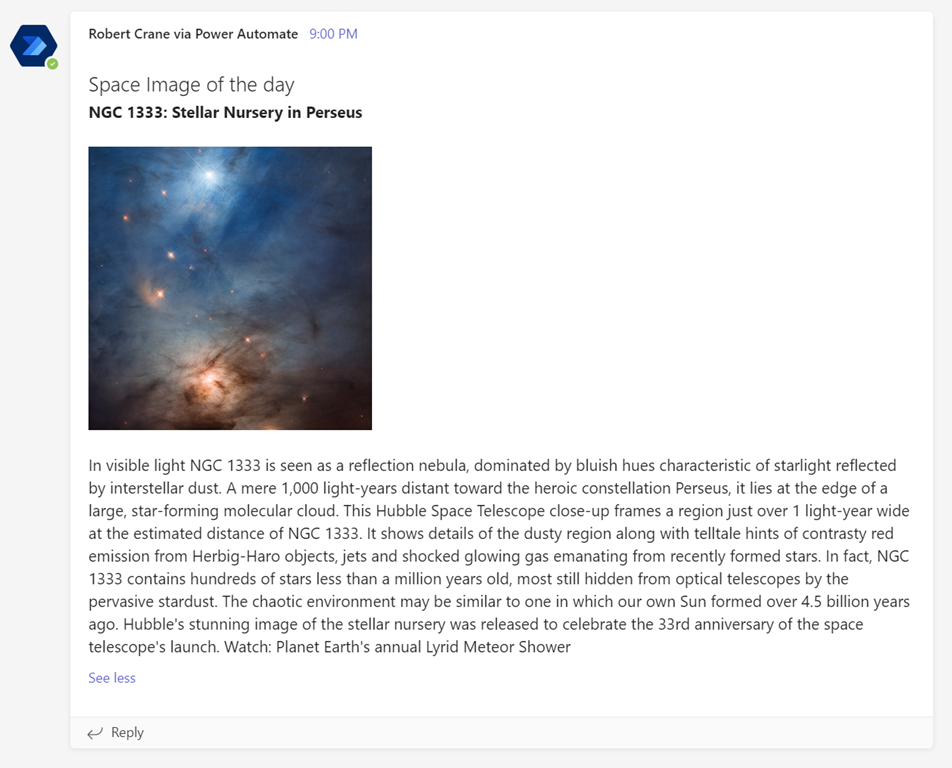
Basically, I’m going to display a heading, then the title, high definition image and explanation (from the returned result).

The result when the Flow runs is:

image

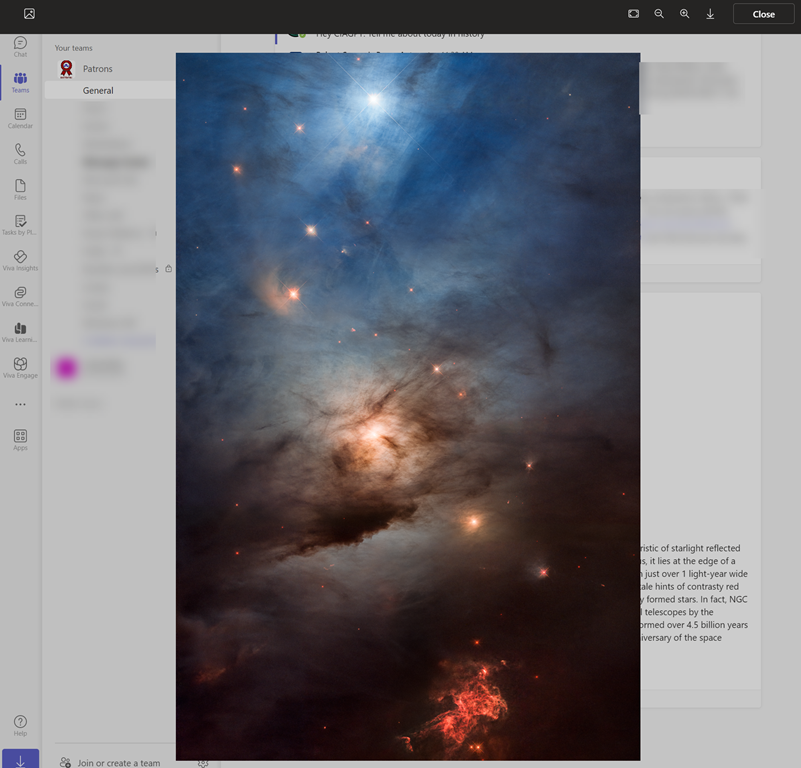
and when the imaged is clicked on, you see something like:

image

Remember, the whole idea here is to encourage people to regularly visit the Team in questions and hopefully drive more engagement of the environment.

Need to Know podcast–Episode 300

In this episode I cover off why adding Azure to every environment makes sense. Even though the billing model is different that doesn’t there isn’t an opportunity to add value to an environment with what Azure can provide. There are also plenty of updates from the Microsoft Cloud with many exciting new things to try. Listen along and let me know if you have any feedback.

You can listen directly to this episode at:

https://ciaops.podbean.com/e/episode-300-why-you-should-add-azure/

Subscribe via iTunes at:

https://itunes.apple.com/au/podcast/ciaops-need-to-know-podcasts/id406891445?mt=2

The podcast is also available on Stitcher at:

http://www.stitcher.com/podcast/ciaops/need-to-know-podcast?refid=stpr

Don’t forget to give the show a rating as well as send me any feedback or suggestions you may have for the show

This episode was recorded using Microsoft Teams and produced with Camtasia 2022.

Brought to you by www.ciaopspatron.com

Resources

@directorcia

@directorcia@twit.social

Join my shared channel

CIAOPS merch store

Become a CIAOPS Patron

CIAOPS Blog

YouTube edition of this podcast

Introducing the new Microsoft Teams, now in preview

The new Teams

Welcome to the new era of Microsoft Teams

Windows 365 Frontline available in public preview

Adding your Microsoft Store for Business and Education apps to the Microsoft Store in Intune

What’s New at Microsoft Secure

Avatars for Microsoft Teams

Introducing Microsoft Security Copilot: Empowering defenders at the speed of AI

Explaining the Microsoft 365 Copilot System

Microsoft Incident Response Retainer is generally available

Microsoft awarded Best Advanced Protection for Corporate and Consumer Users by AV-TEST

New Microsoft Intune Devices experience

What’s new in Microsoft Intune – 2303 (March) edition

How to enable Microsoft Authenticator Lite for Outlook mobile (preview)

Getting Endpoint Privilege Management working

If you are not aware yet, Endpoint Privilege Management is now available in public preview.

image

You can find it in https://intune.microsoft.com under the Endpoint Security menu option as shown above.

image

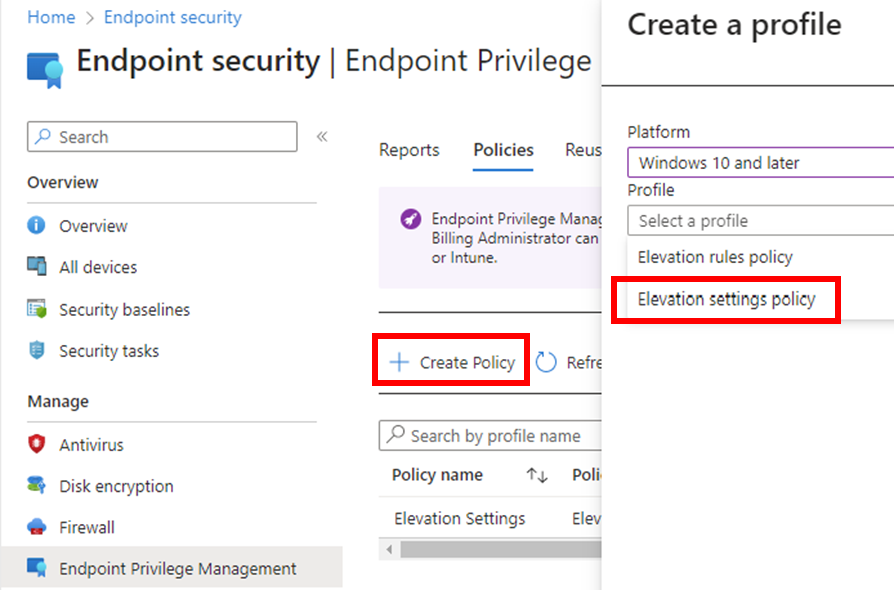
You’ll firstly need to use the Create Policy menu option, as shown to create a policy for your environment.

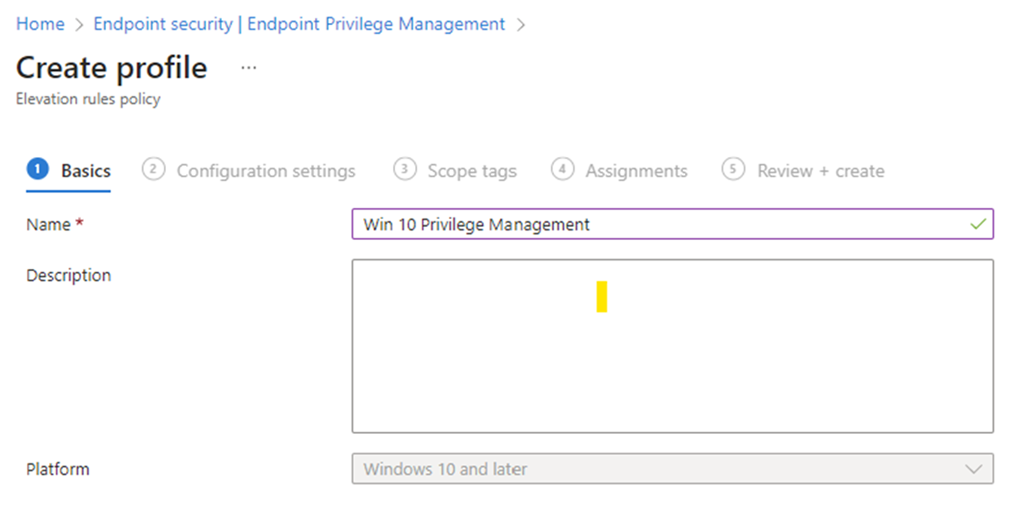
Select Windows 10 and later for the Platform (only option currently available).

Select Elevation settings policy for the Profile.

Select Create to continue.

image

As always, give the new policy a name and select Next to continue.

image

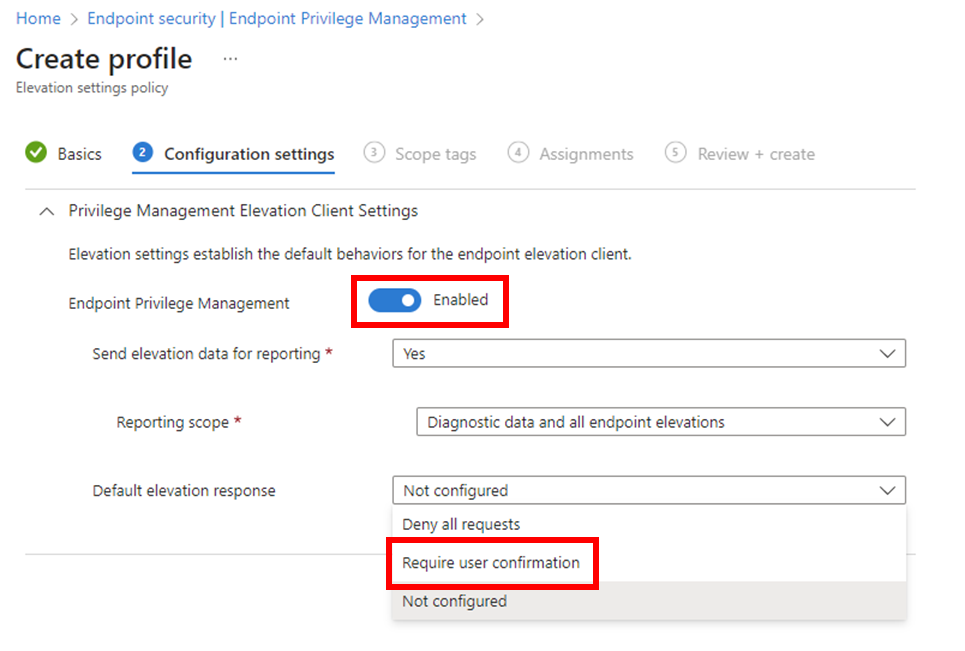
The most important thing here is to ensure that the option Endpoint Privilege Management is set to Enabled as shown above.

In this case, the Default elevation response is set to Require user confirmation.

Select Next to continue.

Continue through the rest of the policy as normal, ensuring you assign this policy to an appropriate group in your organisation.

image

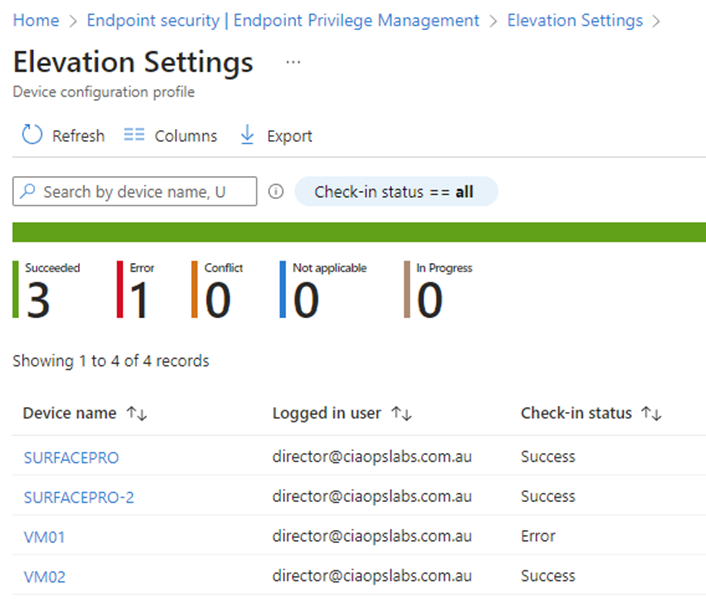
You can then select on the new policy to view it and then select View report to see the results of how the policy has been applied in your environment.

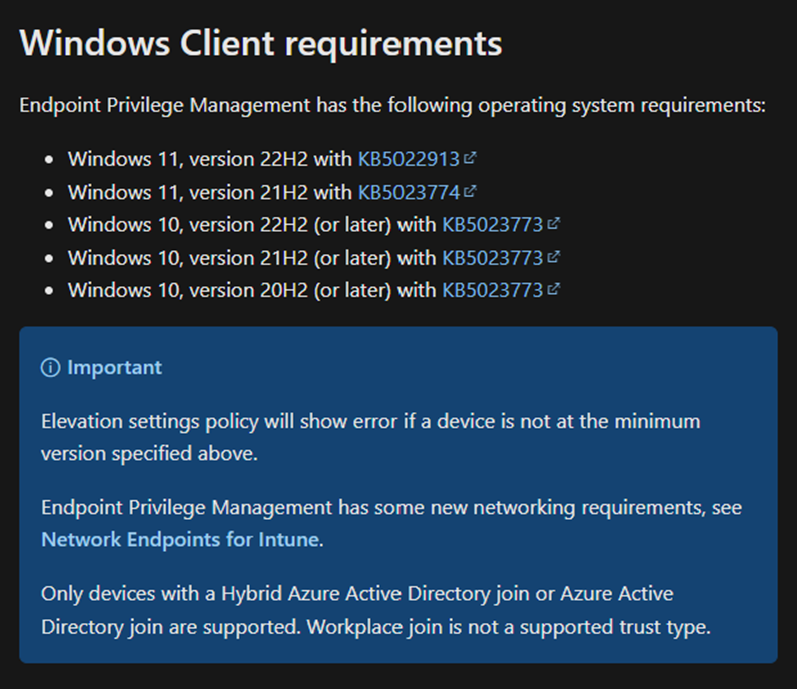
It is important to ensure your workstations are at the appropriate update level. At the moment that is:

image

The policy will NOT work until you are at this level.

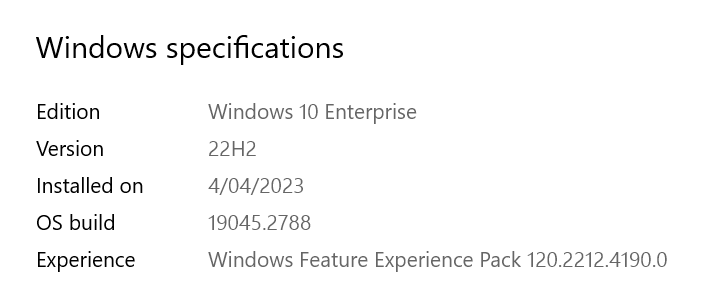
Screenshot 2023-04-04 153526

The above shows the client I used was Win 10 22H2 Build 19045.2788.

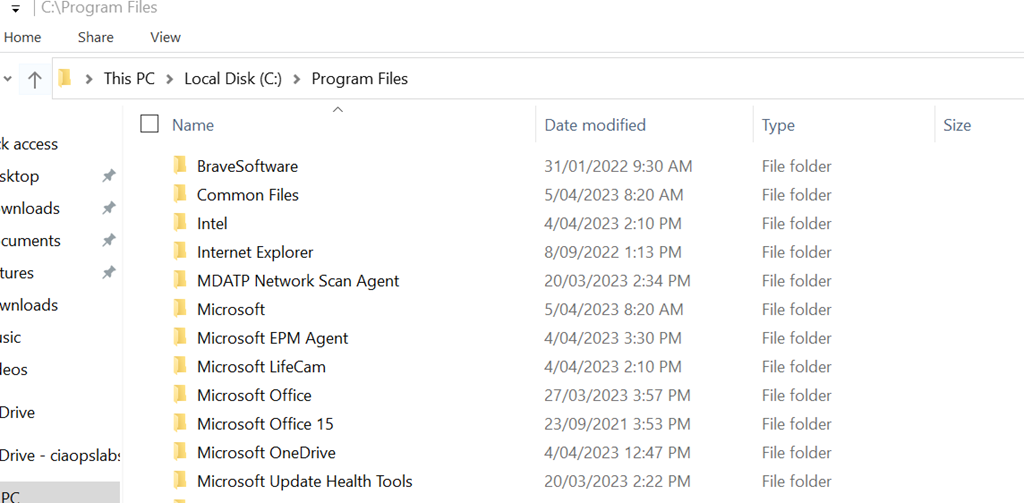
Screenshot 2023-04-04 153056
When the policy is applied successfully to the device you will find a new directory C:\Programs Files\Microsoft EPM agent is created as shown above.

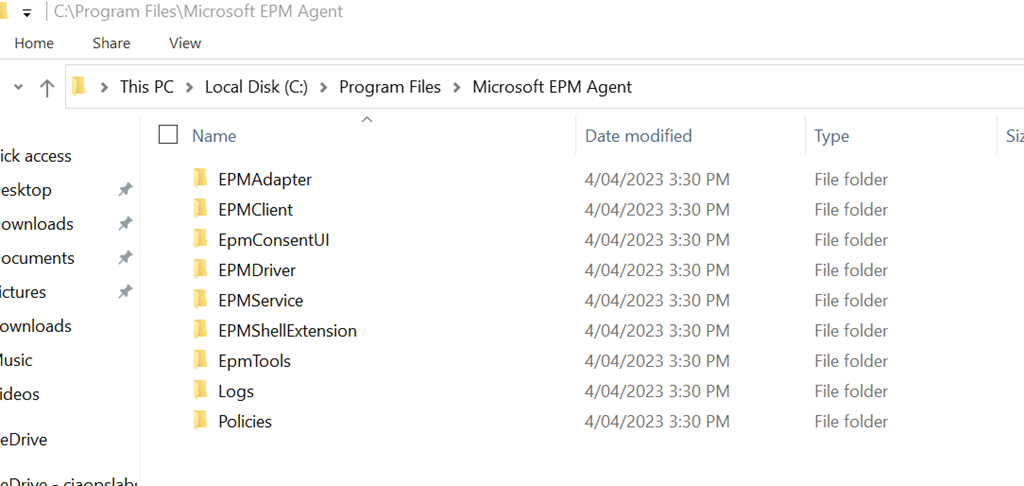
Screenshot 2023-04-04 153137

If you look inside that directory you will see the above structure.

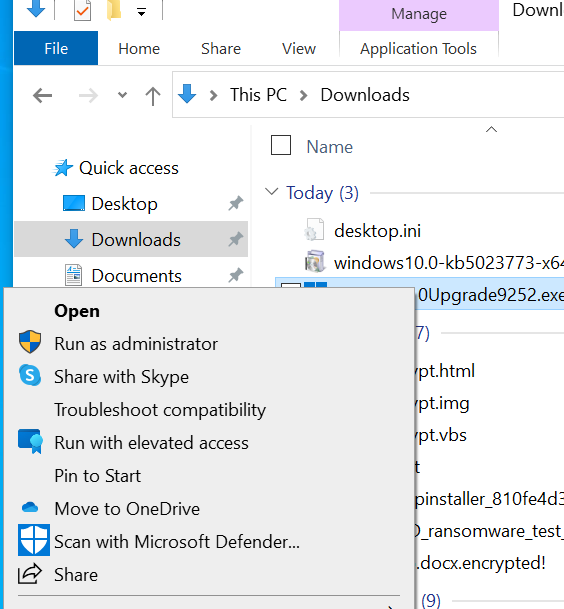
Screenshot 2023-04-04 153323

With these files now on the device, you can right mouse click on an executable and you should now see the option Run with elevated access as shown above.

Screenshot 2023-04-04 153409

When you select that option you will now be prompted, per the policy options, to enter a confirmation as shown above.

You can find documentation from Microsoft here:

Use Endpoint Privilege Management with Microsoft Intune

CIAOPS Need to Know Microsoft 365 Webinar – April

laptop-eyes-technology-computer

Join me for the free monthly CIAOPS Need to Know webinar. Along with all the Microsoft Cloud news we’ll be taking a look at Microsoft Defender for Cloud Apps.

Shortly after registering you should receive an automated email from Microsoft Teams confirming your registration, including all the event details as well as a calendar invite.

You can register for the regular monthly webinar here:

April Webinar Registrations

(If you are having issues with the above link copy and paste – https://bit.ly/n2k2304

The details are:

CIAOPS Need to Know Webinar – April 2023
Friday 28th of April 2023
11.00am – 12.00am Sydney Time

All sessions are recorded and posted to the CIAOPS Academy.

The CIAOPS Need to Know Webinars are free to attend but if you want to receive the recording of the session you need to sign up as a CIAOPS patron which you can do here:

http://www.ciaopspatron.com

or purchase them individually at:

http://www.ciaopsacademy.com/

Also feel free at any stage to email me directly via director@ciaops.com with your webinar topic suggestions.

I’d also appreciate you sharing information about this webinar with anyone you feel may benefit from the session and I look forward to seeing you there.