

Managing which applications can be used in a work environment is crucial for security and productivity. Microsoft Intune provides two primary methods to achieve this on Windows devices: Mobile Device Management (MDM) and Mobile Application Management (MAM). In this report, we’ll explain in detail how to block applications using both Intune MDM and MAM, with step-by-step instructions for each option. We will also compare their effectiveness, discuss ease of implementation, and determine which approach is best to use when implementing it with Microsoft 365 Business Premium in a small business.
MDM vs. MAM – Key Difference
MDM controls the entire device, blocking or allowing apps at the OS level. MAM controls just the apps and data, protecting corporate information within approved apps.
Best Practice for Small Business
Use MDM for company-owned devices (full device enforcement) and MAM for personal/BYOD devices (corporate data protection) – you can even combine both for layered security.
Introduction and Key Concepts
Microsoft Intune is a cloud-based service for managing endpoints, offering both MDM and MAM capabilities. Microsoft 365 Business Premium includes Intune and Azure AD Premium P1, which means small businesses with this subscription have all the tools needed to enforce both device-based and app-based controls.
-
- MDM (Mobile Device Management): In Intune’s context, MDM refers to enrolling the Windows device under management. With MDM, you can push device configuration policies that, for example, block certain programs from running on the machine. MDM is best suited for company-owned devices, as it gives IT full control over settings, apps, and security on the device. (Employees are often hesitant to enroll personal devices in MDM because it’s more invasive.)
-
- MAM (Mobile Application Management): MAM focuses on managing and protecting applications and their data, without requiring full device enrollment. Intune App Protection Policies (a component of MAM) allow you to secure corporate data within specific apps, controlling actions like copy/paste, save-as, and ensuring only approved apps can access the data. MAM is ideal for BYOD (Bring Your Own Device) scenarios or personal devices, since it does not control the whole device, only the corporate data within apps.
What does “blocking applications” mean in each approach?
-
- With MDM, blocking an application means preventing it from launching or running on the Windows device altogether. For example, you can entirely block users from executing a game or an unauthorized app on a company laptop. When properly configured, if a user tries to open a blocked app, Windows will display a message: “This app has been blocked by your system administrator”.
-
- With MAM, blocking an application is more about blocking the app’s access to corporate data rather than blocking its installation. Users could install and use any app for personal purposes on their device, but Intune policies will ensure that corporate content cannot be accessed or shared via unapproved apps. For instance, you can prevent a user from opening a corporate document in an unapproved application or stop them from copying text from a work app into a personal app. In effect, unapproved apps are blocked from seeing or transmitting company information – though they are not blocked from running entirely.
Prerequisites: Before implementing either method, ensure the following
-
- You have a suitable Intune license (e.g., https://www.microsoft.com/microsoft-365/business/microsoft-365-business-premium) and administrative access to the Microsoft Intune admin center.
-
- Devices are running a supported version of Windows 10 or 11. (Windows 10/11 Pro, Business, or Enterprise editions are recommended. Recent updates have enabled AppLocker on Pro editions as well. Windows Home is not supported for these management features.)
-
- For MDM: Windows devices should be enrolled in Intune (either via Azure AD join, Azure AD Hybrid join, or manual Intune enrollment). Intune enrollment is required to push device configuration policies that block apps.
-
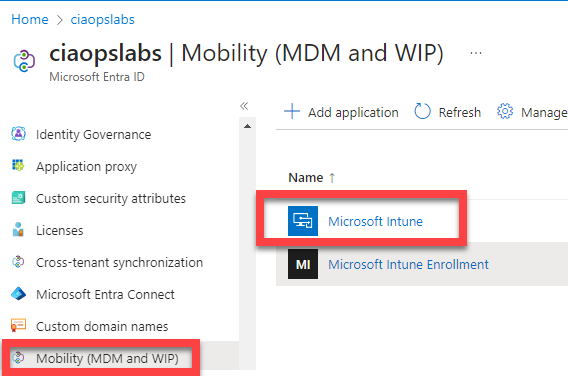
- For MAM: Users should be in Azure AD, and ideally the Azure AD MAM user scope is configured so that personal devices can receive app protection policies. (In Azure AD > Mobility (MDM and MAM) settings, ensure Microsoft Intune is selected as the MAM provider for the desired users/groups.) Also, since MAM relies on Azure AD and Conditional Access for enforcement, the included Azure AD Premium P1 in Business Premium is sufficient.
With these basics in mind, let’s dive into each approach.
Blocking Applications via Intune MDM (Device Configuration)
Using Intune’s device management capabilities, we can deploy policies to block or restrict specific applications on Windows 10/11 devices. The most straightforward way to do this is by leveraging Windows AppLocker through Intune. AppLocker is a Windows security feature that allows administrators to specify which apps or executables are allowed or denied. Intune can deploy AppLocker rules to managed devices.
Overview (MDM Approach): We will create an AppLocker policy that denies execution of a target application (for example, Google Chrome or a game EXE or even a Microsoft Store app) and then deploy that policy via Intune to the Windows devices. The high-level steps are:
-
- Create an AppLocker rule on a reference PC.
- Export the AppLocker policy to XML.
- Create an Intune Device Configuration profile (Custom OMA-URI) that imports this AppLocker XML.
- Assign the policy to the appropriate devices or users.
- Monitor the enforcement and adjust if necessary.
Let’s go through these in detail:
1. Create and Export an AppLocker Policy (Blocking Rule)
First, on a Windows 10/11 machine (it can be any machine, even your own admin PC or a test device), set up the AppLocker rule:
-
- Enable AppLocker and default rules: Log in as an administrator and open the Local Security Policy editor (
secpol.msc). Navigate to Security Settings > Application Control Policies > AppLocker. Right-click AppLocker and select Properties. For each rule category (Executable, Script, Packaged app, etc.) that you plan to use, check Configured and set it to Enforce rules, then click OK. Next, create the default allow rules: for example, right-click Executable Rules and choose “Create Default Rules.” This will ensure Windows and program files aren’t accidentally blocked, by adding baseline allow rules (allow all apps in%ProgramFiles%and Windows folder, etc.). Default rules also include an allow rule for administrators so that admin accounts aren’t locked out.
- Enable AppLocker and default rules: Log in as an administrator and open the Local Security Policy editor (
-
- Create a custom block rule: Still in the AppLocker console, decide what application you want to block. If it’s a classic desktop app (an EXE), go under Executable Rules. For a Windows Store app, go under Packaged app Rules. Right-click the appropriate category and choose “Create New Rule…”. This starts the new rule wizard:
-
- Action: Choose Deny (since we want to block).
-
- User or Group: Select Everyone (meaning the rule will apply to all users; alternatively, you could target a specific group if needed).
-
- Condition: If blocking a desktop .exe, you have options: Publisher, Path, or File Hash. If the app is well-known and signed (like Chrome, Zoom, etc.), choose Publisher – this allows you to block by the software publisher and product name, covering all versions. Click Next, then Browse for the application’s executable file on the system (e.g.,
chrome.exeinC:\Program Files\Google\Chrome\Application\chrome.exe). It will populate the publisher info. You can then adjust the slider for how specific the rule is. For example, moving the slider to File name (or Product) will generalize the rule to all versions of that app, not just a specific file version. (In our example, to block Google Chrome, select the Chrome executable and set the rule to apply to all versions.)– If blocking a Microsoft Store app (a UWP/Packaged app), the wizard will ask you to select the installed app from a list. You’d pick the app (say, TikTok from the Store) and it will use the package’s identity. Again, you can choose to target all versions by selecting package name rather than a specific version.
– If you don’t have the app installed to browse, you could use a File Hash rule by providing the file itself, but Publisher rules are easier to maintain when possible.
- Condition: If blocking a desktop .exe, you have options: Publisher, Path, or File Hash. If the app is well-known and signed (like Chrome, Zoom, etc.), choose Publisher – this allows you to block by the software publisher and product name, covering all versions. Click Next, then Browse for the application’s executable file on the system (e.g.,
-
- Complete the wizard by giving the rule a name/description (e.g., “Block Chrome”) and finish. Now you should see your new Deny rule listed in AppLocker rules.
-
- Create a custom block rule: Still in the AppLocker console, decide what application you want to block. If it’s a classic desktop app (an EXE), go under Executable Rules. For a Windows Store app, go under Packaged app Rules. Right-click the appropriate category and choose “Create New Rule…”. This starts the new rule wizard:
-
- Export the policy: Finally, right-click the AppLocker node and choose “Export Policy”. Save the policy as an XML file (e.g.,
BlockedApps.xml). This XML contains all your AppLocker rules. Important: For use in Intune, we typically only need the specific rule collection that we configured, not the entire policy with other categories. If you only created rules under Executables, we will use theExerule collection. You can open the XML in a text editor and identify the<RuleCollection>section corresponding to the rule type:
-
- For example, if we blocked an .exe, look for
<RuleCollection Type="Exe" EnforcementMode="Enabled"> ... </RuleCollection>. We will later upload this snippet to Intune.
- For example, if we blocked an .exe, look for
-
- If we blocked a packaged app, look for
<RuleCollection Type="AppX" ...>orPackagedAppin the XML.
- If we blocked a packaged app, look for
-
- Tip: The Intune support article advises to take only the relevant
<RuleCollection>section from the XML for the custom policy. This avoids conflicts with other sections that might be listed as not configured. So copy the entire<RuleCollection ...> ... </RuleCollection>block for the category you used (Exe, MSI, Script, AppX, etc.).
- Tip: The Intune support article advises to take only the relevant
Now we have the XML data needed to deploy the blocking rule via Intune. -
- Export the policy: Finally, right-click the AppLocker node and choose “Export Policy”. Save the policy as an XML file (e.g.,
2. Deploy the AppLocker Policy via Intune (Custom OMA-URI Profile)
With the blocking rule prepared, log in to the Microsoft Intune admin center (endpoint.microsoft.com) with an admin account and deploy it:
-
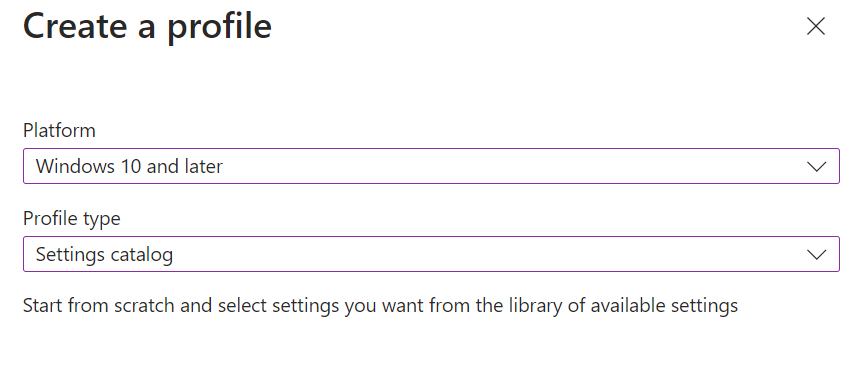
- Create a Configuration Profile: In the Intune portal, navigate to Devices > Configuration Profiles (or Devices > Windows > Configuration Profiles). Click + Create profile. For Platform, select Windows 10 and later. For Profile type, choose Templates > Custom (since AppLocker will be applied via a custom OMA-URI). Click Create.
-
- Profile Settings: Give the profile a name, like “Block Chrome AppLocker Policy.” Optionally add a description. Then, in Configuration settings, click Add to add a new OMA-URI setting.
-
- Name: Enter something descriptive, e.g., “AppLocker Exe Rule” (if blocking an exe).
-
- OMA-URI: This path tells Intune where to apply the AppLocker rules. The OMA-URI differs based on rule type:
-
- For executables (.exe): use
./Vendor/MSFT/AppLocker/ApplicationLaunchRestrictions/Apps/EXE/Policy.
- For executables (.exe): use
-
- For Windows Store (packaged) apps: use
./Vendor/MSFT/AppLocker/ApplicationLaunchRestrictions/Apps/StoreApps/Policy(for the Packaged apps category).
- For Windows Store (packaged) apps: use
-
- Other categories if needed: MSI (installers), Script, DLL have similar paths (as listed in the reference). But in most cases, blocking an app will fall under EXE or StoreApps.
-
- OMA-URI: This path tells Intune where to apply the AppLocker rules. The OMA-URI differs based on rule type:
-
- Data type: Select String.
-
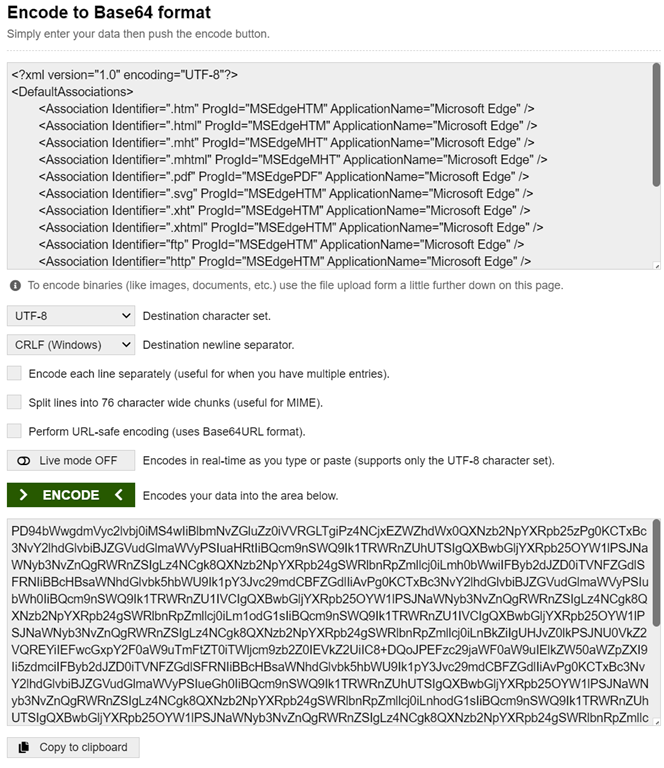
- Value: Paste the XML content of the rule collection that we prepared. Include the
<RuleCollection ...> ... </RuleCollection>tags themselves as part of the value. Essentially, the value is an XML string that defines the AppLocker rules for that category.(Intune will accept this large XML string; ensure it’s well-formed XML. The Recast guide and Microsoft docs provide this approach.)
- Value: Paste the XML content of the rule collection that we prepared. Include the
After adding the OMA-URI setting with the XML, click Save, then Next.
-
- Profile Settings: Give the profile a name, like “Block Chrome AppLocker Policy.” Optionally add a description. Then, in Configuration settings, click Add to add a new OMA-URI setting.
-
- Assignments: Choose which devices or users this policy applies to. For example, you might have an Azure AD group “All Windows 10 Devices” or “All Users.” In a small business, it could be easiest to target All Devices (or All Users) if all are company devices, or a specific group if you want to pilot first. Add the assignment, then click Next.
-
- Applicability Rules (optional): You can typically skip this unless you want to restrict the policy to specific OS versions or 32/64-bit. Click Next.
-
- Review + Create: Review the settings and click Create to finalize the profile.
Intune will now push this AppLocker policy to the targeted devices. Once the devices receive the policy (usually within minutes if online), the specified application will be blocked at the OS level. For example, if we blocked Chrome, any attempt to launch Chrome on those machines will be prevented. Users will see a system notification indicating the app is blocked by the organization.
-
-
Reference PC: Define AppLocker Rule
On a Windows PC, enable AppLocker and create a Deny rule for the target app (e.g., block Chrome.exe). Export the policy XML.
-
-
-
Intune Portal: Create Custom Profile
In Intune > Configuration Profiles, create a Windows 10+ Custom profile. Add an OMA-URI setting for AppLocker (e.g.,
./Vendor/MSFT/AppLocker/...) and paste the XML rule data.
-
-
-
Assign to Devices/Users
Assign the profile to the appropriate Azure AD group (e.g., All Devices). Intune will deploy the policy to those Windows endpoints.
-
-
-
Enforcement: App is Blocked
When policy is active, the target application fails to launch on devices. Users receive a notice that the app is blocked by the admin.
-
Monitoring and Verification (MDM): After deployment, verify that the policy took effect:
-
- In Intune, under the profile’s Device status, you can check if devices report success or error in applying the policy.
-
- On a client PC, try to run the blocked app. You should see it get blocked with a message as shown above, confirming success.
-
- You can also check the Windows Event Viewer on a client (under Application and Services Logs > Microsoft > Windows > AppLocker > EXE and DLL) for event ID 8004, which indicates an application was blocked by AppLocker. This is useful for troubleshooting or auditing which apps are being prevented.
Common Challenges in MDM App Blocking:
-
- Correct App Identification: Ensure you configured the rule for the correct app identifier. For classic EXEs, a publisher rule covering all versions is usually ideal (so new updates don’t bypass the block). For Store apps, use the correct Package Identity name and Publisher. Microsoft documentation suggests using the Store for Business or a PowerShell method to find these fields.
-
- Application Identity Service: AppLocker relies on the Application Identity (
AppIDSvc) service on Windows. By default this service is set to Manual but should start when needed. If for some reason it’s disabled, AppLocker rules won’t enforce. Intune’s support tip reminds that the service must be running for the policy to work.
- Application Identity Service: AppLocker relies on the Application Identity (
-
- Windows Edition: AppLocker was historically only fully supported on Enterprise editions. However, as of recent Windows 10/11 updates, Pro editions do support AppLocker enforcement (Microsoft removed the edition check). So as long as your Windows 10/11 Pro devices are up to date, this should work. (Windows Home still can’t enforce AppLocker.)
-
- Testing and Defaults: Always include the default allow rules (or create them) to avoid inadvertently blocking essential Windows components. Test the policy on a pilot device or group before broad rollout.
-
- Policy Conflicts: If multiple AppLocker policies or multiple Intune configurations apply, be careful — conflicting rules could cause one to override another. It’s usually best to manage AppLocker via a single Intune policy to keep it simple in a small business setting.
Removing or Changing Blocked Apps: If you need to update the list of blocked apps, you can either edit the AppLocker XML (adding or removing rules) and update the Intune profile, or create a new policy. Removing the Intune profile will remove the enforcement. In practice, you might maintain a “Blocked Apps” XML that you edit over time as the company needs change. Always update the Azure AD group assignments accordingly if scope changes.
Alternate MDM Methods: AppLocker is the primary method to block application execution. Another approach for certain applications is using **Intune Compliance Policy** or **Defender for Endpoint** integration:
-
- Intune compliance policies for Windows can detect the presence of certain apps and mark a device non-compliant. (For example, you could use a custom compliance script to detect an unauthorized .exe and have that device lose compliant status.) Then, via Conditional Access, you could block that device from company resources. This doesn’t stop the app from running, but deters users by cutting off corporate access if they install it.
-
- If the “application” is actually a web application or related to web content (e.g., a certain website or PWA), you can use Microsoft Defender for Endpoint network protection to block the URL across browsers. (This is more about web access than app execution.)
-
- For application uninstall: If the app was deployed via Intune (e.g., as a store app or Win32 app), you can assign an “Uninstall” deployment to remove it from devices. But Intune can’t generally uninstall arbitrary software that it didn’t install without custom scripts. In our context, blocking via AppLocker is often simpler and sufficient.
Summary (MDM)
Using Intune with MDM (device enrollment), you can directly prevent a Windows application from launching by deploying an AppLocker policy. This method is ideal for managed PCs where you want to outright ban certain software (for security, licensing, or productivity reasons). It provides strong enforcement — the app is effectively dead on arrival on the device. The trade-off is the setup complexity of defining rules, and it applies only to enrolled, company-controlled machines.
Blocking Applications via Intune MAM (App Protection Policies)
Using Intune’s MAM capabilities, you can protect corporate data on devices without fully managing the device. The focus here is on controlling which applications can access work data and applying policy restrictions within those apps. For Windows 10/11, Intune’s MAM is implemented through App Protection Policies – specifically, the feature previously known as Windows Information Protection (WIP) when applied to Windows.
In the MAM scenario, we do not block the user from installing or running apps; instead, we block corporate data from flowing to unapproved apps. So if a user tries to use a prohibited app with work files or info, that app will be unable to access the data (or the data will be encrypted/inaccessible to it).
Overview (MAM Approach): We will create an App Protection Policy for Windows that defines:
-
- Which apps are considered “protected” (allowed) to handle corporate data.
-
- Which apps (if any) are explicitly blocked or exempt from policy.
-
- What restrictions to enforce (e.g., block copying data to personal apps, block screenshot, etc.).
-
- The enforcement mode (allow override, silent, or block).
This kind of policy can be applied to:
-
- Devices without enrollment (MAM-only) – typical for personal devices that are Azure AD registered but not fully Intune enrolled.
-
- Devices with MDM enrollment (MDM+MAM) – you can also have MAM policies on top of MDM devices to add an extra layer of data protection, though if both are targeted, an enrolled device might use the device (MDM) version of the policy by preference.
For our context (blocking apps on Windows in a small biz), the MAM approach is especially relevant if employees use personal PCs for work or if the business chooses not to lock down devices completely. For example, a small business might allow an employee to check email from a home computer – they might not want to MDM-enroll that home PC, but still want to prevent company files from being saved or opened in unapproved apps on it.
Step-by-Step: Configuring an Intune App Protection (MAM) Policy for Windows
-
- Enable MAM for Windows (Tenant settings): If not already configured, ensure Intune’s MAM functionality is enabled for Windows users. In the Azure AD portal (Entra admin center), go to Azure AD > Mobility (MDM and MAM), find Microsoft Intune, and check the MAM User Scope. Set the MAM user scope to include the group of users for whom you want to allow MAM without enrollment (e.g., All Users or a specific group). This ensures those users can receive app protection policies on unenrolled devices. (Also, ensure the MDM User Scope is appropriately set – for BYOD scenarios, you might set MDM scope to None or a limited group and MAM to All users.)
- Create App Protection Policy: Now, in the Intune admin center, navigate to Apps > App protection policies. Click Create Policy and choose Windows 10 (or “Windows 10 and later”) as the platform. You will be asked whether the policy is for devices with enrollment or without enrollment:
-
- For a MAM scenario (personal devices not enrolled in Intune MDM), select “Without enrollment”.
-
- (If you also want this policy to apply to enrolled devices, you could create a version “with enrollment” too. In our case, we’ll focus on “without enrollment” since that’s pure MAM.)
Give the policy a name (e.g., “Windows App Protection – Block Unapproved Apps”) and a description.Define Protected Apps (Allowed Apps): Next, configure which apps are considered “protected” for corporate use. These are the only apps that will be allowed to access corporate data on the device. Intune provides lists of common apps to make this easy:
-
- Click Protected apps > Add apps.
-
- You can add apps in three ways:
-
- Recommended apps: Intune has a built-in list of recommended apps for Windows MAM (like Office apps, Microsoft Edge, etc.). Select this and check the apps you want to include (or “Select All” to trust all listed Microsoft apps).
-
- Store apps: If you need to add a Microsoft Store app that’s not in the recommended list, choose Store app and provide its details. You’ll need the app’s Name and Publisher (in certificate format). For example, to add a specific Store app, input the publisher info (CN=… etc.) and the package identity name. (Documentation shows how to retrieve these from the Store or via a REST API call to get AppLocker data.)
-
- Desktop apps: For traditional Win32 apps that you want to allow (or specifically designate), specify by publisher name, product name and file name. For instance, if you have a particular line-of-business app (signed by your company), allow it by specifying its certificate publisher and the app’s name. (Desktop apps entries support wildcards like “all apps by X publisher” or particular file names.)
-
- You can add apps in three ways:
-
- In a small business, you’ll likely include all core Office 365 apps (Outlook, Word, Excel, PowerPoint, Teams, OneDrive) and a browser like Microsoft Edge. Edge is especially important if you want web access to be protected (Edge on Windows can enforce MAM, whereas other browsers cannot be managed by Intune MAM). Intune’s recommended list usually covers these Microsoft apps. Add any other business-critical app that handles corporate data.
-
- After adding, you’ll see your chosen apps listed under Protected apps.
-
-
- (Optional) Configure Exempt Apps: You can mark certain apps as Exempt from WIP/MAM restrictions. “Exempt” means the app can access corporate data without encryption/protection – effectively bypassing the rules. You typically do not want to exempt any app unless there’s a specific need (e.g., a legacy app that can’t work under WIP). Exempting apps can lead to data leaks (since they won’t enforce protection). In most cases, for blocking, leave this blank (or only exempt truly necessary apps that cannot be made compliant).
-
- Data Protection Settings: Define what actions to block or allow for protected data:
-
- You’ll see settings such as **Prevent data transfer to unprotected apps**, **Prevent cut/paste between apps**, **Block screen capture**, **Encrypt data on device**, etc. For a strict policy, set these so that **corporate data cannot leave the protected apps**. For instance:
-
- Transfer telecommunication data to (Bluetooth): consider setting to Block, if concerned about data via Bluetooth.
-
- Copy/Paste: You can block copying from corporate to personal apps outright, or allow it only from corporate to other managed apps. Often set to Block or “Allow outbound only to other managed apps.”
-
- Save As: Block saving corporate documents to unmanaged locations (like personal folders).
-
- Screenshot: Disable screenshots if necessary.
-
- Authentication requirements: Possibly require a PIN or biometric to access the app, etc.
-
- You’ll see settings such as **Prevent data transfer to unprotected apps**, **Prevent cut/paste between apps**, **Block screen capture**, **Encrypt data on device**, etc. For a strict policy, set these so that **corporate data cannot leave the protected apps**. For instance:
-
- The exact available options have defaults, and Microsoft may provide preset levels. Previously, WIP had modes:
-
- Block: *Strictly prevents* any data sharing from protected to non-protected apps (highest protection).
-
- Allow Overrides: Warns the user but lets them override (not typically desired).
-
- Silent: Doesn’t prompt the user but logs auditable events if a violation would occur.
-
- Off: No protection (policy not enforced).
-
- The exact available options have defaults, and Microsoft may provide preset levels. Previously, WIP had modes:
-
- For our purposes (keeping data *only* in approved apps), set the policy to Block inappropriate data sharing. This means if a user tries, for example, to open an Office document (marked as corporate) in an unapproved app, it will be prevented outright – the action simply won’t complete.
-
- Data Protection Settings: Define what actions to block or allow for protected data:
-
- App Conditions / Health Checks (Conditional Launch): Intune allows setting conditions like requiring a device to be malware-free, etc., even without full enrollment. One setting integrates with Windows Security Center: you can require the device to have no high threat detected, etc.. If this is too advanced, stick to defaults. But know that MAM can evaluate device health by hooking into Windows security features:
-
- For example, you could configure: if the device has a malware threat active, block the app or wipe corporate data from it until the threat is resolved.
-
- These settings improve security but require Microsoft Defender on the client and can add complexity. Use as needed.
-
- App Conditions / Health Checks (Conditional Launch): Intune allows setting conditions like requiring a device to be malware-free, etc., even without full enrollment. One setting integrates with Windows Security Center: you can require the device to have no high threat detected, etc.. If this is too advanced, stick to defaults. But know that MAM can evaluate device health by hooking into Windows security features:
-
- Assignments: Choose which users the app protection policy will apply to. Typically, target user groups (not device groups) for MAM policies. For instance, target “All Users” or a specific Azure AD group of employees who use corporate data on personal devices. (In Business Premium, this could simply be all licensed users.)
-
- Conditional Access to enforce MAM (important): App Protection Policies alone apply when a user is in a protected app with a work account. To ensure users only use protected apps to access corporate data, use Conditional Access (CA) in Azure AD:
-
- Create a CA policy that requires app protection for access to cloud resources from unmanaged devices. For example, require “Approved client app” or “Require app protection policy” for services like Exchange Online, SharePoint, Teams, etc., when the device is not Intune compliant or hybrid joined.
-
- One approach: if a device is not Intune compliant (i.e., not MDM-enrolled), then require use of approved apps (which enforces MAM). Microsoft documentation suggests pairing CA with MAM for a complete solution.
-
- In practice, you might have one CA rule that blocks all app access from unmanaged devices (forcing the user to either enroll the device or use web-only access), and another rule that allows only protected apps to access if conditions are met. The key is that if a user tries to access corporate data with an app not on the protected list, Conditional Access will deny it.
-
- Conditional Access to enforce MAM (important): App Protection Policies alone apply when a user is in a protected app with a work account. To ensure users only use protected apps to access corporate data, use Conditional Access (CA) in Azure AD:
-
- User Experience: Once the MAM policy is in effect on a Windows device:
-
- The user signs into a protected app (e.g., Outlook, Word, or Edge) with their work account. Intune applies the App Protection Policy settings to that app. The app may show a brief notice that it’s managed by the organization.
-
- Corporate data in those apps (emails, files, etc.) is tagged as corporate. If the user tries to open or share this data with an unprotected app, WIP intervenes. For example, if they attempt to open a corporate document attachment in a personal PDF reader that’s not allowed, it will be blocked – either nothing happens or they see a message that it’s not allowed. In override mode, they could be warned; in full block mode, it just fails to open.
-
- If the user tries to copy text from a managed app (like Outlook) and paste it into a personal app (like Notepad), the policy blocks it (or warns). Often the paste will simply not work or a notification will indicate the content is protected.
-
- Data encryption: Files created by protected apps (e.g., if the user saves a Word document from their work OneDrive) are encrypted on disk such that only allowed apps or the user’s work account can open them. If they try to open that file with an unapproved app, it will not open properly (access denied or garbled). The user might see a message that the file is protected, or just an error.
-
- The end user can still use non-corporate apps for personal data as normal. The policy doesn’t lock down the whole device (so personal email, games, etc., are unaffected); it only applies to work-related contexts. This makes it less invasive than MDM on personal devices. From IT’s side, if an employee leaves, a “Selective wipe” can remove only the corporate data from these apps, leaving personal data intact.
-
- User Experience: Once the MAM policy is in effect on a Windows device:
Common Challenges in MAM App Blocking:
-
- App Compatibility: Not all apps are “enlightened” (aware of WIP). The policy can technically apply to any process, but if an app isn’t designed for it, it might treat all data as corporate or not function properly. Some third-party apps may have issues if not exempted. By default, MAM for Windows manages only enlightened apps in its current design (which essentially means Microsoft apps like Office, Edge).
-
- User Workarounds: If you allow overrides or exempt certain apps, users might find ways to move data out of protected channels. For strict blocking, use Block mode and avoid exempting any apps that could siphon data.
-
- Policy Deployment: Both the Intune app protection policy and the Conditional Access rules must be configured correctly. If misconfigured, users might be either completely blocked from access or able to bypass protections. Follow Microsoft’s guidance closely for setting up CA with app protection.
-
- Policy Conflicts: If a device is also enrolled in MDM and has a device-level WIP policy, there could be conflicts. Generally, an enrolled device will use the MDM (device) version of the policy instead of the MAM one. It’s simpler to use MDM on corporate devices and MAM on personal devices, to avoid overlapping policies.
-
- Monitoring: Intune provides logs and reports for App Protection Policy. If a user attempts something against policy, it can be logged (e.g., in the Azure AD sign-in logs if CA is involved, or in client event logs for WIP). Administrators should review these logs to ensure policies are working as intended and to adjust if needed.
-
- Deprecation of WIP: Microsoft has announced that Windows Information Protection is being deprecated (no further new features). It is still supported in Windows 10/11 for now, especially via Intune, but for the future Microsoft is steering toward solutions like Purview Information Protection and Data Loss Prevention. Currently, MAM app protection is the available method for BYOD data protection, but keep an eye on Microsoft’s roadmap.
Summary (MAM): With Intune MAM, instead of blocking the app from running, you block the app from accessing any company information. This approach is ideal when you don’t manage the whole device (e.g., personal devices). It ensures that even if a user installs an unsanctioned app, that app cannot get to sensitive data – effectively making it irrelevant for work purposes. The policies are enforced at the application level: for example, only approved apps like Outlook, Teams, Word, Edge can open corporate data, and any attempt to use something else is stopped.
The user retains freedom on their device for personal use, and IT stays assured that corporate data is safe. For a small business, this helps achieve a balance: employees can BYOD if needed, without the company worrying about data leakage to unapproved apps or services.
MDM vs. MAM: Effectiveness and Ease of Implementation
| Criteria | MDM (Device-Based Blocking) | MAM (App-Based Blocking) |
|---|---|---|
| What is blocked | The application itself is blocked from running on the device. Users cannot launch the app at all on a managed machine. | Corporate data usage in the application is blocked. The app can run, but cannot access or share protected work data. The app is essentially “useless” for work if not approved. |
| Use case focus | Best for company-owned devices under IT control. You want to enforce device-wide policies and prevent any use of certain software that might be unsafe, unproductive, or against policy. | Best for BYOD or personal devices where full device control is not possible or not desired. You want to protect company information without managing the entire device. Also used on company devices alongside MDM for additional data layer protection. |
| Implementation complexity | Initial setup requires creating AppLocker rules (including exporting XML) and Intune configuration. This is somewhat technical but once set, it’s largely “set and forget.” Updating means editing the XML or adding new rules and updating the Intune profile. Requires device enrollment in Intune and a compatible Windows edition. | Setup involves using the Intune UI to select apps and define policies – more UI-driven, fewer custom steps. To fully enforce, you also configure Conditional Access rules which can be complex. Does not require device enrollment, but devices/users must be Azure AD registered and licensed (which M365 BP covers). |
| User experience | On managed PCs, if a user tries to open a blocked app, it simply will not run. They’ll see a Windows message that it has been blocked by the administrator. If IT accidentally blocks something important, it can disrupt work until fixed. Otherwise, management is mostly invisible to the user. | On personal devices, users must use work accounts in approved apps for corporate data. They might see prompts like “Your org protects data in this app.” If they attempt an unallowed action (e.g., copy corporate text into a personal app), it is blocked or they get a notification. Personal usage of the device is unaffected; the policy only intervenes when work data is involved. Some user education may be needed so they understand the restrictions. |
| Security strength | Very strong for preventing unauthorized app usage. The app cannot run at all, eliminating risks from that app (e.g., an unsanctioned cloud storage client can’t even launch to sync files). Also allows broad lockdown (you could block all apps except a standard set on kiosks, for example). | Very strong for data protection: corporate content won’t leak to unapproved apps or locations. However, it does not stop a user from installing or running risky apps for personal purposes (e.g., a game with malware could still run on their own device, though it can’t access work data). So some device-level risks remain if not using MDM. |
| Impact on device & privacy | High impact: IT controls much of the device’s settings and software. This can raise privacy concerns on BYOD – hence MDM is usually limited to corp-owned devices. On corporate devices, this is expected. (IT can also wipe the entire device if needed when it’s managed.) | Low impact on personal device management: only corporate data within certain apps is managed. Users’ personal files and apps remain private. If an employee leaves, IT can wipe corporate app data without touching personal files. This approach is generally more acceptable to users in a BYOD scenario. |
| Licensing & features | Requires Intune (included in M365 BP). AppLocker requires Windows 10/11 Pro or higher. (M365 BP also includes Defender for Endpoint P1, but that’s not required for basic app blocking.) | Requires Intune and Azure AD Premium (for Conditional Access)—both included in M365 BP. No special Windows edition needed; works on Windows 10/11 Pro or even Home for MAM (Home can’t be MDM enrolled but can have app protection). Leverages Office apps which are part of M365. |
| Maintenance | Adding a new app to block requires creating a new rule and updating the policy. This is manual but usually infrequent. Intune doesn’t auto-detect apps to block—you decide. Monitoring via Intune or event logs is possible but not as straightforward as MAM’s built-in reporting. | Intune provides user/app status for app protection policies. If users find a loophole, the policy might need adjustment. Generally low maintenance once in place; new legitimate apps might need updating the allowed list. Keep an eye on Microsoft’s roadmap (WIP deprecation) but currently it’s stable. |
As shown above, MDM and MAM serve different needs but can complement each other.
MDM is more “brute-force” in blocking apps – it’s very effective if you absolutely want to bar an application across all usage (the app just won’t run). This is excellent for known harmful applications or those that violate company policy. It’s also the way to prevent installation/use of software on devices (Intune can’t always stop installation, but by blocking execution you achieve the same end result).
MAM is more granular, focusing on data security – it shines in scenarios where you trust users to manage their own devices (or choose not to impose full management) but you don’t trust certain apps with corporate information. It’s a lighter-touch approach on the device itself but strong on preventing data leaks. A user could have many apps for personal use, but if they try to use them with company data, Intune’s policies step in.
Effectiveness: Both approaches achieve the goal of blocking unauthorized application use for work purposes, but in different ways:
-
- If your goal is “Employees should never use Application X at all on a work machine,” MDM is the direct solution.
-
- If your goal is “Employees can use personal PCs, but must not use unauthorized apps with company data,” MAM covers that scenario.
Ease of Implementation: For a small business:
-
- MDM blocking requires some upfront setup (creating an AppLocker XML policy). However, there are guides and tools available. Once configured, MDM policies don’t usually need frequent changes.
-
- MAM policy creation is more wizard-driven in Intune. The challenging part is configuring Conditional Access to enforce it, which can be complex if you’re new to Azure AD. Microsoft 365 Business Premium provides these capabilities, but there may be a learning curve to get it right.
Monitoring compliance: Intune offers compliance and configuration reports for MDM-managed devices, and it offers app protection status reports for MAM. Additionally, with Business Premium you have Microsoft Defender for Endpoint Plan 1, which can alert you if certain unsafe apps are present on devices (though if devices aren’t enrolled, you won’t get those signals). In either case, admins should periodically review Intune’s dashboards:
-
- Check Device compliance reports if you use compliance policies (e.g., a custom script to flag prohibited apps).
-
- Check App protection reports to ensure all users/devices are properly protected and to see if any attempts to violate policy occurred.
Recommendation for a Small Business (Microsoft 365 Business Premium)
For a small business using M365 Business Premium, here’s how to choose the best approach:
-
- Prefer MDM for Corporate Devices: If the Windows devices are company-provided (or primarily used for work), using Intune MDM to manage them is the best practice. This way, you can enforce not only app blocking but a host of other security policies (firewall, antivirus, BitLocker encryption, etc.) that Business Premium enables. In terms of blocking apps, an MDM policy (like the AppLocker method described) will ensure the disallowed applications never run on those PCs. This provides a high level of security assurance. Since Business Premium includes Intune, there’s no extra cost, and enrolling Windows 10/11 devices can be streamlined (for example, by Azure AD joining them during setup or using Windows Autopilot).
- Use MAM for Personal Devices or Specific Use-Cases: If employees sometimes use personal Windows PCs for work (or if the business has a bring-your-own-device policy), leverage Intune MAM. This will protect company data on those personal devices without invading the users’ personal space. MAM is the go-to solution if, for instance, a contractor or employee needs to access corporate email or files on their home computer – by requiring an app protection policy, you ensure that data stays in a secure container. Microsoft explicitly recommends MAM for BYOD and reserves MDM for organization-owned devices.
- Combine Both When Appropriate: These approaches are not mutually exclusive. In fact, on a fully managed corporate laptop, you might use MDM to enforce device configurations and MAM to protect data within apps. If that same user also accesses data on a personal device, the MAM policies cover that scenario. This layered approach maximizes security. For example:
-
- MDM-enroll all company laptops and push an AppLocker policy to block a set of high-risk or unauthorized apps (e.g., torrent clients, unapproved cloud storage).
-
- Also implement an app protection policy so that even if a corporate document were somehow on a personal app on a managed device, it remains protected (though AppLocker should prevent that). And ensure that if a user accesses corporate data on a personal device, Conditional Access forces them into protected apps.
-
- This way, whether an employee is on a work PC or a personal one, you have either the device or the app (or both) under Intune’s control.
4. Small Business Considerations: In a small business, IT resources are limited, so aim for simplicity. If all employees use company-managed PCs exclusively, focusing on MDM policies (and perhaps not using MAM at all) might be sufficient and simpler to manage. Business Premium provides some simplified security policy interfaces that can quickly set up baseline protections. However, if any work data is accessed on personal machines, taking the time to set up MAM is worthwhile for the additional peace of mind. The good news is that Business Premium was designed for exactly these scenarios – it’s essentially an enterprise-grade solution scaled for SMBs.
-
-
- Which is “best” to implement? There isn’t a one-size-fits-all answer, but generally:
-
- Use MDM for any scenario where you can manage the device and you have applications that absolutely must be blocked (for security, compliance, or productivity reasons). This ensures that on any managed device, those apps are non-functional.
-
- Use MAM to safeguard data on devices you can’t or won’t fully manage. This covers the gap and keeps your data safe even on personal hardware.
If possible, do both: manage the devices you own, and protect the data on the devices you don’t. This blended strategy yields the best security and flexibility.
-
- Which is “best” to implement? There isn’t a one-size-fits-all answer, but generally:
Security Implications: Using MDM vs. MAM has different security implications:
-
- MDM provides broad control over the device (ensuring OS updates, compliance settings, etc.) in addition to app blocking, which helps reduce overall risk (malware, outdated systems, etc.).
-
- MAM assumes the device might not meet corporate standards (since it could be personal), but it ensures corporate data is isolated and can be wiped if needed. One remaining risk is if a personal device is compromised (e.g., with a keylogger or screenshot malware), it might capture some corporate info even if the app is protected. MDM could have mitigated that by securing the device. So for maximum security, manage devices; for a balance with user flexibility, manage the data.
In summary, Microsoft 365 Business Premium equips a small business to use both MDM and MAM. The best solution is often a hybrid approach: manage what you own (devices) and protect what you don’t (data on personal devices). Start by enrolling and securing company devices (and blocking apps via policy) wherever possible. Then layer app protection policies to cover any remaining scenarios. By doing so, you get a robust security posture similar to larger enterprises, while still keeping management complexity reasonable and user experience positive.
Final Recommendation
For a small business on Business Premium: Enroll and manage your Windows devices (MDM) to directly block high-risk or unauthorized apps, and use App Protection (MAM) for any personal/BYOD device access. This dual approach maximizes security and flexibility.
MDM + MAM = Comprehensive Protection
MDM prevents the app from ever running on a work PC, while MAM ensures even on an unmanaged device, corporate data stays in authorized apps. Together they cover all bases, which is feasible with M365 Business Premium.













 CIAOPS