Entra Global Secure Access client for iOS now in preview

In it’s simplest form, think of Entra Global Secure Access as a full time secure VPN to resources like Microsoft 365 services such as SharePoint, Exchange, Teams, etc as well as to on premises resources and finally to Internet web sites.

Entra Global Secure Access does this on iOS via a Microsoft Defender app on the device and configuration via Intune. You can now try this out by following:

Global Secure Access client for iOS (preview)

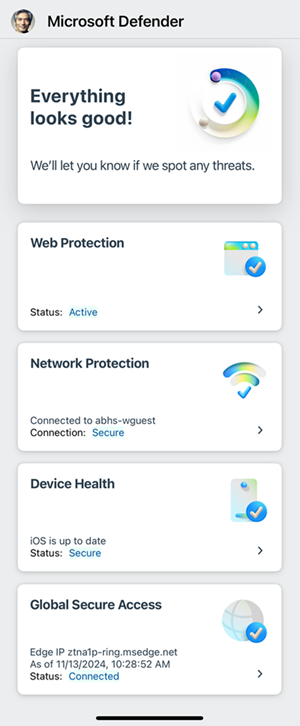
The Entra Global Secure Access service requires a paid subscription as well as Entra ID P1 or P2 (i.e. it is Microsoft 365 Business Premium compatible). When you have enabled the client you will see in Defender:

Screenshot of the iOS Microsoft Defender dashboard.

Unfortunately, the preview as yet doesn’t support the Internet traffic forwarding, which other clients do. Hopefully, that is not far away as that will really make this a killer product in my books.

I have been using Entra Global Secure access on all my Windows and Android devices for quite a while now without issues and look forward to seeing the iOS client fully mature.

Script to create EntraID reset app

After a recent incident, I decided that it would be a good idea to have an EntraID app that I could use to re-enable a users inside a tenant if I needed. I have previously detailed how to do this manually:

Create an EntraID app to allow user enablement

I’ve now created a script you can use to accomplish this which you will find here:

https://github.com/directorcia/Office365/blob/master/eid-resetapp-set.ps1

Let me walk your through its operation:

You’ll need to ensure the Microsoft Graph PowerShell module is installed in your environment.

The new EntraID app will be called ‘Reset’ by default but you can change that by changing the variable $appname in the script.

The first thing the script will do is connect to the Microsoft Graph using the appropriate scopes or permissions. Typically you will need to login to your tenant with an administrator account because an new EntraID app needs to be created.

Next, the script will use the new-mgapplication command to create a new EntraID app in your environment. It will then use the add-mgapplicationpassword command to set a password for that app.
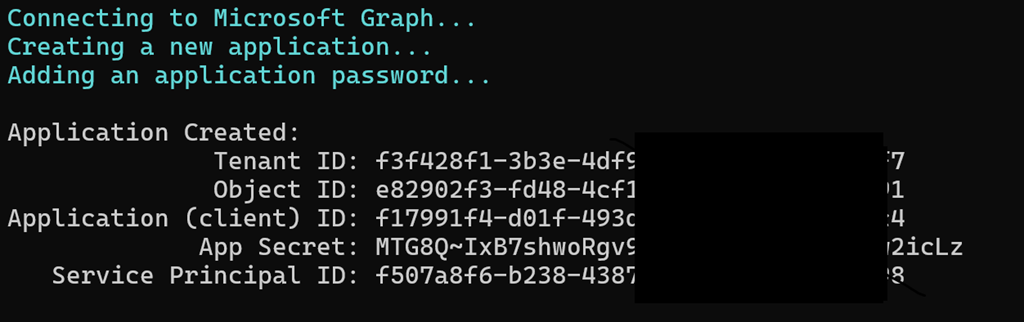
image

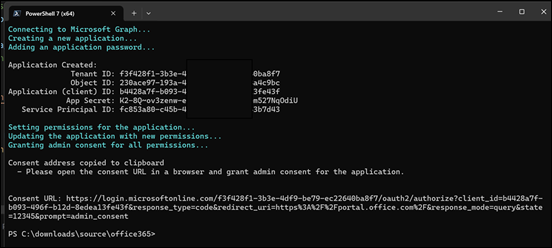
The script will now display all the important details about the EntraID app just created on the screen which you need to record for later use. Again, write this stuff down!

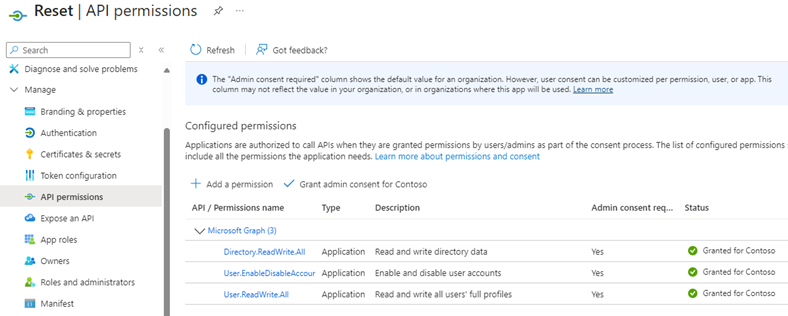
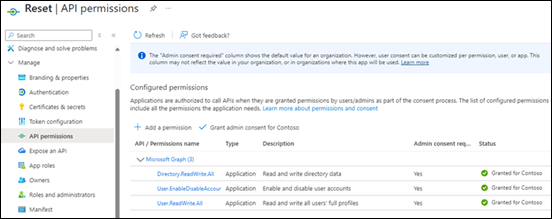
The script will now build the appropriate API permissions required for the EntraID app which are:

– User.EnableDisableAccount.All

– User.ReadWrite.All

– Directory.ReadWrite.All

These are required by the update-mguser command detailed here:

https://learn.microsoft.com/en-us/powershell/module/microsoft.graph.users/update-mguser?view=graph-powershell-1.0#description

The script now uses the command update-mgapplication to add these API permissions to the new EntraID app.
image

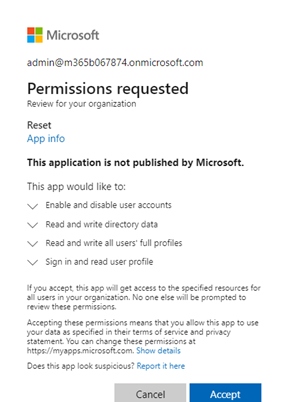
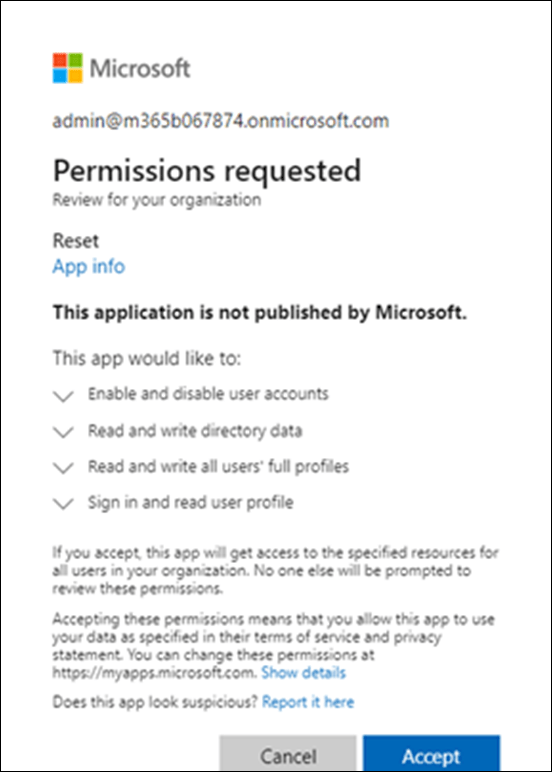
It then builds a consent URL and copies that to the clipboard. This consent URL you will need to past into a browser and click Accept. The consent URL is also displayed on the screen so you can copy and paste from there if needed.

I have not been able to get this consent function working inside my script. I aim to keep working on that but for now you’ll need to use the browser to consent to the permissions. If anyone know how to do this please let me know as I can’t get it to work.
image

If you look inside your EntraID application you should now see one called ‘Reset’ with the appropriate API permissions consented to as shown above.

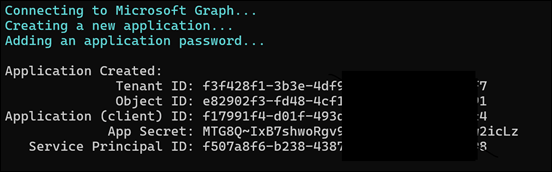
The completed script output should look like:
image

You should now be able to follow these instructions:

Using PowerShell to allow user enablement

to gain access if needed to enable a user, but don;t forget to save the credentials that this script produces for later use.

Need to Know podcast–Episode 324

Along with all the news and updates from the Microsoft Cloud I muse on the fact that the new Microsoft 365 Backup service may have been partially created to solve the storage issues of deleted data in Microsoft 365 environments. Just a theory, but listen along if you like to hear my thoughts.

You can listen directly to this episode at:

https://ciaops.podbean.com/e/episode-325-a-change-in-the-wind/

Subscribe via iTunes at:

https://itunes.apple.com/au/podcast/ciaops-need-to-know-podcasts/id406891445?mt=2

Don’t forget to give the show a rating as well as send me any feedback or suggestions you may have for the show.

Brought to you by www.ciaopspatron.com

Resources

@directorcia

Join my shared channel

CIAOPS merch store

Become a CIAOPS Patron

CIAOPS Blog

CIAOPS Brief

CIAOPSLabs

Support CIAOPS

Microsoft 365 Insider Round Up

Microsoft Defender XDR – Monthly news – August 2024

Windows 365 at three years: Customer-centric solutions for security, management and productivity

New Windows 365 features help provide a more secure workspace

Windows 365 GPU-enabled Cloud PCs now generally available

Supercharge Your Business: Simplify communications with AI in Microsoft Teams and Teams Phone

Microsoft Announces General Availability of Microsoft 365 Backup and Microsoft 365 Backup Storage

SharePoint roadmap pitstop: July 2024

What’s new in Copilot | July 2024

What’s New in Microsoft Teams | July 2024

Looking back on FY24: from Copilots empowering human achievement to leading AI Transformation

Best practices AI and machine learning Microsoft Purview 3 min read New Microsoft whitepaper shares how to prepare your data for secure AI adoption

Use WinGet 1.8 to download Microsoft Store apps

Monitoring Microsoft Sentinel Reports with Dashboard Hub & Power BI

Announcing quarantine release integration in MDO hunting experience!!

Windows Security best practices for integrating and managing security tools

Microsoft Purview Data Governance will be generally available September 1, 2024

Migrate ADAL apps to MSAL with enhanced insights

Public Preview: New Azure Monitor Auxiliary Logs Plan

Onyx Sleet uses array of malware to gather intelligence for North Korea

Zero Trust in the Age of AI: Join our online event to learn how to strengthen your security posture

Try out the new Copilot in Planner (preview) today in the new Microsoft Planner in Teams

OneDrive in-depth: Learning content

The Microsoft Copilot Dashboard is now included with Copilot for Microsoft 365

Prompts to try in Copilot for Microsoft 365

Getting Global Administrators using the Graph

A common task that needs to be performed is to return all the Global administrators in a tenant via PowerShell. With the focus on using the Microsoft Graph to do things like this you can use the following:

import-module Microsoft.Graph.Identity.DirectoryManagement


Connect-MgGraph -Scopes “RoleManagement.Read.Directory”,”User.Read.All”

$globalAdmins = Get-MgDirectoryRole | Where-Object { $_.displayName -eq “Global Administrator” }
$globalAdminUsers = Get-MgDirectoryRoleMember -DirectoryRoleId $globalAdmins.id

$globaladminsummary = @()
foreach ($adminuser in $globalAdminUsers) {
     $user = Get-MgUser -userId $adminuser.Id
     $globaladminSummary += [pscustomobject]@{      
         Id                = $adminuser.Id
         UserPrincipalName = $user.UserPrincipalName
         DisplayName       = $user.DisplayName
     }
}


$globaladminsummary

which I have also uploaded to my Github repo here:

https://github.com/directorcia/Office365/blob/master/graph-globaladmins-get.ps1

You may also need to consent to some permissions like:

image

If your user doesn’t have these. Permissions required are:

RoleManagement.Read.Directory
User.Read.All

The list of tenant global admins will be held in the variable $globaladminsummary at the completion of this script.

KQL Query to report failed login by country

If you are interested to see how many failed logins your Microsoft 365 environment has had in the past 30 days you can run the following KQL query in Sentinel:

SigninLogs
| where ResultType == 50126
| where TimeGenerated >= ago(30d)
| extend Country = tostring(LocationDetails[“countryOrRegion”])
| summarize FailedLoginsCount = count() by Country
| order by FailedLoginsCount desc

you can then make a slight change and get all the successful logins

SigninLogs
| where ResultType == 0
| where TimeGenerated >= ago(30d)
| extend Country = tostring(LocationDetails[“countryOrRegion”])
| summarize LoginsCount = count() by Country
| order by LoginsCount desc

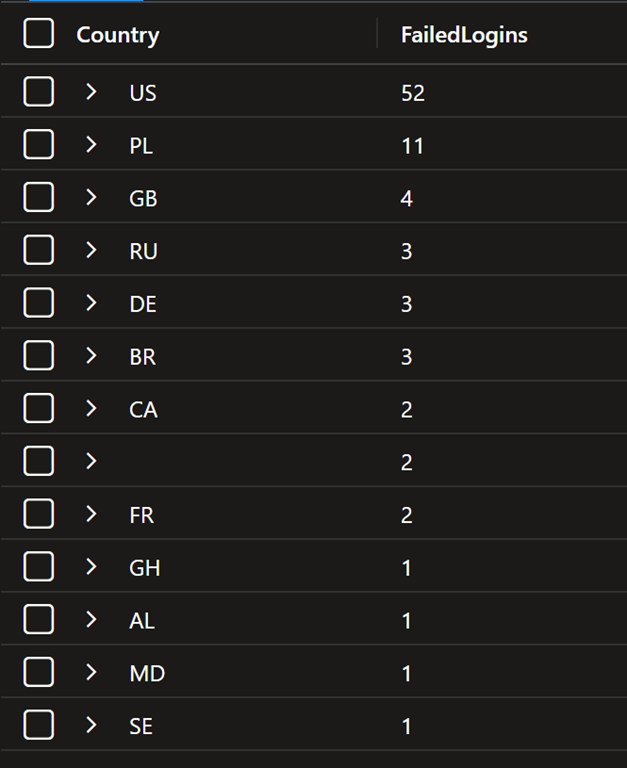
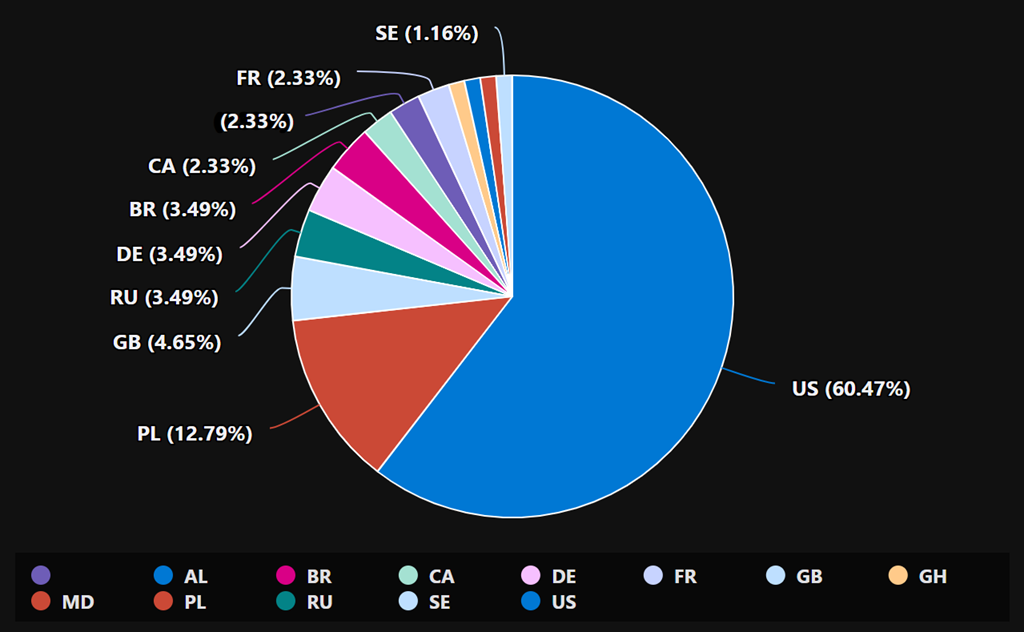
In my case, I found that only around 1% of my total logins were failed logins and all of these came from countries outside Australia.

Here is also a visualisation of the location of failed logins by country

image

Note: if you copy and paste directly from here you will probably have the change the “ around countryorregion when you paste into your own environment as teh wrong “ gets taken across!

Connecting Defender EASM logs to Sentinel workspace

A very important security task is to ensure you are collecting all the logging data for your services and sending them to a central location for storage and analysis.

Here’s how you can send the logs from Defender EASM into Sentinel.

You’ll need to have already established both Sentinel and Defender EASM instances. Underneath Sentinel is a Log Analytics Workspace that is where all the logging data for Sentinel is accumulated. It is into this workspace that the Defender EASM logs will be sent.

image

Log in to the Azure portal and navigate to Defender EASM as shown above. Select the Data connections option from the menu on the left. From the window that appears on the right select Add connection under Log Analytics as shown.

image

A dialog will appear from the right hand side prompting you for further information as shown above.

Open a new browser tab and navigate to Sentinel.

image

Select the Settings option at the bottom of the menu on the left hand side as shown above. From the windows that appears on the right select Workspace settings as shown.

image

In the Log analytics workspace for Sentinel select the Agents option under Settings from the menu on the left as shown.

In the window that appears on the right you will find both the Workspace ID and an API key as shown. Both of these will be required back in the Defender EASM connectors page.

image

Return to the Defender EASM connectors page configuration and give this connection an appropriate Name. Enter the Workspace ID and Api key from the Sentinel Log Analytics page. Select All content and Daily for frequency.

Save these settings.

image

If everything is correct you should now see that the Log Analytics connexion now displays you settings under Connected as shown above.

The logs from Defender EASM will now start becoming available for you in Sentinel to use in things like KQL queries.