Getting Global Administrators using the Graph

A common task that needs to be performed is to return all the Global administrators in a tenant via PowerShell. With the focus on using the Microsoft Graph to do things like this you can use the following:

import-module Microsoft.Graph.Identity.DirectoryManagement


Connect-MgGraph -Scopes “RoleManagement.Read.Directory”,”User.Read.All”

$globalAdmins = Get-MgDirectoryRole | Where-Object { $_.displayName -eq “Global Administrator” }
$globalAdminUsers = Get-MgDirectoryRoleMember -DirectoryRoleId $globalAdmins.id

$globaladminsummary = @()
foreach ($adminuser in $globalAdminUsers) {
     $user = Get-MgUser -userId $adminuser.Id
     $globaladminSummary += [pscustomobject]@{      
         Id                = $adminuser.Id
         UserPrincipalName = $user.UserPrincipalName
         DisplayName       = $user.DisplayName
     }
}


$globaladminsummary

which I have also uploaded to my Github repo here:

https://github.com/directorcia/Office365/blob/master/graph-globaladmins-get.ps1

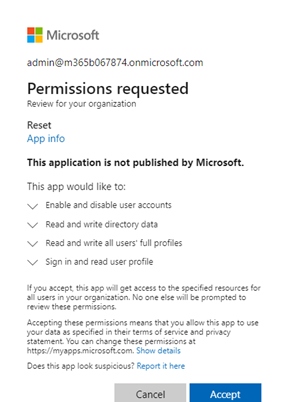
You may also need to consent to some permissions like:

image

If your user doesn’t have these. Permissions required are:

RoleManagement.Read.Directory
User.Read.All

The list of tenant global admins will be held in the variable $globaladminsummary at the completion of this script.

KQL Query to report failed login by country

If you are interested to see how many failed logins your Microsoft 365 environment has had in the past 30 days you can run the following KQL query in Sentinel:

SigninLogs
| where ResultType == 50126
| where TimeGenerated >= ago(30d)
| extend Country = tostring(LocationDetails[“countryOrRegion”])
| summarize FailedLoginsCount = count() by Country
| order by FailedLoginsCount desc

you can then make a slight change and get all the successful logins

SigninLogs
| where ResultType == 0
| where TimeGenerated >= ago(30d)
| extend Country = tostring(LocationDetails[“countryOrRegion”])
| summarize LoginsCount = count() by Country
| order by LoginsCount desc

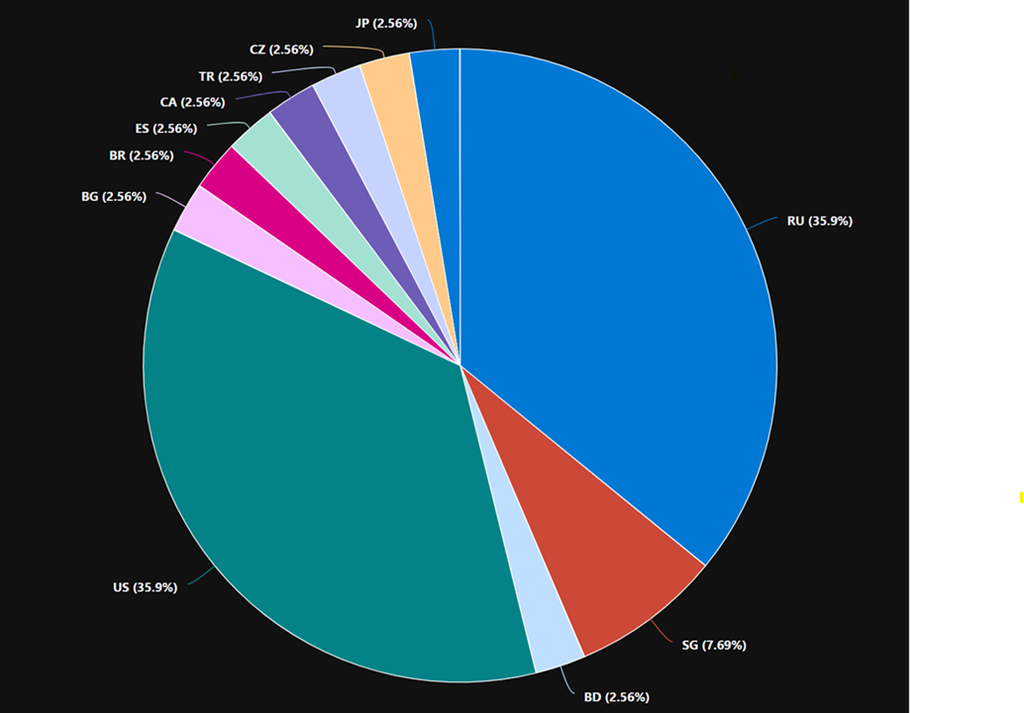
In my case, I found that only around 1% of my total logins were failed logins and all of these came from countries outside Australia.

Here is also a visualisation of the location of failed logins by country

image

Note: if you copy and paste directly from here you will probably have the change the “ around countryorregion when you paste into your own environment as teh wrong “ gets taken across!

Connecting Defender EASM logs to Sentinel workspace

A very important security task is to ensure you are collecting all the logging data for your services and sending them to a central location for storage and analysis.

Here’s how you can send the logs from Defender EASM into Sentinel.

You’ll need to have already established both Sentinel and Defender EASM instances. Underneath Sentinel is a Log Analytics Workspace that is where all the logging data for Sentinel is accumulated. It is into this workspace that the Defender EASM logs will be sent.

image

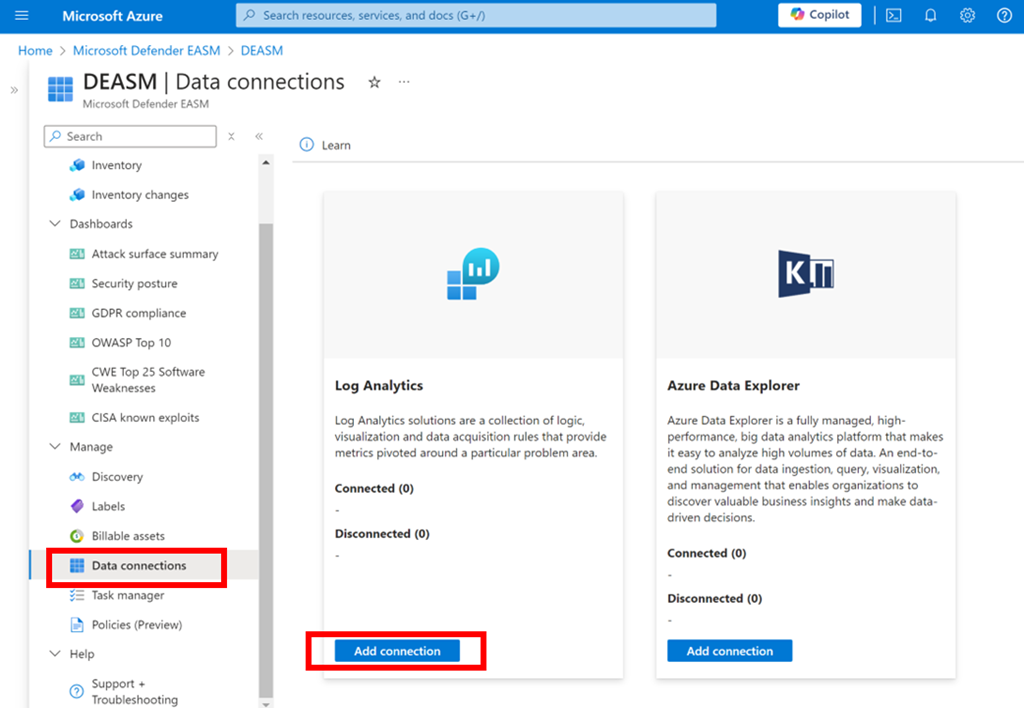
Log in to the Azure portal and navigate to Defender EASM as shown above. Select the Data connections option from the menu on the left. From the window that appears on the right select Add connection under Log Analytics as shown.

image

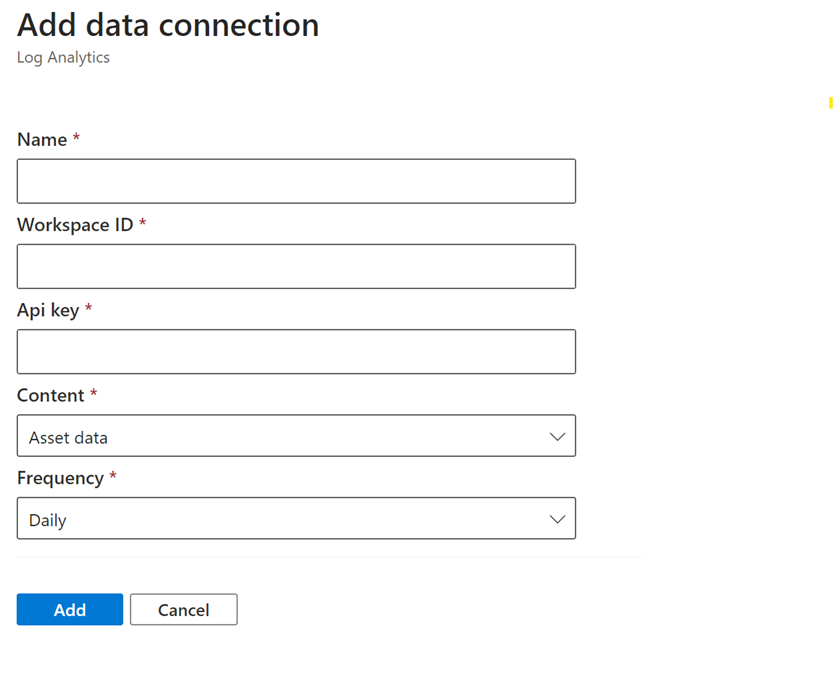
A dialog will appear from the right hand side prompting you for further information as shown above.

Open a new browser tab and navigate to Sentinel.

image

Select the Settings option at the bottom of the menu on the left hand side as shown above. From the windows that appears on the right select Workspace settings as shown.

image

In the Log analytics workspace for Sentinel select the Agents option under Settings from the menu on the left as shown.

In the window that appears on the right you will find both the Workspace ID and an API key as shown. Both of these will be required back in the Defender EASM connectors page.

image

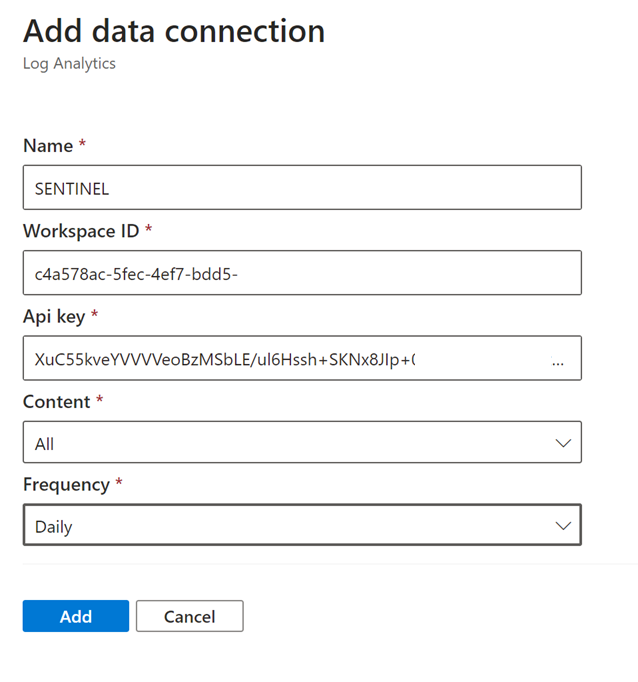
Return to the Defender EASM connectors page configuration and give this connection an appropriate Name. Enter the Workspace ID and Api key from the Sentinel Log Analytics page. Select All content and Daily for frequency.

Save these settings.

image

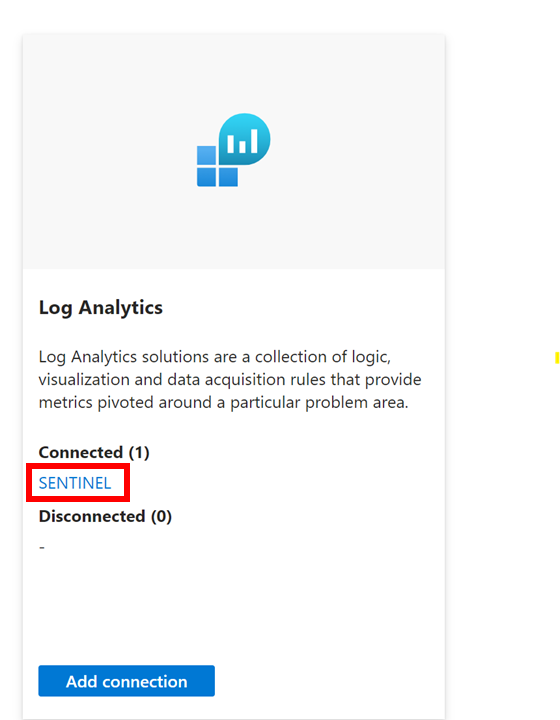
If everything is correct you should now see that the Log Analytics connexion now displays you settings under Connected as shown above.

The logs from Defender EASM will now start becoming available for you in Sentinel to use in things like KQL queries.

Need to Know podcast–Episode 321

Lots of news an updates after being a few weeks since last episode. Fear not however, they are all linked below. Plenty of really detailed and helpful articles from Microsoft of late, especially around security. All of which I highly recommend you spend time working through and implementing the recommendations. Also plenty of new features and products to cover so dive in and take a look.

You can listen directly to this episode at:

https://ciaops.podbean.com/e/episode-321-initiatives/

Subscribe via iTunes at:

https://itunes.apple.com/au/podcast/ciaops-need-to-know-podcasts/id406891445?mt=2

Don’t forget to give the show a rating as well as send me any feedback or suggestions you may have for the show.

Brought to you by www.ciaopspatron.com

Resources

@directorcia

Join my shared channel

CIAOPS merch store

Become a CIAOPS Patron

CIAOPS Blog

CIAOPS Brief

CIAOPSLabs

Support CIAOPS

Granular RBAC permissions for endpoint security workloads

How to break the token theft cyber-attack chain

Microsoft Incident Response lessons on preventing cloud identity compromise

How Copilot for Microsoft 365 Works

From pixels to presence: new features coming to Microsoft Mesh

How to unlock new experiences on your Copilot+ PC

Introduction to Cross-Tenant Mailbox Migrations

Copilot is now available in classic Outlook for Windows

Microsoft Incident Response tips for managing a mass password reset

Set default organization version limits for new document libraries and OneDrive accounts (Preview)

The guide to Microsoft Intune resources

Email Protection Basics in Microsoft 365: Bulk Email

Data security in Microsoft Copilot for Microsoft 365

Moving from AI experimentation to business breakthrough

Update on the Recall preview feature for Copilot+ PCs

Secure your business: Four ways Microsoft 365 for Business can help

The new Microsoft Planner is here! Streamline the planning, management, and execution of work

Announcing new Windows Autopilot onboarding experience for government and commercial customers

AI jailbreaks: What they are and how they can be mitigated

How Russia is trying to disrupt the 2024 Paris Olympic Games

Microsoft is again named the overall leader in the Forrester Wave for XDR

What’s New in Copilot | May 2024

Exploring Copilot for Security to Automate Incident Triage

Demystifying Microsoft Entra ID, Tenants and Azure Subscriptions

Moonstone Sleet emerges as new North Korean threat actor with new bag of tricks

Automatic attack disruption in Microsoft Defender XDR

Introducing Team Copilot

Missing devices in Windows Update for Business reports?

Defender for Cloud App connectors

An important piece of the security puzzle is to ensure everything that you have access to is enabled and configured fully. If you have any version of Defender for Cloud Apps you should verify that the signals from Microsoft 365 are feeding into Defender for Cloud Apps.

To verify or enable this connection fully navigate to:

http://security.microsoft.com

image

Open the Settings option from the menu on the left. From the options that appear on the right select Cloud Apps as shown above.

image

Then under the Connected Apps heading select App connectors as shown above. Ensure that connectors for Microsoft 365 and Microsoft Azure appear. If they don’t you can use the Connect an app option on the menu.

image

To verify the Microsoft 365 app is fully enabled locate the ellipse (three dots) on the right hand side of this connector and select it as shown above.

From the menu that appears select Edit Settings.

image

Ensure all the settings available to you are enabled as shown. Select the Connect to Office 365 button at the bottom of the dialog to save your settings and continue.

There is no addition cost to enabling these options and when you do you are able to monitor, audit and capture the logs for:

– Azure AD Users and Groups

– Azure AD Management events

– Azure AD Sign-in events

– Azure AD Apps

– Office 365 Activities

– Office 365 files

all thanks to Defender for Cloud apps.

Need to Know podcast–Episode 318

I’ve now had a chance to play with Copilot for Security and can recommend it but to ensure that costs don’t spiral out of control for SMB, it needs to used in an ad hoc manner. Listen along for my thoughts and a walk through of resources available for you. Also news of updates of Exchange email threshold limits being changed as well as improvements for Microsoft Mesh, Loop and more. Listen in for the latest updates.

You can listen directly to this episode at:

https://ciaops.podbean.com/e/episode-318-copilot-for-security-in-the-flesh/

Subscribe via iTunes at:

https://itunes.apple.com/au/podcast/ciaops-need-to-know-podcasts/id406891445?mt=2

Don’t forget to give the show a rating as well as send me any feedback or suggestions you may have for the show.

Brought to you by www.ciaopspatron.com

Resources

@directorcia

Join my shared channel

CIAOPS merch store

Become a CIAOPS Patron

CIAOPS Blog

CIAOPS Brief

CIAOPSLabs

Support CIAOPS

Microsoft Copilot for Security

Microsoft Copilot for Security Intune Plugin Overview

How to Become a Microsoft Copilot for Security Ninja: The Complete Level 400 Training

Copilot for Security – The low down for SMB

Public Preview: High Volume Email for Microsoft 365

Exchange Online to introduce External Recipient Rate Limit

Hunting for QR Code AiTM Phishing and User Compromise

Microsoft Mesh: A new way to connect

Realigning global licensing for Microsoft 365

Improved task list components in Loop

Bringing the latest capabilities to Copilot for Microsoft 365 customers

Updates to Clipchamp that make video editing a breeze

Introducing “What’s New” in Microsoft Entra

Summary of podcast episode straight from Copilot for Microsoft 365:

Main ideas:

  • Podcast overview: The podcast provides news and information on the Microsoft Cloud, with a special focus on the SMB market. The host, Robert Crane, invites listeners to contact him via email, blog, YouTube, or shared channel.
  • New Azure service for security analysis: Microsoft copilot for security is an Azure service that leverages AI to assist security analysts and investigators. It uses a consumption billing model and can be turned on and off as required. It also supports plugins and custom documents to extend its capabilities.
  • Public preview of high volume email feature: Microsoft 365 customers can sign up for a public preview of high volume email, which allows them to send more emails than the existing mailbox limits. This feature is useful for SMBs who need to send newsletters or marketing campaigns to their customers.
  • Detection of QR code phishing attacks: QR code phishing is a technique that uses malicious QR codes to trick users into giving away their credentials. Microsoft provides some KQL queries that can be used in Defender for endpoint and Sentinel to detect and alert on these attacks.
  • Virtual reality platform for collaboration: Microsoft Mesh is a virtual reality platform that enables users to connect and collaborate in immersive 3D spaces. It requires a Teams premium license and a compatible device. It can be used for various purposes, such as training, events, or meetings.
  • Licensing changes for Microsoft 365 in the European Economic Area: Microsoft has agreed to separate Teams from the Microsoft 365 suite in the European Economic Area, to comply with competition rules. This means that Teams will be a separate add-on that needs to be purchased separately. Existing customers are not affected by this change.

Configuring a budget for Copilot for Security

Screenshot 2024-04-16 115152

I have previously detailed how Copilot for Security is an excellent tool for SMB:

Copilot for Security – The lowdown for SMB

One of the major things that SMB need to pay very close attention to is the cost of Copilot for Security, given that it needs to be used in an ‘on-demand’ manner to be cost effective for smaller businesses. A good way to keep abreast of those costs is to use Budgets in Azure.

My recommendation is that you configure Copilot for Security in its own Azure Resource Group so that costs and permissions are easier to manage. Inside this dedicated Copilot for Security Resource Group you can attach a budget with notification. To this, navigate to the Azure Resource Group where Copilot for Security is provisioned. Locate the Budgets menu item on the left under the heading Cost Management as shown above. On the right, select +Add from the menu across the top.

Screenshot 2024-04-16 121310

Give the budget a name, a reset period (typically monthly) and date range.

Screenshot 2024-04-16 121617

If you scroll down you’ll see that you can set a budget amount. Here I’m setting the budget to $150. Select the Next button at the bottom of the page to continue.

Screenshot 2024-04-16 121946

On the next screen you can configure a threshold alert level. Here I set that to 90% of my budget. This means I’ll start getting alerts about Copilot for Security when the cost reaches around $135. You can configure multiple thresholds if you wish.

You can also have the alert take automatic action via an Action Group (say shut down the resources), but I won’t cover this here.

A little further down you can configure the email you wish to receive the notification on. You can configure multiple emails to receive notifications if you wish.

Scroll to the bottom of the page and select the Create button.

Screenshot 2024-04-16 122404

You should now see the budget you just created as shown above. You can click on the name for more details.

Screenshot 2024-04-16 122538

You can also edit and delete the configuration here if you wish.

Now, when you exceed the thresholds you set in this budget, you’ll get an email notification that your spending on Copilot for Security has reached the threshold you set.