Adafruit Huzzah Wifi

My last IoT challenge was to get an

External flashing LED

working and the next was to get the Adafruit Huzzah with ESP8266 to connect to Wifi. To do that I found most the required code here:

https://learn.adafruit.com/adafruit-feather-huzzah-esp8266/using-arduino-ide#connecting-via-wifi

and I’ve put my code on my Github here:

https://github.com/directorcia/Azure/blob/master/Iot/huzzah-wifi.c

You’ll need to put in your own WiFi access point details at the top of the code to connect to your own environment.

This script uses a lot of commands like:

serial.println

which basically outputs text to a serial port. This allows much easier troubleshooting so you can see what is going on. To see this output you will however need a dedicated serial monitor console program. I started off using Putty:

https://putty.org/

which works great but upon reflection, I wanted to use something that was integrated directly into Visual Studio code. After some poking around I found this extension:

https://marketplace.visualstudio.com/items?itemName=ms-vscode.vscode-serial-monitor

which is from Microsoft and seems to do what I needed.

image

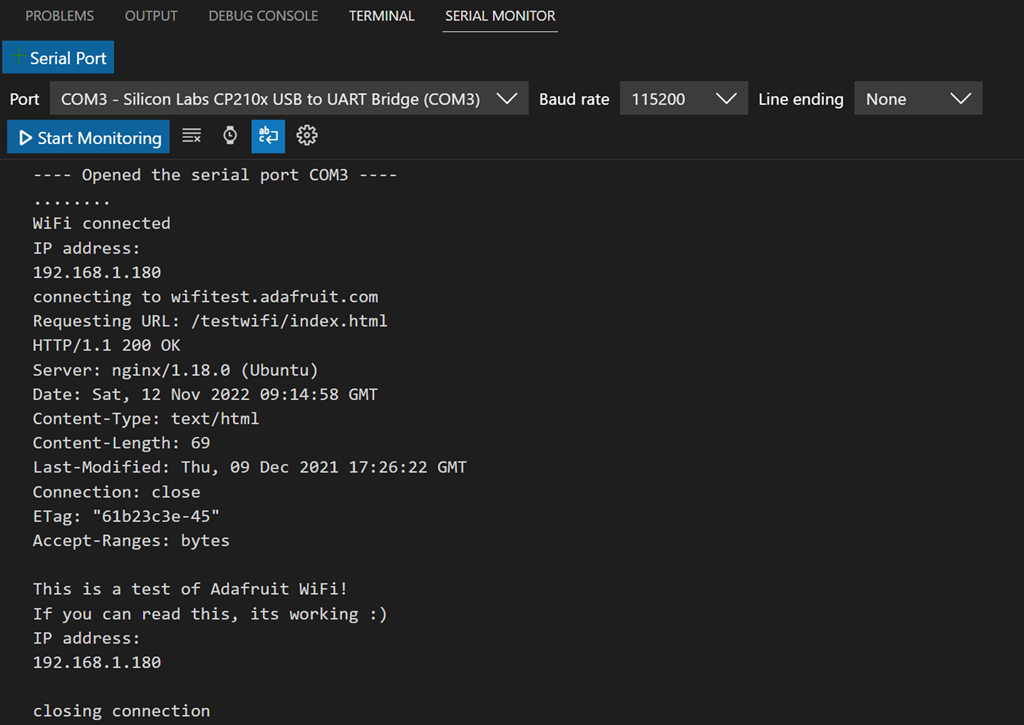
You can see the output from my code above in serial monitor. Always ensure you match the output port and baud rate in the serial monitor to the device you have (here COM3 and 115200). Configuring this is very easy with the serial monitor extension.

Without much alteration, I was able to take the initial code and easily connect to my network as well as the Internet. Once connected I could ping the Adafruit Huzzah with ESP8266 from another PC in the network. A pretty painless exercise. Nice that things are becoming a little easier now I’m becoming familiar with this stuff.

So far, all I’ve done is use the Adafruit Huzzah with ESP8266 for output. Next, I’ll be to start taking simple input into the device by reading something like a button press and then taking action on that.

Stay tuned for details on that soon.

External flashing LED

My first IoT project was to get the on board LED flashing which I achieved here:

Not as easy as IoT

With that accomplished, I now wanted to get an external LED flashing.

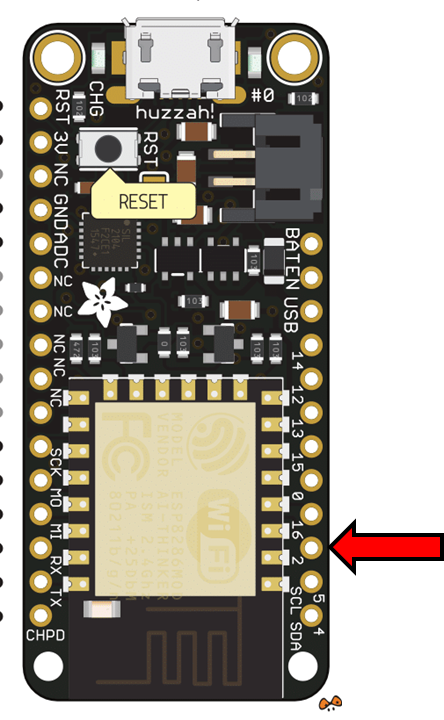
I firstly needed to pick a pin on the Adafruit device to control the output on.

image

I chose the third in from the bottom on the right which is PIN 2.

Next, I needed to work out the maximum output voltage for the Adafruit Feather Huzzah, which turns out to be 3.3 Volts. I also noted the following from the pin output specifications as well:

“be aware the maximum current drawn per pin is 12mA. 6mA recommended”

I also needed to take into account the voltage drop that would occur across the LED, which is around 0.7V. So the voltage for my calculation was now:

3.3V – 0.7V = 2.3V

To work out what resistor I needed to place in the circuit I used the good ole V= IR.

V=IR

R = V/I

R = 2.3 / 0.006

R = 433 ohms

I double checked my logic at:

http://www.anycalculator.com/ohmslaw.htm

I then went through the:

Microsoft Azure IoT Starter Kit w/ Adafruit Feather HUZZAH

I had bought to see what resistors were included. In there I found a 560 ohm resistor. If you need to check your resistor markings like I did, you can use:

https://byjus.com/physics/resistor-colour-codes/

to help discern what you have.

A 560 ohm resistor would means my current would be:

I = V / R

I = 2.3 / 560

I = 4.1 milliamps (well below the 6 milliamp recommendation)

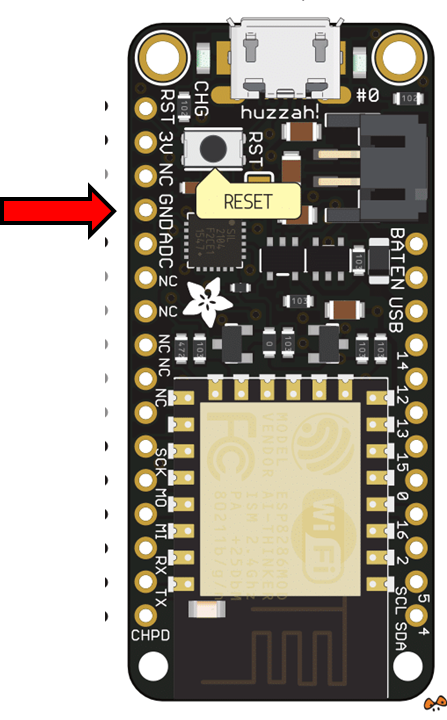
All I needed now was to find the ground for the Adafruit

image

which turned out to be the fourth pin from the top on the left.

I therefore wired up the output from pin 2 on the Adafruit, through the LED, through the resistor and then to ground, completing the circuit.

Now for the code to make it flash.

#include <Arduino.h>

int LED_Pin = 2;

int status = 1;

void setup(){

pinMode(LED_Pin, OUTPUT);

}

void loop() {

  // put your main code here, to run repeatedly:

if (status) {

digitalWrite(LED_Pin, HIGH);

  } else {

digitalWrite(LED_Pin, LOW);

  }

status = 1-status;

delay (1000);

}

which is basically the same as before, except the LED_pin now is set to 2. The code is at:

https://github.com/directorcia/Azure/blob/master/Iot/huzzah-ext-flash-led.c

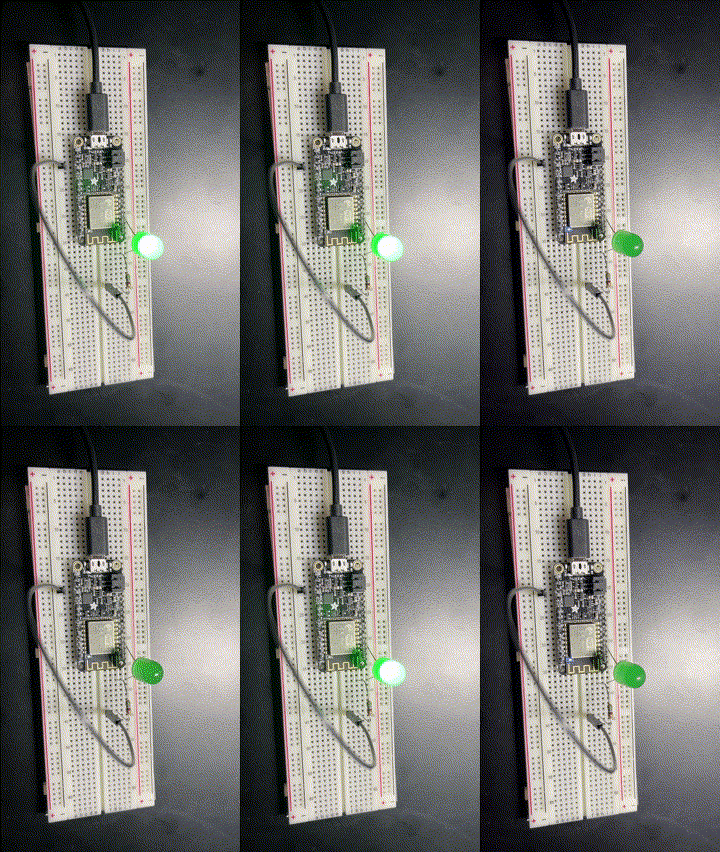
Using PlatformIO IDE I uploaded my code to the Adafruit and after a few minutes was greeted by:

iot-flash

Magic eh?

Sure it’s simple but it’s another step along my IoT journey.

Techwerks 18

bw-car-vehicle

I am happy to announce that Techwerks 18 will be held in Brisbane CBD on Thursday November 10th 2022

The course is limited to 20 people and you can sign up and reserve your place now! You reserve a place by completing this form:

http://bit.ly/ciaopsroi

or by sending me an email (director@ciaops.com) expressing your interest.

The content of these all day face to face workshops is driven by the attendees. That means we cover exactly what people want to see and focus on doing hands on, real world scenarios. Attendees can vote on topics they’d like to see covered prior to the day and we continue to target exactly what the small group of attendees wants to see. Thus, this is an excellent way to get really deep into the technology and have all the questions you’ve been dying to know answered. Typically, the event produces a number of best practice take aways for each attendee. So far, the greatest votes are for deeper dives into the Microsoft Cloud including Microsoft 365, Azure, Intune, Defender for Endpoint, security such as Azure Sentinel and PowerShell configuration and scripts, with a focus on enabling the technology in SMB businesses.

Recent testimonial – “I just wanted to say a big thank you to Robert for the Brisbane Techworks day. It is such a good format with each attendee asking what matters them and the whole interactive nature of the day. So much better than death by PowerPoint.” – Mike H.

The cost to attend is:

Gold Enterprise Patron = Free

Gold Patron = $33 inc GST

Silver Patron = $99 inc GST

Bronze Patron = $176 inc GST

Non Patron = $399 inc GST

I hope to see you there.

Not as easy is IoT

I wanted to start playing with IoT and connecting it up to Azure after being inspired by some previous guests on my podcast (Bryn Lewis and Lars Klint). I did a search for something like ‘Azure IoT starter kit’ and the following popped up:
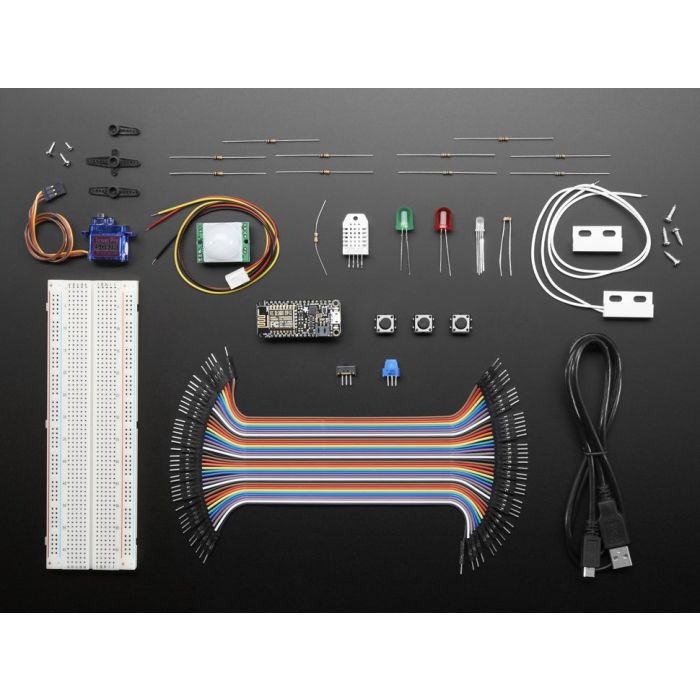
Microsoft Azure IoT Starter Kit w/ Adafruit Feather HUZZAH

Microsoft Azure IoT Starter Kit w/ Adafruit Feather HUZZAH

So I ordered it. I was looking forward to getting back to my Electrical Engineering roots with this IoT stuff.

A few weeks later (it did take quite a while to arrive) I opened the kit to see what was inside. To my dismay, there wasn’t very much in the ways of instructions. Yes, all the parts where there, but nothing to tell me how to make it all work.

The kit provider did have the following tutorial available:

https://learn.adafruit.com/adafruit-feather-huzzah-esp8266/overview

but it didn’t show me how to actually get my code into the device. That then lead me to the

Arduino IDE

but there wasn’t a lot of positive feedback on it and really wanted to use something I was more familiar with. Luckily, I had a contact who had done some basic IoT and told me I could user Visual Studio Code! Yes please. I like that because I use with with PowerShell nearly everyday.

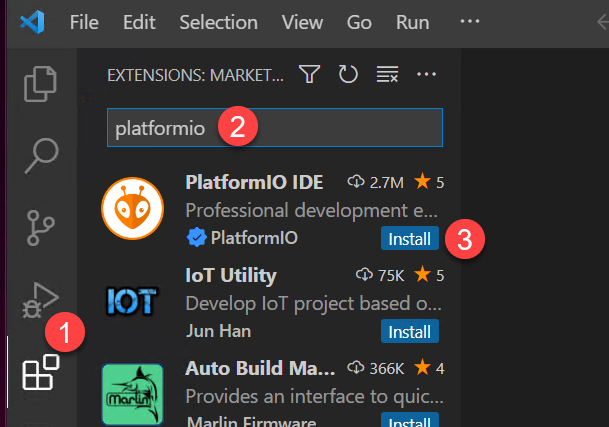
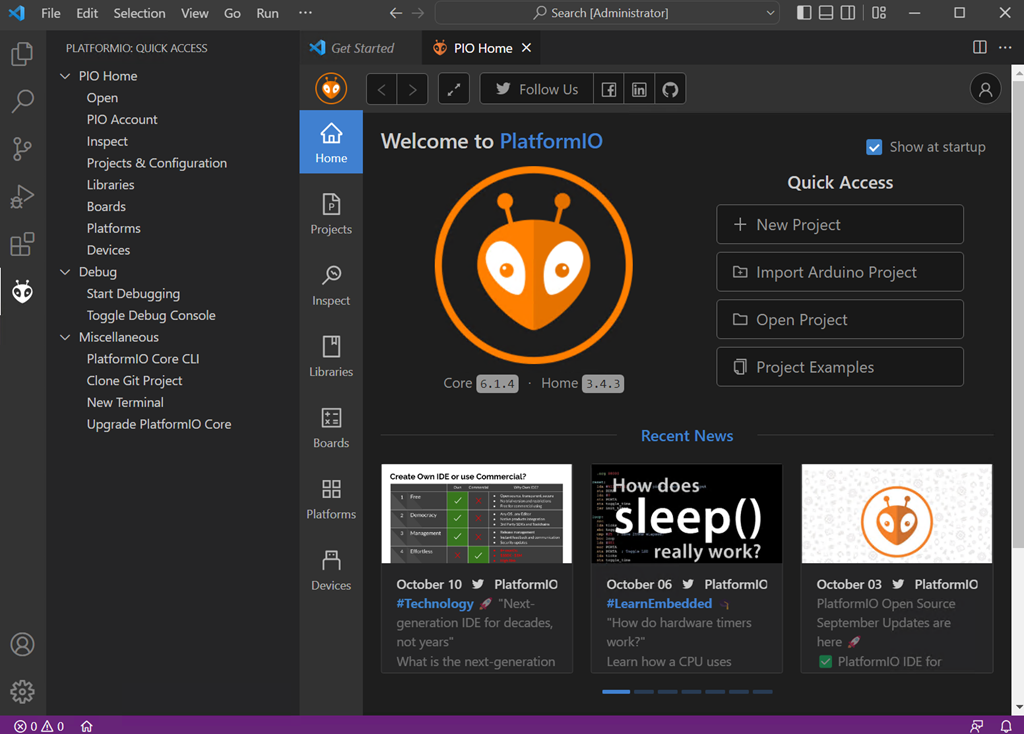
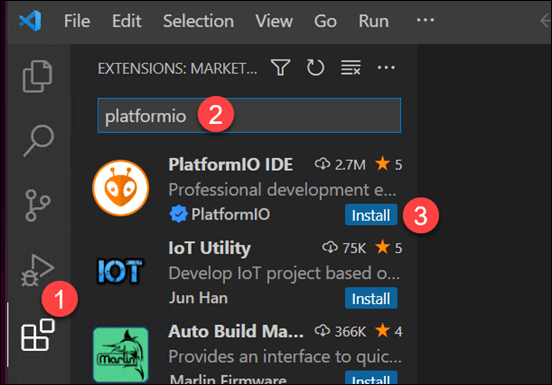
What I needed to do after firing up Visual Studio code was to search and install an extension called Platformio IDE:

https://docs.platformio.org/en/latest/integration/ide/vscode.html#quick-start
image

It popped right up so I pressed the install button.

Unfortunately, the installation came up with some errors, but I was kind of expecting that because I was installing on a machine that was connected to my Azure AD and locked down with things like Windows ASR. Thus, after many, many attempts at trying to get the installation working and then create a project I moved to using a machine that was NOT connected to my Azure AD and locked down to the hilt. The installation then went smoothly unsurprisingly.
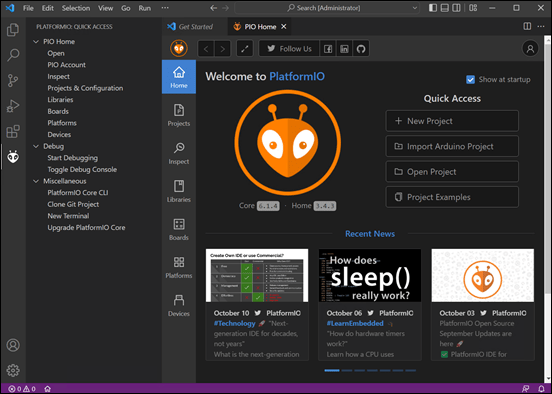
image

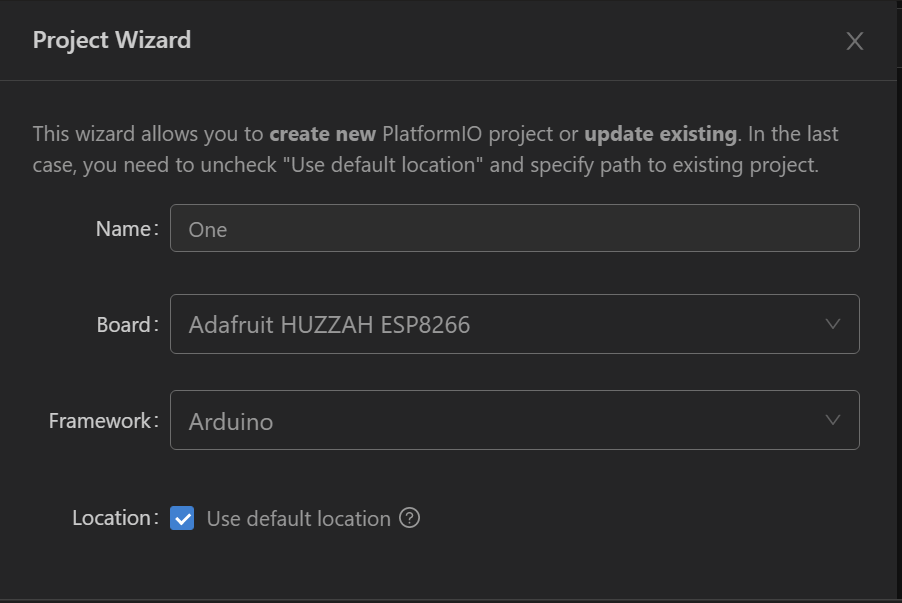
With PlatformIO IDE installed I went to create a Project.
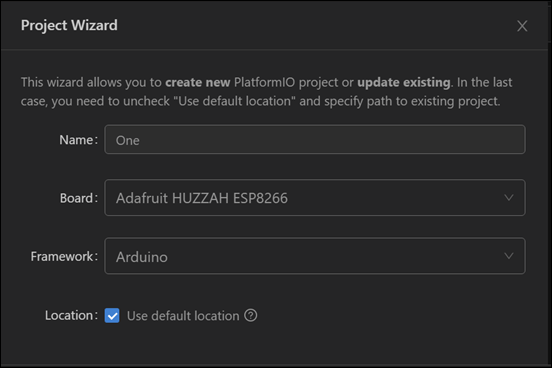
image

I used the above settings. Warning, the platform supports a huge range of boards (1400+) so ensure you know the exact model of your board and be prepared to scroll.

With the project created I now needed to write some code to get the built in light on the board to flash. I used the following:

#include <Arduino.h>

int LED_Pin = 0;

int status = 1;

void setup(){

pinMode(LED_Pin, OUTPUT);

}

void loop() {

  // put your main code here, to run repeatedly:

if (status) {

digitalWrite(LED_Pin, HIGH);

  } else {

digitalWrite(LED_Pin, LOW);

  }

status = 1-status;

delay (1000);

}

Which I found after some searching. I have put the code up on GitHub if you want it:

https://github.com/directorcia/Azure/blob/master/Iot/huzzah-flash-led.c

I managed to get that code to compile but it would then not ‘upload’ to the device.

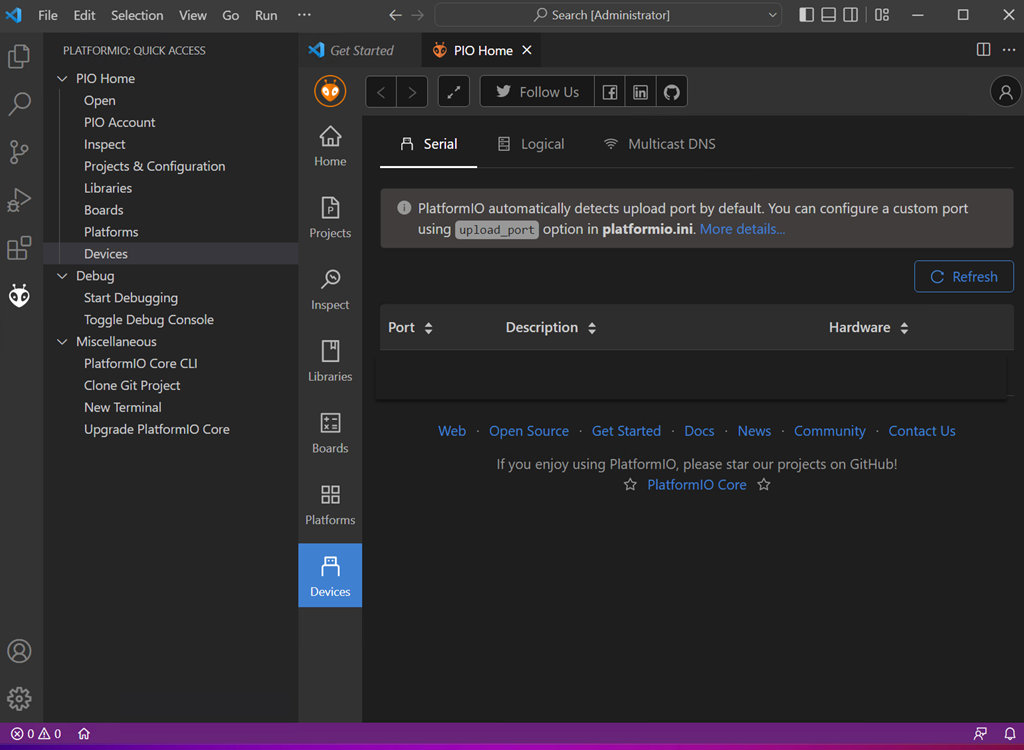
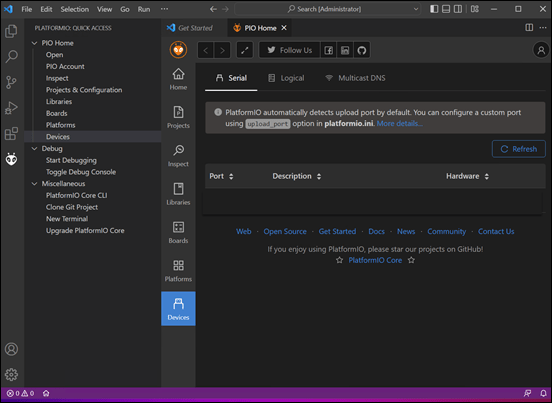
After more searching I discovered that PlatformIO wasn’t showing me any devices like so:
image

If PlatformIO can’t see my device, then it can’t upload to it.

After more searching around I found the following Windows drivers for the board here:

https://learn.adafruit.com/adafruit-arduino-ide-setup/windows-driver-installation

Typically, it seems you shouldn’t really need to manually install drivers on Windows 10/11, but in my case, I did.

With the drivers now installed I could see the board listed as a device in PlatformIO like so:

image

With the drivers now sorted, I could finally upload my code to the device successfully.

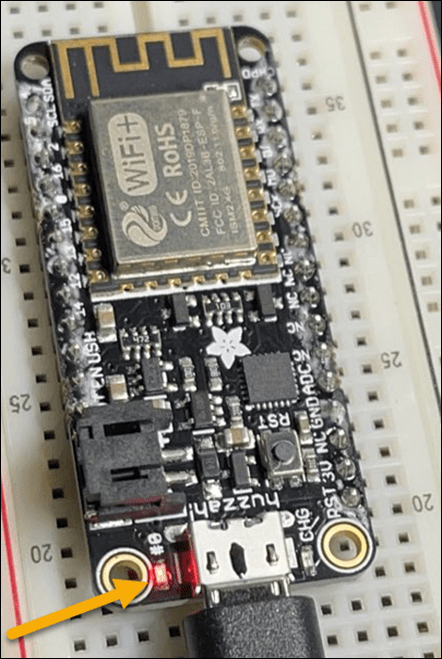
The code I found that would flash the light on the device on and off as the most basic test didn’t seem to do anything after it was uploaded. The trick was that the code I found had the LED_Pin = 13 and luckily, after that didn’t work I guessed correctly setting it to LED_Pin = 0 would as you can see from the code above that I actually used.
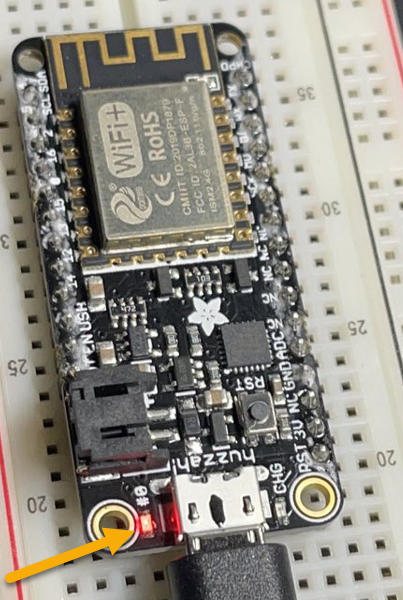
image

After, uploading the updated code to the device I was then rewarded with a flashing light at the base of the device near the USB connection as shown above. I know it doesn’t look like much but to me it was a huge step after all the time I had invested getting things set up (many hours).

Now that I have the basics working, my next project is to get the WIFI connectivity on device working so I can connect it up to the Internet and then hopefully Azure eventually.

I do have to say that getting this far has been far harder than I imagined it would be. I didn’t find a lot of information out there to help solve my problems. That’s why I’m documenting my results here so that others can find it and hopefully not have to go through the same pain I did.

I’m sure there’ll be more pain coming as I try and do more advanced things with the device but at least getting the light flashing gives me the encouragement to continue with this endeavour and not feel that I wasted my money. I’ll share more in time as I continue my IoT journey, but for now, I need a lie down.

Power Platform PAYG configuration

I have spoken about how to

Set up PAYG for Power Platform

I was therefore puzzled when I saw this error in a Flow I created with premium connectors recently

Screenshot 2022-10-11 105235

“… does not have a standard service plan adequate for non-Standard connection”

It was my understanding that Power Platform PAYG would handle this. However, when you read the following documentation it says:

Only production or sandbox environments are available to add to billing policies at this time. Trial environments, developer environments, Dataverse for Teams environments, and default environments cannot be added.

Ok, that means I need to create a new Power Platform Environment and add that to the Power Platform PAYG billing policy.

image

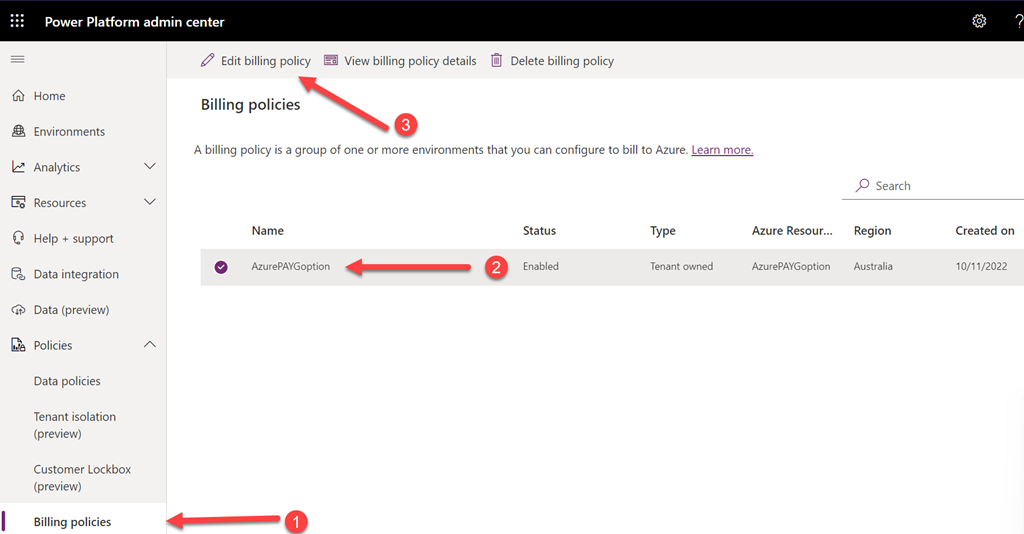
So into the Power Platform Admin center I went. Selecting Billing policies from the Policies option on the left. The direct URL is:

https://admin.powerplatform.microsoft.com/billingpolicies

I then selected the PAYG billing policy I had previously created and then I selected Edit billing policy at the top of the page.

image

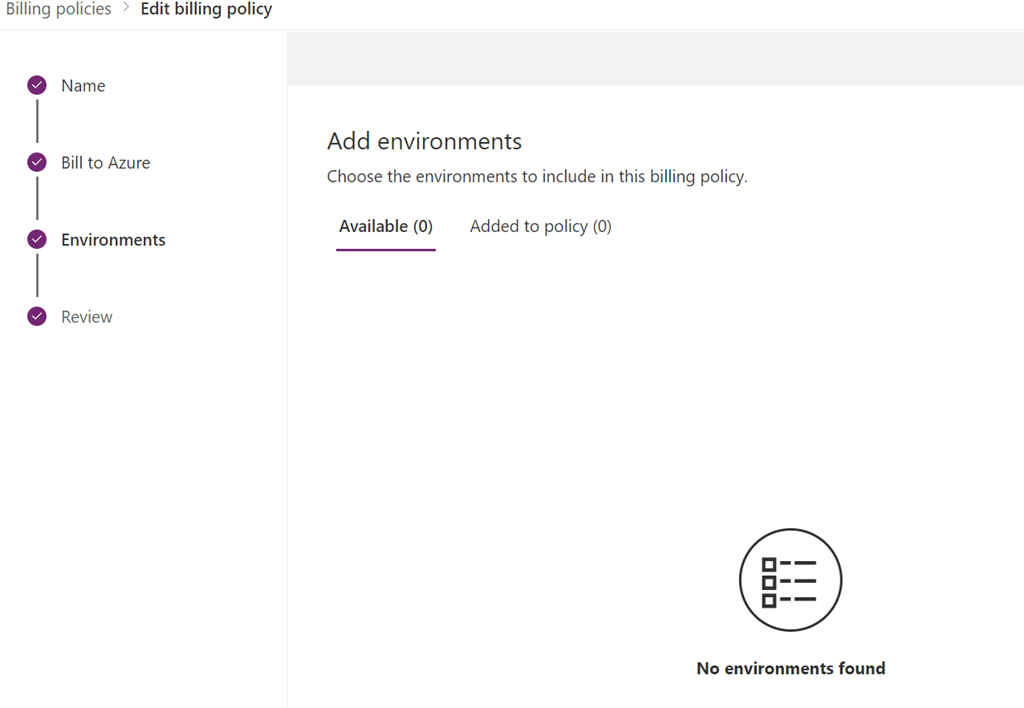
Sure enough, in the Environments section (shown above) I had nothing in there, so no billing was actually happening against the PAYG policy.

image

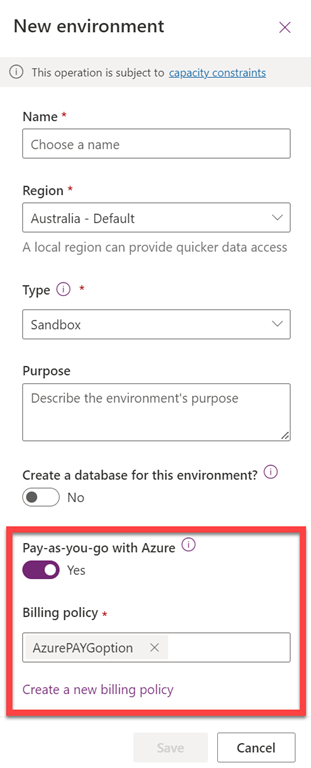
If I now create a New environment in the Power Platform you can see down the bottom there the option to use Pay-as-you-go with Azure. Here you can select an existing PAYG policy as well as create a new one if desired.

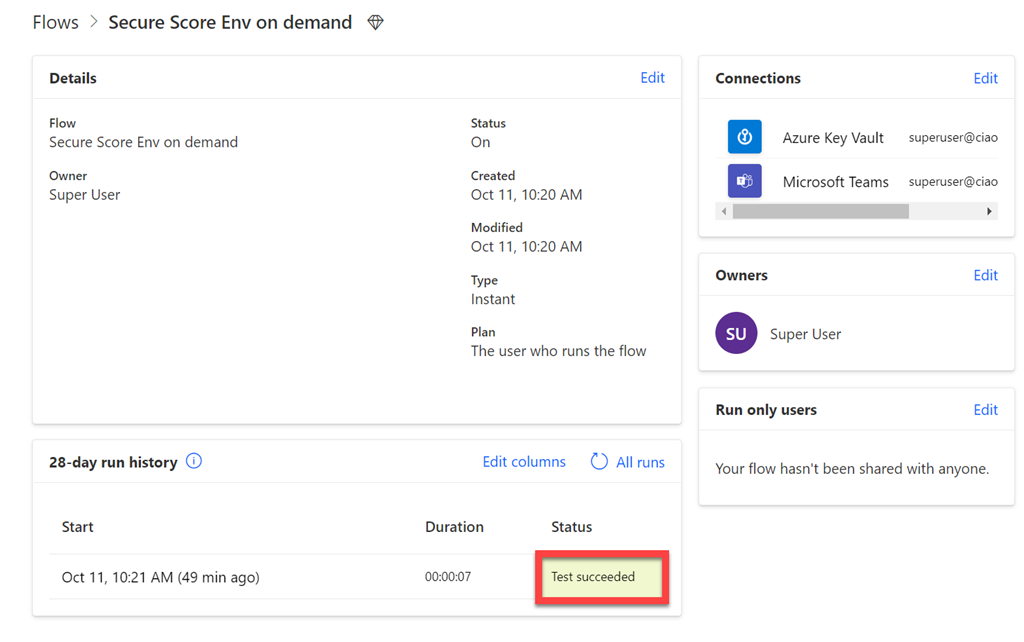
With a new environment created, I exported and imported the Flow I had created previously in the default environment into this new environment with PAYG billing now enabled

image

and it ran successfully! Yeah!

So the moral of the story with the Power Platform pay as you go option is that it will not work against the default environment, you need to create a new environment and specify the PAYG option at the point of creation.

image

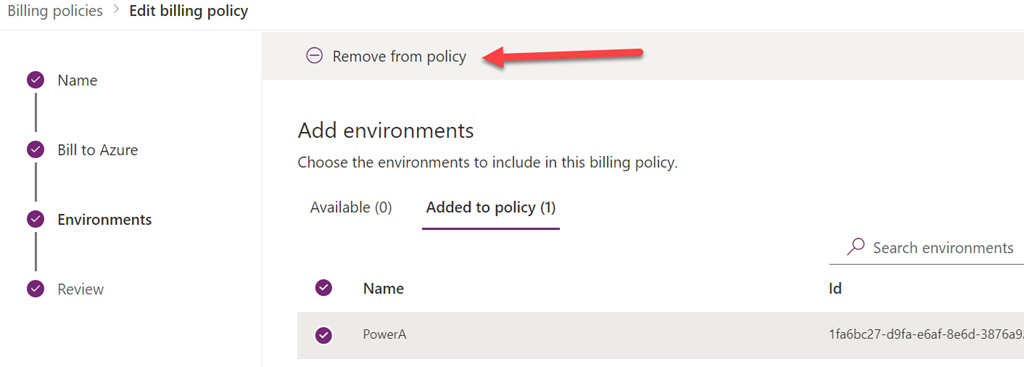
It is also possible to remove the environment you added to the PAYG policy at any point by editing the policy and selecting Remove from policy as shown above at the Environments stage after selecting the environment in the Added to policy menu option.

Avoid MFA fatigue attacks in Microsoft 365

A MFA fatigue attack is where an attacker will constantly attempt to login as the user causing an MFA request to appear on the users device. If this request is simply to deny or approve, and with enough requests, the user eventually approves to make theses requests go away. Such an attack recently provided very successful at Uber. You can read more about that incident here:

https://www.uber.com/newsroom/security-update

With MFA in Microsoft 365 and the Microsoft Authenticator app you can avoid this by enabling number matching for push notifications. Here’s how to do it:

image

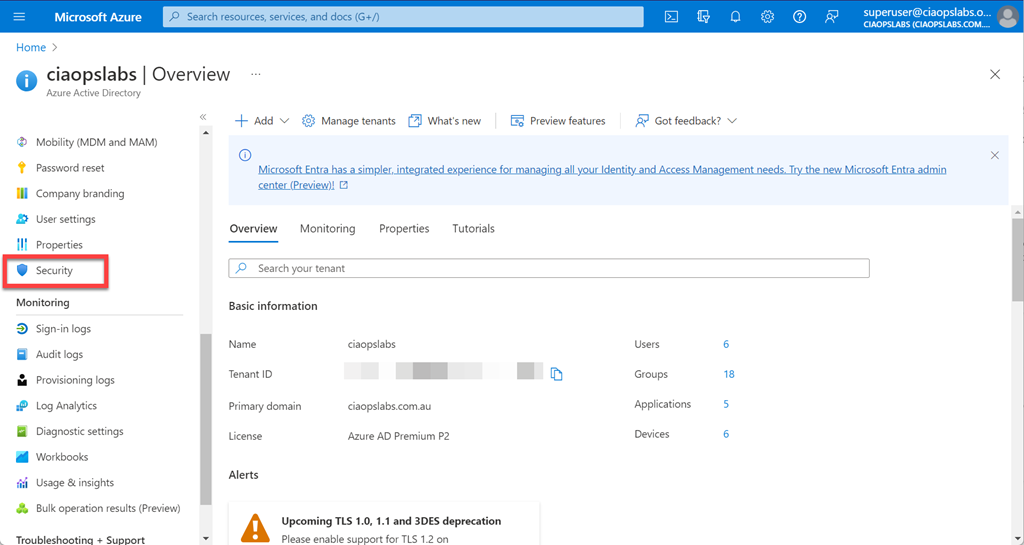
Navigate to the Azure portal as an administrator and then to Azure Active Directory. Here, select Security from the menu on the left as shown above.

image

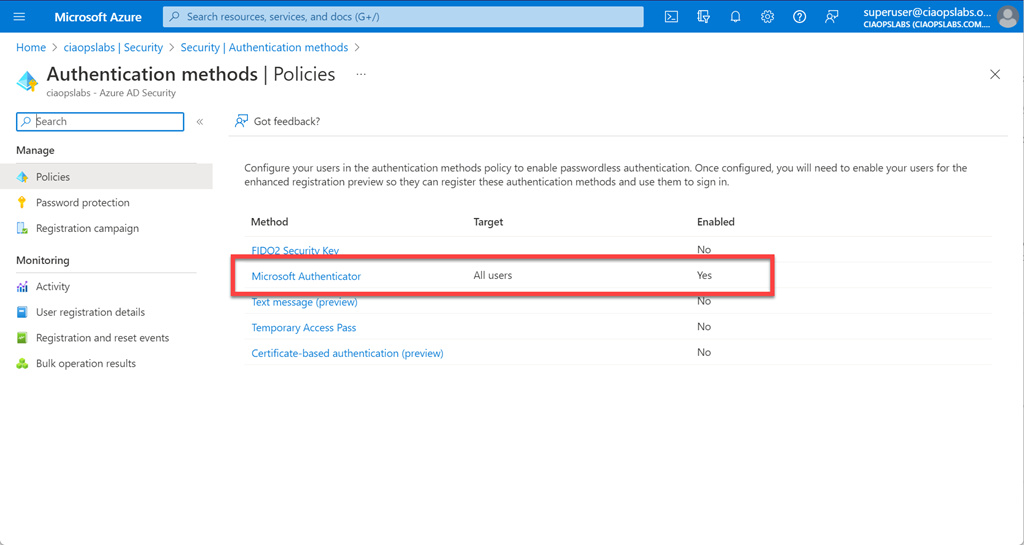
Here, select Authentication methods as shown above on the left.

image

Now select Microsoft Authenticator on the right.

image

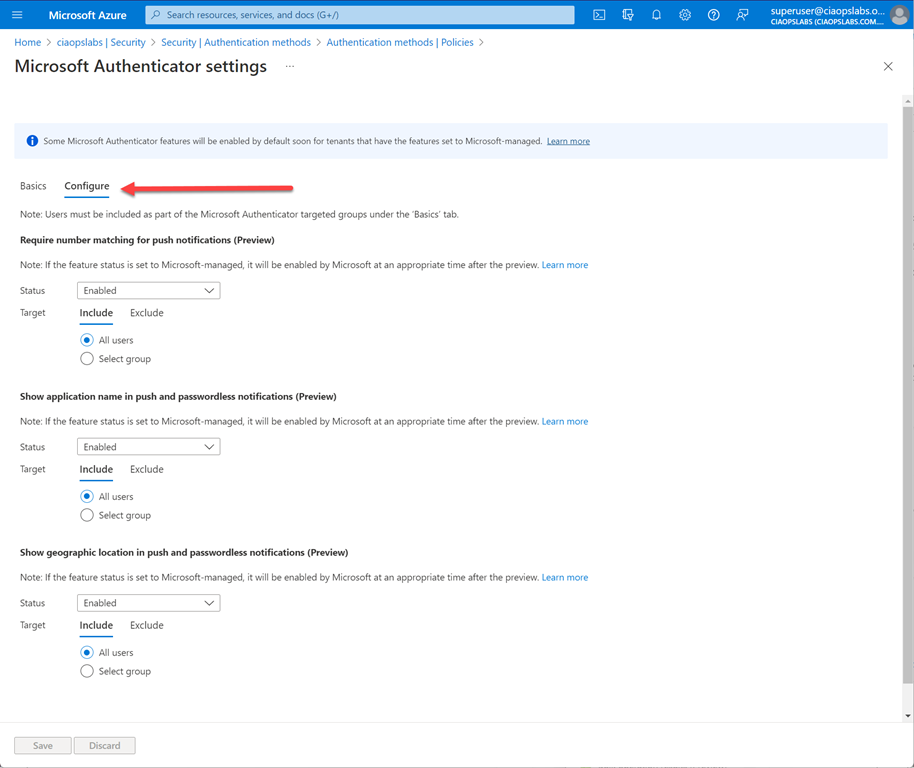
Select Configure at the top of the page and ensure all the options listed are Enabled for all users. You may want to exclude any break-glass accounts though.

image

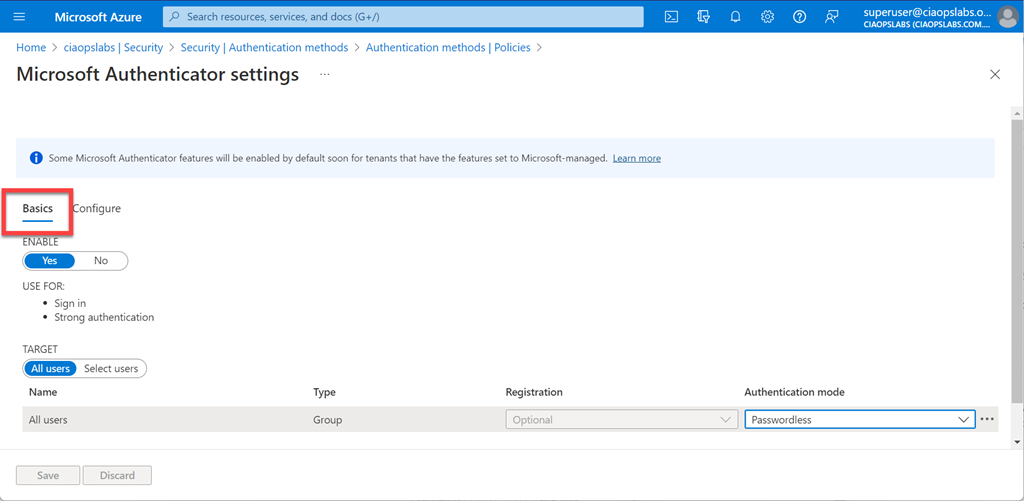
Back on the Basic tab, as shown above, ensure you have Enable set to Yes and you target all the desired users with Passwordless.

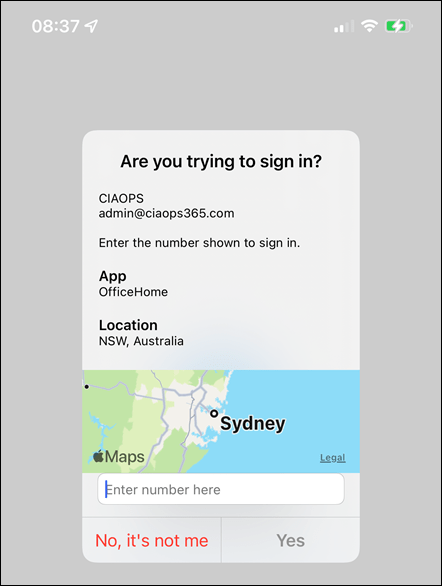
IMG_1151

Now, when users are prompted for MFA they will see the above on their devices and need to type the number that is on the screen into their device to approve the login. They will also see the geographic location the request came from and application requesting as shown above.

If you want to check yoru environment for MFA fatigue attacks you can use this KQL query in Sentinel:

https://github.com/reprise99/Sentinel-Queries/blob/main/Azure%20Active%20Directory/Identity-PotentialMFASpam.kql

Online security is something that requires constant adjustment as the bad actors adapt to the protection methods put in place. Number matching in Microsoft 365 is quick and easy to set up using the Microsoft Authenticator and the recommended approach you should take to avoid MFA fatigue attacks.

Techwerks 17

bw-car-vehicle

I am happy to announce that Techwerks 17 will be held in Melbourne CBD on Thursday September 29th 2022

The course is limited to 20 people and you can sign up and reserve your place now! You reserve a place by completing this form:

http://bit.ly/ciaopsroi

or by sending me an email (director@ciaops.com) expressing your interest.

The content of these all day face to face workshops is driven by the attendees. That means we cover exactly what people want to see and focus on doing hands on, real world scenarios. Attendees can vote on topics they’d like to see covered prior to the day and we continue to target exactly what the small group of attendees wants to see. Thus, this is an excellent way to get really deep into the technology and have all the questions you’ve been dying to know answered. Typically, the event produces a number of best practice take aways for each attendee. So far, the greatest votes are for deeper dives into the Microsoft Cloud including Microsoft 365, Azure, Intune, Defender for Endpoint, security such as Azure Sentinel and PowerShell configuration and scripts, with a focus on enabling the technology in SMB businesses.

Recent testimonial – “I just wanted to say a big thank you to Robert for the Brisbane Techworks day. It is such a good format with each attendee asking what matters them and the whole interactive nature of the day. So much better than death by PowerPoint.” – Mike H.

The cost to attend in Melbourne is:

Gold Enterprise Patron = Free

Gold Patron = $33 inc GST

Silver Patron = $99 inc GST

Bronze Patron = $176 inc GST

Non Patron = $399 inc GST

I hope to see you there.

Go get Defender EASM

As the MS documentation says:

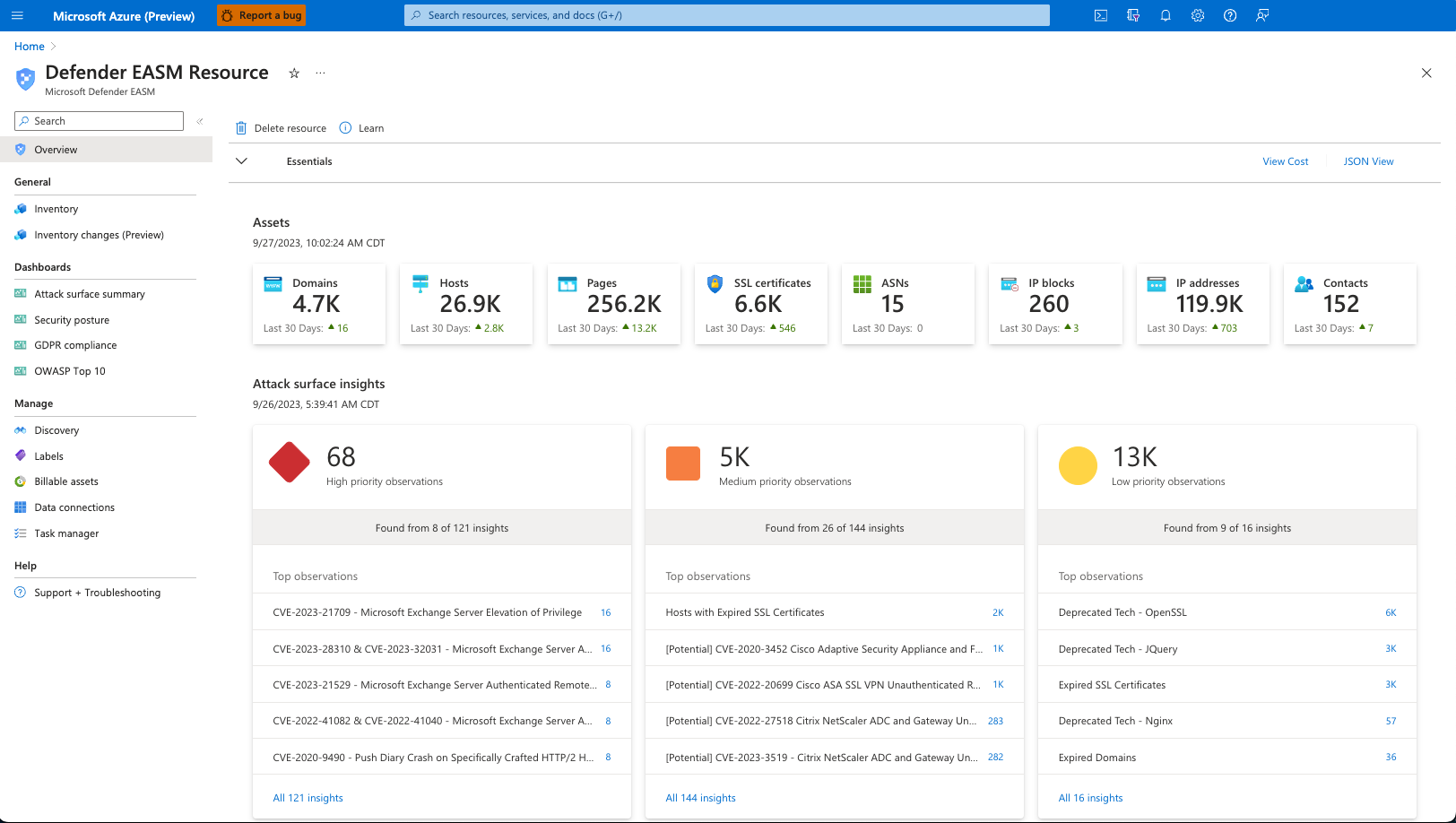
Microsoft Defender External Attack Surface Management (Defender EASM) continuously discovers and maps your digital attack surface to provide an external view of your online infrastructure.

Basically you plug in your resources like:

  • Domains

  • Hostnames

  • Web Pages

  • IP Blocks

  • IP Addresses

  • ASNs

  • SSL Certificates

  • WHOIS Contacts

Defender EASM will then use these as a ‘seed’ to search through public information and report back.

Screenshot of Overview Dashboard

You’ll then discover not only if you have any vulnerabilities in things like routers, web sites, etc but you’ll also probably find a whole swag of information that you didn’t know was out there.

In short, Defender EASM, acts as kind of a scheduled ‘penetration test’ for your environment, which I think is super handy

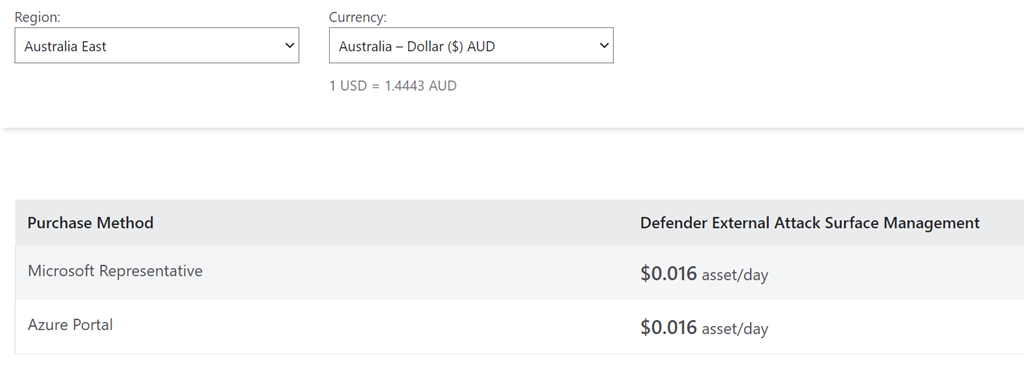
image

As you can see above, it ain’t very expensive either! To me that makes it a no-brainer. In my environment I have 40 odd discovered assets making the cost 64 cents a day and just over $19 per month! Peanuts for what it provides. Best of all, you also get a a free 30 day trial to see what it is all about.

Like Microsoft Sentinel back in the day, it is still early days for this service and I expect it to improve rapidly so now is the time to jump on board and start using it to get a feel for what it is all about. I certain have, and I encourage you to do the same.

Microsoft has documentation here:

Defender EASM Overview

if you want to read more.